





Sharing a Google Ads account looks like a two-minute job on paper. You add an email, pick a permission level, send the invite. Done.
But if you’ve ever managed a real agency setup, with campaign managers in different cities, a client who wants visibility, and a media buyer accessing the account from abroad, you already know it gets complicated fast. Verification prompts appear out of nowhere. Team members hit permission walls. Campaigns go under review for reasons that have nothing to do with the ads themselves.
This guide covers how Google Ads access actually works, which roles to assign to who, when to use a Manager Account instead of direct user access, and why the login environment your team uses matters just as much as the permissions you set. For teams managing multiple accounts across clients, see how these setups work at scale in our guide to multi-account management workflows.
Try Multilogin now and give every team member a stable, isolated login environment. Plans start at €5.85/month.
How Google Ads account access actually works
Google Ads does not support password sharing. The platform uses email-based, role-level access. Each person signs in with their own Google account, gets assigned a specific role, and can only do what that role permits.
There are two official access methods.
Direct user access adds someone inside a single Google Ads account. Works well for small internal teams or a freelancer brought in for a short campaign run.
Manager Account (MCC) access links a separate agency account to multiple client accounts. This is the structure built for agencies, consultants, and anyone managing campaigns across more than one brand.
Both methods are fully within Google’s terms of service. The choice between them comes down to how many accounts you’re managing and who needs what level of control.
Google Ads user roles: which one to assign
Getting the role wrong creates friction before a single campaign launches. Here’s what each level actually does:
- Admin has full control: user management, billing, and every account setting. This role should only go to the account owner. Giving Admin to an agency or freelancer means they can remove other users, change billing, or lock you out.
- Standard is the right level for active campaign managers. They can create and edit campaigns, run reports, and manage the account day-to-day. They cannot touch billing or user management. Most agencies, freelancers, and in-house media buyers work at Standard access.
- Read-only lets someone see everything without making any changes. Useful for clients who want campaign visibility without the ability to accidentally pause something, or for auditors doing a one-time review.
- Billing is a standalone role for whoever needs to manage payment details. It’s not bundled into Standard, so if an agency handles invoicing, they need Billing separately from campaign access.
- Email-only means the person receives scheduled reports by email but never actually logs in. Good for stakeholders who want visibility but don’t need the account itself.
The practical rule for most agencies: everyone who actively touches campaigns gets Standard. Clients get Read-only. Nobody gets Admin except the account owner.
How to share a Google Ads account (step by step)
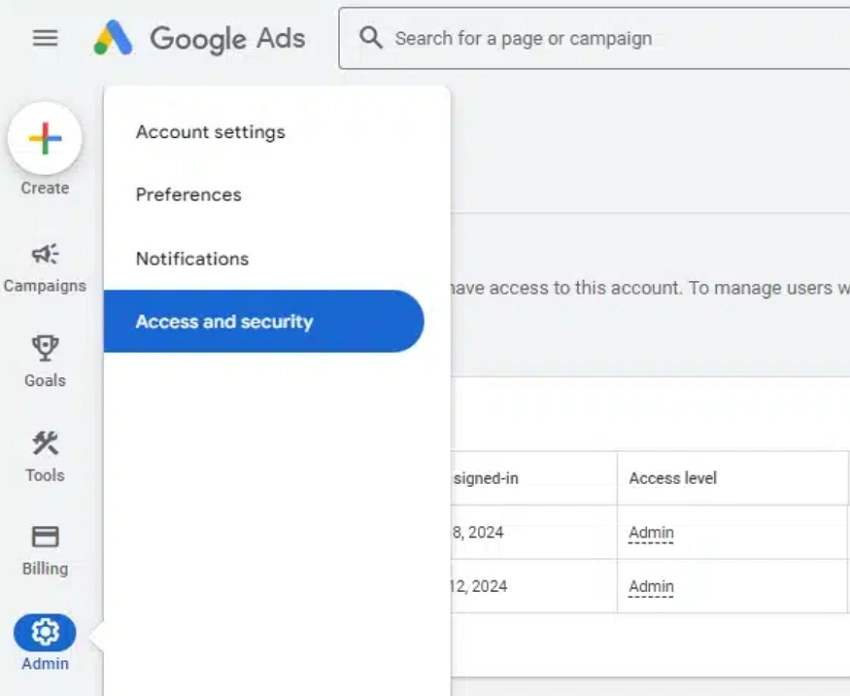
- Log in to the Google Ads account you want to share.
- Click Tools and Settings in the top navigation bar (the wrench icon).
- Go to Access and security.
- Click the blue + button to add a new user.
- Enter the person’s email address.
- Select the appropriate access role.
- Click Send invitation.
The person receives an email invite from Google Ads and needs to accept it before their access becomes active. If they don’t receive it, ask them to check their spam folder and confirm you used the correct email. You can resend from the same Access and security panel at any time.
Editing or removing access is handled on the same page. Click the access level next to a user’s name to change their role, or click Revoke access to remove them entirely. Both changes apply immediately.
When to use a Manager Account (MCC) instead
If you’re managing campaigns for more than two or three clients, direct user access gets messy quickly. A Manager Account (also called an MCC, for My Client Center) is the agency-grade alternative.
Instead of being listed as a named user inside every client account, your agency links its Manager Account to each client account. One dashboard, full campaign visibility, without being buried in individual account settings.
How to link an account to your MCC:
- Log in to your Manager Account at ads.google.com.
- Copy your 10-digit Manager Account ID from the top navigation bar.
- Open the client’s Google Ads account.
- Go to Settings, then Access and security, then Manager accounts.
- Enter your Manager Account ID and send a link request.
- The client approves the request from their account.
After linking, you can manage campaigns from your Manager Account without needing to appear as a direct user inside the client account. One MCC can manage up to 85,000 accounts, which is more than enough headroom for even large agencies.
Use direct user access for small internal teams and short-term freelancer collaborations. Use MCC for any ongoing agency relationship involving multiple clients. It’s cleaner, easier to audit, and simpler to revoke when a client relationship ends.
Teams running paid advertising alongside other ad platforms can also pair this with unlimited Facebook ad accounts managed through Multilogin for a unified multi-platform workflow.
The login environment problem most guides ignore
Here’s the part almost no Google Ads sharing guide actually addresses: your permissions can be perfectly configured and you can still trigger account reviews. Not because the roles are wrong, but because of how the logins look to Google.
Google tracks far more than who is logged in. It looks at where logins originate, what browser environment is being used, whether the device fingerprint matches previous sessions, and whether IP addresses shift dramatically between access attempts.
When a shared Google Ads account is accessed from different countries in the same week, using completely different browser setups, Google’s systems see erratic behavior, not a legitimate team. Understanding browser fingerprinting explains why: every browser session broadcasts a combination of signals that form a device identity. When those signals vary wildly between sessions on the same account, platforms notice.
Geolocation signals add another layer. An account regularly accessed from New York that suddenly shows sessions from Lagos, Berlin, and Manila in the same week will trigger risk-control systems even if every person accessing it has legitimate permission.
This is the reality for distributed agency teams. Someone in Lagos, someone in London, and someone in Manila are all legitimate users. But if their logins produce inconsistent device signals, Google treats the account like it’s being accessed improperly.
How Multilogin keeps shared Google Ads sessions stable
Multilogin is an antidetect browser built specifically for this kind of problem. Each browser profile in Multilogin has its own isolated environment: separate cookies, separate local storage, a unique and realistic browser fingerprint, and its own proxy configuration.
When your team uses Multilogin to access a shared Google Ads account, each person’s session looks like a consistent, dedicated device, not a random login from a new location. Google sees stable, recognizable behavior instead of erratic access patterns. That difference is what stops verification loops from triggering in the first place.
Pairing Multilogin profiles with residential proxies matched to each team member’s working location keeps the IP address consistent with where that login is expected to come from. A team member in Lagos can have a Lagos-based residential proxy assigned to their profile. Their login looks exactly like a regular Lagos-based user accessing the account.
This approach scales cleanly for agencies managing multiple Google Ads accounts across different clients. Each account gets its own profile with its own fingerprint and proxy, so accounts don’t get linked at the environment level even when managed by the same person.
Multilogin Cloud Phones for mobile ad management
Some agencies and media buyers manage Google Ads primarily from mobile devices, whether because campaigns involve mobile-first formats, because clients expect phone-based access, or because certain regional markets are dominated by mobile.
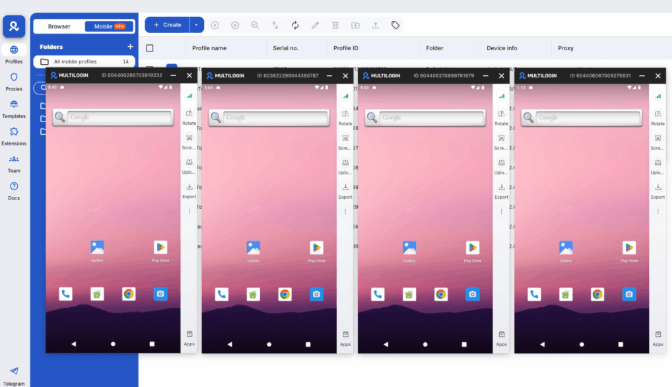
Multilogin Cloud Phones are real Android devices running in the cloud, each with a unique IMEI, Android ID, and device model. They’re paired with location-matched residential proxies, so each Cloud Phone presents as a completely independent physical device in a real location.
A Cloud Phone with a US-based residential proxy accessing a US Google Ads account looks like a genuine US-based mobile user, because functionally that’s what it is. There’s no shared hardware signature between devices, no fingerprint overlap, and no dependency on a team member’s personal phone running hot in the background.
For mobile-first ad operations across multiple regions, this is the clean solution. See how teams configure this in the guide to using Meta Business Manager with Multilogin (the same principles apply across Google and Meta platforms), or check out TikTok Ads Manager with Multilogin Cloud Phones for mobile ad management workflows.
For teams that want the full mobile antidetect phone experience without managing physical hardware, Cloud Phones are the answer.
Common mistakes when sharing Google Ads access
- Wrong role assigned. If a team member can view campaigns but not make edits, they’re probably on Read-only instead of Standard. Fix it directly in Access and security. Changes apply immediately.
- Admin role given to agencies. Agencies sometimes ask for Admin “to have full control.” The problem is that Admin lets them remove other users, change billing, and make account-level changes. Standard is almost always sufficient for campaign management. Reserve Admin for internal account owners only.
- Invite not accepted. Google Ads access doesn’t activate until the invite is accepted. If someone says they don’t have access, check whether they’ve accepted the invitation before troubleshooting anything else.
- Same browser environment for multiple accounts. Teams managing several client Google Ads accounts from the same browser profile risk linking those accounts at the fingerprint level. Chrome’s built-in multi-profile system helps for basic separation, but it still shares underlying device signals. A proper antidetect browser with per-profile fingerprints is the right solution when account isolation actually matters.
- Stale access left in place. Freelancers end contracts. Client relationships change. Team members leave. Stale active permissions are a real security risk. Auditing the Access and security panel every month takes two minutes and removes a genuine vulnerability.
Need to manage multiple accounts? Try Multilogin Cloud Phones.
Frequently asked questions About How Do I Share a Google Ads Account
Go to Tools and Settings, open Access and security, click the + button, enter their email address, select a role, and send the invitation. The person must accept the invite before their access activates.
A Manager Account lets an agency or consultant link to multiple client Google Ads accounts from one dashboard, without needing to be added as a named user inside each account. It’s the standard structure for agencies managing multiple clients.
Yes. Standard, Read-only, and Email-only roles all allow collaboration without admin control. Standard is right for active campaign managers. Admin should only go to the account owner.
Google flags access from unfamiliar browser environments, devices, or IP addresses. When team members log in from different countries using different browser setups, Google’s risk systems see erratic behavior even if every person has legitimate permission. Using Multilogin’s isolated browser profiles with location-matched residential proxies keeps each session consistent and reduces verification prompts significantly.
Direct user access adds someone as a named user inside a single account. MCC links an agency Manager Account to multiple client accounts. For agencies, MCC is almost always the cleaner and more scalable structure.


