





Your thumbnail is the most important creative decision you make for any YouTube video. The algorithm can push your content to a million people, but if the thumbnail doesn’t earn the click, none of it matters.
This guide covers everything: how YouTube thumbnail specs work, how to create them in Canva, Photoshop, and with AI tools, what makes a thumbnail actually work, and how to enable custom thumbnails on your channel.
Whether you’re a solo creator building your channel from scratch or an agency managing YouTube content for multiple clients, understanding thumbnail creation is non-negotiable.
YouTube Thumbnail Basics: What You Need to Know First
- The specs. YouTube thumbnails should be 1280×720 pixels (16:9 aspect ratio), saved as JPG, PNG, GIF, or BMP, and under 2MB in file size. That’s it. The minimum width is 640 pixels, but 1280×720 is the standard that looks sharp on every screen.
- Custom thumbnail eligibility. You need to have a verified YouTube account to upload custom thumbnails. Go to YouTube Studio, click Settings, then Channel, then Feature eligibility. Verify your account with a phone number if you haven’t already. This is a one-time step that unlocks several features including custom thumbnails.
- How many subscribers do you need? You don’t need any subscribers to create custom thumbnails — you just need a verified account. This is a common misconception that stops new creators from optimizing their thumbnails early. Don’t let it slow you down.
It’s also worth understanding how thumbnails fit into your broader YouTube content strategy. A great thumbnail gets the click. The video then needs to deliver on the thumbnail’s promise — otherwise you’ll see high click-through rates but poor watch time, which hurts your channel long-term. Thumbnail and content quality are inseparable.
What Makes a YouTube Thumbnail Work
Before getting into the tools, it’s worth understanding what thumbnail design is actually trying to accomplish. A thumbnail needs to do three things in about one second: communicate what the video is about, trigger an emotional response (curiosity, excitement, recognition), and stand out from the other thumbnails on the screen around it.
The most clicked thumbnails consistently share a few characteristics:
- Faces with strong expressions. Human faces with clear, exaggerated emotions perform better than thumbnails without faces. This is consistent across most niches. The brain is wired to pay attention to faces, especially faces showing strong emotions — surprise, excitement, concern, determination.
- High contrast. Thumbnails that pop off the screen use colors that contrast sharply with each other and with the typical YouTube interface (white background, gray sidebar). Bright colors on dark backgrounds, or vice versa, are easier to spot at a glance. If your thumbnail blends into YouTube’s UI, it loses.
- Large, readable text. If you use text (not every thumbnail needs it), it should be readable at thumbnail size — which means large, bold, and minimal. Three to five words maximum. No one reads a sentence on a thumbnail. The text should reinforce the emotion or add context to the image, not compete with it.
- Visual clarity. One main subject, not five. The viewer’s eye should have an obvious place to land. Cluttered thumbnails with multiple subjects, lots of text, and competing colors confuse the eye and lose the click.
- Color psychology. Colors carry meaning and create emotional responses. Red signals urgency or excitement. Blue signals trust and calm. Yellow signals energy and optimism. Understanding what your target viewer expects and what emotions drive clicks in your niche should inform your thumbnail color choices.
The best approach is to study thumbnails that are performing well in your specific niche. Open YouTube and search your target topic. Which thumbnails make you want to click? What do they have in common? Use those observations as design constraints for your own work.
How to Create YouTube Thumbnails in Canva
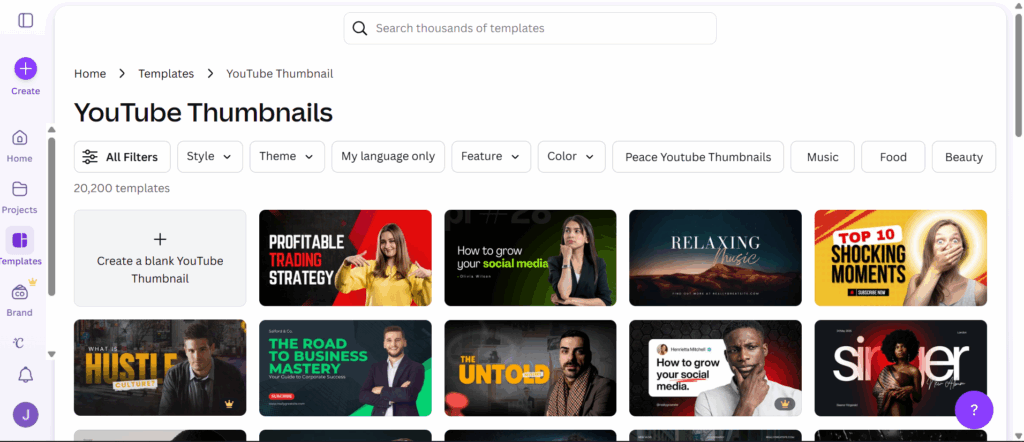
Canva is the most accessible thumbnail tool for non-designers, and it’s genuinely good for this use case. Here’s how to do it:
Step 1. Go to canva.com and search “YouTube thumbnail” in the search bar. You’ll get pre-sized templates at the right 1280×720 dimensions.
Step 2. Browse templates or start from scratch with a blank template. If you’re starting blank, the canvas is already the right size. Templates are useful for getting a feel for layout, but you’ll want to customize heavily — channels that use stock templates without modification look generic and underperform.
Step 3. Upload your image. For most YouTube thumbnails, this means a photo of yourself or a key visual from the video. Click Uploads in the left sidebar, then Upload files. Use high-resolution photos — blurry thumbnails look unprofessional even when the design is otherwise strong.
Step 4. Add your background. You can use your photo as the background, add a solid color background, or use a gradient. For high contrast, colored backgrounds behind your photo work well. Use Canva’s Background Remover (available on Pro) to cut yourself out of the photo background.
Step 5. Add text. Keep it short and punchy. Use a bold font — Canva has plenty of free options. Make the text large enough to read at thumbnail size. White text with a dark drop shadow or outline works on most backgrounds.
Step 6. Download as PNG (better quality) or JPG (smaller file size). Both work fine for YouTube. PNG at higher quality is generally the better choice unless file size is a concern.
Free vs. Pro. The free version of Canva has plenty for basic thumbnails. The background remover and some premium elements require Pro, but you can create good thumbnails without it. For agencies managing YouTube for multiple clients, Canva Pro’s Brand Kit feature — which stores logos, colors, and fonts — significantly speeds up the workflow of maintaining consistent branding across different client thumbnails.
How to Create YouTube Thumbnails with AI
AI thumbnail tools have improved significantly and are worth trying, especially for channels that need high volume. Here’s a rundown of what’s available in 2026:
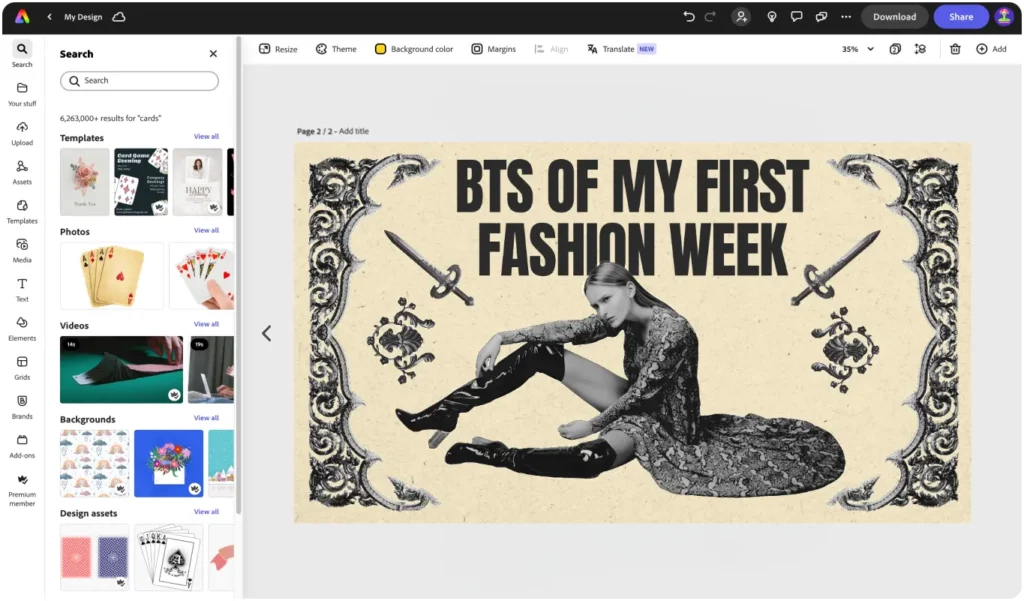
Adobe Firefly / Adobe Express. Adobe’s AI generates images from text descriptions and integrates into Express for adding text and overlays. If you have an Adobe subscription, this is a solid option with strong output quality.
Canva’s AI tools. Canva has added AI image generation (text to image) and the Magic Edit feature. You can generate background images with AI and then composite your photo on top.
Midjourney + Canva. A popular workflow: use Midjourney to generate a visually striking background or scene, then bring it into Canva to add your photo, text, and branding.
Dedicated thumbnail AI tools. Tools like Thumbnail.ai and Pikimov are built specifically for YouTube thumbnails. They analyze your video or description and generate thumbnail concepts. These are genuinely useful for rapid ideation, though they often still need manual refinement.
The honest take on AI thumbnails: AI tools are most useful for generating backgrounds, concept art, and inspiration. Thumbnails with your actual face still tend to outperform fully AI-generated ones for most personal brand or educational channels — because viewers recognize you over time and click more reliably. Use AI as a production accelerant, not a replacement for the human element.
For agencies managing YouTube for multiple clients, AI thumbnail generation can dramatically reduce the time spent on asset creation. You can generate multiple background options in minutes, then focus human attention on the composition, text, and final polish that actually requires creative judgment.
How to Create YouTube Thumbnails in Photoshop
Photoshop gives you the most control and produces the sharpest results, but it has a steeper learning curve. Here’s a basic workflow:
Set up your canvas. File > New > set Width to 1280, Height to 720, Resolution to 72 ppi, color mode RGB. This gives you the exact right dimensions.
Build your layers. Photoshop’s layer system is its key advantage. You’ll typically have: background color or image, your main photo (cut out from its background with the Object Selection tool), text layers, and any overlay elements like arrows, shapes, or borders.
Cut out your subject. Select your photo layer, then use Select > Subject to auto-select yourself or your main subject. Refine the edge with Select > Select and Mask for clean cutouts around hair and fine edges. Then add a layer mask to remove the background.
Typography. Photoshop has more font control than Canva. For thumbnails, bold condensed fonts (Impact, Oswald, Anton) work well. Add a Stroke or Drop Shadow effect to make text readable on any background.
Export. File > Export > Export As. Choose JPG for smaller file size or PNG for transparency and quality. For thumbnails, JPG at 80% quality is fine and keeps the file size under 2MB.
The advantage of Photoshop for high-volume thumbnail creation is template-based workflows. Once you’ve built a strong thumbnail template for a client’s channel, you can replace the photo and text for each new video in a few minutes, maintaining consistent branding while adapting to each video’s content.
How to Create YouTube Thumbnails on iPhone
Several apps make thumbnail creation feasible on mobile:
Canva mobile app. The same functionality as the desktop version, optimized for touch. Most of what you can do on desktop is available on mobile, including templates and the basics of image editing.
Adobe Express. Adobe’s mobile app is solid for quick thumbnails, especially if you already have Creative Cloud.
PicsArt. Good background removal and compositing tools on mobile. A popular choice for creators who do everything from their phone.
The workflow is essentially the same as desktop — find a template or start from a blank canvas at the right size, upload your photo, add text and elements, and export. The main limitation is precision when working with fine details, which is harder on a touchscreen. For quick thumbnails on the go, mobile is completely workable. For complex compositions or client work, desktop still gives you more control.
How to Create YouTube Thumbnails for Shorts
YouTube Shorts thumbnails work differently. YouTube automatically generates thumbnail options from frames of your Short, and you choose between those. You can upload a custom thumbnail for Shorts, but it must be a vertical image (9:16 aspect ratio, so 720×1280 pixels) rather than the standard horizontal format.
The same design principles apply — strong face, clear expression, readable text — but the vertical format means your composition needs to account for the different aspect ratio. Vertical images have more visual weight in the center column, so place your main subject and text there.
For brands and agencies managing both long-form YouTube and Shorts, keeping thumbnail branding consistent across formats reinforces channel identity. The same color scheme, font choices, and compositional approach should carry across both formats even though the aspect ratios are different.
Managing YouTube Thumbnails for Multiple Clients
For agencies managing YouTube content for multiple clients, thumbnail workflows need to scale. A few things that make this manageable:
- Separate brand templates per client. Build a Photoshop or Canva template for each client with their specific colors, fonts, and layout. When a new video needs a thumbnail, you’re filling in the template, not starting from scratch.
- Asset management. Keep client photo libraries organized and accessible. Thumbnails that use client-specific imagery (the client’s face, their products, their office) perform better than stock photos for most channels.
- Approval workflows. Thumbnails should be part of your client approval process alongside copy and video. Some clients have strong opinions about their visual presentation — get sign-off before upload.
- Account access. Uploading thumbnails requires access to the client’s YouTube Studio. For agencies managing multiple YouTube channels, handling these login sessions cleanly matters. Session conflicts when switching between client YouTube accounts are a real workflow disruption.
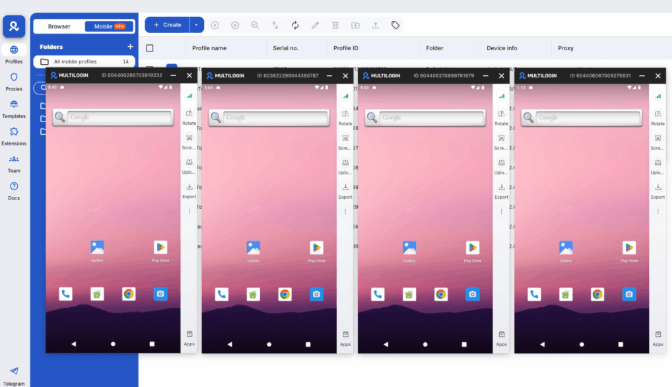
For agencies managing multiple YouTube channels alongside other social platforms, the session isolation challenge is the same as on LinkedIn, Instagram, and TikTok. Tools like Multilogin give each client their own isolated browser environment, so you can manage multiple YouTube Studios simultaneously without logging out or dealing with cross-session contamination. You can read more about managing multiple YouTube accounts and the operational workflows that scale.
Creating Good YouTube Thumbnails: Common Mistakes
- Too much text. More than five or six words and it’s unreadable at thumbnail size. Cut it.
- Low contrast. A pale photo on a white background disappears. You need contrast between your subject, your text, and the background.
- Inconsistent branding. The best channels are instantly recognizable. Use consistent colors, fonts, and style across thumbnails so your content is recognizable in a viewer’s subscription feed.
- Clickbait without payoff. A shocking thumbnail that the video doesn’t deliver on will hurt your watch time metrics, which hurts your channel long-term. The thumbnail and video should match.
- Not testing. YouTube Analytics shows your click-through rate (CTR) per video. If a thumbnail is underperforming, you can swap it out at any time from YouTube Studio. Testing different thumbnails on the same video (a few days each) tells you what actually works for your audience.
- Using the same expression every time. Variety in facial expression across thumbnails keeps your channel feed looking dynamic. If every thumbnail shows the same face with the same expression, your content starts to blur together.
- Ignoring mobile viewing. A large portion of YouTube is watched on mobile. Thumbnails that look great on a desktop monitor may be hard to read on a phone screen. Test your thumbnail at small sizes before committing.
Looking to manage multiple YouTube accounts safely? Try Multilogin Cloud Phones Now!
Frequently Asked Questions About How to Create YouTube Thumbnails
How many subscribers do you need to create a custom thumbnail on YouTube?
No subscribers required — just a verified YouTube account. Verify via phone number in YouTube Studio settings.
How do I create a YouTube thumbnail for free?
Canva’s free version is the most accessible option. Adobe Express also has a free tier. Both include YouTube thumbnail templates at the right dimensions.
What size should a YouTube thumbnail be?
1280×720 pixels, 16:9 aspect ratio, under 2MB file size. JPG or PNG format.
Can I create YouTube thumbnails on my phone?
Yes. Canva and Adobe Express both have mobile apps that work well for thumbnail creation.
How do I create thumbnails for YouTube Shorts?
YouTube Shorts uses a vertical format (720×1280 pixels). You can upload a custom vertical thumbnail, or YouTube will select a frame from your Short automatically.
How do I create engaging YouTube thumbnails?
Use a strong face with clear expression, high contrast between subject and background, minimal bold text (3-5 words), and consistent branding across your channel. Check your CTR in YouTube Analytics and test different designs.
Thumbnails as Part of Your YouTube Content Strategy
Thumbnails don’t exist in isolation — they’re the entry point to your content and your channel. A well-thought-out thumbnail strategy is part of a broader YouTube content strategy that considers what you’re posting, how often, and why.
For creators and agencies thinking beyond individual videos, developing a YouTube content strategy that ties thumbnail design to series identity, upload cadence, and audience targeting is what separates channels that grow consistently from those that rely on occasional viral moments.
The channels that grow most reliably are those where the thumbnail, title, and content form a coherent package — each element reinforcing the others. Viewers who click a well-designed thumbnail and get exactly what it promised become subscribers. Subscribers who recognize your thumbnail in their feed click more reliably over time. The cumulative effect compounds.
Track your CTR (click-through rate) per video in YouTube Analytics. The industry benchmark varies by channel size and niche, but generally a CTR above 4-5% indicates your thumbnails are performing well. Below 2-3% and you should experiment with new approaches.

