


Instagram actively looks for accounts that share the same device, IP address, or behavioral fingerprint. That’s not an accident or an overreach, it’s a deliberate anti-spam and anti-fraud measure, and it’s exactly why running several Instagram accounts from a single physical phone becomes risky the moment you go beyond one or two accounts.
Add a few brand accounts, a handful of client accounts, or a small team of creators, and you’re managing a real operational problem, not just a minor inconvenience.
Multilogin Cloud Phones solve this by giving each Instagram account its own dedicated Android device, a genuine one, not an emulation, with its own IMEI, Android ID, MAC address, and mobile-grade proxy matched to the account’s intended location. From Instagram’s perspective, every account genuinely lives on a completely separate physical device in a different location, because it does.
This guide walks through exactly how to set this up and run it well, from your first account to a full team workflow across dozens.
Watch video walkthrough of getting sarted with Multilogin cloud phones for Instagram.
Why Instagram Multi-Accounting Fails Without Proper Isolation
Before getting into setup, it’s worth understanding specifically what Instagram’s detection systems evaluate, since this shapes every decision in the setup process. Instagram doesn’t just check usernames and passwords. It evaluates device fingerprints (hardware identifiers, OS version, installed app signatures), IP consistency and geolocation (does the network location match the device and account’s claimed location), behavioral patterns (posting frequency, engagement speed, session length, and timing), and cross-account signals (are multiple accounts sharing any of the above, even partially).
When several accounts share a device, whether a physical phone, a shared computer, or an emulator with a static fingerprint, Instagram’s systems can correlate them even without any explicit link between the account profiles themselves. This is why simply logging out of one account and into another on the same phone, a common early workaround, becomes increasingly risky as the number of accounts grows.
How to Run Multiple Instagram Accounts with Multilogin Cloud Phones
Step 1: Plan Your Cloud Phone Structure Before Creating Anything
Resist the urge to jump straight into creating cloud phones one at a time as you think of new accounts. A brief planning pass saves significant reorganization later. For each Instagram account you plan to manage, note: the account’s intended purpose (brand, client, creator, personal), its intended geographic presence (which country and city it should appear to operate from), and who on your team, if anyone, needs access to it. This planning step becomes the basis for your naming convention, folder structure, and proxy location choices in the steps that follow.
Step 2: Create One Dedicated Cloud Phone Per Instagram Account
This is the core rule that makes everything else work: one Instagram account, one cloud phone, always. Never log a second Instagram account into a cloud phone already running a different account, even temporarily. If you haven’t created a cloud phone before, our guide on Multilogin Cloud Phones: real Android devices in the cloud walks through the full process step by step.
For each account, choose a different device model where practical, varying device models across your accounts, rather than using the identical model for every single one, adds a further layer of natural variation across your account portfolio.
Name each cloud phone clearly using a consistent convention, for example “IG_BrandName_Country” or “IG_ClientX_US_01”. Since platforms have no visibility into these internal names, optimize purely for your own team’s ability to find the right phone quickly once you’re managing more than a handful.
Step 3: Assign a Dedicated Mobile Proxy to Each Account
For Instagram specifically, mobile proxies are generally the more trusted network type compared to standard residential proxies, since mobile carrier IPs are shared among many genuine users through carrier-level address translation, making them harder for Instagram to associate narrowly with suspicious activity.
Select Multilogin’s built-in mobile proxy option, or connect an external mobile proxy provider, matched precisely to the country and, where possible, the city each account is meant to represent.
The rule from proxy setup applies here without exception: never reuse the same proxy IP or session across two different Instagram accounts. A shared IP is one of the clearest linking signals Instagram’s systems can detect, and it undermines the entire purpose of running separate cloud phones in the first place.
For a full walkthrough of proxy configuration options and troubleshooting, see our guide on how to set up the proxy in Multilogin for managing multiple accounts, and for Instagram-specific proxy bundles, Instagram proxy and antidetect for multi-account management.
Step 4: Install Instagram and Create or Import the Account
Open the Apps panel inside your newly created cloud phone and install Instagram directly from Multilogin’s built-in app repository, this doesn’t consume proxy traffic, unlike installing through Google Play. Once installed, either log into an existing account you’re importing, or create a brand-new account entirely within this cloud phone environment.
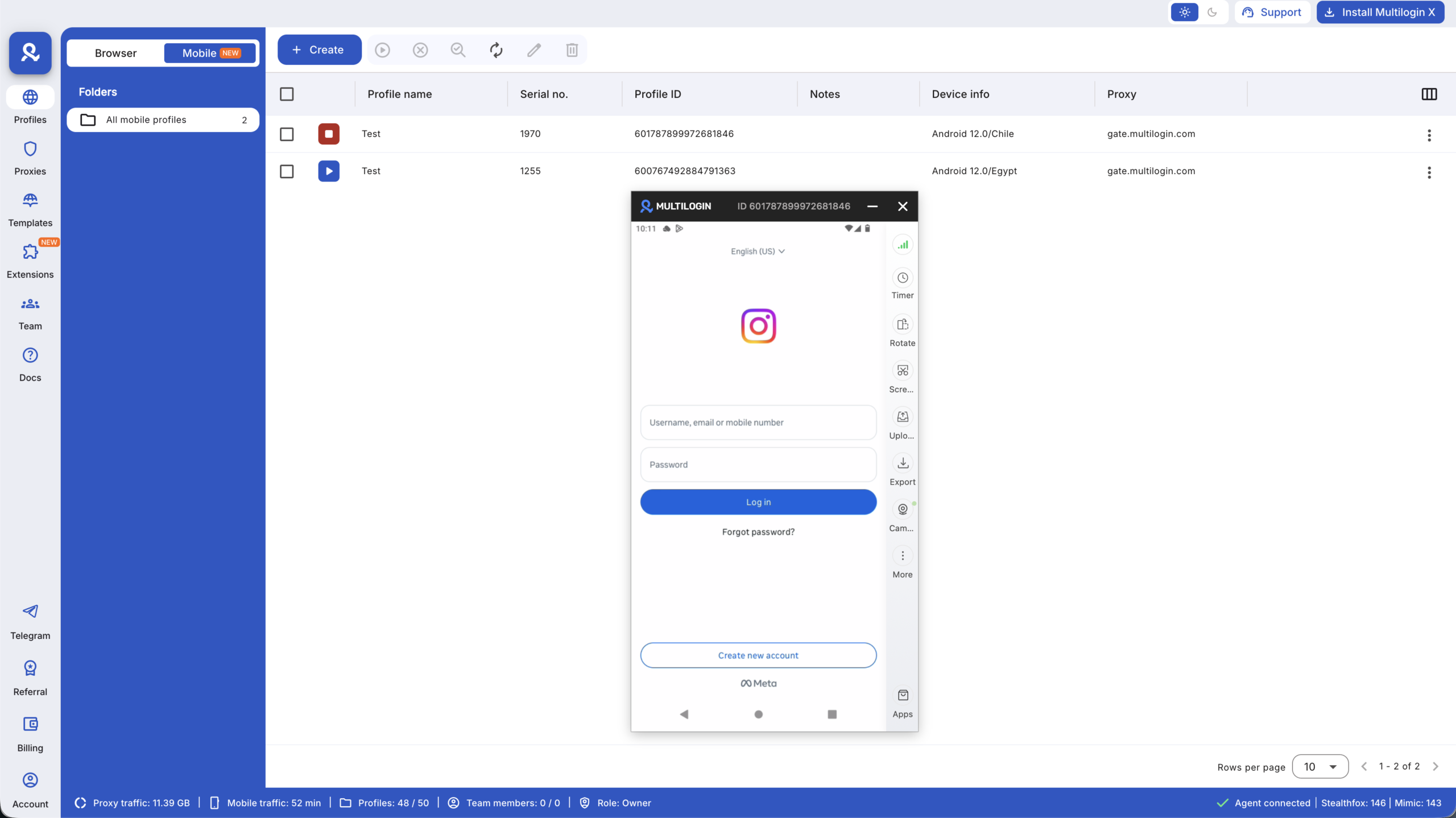
If you’re creating a new account, use details consistent with the account’s intended identity, name, profile details, and any linked email or phone number should make sense together and align with the geographic location your proxy and device represent. Inconsistent details, an account claiming to represent a US business but registered with an obviously mismatched phone number, are the kind of small details that can accumulate into a pattern worth flagging.
Step 5: Warm Up New or Newly Imported Accounts
This step gets skipped more often than any other, and it’s frequently the reason otherwise well-configured accounts still run into trouble. A brand-new account, or an existing account logging into a completely new device and IP for the first time, benefits enormously from a gradual warm-up period rather than immediate full activity.
A reasonable warm-up approach over the first several days: start with light browsing behavior, scrolling the feed, viewing a handful of stories, liking a small number of posts, before any posting or following activity begins. Gradually increase activity level day by day rather than jumping from zero to full daily posting and engagement volume overnight. For accounts being imported with existing history rather than created fresh, the warm-up period can generally be shorter, since the account already carries some trust history, but a brief adjustment period on the new device and network is still worthwhile.
Step 6: Build a Sustainable Daily or Weekly Routine Per Account
Once warmed up, establish a consistent, believable usage pattern for each account rather than sporadic bursts of heavy activity followed by long silence. Instagram’s systems, and its algorithm generally, tend to favor accounts with predictable, human-like engagement patterns over accounts that alternate between complete inactivity and sudden intense activity. This doesn’t require rigid, identical timing every single day, real users don’t behave that mechanically either, but a general rhythm of regular, moderate activity holds up better than extremes in either direction.
Managing Multiple Accounts as a Team
Once you’re running more than a handful of Instagram accounts, team access becomes the next real consideration. Multilogin allows sharing specific cloud phones with team members without exposing the actual Instagram login credentials directly, combined with role-based permissions controlling who can view, launch, or edit which specific phones. This is particularly valuable for agencies managing client Instagram accounts, since it lets team members work within an account without ever needing, or being able to misuse, the underlying password.
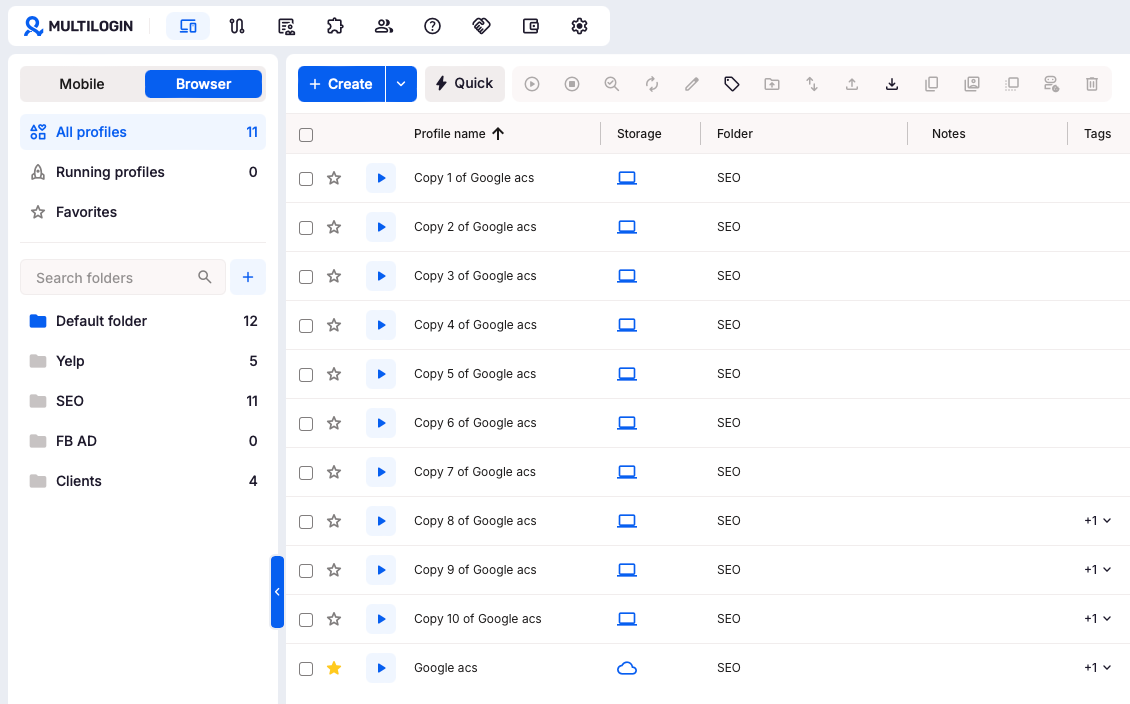
Use tags and folders to organize your growing list of cloud phones, by client, by brand, or by team member responsible, so finding the right account quickly doesn’t require scrolling through an unstructured list as your account count grows into the dozens.
Automating Repetitive Tasks Without Risking Detection
As Instagram account management scales, some teams look to automate repetitive tasks, scheduled posting, standard engagement patterns, using tools like Puppeteer, Selenium, Playwright, or Postman, all of which integrate directly with Multilogin cloud phones and browser profiles. If you go this route, keep automated behavior within a believable range of what a genuine, moderately active human user would actually do.
Read guide on automation here.
Automation that acts faster, more repetitively, or more consistently than any real person would is detectable independent of how well the underlying device and proxy setup is configured. The device and network layer solve one part of the trust equation; behavioral pacing, whether manual or automated, solves the other.
Setting Up Profile Details That Hold Up to Scrutiny
Beyond device and network isolation, the account itself needs to look coherent. Instagram, and increasingly its users, notice mismatched or thin profile details. For each account, take the time to set a genuine profile photo (not a stock image reused across multiple accounts), a bio that matches the account’s stated purpose, and, where relevant, a linked website or contact method that’s actually functional.
Accounts that skip this step and jump straight to posting often show a recognizable pattern: heavy content activity paired with a bare, unconvincing profile, which stands out both to platform systems and to real users encountering the account.
If you’re managing several accounts under a similar theme, a chain of local business accounts across different cities, for example, resist the temptation to copy the exact same bio template word for word across every account. Small, genuine variation between accounts, different phrasing, different emphasis, different photo styles, reduces the pattern-matching signal that comes from dozens of accounts sharing suspiciously identical text.
A Sample Workflow: Managing Ten Client Instagram Accounts as an Agency
To make this concrete, here’s how a small agency team might structure this in practice. Each of ten clients gets its own dedicated cloud phone, named clearly by client (“IG_ClientName”), with a mobile proxy matched to that client’s target market. Cloud phones are organized into a “Clients” folder, with tags marking which team member is the primary owner of each account.
A shared content calendar (see our guide on how to create a social media content calendar) tracks what’s being posted to each account and when, while the actual publishing happens inside each account’s dedicated cloud phone rather than through a third-party scheduler that might not fully support every native Instagram feature. Team members access their assigned client cloud phones directly through Multilogin’s shared access and permission system, without ever needing the client’s actual Instagram password.
Each new client onboarding follows the same repeatable process: create the cloud phone, assign and test the proxy, install Instagram, either import the existing client account or set up a fresh one, and run a short warm-up period if it’s a new device pairing. This consistency is what allows the agency to onboard a new client account in under an hour, rather than treating every new account as a unique, from-scratch technical project.
Monitoring Account Health Across a Growing Portfolio
As the number of managed accounts grows, proactively monitoring account health becomes more valuable than reactively responding to problems after they occur.
Keep a simple log, even a basic spreadsheet, tracking each account’s cloud phone assignment, proxy location, warm-up completion date, and any security checks or restrictions encountered over time.
Patterns across this log are often more informative than any single incident, if several accounts sharing a particular proxy provider or device model all encounter restrictions in the same period, that’s a useful signal worth investigating, rather than treating each incident as an isolated, unrelated event.
What Happens If an Account Still Gets Flagged
Even with a properly isolated cloud phone, dedicated mobile proxy, and a careful warm-up, an individual account can occasionally still receive a security check or temporary restriction, platforms adjust their detection systems constantly, and no setup guarantees permanent immunity.
If this happens, avoid the instinct to immediately try logging in again repeatedly or switching proxies mid-restriction, both of which can sometimes extend scrutiny rather than resolve it.
Follow the platform’s specific verification flow as presented, and give the account time to stabilize before resuming full activity levels. Because each account lives on its own isolated cloud phone, a restriction on one account has no bearing on any of your other accounts, they remain fully unaffected, which is precisely the containment benefit this entire setup is designed to provide.
Common Mistakes That Undermine an Otherwise Good Setup
- Logging a second account into an existing cloud phone “just this once.” Even a single instance of this creates a cross-account link that a dedicated cloud phone setup was specifically built to avoid.
- Reusing the exact same device model and proxy country across every single account. While each cloud phone is technically isolated, identical configurations across dozens of accounts still create a recognizable pattern worth varying where practical.
- Skipping warm-up because an account “needs to post today.” The short-term convenience rarely outweighs the increased risk of early restriction on a rushed, unwarmed account.
- Running automation at a pace or consistency no real person would sustain. This is detectable independent of device and network setup quality.
- Neglecting to organize cloud phones as the account count grows. What’s manageable with five accounts becomes genuinely confusing with fifty without tags, folders, and a clear naming convention from the start.
Balancing Growth Speed Against Account Safety
There’s a natural tension in multi-account Instagram management between growing quickly and staying safely under the radar of platform detection systems. Teams under pressure to show fast results for a client or business goal sometimes push warm-up periods shorter, posting frequency higher, and engagement volume more aggressive than is genuinely sustainable for a given account’s age and trust level.
A more durable approach treats account safety as a prerequisite for growth, not a competing priority to be traded off against it. An account that gets temporarily restricted loses far more time, and often audience trust, than the time saved by skipping a proper warm-up period would have gained.
Setting realistic expectations with clients or stakeholders upfront, growth will ramp gradually over the first few weeks as the account and its cloud phone environment build trust, prevents the pressure that leads teams to cut corners on the setup covered in this guide.
Scaling Beyond Instagram
The same core structure, one dedicated cloud phone per account, one matched proxy per phone, a careful warm-up period, and believable ongoing activity, applies equally well to other mobile-first platforms like TikTok, Facebook, WhatsApp Business, Snapchat, and Reddit. Once your Instagram workflow is running smoothly, extending the same disciplined approach to additional platforms is largely a matter of repeating the process rather than learning an entirely new system.
For the foundational setup this workflow builds on, start with our guides on Multilogin Cloud Phones: real Android devices in the cloud and how to set up the proxy in Multilogin for managing multiple accounts. If you’re deciding which devices to run this on, our roundup of the best cloud phones for Instagram is a useful next read, and for growing reach once your accounts are stable, see how to increase Instagram reach with Multilogin cloud phones.