



How to create Instagram accounts with Multilogin browser profiles
Account creation starts with browser profiles. Each profile has its own fingerprint, storage, and browsing history. Instagram reads it as a separate device.
Step 1: Create a browser profile
1. Open Browser dashboard
2. Open Multilogin and click Create
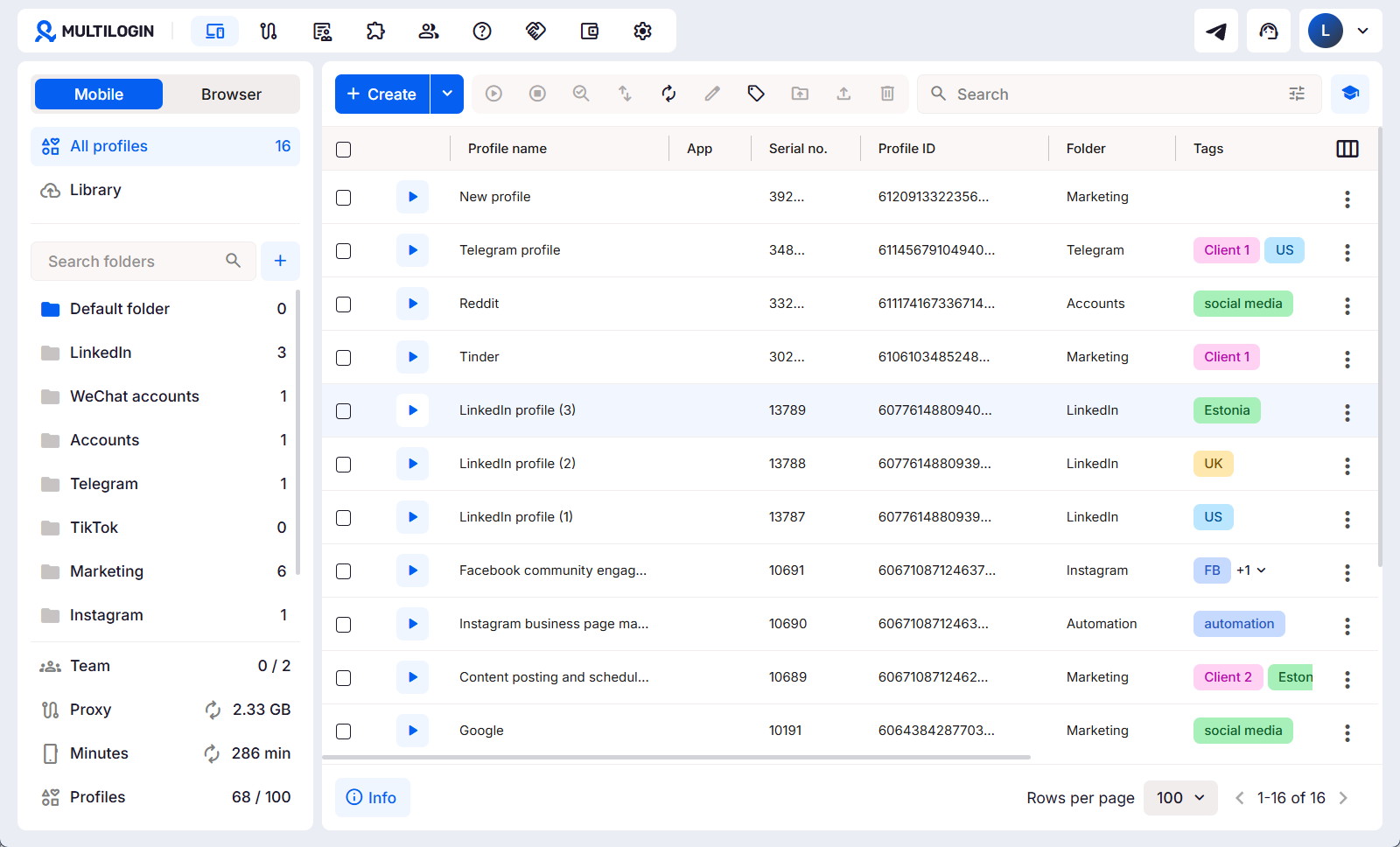
3. Name it clearly, for example “Instagram account 1”
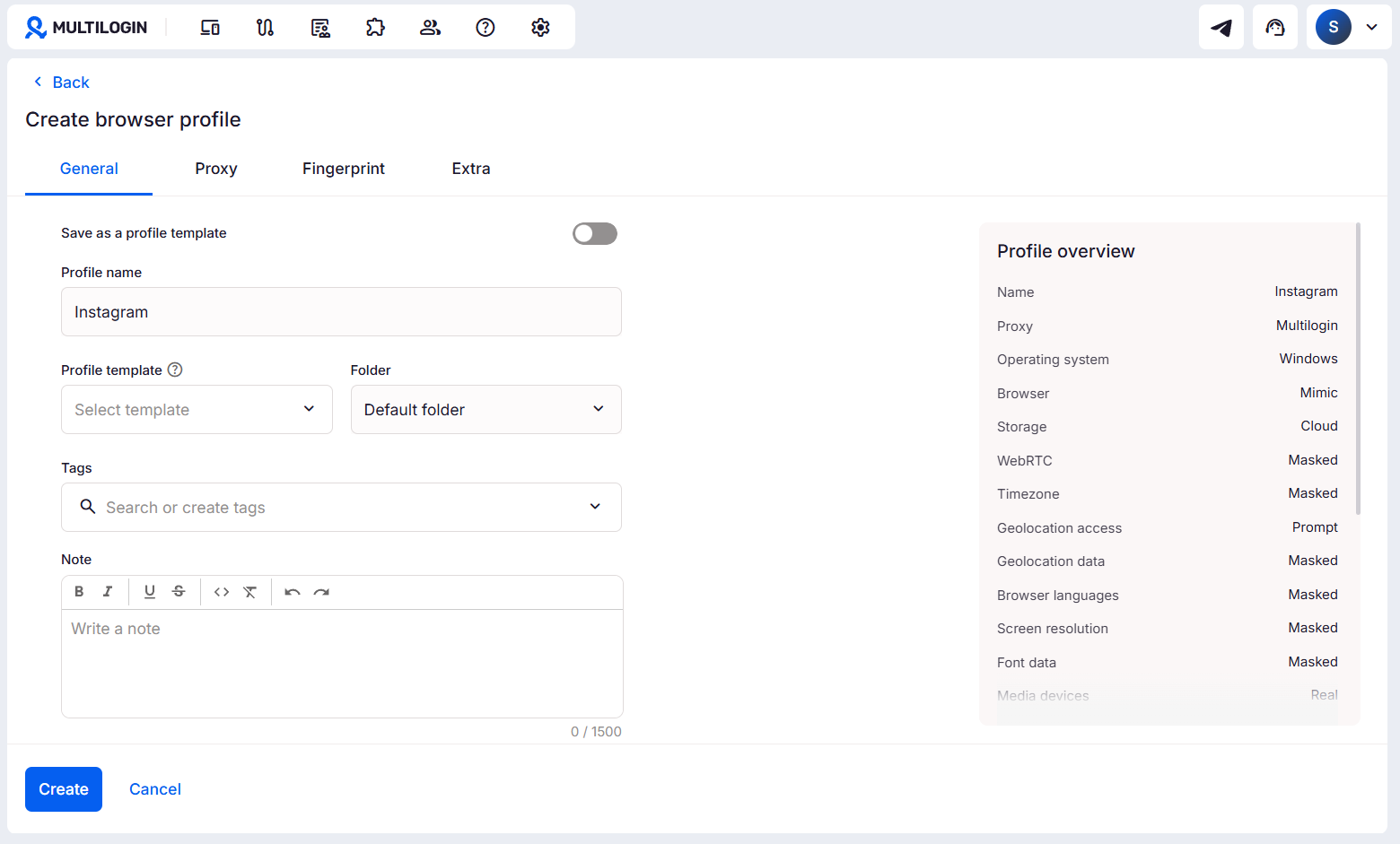
4. Pick a residential or mobile proxy matching the location the account should be based in
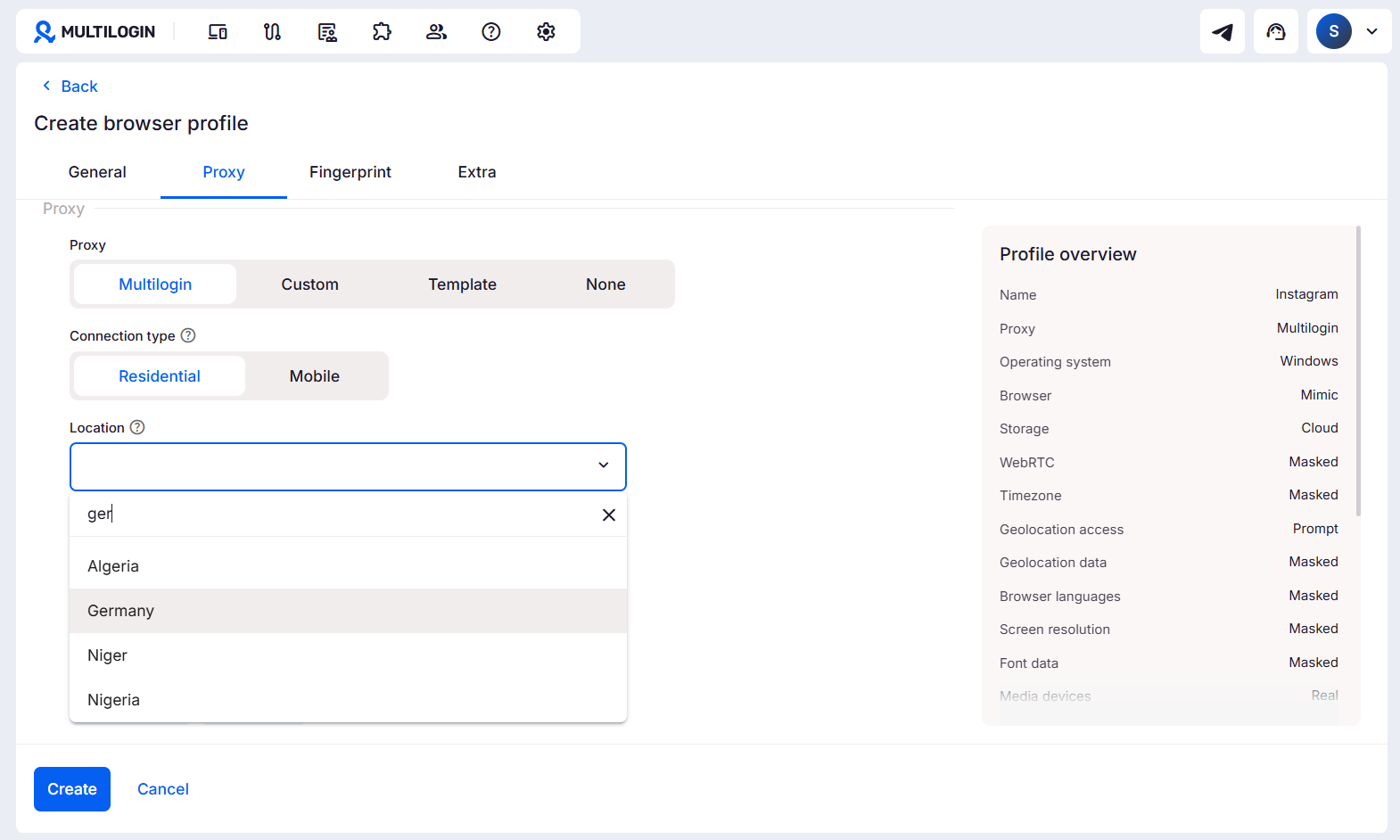
5. Save the profile
Use one profile per account. Two accounts sharing a profile gives Instagram shared device signals from the first session.
Tip: If the account is meant for a US audience, use a US proxy from the start. Changing location later creates a mismatch in the account’s session history.
Step 2: Warm up the profile with Cookie Robot
A profile with no browsing history looks like it was created minutes before registration. Multilogin’s Cookie Robot builds some history automatically before you sign up.
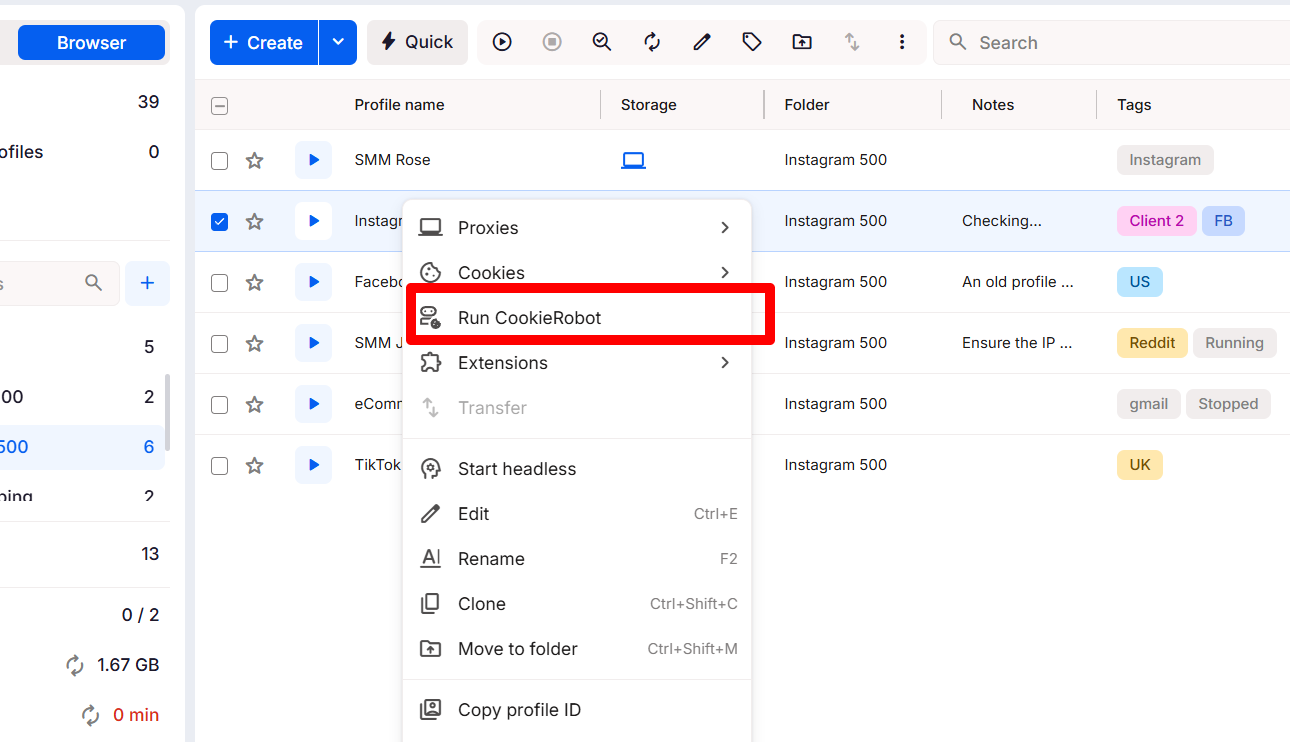
1. Right-click the browser profile
2. Select Run Cookie Robot
3. Add instagram.com to the site list along with a few general websites
4. Let it run
Run Cookie Robot a couple of times across different sessions before creating the account. One run is better than nothing, but two or three spread across different days builds a more convincing history.
Step 3: Open the profile and sign up
1. Launch the browser profile from your Multilogin dashboard
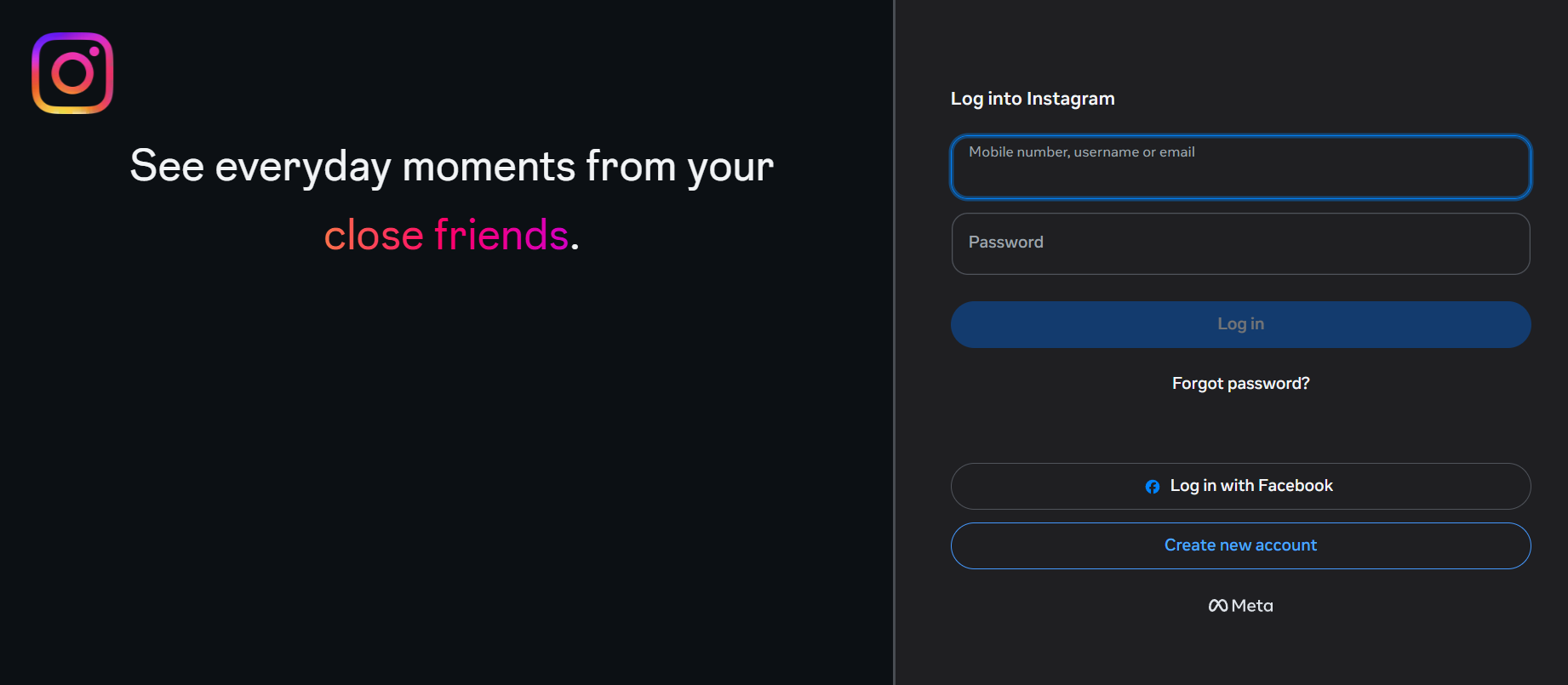
2. Go to instagram.com
3. Click Sign up and use a phone number or email that has not been used on another account
4. Complete the profile: username, photo, bio
5. Confirm the account is active
Always open this account from the same browser profile going forward. Each time you log in from a different environment, Instagram adds another data point showing the account behaves inconsistently.
Tip: Use a separate phone number or email per account. Reusing contact details links accounts at registration level before any device signals come into it. If you need multiple Gmail addresses for this, see how many accounts you can have on Gmail with Multilogin.
Managing Instagram accounts on mobile with Multilogin cloud phones
Once accounts exist, cloud phones handle day-to-day management. A Multilogin cloud phone is a real Android device running remotely. It has its own storage, device identity, and proxy — separate from every other profile in the dashboard.
You can check the video below to see it in action:
Multilogin cloud phones for managing multiple Instagram accounts 📸
Step 1: Create a cloud phone
1. Go to Mobile and click Create
2. Name the profile, for example “Instagram mobile 1”
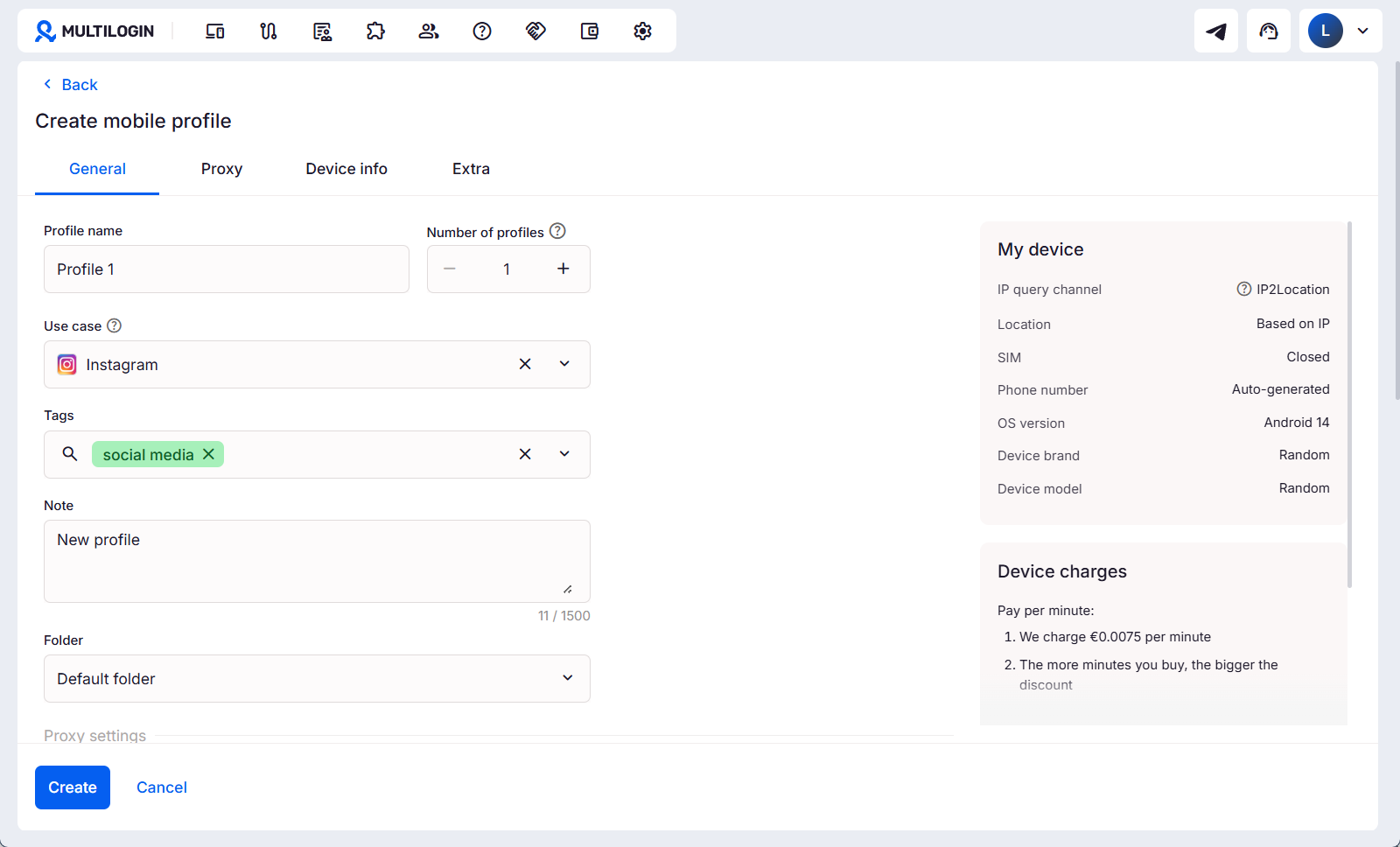
3. Choose the country and region for the account.
4. Select an Android device model — for example, Samsung or OnePlus
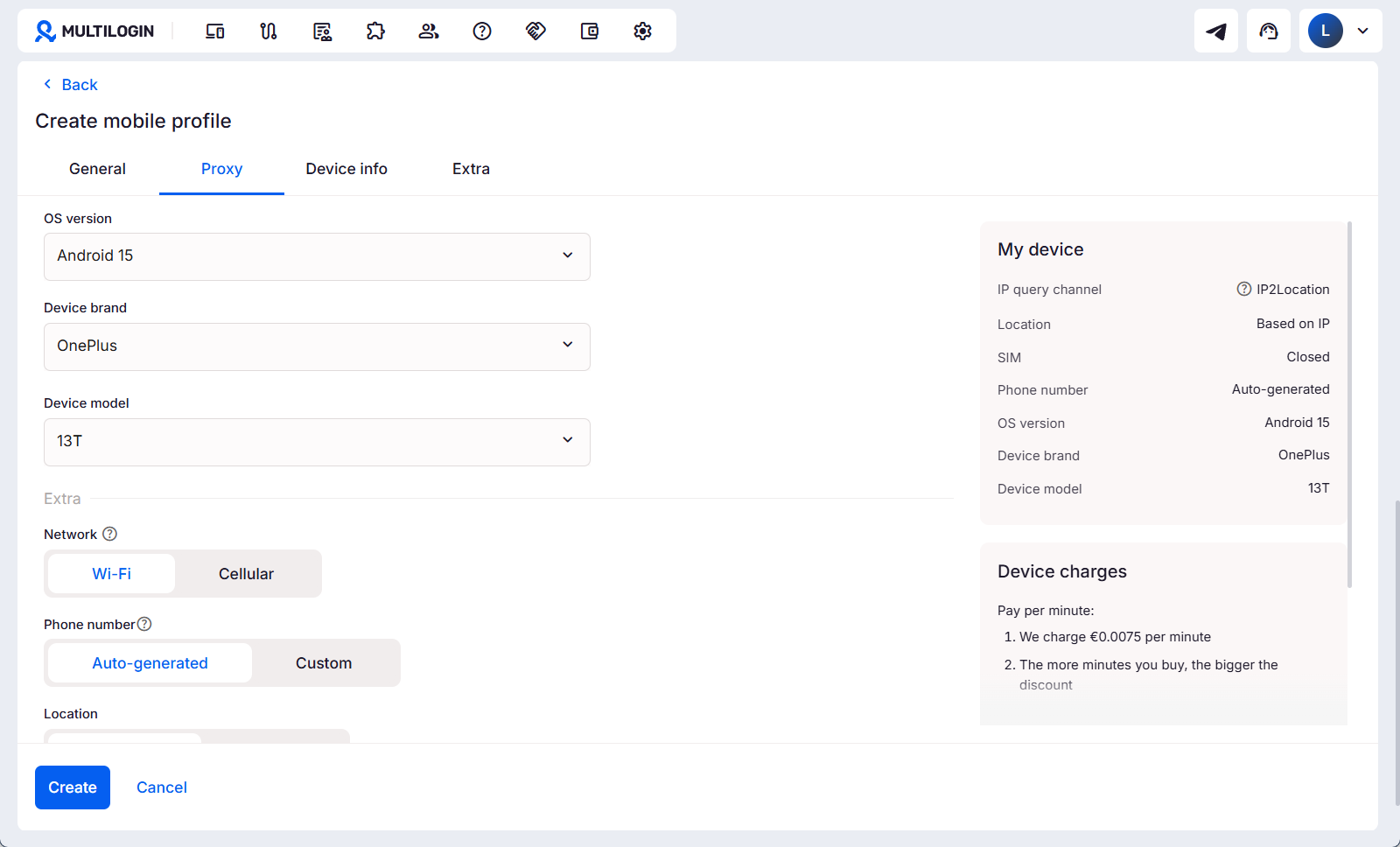
5. Click Create
Tip: Use the same region as the browser profile you registered the account from. A location mismatch between the two can trigger a verification prompt on the first login.
Step 2: Install the Instagram app
1. Open the cloud phone from your dashboard
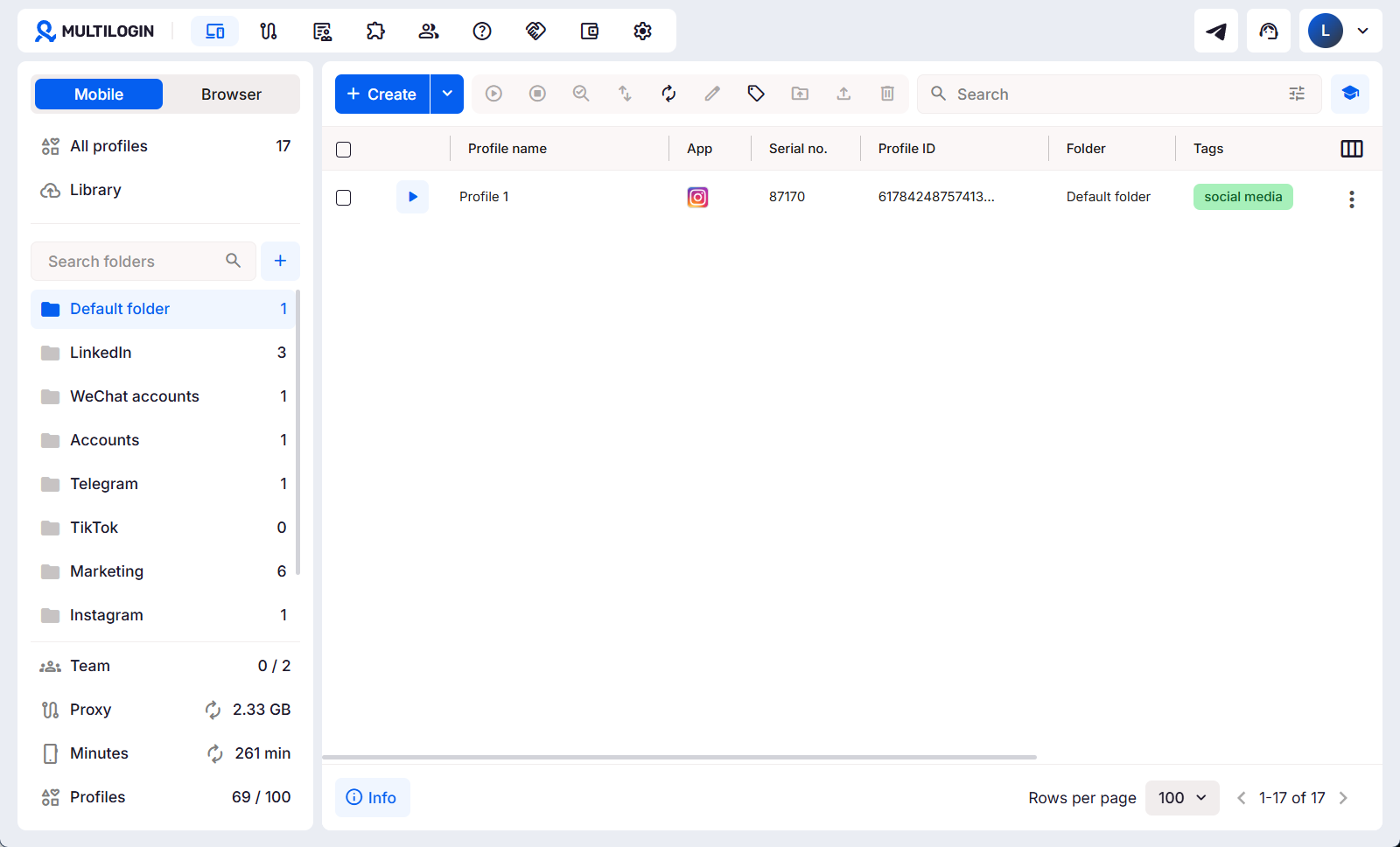
2. Go to the built-in app store
3. Search for Instagram and install it
4. Let the installation finish before opening the app
Install the native app rather than opening Instagram in a browser inside the cloud phone. The app produces mobile device activity. The browser does not.
Tip: Open the app and let the loading screen complete before tapping log in. Going straight to the login screen immediately after install is an unusual pattern.
Step 3: Log in
1. Open Instagram on the cloud phone
2. Tap Log in and enter the credentials for this account
3. Complete verification if prompted
4. Check the account is active and the feed loads
Keep one account per cloud phone. Logging a second account into the same environment creates a shared device signal between them.
Tip: Spend a few minutes scrolling the feed after logging in before posting anything. A session that goes straight from login to publishing looks automated.
Step 4: Repeat for each account
Each new Instagram account needs its own cloud phone. Create a new profile in the dashboard and go through steps 1 to 3 again. Existing accounts are unaffected.
Tip: A simple spreadsheet tracking cloud phone name, account username, niche, and region saves time once you get past five or six accounts. If you are also scaling on TikTok, the same approach applies — see how to join TikTok Marketplace with multiple accounts.
Tips for keeping reach stable over time
- Publish from the cloud phone, not a scheduler. Plan content wherever works for you, but post manually from inside the app on the cloud phone. Posts published through a third-party tool on a shared server may not carry the same weight with the algorithm.
- Use the app regularly, not only when posting. Accounts that only open during publishing and go quiet the rest of the time look different to Instagram than accounts with normal daily activity.
- Interact before and after you post. Scroll, watch a few Reels, leave a comment somewhere. A session with only one publishing action and nothing else is easy to distinguish from normal usage.
- Keep your accounts from interacting with each other. Liking or commenting on your own posts from accounts you manage is a detectable pattern and tends to flag the accounts involved. If you run paid campaigns alongside organic accounts, see how to use TikTok Ads Manager with Multilogin cloud phones for how to keep those separated too.
- Stick to the same cloud phone for the same account. Switching profiles mid-way through disrupts the session history and can prompt Instagram to verify the account again.
What happens when Instagram links your accounts
Beyond reach, running accounts from the same device creates a risk that usually only becomes clear after something goes wrong.
Instagram connects accounts based on shared device signals, not just usernames. Two accounts that have logged in from the same phone, used the same IP, or shared app storage can be linked in Instagram’s systems. Logging out does not remove that connection.
When accounts are linked:
- A report on one can bring others into review
- A ban on one account can spread to others that shared the device
- Verification prompts can hit several accounts at the same time
Each Multilogin cloud phone runs independently. A restriction on one account does not carry over to the others because there is nothing shared between them. The same separation applies when managing other platforms like Snapchat.
