





Prerequisites
Before you start, make sure you have:
- A Multilogin account. The Free plan works for this guide: 5 profiles, 200 MB of proxy traffic, and 30 mobile minutes, with no credit card needed.
- The Multilogin desktop app installed on Windows, macOS, or Linux.
- A list of your accounts and their markets. Write down which country, and city if relevant, each account belongs to.
- Your own proxy details (optional). For custom proxies, have the protocol, host, port, login, and password ready.
- A paid plan or balance for ISP proxies (optional). ISP proxies are bought separately.
Step-by-step guide to Multilogin proxy setup
The guide has five parts. Follow Part A for browser profiles and Part B for cloud phones. Parts C, D, and E cover ISP proxies, custom proxies, and templates.
Part A: Set up a built-in proxy in a browser profile
Step 1: Create a browser profile and open the Proxy tab
Why this step matters: each account needs its own profile. The profile holds the account’s cookies, session, and proxy, so nothing is shared between accounts.
Instructions:
- In the Multilogin app, create a new browser profile.
- On the General tab, name the profile after the account, for example “Client A, Facebook”.
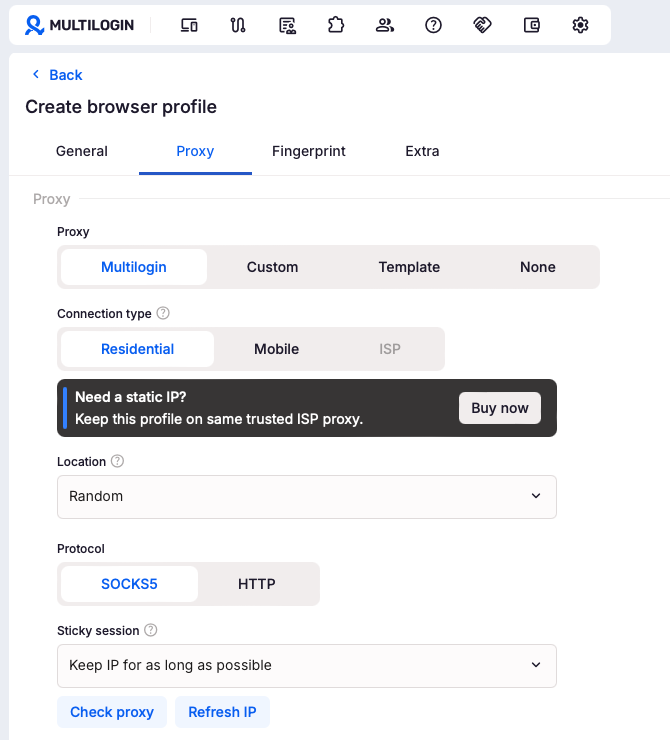
- Open the Proxy tab.
- Under Proxy, choose Multilogin to use built-in proxies.
Pro tip: name profiles by client and platform from day one. When you have hundreds of profiles, a clear naming pattern saves hours of searching.
Step 2: Choose the connection type
Why this step matters: the connection type decides where your IP comes from. Pick the type that matches how the account is normally used.
Instructions:
- Under Connection type, choose Residential for most web-based accounts.
- Choose Mobile if the account should go online through a mobile network.
- ISP stays greyed out until you buy an ISP proxy. Part C shows how.
Pro tip: Residential is the natural default for browser profiles. Save mobile proxy traffic for cloud phones, where it matters most.
Step 3: Set the location and protocol
Why this step matters: the location should match the account’s market. The protocol decides how your connection talks to the proxy.
Instructions:
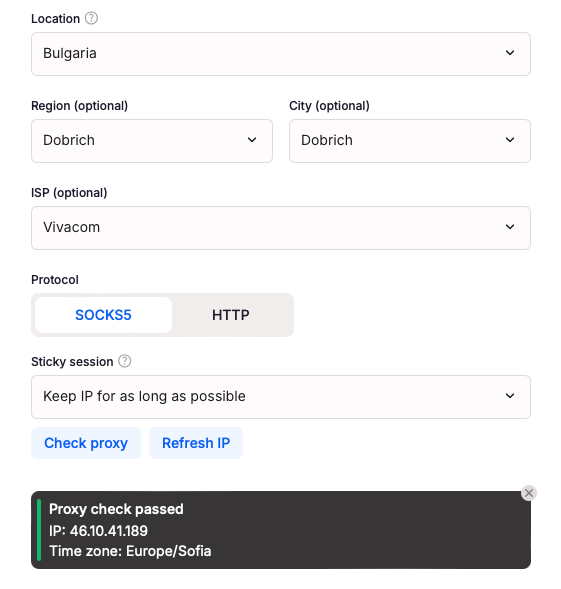
- Open Location and choose a country. “Random” picks any available location, which suits test profiles only.
- Under Protocol, choose SOCKS5 or HTTP.
Pro tip: SOCKS5 passes any type of traffic, so it’s a good default. Choose HTTP if a tool you use with the profile only accepts HTTP proxies.
Warning: avoid “Random” for real accounts. An account that appears from a new country every session doesn’t have a consistent home.
Step 4: Choose the sticky session setting
Why this step matters: a sticky session controls how long the profile keeps the same IP. Stable IPs keep long sessions and logins steady.
Instructions:
- Open Sticky session.
- Choose Keep IP for as long as possible for everyday account work.
- Choose Custom, sec if you need the IP to change after a set number of seconds.
Pro tip: for accounts you log into regularly, keep the IP as long as possible. Shorter durations suit tasks where a changing IP is expected.
Step 5: Check the proxy and refresh the IP if needed
Why this step matters: checking confirms the proxy works and shows exactly where the profile connects from, before the account ever sees it.
Instructions:
- Click Check proxy.
- Read the result: Multilogin shows the location and the internet provider behind the IP.
- If you want a different IP in the same location, click Refresh IP, then check again.
- Save the profile.
Warning: refresh the IP before an account’s first login, not in the middle of active work. Changing IPs mid-session can interrupt the account.
Part B: Set up a proxy on a cloud phone
Step 6: Create a cloud phone and open the Proxy tab
Why this step matters: a cloud phone is a real Android device in the cloud, so it needs a public proxy to go online. The proxy you choose here becomes the phone’s internet connection.
Instructions:
- Go to Profiles → Mobile → Create.
- On the General tab, add a profile name. Optionally choose a use case app, tags, a note, and a folder.
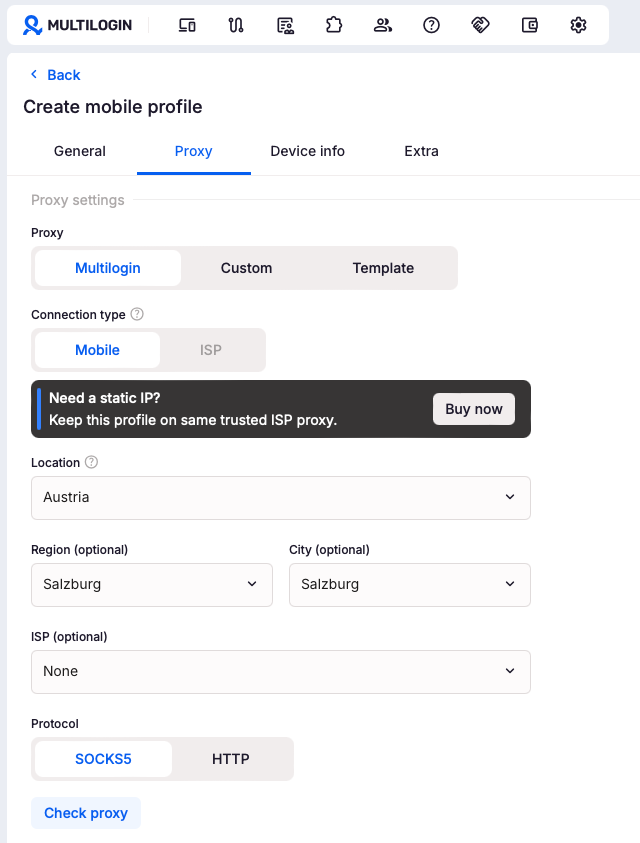
- Open the Proxy tab and choose Multilogin.
- Under Connection type, choose Mobile.
Pro tip: creating a cloud phone doesn’t use mobile minutes. Minutes count only after you click Start, so set up as many phones as you need first.
Step 7: Set the location, carrier, and protocol
Why this step matters: the location should match the country or region where the account’s audience lives. The more precise the match, the more consistent the account looks over time.
Instructions:
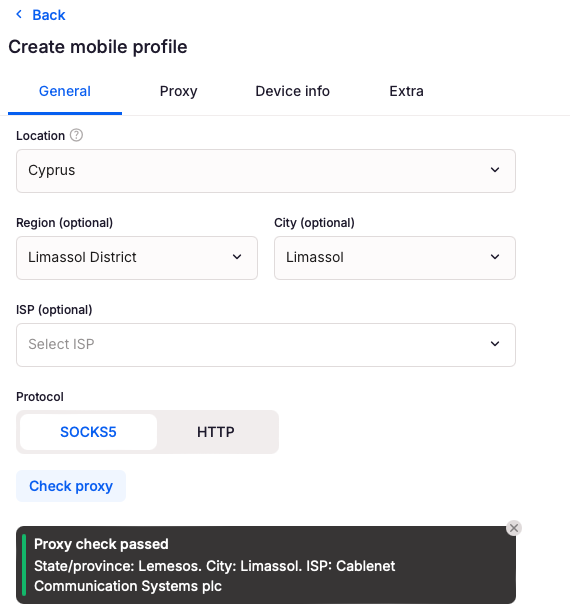
- Choose the country in Location.
- Optionally narrow it down with Region and City.
- Optionally choose the mobile carrier in ISP. Leave it as “None” if you don’t need a specific operator.
- Choose SOCKS5 or HTTP under Protocol.
- Click Check proxy and confirm the check passes.
Pro tip: mobile proxies use sticky sessions, so the phone keeps the same IP during a session.
Warning: cloud phones currently restrict proxy IPs from mainland China. Choose another location for those profiles.
Step 8: Match the network type to your proxy
Why this step matters: the network type controls how the phone appears to be online. A phone on mobile data should show a mobile signal, and a phone on a home connection should show Wi-Fi.
Instructions:
- Open the Extra tab.
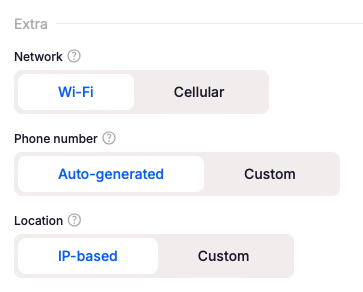
- Under Network, choose the type that matches your proxy:
- Cellular with mobile proxies. The phone shows a SIM and LTE or 5G signal. Requires Android 12 or higher.
- Wi-Fi with residential, ISP, or other static proxies. The phone shows a Wi-Fi connection with no mobile signal.
| Network | Use with | Best for |
|---|---|---|
| Cellular | Mobile proxies | Social media apps, mobile ads, apps that expect carrier signals |
| Wi-Fi | Residential, ISP, or static proxies | Regular account management, long stable sessions, app testing |
Warning: don’t mix them. Cellular with an ISP or residential proxy is a combination that can look unnatural to apps.
Step 9: Set the phone number and device location
Why this step matters: these settings complete the phone’s environment. Apps can read the phone number as part of the device, so choose it deliberately.
Instructions:
- On the Extra tab, under Phone number, choose:
- Auto-generated number for existing accounts or when you don’t need verification
- Custom number to enter a real or virtual number from a provider
- Under Location, choose to use the proxy IP or select a country for where the device is from.
- Review the settings and click Create.
Warning: cloud phones can’t send or receive SMS codes or calls, and eSIM isn’t supported. With a custom number, the code arrives on your real phone or in your number provider’s dashboard.
Part C: Buy and assign an ISP proxy
Step 10: Buy an ISP proxy
Why this step matters: some accounts need the same IP for weeks, like a long-running store or a shared support number. An ISP proxy gives the profile a static IP that doesn’t rotate.
Instructions:
- Go to Billing → Buy ISP proxies. You can also click Buy now in the “Need a static IP?” banner on the Proxy tab.
- Choose the location you need and complete the purchase.
- The ISP proxy appears in your ISP proxy list.
Pro tip: ISP proxies are billed separately, include unlimited traffic, and keep the same IP for 30 days. They don’t touch your residential and mobile traffic balance.
Step 11: Assign the ISP proxy to a profile
Why this step matters: buying the proxy reserves the IP. Assigning it connects that IP to one specific account.
Instructions:
- Open the profile’s Proxy tab and choose Multilogin.
- Under Connection type, choose ISP. It’s now active.
- Pick an available ISP proxy from the list.
- Click Check proxy and save the profile.
- On a cloud phone, set Network to Wi-Fi on the Extra tab.
Warning: when an ISP proxy expires after 30 days, the profile won’t launch with it. Buy a new ISP proxy and assign it, or switch the profile to another connection type.
Part D: Connect your own proxy
Step 12: Add a custom HTTP, HTTPS, or SOCKS5 proxy
Why this step matters: if you already pay for proxies, you can keep them. Custom proxies work in both browser profiles and cloud phones.
Instructions:
- Open the profile’s Proxy tab and choose Custom.
- Choose the protocol your provider gave you: HTTP, HTTPS, or SOCKS5.
- Enter the proxy as
IP:port:login:password, or asIP:portif your provider whitelists your IP. - Click Check proxy and save the profile.
Pro tip: HTTPS adds an encrypted connection between the profile and the proxy. Use it when your provider supports it.
Warning: cloud phones need a public proxy. Local addresses such as 127.0.0.1 or 192.168.x.x won’t work, because the phone runs on a remote server.
Part E: Save and reuse a proxy template
Step 13: Create a proxy template
Why this step matters: when many accounts need the same kind of proxy, a template saves the configuration once so you can reuse it.
Instructions:
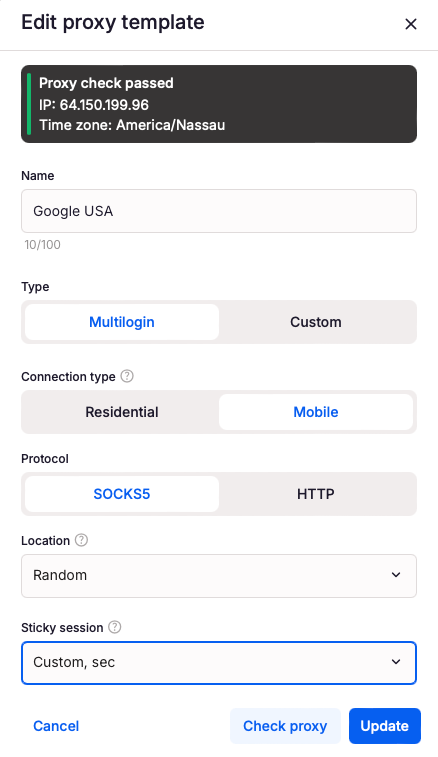
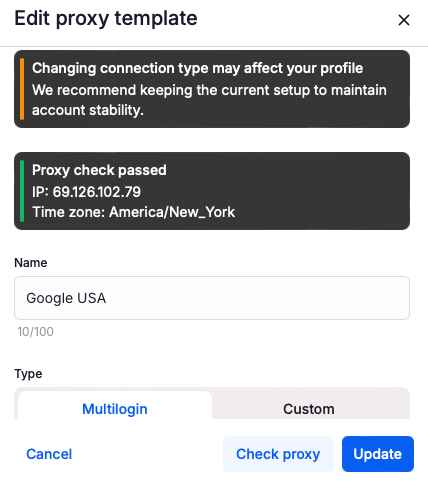
- Open Proxy templates and create a new template.
- Enter a clear Name, for example “Google USA” or “Client B, Germany mobile”.
- Under Type, choose Multilogin for built-in proxies or Custom for your own.
- For built-in proxies, choose the Connection type (Residential or Mobile), Protocol, and Location.
- Set the Sticky session.
- Click Check proxy to see the IP and time zone, then save the template.
Warning: ISP proxies can’t be used in proxy templates. Assign them to profiles directly, as in Step 11.
Step 14: Apply a template to a profile
Why this step matters: applying a template removes manual entry, so every new profile gets exactly the settings you planned.
Instructions:
- Open the profile’s Proxy tab.
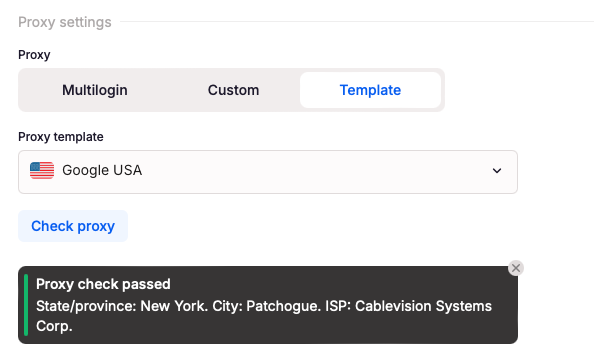
- Choose Template.
- Pick a template from the Proxy template list.
- Click Check proxy. The result shows the state or province, city, and internet provider.
- Save the profile.
Pro tip: templates work for both browser profiles and cloud phones. Learn more about managing proxy templates.
Advanced tips
Give every account its own proxy
One profile, one IP. Never put two accounts on the same proxy, even temporarily. This single rule prevents most account-linking problems.
Match three settings, not one
For a consistent cloud phone, line up the proxy type, the network type, and the location:
- Mobile proxy + Cellular for native social and messaging apps
- ISP or residential proxy + Wi-Fi for long, stable sessions
- A location that fits the account’s market in both the proxy and the device settings
Read more in how to choose the right proxy type for Multilogin.
Create cloud phones in batches
Need ten phones for one client? Set the number of profiles on the General tab to create up to 100 cloud phones at once. Every clone gets the same proxy setup and network type, and you can edit each phone afterwards.
Your plan’s profile limit still applies.
Keep mobile and web locations in sync
Some accounts run on both a cloud phone and a browser profile, such as a Facebook account with Business Manager on the web. Sync the location between both profiles so the account always comes from the same place.
Don’t worry about the old location in the list
The device location in the profile list comes from the proxy used when the cloud phone was created. If you change the proxy later, the list keeps showing the old location, but the new connection works normally.
Build activity gradually
A proxy gives each account its own network. It doesn’t change how the account behaves. New accounts with sudden high-volume activity look unnatural on any connection, so increase activity step by step.
Watch your traffic balance
Residential and mobile proxies use GB traffic. Check your balance regularly and top up from Billing before a big campaign. Unused traffic rolls over while your subscription is active.
Troubleshoot a failed check
If Check proxy fails:
- Confirm you have proxy traffic left.
- For custom proxies, verify the protocol, host, and port, and make sure the proxy is public.
- For ISP proxies, check that the proxy hasn’t expired.
- Try a nearby city or region if a specific location has no available IPs.
For more answers, see the Multilogin proxy FAQ and the full guide on how to create Android cloud phones.

