


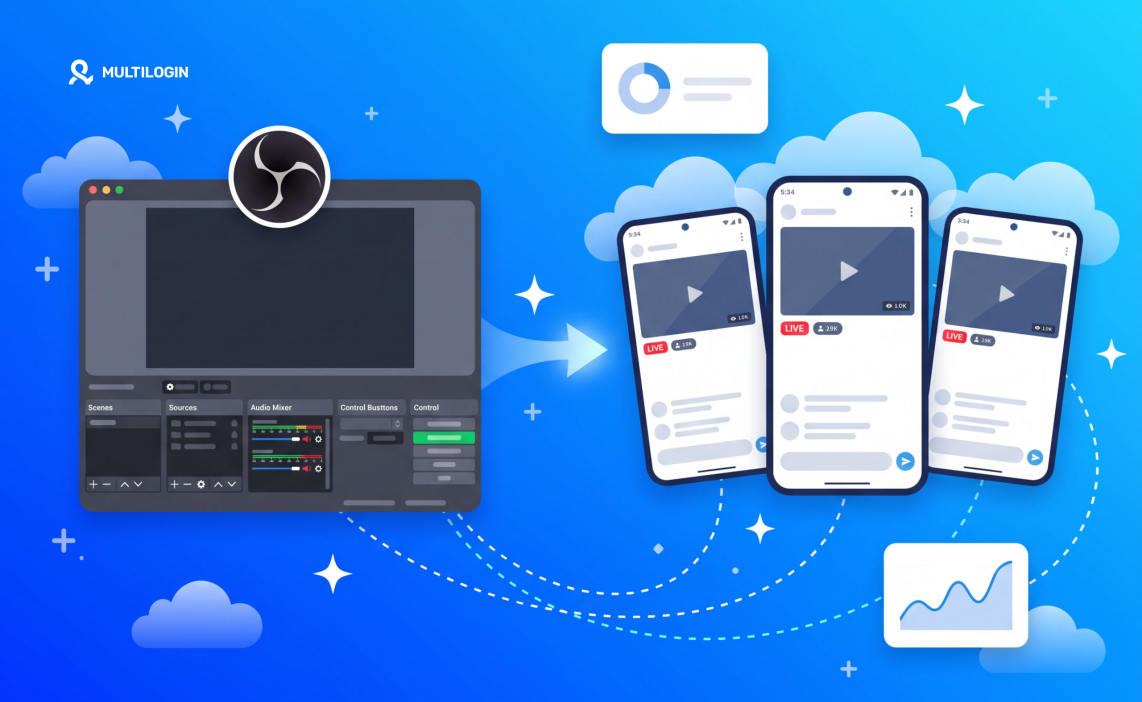
Short answer: yes. You start the OBS Virtual Camera on your computer, allow camera access inside the Multilogin cloud phone, and select OBS Virtual Camera as the camera source.
The app on the cloud phone then broadcasts your OBS scene as if a real phone camera filmed it.
That is the whole trick. Three clicks in OBS, two clicks in Multilogin. No stream key, no RTMP server address, no extra software.
Everything below shows you where to click.
By the end of this article you will know:
- What the OBS Virtual Camera actually does, in plain language
- How to build a vertical 1080×1920 scene that fills a phone screen properly
- How to create a mobile profile in Multilogin and point it at the right location
- How to connect the OBS Virtual Camera to your cloud phone, click by click
- How to add audio, go live, and close a session cleanly so your minutes stop
- How to run several streaming profiles side by side without them touching each other
What you need
- Multilogin with a mobile profile (the Free plan includes 1 mobile profile, 30 mobile minutes, and 200 MB of proxy traffic as one-time allocations)
- OBS Studio 26 or newer, which is where the Virtual Camera lives
- The app you want to stream from, installed on the cloud phone.
Step-by-Step: Streaming from OBS Through a Multilogin Cloud Phone
Multilogin separates mobile profiles from browser profiles because they do different jobs. Mobile profiles run on cloud phones and handle native apps like TikTok and Instagram.
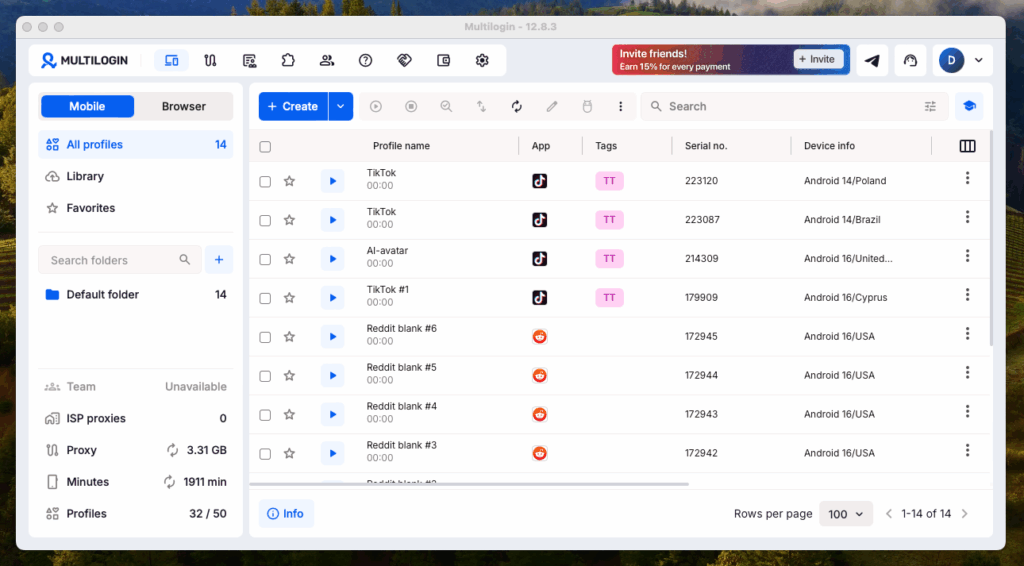
Browser profiles handle web platforms like Reddit and YouTube. Streaming through a native app needs a mobile profile, so you start on the correct tab.
Step 1: Create a mobile profile
Click Create, name the profile, pick your Use case, keep Proxy on Multilogin with Connection type: Mobile, and choose the Location that matches your audience. Click Create.
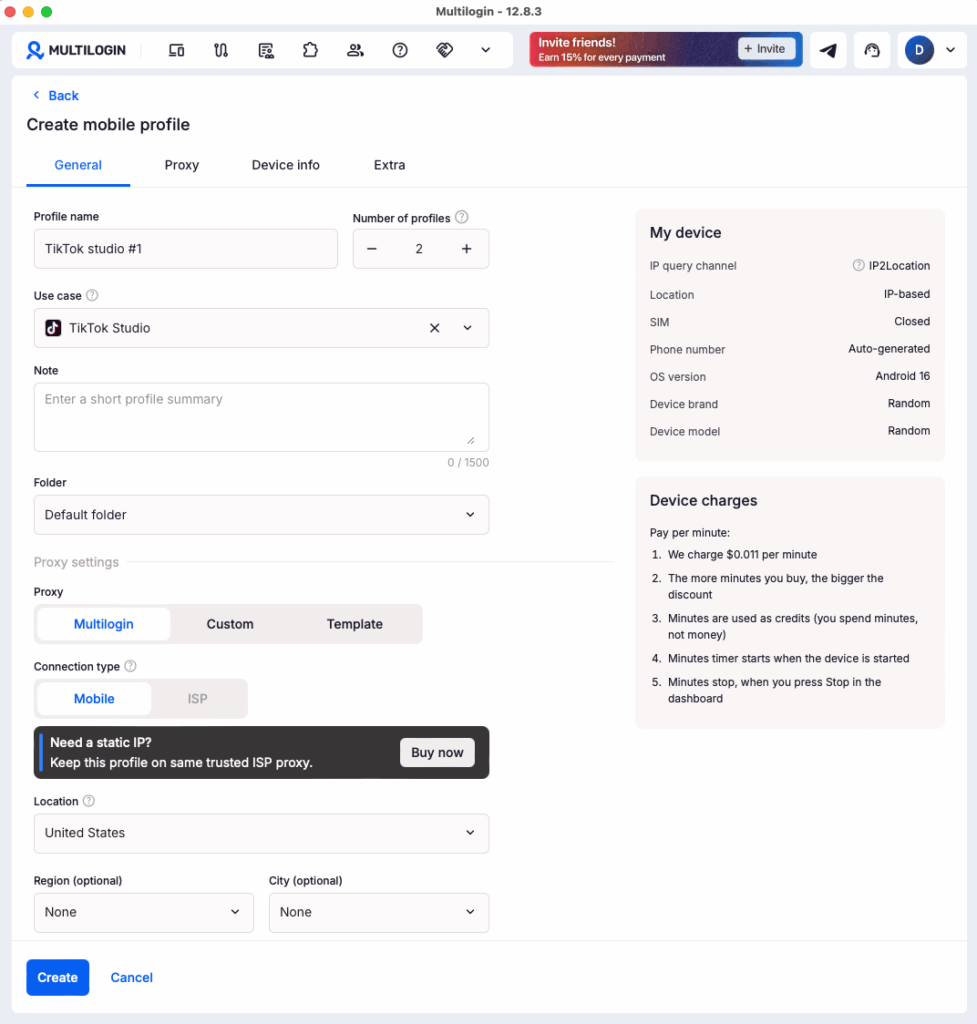
The location drives both the built-in proxy and the GPS on the device, so set it once and keep the profile in that market.
Step 2: Launch the profile and install your app
Press play on the profile. When the cloud phone opens, click Apps in the right toolbar, search the built-in store, and click Install. Sign in to the account you plan to stream from.
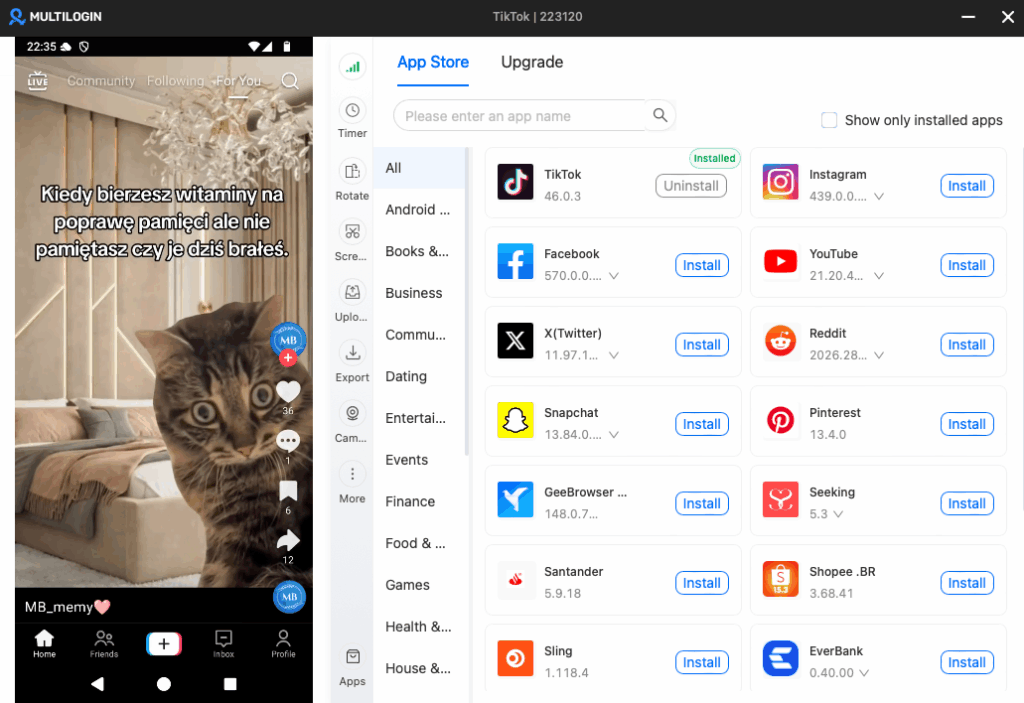
Give the profile a session or two of normal use before your first broadcast. Gradual activity builds account health.
Pro tip: you can also upload your own APK file if the app you need does not appear in the store.
Step 3: Start the OBS Virtual Camera
The OBS Virtual Camera outputs your canvas at whatever resolution your canvas uses. Set a horizontal canvas and your cloud phone receives a horizontal image inside a vertical frame, with black bars eating most of the screen. Set a vertical canvas and the feed fills the phone properly.
Do this:
- Open OBS and go to Settings → Video.
- Set Base (Canvas) Resolution to
1080x1920. - Set Output (Scaled) Resolution to
1080x1920. - Set Common FPS Values to
30. Thirty frames per second gives you smooth motion without demanding more bandwidth than a mobile stream needs. - Click Apply, then OK.
- Back in the main window, build your scene in the now-vertical canvas. Stack your sources the way phone viewers expect: gameplay or screen capture filling the middle, your webcam in the top third, overlays and alerts around the edges.
- Keep the bottom quarter of the frame clear. Comments, gift animations, and the reply field cover that area inside the app, and anything you place there disappears behind them.
Then look at the Controls panel and click Start Virtual Camera. The button label changes to Stop Virtual Camera. That means your OBS scene now exists on your computer as a camera device, exactly like a webcam.
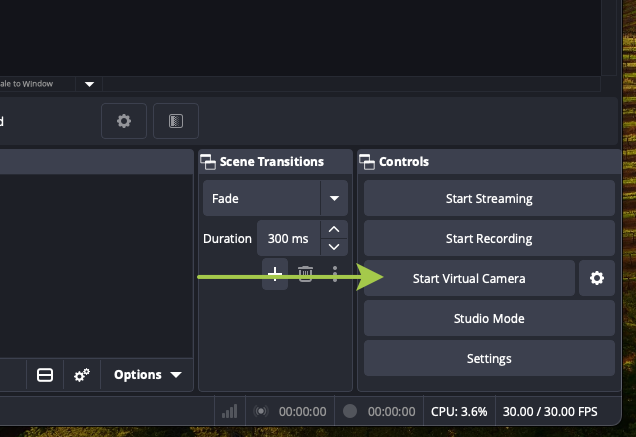
Start it before you open the camera list on the phone. The device only appears in that list while it runs.
Pro tip: save this as a separate scene collection through Scene Collection → New, and name it after the profile. When you run several profiles, switching collections beats rebuilding scenes.
Step 4: Allow camera access inside the cloud phone
The cloud phone runs real Android, and real Android asks permission before an app touches the camera. Deny it once and the app quietly shows a black frame forever, with no obvious error to explain why.
Open the app on the cloud phone and start a live session. Android asks for permission. Click Allow.
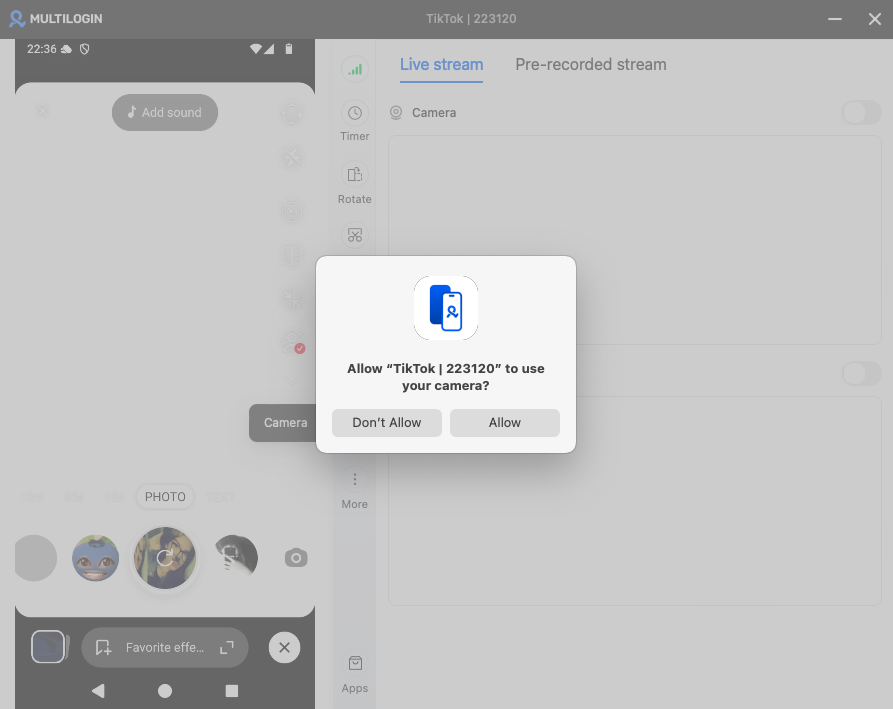
Tap the wrong button and the app shows a black frame with no error. Fix it in Android Settings → Apps → permissions.
Step 5: Select the OBS Virtual Camera in the Multilogin Camera Panel
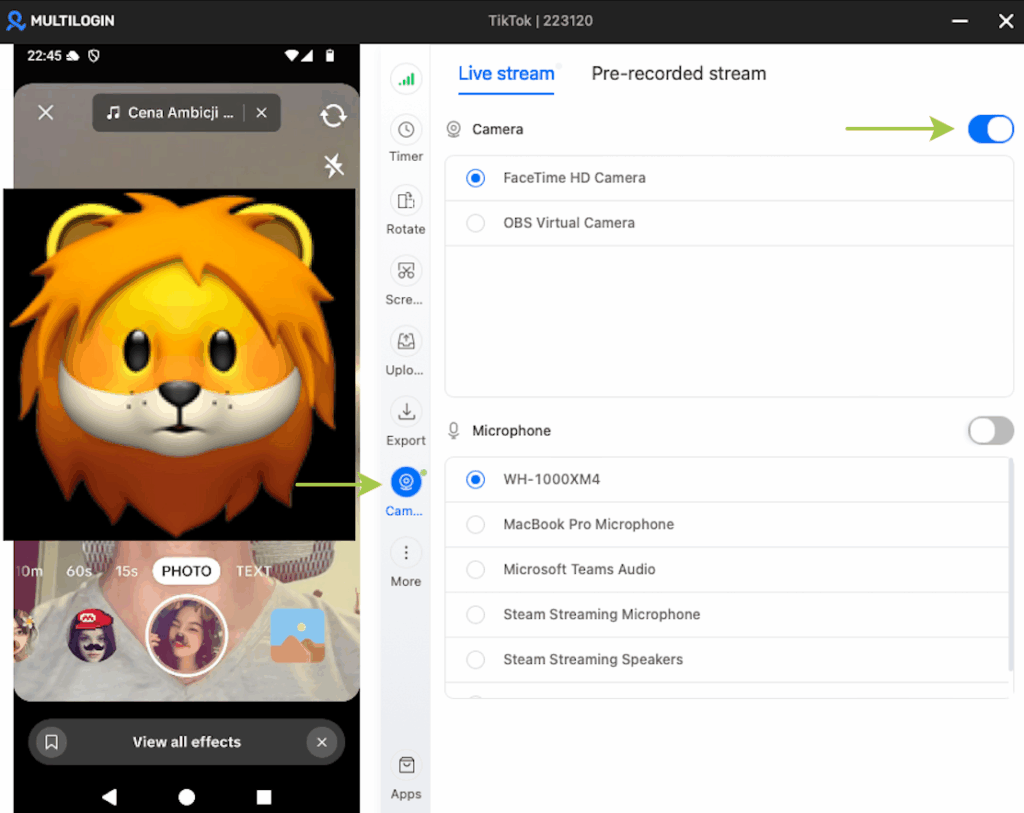
Click the Camera icon in the right toolbar of the cloud phone window. Switch the Camera toggle on, then choose OBS Virtual Camera instead of your webcam. Your OBS scene appears in the preview.
Switch the Microphone toggle on and pick your audio input. The virtual camera carries video only, so audio needs this second toggle.
Want your full OBS audio mix, with game sound, music, and alerts, instead of a bare microphone?
Install a free virtual audio device: VB-Cable on Windows or BlackHole on macOS. In OBS, open Settings → Audio → Advanced and set your monitoring device to that cable, then set each audio source you want on the stream to Monitor and Output.
Back in the Multilogin panel, pick the cable in the Microphone list. The cloud phone now receives the same mix your OBS meters show. VoiceMeeter on Windows does the same job with more routing options, and the Audio Monitor plugin for OBS lets you send individual sources to the cable and delay them to stay in sync with the video.
Step 6: Go live, then stop cleanly
Start the broadcast from inside the app. Watch the preview for thirty seconds, confirm the video moves and the audio meter responds, then run your stream.
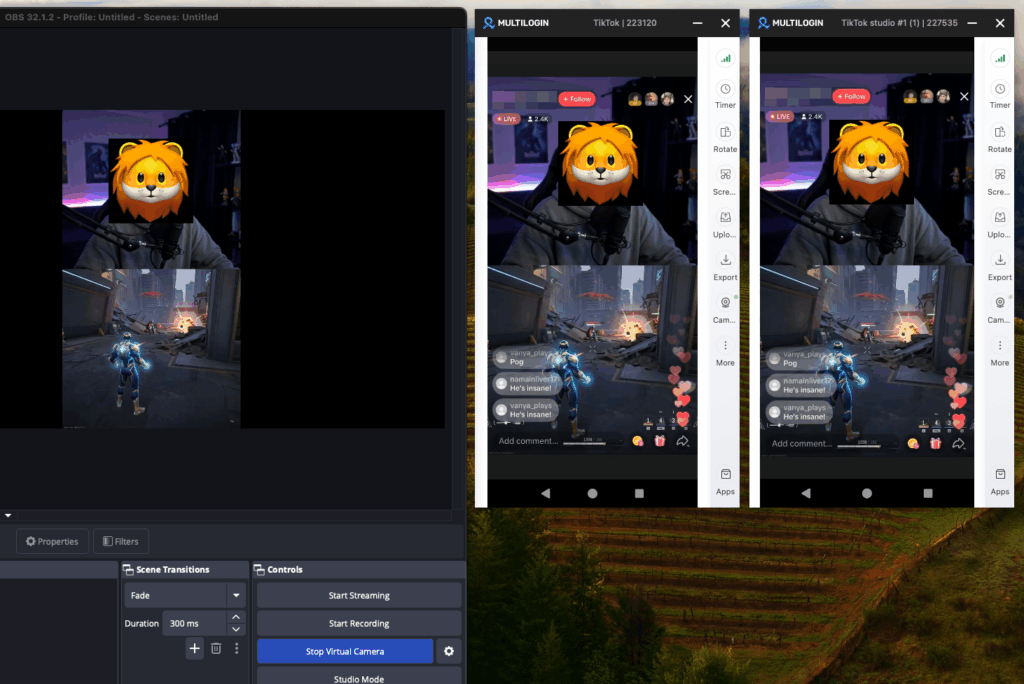
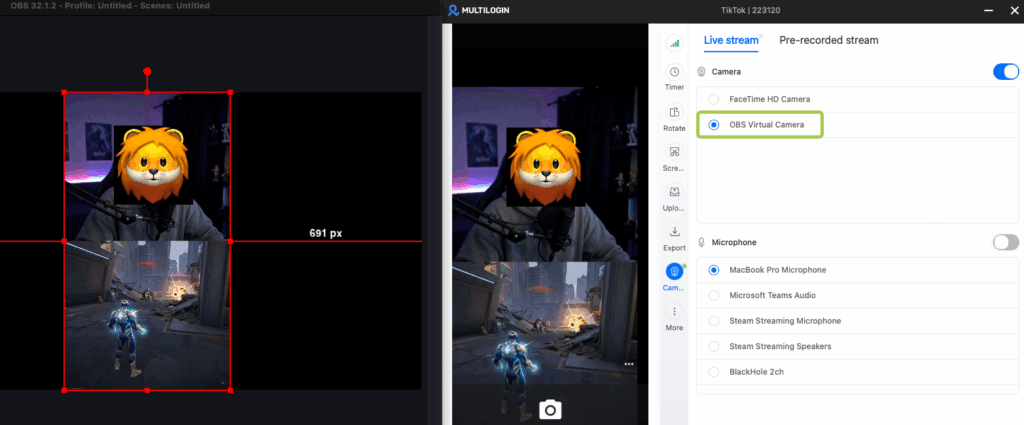
Pro tip: the screenshot shows two profiles broadcasting side by side from one dashboard, with OBS running behind them. That layout is the whole point of this setup.
Each profile keeps its own device, its own IP, and its own history, and you supervise all of them from one screen.
Warning: if the video stutters, lower the OBS output resolution to 720x1280 and keep 30 FPS before you change anything else. Cloud phones depend on your connection, and a smaller frame travels more reliably than a large one.
To finish: end the broadcast in the app, switch both toggles off, click Stop Virtual Camera in OBS, and press Stop on the profile in the dashboard. The minute timer stops there.
Streaming to TikTok, Requirements and Limits
TikTok is the platform most people build this chain for, and it carries the strictest entry rules. The setup itself stays the same: the broadcast starts inside the TikTok app on a cloud phone for TikTok, and the app reads the OBS Virtual Camera as its camera. That path skips desktop LIVE access, which sits behind a separate approval.
Check the account before you build anything, because no OBS setting fixes a profile that fails eligibility:
- 1,000 followers to unlock LIVE. Exceptions exist, but plan around the full number.
- Age 18+ to host and to receive gifts. TikTok verifies age on your first LIVE attempt.
- Good standing. Active violations block LIVE regardless of follower count.
- Some account maturity. Give a fresh profile a few weeks of normal activity first. Persistent sessions on a cloud phone make that warm-up natural.
Rules change and vary by region, so treat the in-app LIVE screen as the final authority.
Respect the limits once you are live: keep each profile in one market with the built-in Mobile proxy, disclose commercial content with TikTok’s tools, and remember that LIVE moderation acts in real time. The cloud phone gives the account a real device, isolation, and a consistent location. It does not add followers or repair standing, so if you run several accounts, grow each one properly: our guide to creating multiple TikTok accounts covers that side.
