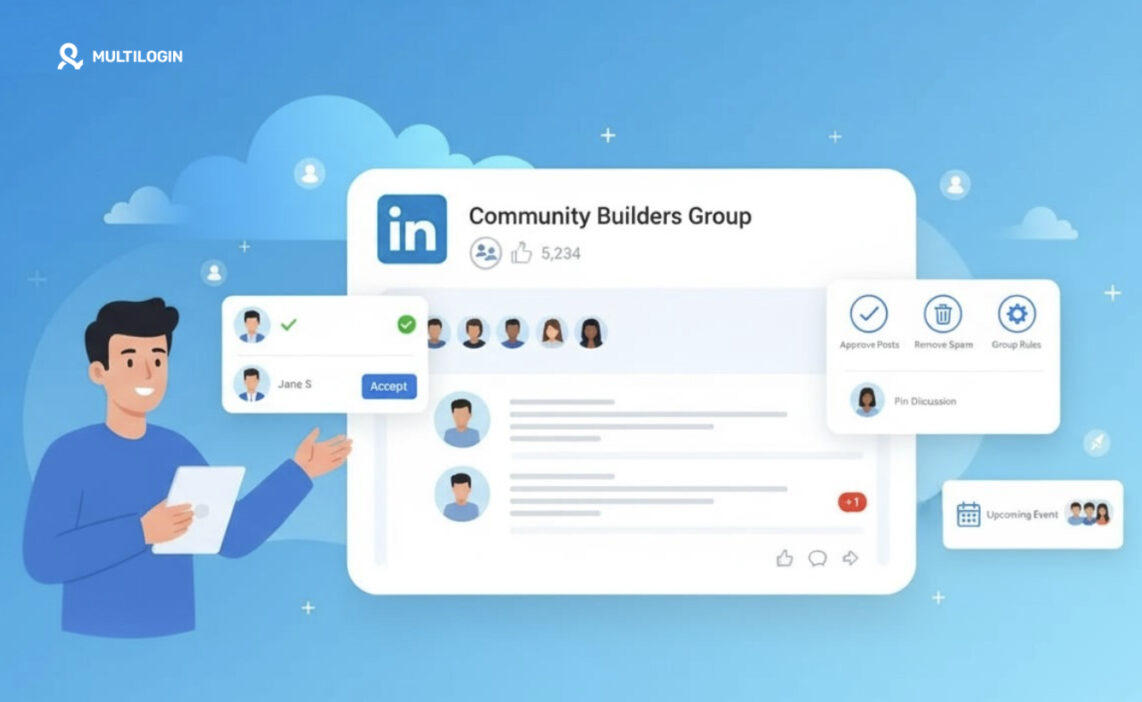



How to create and manage a LinkedIn group successfully starts with more than setting a name and inviting members. A strong group needs a clear purpose, consistent moderation, and content that encourages real conversations – not endless self-promotion.
In this guide, you’ll learn how to:
- Set up the right group name, description, rules, and privacy settings
- Attract relevant members and keep discussions active
- Reduce spam, manage multiple communities, and grow engagement sustainably
For example, instead of creating a broad “Digital Marketing” group, build a focused community such as “B2B SaaS Marketers in Southeast Asia.” Pin a welcome post, publish one useful discussion each week, and remove off-topic promotions early to protect the group’s quality.
When managing several LinkedIn accounts, profiles or communities, Multilogin’s cloud phone can help you organize separate mobile environments and keep account access workflows more structured.
👉 Explore Multilogin cloud phone and start building a LinkedIn group your members will genuinely value.
Why Bother With a LinkedIn Group in the First Place
A LinkedIn group gives you a dedicated space, separate from your main feed, where a specific audience can gather around one topic. Unlike a Page, which is mostly you broadcasting outward, a group is built for back and forth. Members post. Members comment on each other. You moderate rather than perform.
That distinction matters more than people expect. Pages are megaphones. Groups are rooms. And rooms need a host who actually shows up.
If you run a niche business, coach a specific industry, or just care deeply about one topic (SaaS pricing, freelance writing, warehouse logistics, whatever your thing is) a group lets you own that conversation instead of chasing it across other people’s posts.
👉 Want to understand how LinkedIn Groups work and why they remain valuable for networking, community building, and professional growth in 2026? Read our guide: What Are LinkedIn Groups, to explore their key benefits, use cases, and role in a modern LinkedIn strategy.
How to Create a LinkedIn Group, Step by Step
Creating a LinkedIn group takes about five minutes if you know what you’re doing, and considerably longer if you’re guessing your way through it.
- Log into LinkedIn on desktop (the group creation flow is clunky on mobile, honestly avoid it).
- Click the Groups icon in the main navigation, then Create group.
- Add a group name. Keep it specific. “Marketing” is too broad; “B2B SaaS Content Marketers” tells people exactly why they’d join.
- Write a description that answers one question: what will members get by being here?
- Choose a group logo, even a simple one. Groups with no image look abandoned before they’ve started.
- Set your group to Public or Private. Public groups are visible to anyone and show up in search; private groups require approval to join and don’t show posts to non-members.
- Publish the group, then immediately write your first post before inviting a single person.
That last step gets skipped constantly, and it’s a mistake. An empty group feels like a party nobody showed up to.
👉 Pro tip: Post something in your brand new group before you invite anyone. Even one thoughtful post makes the space feel alive instead of empty when the first real visitors arrive.
LinkedIn Group Settings You Should Actually Understand
Once your group exists, LinkedIn hands you a settings panel most admins never fully open. Worth fixing, since these settings quietly shape whether your group feels organized or chaotic.
- Membership approval: decide whether new requests need manual review or get auto-approved. For anything with a real purpose, manual review is worth the extra thirty seconds per request.
- Posting permissions: you can require that posts get approved before they’re visible. Useful early on, annoying once you have an active group, so revisit this setting as you grow.
- Who can invite others: members, admins only, or nobody. Letting only admins invite keeps the group focused, though it slows growth.
- Group visibility: whether the group appears in search and whether posts are visible to non-members browsing LinkedIn.
- Notification settings: how often members get emailed about group activity. Too frequent and people mute the group entirely.
LinkedIn’s own help documentation covers the mechanics of these toggles screen by screen, if you ever get stuck on where a specific setting lives inside the interface.
How to Manage a LinkedIn Group Day to Day
Here’s the part nobody puts in the marketing copy. Managing a LinkedIn group is mostly small, repetitive, unglamorous work, and skipping it is exactly why most groups go quiet within a few months.
Managing a LinkedIn group well comes down to three habits repeated consistently: reviewing new members, moderating content, and posting something yourself on a rhythm.
New member requests pile up fast once a group gets any traction. Review them regularly rather than letting a backlog build; a queue of forty pending requests looks neglected even if you’re just busy. Set a day, even once a week, and clear it.
Moderation is where groups either hold together or fall apart. Spam, off-topic self-promotion, and outright scraped content posted by bots are the three things that will kill a group’s credibility fastest. Remove it quickly and quietly. Don’t debate it in the comments; that just gives it more visibility.
And post yourself. Not constantly, but on a rhythm your members can expect. Once a week is enough for most groups. Ask a question, share an industry update, highlight a member’s win. The goal isn’t volume, it’s showing the room is occupied.
LinkedIn Group Best Practices That Actually Move the Needle
A lot of LinkedIn group best practices floating around online amount to “post more,” which isn’t wrong, exactly, just incomplete. Here’s what actually correlates with groups that stay active past month three.
- Pin a welcome post with the group’s rules, so nobody has an excuse for not knowing them
- Ask questions instead of only sharing links; questions get replies, links get scrolled past
- Respond to every comment for the first few weeks, even short ones, since early engagement sets the tone
- Highlight members publicly (with permission) when they contribute something genuinely useful
- Keep the group niche rather than broad; a tightly focused group of 200 beats a vague group of 5,000
| Practice | Why It Works | Effort Level |
|---|---|---|
| Pinned welcome post | Sets expectations upfront | Low |
| Weekly discussion prompt | Keeps activity predictable | Medium |
| Manual member approval | Filters spam and low-intent joiners | Medium |
| Member spotlights | Builds loyalty and repeat posting | Low |
| Consistent moderation | Prevents spam takeover | Ongoing |
How to Grow a LinkedIn Group Without It Feeling Forced
Growing a LinkedIn group is a slower game than growing a personal following, and honestly, that’s fine. A smaller group of genuinely interested people outperforms a bloated one every time, in terms of actual engagement.
A few approaches that work without feeling like spam:
Invite from your existing network first, but only people who’d genuinely care about the topic. Mass-inviting your entire connection list guarantees a group full of members who never open it.
Cross-promote in relevant content. If you write posts, articles, or newsletters on the topic your group covers, a one-line mention at the end works better than a dedicated promotional post.
Ask early members to invite one or two people each. Word of mouth from an actual member carries more weight than an admin’s invite ever will.
Promoting a LinkedIn Group Without Sounding Like an Ad
There’s a real difference between promoting a LinkedIn group and pestering your network about it. The line usually comes down to whether you’re offering value or just asking for a click.
Share genuinely useful excerpts from inside the group (with permission) on your main profile. Let people see what they’re missing before you ask them to join. Mention the group naturally in comments on relevant posts, not as a drive-by plug but as an actual answer to what someone asked.
Consider a short LinkedIn group marketing strategy document for yourself, even a single page: who is this group for, what do they get, and what’s your posting cadence. Vague plans produce vague groups.
Tools That Make LinkedIn Group Management Less of a Grind
Once a group grows past a hundred or so active members, doing everything by memory stops working. This is where basic account and community management tools start earning their keep, tracking who’s pending approval, what’s been flagged, and what’s scheduled to post next.
Common Mistakes People Make Managing a LinkedIn Group
Worth naming these plainly, because most of them are avoidable.
- Inviting everyone at once instead of building membership gradually
- Going silent for weeks, then wondering why engagement dropped
- Ignoring spam because removing it feels like too much friction
- Never updating the group description as the group’s focus shifts
- Treating the group like a second Page instead of an actual discussion space
Any one of these, on its own, probably won’t kill a group. All five together usually will.


Manage multiple accounts with Android cloud phones
Build account trust, reach new locations, and grow faster from one dashboard
Conclusion: Keep It Small, Keep It Consistent
The key to creating and managing a LinkedIn group is simple: setup takes minutes, but building an active community requires consistency. Define clear rules from the start, moderate spam and irrelevant content quickly, and maintain a reliable posting schedule that gives members a reason to return.
Focus on meaningful participation rather than inflated member numbers. A focused group of 300 professionals who regularly read, comment, and share insights is far more valuable than a group of 5,000 inactive members. Sustainable growth comes from trust, useful discussions, and consistent management—not vanity metrics.
Frequently Asked Questions
How many members do I need before creating a LinkedIn group?
Can I create a LinkedIn group without a personal profile?
No. LinkedIn requires an active personal profile to create and administer a group. Company Pages can’t create groups directly, though someone at the company can create one and manage it under their own profile.
Who can see a LinkedIn group, and can I make it private?
Yes, you control this at setup. Public groups and their posts are visible to anyone on LinkedIn, including non-members. Private groups require approval to join, and posts stay hidden from anyone outside the group.
How do I remove an inactive or disruptive member from my group?
Go to the group’s member list, find the person in question, and use the remove option from their listing. It takes effect immediately and doesn’t notify the rest of the group.