



An AI agent can write a Facebook post in seconds and accelerate your facebook account warmup. Yet, it often takes you longer to check the newest info and get the AI agent into the right account every day.
Multilogin cloud phones can help you solve that: each of your Facebook accounts can retain its own login state and history between sessions securely. That way, you don’t need to manually do the boring part anymore.
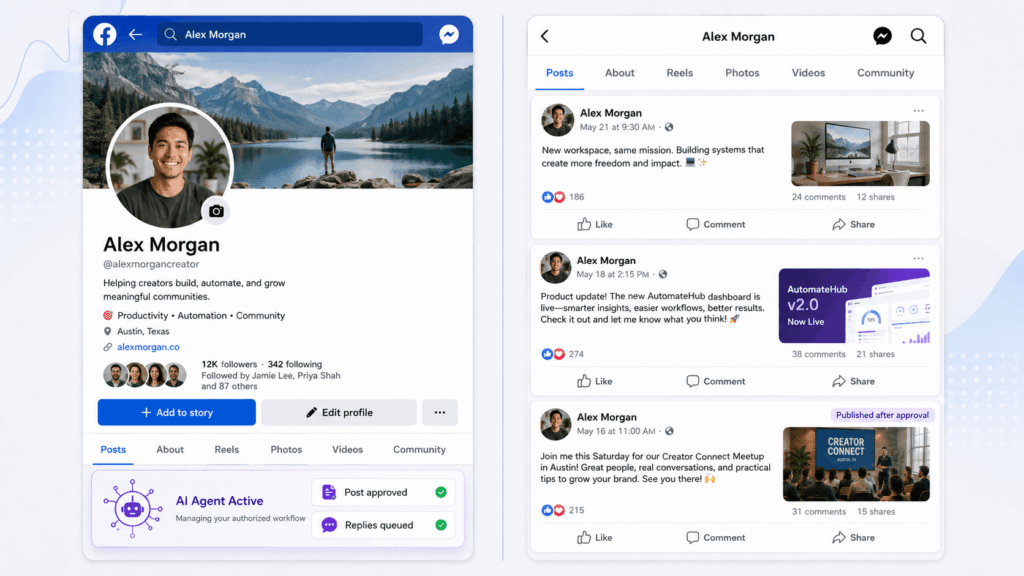
This guide explains how to connect AI Agent to your facebook account with Multilogin cloud phones. Are you ready to attract more impressions and traffic with your AI Agent and Multilogin? Let’s get started.
What can an AI agent automate on Facebook?
An AI agent like Claude and Codex can now look at a screen, decide what to do, and take the action themselves, the same way a person would:
- Preparing Page posts from an approved content calendar
- Uploading approved images and videos
- Sorting comments into questions, complaints, leads, and spam
- Capturing screenshots and recording task outcomes
Why use a cloud phone for Facebook automation?
Use an official Meta API whenever it supports the task. APIs are easier to maintain than interface automation. Some workflows still depend on the app, however, such as checking Android rendering or testing a native upload flow.
Physical phones make it complicated when you have multiple clients. Multilogin places Android cloud phones and browser profiles in one dashboard. Phones and profiles can be organized by client, Page, region, or workflow.
How the AI agent connects to the Facebook app
The model needs a controlled path from its decision to the Android interface. A practical setup:
1. Task source: a content calendar, support queue, campaign brief, or scheduled trigger
2. AI agent: reads the task, prepares content, and selects an allowed action
3. Rules and approval layer: checks account, timing, content type, and whether human approval is required
4. Android controller: uses ADB and Appium to open the app, locate interface elements, tap buttons, and enter text
5. Cloud phone and log: runs Facebook, captures the result, and returns evidence to the workflow
ADB lets a computer move files, take screenshots, collect logs, and connect scripts to a running cloud phone. Appium interacts with Android interface elements through the UiAutomator2 driver.
The agent should only receive a small set of tools such as ‘open_facebook’, ‘upload_approved_media, ‘prepare_post, ‘request_approval’, and `publish_post`. Limiting the available actions is safer than giving it a generic tool that can tap anywhere on the screen.
How you do it with Multilogin cloud phones
Before starting, you will need:
- A Multilogin account with cloud phone and proxy access
- A Facebook account, Page, or business asset you are authorized to manage
- Android SDK Platform-Tools with ADB installed
- Appium and the UiAutomator2 driver for app-interface automation
- An AI model or agent framework that can call approved tools
Do not begin by connecting the workflow to every production account. Build and test one narrow task first.
Step 1: Create a Facebook cloud phone
Open Multilogin and go to Profiles → Mobile → Create. Give the phone a name that identifies its purpose without exposing login credentials. A format such as “FB_Client_Market” is easier to manage than names such as “Facebook phone 1”.
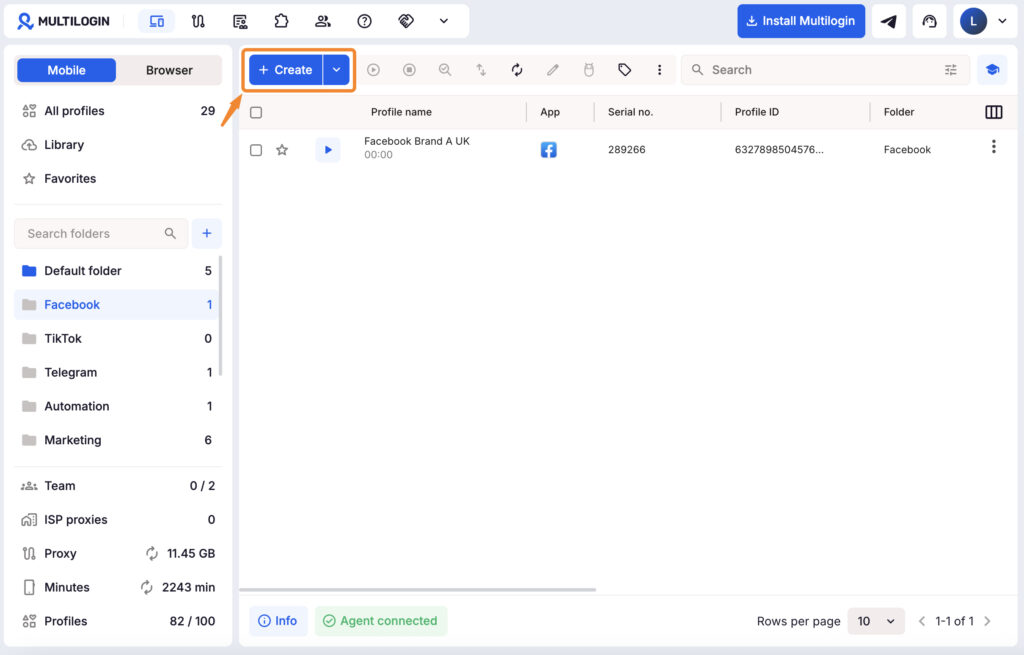
Choose Facebook as the use case, add tags, place the profile in the correct folder, and configure a public proxy. Its location should match the account’s legitimate operating context.
Step 2: Install Facebook and establish the session
Start the cloud phone and open Multilogin’s app marketplace. Find the official Facebook app and install it. You can also install Meta Business Suite or Meta Ads if those apps are part of the workflow.
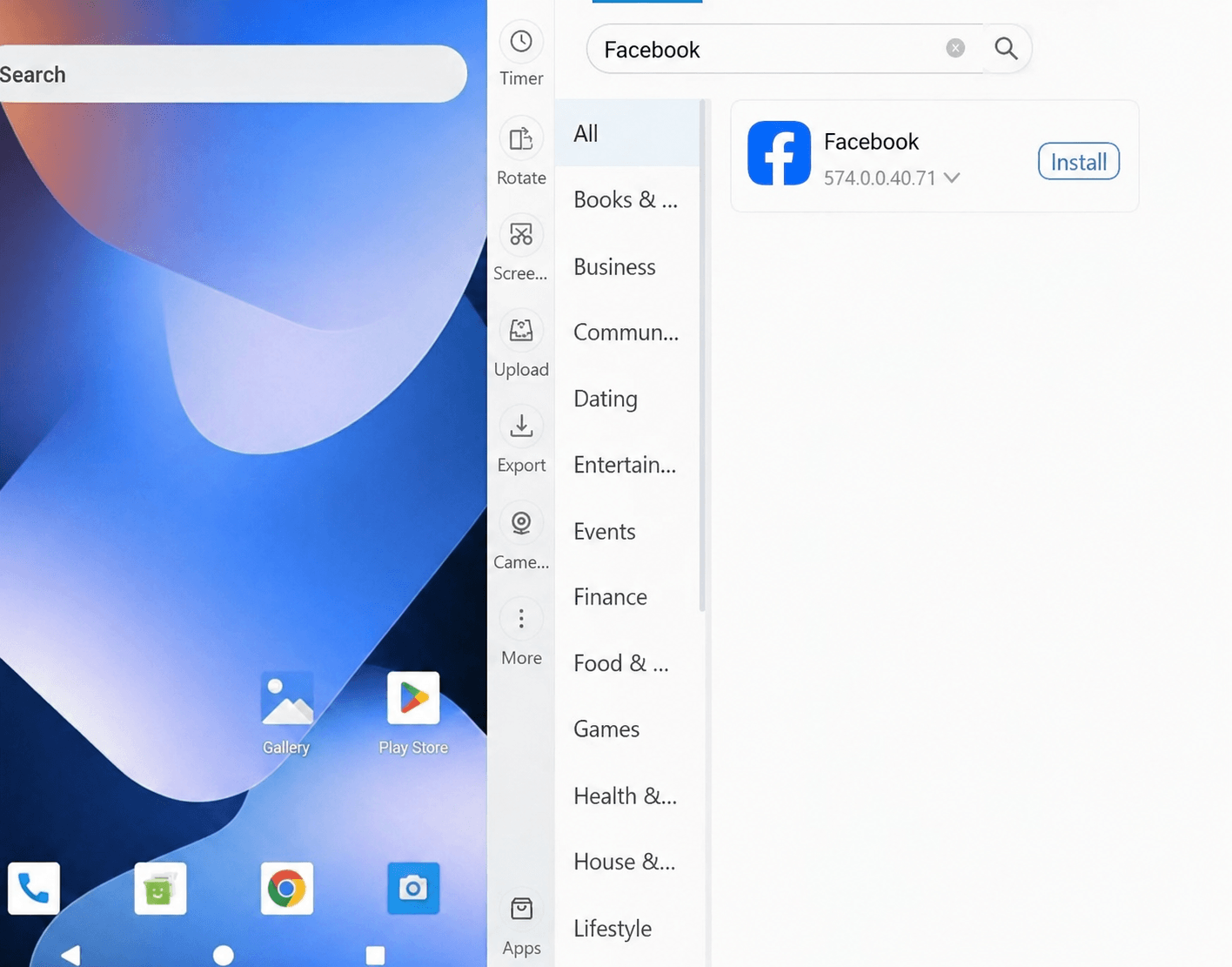
Complete the first login manually. Confirm the account, Page, permissions, language, and region. If Facebook requests verification, use the account’s legitimate recovery method. Before connecting an agent, perform the planned task manually to identify Page selectors and media permissions.
Step 3: Prepare content and files
Keep content generation separate from publishing. Store the approved caption, destination Page, publishing window, media file, language, and campaign reference in a structured task like:
“`json
{
“page”: “Brand UK”,
“action”: “publish_post”,
“caption_status”: “approved”,
“media_status”: “approved”,
“publish_after”: “2026-08-20T09:00:00+01:00”,
“requires_final_review”: true
}
“`
Place media in the Multilogin cloud phone Library or transfer it through ADB. Use campaign and version identifiers in filenames.
Step 4: Enable ADB
Start the cloud phone, select the profile, and choose “Enable ADB”. When the green Android icon appears, copy the connection and authentication commands supplied by Multilogin and run them in Terminal, Command Prompt, or PowerShell.
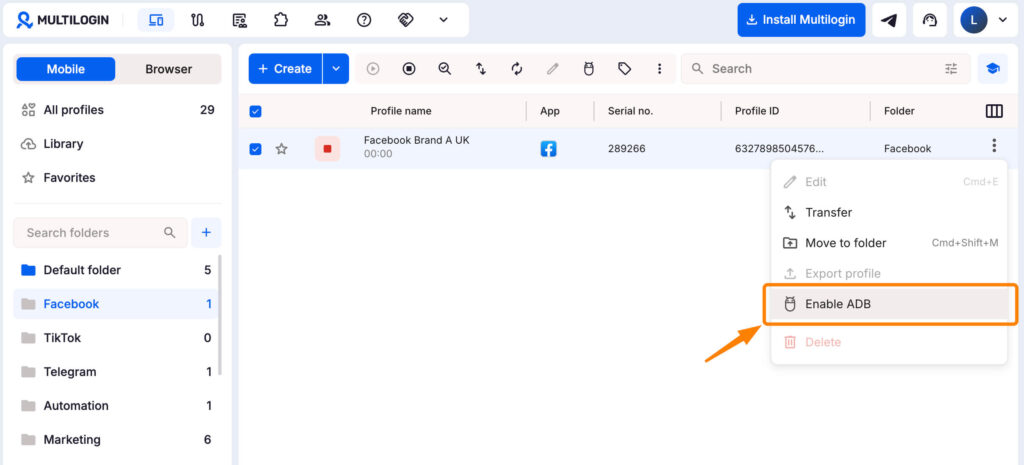
Keep the phone running during automation. ADB stops with the profile. When connecting several phones, specify the individual device address in every command. Test screenshots, file transfer, and logs before adding app interaction.
Step 5: Add Appium for Facebook app control
Install Appium, Android SDK Platform-Tools, Java, and UiAutomator2, then connect Appium to the device available through ADB. Locate elements by accessibility label, text, or resource ID.
Build small reusable functions for individual tasks. A publishing function usually processes as follows: First, Open Facebook and confirm the expected account or Page. Then, open the post composer, insert the approved caption and attach the specified media. Pause for approval and publish only after approval is returned. Finally, write the outcome to the activity log.
If an expected element is missing, the script should stop. It should not tap nearby buttons or guess its way through an unfamiliar screen.
Step 6: Give the AI agent a narrow operating brief
An effective agent instruction defines what the agent may do, when it must stop, and what evidence it must return.
Here is a practical starting point:
- Manage the assigned Facebook Page using only the provided tools.
- Request human approval before publishing or replying. Stop if the Page name, media, caption, or interface differs from the task.
- Add rules for tone, restricted subjects, legal claims, escalation keywords, and working hours. For comments, default to classify and draft, not publish.
Step 7: Scale across Facebook accounts
After one workflow works, repeat the structure. Make sure to have one cloud phone for each Facebook account. Set account-specific language, working hours, and escalation rules.
Multilogin can start multiple cloud phones and organize them with tags, folders, notes, and team access. Each Page should still have its own content plan and audience purpose.
Three practical AI agent workflows for Facebook
1. Controlled Page publishing
The agent reads an approved calendar entry, checks the scheduled market and Page, prepares the cloud phone, loads the final media, and requests approval with a preview screenshot. After publication, it captures the result and updates the calendar.
2. Comment triage and reply drafting
The agent classifies permitted comment text as a question, complaint, lead, moderation issue, or no action. It drafts replies and sends sensitive cases to a person. Do not store more user data than the task requires.
3. Mobile content quality assurance
The agent checks whether a new post’s caption is truncated, its creative uses the intended ratio, and its link loads. It returns screenshots and a pass/fail report—a useful first automation because it does not engage with users.


Manage multiple accounts with Android cloud phones
Build account trust, reach new locations, and grow faster from one dashboard
Automate Facebook efficiently and securely
Facebook automation works best when the agent receives small jobs: prepare an approved post, organize comments, check a mobile layout, or document a task. Clear tools and approval gates are more dependable than unrestricted screen access.
Multilogin provides the device layer: persistent Android cloud phones plus organized profiles, files, locations, and team access. ADB and Appium connect the phones to the agent, while reviewers retain control of important decisions.
Ready to test a controlled Facebook automation workflow? Start with Multilogin cloud phones, create one test profile, and automate a single low-risk task before expanding to more Pages or accounts.
FAQ
What is a cloud phone?
A cloud phone is a real Android device hosted in the cloud. You access it from your desktop, but it runs like a physical smartphone with its own operating system, hardware identifiers, and storage.
How are cloud phones different from emulators?
Cloud phones run on genuine Android hardware with real device identifiers (IMEI, Android ID, MAC address). Emulators use simulated environments that platforms can easily detect and flag.
Can an AI agent post to Facebook automatically?
An agent can publish through an authorized API or controlled Android workflow. Whether it should depends on Meta’s rules, account permissions, and your approval policy. Keep human approval for brand Pages.
Is Multilogin a Facebook automation bot?
No. Multilogin supplies cloud phones, browser profiles, proxies, organization, and automation connections. Your agent defines the task, and Multilogin does not make a prohibited action compliant.
Should I use a Facebook API or a cloud phone?
Use an official Meta API when it supports the task. Use a cloud phone when the workflow requires the Android app, mobile rendering, or app-specific quality assurance. Many teams use APIs for structured publishing and cloud phones for mobile verification.
Can I automate several Facebook accounts from one computer?
Yes, and Multilogin is the perfect tool offering both mobile and web options from one dashboard. Please make sure each account has a legitimate purpose, authorization, its own workflow, and separated access.
What happens if the Facebook app changes its layout?
Appium selectors may stop working. Configure the workflow to halt when an expected element is missing, then update and retest the script. It should never guess which button to press after a layout change.