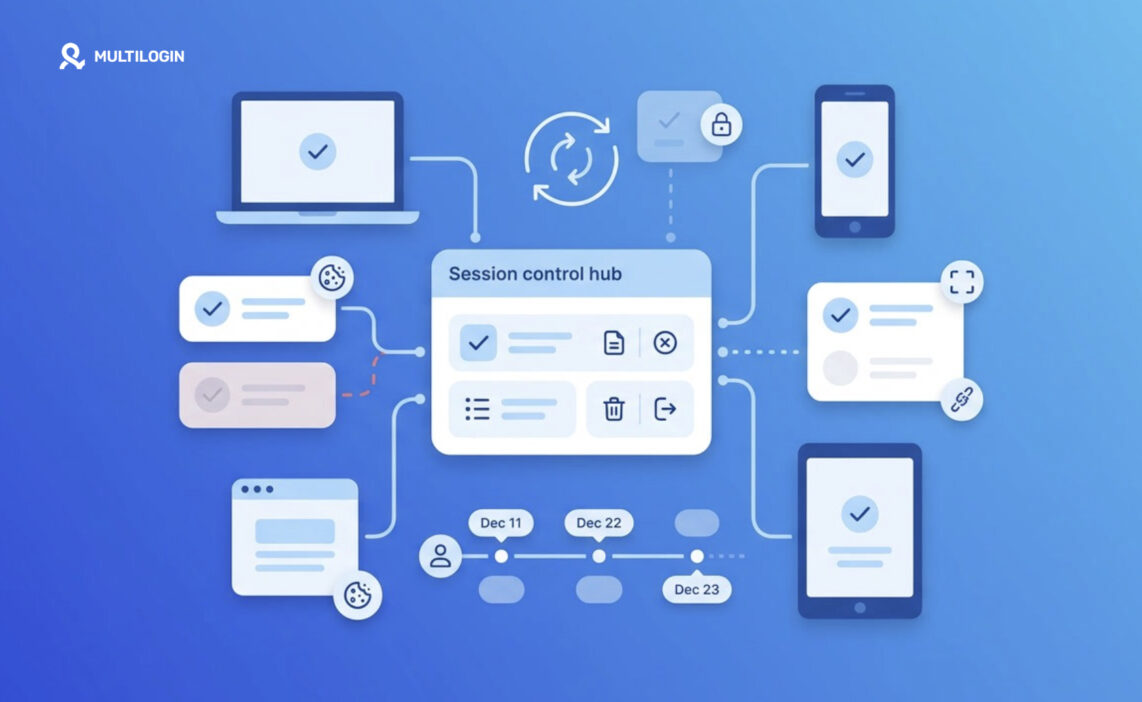



LinkedIn session management determines how the platform keeps you signed in, recognizes your device, and decides when you need to log in or verify your identity again. In this guide, you’ll learn how a LinkedIn login session works, what cookies and session tokens do, how device and IP changes can affect active sessions, and what you can do to keep your logins more consistent.
A LinkedIn session involves more than just your username and password. LinkedIn can evaluate cookies, session tokens, device information, IP address, location, and login patterns in the background. When several of these signals change unexpectedly, you may be logged out or asked to complete an additional verification step.
This matters even more when you manage multiple LinkedIn accounts or access accounts across different devices. Mixing sessions, frequently changing environments, or signing several accounts into the same device can make account management harder. Multilogin cloud phones provide separate Android environments for different accounts, with independent sessions, device profiles, and IP settings, helping teams keep their mobile workflows organized and consistent.
Read on to understand how LinkedIn sessions work, why they expire, and how to manage them more effectively.
👉 Try Multilogin for free and manage LinkedIn sessions in separate cloud phone environments.
What Is LinkedIn Session Management?
LinkedIn session management is the background process that tracks, verifies, and eventually expires your login on every device you use. It’s how LinkedIn remembers “this is still you” without asking for your password on every click.
A session is basically a short-lived agreement between your device and LinkedIn’s servers. Log in, and LinkedIn issues a token tied to your account and a few device fingerprints. That token lives until you log out, it expires naturally, or LinkedIn’s security systems decide something looks off and cut it early. Nothing unusual there either, most login-based platforms run some version of the same system.
How LinkedIn Login Sessions Actually Work
A LinkedIn login session starts the moment you enter your credentials and pass any required checks. LinkedIn’s servers generate a session identifier and hand it back to your browser or app.
Your device stores that identifier (usually as a cookie, or in encrypted app storage) and sends it with every request. Load your feed, message a connection, it’s the same token doing the work each time. LinkedIn checks it against valid, unexpired records and lets the request through. Fail that check, and you’re quietly redirected to the login screen.
You never see any of this happen. It’s invisible by design, until something interrupts it: a new device, an expired token, or a flag that says the session needs a second look.
What Keeps You Logged In Across Browsers and Apps
You stay logged in because each device or browser holds its own long-lived session token, managed separately. That’s why your phone can stay signed in while your work laptop logs you out, without either affecting the other.
Each device essentially gets its own copy of the agreement. Log in on your phone, your home browser, and your office laptop, and each one receives a token on first login, then manages it independently after that. Wipe browser data or reinstall the app, though, and that particular agreement starts from zero.
👉 Pro tip: switching between personal and business LinkedIn accounts in the same browser tends to create session conflicts. Keeping accounts in separate, isolated environments cuts down on a lot of that back-and-forth logging out.
Cookies, Device Data, IP Address, and Session Tokens
Four things form the backbone of LinkedIn session management, and each does one specific job.
- Cookies store the session identifier locally, so you skip re-entering your password on every page.
- Device data (browser, OS, screen resolution) helps LinkedIn recognize a familiar device versus a new one.
- IP address gives a rough location and network fingerprint. A sudden country jump mid-session raises a flag almost instantly.
- Session tokens are the actual proof passed with each request, saying “this device already proved who it is.”
What Happens When a Session Expires or Gets Revoked
When a LinkedIn login session expires or gets revoked, the token stops being accepted, and your next request gets redirected to the login page. Nothing dramatic, LinkedIn simply stops trusting the old proof of identity.
Expiration is a matter of time, sessions have a built-in shelf life. Revocation is different, and more deliberate: changing your password, clicking “log out of all devices,” or LinkedIn’s own systems flagging suspicious activity and cutting the session mid-use. Either way, logging in again issues a fresh one.
Managing Multiple Active Sessions Across Devices
LinkedIn supports multiple active sessions at once. You can be logged in on a phone, tablet, and two browsers simultaneously, each with its own independent login session, checked separately.
This suits how people actually work: a recruiter logged in on a desktop at the office, a phone during commute, and a laptop at home, all valid at once. The tradeoff is more surface area to manage, especially if a device is lost or a shared computer never gets logged out.
How to Review and Manage Your Active Sessions
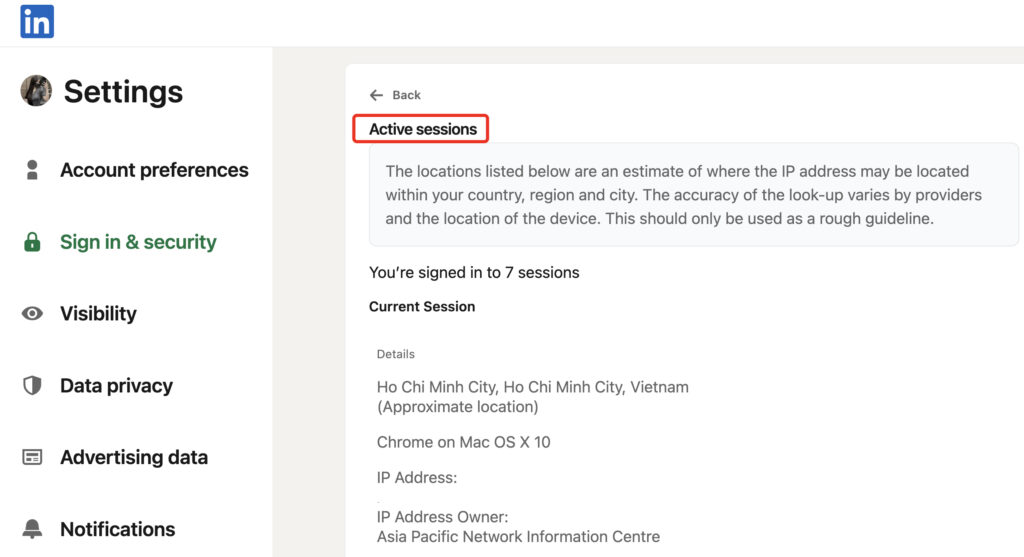
You can review every active LinkedIn session under account settings, in the security section, where LinkedIn lists each signed-in device along with rough location and type. Ending any session takes a couple of clicks.
- Open Settings & Privacy.
- Go to Sign in & security.
- Find Where you’re signed in.
- Review the device list.
- Sign out of anything unrecognized, or everything at once if unsure.
Doing this occasionally, even when nothing feels off, is a decent habit worth keeping.
Common Reasons You Get Logged Out or Asked to Verify
Most unexpected logouts trace back to a handful of causes: an expired token, a new device, a changed IP address, cleared cookies, or LinkedIn’s fraud detection flagging something unusual.
Traveling is a common trigger, logging in from a new country understandably prompts extra verification. Switching networks or using a VPN mid-session can do the same, since the IP tied to your session no longer matches. Clearing cookies wipes the local token entirely, hence the full re-login. Sometimes it’s simpler than all that: the session just aged out.
Managing LinkedIn Sessions With Multilogin Cloud Phones
For anyone running more than one LinkedIn account, personal alongside a company page, or several client accounts for an agency, Multilogin cloud phones keep each LinkedIn login session properly separate!
Every cloud phone gets its own device profile, cookies, and network settings, so LinkedIn sees a genuinely distinct device rather than one browser wearing different hats. That matters for stability, since LinkedIn’s fraud detection watches for one set of credentials bouncing between wildly different fingerprints.
| Multilogin Cloud Phones | Details |
|---|---|
| Pros | Isolated device profile per account, separate cookies and cache per session, dedicated network and IP settings, fewer cross-account session conflicts, better for teams managing multiple profiles |
| Cons | Adds a small setup step, value mainly shows up with multiple accounts |
👉 If you only manage one LinkedIn account, this likely isn’t necessary. It’s built for the multi-account scenario where session bleed becomes a recurring headache.
Practical Tips for Keeping Sessions Secure
Solid session hygiene takes a minute, not an overhaul.
- Log out of devices you no longer use.
- Check your active sessions list every so often.
- Avoid logging in on shared devices without logging out right after.
- Keep your LinkedIn password unique, a reused password elsewhere raises forced-logout risk.
- Separate multiple accounts properly instead of juggling logins in one tab.