





Need multiple Discord accounts? See how Multilogin makes it easy and risk-free!
Discord IDs are the unique numerical identifiers behind every object on the platform — every user, every server, every channel, every message, every role. They’re permanent. They don’t change when someone changes their username or display name. They’re what bots, developers, and the platform itself use to reference specific objects precisely.
Finding them on mobile isn’t immediately obvious because the option is hidden behind a setting most people don’t know about. This guide walks through exactly how to find any Discord ID on mobile — user IDs, server IDs, channel IDs, message IDs, and more — step by step.
Why Discord IDs Matter
Before the steps: Discord IDs are useful in more situations than people realize.
- Bot configuration. Most Discord bots need specific IDs to configure permissions, set target channels, assign roles programmatically, or restrict commands to specific users or servers.
- Reporting specific content. When you report a specific message or user to Discord’s Trust and Safety team, including the message ID and user ID makes your report actionable. Discord’s team can pull up exactly what was reported without any ambiguity.
- Developer and API work. Every Discord API call references objects by their Snowflake IDs. If you’re building a bot, integration, or tool, you’re working with IDs constantly.
- Server administration. Banning users by ID, restoring members who were banned accidentally, configuring automod rules for specific users — all of this uses IDs.
- Troubleshooting and support. When contacting Discord support about a specific issue, providing exact IDs dramatically speeds up resolution.
Step 1: Enable Developer Mode on Mobile (Required for All ID Lookups)
You cannot see or copy Discord IDs in the mobile app without enabling Developer Mode first. This setting adds “Copy ID” options to long-press menus throughout the app.
Developer Mode doesn’t change how Discord looks, functions, or feels. It’s just a visibility toggle that unlocks ID access.
On Android:
- Open Discord
- Tap your profile photo in the bottom right corner
- Scroll down to “Appearance”
- Scroll to the “Advanced” section
- Toggle “Developer Mode” on
On iPhone (iOS):
- Open Discord
- Tap your profile icon in the bottom right corner
- Scroll down to “Appearance”
- Find “Developer Mode” under the Advanced section
- Toggle it on
Once Developer Mode is enabled, long-pressing on users, messages, channels, and servers reveals a “Copy ID” option.
How to Find Your Own Discord User ID on Mobile
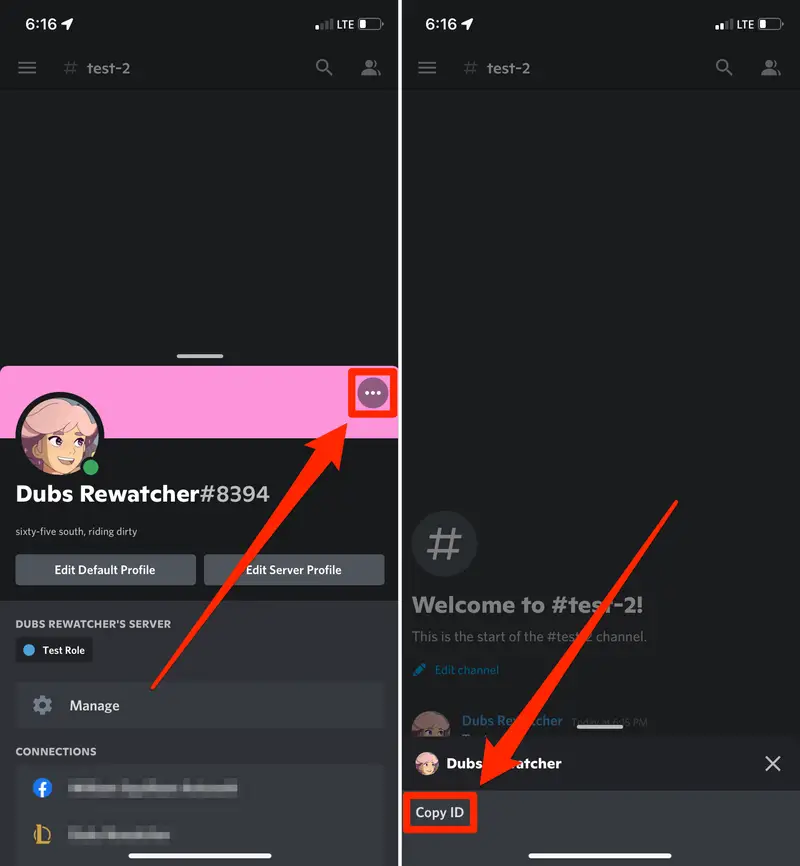
Method 1: Through your profile
- With Developer Mode on, tap your profile photo (bottom right)
- Tap the three-dot menu (⋮) in the top right of your profile card, or long-press your avatar
- Tap “Copy User ID”
The 18-19 digit number is now copied to your clipboard.
Method 2: Through a message you’ve sent
- Navigate to any message you’ve sent in any server or DM
- Long-press on the message
- Tap the three-dot menu if it doesn’t appear immediately
- Tap “Copy User ID” — this copies the ID of the message author (you)
How to Find Someone Else’s Discord User ID on Mobile
- Navigate to a message from that person in a server or DM, or find their username in a server’s member list
- Tap on their username or avatar to open their profile card
- Tap the three-dot menu (⋮) or long-press their avatar
- Tap “Copy User ID”
Alternatively: in a server’s member list (accessible by tapping the people icon), tap on any member’s name to open their profile, then follow the same steps.
How to Find a Discord Server ID on Mobile
- Open the server whose ID you need
- Tap the server name at the top of the screen to open server settings
- In the server settings, look for the three-dot menu (⋮) in the top right
- Tap “Copy Server ID”
Alternative method:
- Long-press the server icon in the left sidebar
- Tap “Copy Server ID” from the context menu that appears
If you don’t see “Copy Server ID” as an option, make sure Developer Mode is enabled.
How to Find a Discord Channel ID on Mobile
- Open the server containing the channel
- In the channel list, long-press the channel name
- Tap “Copy Channel ID” from the context menu
The channel ID is the 18-19 digit number copied to your clipboard.
How to Find a Discord Message ID on Mobile
Message IDs are useful for reporting specific content and for bot commands that reference specific messages.
- Navigate to the message you need the ID for
- Long-press the message
- Tap the three-dot menu (⋮) if needed
- Tap “Copy Message ID”
How to Find a Discord Role ID on Mobile
Role IDs are needed for bot permission configuration and server administration.
- Open the server and tap the server name
- Go to Roles in server settings
- Tap on the specific role
- Long-press or tap the three-dot menu
- Tap “Copy Role ID”
Note: Role management access requires that you have the appropriate server permissions.
How to Find a Payment ID on Discord Mobile
For billing support questions, your Discord payment or subscription ID may be needed.
- Tap your profile icon (bottom right)
- Go to “Nitro” or “Billing” in your settings
- Find your subscription details
- Payment confirmation emails from Discord also contain transaction IDs
Discord’s support team can also look up payment records by your account email address, so the payment ID isn’t always strictly necessary for support requests.
Understanding Discord’s Snowflake ID System
Discord IDs use a system called Snowflakes — a timestamp-based ID system that embeds creation time into the ID itself. The first 42 bits of a Discord ID represent the milliseconds since Discord’s epoch (January 1, 2015). This means you can extract the creation timestamp from any Discord ID, which is why bots can tell you exactly when an account was created from its ID alone.
The 18-19 digit numbers you see when copying IDs aren’t random — they’re time-ordered. Older accounts have lower-numbered IDs than newer ones.
Managing Multiple Discord Accounts
For community managers, developers, bot testers, and anyone managing Discord for multiple clients or projects, each Discord account needs its own isolated device and network environment.
Discord tracks device fingerprints and IP addresses. Multiple accounts accessed from the same device or browser get linked — and when one account gets restricted, linked accounts can be affected.
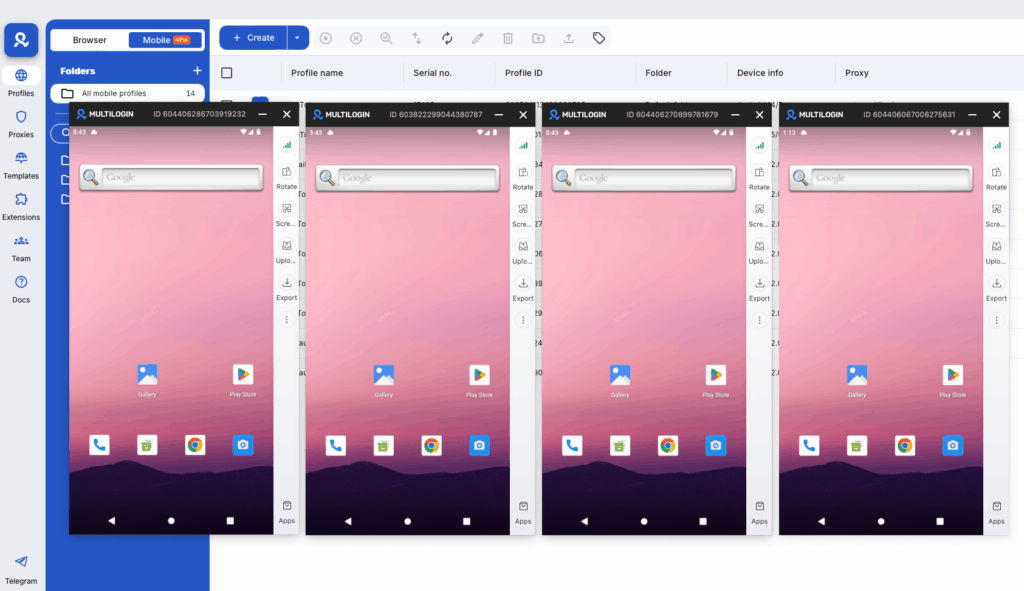
Multilogin Cloud Phones provide each Discord account with its own real Android device (unique IMEI, Android ID, hardware profile) and its own residential IP. Each account operates from a genuinely separate device environment.
For the full multi-account Discord operational guide, see how to manage multiple Discord accounts and creating multiple Discord accounts safely.
Manage Multiple Accounts with Multilogin Cloud Phones
Frequently Asked Questions
How do I find my Discord ID on mobile?
Enable Developer Mode in Discord Settings > Appearance > Advanced. Then tap your profile photo, open the three-dot menu, and tap “Copy User ID.”
Why can't I see "Copy ID" options in Discord mobile?
Developer Mode isn’t enabled. Go to Settings > Appearance > Advanced and toggle Developer Mode on. The option won’t appear until this is done.
How do I find a server ID on Discord mobile?
Open the server, tap the server name, open the three-dot menu in server settings, and tap “Copy Server ID.” Or long-press the server icon in the sidebar and tap “Copy Server ID.”
Can I find a deleted user's Discord ID?
If you have a message from them, long-pressing that message and selecting “Copy User ID” copies the author’s ID — even if the user has since deleted their account or changed their username.
What format is a Discord ID?
Discord IDs are 18-19 digit integers (Snowflake format). They embed the creation timestamp of the object. Older accounts and servers have lower-numbered IDs than newer ones.

