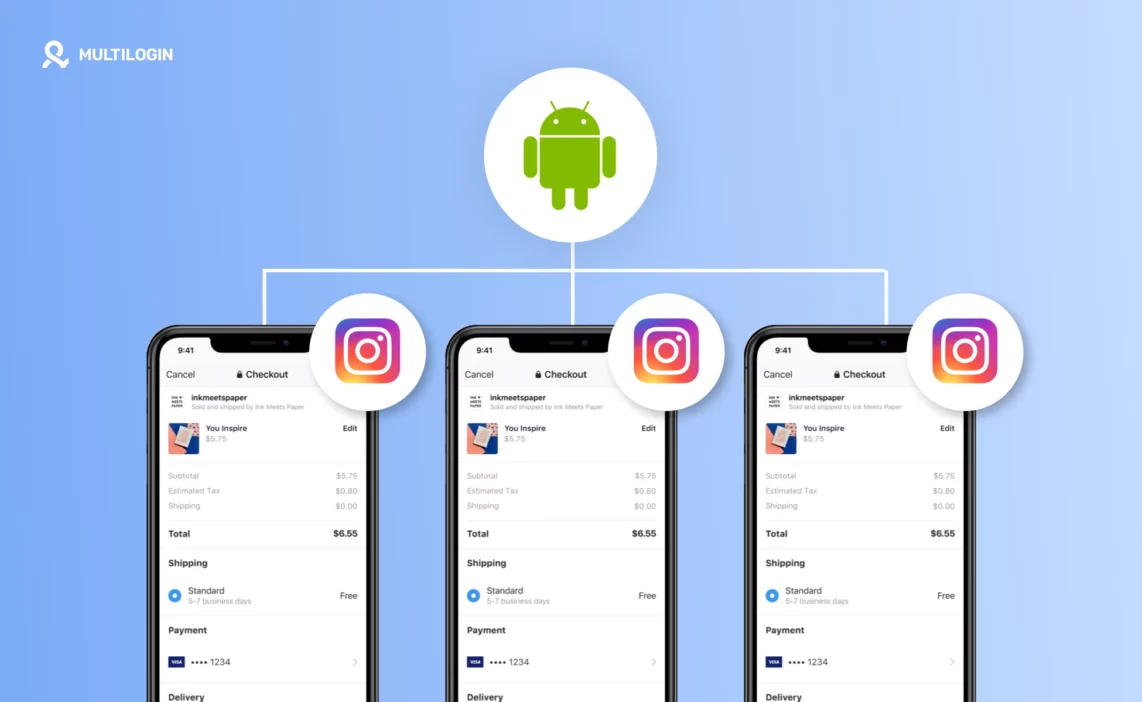



Automate Instagram login in bulk and you turn a slow, repetitive morning into a task that runs itself. If you manage many Instagram accounts, logging into each one by hand, some with just a password, some with a two-factor code, eats your time before you have posted a thing.
The safe way to automate Instagram login in bulk is with cloud phones. You give each account its own real Android phone in the cloud, then let automation do the logging in. It types the username and password, taps Log in, and handles the extra code, across every account at once. No phone farm on your desk, and no accounts getting linked because they all shared one device.
Quick note on who does what. The setup is just clicking, so any social media manager can do it. The auto-login part needs a little scripting, which you can learn or hand to a developer on your team.
Why automate Instagram login in bulk with cloud phones
The old way to run many Instagram accounts on mobile is a phone farm: a wall of real phones. It works when you have a few, then falls apart. You need phones, SIM cards, chargers, shelves, cooling, and someone to keep it all running, and one failed login means walking over to a phone.
Cloud phones let you automate Instagram login in bulk with none of that hardware. Each cloud phone is a real Android phone that runs online, runs the native Instagram app, keeps its own login, and uses its own internet connection. You run them all from one computer, and because they are software, you can script them. That is the key: you cannot easily automate a drawer of real phones, but you can automate a fleet of cloud phones.
The rule behind any safe bulk Instagram login
Before you automate anything, lock in the rule that keeps accounts alive: one account, one phone, one connection. Each Instagram account gets its own cloud phone and its own clean internet connection, ideally a home (residential) one matched to where the account should be. That separation stops a problem on one account from spreading to the rest. Multilogin includes home internet connections (residential proxies), so you do not have to buy them separately.
How to automate Instagram login in bulk on Android cloud phones
Here is the full setup, step by step, on Android cloud phones.
Step 1: create a cloud phone for each Instagram account
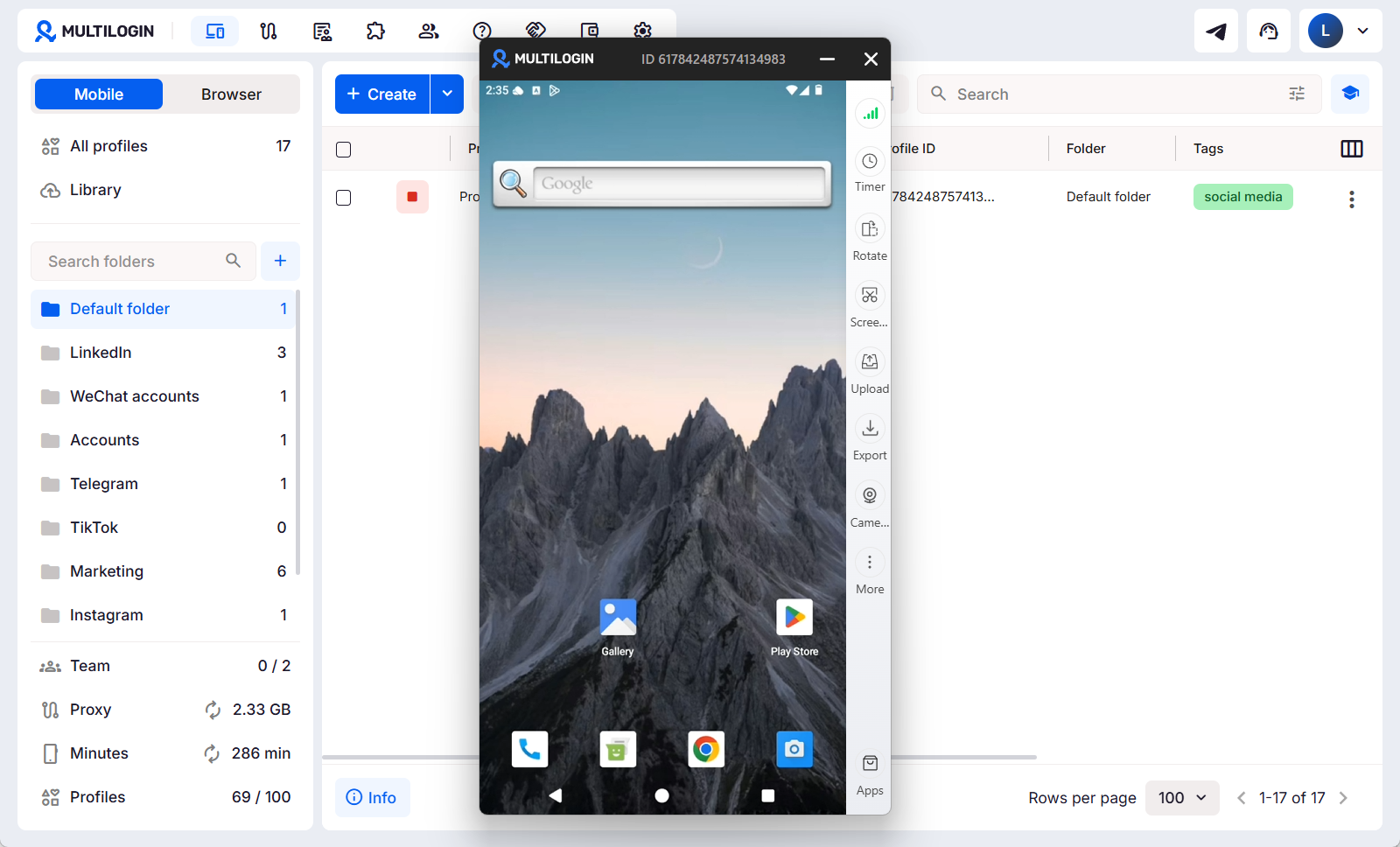
In Multilogin, open the Profiles tab and switch to Mobile on the left. Click Create, or use the dropdown to create phones in bulk, up to 100 at a time within your plan. Most settings come pre-filled, so for each phone you really only confirm a few things. The create screen is grouped into General settings (name, tags, notes, and folder), Proxy settings (the connection for that phone), Device settings (Android version and device model), and Extra settings.
For Instagram, set these: pick a recent Android version, set the network type to Cellular if your proxy is mobile or rotating, or Wi-Fi if it is a home or static one, and set the location to match the connection so the phone and the connection point to the same place. Name each phone after its account, like “IG_BrandA_US,” and drop it in a folder so your list stays easy to read.
Here is the full create flow:
Full guide: how to create Android cloud phones.
Step 2: organize accounts to manage multiple Instagram accounts
People skip this and regret it. To manage multiple Instagram accounts smoothly, you want to find any account fast and see what it uses, before you run a bulk login. Multilogin shows it all in one dashboard. Use folders and tags to group phones by client, brand, or country. Use proxy management to see which phone uses which connection, check it is working, and avoid putting too many accounts behind one connection. And if you have a team, set member roles so each person only touches their own accounts. This is what makes automating fifty accounts feel calm instead of messy.
Step 3: install Instagram in bulk on your cloud phones
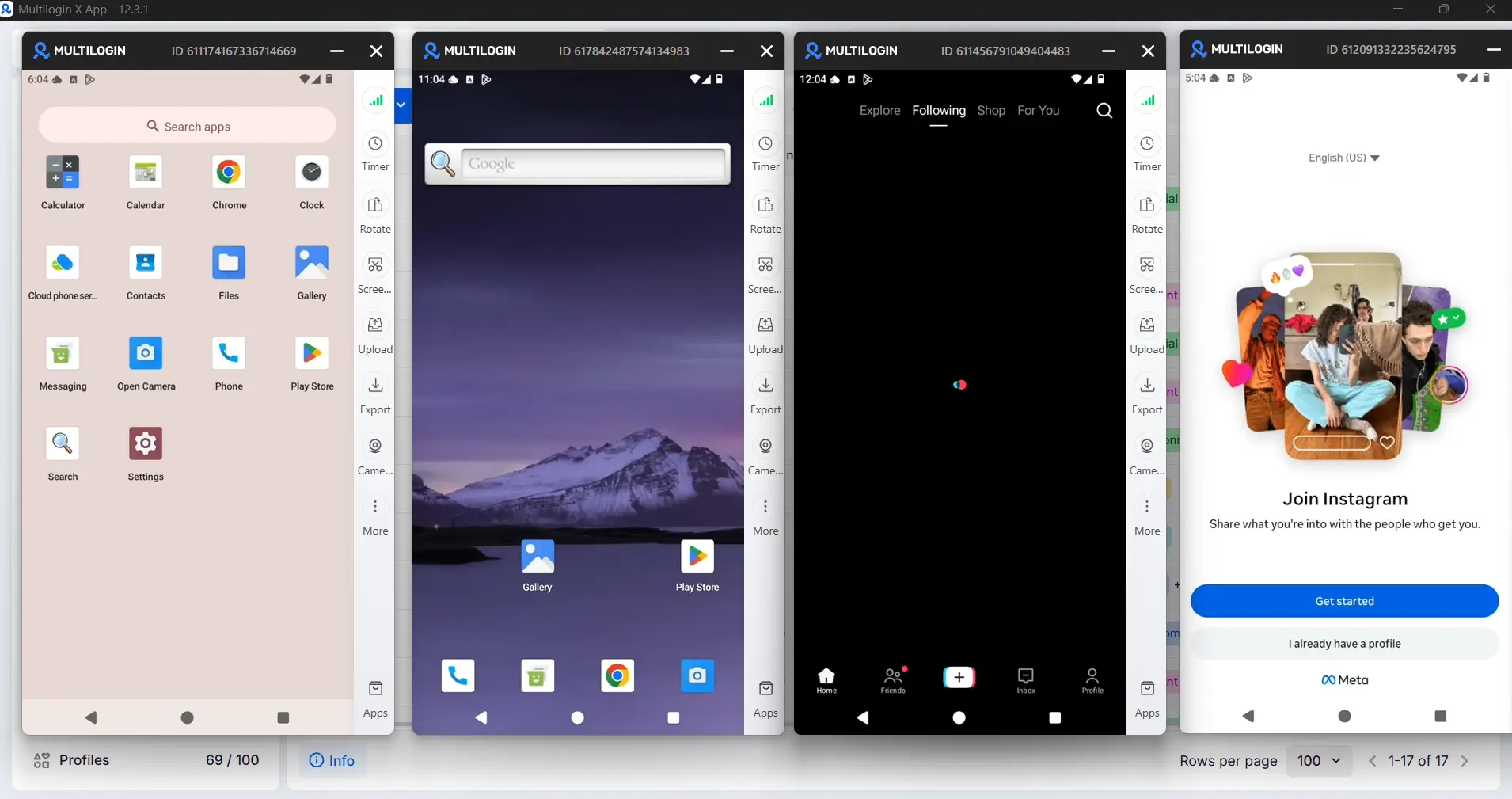
Start a phone and install the Instagram app inside it, just like on a normal phone. You can install from the in-app store, or upload an APK if you want a specific version. Because each cloud phone is a real Android phone, Instagram runs exactly as it would on a handset, and the login stays saved for next time. If you are scaling, you do not have to do this by hand on every phone, the command line can install Instagram in bulk across a whole group, which is in the next step. Step by step: how to install apps on cloud phones.
Step 4: automate the Instagram login itself
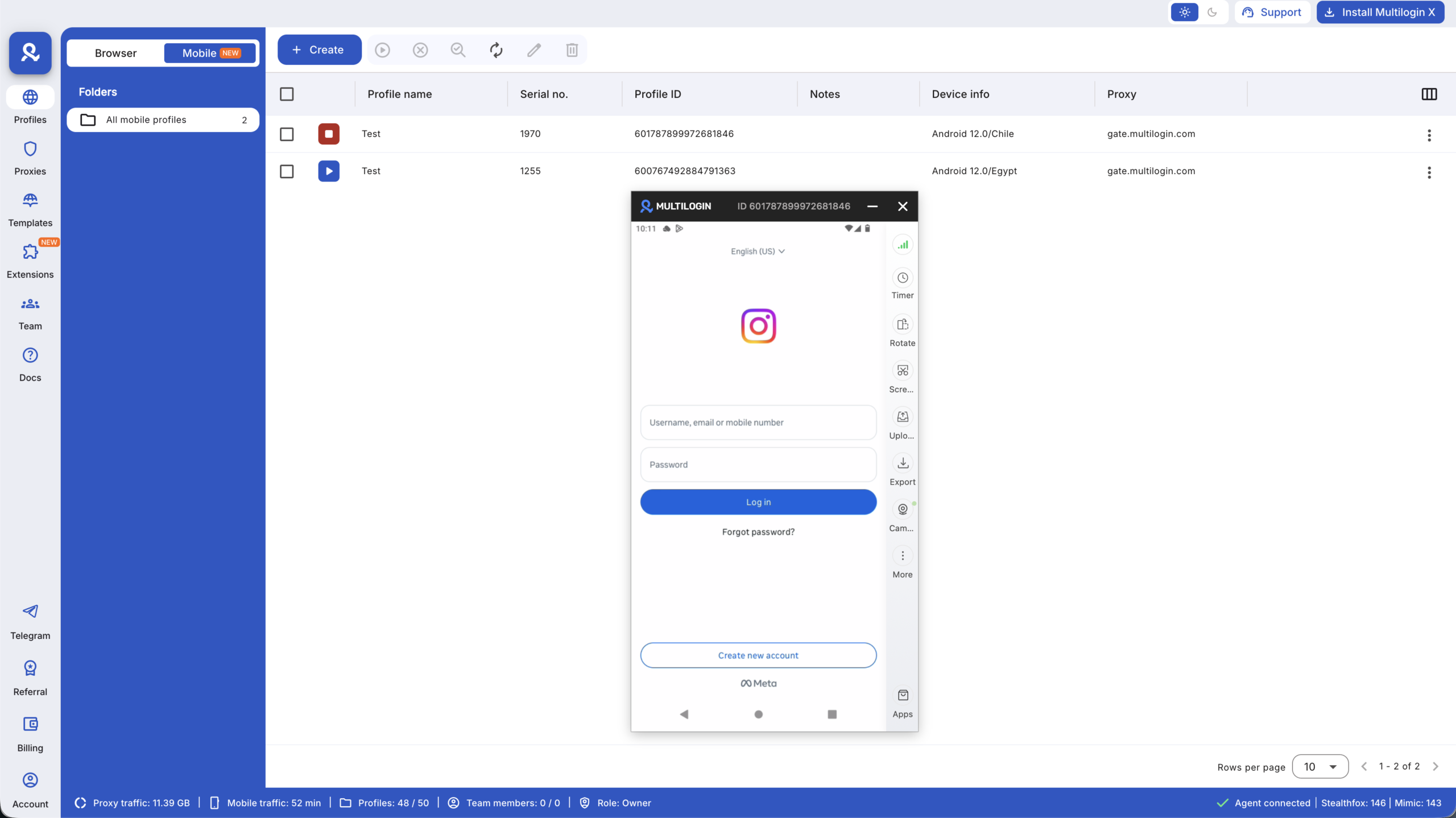
This is the core. Automating Instagram login is two jobs: starting many phones at once, and doing the actual login inside each one. Multilogin handles the first with the command line and the second with ADB and Appium.
Start phones in bulk with the command line. The CLI creates phones, starts them, and installs Instagram across a batch with a few lines instead of clicking each one. Log in, then create, launch, install, and shut down:
xcli login --username yourusername --password yourpassword
mobile-profiles-create --mobile-type "Android 14" --phone-name "IG_BrandA_US" --proxy socks5://user:pass@host:port
mobile-phone-launch --ids "101,102,103"
mobile-profiles-app-list
mobile-profiles-app-install --id APP_ID --version_id VERSION_ID
mobile-phone-shutdown --ids "101,102,103"
Full command list, including bulk import from a spreadsheet: CLI commands for cloud phones.
Do the login with ADB and Appium. This part types the username and password and taps Log in on every phone. Use phones on Android 11 or higher, since ADB does not work on Android 10. Start a phone, enable ADB by right-clicking the profile or selecting up to 50 running phones from the top menu, and a green Android icon appears. Hover over it to copy the connection and authentication commands:
adb connect IP:PORT
adb -s IP:PORT shell glogin PASSWORD
Once you see “glogin success,” the phone takes commands. Drive the login with Appium, which finds the username box, password box, and Log in button by what they are rather than where they sit on screen, so the same script works across device models. Build the login once, and it runs on every phone: open Instagram, enter the details, skip the “save login” prompt, and confirm the feed loaded. Setup and the Appium note: using ADB in cloud phones. Walkthrough:
How do I automatically log into Instagram with two-factor codes
Some accounts ask for a code on top of the password, and your bulk Instagram login can handle these too. For accounts using an authenticator app, store each account’s setup key and let the script create the current code and enter it. For accounts that get the code by text, remember the cloud phone cannot receive texts, so use a virtual number from an SMS provider and read the code from the provider, then enter it in the app.
The text-code flow looks like this: get the number, set the phone’s location to match the number’s country, sign up or log in, enter the number, request the code, then paste it.


Full walkthrough: SMS verification with cloud phones.
Schedule your bulk Instagram login and walk away
Because the whole thing runs in the cloud, it does not take over your screen. Pick a time that suits the accounts’ countries, start the task, and let it run in the background while you do other work, or while you sleep. You come back to every account logged in. When the task is done, shut the phones down so you only pay for the minutes you used.
Keep accounts healthy after you automate Instagram login
Automation makes login fast. These habits keep accounts alive. Stagger the logins with small random gaps instead of firing all at once. Warm up new accounts with a few days of light, human activity first. Let logins stay saved, which cloud phones do by default. And keep each account’s connection and country steady over time, because an account that suddenly jumps countries is the one that gets a checkpoint.
Is there a free way to automate Instagram login in bulk?
If you search for ways to automate Instagram login in bulk for free, you will find free scripts, but they usually work through unofficial methods that get accounts flagged and banned. Cloud phones are not free, but they are far more stable, and the difference is a lost account versus a working one. Multilogin has a $2 trial, so you can test the full flow cheaply before you commit. Treat free tools as a risky shortcut, not a real system.
Automate Instagram login in bulk with GitHub scripts: do they work?
There are open-source projects on GitHub to automate Instagram login in bulk, and even to auto-create Instagram accounts. Most of them talk to Instagram through unofficial APIs, which is exactly the pattern Instagram flags, so they tend to get accounts banned and break whenever Instagram updates. The real-device route on Android cloud phones is slower to set up but far more reliable, because each account behaves like a genuine phone. If you want code, you can still drive cloud phones with your own scripts through ADB and Appium, which is the safer version of the same idea.
Create multiple Instagram accounts in bulk
Login is half the job. Many people also want to create multiple Instagram accounts. The same setup makes that cleaner: each new account is created inside its own cloud phone, with its own email, so accounts never overlap. This is the stable way to create multiple Instagram accounts, instead of a free account creator bot that gets banned fast. For the full method, see how to run an unlimited Instagram account creator with cloud phones.
Can I create unlimited Instagram accounts for free?
There is no reliable way to create unlimited Instagram accounts for free. Free creator bots and shared free tools get banned quickly, which costs you more time than they save. The stable approach is one account per cloud phone with its own email, which you can scale as far as your plan allows. It is not free, but it is the version that actually keeps the accounts.