


How to generate a HAR file for troubleshooting
 ~3 minWritten by Yelena V
You can generate a HAR file from the Multilogin web interface or desktop app. It records network requests and responses, helping our support team figure out what's causing connection or interface issues.
Desktop app:
➡️ Open Multilogin → press Ctrl + Shift + F12 (Windows) or Cmd + Shift + F12 (macOS) → open “Network” → reproduce the issue → export the HAR file.
Web interface:
➡️ Open Multilogin in your browser → right-click anywhere on the page → select “Inspect” → open “Network” → reproduce the issue → export the HAR file.
Your HAR file may contain sensitive data, including visited URLs, session details, and authentication information, so only share it with Multilogin support.
How to export a HAR file
Desktop app
The Windows and macOS apps use different developer tools, but the steps are mostly the same.
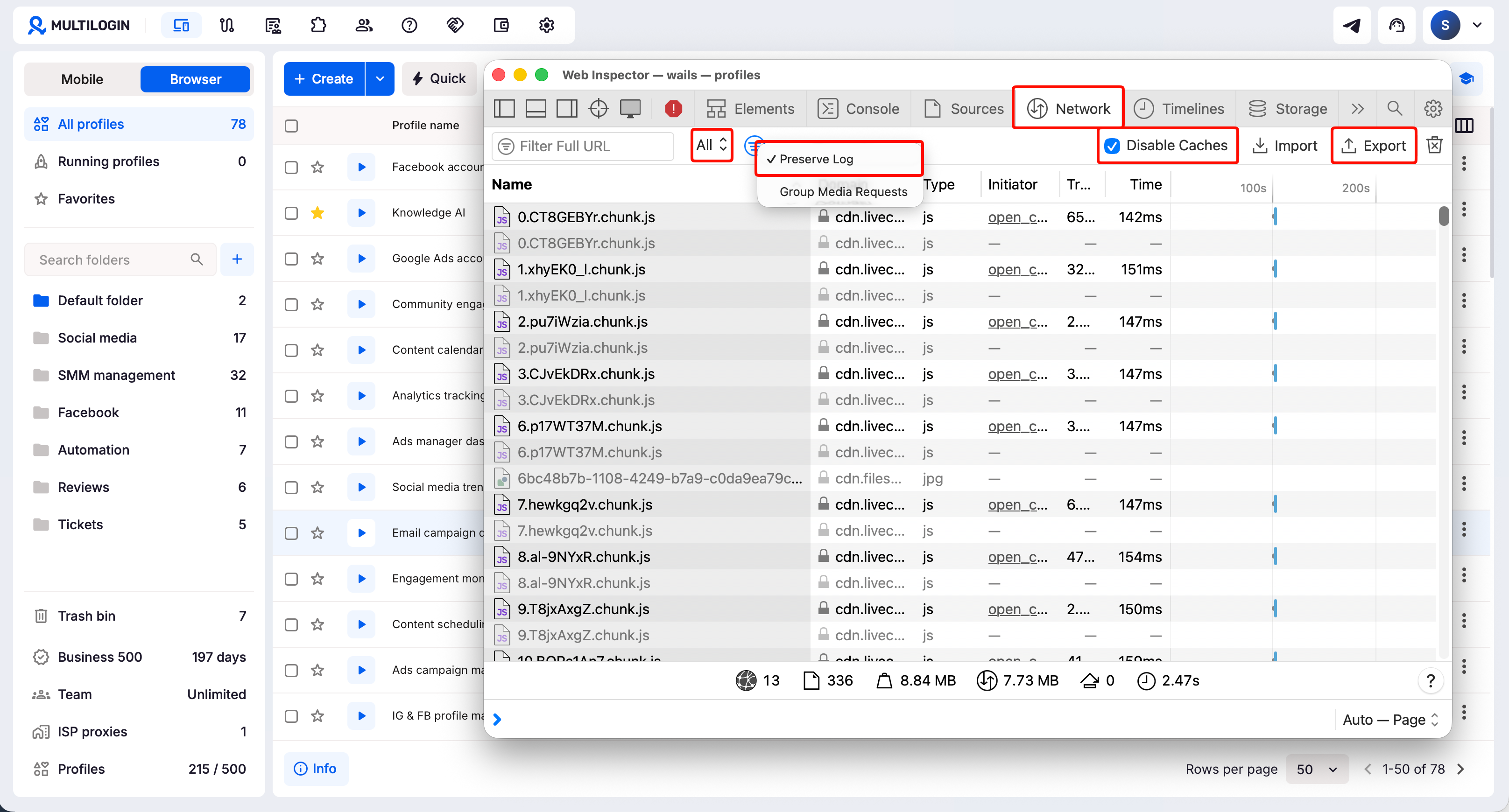
Step 1: open developer tools
- Open the Multilogin desktop app
-
Use the shortcut for your operating system:
-
Windows:
Ctrl + Shift + F12 -
macOS:
Cmd + Shift + F12
-
Windows:
- Click the “Network” tab
Shortcut not working?
Try adding Fn to the combination: Ctrl + Shift + Fn + F12 on Windows or Cmd + Shift + Fn + F12 on macOS. Some keyboards use F12 for brightness or other functions.
Step 2: capture network activity
- Select “All” in the request filters
- Turn on “Preserve log”
- Turn on “Disable cache”
- Switch to another Multilogin section to capture new requests
- Repeat the actions that caused the problem
- Wait a few seconds after the issue appears
Step 3: export the HAR file
- Click “Export HAR” or “Export”
- Choose where to save the file
-
Save it with the
.harextension
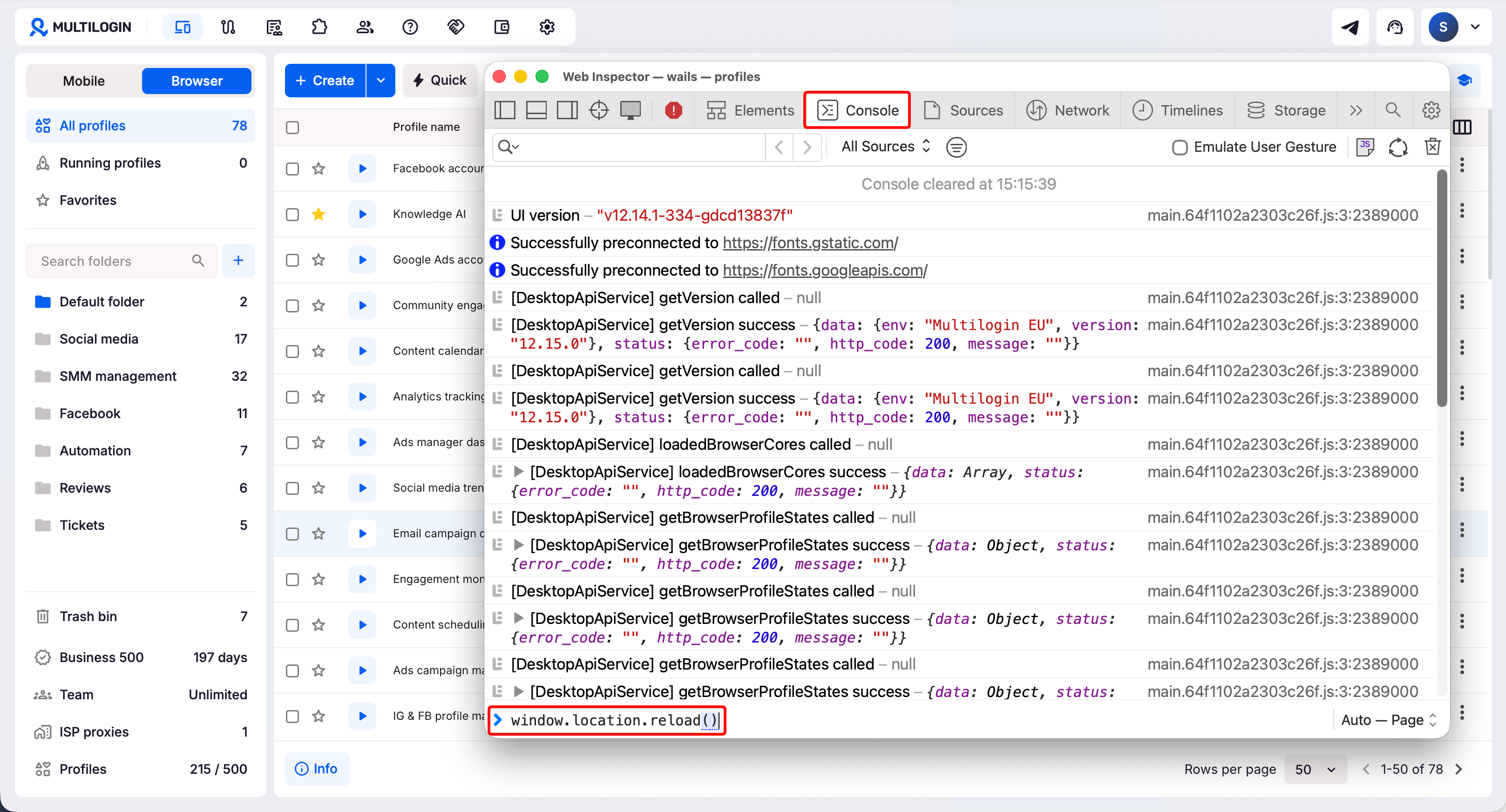
“Export” grayed out on macOS?
Open “Console” → enter window.location.reload() → press Enter → wait for Multilogin to reload. Return to “Network” and try exporting again.
Web interface
These steps work in Chrome and other Chromium-based browsers, including Edge, Brave, Opera, Vivaldi, and Arc. Some buttons may look a little different depending on your browser.
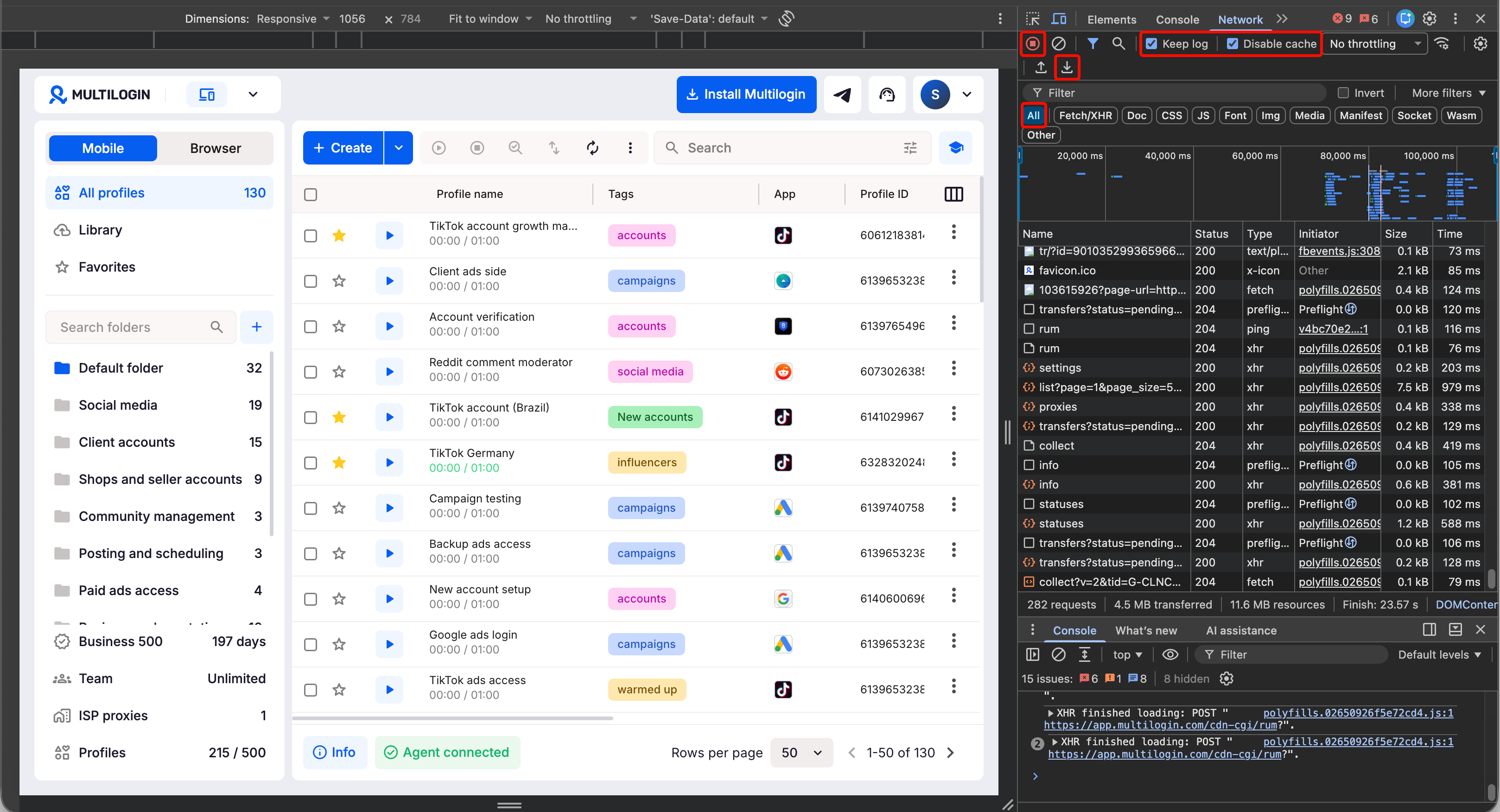
Step 1: open developer tools
- Open Multilogin in your browser
- Right-click anywhere on the page
- Select “Inspect”
- Click the “Network” tab
Step 2: capture network activity
- Select “All” in the request filters
- Turn on “Keep log”
- Turn on “Disable cache”
- Switch to another Multilogin section to capture new requests
- Repeat the actions that caused the problem
- Wait a few seconds after the issue appears
Step 4: export the HAR file
- Click “Export HAR” or “Export”
- Choose where to save the file
-
Save it with the
.harextension
How to send the HAR file to support
Email [email protected] and include:
- Issue details: what went wrong and what you were doing when it happened
- HAR file: attach the file you exported
- App logs: include them if our support team asks for them
Need help collecting logs? See How to send logs to support.
FAQs
Why is my network log empty?
Developer tools only capture new requests while they're open. Try switching between Multilogin sections or repeating the action that caused the problem. In the web interface, you can also refresh the page.
Why is my HAR file missing requests?
You may have opened developer tools too late. Open them before reproducing the issue, keep the network log active, and try again.
Do I need to send both a HAR file and app logs?
Not always. HAR files show network activity, while app logs contain other troubleshooting details. Support will let you know if they need both.


