How to use bookmark manager in Multilogin
 ~4 minWritten by Yelena V
Use the Multilogin Bookmark Manager API to export, import, or copy bookmarks between browser profiles. Bookmark management is currently available through the API, not in the Multilogin interface.
➡️ In Postman, go to “Multilogin API” → “Bookmark management” → choose “GET Export Bookmarks”, “POST Import Bookmarks”, or “POST Copy Bookmarks”.
Use export to save bookmarks to a JSON file, import to add bookmarks from a JSON file to a browser profile, and copy to move bookmark data between browser profiles.
Bookmark management is currently available only through API requests. There is no bookmark-management control in the Multilogin interface.
In order to use the bookmark manager – set up Postman and receive an authorization token – here is how you can do it.
Before you start
Make sure:
- Postman is installed
- The Multilogin API collection is imported
- Your Postman requests use a valid Multilogin API token
- You know the browser profile ID for the profile you want to work with
If Postman isn’t set up yet, complete the Postman setup guide first.
Which bookmark action do I need?
Export: save bookmarks from one browser profile to a JSON file
Import: load bookmarks from a JSON file into a browser profile
Copy: copy bookmarks from one browser profile to another
How to export bookmarks
Endpoint: Export Bookmarks
Purpose: export bookmarks from a given profile.
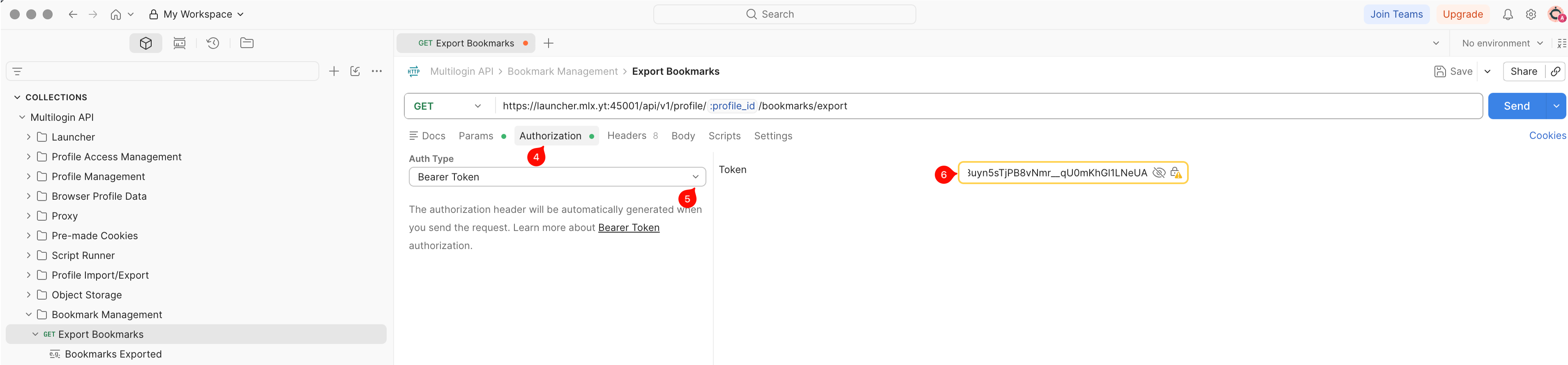
Step 1: locate the API request
- Go to “Bookmark management” folder
- Open GET Export Bookmarks to configure the request

- From the “Params” tab, proceed to “Authorization”
- Select “Bearer Token” as the Auth Type
- In the “Token” field on the right, paste your API token previously copied
Step 2: edit the request and send it
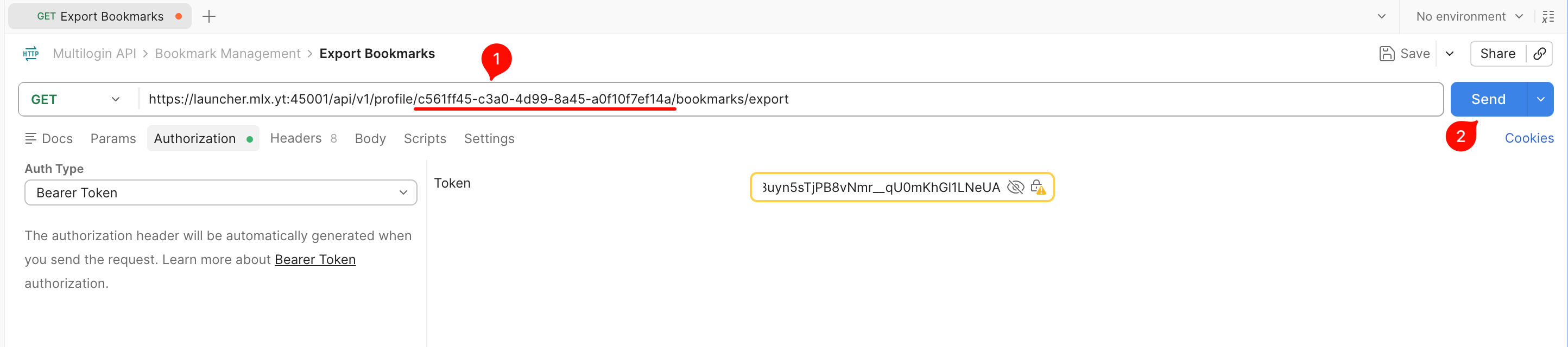
- Edit the
:profile_idvalue in the endpoint bar: replace it with the ID of the profile with the bookmarks - Click “Send”
Bookmarks are exported by default to the following directories:
- Windows:
C:\Users\%username%\mlx\bookmarks - macOS:
/Users/%username%/mlx/bookmarks - Linux:
/home/%username%/mlx/bookmarks
How to import bookmarks
Endpoint: Import Bookmarks
Purpose: import bookmarks into a profile.
Parameters to edit:
-
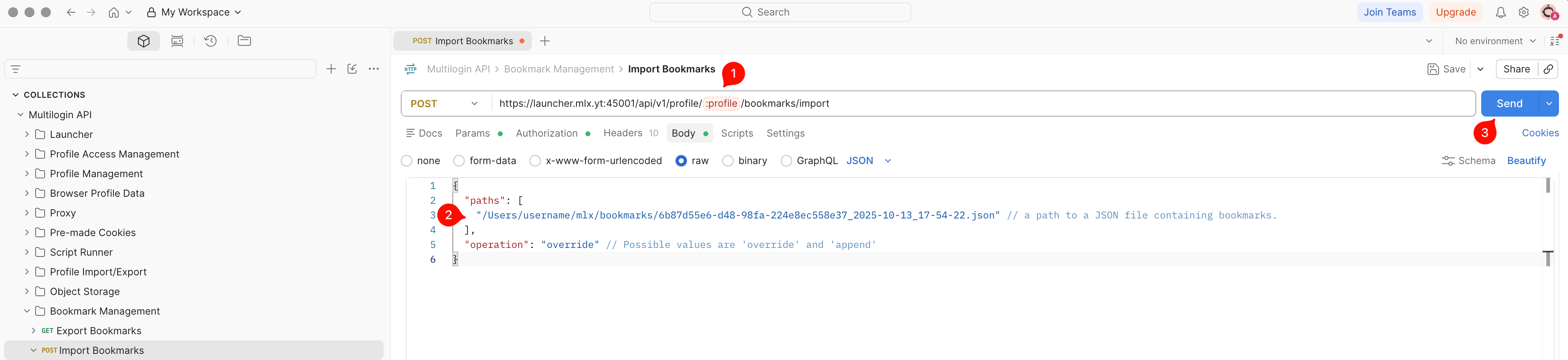
paths(required) – Directory to a JSON file, which contains bookmarks -
operation(required) – Specify what to do with exported bookmarks (override or append)
If you've made a JSON file of bookmarks via Export Bookmarks endpoint, then the directory is the following:
- Windows:
C:\Users\%username%\mlx\bookmarks - macOS:
/Users/%username%/mlx/bookmarks - Linux:
/home/%username%/mlx/bookmarks
Step 1: locate the API request
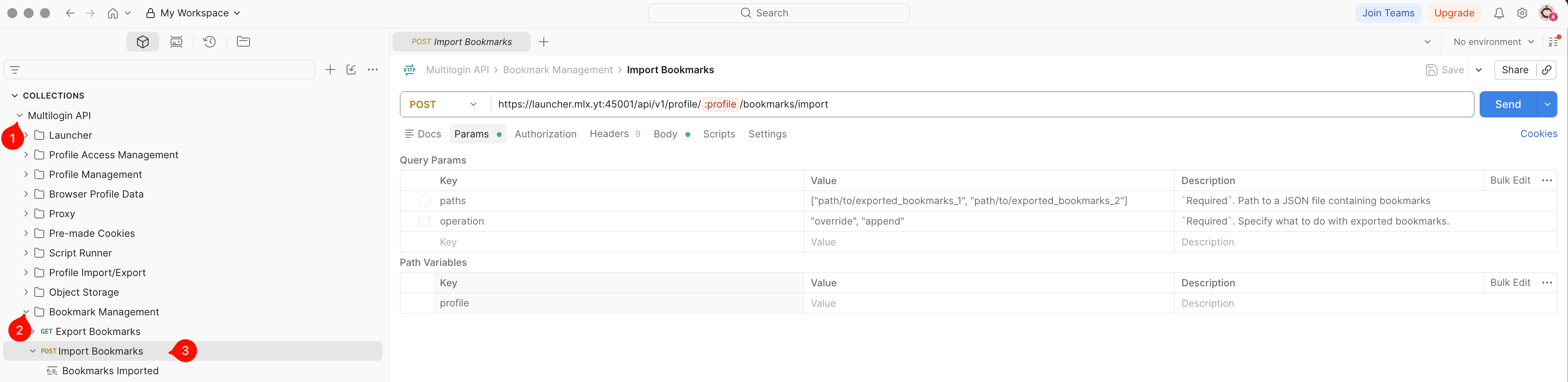
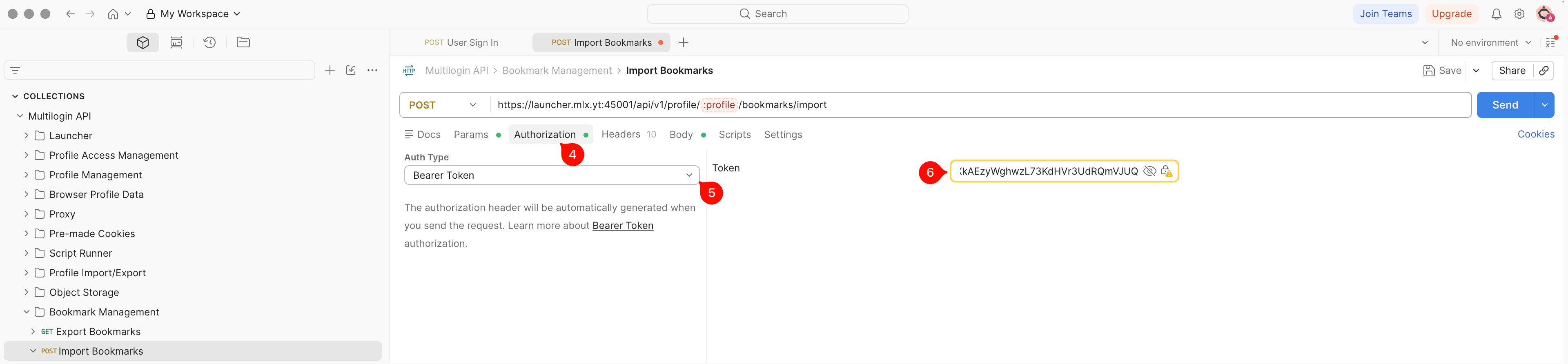
Step 2: edit the request and send it
- Edit the
:profile_idvalue in the endpoint bar: replace it with the ID of the profile, where you expect to import the bookmarks - Go to the Body tab, and replace paths and operation parameters
- Click “Send”
How to copy bookmarks
Endpoint: Copy Bookmarks
Purpose: copy bookmarks from one profile to another.
Parameters to edit:
-
paths(optional) – Directory to a JSON file, which contains bookmarks -
operation(required) – Specify what to do with exported bookmarks (override or append)
If you made a JSON file of bookmarks via Export Bookmarks endpoint, then the directory is the following:
- Windows:
C:\Users\%username%\mlx\bookmarks - macOS:
/Users/%username%/mlx/bookmarks - Linux:
/home/%username%/mlx/bookmarks
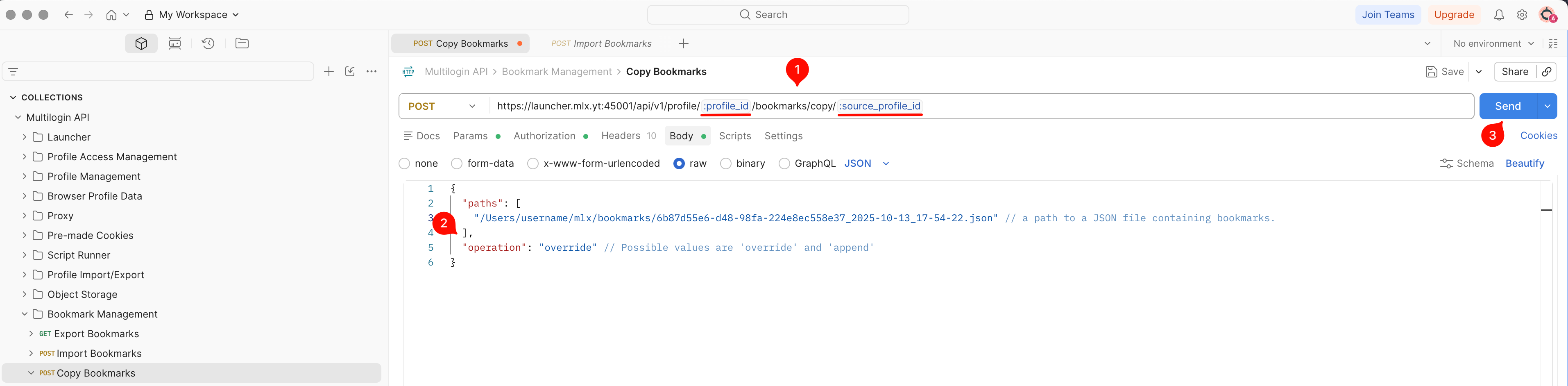
Step 1: find the API request
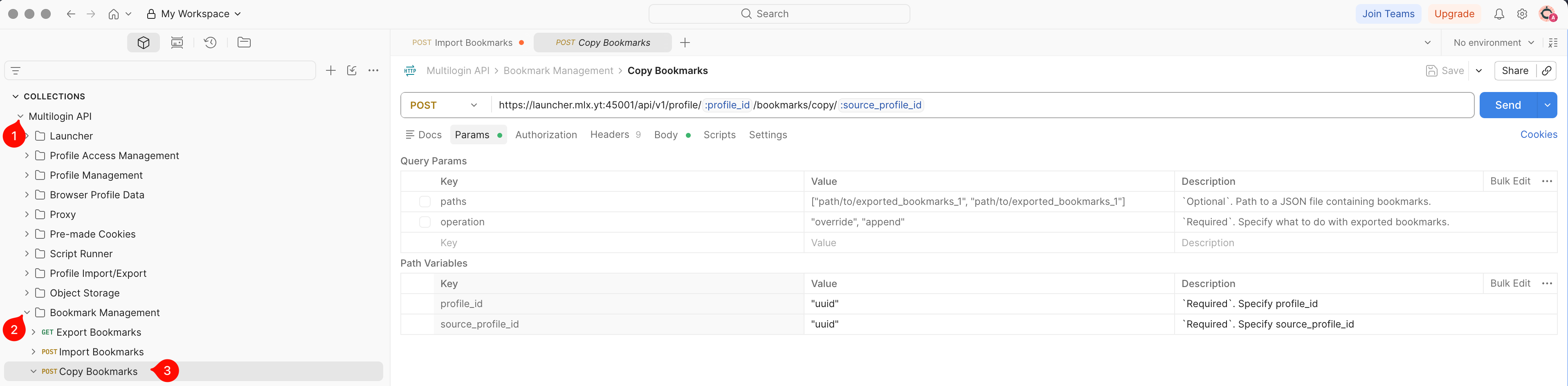
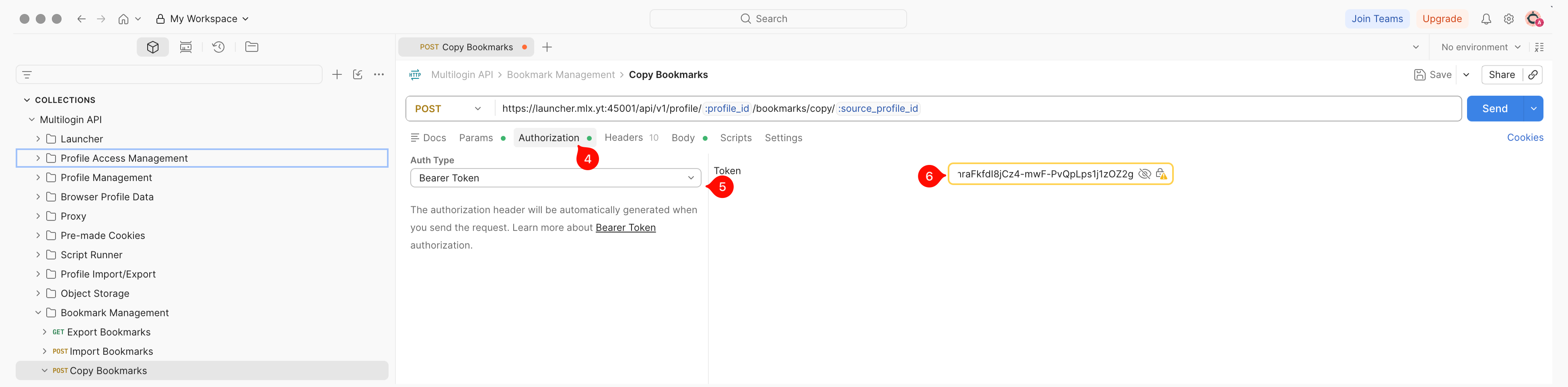
Step 2: edit the request and send it
- Edit the
:profile_idand:source_profile_idvalues in the endpoint bar-
:profile_idwill be replaced with the ID of the profile where you expect to import the profiles -
:source_profile_idis the ID of the profile, where the bookmarks will be saved from.
-
- Go to the Body tab, replace paths and operation parameters
- Click “Send”