
If you’re managing more than one Snapchat account, you’ve probably already run into the problem. Things work fine at first — then suddenly one account gets locked, another gets hit with a verification loop, and within a few days you’re starting from zero again.
What most people don’t realize is that the ban rarely comes from what you did inside the app. It comes from Snapchat detecting that two accounts are running on the same device. The platform reads hardware identifiers — not just your IP address — and when it sees the same device fingerprint behind multiple accounts, it treats that as a policy violation.
Switching to a VPN doesn’t fix it. Logging out and back in doesn’t fix it. The IMEI, Android ID, and device model don’t change regardless of what you do at the network level.
Multilogin Cloud Phones solve this properly. Each cloud phone is a real Android device hosted in the cloud, with its own hardware identifiers, its own isolated session, and its own residential proxy. Snapchat sees each one as a completely independent device — because at the hardware level, it is. This guide walks you through the full setup.
Before you start
You’ll need a Multilogin account with a plan that includes cloud phone minutes. Cloud phones are billed at €0.009 per minute, and minutes are purchased as credits.
You’ll also need at least one existing Snapchat account to log into. Snapchat doesn’t allow new account creation from fresh device environments without phone verification, so have your credentials and a valid phone number ready before you begin. If you need to register a new Snapchat account, do that from a regular phone first. Use it normally for a few days before logging in from a cloud phone — account age and natural activity history both affect how Snapchat responds to a new device login.
Step 1: Switch to a mobile environment in Multilogin
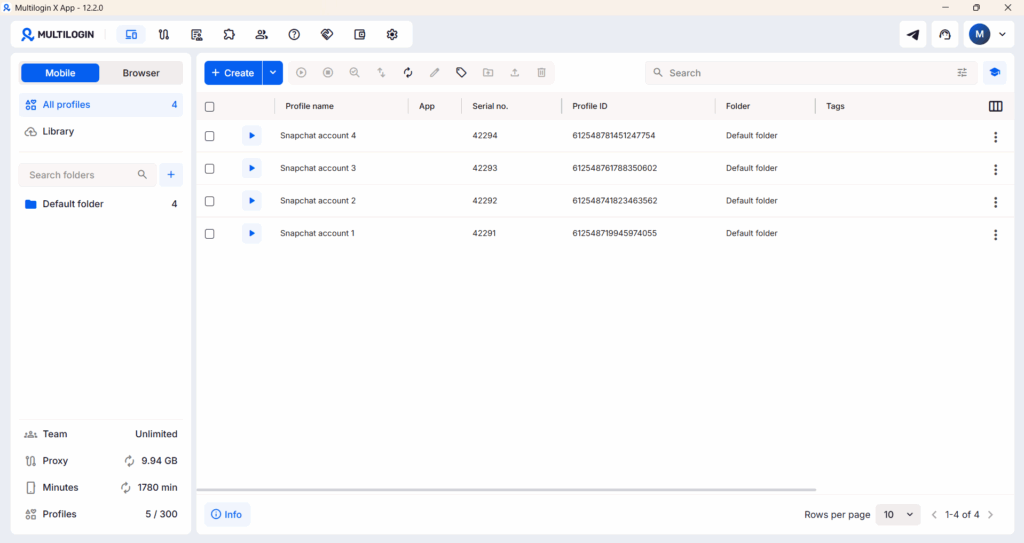
Open the Multilogin desktop app. In the left sidebar, click Profiles. At the top of the profile list, there’s a toggle to switch between browser profiles and mobile profiles. Switch to Mobile.
This is where you create and manage all your cloud phone profiles. Everything runs from your desktop — no physical phones, no extra hardware.
Step 2: Create a new cloud phone profile
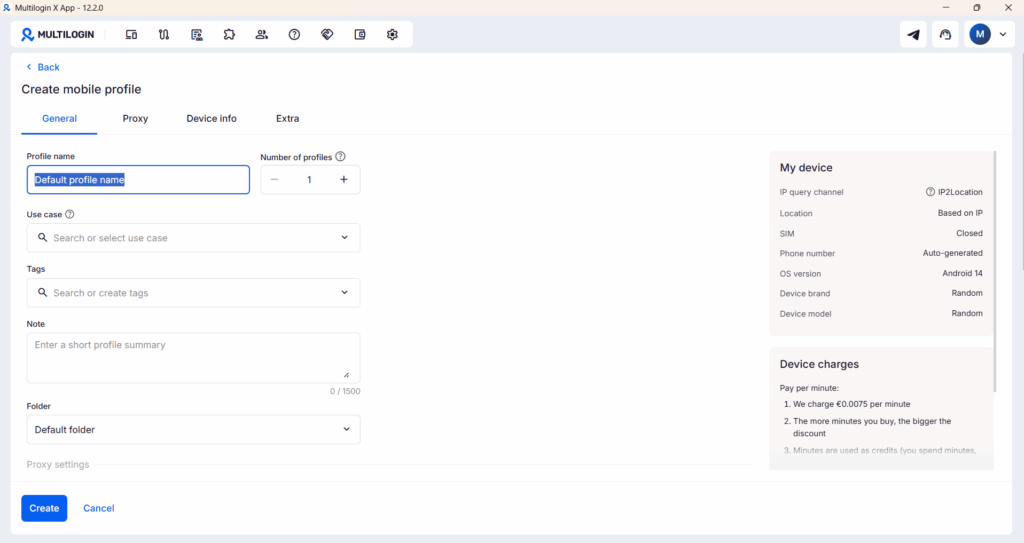
Click Create profile. The profile creation screen will open.
Fill in the following fields:
Profile name: Use something that clearly identifies which Snapchat account this profile belongs to — for example, “Snapchat – Brand Account US” or “Snapchat – Client A.”
Number of profiles: If you’re setting up multiple Snapchat accounts at once, increase this number. You can create up to 100 profiles in a single batch.
Folder: Group profiles into folders to stay organized, especially if you’re managing accounts for different clients or campaigns.
On the right side of the screen, you’ll see the Device info panel. This is where Multilogin automatically assigns a unique Android device fingerprint to each profile — device model, OS version, IMEI, Android ID, MAC address, and other hardware parameters. You can leave this automatically or adjust it manually if needed.
This is the part that matters most for Snapchat. Device fingerprinting is the primary method platforms use to link accounts together. Each cloud phone profile gets its own real hardware parameters, not spoofed values — which is why Snapchat reads them as independent devices. When you’re ready, click Create.
Step 3: Launch your cloud phone
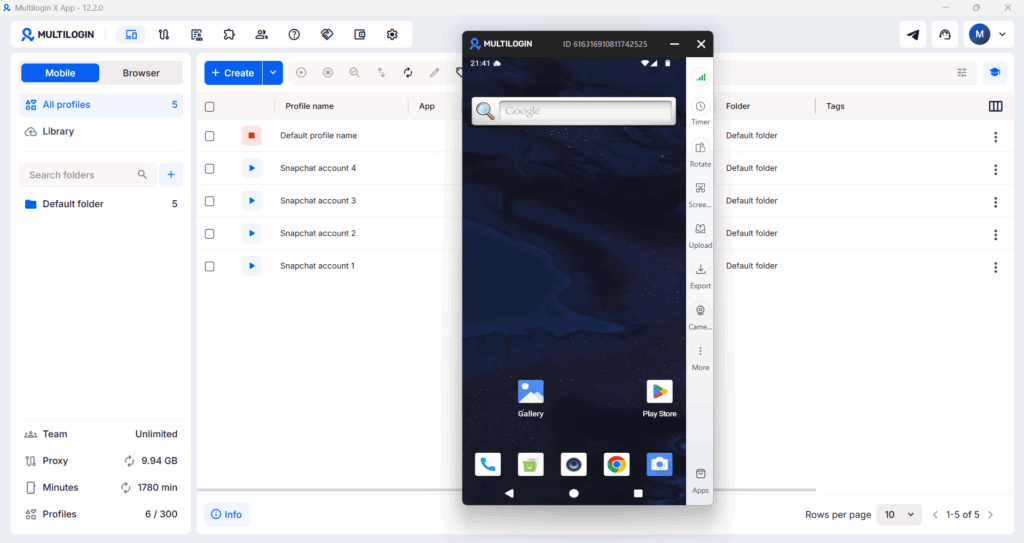
Once the profile is created, it will appear in your profiles list. Click Launch to start the cloud phone.
After a few seconds, the cloud phone opens in a new window. You’ll see a real Android home screen running in the cloud. The toolbar on the right gives you quick access to controls: rotating the screen, taking screenshots, and opening the app marketplace.
The cloud phone is fully isolated from every other profile you’ve created. Nothing crosses between profiles unless you configure it to.
Step 4: Open the App Marketplace
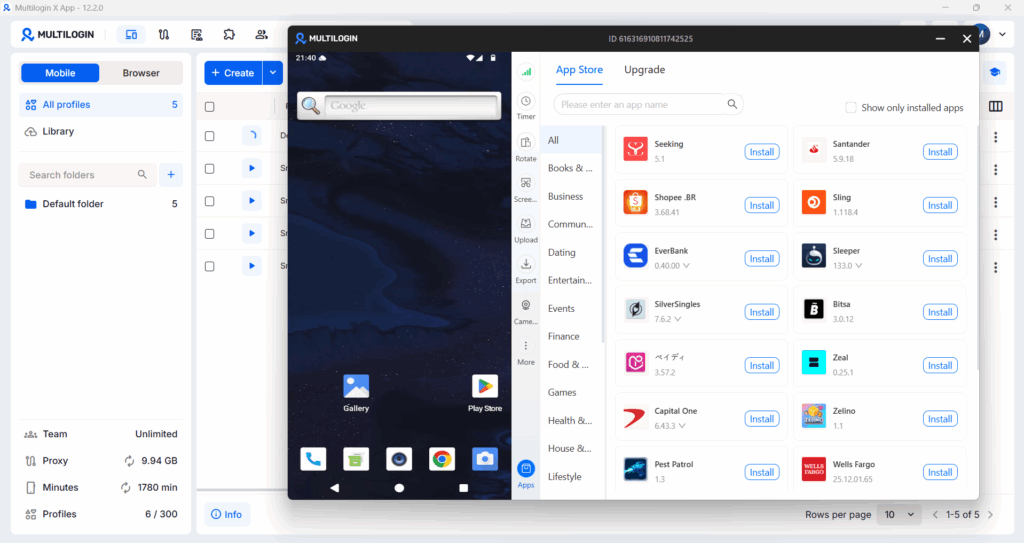
Multilogin has its own App Marketplace built directly into the cloud phone interface.
Click the Apps icon at the bottom of the right toolbar. The App Marketplace will open as a panel next to your cloud phone. If you prefeer, the app can also be installed through Play Store, only then making use of proxy traffic.
Step 5: Search for and Install Snapchat
In the search bar at the top of the App Marketplace, type “Snapchat” and press Enter. Select Snapchat from the results and click Install.
Installation takes a few seconds. Once it’s done, the button will change to Uninstall and a green Installed badge will appear. Go back to your cloud phone home screen, swipe up or tap the app drawer, and you’ll see Snapchat listed with your installed apps.
Step 6: Log in to your Snapchat account
Tap Snapchat to open it. The login screen will appear inside your cloud phone.
Enter the username or email and password for the Snapchat account you’re assigning to this profile, then tap Log In.
If two-factor authentication is enabled on the account, you’ll be prompted for a verification code. Complete that step and you’ll land in the account’s main feed.
One thing to keep in mind: the first login from a new device will almost always trigger some form of verification — a code sent to the registered phone number, or occasionally a CAPTCHA. This is normal. Have access to the phone number tied to the account before you start. Once the account is verified on the cloud phone, subsequent logins from the same profile won’t require verification again.
Step 7: Use and Manage your Snapchat account
Once you’re logged in, you have full access to the Snapchat account — posting Snaps, sending messages, managing Stories, monitoring Spotlight, and adjusting account settings.
Each cloud phone profile you created is completely isolated from all others. You can log into a different Snapchat account on each profile without any risk of the accounts being linked, whether you’re running two accounts or twenty. That isolation holds because it exists at the hardware level, not just the session level.
Running multiple Snapchat accounts at the same time
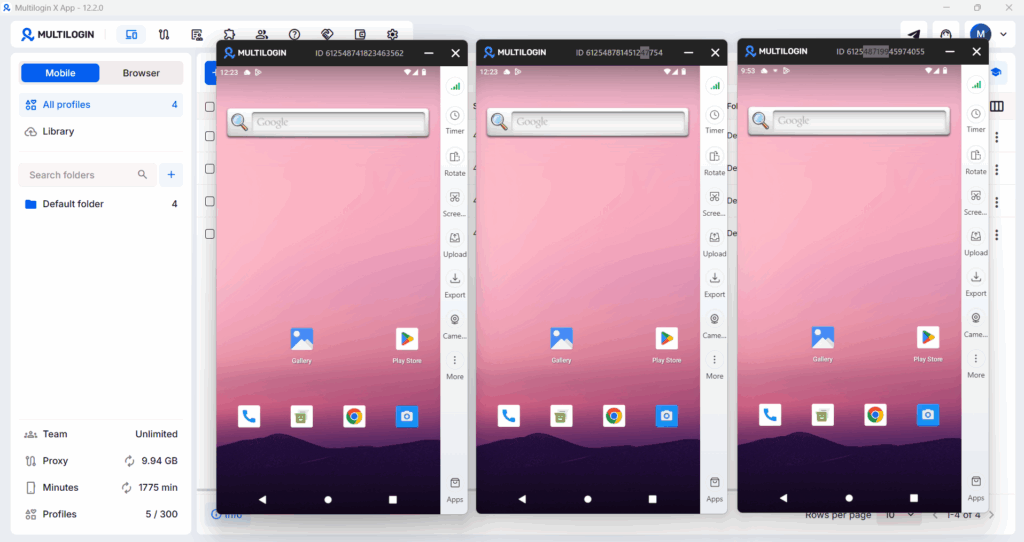
One of the most practical features of Multilogin Cloud Phones is the ability to run several profiles simultaneously. Instead of launching profiles one at a time, you can select multiple profiles from your list and click Launch all.
Each cloud phone opens in its own window. You can have five, ten, or more multiple Snapchat accounts running at the same time, each in its own isolated environment with its own device fingerprint and residential proxy. This is how social media managers and agencies actually handle multi-account operations without the constant cycle of bans and recovery.
If you’re building a larger operation, phone farming with Multilogin covers how cloud phones compare to running physical devices at scale and why most serious operators have moved away from hardware setups entirely.
Tips for keeping your Snapchat accounts safe
- One cloud phone per account, always. The most common mistake in multi-account setups is logging into the wrong Snapchat account from the wrong profile — even once. Each cloud phone profile is permanently assigned to one account. Cross-sessions expose the hardware relationship between accounts, which defeats the entire point of isolation.
- Match your proxy location to the account. A Snapchat account registered with a US phone number should always run through a US-based proxy. Geographic mismatches between account registration and active session location are a reliable way to trigger verification prompts and restrictions.
- Warm up new accounts before pushing volume. If you’re logging into a freshly created Snapchat account, spend a few days using it naturally before high-volume activity. Browse the Discover feed, send a few Snaps, watch some Stories. Accounts that jump immediately into aggressive behavior get flagged faster than those with an organic activity history.
- Name your profiles clearly. Use a naming convention that tells you exactly which account belongs to which profile — something like “Snapchat – Client Name – US” works well when you’re managing many accounts across a team.
- Close cloud phones when you’re not using them. Billing runs per minute from the moment a profile is launched. The session data saves automatically, so you’ll still be logged into your Snapchat account when you relaunch. There’s no need to keep profiles running when you’re not actively working in them.
- Keep sessions consistent. Log in and out of the same Snapchat account from the same cloud phone profile every time. Switching which account is logged into a profile is the kind of behavioral inconsistency that detection systems are built to catch.
For a broader setup covering Snapchat alongside other platforms, Multilogin’s social media marketing workflow shows how browser profiles and cloud phones can run together in one dashboard.