





People create “dummy” Facebook accounts for a lot of legitimate reasons. Testing how your ads look from a fresh account perspective. Researching competitor ads anonymously through the Facebook Ads Library. Managing a brand page without tying it to your personal profile. Running a community or project under a separate identity. Testing a business feature before rolling it out on a live account.
What all these use cases share is a need for an account that isn’t directly connected to your main identity — and ideally, not connected to your other accounts either.
Facebook’s detection systems make this harder than it sounds. This guide covers what Facebook actually tracks, why device signals matter more than most people realize, and how Multilogin Cloud Phones create the genuine isolation that makes dummy accounts viable for professional purposes.
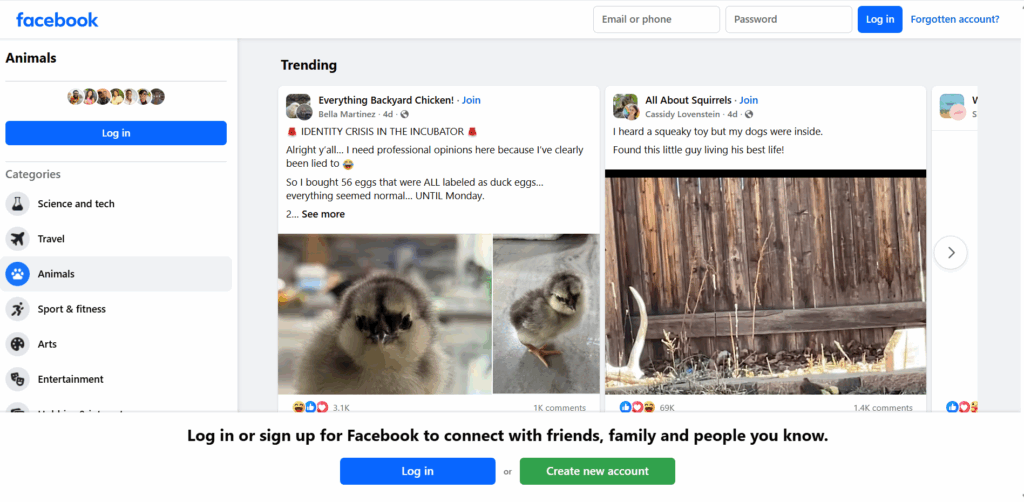
What Facebook Detects When You Create a New Account
Most people think the challenge is just using a different email and a different name. That’s part of it. But Facebook’s detection goes much deeper:
- Device hardware identifiers. On mobile, Facebook’s app reads your device’s IMEI (Android) or equivalent identifier. Your device model, manufacturer, operating system version. These are hardware-level signals that don’t change when you create a new email address.
- Browser fingerprint. On desktop, Facebook tracks your canvas fingerprint, WebGL signature, screen resolution, installed fonts, system timezone, and dozens of other browser signals. This fingerprint often stays the same across different Facebook accounts accessed from the same browser.
- IP address and network. The IP address you connect from, your ISP, your network type (WiFi vs. cellular), and your geographic location.
- Cookie and local storage data. Even after logging out, residual data can persist in the browser and link new sessions to previous ones.
- Behavioral patterns. Session timing, interaction cadence, navigation patterns. Facebook’s ML models have processed billions of sessions and are good at identifying when behavioral patterns match a known user, even across “different” accounts.
- Account creation context. The timing, IP address, and device environment at the moment of account creation are stored and used to identify related accounts.
When multiple Facebook accounts share enough of these signals, Facebook links them. The consequences range from being flagged for review to having multiple accounts suspended simultaneously. For agencies, a link between accounts means a policy issue on one client’s account can directly affect others.
The Difference Between a Dummy Account and a Fake Account
It’s worth being clear about this because Facebook’s policies are specific. Facebook prohibits fake accounts — accounts intended to deceive other users about who is operating them, accounts that impersonate real people or organizations, and accounts created specifically to evade enforcement actions.
A “dummy” account in a professional context is different:
- Test account for ad verification. A real account you use to preview how your ads appear to the audience before running them at scale. Completely legitimate.
- Research account for competitive intelligence. An account you use to view competitor Facebook Pages, Ads Library entries, and public content without your real identity visible. Legitimate.
- Separate brand management account. A Facebook account specifically for managing brand Pages without linking it to the personal profile you use for your private life. Common and accepted practice.
- Agency management account. A dedicated account for managing client Pages and Business Manager assets, separate from personal accounts. Standard in agency operations.
What’s not legitimate: accounts used to deceive users, post as someone else, or evade suspensions or policy restrictions.
Why Creating a Dummy Account on Your Existing Device Doesn’t Work Well
If you create a new Facebook account on your existing phone or laptop, from your existing IP address, while cookies from a previous Facebook session are still in your browser — you’ve created an account that Facebook can immediately associate with your existing account history.
Even if you use a different email, a different name, and incognito mode, your device’s hardware fingerprint is the same. Your IP address is the same. The behavioral timing is the same. Facebook’s systems flag accounts that appear to be operated by the same entity as existing accounts, especially when that pattern comes with suspicious timing (account created immediately, page created immediately, ads started immediately).
Incognito mode clears cookies between sessions but doesn’t change hardware fingerprints, browser fingerprints, or IP addresses. It’s not the solution here.
How Multilogin Cloud Phones Solve the Dummy Account Problem
Multilogin Cloud Phones solve the dummy account detection problem at its source — the device identity layer.
Each Cloud Phone is a real physical Android device hosted in the cloud. It has:
- Its own unique IMEI — a hardware-level identifier that Facebook’s app reads at launch, distinct from every other Cloud Phone
- Its own Android ID — a software identifier tied to this specific device instance
- Its own device model — choose from Samsung, Google Pixel, Xiaomi, OPPO, OnePlus, and others
- Its own residential IP address — from Multilogin’s pool of 30M+ residential IPs across 150+ countries, matched to your configured region
- Its own isolated environment — no cookies, no local storage, no session history from any other account
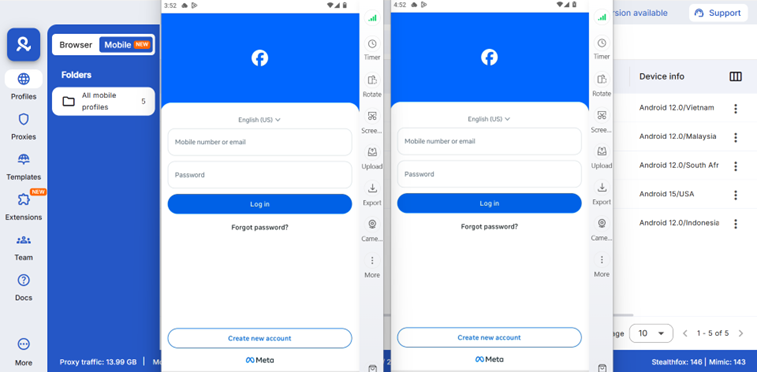
When you create a Facebook account on Cloud Phone A and another account on Cloud Phone B, Facebook sees two completely separate Android devices in two separate locations. There’s no shared fingerprint, no shared IP, no shared session history — because there genuinely isn’t.
Step-by-Step: Creating a Dummy Facebook Account on a Cloud Phone
Step 1: Create a Cloud Phone profile in Multilogin. Open the dashboard, switch to Mobile/Cloud Phones view, and click “Create Cloud Phone.” Choose a device model (vary models across accounts — Samsung Galaxy for one, Google Pixel for another), Android version (12 or 13), and configure the residential proxy for your target country or region.
Step 2: Configure a custom phone number (optional but recommended). In the Extra section of the Cloud Phone setup, switch the Phone Number field from “Auto-generated” to “Custom.” Enter a virtual number from SMSPool, SMS-Activate, or another provider. This integrates the number at the device level so Facebook’s verification sees a real mobile device with a real number, not a browser form entry.
Step 3: Launch the Cloud Phone. Click Launch. The Cloud Phone opens as a live stream of the real Android device. Give it a moment to initialize.
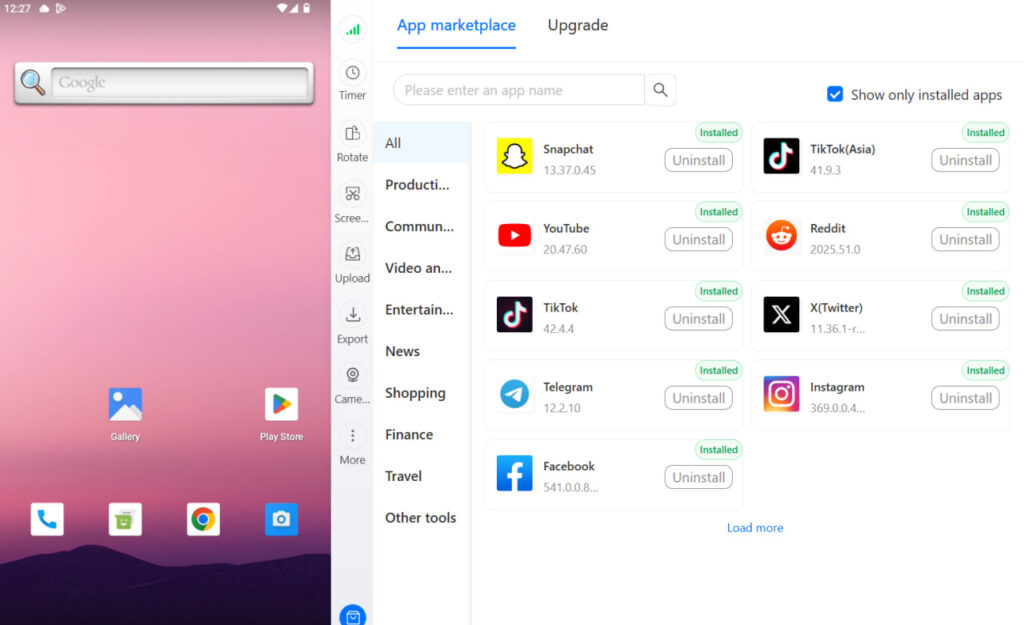
Step 4: Install Facebook. Open the App Marketplace from the right-side control panel. Search for Facebook and install. Alternatively, go to the Google Play Store on the Cloud Phone (if configured) and install from there.
Step 5: Create your Facebook account. Open Facebook and tap “Create New Account.” Use a unique email address and a name appropriate for the account’s purpose. Complete verification using the phone number configured in the device settings.
Step 6: Warm the account before any commercial use. This is important. New Facebook accounts that immediately create Pages, join Groups, or run ads look like spam to Facebook’s systems. Spend several days on normal activity — browsing the feed, adding profile information, connecting with a few relevant Pages — before any business-oriented activity.
Step 7: Use this Cloud Phone for all future activity on this account. Every session, every login, every action on this account happens from this Cloud Phone. Never access this account from a different device.
For a complete guide on managing multiple Facebook accounts and multiple Facebook business pages professionally, the linked guides cover the full operational setup including Page creation, Business Manager configuration, and team access management.
Best Practices for Dummy Facebook Accounts
- One purpose per account. Separate accounts for separate purposes stay cleaner and are less likely to generate confusing behavioral signals. A test account for ad verification does that and nothing else.
- Complete the profile. Half-complete profiles with no photo, no bio, and no activity before any commercial use are immediately suspicious to Facebook’s systems. Take the time to make the account look like a real user.
- Don’t rush to monetize. Any account that goes from creation to running ads in 24 hours triggers scrutiny. The accounts that don’t get flagged are the ones that build a behavioral history first.
- Keep virtual numbers accessible. Facebook sometimes prompts for re-verification weeks or months later. If the phone number on the account has expired or been reclaimed by the virtual number service, account recovery becomes complicated. Use rental numbers for accounts you plan to maintain long-term.
- Document the setup. Email, phone number, Cloud Phone profile name, account purpose. When something needs to be recovered or handed off to a team member, documentation makes it manageable.
Need to manage multiple Facebook accounts? Try Multilogin Cloud Phones.
Frequently asked questions
Facebook prohibits fake accounts designed to deceive other users. Test accounts, research accounts, and separate management accounts used transparently for legitimate purposes are different. The policy is about deception and manipulation, not about having a separate account for a legitimate purpose.
Facebook actively detects accounts that look automated, fake, or connected to existing accounts through device fingerprinting and behavioral analysis. A Cloud Phone account with a complete profile, natural behavioral history, and its own isolated device environment looks nothing like an automated fake account.
Virtual phone numbers from SMSPool, SMS-Activate, or Google Voice can receive Facebook’s verification codes. Integrate them at the Cloud Phone’s device level for the most reliable verification experience.
Yes, for testing purposes. Connect the account to a Business Manager, create an ad account, and run test campaigns. Make sure the account has enough activity history to pass Facebook’s new account review thresholds before trying to spend significant budget.
Use a Cloud Phone with its own IMEI, Android ID, hardware profile, and residential IP. Never access the dummy account from the same device or browser as your main account. Use different email addresses. Use a different phone number.
If an account is banned or suspended, follow the appeal process inside the account settings or via the Facebook account recovery process. A properly isolated second account means you’re not completely shut out while you resolve the issue with the primary.
Click “Add a button” below your cover photo. Choose from options like Book now, Contact us, Send message, Shop now, or Sign up. Link it to your website, booking tool, or contact form.


