


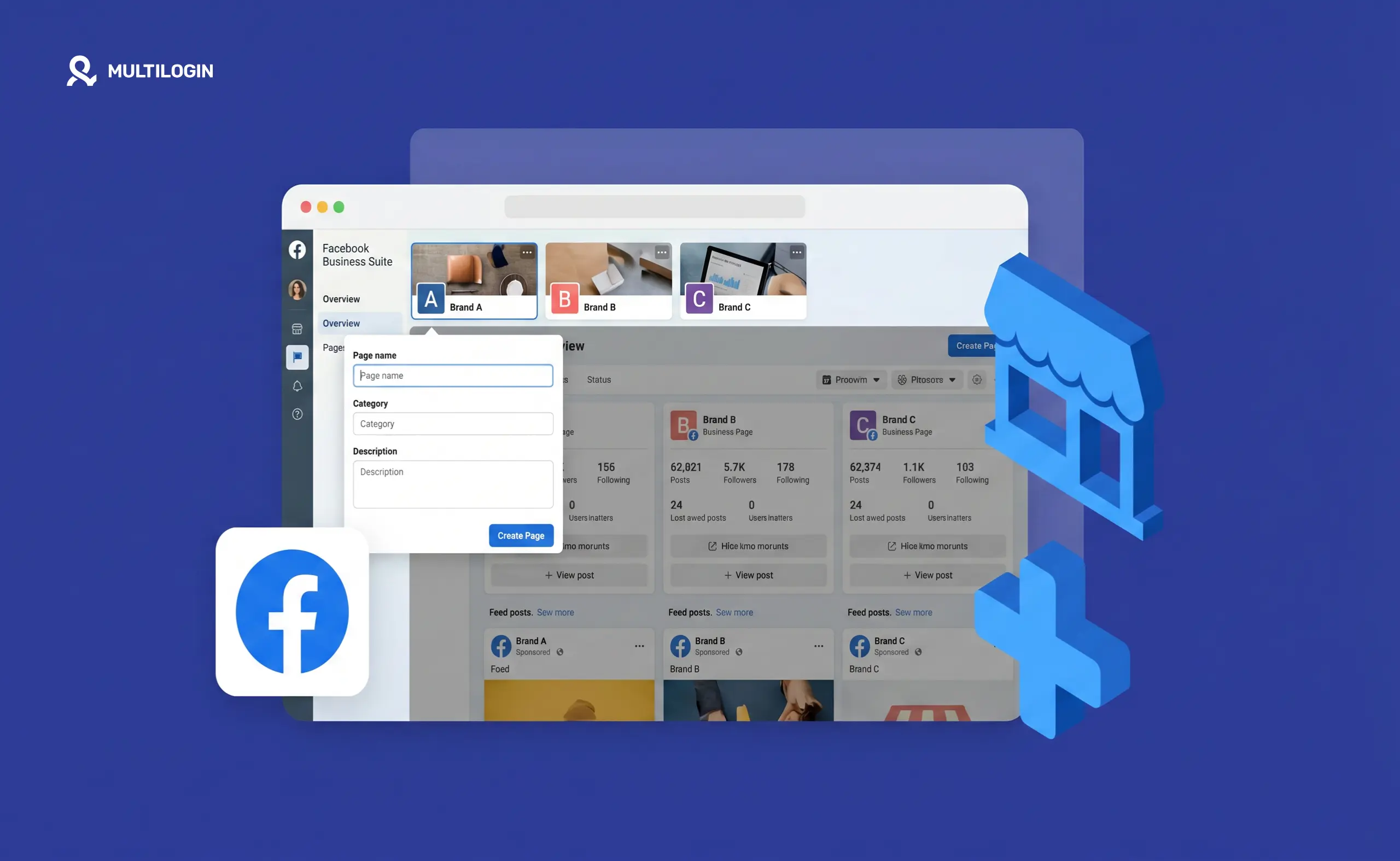



One of the most misunderstood things about Facebook is the difference between personal accounts and business pages. Facebook only allows one personal account per person — that part is well-known. But pages? You can create as many as you want, from a single personal account, with no hard limit.
The confusion happens because Facebook requires a personal account in the background to create and manage pages. That dependency makes people think pages work like accounts. They don’t. A page is a public business presence. It’s not tied to your identity in the same way your personal profile is.
This guide walks through exactly how to create multiple Facebook business pages, how to manage them properly through Meta Business Suite, and the account-linking risks that agencies consistently miss until something goes wrong.
How Facebook Business Pages Work
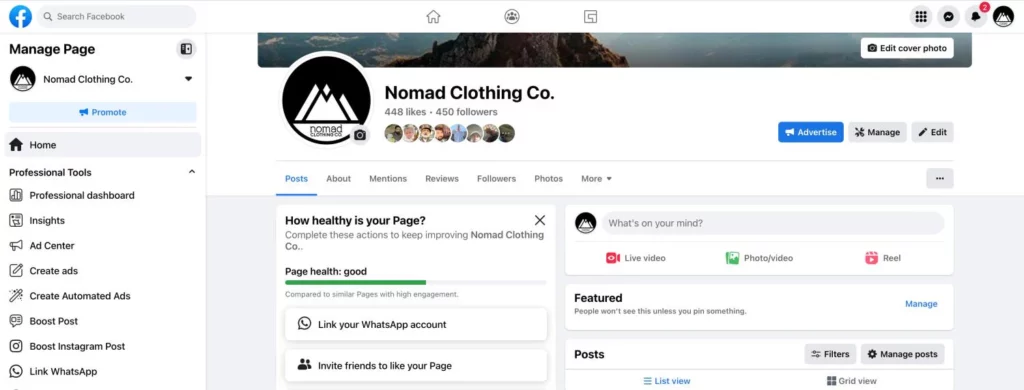
A Facebook Page is the public face of a brand, business, creator, or organization on Facebook. Unlike personal profiles, pages have no friend limit, are visible to anyone on Facebook (and indexed by Google), and come with advertising tools, detailed analytics, and role-based team access.
Anyone with a Facebook account can create a page. And you can create multiple pages from the same account, with different names, categories, logos, teams, and audiences. Agencies run entire client rosters this way — the client retains ownership of their page, and the agency is added as an admin with appropriate permissions.
This structure is also how Facebook expects multi-account professional work to happen. Rather than sharing login credentials or creating multiple personal accounts (which is against Facebook’s Terms of Service), pages give agencies clean, auditable access to client business assets.
Step-by-Step: How to Create a Facebook Business Page
Step 1. Log in to your personal Facebook account.
Step 2. Click the grid icon (menu) in the top navigation bar and select “Page.” Or go directly to facebook.com/pages/create.
Step 3. Enter a page name. This should be your business name exactly as you want it to appear publicly. Renaming a page after it has significant followers requires Facebook approval, so get it right upfront.
Step 4. Select a category. Start typing your industry or business type and Facebook will suggest options. Category affects how your page appears in search results and recommendations.
Step 5. Add a description. A short paragraph explaining what the business does, who it serves, and what makes it worth following. This text appears on the page and is indexed by Facebook’s search.
Step 6. Upload your profile picture (usually a logo) and cover photo. Profile photos display at 170×170 pixels on desktop. Cover photos are 820×312 pixels on desktop and 640×360 on mobile.
Step 7. Complete the profile. Add your website URL, contact information, business hours, and location if relevant. Complete pages rank better in Facebook’s internal search and look more credible to visitors who land on them.
Step 8. Click “Create Page.”
Repeat this process for each additional page you need to create. Each page operates independently with its own followers, content, analytics, and admin team.
How Facebook Business Pages Work
A Facebook Page is the public face of a brand, business, creator, or organization on Facebook. Unlike personal profiles, pages have no friend limit, are visible to anyone on Facebook (and indexed by Google), and come with advertising tools, detailed analytics, and role-based team access.
Anyone with a Facebook account can create a page. And you can create multiple pages from the same account, with different names, categories, logos, teams, and audiences. Agencies run entire client rosters this way — the client retains ownership of their page, and the agency is added as an admin with appropriate permissions.
This structure is also how Facebook expects multi-account professional work to happen. Rather than sharing login credentials or creating multiple personal accounts (which is against Facebook’s Terms of Service), pages give agencies clean, auditable access to client business assets.
Step-by-Step: How to Create a Facebook Business Page
Step 1. Log in to your personal Facebook account.
Step 2. Click the grid icon (menu) in the top navigation bar and select “Page.” Or go directly to facebook.com/pages/create.
Step 3. Enter a page name. This should be your business name exactly as you want it to appear publicly. Renaming a page after it has significant followers requires Facebook approval, so get it right upfront.
Step 4. Select a category. Start typing your industry or business type and Facebook will suggest options. Category affects how your page appears in search results and recommendations.
Step 5. Add a description. A short paragraph explaining what the business does, who it serves, and what makes it worth following. This text appears on the page and is indexed by Facebook’s search.
Step 6. Upload your profile picture (usually a logo) and cover photo. Profile photos display at 170×170 pixels on desktop. Cover photos are 820×312 pixels on desktop and 640×360 on mobile.
Step 7. Complete the profile. Add your website URL, contact information, business hours, and location if relevant. Complete pages rank better in Facebook’s internal search and look more credible to visitors who land on them.
Step 8. Click “Create Page.”
Repeat this process for each additional page you need to create. Each page operates independently with its own followers, content, analytics, and admin team.
Managing Multiple Pages Through Meta Business Suite
If you manage multiple Facebook pages — whether for your own brands or for clients — Meta Business Suite is the right infrastructure to use. It’s Facebook’s official management hub for business assets.
Go to business.facebook.com and set up your business account. From there you can:
- Add pages you own directly
- Send access requests to client pages (the client approves from their account)
- Add team members with specific, role-based permissions per page
- Connect ad accounts and payment methods per client
- View analytics and manage content across all pages from one dashboard
The unified inbox pulls messages and comments from all connected pages into a single stream. For agencies managing 10+ pages, that consolidation alone saves meaningful time each day.
Adding team members. Go to the page settings, select “Page Access,” and add people by name or email. You can assign:
- Facebook access — task-based roles (post content, create ads, view insights, manage messages)
- Full control — equivalent to the former Admin role
Best practice: give people the minimum access they need. Not every team member needs full control over every page.
How Many Facebook Pages Can You Have?
Facebook doesn’t publish a hard limit. In practice, you can create and manage hundreds of pages from a single personal account.
The real constraint is operational, not technical. Once you’re managing more than 10 to 15 pages from one account without a proper system, keeping content, approvals, and analytics organized becomes genuinely difficult. That’s a workflow problem, not a Facebook limitation.
For agencies managing dozens of client pages, this is where documented processes and proper tooling (covered below) make the difference between a manageable operation and a chaotic one.
The Account-Linking Risk Most Agencies Discover Too Late
Here’s the thing most guides on this topic skip: Facebook explicitly allows managing multiple pages from one account, but its detection systems still watch for coordinated inauthentic behavior.
When multiple pages are accessed from the same browser, the same IP address, and the same device fingerprint, Facebook can see that. If one page gets flagged for a policy violation — or even just enters a routine review — the fact that it shares an access environment with other pages can pull those into the same review.
For agencies, this is a real operational risk. A policy issue on one client’s page creating friction for another client’s page is the kind of problem that ends client relationships.
This is also relevant when you’re managing multiple Facebook accounts as part of a larger multi-account operation. Even when pages are legitimately separate businesses, accessing them from a shared environment creates connections that Facebook’s systems register.
How professional agencies handle this:
- Isolated browser profiles per client. Using Multilogin’s browser profiles keeps each client’s sessions in completely separate environments — separate cookies, separate local storage, separate browser fingerprint. Facebook sees each session as a distinct user on a distinct device.
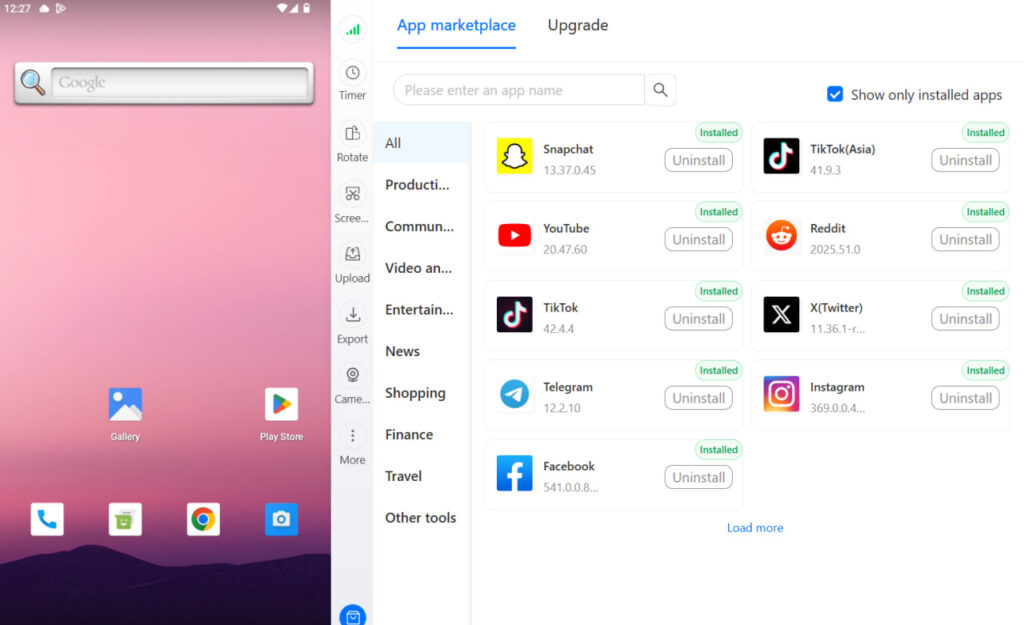
- Multilogin Cloud Phones for mobile management. If your team handles client pages from mobile — moderating comments in the Facebook app, checking native page insights, managing Stories — each client account should run on its own Cloud Phone. These are real Android devices in the cloud, each with a unique IMEI, Android ID, and hardware profile. Facebook’s mobile app sees a separate physical device for each account, because each Cloud Phone genuinely is a separate physical device.
- Residential proxies per account. Each session should connect through a residential IP that matches the page’s target market. A US page accessed through a European IP creates a geographic mismatch that Facebook logs and flags over time.
Best Practices for Managing Multiple Facebook Business Pages
- Consistent naming conventions save time. When you’re managing 15 client pages, you need to identify them instantly. Using a convention like “ClientName_Facebook_Page” for internal documents, ad accounts, and Business Suite assets eliminates confusion and prevents posting on the wrong account.
- Never post on the wrong page. It happens more often than people admit. Isolated browser profiles or Cloud Phones make this structurally impossible — you can only interact with accounts connected to the active profile.
- Clients own pages, agencies have access. Always set clients up as the page owner in Business Suite. Agencies should be added with appropriate task-based permissions. When the client relationship ends, revoking access is clean and leaves no loose ends.
- Build a central reporting template. Facebook’s native insights are per-page. Pulling together monthly performance data for 10 clients means logging into each page individually unless you’ve set up API-based reporting through a tool or manually export and consolidate. Having a template ready makes this process much faster.
- Document the account architecture. Which page belongs to which client, managed by which team member, from which Multilogin profile or Cloud Phone, under which Business Suite account. When a team member leaves, having this documented means recovery takes minutes instead of days.
Facebook Pages vs. Facebook Groups: Which Should You Create?
If you’re building a community rather than a brand presence, a Group might be more appropriate than a Page. Pages are better for broadcasting content and running ads. Groups are better for discussions and community-building around a topic.
Many businesses use both — a Page as the public brand presence and a Group for engaged community members. Both can be managed through Meta Business Suite.
Need to manage multiple Facebook accounts? Try Multilogin Cloud Phones.
Frequently asked questions About How to Create Multiple Facebook Business Pages
Yes. You can create unlimited Facebook business pages from one personal account. Facebook only restricts personal accounts to one per person. Pages are separate, public-facing assets with no creation limit.
Yes. Facebook requires a personal account on the backend to create and manage pages. The connection doesn’t need to be public-facing, but it exists.
Go to the page, click “Manage,” then “Page Access” under Settings. Add the person by name or email and assign the appropriate access level.
A ban affects that specific page. Your personal account and other pages are generally not affected — unless Facebook identifies a pattern of policy violations across multiple pages managed from the same account, in which case it can escalate to account-level action.
The right approach is isolated session management per client. Using Multilogin Cloud Phones or isolated browser profiles ensures each client’s Facebook sessions run from a distinct device environment, preventing account linking and cascade bans.
Yes. Meta Business Suite connects both Facebook and Instagram assets in one dashboard. For native session management across platforms — going beyond just scheduled content — Cloud Phones or isolated browser profiles are the right infrastructure for keeping sessions clean and separate.
Multi-Account Facebook Operations: The Bigger Picture
For agencies and operators managing Facebook at scale — running ad accounts across multiple clients, managing multiple page personas, or operating in verticals with heavy multi-account use — the Facebook page setup is one layer of a larger operational picture.
The full setup for professional Facebook multi-account management includes:
Isolated device environments for each account or client cluster. Tools like Multilogin Cloud Phones or browser profiles handle this.
Residential proxies matched to each account’s geographic market. Multilogin includes built-in residential proxies covering 150+ countries.
A structured social media content calendar system so content doesn’t get mixed between accounts or missed.
Clear team access protocols so the right people access the right accounts from the right environments.
For the operational layer, read more about managing social media accounts for multiple clients and how to avoid getting banned on Facebook.


