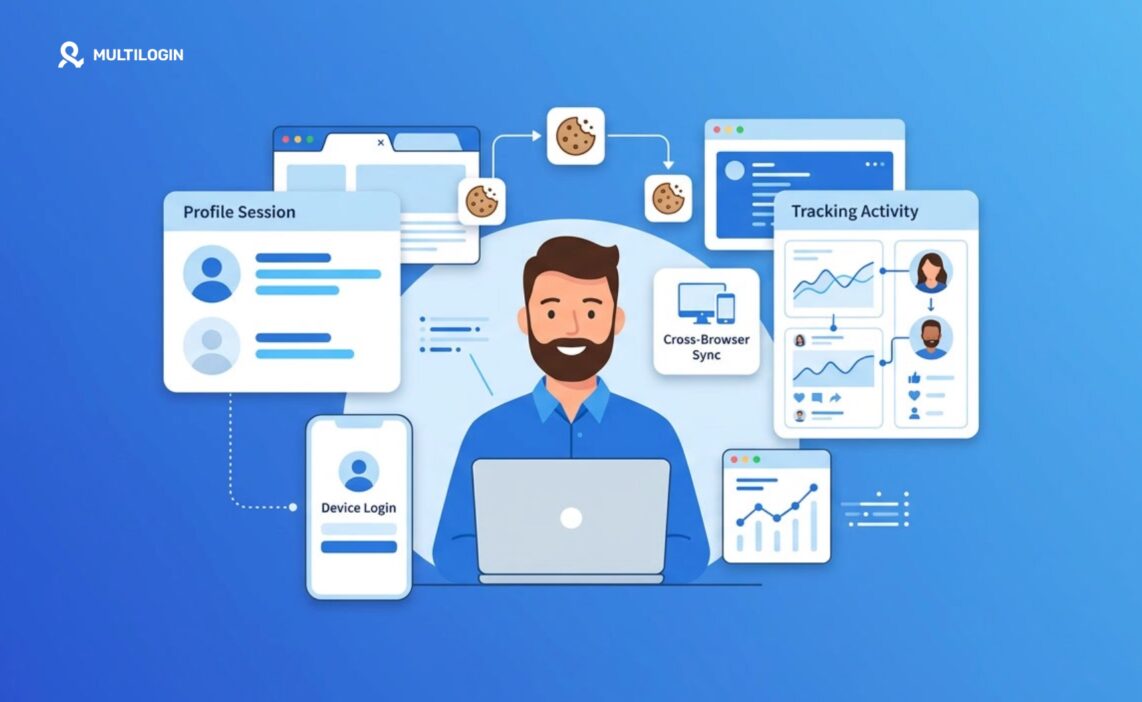



LinkedIn cookies are small data files that help keep you signed in, remember your preferences, maintain sessions, and record certain interactions across the platform. In this guide, you’ll learn how LinkedIn cookies work, the difference between session and persistent cookies, how they relate to LinkedIn tracking, what data they can store, and what you can do to manage them more effectively.
Not every cookie behaves the same way. Some disappear when you close your browser, while others can remain for much longer and help LinkedIn recognize returning sessions, devices, preferences, and activity patterns. Cookies can also work alongside other signals, such as your IP address, browser information, and device data, to support personalization, analytics, security, and advertising.
This becomes especially important if you manage multiple LinkedIn accounts. Reusing the same browser or device can cause cookies and session data from different accounts to overlap. Multilogin helps keep those environments separate through isolated browser profiles and cloud phones, each with its own session data, cookies, device profile, and network setup.
Understanding how LinkedIn cookies work gives you more control over your sessions, privacy settings, and multi-account workflows.
Explore Multilogin cloud phones to keep LinkedIn account environments separate and easier to manage.
What Are LinkedIn Cookies?
LinkedIn cookies are small text files that LinkedIn’s servers store in your browser to remember who you are and what you’re doing on the platform. Think of them as sticky notes the site leaves on your machine so it doesn’t have to ask “who are you again?” every time you click a link.
Without cookies, LinkedIn would forget you the second you navigated to a new page. You’d have to log in over and over. Your feed wouldn’t remember what you’d already scrolled past. Ads wouldn’t be tailored (for better or worse) to your job title or industry. Cookies solve that problem, but they also open the door to a much bigger conversation about tracking.
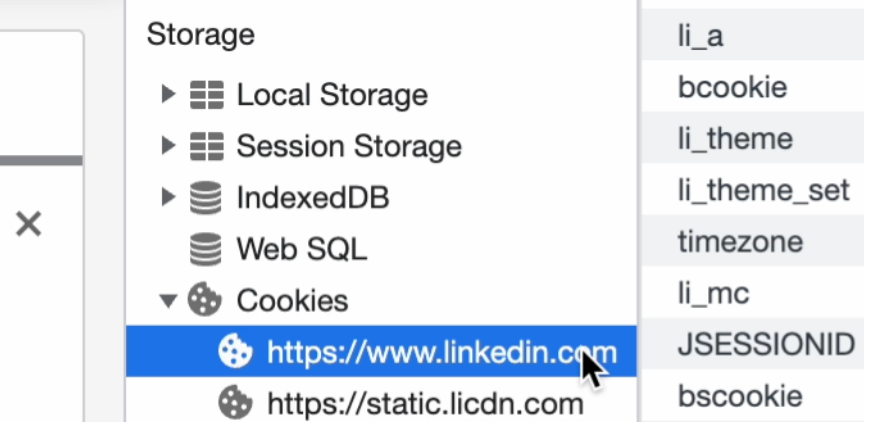
LinkedIn, like most platforms of its size, uses several categories of cookies at once. There are strictly necessary ones that keep the site functional, and there are optional ones tied to analytics, personalization, and advertising. LinkedIn’s own cookie policy lists categories including essential, performance, functionality, and advertising cookies, each doing a slightly different job behind the scenes.
Session Cookies vs Persistent Cookies
Here’s where it gets practical. LinkedIn relies on two fundamentally different cookie lifespans, and the difference between them explains a lot of confusing behavior you’ve probably noticed already.
Session Cookies: Here Today, Gone When You Close the Tab
A session cookie exists only for the duration of your visit. It’s created the moment you log in, and it’s destroyed the moment you close your browser (or, in some cases, after a period of inactivity).
Session cookies handle things like:
- Keeping you authenticated as you move between pages
- Remembering what you typed into a search box mid-session
- Tracking your current scroll position in a feed
Close the browser, and poof, that cookie is gone. Log back in tomorrow and LinkedIn has to create a fresh one.
Persistent Cookies: The Ones That Stick Around
Persistent cookies are a different animal entirely. They’re written to your disk with an expiration date, sometimes 30 days out, sometimes a full two years, and they survive browser restarts, computer reboots, even weeks of you not visiting the site at all.
These are the cookies responsible for:
- Keeping you logged in without re-entering your password every visit
- Remembering your language and regional settings
- Building a longer-term picture of your behavior for analytics and ad targeting
| Aspect | Session Cookies | Persistent Cookies |
|---|---|---|
| Lifespan | Ends when browser closes | Set expiration, often months or years |
| Main purpose | Keep you logged in during one visit | Remember you across visits |
| Stored on disk | Usually not | Yes |
| Privacy impact | Low, temporary | Higher, enables longer-term tracking |
| Typical LinkedIn use | Active session, form data | Auto-login, ad personalization |
Notice the pattern. The longer a cookie lives, the more it can learn. That’s not unique to LinkedIn, but it’s worth sitting with for a second.
How LinkedIn Actually Uses These Cookies
LinkedIn doesn’t just use cookies for one thing. It stacks several purposes on top of each other, and most users have no idea how many jobs a single cookie can be doing at once.
Login sessions. This is the obvious one. Cookies keep your authentication token alive so you’re not typing your password every time you open a new tab.
Personalization. LinkedIn remembers your job title, your connections, the posts you’ve engaged with, and uses cookies to quietly shape what shows up in your feed. That “People you may know” section? Cookies are doing a lot of that heavy lifting.
Analytics. LinkedIn wants to know how people use the platform in aggregate, which pages get clicked, how long people dwell on a post, where users drop off during sign-up. Analytics cookies feed that machine.
Security. Cookies also help LinkedIn detect suspicious logins. If a cookie suddenly shows a login attempt from a different country, that can trigger a security check or a “was this you?” email.
Advertising. This is the one most people care about most. Advertising cookies help LinkedIn (and its ad partners) build a profile of your interests so that sponsored posts feel less random and, in theory, more relevant to you.
How LinkedIn Cookies Enable Tracking Across Sessions and Devices
Persistent cookies plus a logged-in account ID make cross-device tracking pretty straightforward for LinkedIn, and this is the part that catches most users off guard. Most of what people describe as LinkedIn tracking actually comes down to this exact combination.
Here’s how it typically works. When you’re logged into LinkedIn on your phone and your laptop, both devices are tied to the same account identifier. LinkedIn doesn’t need a cookie to know it’s “you” on both, since your login already does that. But cookies extend this further. They let LinkedIn stitch together behavior even when you’re not actively logged in, through tracking pixels embedded on third-party sites that carry a “Share on LinkedIn” or “Sign in with LinkedIn” button.
This kind of cross-context tracking isn’t unique to cookies alone anymore either. Modern platforms increasingly lean on browser fingerprinting, things like your screen resolution, installed fonts, and hardware quirks, to recognize a device even when cookies get cleared.
So does LinkedIn track you across sessions? Yes, in the sense that persistent cookies and account-level identifiers let it recognize returning behavior patterns well beyond a single visit.
Does LinkedIn track you across devices? Also yes, primarily through your logged-in account rather than cookies alone, since cookies are browser-specific and don’t transfer between your phone and your desktop on their own.
What Happens When LinkedIn Cookies Are Deleted or Blocked
Deleting or blocking LinkedIn cookies logs you out, resets your saved preferences, and can trigger extra security verification the next time you sign in. It’s not catastrophic, but it’s more disruptive than people expect.
The moment you clear cookies (or block them entirely through browser settings), LinkedIn loses the token that says “this browser belongs to a logged-in user.” You’ll be dropped back to the login screen. Any language preferences, saved search filters, or dismissed notification prompts tied to that cookie disappear too.
There’s a security wrinkle worth mentioning. If you log in again from a browser with no cookie history, LinkedIn may treat it as a new device and ask for two-factor verification, even if it’s actually your regular laptop. Annoying, sure, but that’s the security layer doing exactly what it’s supposed to do.
Blocking cookies through browser privacy settings (rather than just clearing them once) creates a slightly different experience. Some browsers now default to blocking third-party cookies while allowing first-party ones, which means LinkedIn’s own login cookie still works fine, but tracking pixels from LinkedIn embedded on other websites get blocked. That’s actually a pretty reasonable middle ground for most people.
Using incognito or private browsing mode is another option people reach for, though it’s worth understanding what that actually protects against and what it doesn’t.
Are LinkedIn Cookies Safe? Privacy Considerations Worth Knowing
LinkedIn cookies themselves aren’t inherently dangerous, but they’re not risk-free either. The real threat isn’t the cookie sitting on your machine, it’s what happens if that cookie gets stolen and reused by someone else.
Session hijacking is a real attack vector. If an attacker manages to steal your active session cookie, through malware, an unsecured public network, or a phishing kit, they can potentially impersonate your logged-in session without ever knowing your password.
Beyond theft risk, there’s the ordinary privacy trade-off. Advertising and analytics cookies build a profile of your interests over time. Whether that bothers you is a personal call, but it’s worth knowing it’s happening rather than assuming your LinkedIn activity is somehow invisible to the platform itself.
Practical Tips for Managing LinkedIn Cookies
You don’t need to become a privacy engineer to handle this sensibly. A few habits go a long way.
- Review your cookie preferences directly in LinkedIn’s settings. You can disable advertising cookies without logging yourself out or breaking core functionality.
- Use browser-level controls to block third-party cookies while allowing first-party ones, which keeps you logged in but limits cross-site tracking pixels.
- Clear cookies periodically on shared or public computers. This one’s just common sense, but people skip it constantly.
- Watch for unexpected security prompts. If LinkedIn suddenly asks for two-factor verification out of nowhere, it might mean your cookie got wiped, or it might mean something more concerning happened. Worth paying attention either way.
- Consider your broader IP exposure too, since cookies are only one piece of the tracking puzzle.
None of these steps require deleting your account or giving up LinkedIn altogether. It’s more about knowing which levers exist and pulling the ones that matter to you.
Managing Multiple LinkedIn Accounts with Separate Browser Profiles
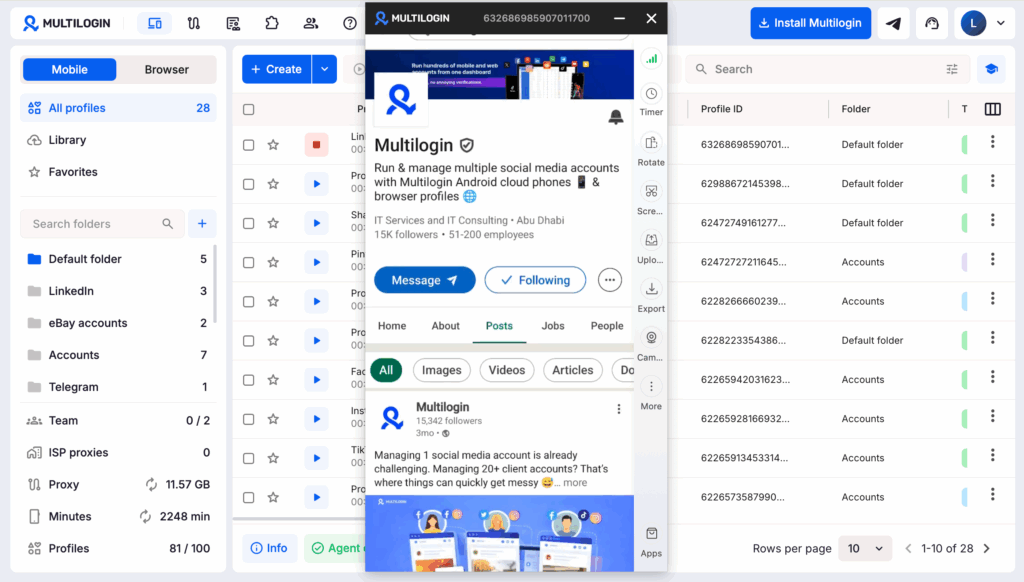
If you manage more than one LinkedIn account, maybe one personal, one for a business page, or a few for client work, cookies become a headache fast. LinkedIn ties sessions to cookies stored in a single browser profile, so juggling accounts in the same browser often means constant logging in and out, or LinkedIn flagging the switching pattern as suspicious.
This is where tools like Multilogin cloud phone come into the picture. It creates separate, isolated browser profiles, each with its own cookies, local storage, and fingerprint, so multiple LinkedIn sessions can run side by side without bleeding into each other or tripping security checks. For anyone managing accounts for different clients or teams, that kind of separation is less about getting around anything and more about basic account hygiene.
It won’t replace good judgment about how you use each account, but it does solve the practical, everyday annoyance of cookies colliding between sessions that were never meant to share a browser in the first place.