


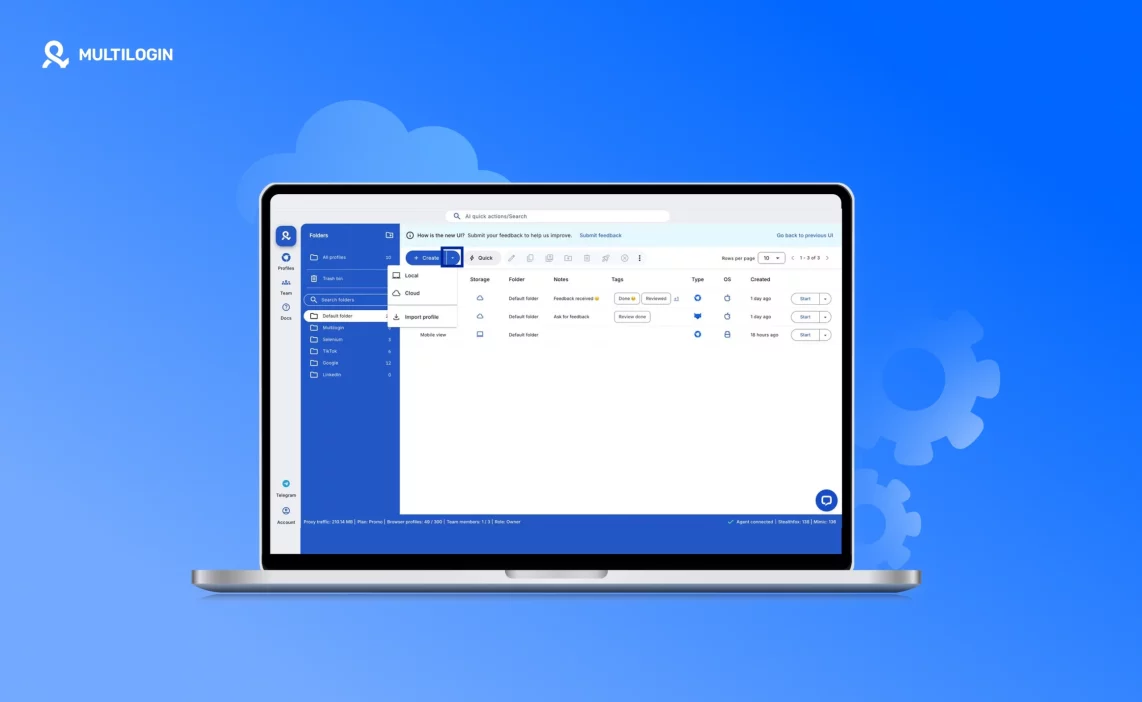

Multilogin cloud and local storage start to matter when profile access stops being reliable. Everything can look fine until a profile only opens on one computer, a teammate can’t reach a session, or a scraping task loses its state because it runs on the wrong machine. These issues don’t always cause instant bans, but they often lead to repeated setups, inconsistent behavior, and small mistakes that increase risk over time.
Profile storage is not just about where files sit. Browser profiles carry cookies, extensions, and session data that platforms expect to stay consistent. When that data isn’t stored in the right place, profiles become hard to manage across devices or get locked to a single PC without intent. Multilogin cloud and local storage is designed to prevent this by letting profiles live in the cloud for shared, multi-device access or locally on one machine for controlled workflows, so profile data stays predictable as your work scales.
What profile storage means and why it is important
Profile storage defines where browser profile data lives and how it can be accessed over time. A browser profile is not just a login window. It contains cookies, extensions, and session data that platforms use to recognize a specific browsing session. When that data is stored incorrectly, profiles can behave differently across devices, fail to open where they’re needed, or require repeated setup that increases operational risk.
Storage decisions become especially important once profiles are used across multiple sessions, machines, or people. If profile data is only available in one place, access becomes limited. If profile data is duplicated or overwritten, consistency breaks. In both cases, the problem usually appears after workflows scale, not at the start, which is why storage is often overlooked until something stops working.
How profile storage works in Multilogin
Multilogin X provides two storage options for browser profiles: cloud and local. The selected storage type determines where profile data is kept and how it can be accessed.
In all cases, profile metadata is stored in the cloud. This includes the information Multilogin antidtect browser uses to identify and manage profiles inside the platform. Profile data, such as cookies and extensions, is handled differently depending on the selected storage type. With cloud storage, profile data is stored on AWS and can be accessed across devices. With local storage, profile data is stored on the user’s device, while metadata remains backed up on AWS.
This separation allows Multilogin to support different workflows without forcing all profiles into the same storage model, keeping access predictable based on how and where the profile is meant to be used.
How Multilogin cloud storage addresses access and teamwork issues
Access issues often appear quietly. A profile opens on one computer but not another. A teammate can’t continue a session that was active earlier. Someone recreates a profile just to keep work moving, and that repeated setup starts to change how platforms see the account. These situations don’t always cause immediate bans, but they increase inconsistency, which is usually noticed only after accounts start behaving differently.
Multilogin cloud storage is built to remove those access gaps by keeping profile data stored securely on AWS and available across systems. Cloud-stored profiles can be accessed from multiple devices and stay synchronized within team workspaces. Profiles are downloaded once and launched from a cached version, and when changes happen during a session, they sync on the next launch. This keeps profile data aligned instead of drifting between machines, which is critical when multiple people rely on the same sessions.
How cloud storage supports team and multi-device workflows
- Profile data is stored in the cloud and synchronized across devices, while still being downloaded to the user’s computer when the profile is launched.
- Profiles can be accessed from different machines without manual transfer
- Changes made during a session sync on the next profile launch
- Profiles launch from a cached version after the first download
- Designed for team workspaces and workflows that move between devices
By keeping profile access consistent across systems, Multilogin cloud storage helps teams avoid repeated setups, broken sessions, and the small workflow mistakes that often lead to account issues as operations scale.
How Multilogin local storage fits single-machine workflows
Multilogin local storage is built for workflows that are intentionally tied to one controlled environment. In these setups, the main risk is not collaboration—it’s unnecessary syncing, extra dependencies, or environments changing without intent. Multilogin local storage is designed to keep profile data anchored to a single machine, so the working environment stays predictable and aligned with how the operation is set up.
Designed for workflows that stay on one computer
With Multilogin, local storage supports profiles that are created, launched, and maintained on one specific machine. This is common in single-PC operations where automation or scraping runs continuously from the same environment. Instead of forcing cloud-based syncing into these workflows, Multilogin allows profiles to remain local by design, keeping the setup simple and controlled.
How Multilogin handles profile data with local storage
When local storage is selected in Multilogin, profile data such as cookies and extensions is stored directly on the user’s device. This keeps the full session environment tied to that machine. At the same time, Multilogin still backs up profile metadata on AWS, allowing the platform to manage profiles reliably without storing full session data in the cloud. This balance gives users local control without losing platform-level management.
Built intentionally without cross-device syncing
Multilogin local profiles do not sync across devices, and that limitation is intentional. Local storage is meant for workflows where profiles are not shared and are not expected to move. By keeping profiles bound to one machine, Multilogin avoids unnecessary syncing steps and keeps behavior consistent in environments where access is deliberately restricted.
Where Multilogin local storage adds real value
Local storage in Multilogin is especially useful for businesses operating entirely from a single computer, including certain scraping setups where profiles are expected to stay local. In these cases, keeping profile data on the device reduces reliance on syncing with third-party servers and keeps the workflow contained within one environment. Multilogin gives users this option so storage matches how the work actually runs.
What Multilogin expects you to consider before choosing local storage
Multilogin local storage assumes the profile will stay on the same machine. If access from another device becomes necessary later, profiles must be exported and imported manually. For stable, controlled workflows that don’t rely on team access or multi-device use, this tradeoff is intentional and supported. For anything beyond that, Multilogin offers cloud storage as an alternative—without forcing users into one model.
Where profile data is stored in each storage type
Multilogin handles profile data differently depending on the selected storage type, while keeping profile management consistent across the platform. Understanding where data is stored helps avoid confusion when profiles behave differently across devices or environments.
Cloud storage
With Multilogin cloud storage, both profile metadata and profile data are stored on AWS. This includes cookies, extensions, and session data. Because everything is stored centrally, cloud profiles can be accessed from multiple devices and stay aligned inside team workspaces. This setup allows Multilogin to keep profiles available wherever the work happens.
Local storage
With Multilogin local storage, profile metadata is still stored on AWS, but profile data is stored directly on the user’s device. Cookies, extensions, and session data remain local to that machine. This keeps the full session environment tied to one computer while still allowing Multilogin to manage the profile inside the platform.
Why metadata always stays on AWS
Metadata remains cloud-based in all cases because it allows Multilogin to identify, organize, and manage profiles reliably. Even when profile data is stored locally, metadata ensures profiles remain visible in the dashboard, can be converted between storage types, and stay linked to the correct workspace and user.
See how Multilogin fixes profile access! Try Multilogin now for €1.99!
How to choose a storage type during profile creation
Multilogin lets you select the storage type at the moment a profile is created. This ensures profiles are set up correctly from the start, based on how they will be used.
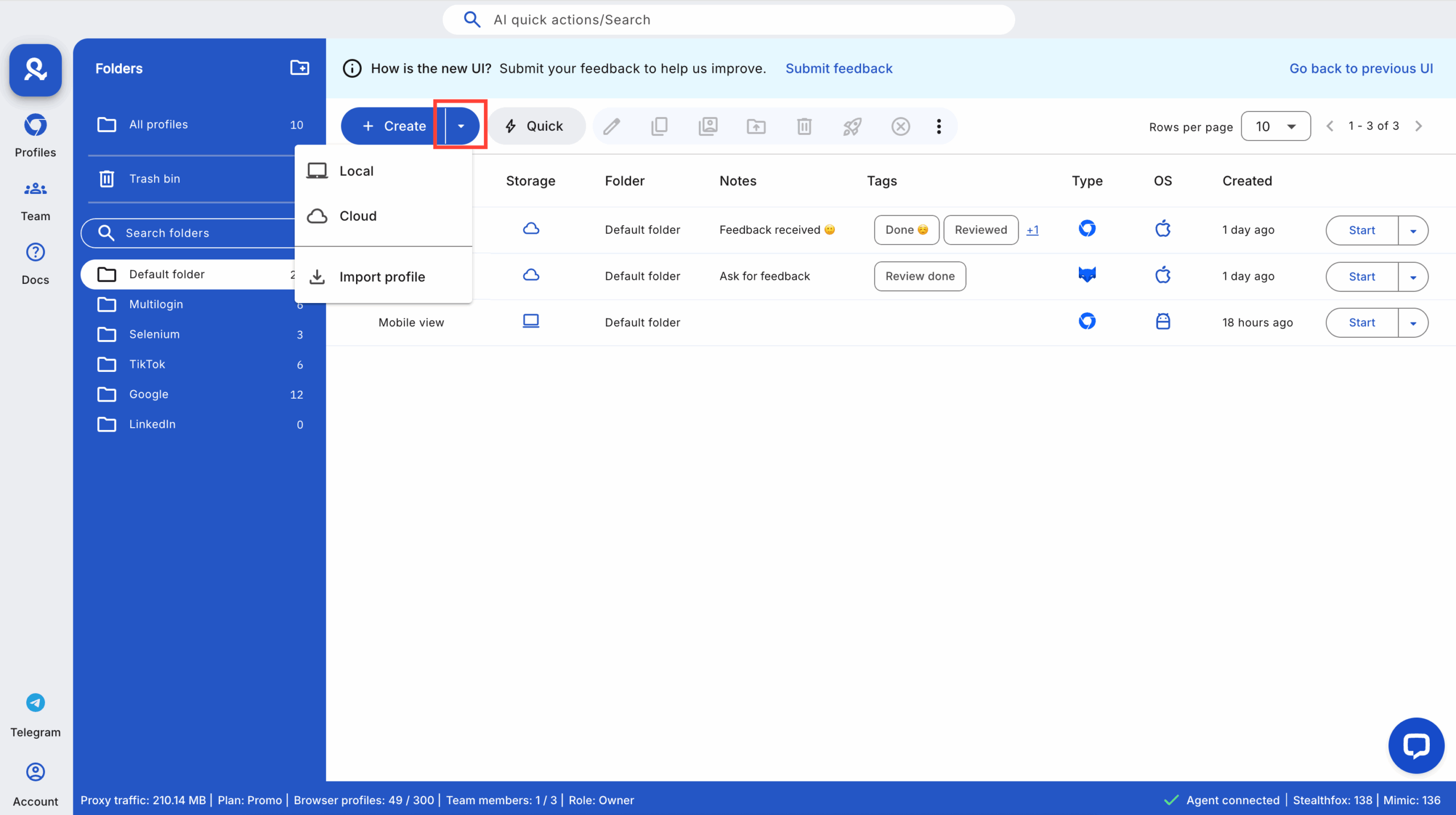
Using the “create” button storage selector
From the main dashboard, click Create, then use the arrow next to the button to select a storage type. The selected option will be applied automatically when the profile is created.
Using profile settings
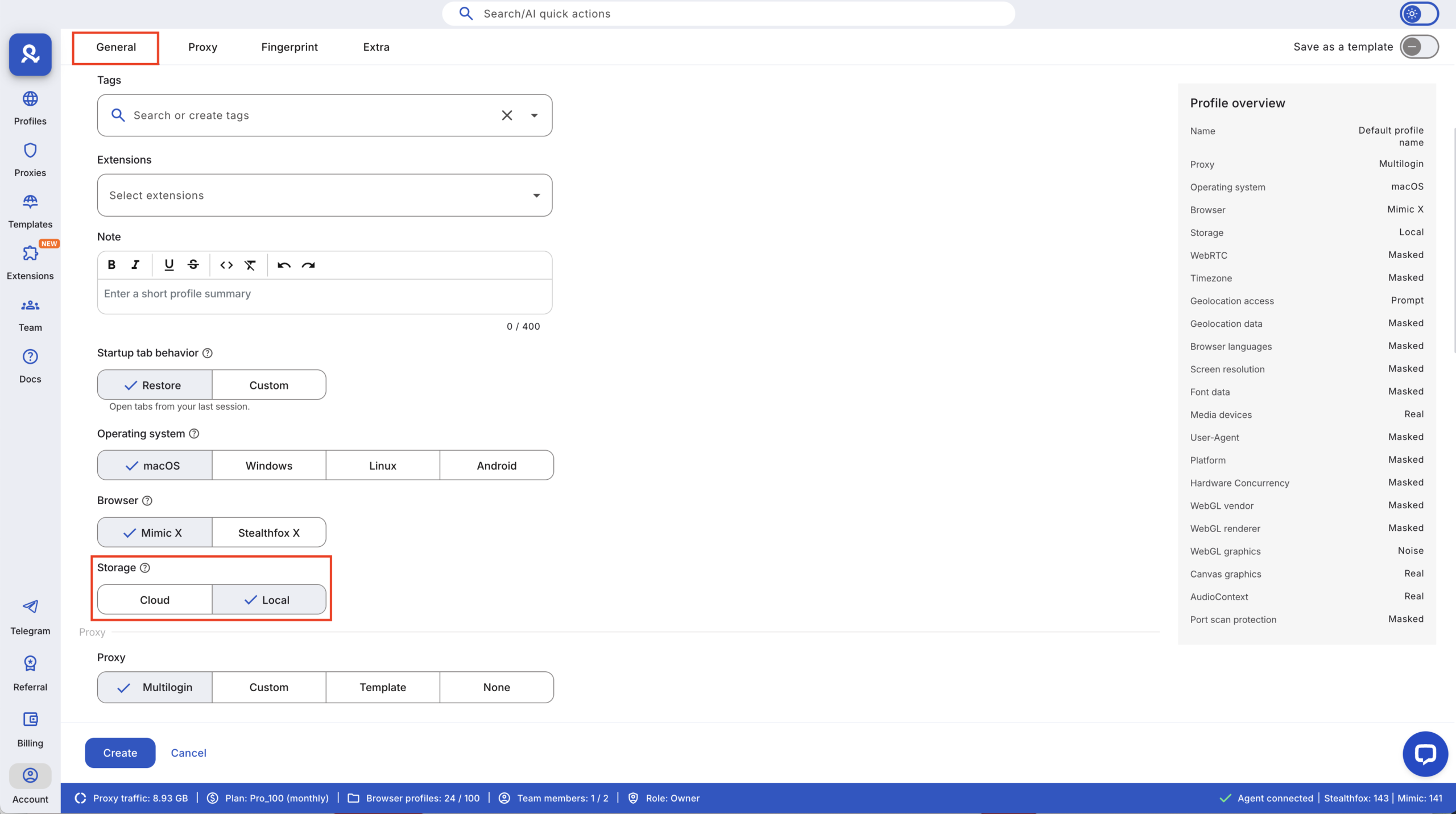
You can also choose the storage type inside profile settings:
- Open profile settings
- Go to General
- Scroll to the Storage section
- Select cloud or local
How the selection works
The chosen storage type is pre-selected based on your choice and applies only to newly created profiles. Existing profiles keep their current storage type unless converted manually.
How to check which storage type a profile uses
Multilogin makes it easy to see how each profile is stored directly from the dashboard.
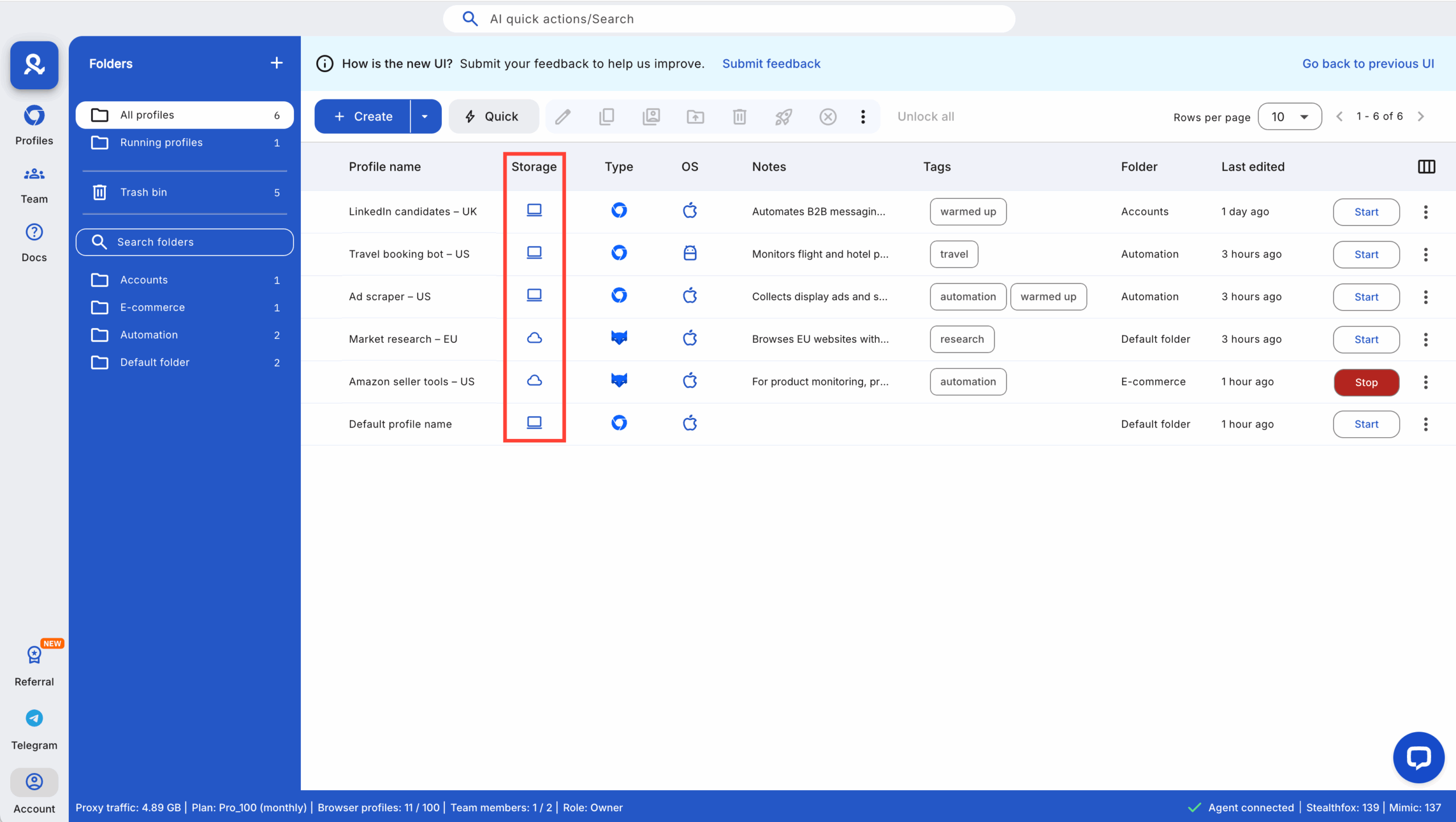
Storage indicators in the dashboard
Each profile includes a Storage column that shows where the profile data is stored:
- A cloud icon indicates cloud storage
- A device icon indicates local storage
This allows you to confirm storage type at a glance without opening profile settings.
How to find local profile data on your device
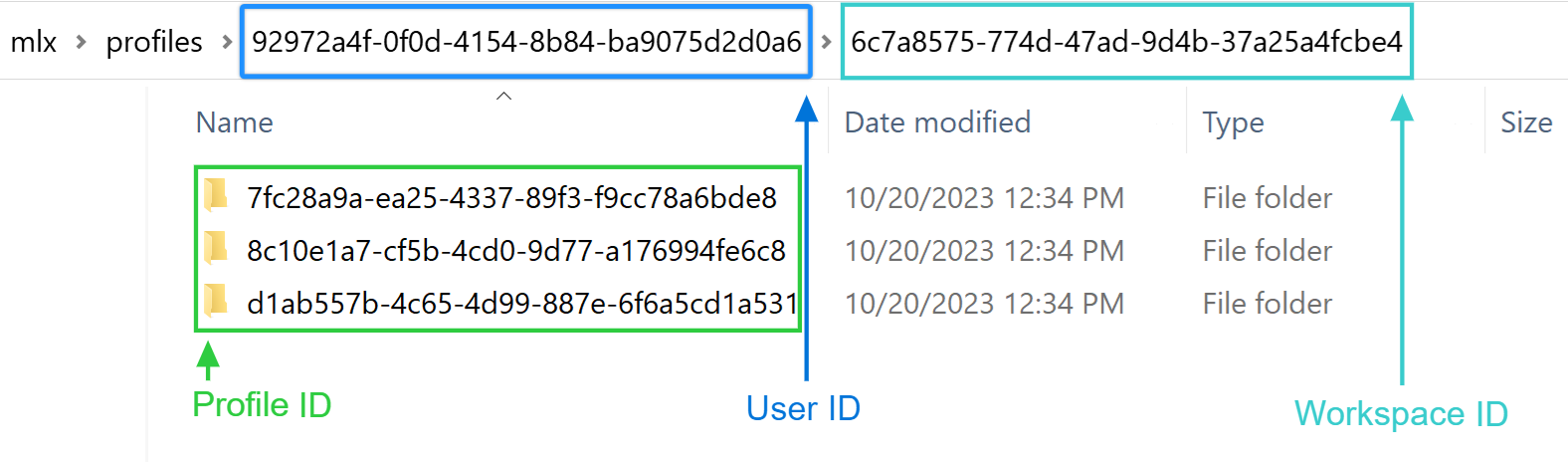
When using local storage, profile data is stored directly on your machine. Multilogin uses a consistent folder structure across operating systems.
Local profile data paths
- Windows: C:\Users\%username%\mlx\profiles
- macOS: /Users/%username%/mlx/profiles
- Linux: /home/%username%/mlx/profiles
Folder structure
Each local profile is stored using a structured folder system based on:
- User ID
- Workspace ID
- Profile ID
This structure allows Multilogin to keep profiles organized and identifiable while remaining stored locally on the device.
Switching between cloud and Local storage
Storage choice in Multilogin is not permanent. Profiles can be converted later if the way you work changes. This allows you to start with one storage type and switch without rebuilding the profile from scratch.
Multilogin includes a Convert storage feature that lets you move a profile from cloud to local storage or from local to cloud storage. Switching storage types does not remove the profile, and existing profile data stays intact during the conversion.
Local profiles remain tied to the device where they were created by default. If a local profile needs to be used on another machine, it must first be converted from the original device and then exported and imported manually. This keeps local storage predictable and ensures profiles only appear on devices where access is intentionally set up.
This flexibility allows storage to follow your workflow instead of locking you into a single setup.
Learn more about what browser fingerprinting is!
Final verdict about Multilogin cloud and Local storage
Multilogin Cloud And Local Storage is not about choosing a better feature. It’s about choosing the right way to keep profiles accessible, consistent, and under control as real workflows grow. Most storage problems don’t appear on day one. They show up later, when profiles are shared, moved, or reused in ways they were never set up for.
Multilogin solves this by offering two storage models that match how work actually happens. Cloud storage supports teams and multi-device access by keeping profiles synchronized and available where they’re needed. Local storage gives single-machine workflows tighter control by keeping profile data on one device and avoiding unnecessary syncing. Both options are part of the same platform, and neither locks you into a fixed setup.
The key advantage is flexibility. Storage can change as workflows change. Profiles don’t need to be rebuilt, duplicated, or worked around. With Multilogin Cloud And Local Storage, profile access stays predictable, which helps reduce mistakes, repeated setups, and the inconsistencies that often lead to account issues over time.
👉 Try Multilogin for €1.99 and install your first Firefox extension in Stealthfox today.
FAQs
Yes. Multilogin Cloud And Local Storage is designed to adapt as workflows change. If a profile starts in cloud storage and later needs to run on a single machine, it can be converted using the Convert storage feature. The profile does not need to be recreated, and its existing data remains intact. This makes it possible to adjust storage without disrupting ongoing work or rebuilding sessions from scratch.
No. Switching between cloud and local storage does not delete the profile or reset its data. Cookies, extensions, and session data stay with the profile during conversion. The storage change only affects where that data is kept going forward, not the profile itself.
Teams and multi-device workflows usually rely on cloud storage. With cloud storage, profiles can be accessed from different machines and stay synchronized within team workspaces. This reduces the need for manual transfers and helps avoid inconsistencies when multiple people rely on the same profiles.
Local storage fits workflows that run entirely on one computer and are not meant to be shared. This includes certain scraping or automation setups where profiles stay on a fixed machine. In these cases, keeping profile data local reduces reliance on syncing and keeps the environment contained. Local storage is a deliberate choice for controlled setups, not a replacement for cloud storage in shared workflows.

