
If your mobile accounts keep getting banned, the problem usually isn’t the account itself. It’s the phone behind it.
Most mobile bans happen after accounts get reused on the same device, reset too often, or move between phones that don’t keep their identity. One day things work. The next day, everything is gone. Not because of what you did; but because the device signals changed.
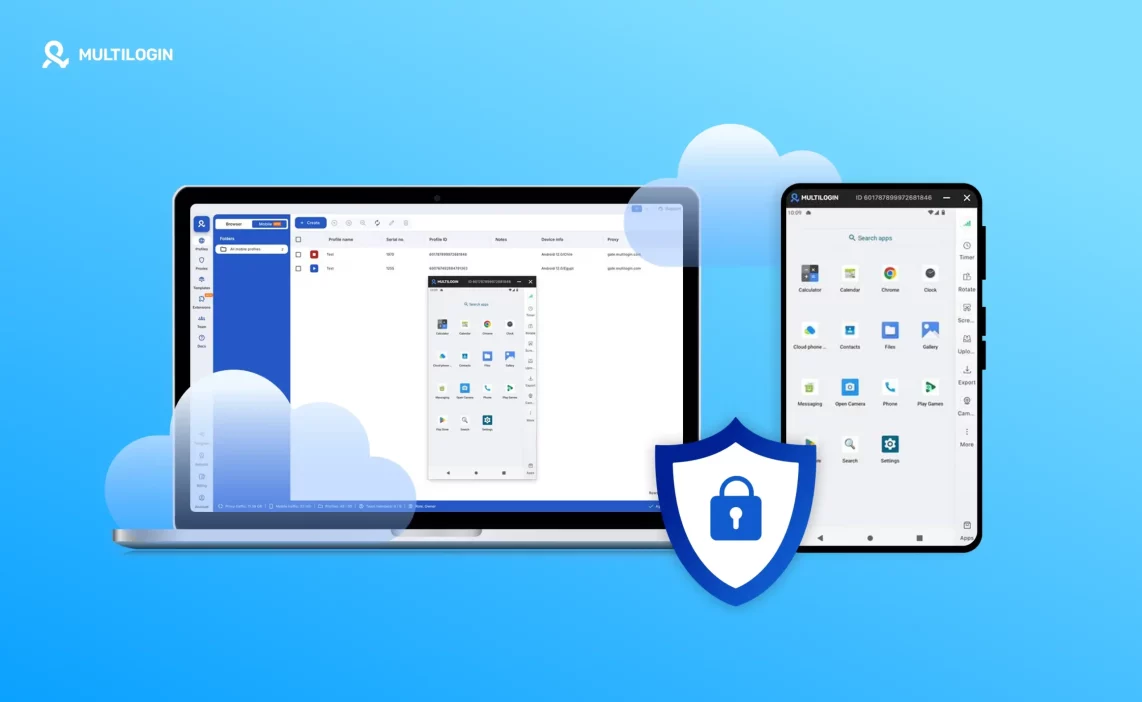
Multilogin cloud phones fix that by replacing physical Android phones with real Android environments that live in the cloud. Each cloud phone behaves like its own device, with its own system data, storage, and mobile fingerprints. When you log in again, nothing looks new to the platform. The phone is the same. The behavior is the same. The history is still there.
If you’ve ever lost accounts after a device reset, shared a phone across logins, or watched a setup collapse when a phone died, this is what changes the outcome. Instead of managing hardware that breaks, you manage mobile environments that stay consistent. You don’t rebuild. You continue.
This is how teams run mobile accounts long-term without tying their work to physical devices — and without repeating the same bans again.
What is a Multilogin cloud phone?
A Multilogin cloud phone is a real Android environment hosted in the cloud and controlled directly from the Multilogin desktop app. Each cloud phone runs its own Android operating system, maintains its own system data and storage, and carries a unique mobile device identity that remains consistent over time.
Apps and websites do not see a browser emulating mobile behavior. They interact with an actual Android environment, which is why cloud phones behave the same way physical devices do during login, usage, and long-term sessions.
Every cloud phone is isolated by design. Unless you explicitly configure sharing, nothing crosses between devices.
Why mobile accounts get banned on phones
Mobile account bans are rarely caused by activity volume alone. They usually appear after device signals start overlapping or changing too often.
When the same phone is reused across accounts, reset frequently, or shared between workflows, the underlying mobile identity stops looking stable. Platforms track that inconsistency. Once it becomes visible, even correct account behavior may no longer matter.
Many teams encounter this after device resets, Android updates, or moving accounts between phones. The result is familiar: accounts that worked yesterday suddenly stop lasting.
How Multilogin cloud phones work
Multilogin cloud phones replace physical devices with cloud-based Android profiles that keep their identity intact across sessions.
Each cloud phone includes its own Android version, system data, storage, and mobile fingerprints. When you close the phone and return later, the device identity does not change. Apps and platforms see the same phone returning, not a new device connecting again.
This persistence removes the need to constantly rebuild environments or warm up new devices. Mobile workflows continue instead of restarting.
Cloud phones vs physical phone farms
Traditional phone farms rely on physical Android devices. As these setups grow, so does the operational burden. Phones require charging, storage, maintenance, and replacement. Hardware failures are common, and when a device fails, the account tied to it often fails as well.
More importantly, physical phones create rigid dependencies. Each account becomes locked to a single piece of hardware. Recovering from issues often means starting from scratch.
Cloud phones remove this dependency by turning each phone into a managed Android environment rather than a physical object. Identity and session data remain available without relying on hardware survival.
Cloud phones vs Android emulators
Android emulators are often used to reduce hardware costs, but they introduce their own limitations. Many emulators reuse system-level signals or fail to maintain consistent mobile behavior over time. While apps may run initially, long-term stability is harder to maintain.
Multilogin cloud phones operate as full Android environments hosted in the cloud. Each phone runs independently, with its own operating system, storage, and mobile signals. This allows apps to behave as they would on real phones rather than on simulated environments.
Managing cloud phones from one dashboard
All cloud phones are managed from within the Multilogin desktop application.
From a single dashboard, teams can create, start, stop, and organize cloud phones alongside browser profiles. Mobile and browser environments coexist in the same workspace, making it easier to manage mixed workflows without switching tools.
As the number of cloud phones increases, management remains centralized and predictable.
Profile-level network and location control
Each cloud phone can be assigned its own network configuration.
Multilogin supports built-in residential proxy traffic as well as external HTTP(S), SOCKS5, and mobile proxies. Network behavior can be aligned with device settings to reflect how a real phone would connect.
Two network modes are available:
- Wi-Fi mode, typically used with residential or ISP proxies, works well for account setup, warm-up, and long sessions.
- Cellular mode (Android 12 and above) displays SIM and LTE or 5G behavior and is better suited for mobile or rotating proxies.
Keeping network type and proxy selection aligned helps mobile sessions remain coherent over time.
How to use mobile profile features
Mobile profiles in Multilogin function as virtual Android phones and are treated as such by apps and websites.
They are commonly used when working with mobile-focused platforms, social media apps, or mobile ad accounts. When a mobile profile starts, a live phone screen appears with a control panel on the right side.
That panel includes tools to manage both the device and the workflow:
- A timer that tracks active usage time for cost awareness
- Screen rotation for apps that require landscape mode
- Screenshot capture for documentation
- File upload to the phone for creatives or media
- File export back to the desktop
- Camera access for scanning or verification
- App management for installing, updating, or removing apps
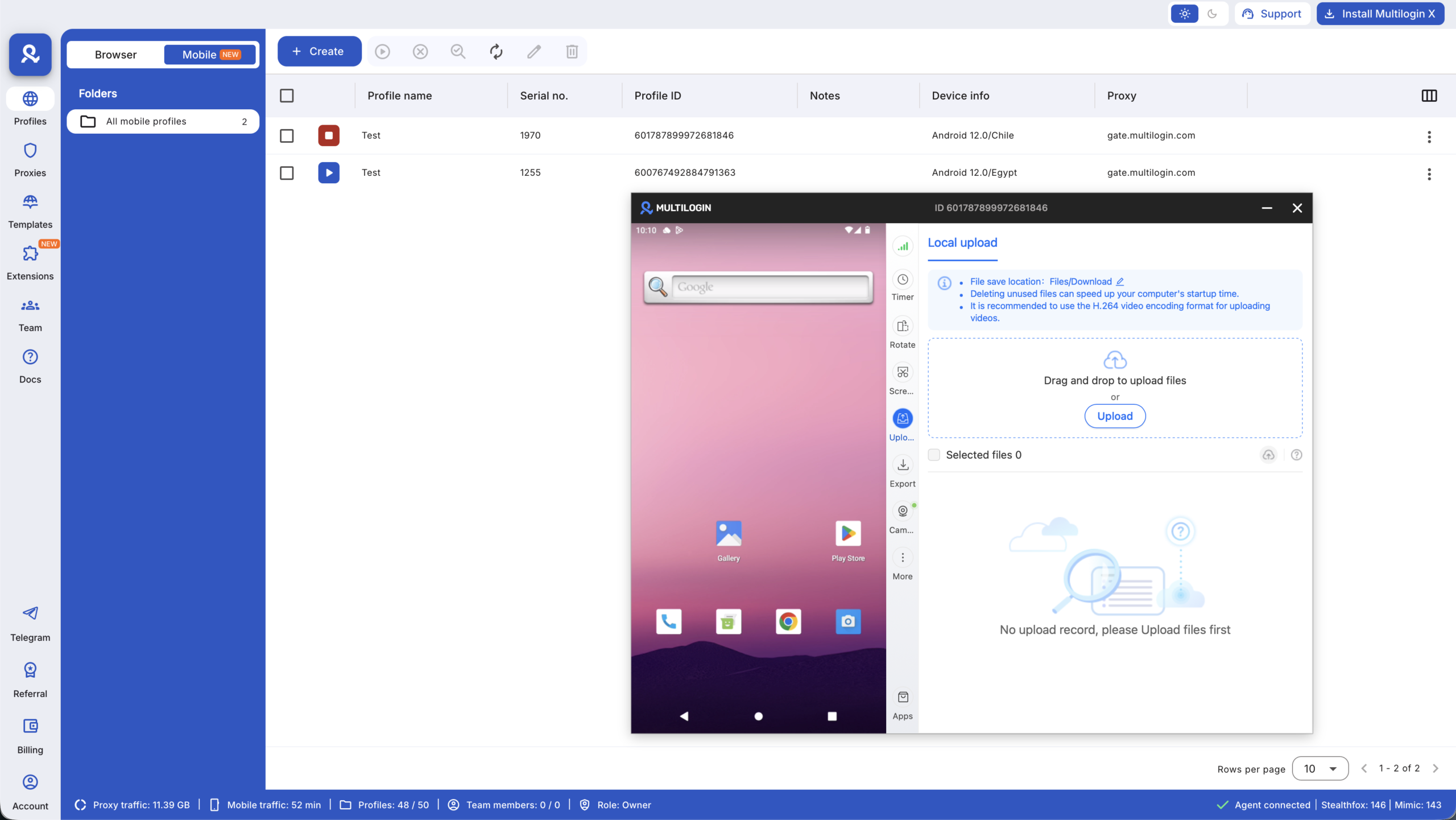
To view installed apps or access the phone menu, users can drag upward on the phone screen.
Installing apps on cloud phones
Apps can be installed directly inside the running cloud phone using the built-in app manager.
This method does not consume proxy traffic and installs the app only on the active phone. Installation behavior mirrors that of a physical Android device, allowing teams to manage apps per phone rather than globally.
Paying for cloud phone usage
Cloud phone usage is billed based on active time.
Billing starts when the phone window opens and stops when it is closed. The cost is $0.011 per minute, with any available bonus minutes applied first. If mobile profiles are not used, no charges are applied.
Additional minutes can be purchased from the Billing section and are added instantly.