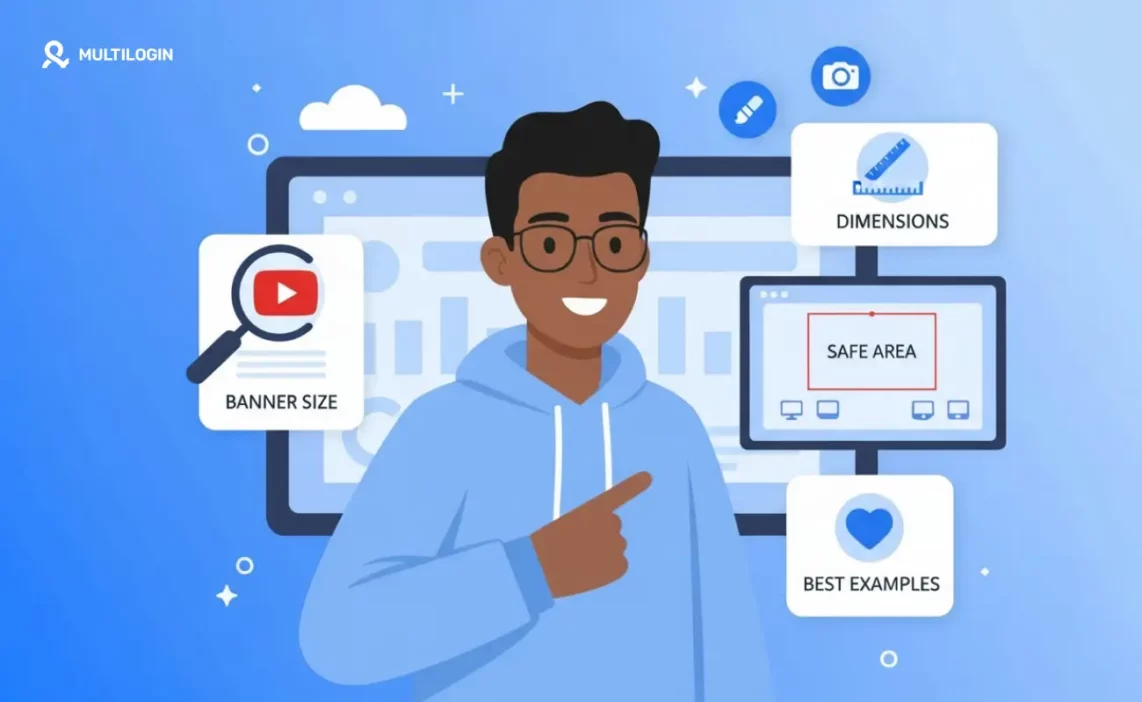



Your YouTube banner may look polished in a design editor, then lose part of its message when viewed on a phone. That happens because YouTube banners use one image across computer, mobile, and TV displays, but the visible crop changes depending on the device and view.
A useful banner therefore has two jobs. It should communicate what the channel covers and keep its essential elements visible after cropping.
This guide covers the current YouTube banner dimensions, safe-area rules, 25 original design ideas, creation tools, upload steps, troubleshooting, and a practical YouTube banner test.
YouTube banner size and safe area at a glance
The recommended YouTube banner size is 2560 × 1440 pixels.
According to YouTube’s current channel-branding guidance, creators should follow these specifications:
Specification | YouTube guidance |
Recommended dimensions | 2560 × 1440 px |
Minimum upload dimensions | 2048 × 1152 px |
Aspect ratio | 16:9 |
Safe area at the minimum dimensions | 1235 × 338 px |
Maximum file size | 6 MB |
Display behavior | The same image appears differently across computer, mobile, and TV displays |
Create your working file at 2560 × 1440 px. Place the channel name, logo, tagline, upload schedule, and other essential information in the center.
Decorative backgrounds can extend across the full canvas. Information that must remain visible should not depend on the outer edges.
YouTube banner definition
A YouTube banner is the large background image displayed at the top of a channel page. It is also called channel art or a channel banner.
Recommended size: 2560 × 1440 px
Minimum size: 2048 × 1152 px
Aspect ratio: 16:9
Official safe area at minimum size: 1235 × 338 px
Maximum file size: 6 MB
Key takeaways
- The recommended YouTube banner size is 2560 × 1440 px.
- The minimum accepted size is 2048 × 1152 px at a 16:9 aspect ratio.
- At the minimum upload size, YouTube specifies a 1235 × 338 px safe area for text and logos.
- YouTube uses the same banner image across computer, mobile, and TV, but the image appears differently depending on the device.
- Logos, channel names, taglines, and schedules should remain in the central area.
- YouTube Studio’s upload preview should be the final crop check before publication.
What is a YouTube banner?
A YouTube banner is the wide background image displayed at the top of a channel page.
It gives visitors a visual introduction to the channel. Depending on the channel, it can include:
- The channel name
- A logo or visual mark
- The main content topic
- A short tagline
- A publishing schedule
- A photograph or original illustration
- A recognizable color palette
A banner is one part of the channel’s wider visual identity. YouTube recommends keeping the banner and profile picture consistent with the channel’s overall look, feel, and voice.
That relationship can continue into video packaging. Your banner and YouTube thumbnails do not need to be identical, but shared colors, typography, or visual motifs can connect them.
What size is a YouTube banner in 2026?
The recommended YouTube banner size in 2026 is 2560 × 1440 pixels.
YouTube accepts banner images from 2048 × 1152 px with a 16:9 aspect ratio. The platform recommends the larger 2560 × 1440 px dimensions, especially for TV displays.
The maximum file size is 6 MB.
Starting with the recommended canvas gives the background, photographs, textures, and illustrations room to appear on wider displays. It does not mean every part of the canvas will remain visible in every view.
Essential information still needs to stay within the central area.
What is the YouTube banner safe area?
The YouTube banner safe area is the central region where essential text and logos should be placed.
YouTube officially specifies a safe area of 1235 × 338 px at the minimum upload size of 2048 × 1152 px. Content outside this central region may be cropped on certain views and devices.
Some third-party templates provide a proportionally scaled center guide for a 2560 × 1440 px working canvas. That overlay can help with layout, but it should not be described as an additional official YouTube specification.
YouTube Studio’s upload preview remains the final reference for the banner being published.
Consider placing these elements in the central area:
- Channel name
- Logo
- Short channel description
- Publishing schedule
- Main subject or creator
- Essential campaign wording
Background colors, patterns, landscapes, supporting characters, and decorative shapes can extend beyond it.
A simple way to plan the canvas
A practical banner layout has an information layer and a background layer.
The information layer occupies the center. It contains the elements that identify or explain the channel.
The background layer fills the wider canvas. It creates the visual mood through color, photography, patterns, or illustrations.
If part of the background is cropped, the message can remain intact. If the information layer is cropped, visitors may lose the channel name or context.
How does a YouTube banner appear on mobile, desktop, and TV?
A YouTube banner uses the same uploaded image across mobile, computer, and TV, but the image is displayed differently depending on the device.
YouTube states that banner images should accommodate larger screens while accounting for cropping on certain views. In practical design terms, creators should build one flexible composition rather than relying on the outer edges to carry essential information.
A cross-device layout can follow this structure:
- Center: Channel name, logo, tagline, schedule, or main subject
- Near the center: Supporting imagery that can tolerate some cropping
- Outer edges: Background details and decorative elements
- Corners: No essential information
This approach also makes later updates easier. A creator can revise the central wording while retaining the wider visual direction.
25 YouTube banner ideas and examples
The following YouTube banner ideas are original creative concepts, not performance benchmarks.
Use them as starting points. Adapt the colors, typography, imagery, and message to the channel rather than copying the concept without modification.
Gaming YouTube banners
1. Neon game-world banner
Place the channel name in the center using a bold geometric typeface. Surround it with an original neon landscape, controller-inspired shapes, or abstract interface elements.
Keep detailed scenery toward the outer edges so cropping does not affect the name.
2. Character-led gaming banner
Feature an original illustrated character in the central area, with the channel name beside it. Build the background from motion lines, particles, or shapes inspired by the channel’s gaming niche.
Avoid copyrighted characters unless you have permission to use them.
3. Minimal competitive gaming banner
Choose a dark background, one bright accent color, and a compact logo. Add a short description such as “Ranked Guides” or “Weekly Challenges” to identify the channel’s focus.
Education and tutorial banners
4. Subject-map banner
Place the main subject in the center, then add a few visual symbols around it. A coding channel might use brackets and terminal-inspired shapes. A science channel could use original diagrams or laboratory-themed icons.
5. Teacher-led banner
Use a clear portrait, the channel name, and one short content line, such as “Practical English Every Tuesday.” Keep the portrait and wording near the center so they remain together in narrower views.
6. Blackboard-style banner
Combine a dark textured background with light hand-drawn diagrams. Limit the supporting elements so the design does not become a collection of tiny, unreadable notes.
If the channel is still being planned, this direction can be developed alongside the wider steps for making a YouTube channel.
Business and marketing banners
7. Editorial business banner
Use a clean grid, a restrained color palette, and one clear statement about the channel’s subject. Suitable wording could identify the niche, such as “Small Business Operations.”
8. Founder-led banner
Place the creator’s photograph and name in the center with a brief topic line. Use subtle brand colors and leave open space around the copy.
9. Data-inspired banner
Build the background from simple charts, grid lines, or abstract data shapes. Treat these as decorative elements rather than presenting them as real performance data.
Technology banners
10. Product-review banner
Combine the channel name with original device silhouettes, interface-inspired shapes, or photographs you have permission to use. A short descriptor such as “Phones, Apps and Practical Reviews” makes the topic clear.
11. Futuristic gradient banner
Use a controlled gradient with thin line art and one focal element. Keep enough open space around the central wording for readability.
12. Retro computing banner
Use pixel-inspired typography, a limited color palette, and original computer graphics. The design can suggest an earlier computing era without copying a specific game or software interface.
Beauty and lifestyle banners
13. Soft editorial collage
Combine two or three coordinated photographs, paper-inspired shapes, and restrained typography. Place the central message over a visually quiet area.
14. Illustrated lifestyle banner
Use original illustrations of objects connected to the channel, such as clothing, skincare products, books, or home items. A limited palette can bring the separate elements together.
15. Minimal aesthetic banner
Choose one photograph, one typeface, and one accent color. This keeps the visual direction clear and reduces competition between elements.
Travel banners
16. Panoramic destination banner
Use a wide photograph that can lose material from both sides without cutting off its main subject. Place the channel name and travel focus near the center.
17. Travel-journal banner
Combine map-inspired lines, ticket-style shapes, and a small set of destination images. Use original or properly licensed materials.
Fitness banners
18. Movement-focused banner
Use an action photograph with open space around the subject. Add the channel name and training category, such as mobility, running, strength, or home workouts.
19. Training-schedule banner
Place a short publishing schedule under the channel name. YouTube suggests that creators with regular uploads can use the banner to tell viewers when new videos are expected.
Food banners
20. Ingredient-led banner
Arrange colorful ingredients around an uncluttered central title. This concept can suit channels focused on a cuisine, dietary approach, or cooking method.
21. Signature-dish banner
Use one strong food photograph and a short line that identifies the channel, such as “Simple Weeknight Cooking.” Avoid filling the layout with many small dishes that become difficult to recognize.
Music and podcast banners
22. Album-inspired music banner
Build the design around an original photograph or illustration with the channel name centered like an album title. Match the visual mood to the music without copying another artist’s artwork.
23. Podcast conversation banner
Place the hosts or an original microphone illustration in the middle. Add a concise subject line rather than a long description.
Personal brand and vlog banners
24. Creator portrait banner
Use one recognizable portrait, the creator’s name, and two or three topic labels. Consider how the portrait works beside the channel profile picture before repeating the same image.
25. Meme or comedy banner
Use an original reaction image, exaggerated typography, or a deliberately unconventional composition that matches the channel’s humor. Keep the joke short enough to remain readable.
What makes a good YouTube banner?
A good YouTube banner communicates the channel’s identity clearly and keeps essential information visible after cropping.
It does not need to summarize every video. It only needs to give visitors enough context to understand the channel’s direction.
A clear visual hierarchy can place the elements in this order:
- Channel name or identifying mark
- Main topic or short positioning line
- Optional schedule or supporting detail
- Decorative background elements
This hierarchy is a design recommendation rather than a YouTube requirement.
The banner should also support the promise developed in your YouTube content strategy. If the channel’s subject or identity changes, the channel art may need to change with it.
What should you put on a YouTube banner?
A YouTube banner should contain the information needed to recognize the channel and understand its subject.
Possible elements include:
- Channel name
- Logo or visual mark
- Creator photograph
- Short niche description
- Publishing schedule
- Original illustration
- Brand colors
- Short tagline
Not every banner needs every element.
A personal vlog might rely on a photograph and name. An educational channel may benefit from a clear subject line. A creator with a regular publishing schedule can include it, while a channel without a fixed schedule can leave it out.
Avoid adding dates or campaign messages that may become outdated unless the banner will be reviewed and replaced when the campaign ends.
Five best practices for designing YouTube banners
1. Keep essential content in the center
Place the channel name, logo, subject, tagline, and schedule in the central area so they are less likely to be lost when YouTube crops the image.
2. Use readable text
Choose a font size and color contrast that remain legible when the banner is displayed at a smaller scale. Short wording is easier to scan than a long paragraph.
3. Match the wider channel identity
Coordinate the banner with the profile picture, thumbnails, colors, and overall tone. YouTube recommends maintaining a consistent look, feel, and voice across channel visuals.
4. Limit the number of messages
Give the banner one main communication job. A channel name, short topic line, and optional schedule create less visual competition than several unrelated messages.
5. Preview the final crop
Inspect the banner in YouTube’s upload interface before publishing. Review the center, edges, text size, subject placement, and each preview provided during upload.
What are the best tools for making YouTube banners?
The right YouTube banner tool depends on whether you need templates, individual visual assets, collaborative editing, or detailed manual control.
No single tool is the right choice for every creator.
Tool or method | Suitable use | Verified features | Main consideration |
Canva | Browsing templates across many niches and styles | Customizable YouTube channel-art templates | Customize the template so it reflects the specific channel |
Adobe Express | Template editing and shared design work | Free editor, templates, images, icons, stock assets, brand customization, and editable sharing links | Some assets or features may depend on the selected plan |
Venngage | Finding structured design ideas | Examples involving imagery, icons, illustrations, collages, filters, typography, and short channel descriptions | Confirm current template and export conditions directly on the platform |
Design.com | Exploring many customizable banner variations | Searchable designs with business-name, logo, color, layout, and high-resolution file options | Confirm which file options are included before exporting |
Magnific | Finding individual design assets | Vectors, illustrations, photos, PSDs, templates, mockups, icons, and other asset formats | Review the license attached to the selected asset |
Desktop design software | Building a design from a blank canvas | Manual control depends on the chosen software | Requires familiarity with the selected application |
Freelance designer | Commissioning a custom direction | Deliverables depend on the agreed brief | Define revisions, licensing, and editable source files before work begins |
Placeit appeared in the supplied search results, but its detailed page content was not available for verification during research. It should not receive a feature-level comparison until the page can be checked directly.
A template is a starting point. Change its imagery, typography, colors, and wording so the finished banner represents your channel.
How do you make a YouTube banner?
You make a YouTube banner by creating a 2560 × 1440 px canvas, keeping essential content in the center, and exporting the finished image at 6 MB or smaller.
Step 1: Define the banner’s job
Decide what a first-time visitor should understand.
That might be:
- The channel’s subject
- The creator behind it
- The type of videos published
- The publishing schedule
- The channel’s visual personality
Write the intended message in one short sentence before designing.
Step 2: Create the canvas
Open your chosen design application and create a 2560 × 1440 px document.
Add a center guide based on YouTube’s official safe area. Remember that YouTube states the 1235 × 338 px safe area at its minimum 2048 × 1152 px upload dimensions.
If your template scales that guide for the recommended canvas, treat the scaled overlay as a design aid rather than a separate official specification.
Step 3: Add the main identity
Place the channel name, logo, face, or main subject in the central area.
The primary element should remain understandable even when much of the outer background is hidden.
Step 4: Add one supporting message
Choose a short topic description, tagline, or publishing schedule. Leave longer explanations for the channel description.
Step 5: Extend the background
Fill the wider canvas with colors, images, textures, or illustrations that can tolerate cropping. Check that the left and right sides do not contain essential information.
Step 6: Export the image
Export the banner at 6 MB or smaller. Review the final file for blur, compression, contrast, and spelling before uploading it.
How do you upload or change a YouTube banner?
You can upload or change a YouTube banner from the Profile section in YouTube Studio.
According to YouTube’s official instructions:
- Sign in to YouTube Studio.
- Select Customization from the left menu.
- Open Profile.
- Select Change and choose the banner image.
- Review the preview and adjust the crop.
- Select Done.
- Select Publish.
YouTube uses the same uploaded banner across computer, mobile, and TV displays, so inspect each preview provided during this process.
Creators setting up a channel for the first time can follow the complete YouTube channel creation guide before adding the final branding.
How do you test a YouTube banner across devices?
Test a YouTube banner by checking its central content before upload, reviewing YouTube’s crop previews, and inspecting the published channel on the device types available to you.
Use this YouTube banner test:
- Confirm that the canvas is 2560 × 1440 px.
- Confirm that it uses a 16:9 aspect ratio.
- Confirm that the exported file is 6 MB or smaller.
- Temporarily hide or crop the outer edges in your editor.
- Check whether the channel name remains readable.
- Check whether the logo or main subject remains complete.
- Upload the image in YouTube Studio.
- Review each crop preview provided during upload.
- Publish the banner.
- Open the channel on an available computer and phone.
- Ask another team member to review the result independently.
A third-party YouTube banner preview test can help during the design process, but its crop should not be presented as official. Use YouTube Studio’s upload preview as the final platform check.
YouTube also suggests involving viewers when choosing or changing channel visuals. Creators can ask for feedback through Posts or Shorts.
How do you fix common YouTube banner problems?
Most YouTube banner problems can be addressed by correcting the canvas dimensions, moving important elements toward the center, or simplifying the composition.
Text is cut off
Move the text into the central safe area. Making the font much smaller may keep it inside the crop but make it difficult to read.
The banner looks blurry
Return to the original design file and export at the recommended 2560 × 1440 px size. Avoid stretching a small image to fill the canvas.
The file will not upload
Confirm that the dimensions meet YouTube’s minimum requirement and that the file is 6 MB or smaller.
The desktop version looks empty
Extend the background, texture, photograph, or illustration across the wider canvas. Keep the essential content centered while using the outer areas for supporting visuals.
The mobile version feels crowded
Reduce the number of elements near the center. Remove secondary icons, extra slogans, and repeated information before reducing the remaining text size.
The banner and profile picture clash
Review the two assets together. They can share colors or visual language without repeating exactly the same artwork.
The banner no longer represents the channel
Update it when the channel’s subject, identity, or message changes. YouTube’s branding guidance notes that channel visuals can change as a creator’s values or message develop.
How to organize banner reviews across creator and client channels
Teams managing several creator, brand, or client channels can separate visual approval from account access.
Keep an editable source file for each banner, record who approved it, and use a naming convention that includes the channel and revision number. A reviewer can then comment on the artwork without needing direct access to the channel.
When it is time to upload the approved banner, Multilogin can give each YouTube social profile its own isolated browser profile with separate cookies, session, and IP address. This can help teams reduce messy account switching while handling channel branding and other web-based work. When a workflow requires the YouTube mobile app, a mobile profile can instead run on a dedicated Android cloud phone, which is a real Android device hosted in the cloud.
This account-level workflow does not replace the visual checks in YouTube Studio. The upload preview is still where the team should confirm the crop before publishing.
For creator teams managing multiple brand or client profiles, Multilogin can help keep daily account work organized without turning your analytics workflow into a login mess.
Multilogin is not a way around platform rules; the safest approach combines clean account separation with original content, real engagement, and platform-compliant activity.
Once the branding is ready, connect it to the channel’s wider distribution plan rather than treating the banner as a standalone growth tactic. The guides to promoting a YouTube channel and social media SEO cover that next stage.
Create a banner that survives the crop
A YouTube banner does not need to show every element in every view. It needs to keep its central message visible.
Start with a 2560 × 1440 px canvas, protect the center, and let decorative elements occupy the wider space. Test the design in YouTube Studio and inspect the published result on the screens available to your team.
The banner should still represent the same channel whether a viewer sees the wider background or mainly its central content.