


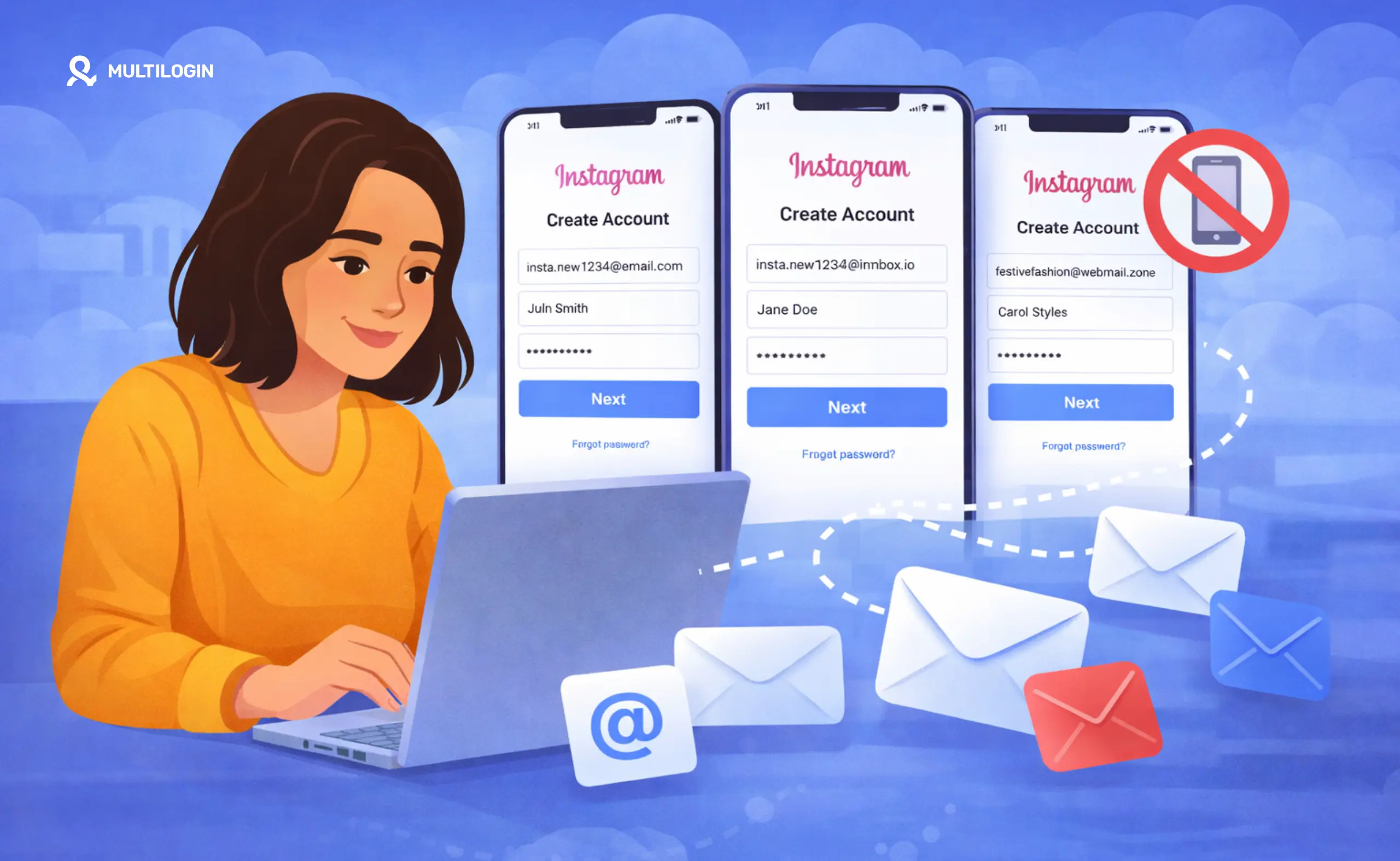



Instagram technically requires a phone number or email address to sign up. In practice, you can create accounts with email only, and you can create as many accounts as you need without tying each one to a real phone number. The challenge is not the signup process itself. It is what happens afterward: verification requests, account flags, and the pattern Instagram looks for when multiple accounts are run from the same device.
This guide covers the full picture. How to create a new Instagram account without a phone number, how to verify without SMS, how to recover accounts when you lose access, and the right infrastructure for running multiple accounts without getting all of them banned at once.
Can You Create an Instagram Account Without a Phone Number?
Yes. Instagram allows you to sign up using an email address instead of a phone number. The phone number field during signup is not mandatory if you choose the email signup path.
Instagram added the option to register with email from the beginning of the platform. The confusion usually comes from the fact that Instagram prompts you to add a phone number at various points after signup (for security, recovery, and verification purposes), which makes it feel required. It is not required at signup. It is strongly encouraged later.
For creating multiple accounts without phone numbers, the email-only path is the starting point. What happens after that, and whether Instagram asks you for a phone number anyway, depends on how the account is set up and used.
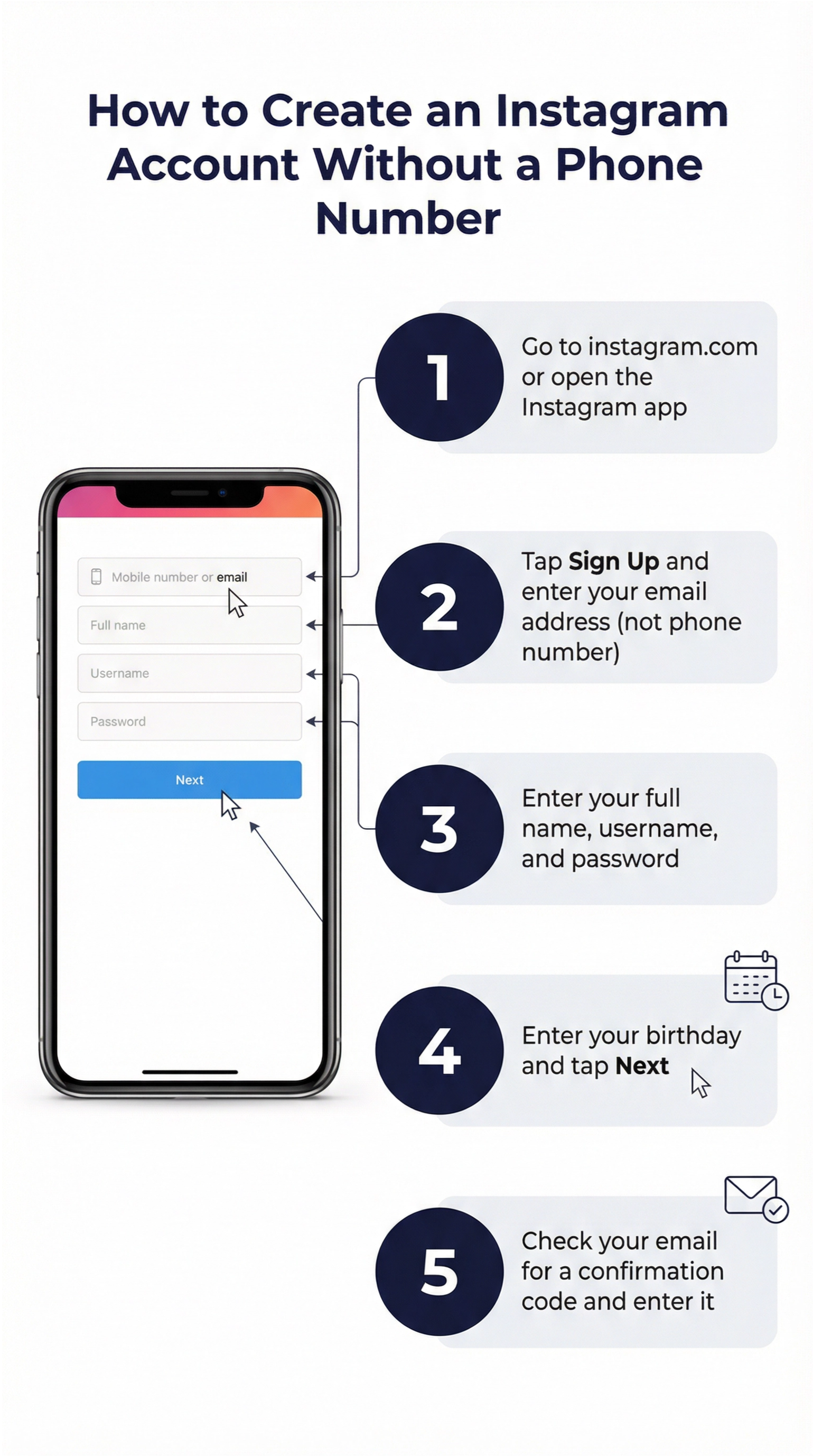
How to Create an Instagram Account Without a Phone Number
On mobile (iOS or Android):
- Open the Instagram app and tap “Create new account” or “Sign up with email or phone number”
- On the screen where it asks for phone number or email, tap the Email tab
- Enter an email address you have access to (each account needs its own unique email)
- Enter a date of birth when prompted
- Create a username and password
- Instagram will send a confirmation code to your email. Enter it to verify the account.
- Complete your profile setup. Instagram may ask you to add a phone number. This step can be skipped.
On PC or browser:
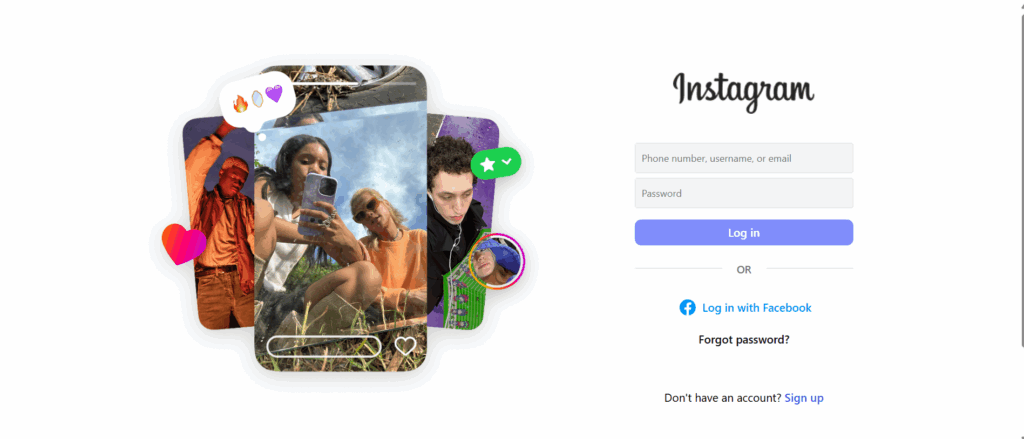
- Go to instagram.com and click “Sign up”
- Enter your email address in the email field (leave the phone field empty or select the email option)
- Enter your full name, username, password, and date of birth
- Confirm your email with the code Instagram sends you
- Complete the account setup
What email address to use: Each Instagram account needs its own unique email. For multiple accounts, options include: separate Gmail addresses, email aliases (Gmail supports the + notation, e.g., [email protected]), or email addresses from different providers. Note that Gmail’s + aliases are treated as the same email by Instagram in some contexts, so using completely separate email addresses is more reliable for multiple account setups.
How to Create Multiple Instagram Accounts Without a Number
Creating several accounts without phone numbers follows the same process above, repeated for each account with a different email address. The signup process itself is not the bottleneck.
The real challenge starts here: Instagram actively looks for signs that multiple accounts are being operated by the same person from the same device.
When you create account 2, 3, and 4 on the same phone or computer you used for account 1, Instagram’s systems register the shared device fingerprint, the shared IP address, and the shared session environment. Even if each account has a different email and a different username, they are connected at the device level.
This is when Instagram starts:
- Asking for phone verification on new accounts (because they look like duplicates)
- Requiring CAPTCHA on every login
- Restricting actions like following, liking, and commenting on new accounts
- Eventually flagging and disabling accounts that appear to be operating as a coordinated network
The phone number is a symptom of this detection, not the root cause. When Instagram asks a new account to verify with a phone number, it is because the account looks suspicious to its systems, not because phone numbers are required for all new accounts.
So the question of “how to create multiple Instagram accounts without a number” is really two questions:
- How do you create accounts without providing a phone number at signup? (Easy: use email.)
- How do you run multiple accounts so Instagram does not keep asking for phone verification and eventually banning them? (Requires proper infrastructure.)
Both questions are answered in this guide.
How to Recover an Instagram Account Without a Phone Number
Recovering an Instagram account when you no longer have access to the phone number on file is a common problem, especially for older accounts or accounts set up with a number you no longer use.
Recovery via Email
If you still have access to the email linked to your account, recovery is straightforward:
- On the Instagram login screen, tap “Forgot password”
- Enter your email address, username, or the name on the account
- Select “Send an email” when prompted
- Open the email from Instagram and click the recovery link (valid for a limited time)
- Follow the prompts to set a new password
Recovery via Username
If you remember your username but not your password:
- Tap “Forgot password” on the login screen
- Enter your username
- Instagram will show you which recovery options are available (email, phone, or neither)
- If email is listed, proceed with email recovery
Recovery via Facebook
If your Instagram account was ever connected to a Facebook account, you can log in through Facebook on the Instagram login screen without needing a phone number or email code.
How to Get an Instagram Account Back Without a Phone Number (Video Selfie)
For accounts where both phone and email access is lost, Instagram offers a video selfie verification. This is Instagram’s way of confirming you are a real person and the account’s legitimate owner.
- On the login screen, tap “Get more help”
- Select your account and choose the video selfie option when it appears
- Instagram will ask you to record a short video selfie following on-screen instructions
- Instagram’s team reviews the video and compares it to photos on the account
- If verified, you receive a recovery link via email
This process takes hours to days and is not guaranteed, but it is currently the most reliable path for recovering Instagram accounts without phone or email access.
How to Recover Instagram Without Email or Phone Number
If you have lost access to both the phone number and the email address on your Instagram account, your options are limited but not zero.
Option 1: Log in from a device that is still signed in. If you are still logged into the account on another phone or tablet, you can change the recovery email and phone number from within the app without needing the old credentials.
Option 2: Support through the Help Center. Go to instagram.com/hacked or use the “Need more help” option on the login screen to access Instagram’s account support flow. Provide as much identifying information as possible: your username, the email you used when you first created the account (even if it is no longer active), your approximate account creation date, and any other details.
Option 3: Video selfie verification (see above). This works even without email or phone access.
Option 4: Linked Facebook account. Even if your email and phone are gone, a connected Facebook account can restore access.
Instagram account recovery without number and email: The process is slow and not guaranteed. Instagram’s automated system prioritizes accounts with verified recovery information. If neither is available, human review is required, and Instagram’s support response time for these cases can be days to weeks.
How to Recover a Suspended Instagram Account Without a Phone Number
If Instagram suspended your account and you cannot log in, recovery works differently from a standard password reset.
Step 1: Identify why the account was suspended. Instagram sends a notification when it disables an account. If you did not receive one, check your email for a message from Instagram explaining the reason.
Step 2: Submit an appeal. On the login screen, when you see the message that your account has been disabled, there should be an option to “Learn more” or “Request a review.” Follow that path to submit an appeal.
Step 3: Provide identity verification. Instagram may ask for government-issued photo ID to confirm the account belongs to you. This does not require a phone number.
Step 4: Wait for a response. Instagram reviews appeals manually. Response times vary from days to weeks. There is no way to escalate or speed up the process.
How to unsuspend Instagram account without phone number: The appeal process described above is the only official path. Third-party services claiming to restore suspended Instagram accounts are almost universally scams.
Manage multiple accounts with Android cloud phones
Build account trust, reach new locations, and grow faster from one dashboard
How to Delete an Instagram Account Without a Phone Number
Deleting an Instagram account does not require a phone number. You need access to the account (logged in or via email password reset) but no SMS verification is required for deletion.
To delete Instagram account without phone number:
- Log into the account (use email recovery if you have forgotten your password)
- Go to your Instagram profile and open Settings
- Navigate to Account > Delete account (or on web: instagram.com/accounts/remove/request/permanent/)
- Select a reason for deleting
- Enter your password to confirm
- Confirm the deletion
Instagram holds deleted account data for 30 days before permanently removing it. You can reactivate by logging back in during this window.
To delete Instagram account without password and phone number: You need either your password or the ability to reset it via email. Without either, deletion is not possible through standard means.
Search Instagram by Phone Number Without an Account
Several searches in the keyword data are about finding someone on Instagram by phone number without having an account yourself.
The honest answer: Instagram does not have a public search feature that lets non-users look up profiles by phone number. From a privacy standpoint, this is intentional.
What is possible:
- Users who have synced their contacts with Instagram may be discoverable by phone number to people who have that number saved in their contacts, within the app
- This is a mutual discovery feature, not a public lookup tool
- It requires both parties to have the relevant settings enabled
Instagram phone number finder free without account: There is no legitimate tool for this. Services advertising free Instagram phone number lookups are either scraping public data (username, bio, display name) or are data broker services that compile information from multiple sources. None of these have direct access to Instagram’s internal phone number data.
Why Phone Numbers Are Not the Real Problem
If you want to create one Instagram account without a phone number, the process is simple and works reliably. The challenge that most people run into is when they want to create and maintain multiple accounts.
Here is what actually happens: you create account 2 on the same phone as account 1. Instagram registers the shared device fingerprint. A few days later, Instagram asks account 2 to verify with a phone number. You provide one. A few weeks later, Instagram connects accounts 1 and 2 because they share a device history. Both accounts start getting restricted. You create account 3. The same thing happens faster this time because Instagram’s systems recognize the pattern.
The phone number verification is not the root problem. It is Instagram’s response to a device fingerprinting signal that flagged the account as suspicious. Solving the phone number requirement without solving the underlying device environment issue means you will face the same problem repeatedly, just in different forms.
Multilogin Cloud Phones: The Right Way to Run Multiple Instagram Accounts
The permanent solution to running multiple Instagram accounts without repeated phone verification, action blocks, and linked account bans is giving each account its own isolated device environment. Not a different browser. Not incognito mode. Not a VPN. A separate device with its own hardware identity, its own IP address, and its own consistent usage history.
That is exactly what Multilogin Cloud Phones provide.
Each Account Gets Its Own Real Android Device
A Multilogin Cloud Phone is a real Android device running in the cloud. It has its own IMEI, Android ID, MAC address, and mobile data connection. When Instagram sees activity from a cloud phone, it sees a genuine, separate Android device that has never been associated with your other accounts.
This matters directly for the phone number question. When an Instagram account on a cloud phone triggers a verification request, it is treated as a new device asking for verification, not as a duplicate account from a known device. The verification experience is normal rather than the aggressive re-verification pattern that multi-account operations typically face.
More importantly, properly set up cloud phone accounts do not keep triggering verification in the first place. Because each account has a consistent device history, a stable IP, and normal usage patterns, Instagram’s systems classify them as legitimate accounts rather than suspicious ones.
Persistent Sessions Build Account Trust Over Time
Each Multilogin Cloud Phone saves app data, cache, and login state between sessions, exactly like a phone someone uses every day. Your Instagram accounts on cloud phones accumulate genuine activity history. Follows, likes, comments, DMs, and profile visits all add up over time on a consistent device. Instagram’s algorithm treats these accounts the same way it treats any account with months of normal usage history, because from Instagram’s perspective, that is exactly what they are.
New accounts created and operated from a clean cloud phone environment from day one avoid the aggressive verification cycle entirely. The account builds trust at the device level from the first login.
No Phone Numbers Required for Account Management
Because cloud phones are real Android devices, each one can run the Instagram app normally. You are not logging in through a browser, you are not using any third-party tool to interface with Instagram, and you are not doing anything that looks different from a normal mobile user. Instagram has no reason to require extra verification because nothing about the account’s behavior looks like a multi-account operation.
For accounts that do need a phone number for initial setup or specific features, each cloud phone is a separate device that can receive its own SMS verification through a virtual number service. Each account’s phone number stays associated with its own cloud phone environment rather than being shared across multiple accounts.
One Dashboard, Clean Operation
All your cloud phones are managed from Multilogin’s single dashboard. You open a cloud phone, use Instagram normally, close it when done. The session stays exactly where you left it on that phone’s isolated environment. Switching between accounts never crosses environments because each account lives on its own phone.
For agencies and social media managers running Instagram for multiple clients, Multilogin’s team features let you assign cloud phones to team members with granular permissions. No shared credentials, no accidental cross-account activity, and the same clean device isolation that keeps every account running without constant verification friction.
How to Get Started With Multilogin Cloud Phones
Getting set up takes less than 30 minutes from signing up to having your first cloud phone running an Instagram account.
Step 1: Create a Multilogin Account
Go to multilogin.com and sign up. Multilogin offers plans based on the number of cloud phones you need. If you are managing accounts for multiple clients or running a serious multi-account operation, start with a plan that covers your current account count with room to grow.
Step 2: Set Up Your First Cloud Phone
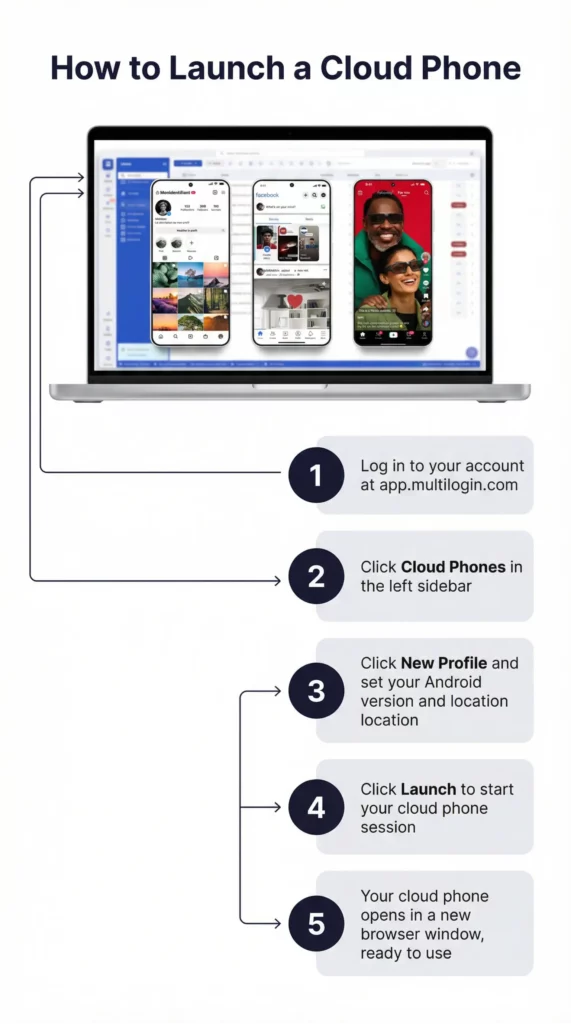
Once inside the Multilogin dashboard, navigate to the Cloud Phones section and click “Create Cloud Phone.” You will choose:
- Location: The country and region the cloud phone’s IP address will be associated with. Match this to the target audience for your Instagram account. An account targeting US audiences should have a US-located cloud phone.
- Android version: Multilogin runs up-to-date Android environments. Choose the version that matches what your target audience is most likely using.
- Name/label: Give the cloud phone a name that corresponds to the Instagram account it will run. Clear naming saves a lot of confusion when you are managing multiple phones.
Step 3: Install Instagram and Create or Log In to Your Account
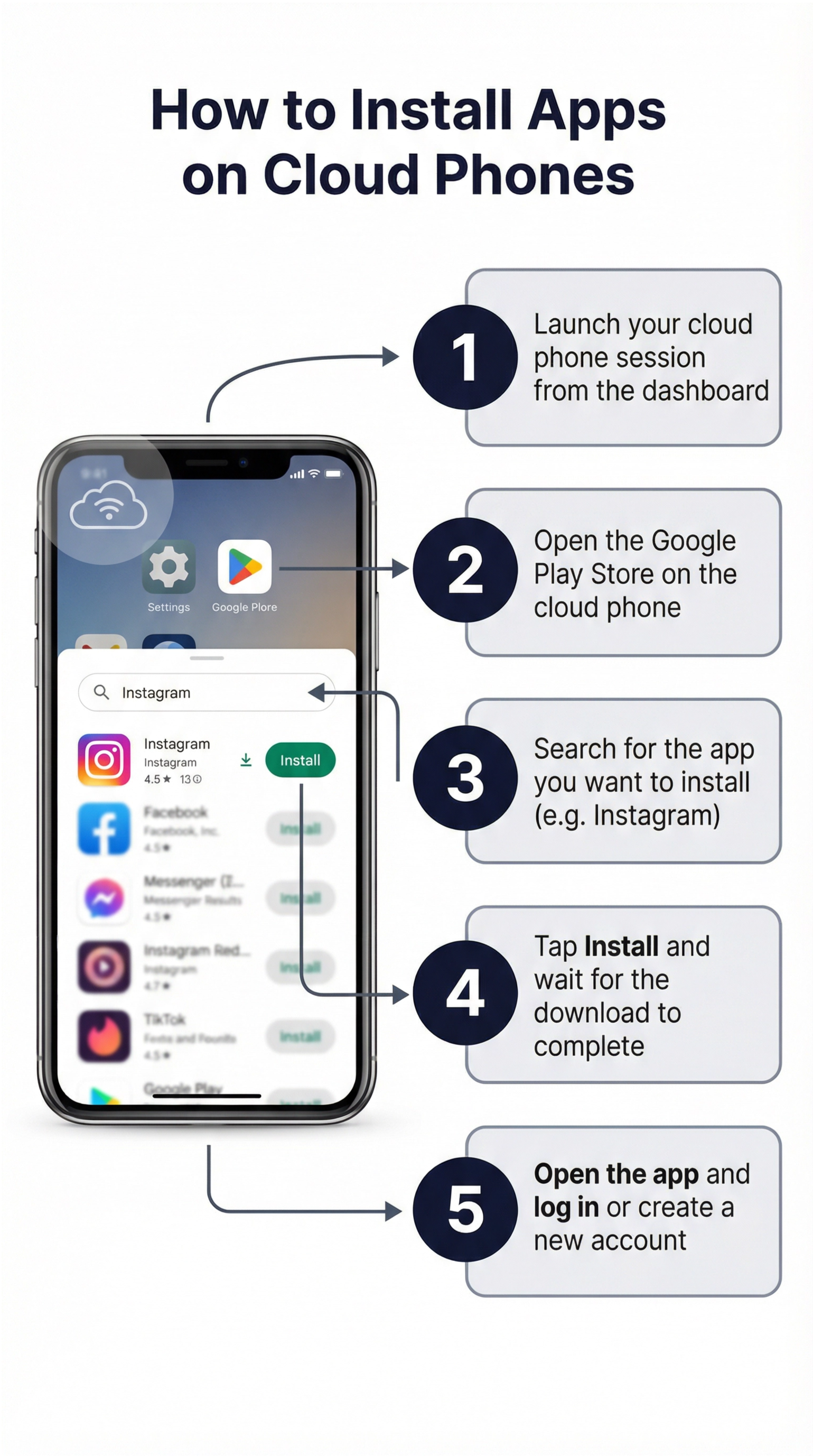
Launch the cloud phone from your dashboard. It opens as a real Android interface. From there:
- Open the Google Play Store and install Instagram (or it may already be installed)
- Open Instagram and sign up using the email-only method described earlier in this guide, or log into an existing account
- Complete the account setup: profile photo, bio, username
- If Instagram asks for phone verification at any point, use the email alternative or an authenticator app
Because the cloud phone has its own device identity and its own IP address, Instagram treats this as a completely fresh device with no prior history. No pre-existing flags, no connection to your other accounts.
Step 4: Use the Account Normally to Build History
The most important thing in the first two to four weeks of a new account on a cloud phone is normal, consistent usage. That means:
- Logging in from the same cloud phone each time
- Browsing the feed for a few minutes before posting or engaging
- Following accounts in your niche gradually rather than hundreds at once
- Posting content on a consistent schedule
- Responding to comments and DMs
This behavior builds the account’s trust score with Instagram’s algorithm. Accounts that look like they belong to real people who use Instagram every day are treated very differently from accounts that only appear when someone wants to post or follow in bulk.
Step 5: Repeat for Each Additional Account
Adding a second, third, or tenth account is the same process: create a new cloud phone, assign it a location, install Instagram, create or log in to the account. Each cloud phone is completely independent of the others. Nothing is shared between them at the device level.
From the Multilogin dashboard you can see all your cloud phones at a glance, launch any of them in a click, and organize them with custom names and tags. When a team member needs access to a specific account, you assign them to that cloud phone with the appropriate permissions. They access the cloud phone through their own Multilogin login, and the Instagram account stays on its isolated device regardless of who is using it or from where.
What It Costs vs. What It Prevents
The alternative to using cloud phones is managing multiple Instagram accounts the free way: different browsers, incognito tabs, VPN toggles, swapped SIM cards. That approach costs nothing upfront and reliably fails within weeks as Instagram links the accounts through shared device signals.
Multilogin Cloud Phones cost money. What they prevent is losing accounts you have spent weeks or months building, along with all the followers, content, and business value those accounts represent. For anyone running Instagram accounts professionally, the math is straightforward.
Manage multiple accounts with Android cloud phones
Build account trust, reach new locations, and grow faster from one dashboard
Frequently asked questions About How to Create Multiple Instagram Accounts Without a Phone Number
Yes. On the signup screen, choose “Email” instead of “Phone number.” Instagram will send a verification code to your email. You can complete the entire signup process without entering a phone number.
Create each account with a separate email address using the email signup option. For sustainable multi-account operation without repeated verification friction, each account needs its own isolated device environment. Multilogin Cloud Phones provide this by giving each account a real Android device with its own hardware identity and IP address.
Use the email verification option when Instagram sends a verification request. You can also use an authenticator app (Google Authenticator, Authy) for two-factor authentication instead of SMS. Set this up in Instagram Settings > Security > Two-Factor Authentication.
If you have the email address, use “Forgot password” and choose the email option. If you have neither email nor phone, use Instagram’s “Get more help” flow which may offer video selfie verification. Accounts linked to Facebook can also recover through Facebook login.
It is difficult but possible through video selfie verification (available in Instagram’s support flow) or if you are still logged into the account on another device. Without any of these options, recovery is not guaranteed.
If you set up your account with email, use your username/email and password. If Instagram requires a verification code, choose the email delivery option. If you set up an authenticator app for 2FA, use that instead of SMS.
The Verdict
Creating an Instagram account without a phone number is simple: use email at signup, verify through email or an authenticator app, and skip the phone number prompts that appear afterward. That single account will work just fine.
The harder problem is when you need multiple accounts. Instagram does not ban multiple accounts because they exist. It bans them because they look connected. And they look connected because they share the same device, the same IP address, the same browser fingerprint, and the same session environment.
Every approach that tries to solve this with surface-level workarounds, a different browser, a VPN, an incognito tab, a virtual number, runs into the same wall because it changes one visible signal while leaving dozens of deeper ones intact. Instagram’s detection systems are not fooled by user agent strings and proxy IPs when the canvas fingerprint, the hardware IDs, and the behavioral patterns all point to the same source.
The only solution that works at scale is giving each account its own real, isolated device. Not a simulated device. Not a spoofed one. A real Android phone with its own hardware identifiers, its own IP, its own GPS location, and its own persistent session history. That is what Multilogin Cloud Phones provide, and that is why serious multi-account operators use them instead of juggling browsers and hoping for the best.
If you manage one Instagram account, email signup and an authenticator app are all you need. If you manage five, ten, or fifty, the infrastructure matters as much as the content.


