





TikTok’s built-in analytics give you more data than most creators know what to do with. The problem is not lack of information. It is knowing which numbers actually matter, what they are telling you, and how to act on them.
This guide covers everything: how to find and access TikTok analytics, what every metric means, when analytics update, the best third-party tools, and the section that most analytics guides skip entirely, how the data changes when you are managing multiple TikTok accounts and why clean account separation is the foundation of accurate, useful analytics.
How to See TikTok Analytics
TikTok analytics are available to Creator accounts and Business accounts. Personal accounts do not have access to analytics by default. You need to switch to a Creator or Business account first (this is free and takes about 30 seconds).
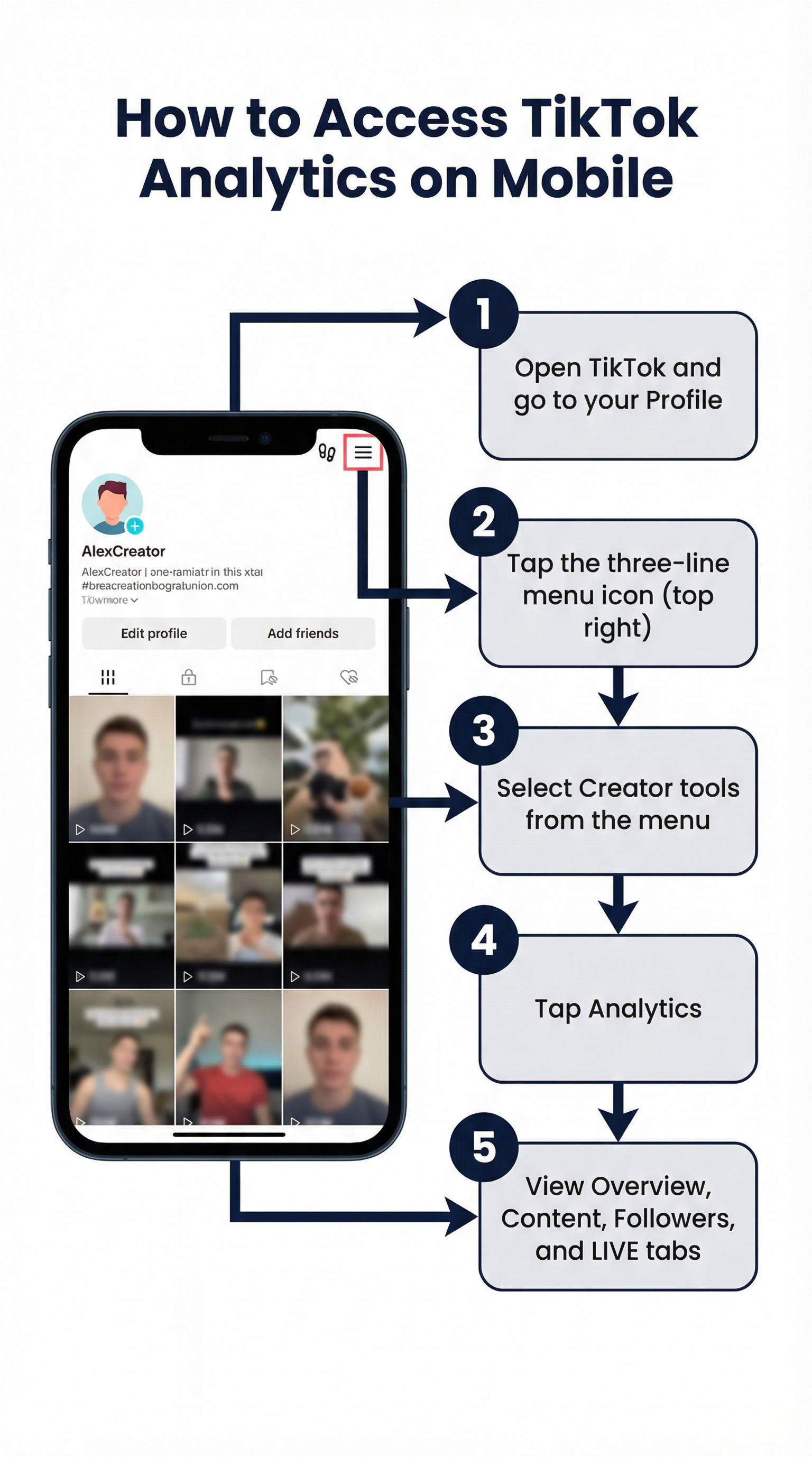
How to access TikTok analytics on mobile:
- Open TikTok and go to your profile
- Tap the three-line menu (☰) in the top right
- Tap “Creator tools” or “Business Suite” depending on your account type
- Tap “Analytics”
How to access TikTok analytics on desktop (TikTok Studio):
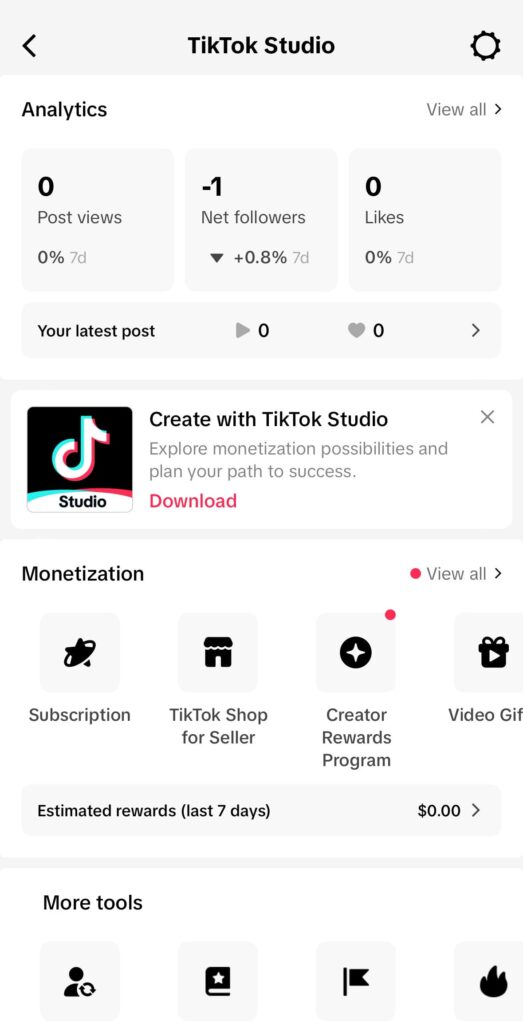
- Go to studio.tiktok.com and log in
- Click “Analytics” in the left sidebar
- Full analytics dashboard loads with all metrics
How to find analytics on TikTok for a specific video:
- Go to your profile and find the video
- Tap the three-dot menu (···) on the video
- Select “Analytics”
- Video-level metrics load including views, likes, comments, shares, reach, and watch time
How to Turn On Analytics on TikTok
Analytics are not available on personal TikTok accounts. To access them, you need to switch to a Creator or Business account.
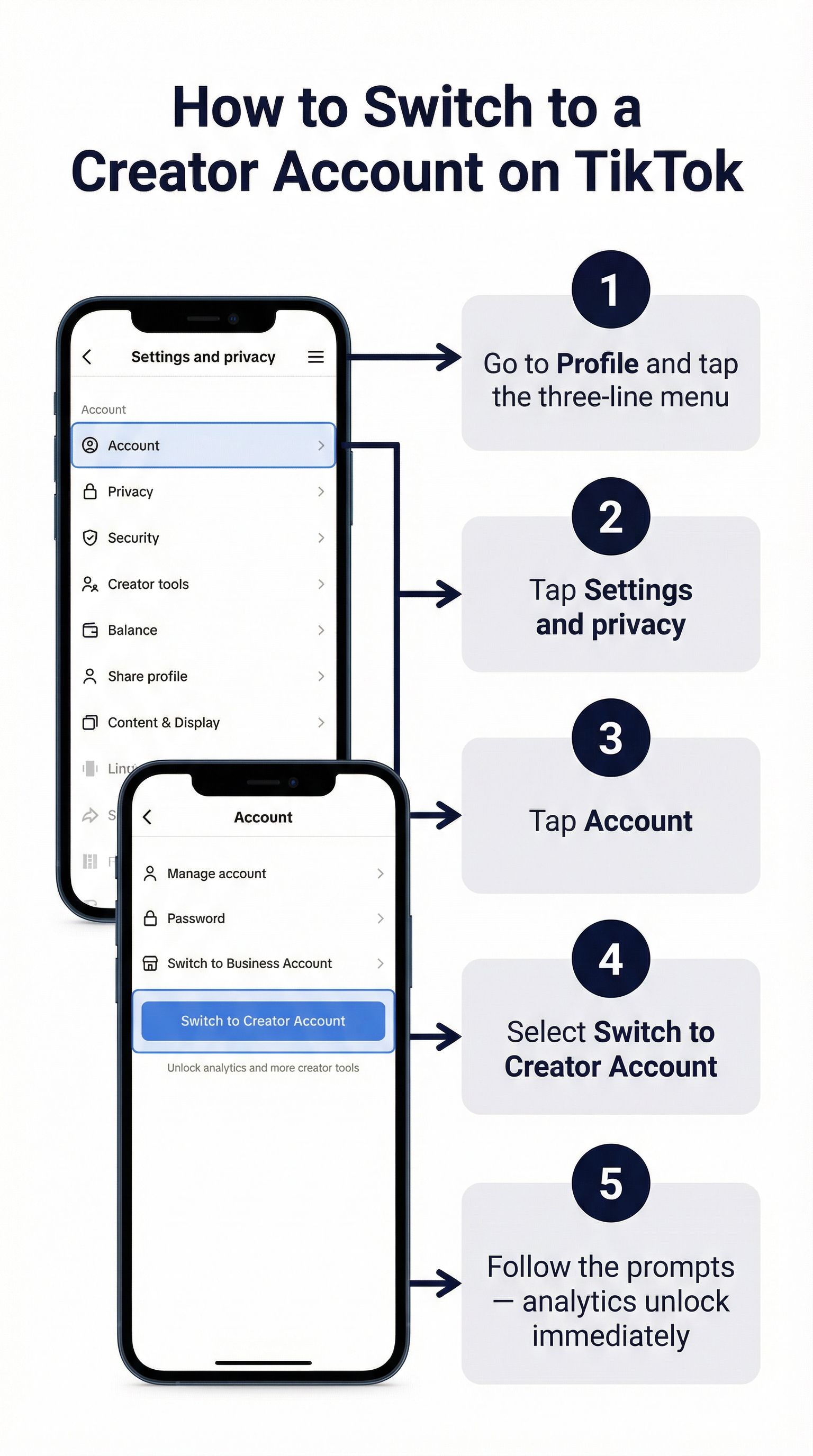
How to turn on analytics by switching to a Creator account:
- Go to your profile and open Settings
- Tap “Account”
- Tap “Switch to Creator Account”
- Follow the prompts to select a category
- Once switched, analytics appear in Creator Tools
How to turn on analytics by switching to a Business account:
- Go to Settings > Account
- Tap “Switch to Business Account”
- Select your business category
- Business Suite, including analytics, becomes available immediately
Switching account type does not affect your existing content, followers, or following. It only unlocks additional tools and features. You can switch between Creator and Personal freely, though switching to Personal removes analytics access.
TikTok Analytics Dashboard: What You See and What It Means
The main TikTok analytics dashboard (accessible via Creator Tools > Analytics or TikTok Studio) has four main tabs: Overview, Content, Followers, and LIVE.
Overview Tab
The Overview tab shows a rolling summary of your account performance across a selectable time window (7 days, 28 days, 60 days, or a custom range).
Key metrics here:
- Video views: Total views across all your videos in the period
- Profile views: How many times your profile page was visited
- Likes, Comments, Shares: Aggregate engagement across all content
- Followers: Net follower change during the period (gained minus lost)
TikTok analytics best time to post is surfaced on the Overview tab under the Followers section. It shows the times and days when your followers are most active, which is your personalized best posting window based on actual audience data rather than generic guides.
Content Tab
The Content tab shows individual post performance. Each video is listed with its view count, and you can tap into any video to see detailed metrics.
Metrics per video:
- Total play time
- Average watch time
- Reached audience (unique accounts that saw the video)
- Watch full video percentage
- New followers gained from this video
- Traffic source types breakdown
Followers Tab
Shows your current follower count, net change over the period, follower demographics (gender, age ranges, countries), follower activity (when they are online), and interests.
LIVE Tab
Only appears if you have done any TikTok Lives in the selected period. Covers live views, peak concurrent viewers, new followers from lives, total live time, and diamonds received.
TikTok Video Analytics
For individual video performance, TikTok gives you significantly more granular data than most platforms.
How to see video analytics on TikTok:
Tap the three-dot menu on any video in your profile and select “Analytics.” Key metrics:
- Total play time: Cumulative seconds all viewers spent watching
- Average watch time: Total play time divided by total views. This is one of TikTok’s most important algorithm signals. Higher average watch time means the algorithm pushes the video to more people.
- Watched full video (%): Percentage of viewers who watched to the end. Anything above 30% is strong. Above 50% is excellent.
- Reached audience: Unique accounts that saw the video (different from total views, since one person can watch multiple times)
- Impressions: How many times the video appeared on someone’s screen
- Traffic source types: Where views came from. This is broken down into several categories including For You page, Following feed, profile visits, hashtag pages, sounds, search, and “Other.”
TikTok video analytics checker online: TikTok Studio (studio.tiktok.com) is the official desktop tool for checking video analytics in detail. Third-party tools like Pentos, Exolyt, and Sprout Social also provide video-level analytics with additional comparative and historical data.
TikTok Live Analytics
TikTok Live analytics appear in the LIVE tab of your analytics dashboard after each live session and are also available in the post-live summary screen immediately after you end a stream.
Key TikTok Live metrics:
- Peak concurrent viewers: The highest number of viewers watching simultaneously at any point during the live
- Unique viewers: Total distinct accounts that tuned in at any point
- New followers: Followers gained during the live
- Total diamonds received: Gifts from viewers converted to diamond values
- Average watch time per viewer: How long viewers stayed on average
- Top viewer countries: Geographic breakdown of your live audience
TikTok Live analytics tool: TikTok Studio provides the most complete live analytics. TikTok’s built-in post-live screen immediately after ending a stream shows a quick summary. For historical live data and trends across multiple sessions, TikTok Studio’s LIVE tab is the best place.
TikTok Follower Analytics
The Followers tab in TikTok analytics answers three questions: who follows you, where they are, and when they are online.
Demographics:
- Gender split (percentage male/female)
- Age distribution (18-24, 25-34, 35-44, 45-54, 55+)
- Top territories (countries where your followers are located)
Activity:
- Days of the week when followers are most active
- Hours of the day when followers are most active
This activity data is the basis for TikTok’s best time to post recommendation. If your followers are concentrated in a specific timezone or have a clear peak activity window, posting just before that window gives your content the best chance of reaching them early and building engagement momentum before the algorithm decides how widely to distribute it.
Interests: Categories your followers engage with beyond your own content. Useful for understanding your audience’s broader context and identifying content angles they are likely to respond to.
TikTok analytics followers accuracy: Follower analytics are generally reliable for demographic and geographic data. Activity hour data can lag by up to 24 hours. Follower count discrepancies between the overview and follower tab are usually display lag rather than data errors.
TikTok Shop Analytics
TikTok Shop has its own analytics section separate from content analytics, accessible through the TikTok Seller Center rather than the Creator Tools analytics dashboard.
How to access TikTok Shop analytics:
- Go to seller.tiktok.com (or the TikTok Shop Seller Center app)
- Log in with your TikTok Shop account
- Navigate to “Data” or “Analytics” in the dashboard
Key TikTok Shop metrics:
- GMV (Gross Merchandise Value): Total value of orders placed
- Orders: Number of completed purchases
- Units sold: Total product units moved
- Conversion rate: Percentage of product page visitors who purchased
- Video-driven GMV: Revenue attributed to product videos
- Live-driven GMV: Revenue attributed to live shopping sessions
- Affiliate performance: Sales driven by creator affiliates promoting your products
TikTok Shop analytics tool: The Seller Center dashboard is the primary tool. For agencies managing multiple TikTok Shop accounts, third-party tools like Shoplus or the data export features in Seller Center make cross-account comparison easier.
TikTok Shop analytics free: The Seller Center analytics are included with any TikTok Shop account at no additional cost.
What Does “Other” Mean in TikTok Analytics?
“Other” appears in the traffic source breakdown of TikTok video analytics. It represents views that TikTok cannot attribute to a specific source within their standard categories.
Specifically, “Other” in TikTok analytics traffic sources typically includes:
- Views from external shares (when someone shares your TikTok link on another platform like Twitter, WhatsApp, or a website and someone clicks through)
- Views from TikTok features not tracked as a separate category
- Views from older TikTok UI elements that predate current tracking categories
- Some embedded video views from outside TikTok
What does “Other” mean in TikTok analytics location? In the geographical breakdown of your audience or followers, “Other” represents countries where you have viewers but the individual country counts are too small to list separately. TikTok typically shows your top 5-10 countries and lumps the remaining smaller-volume countries into “Other.”
A high “Other” percentage in location data suggests a geographically diverse but diffuse audience. A high “Other” in traffic sources suggests significant external discovery, which is generally a positive signal.
What Does “Direct Messages” Mean in TikTok Analytics?
“Direct Messages” in TikTok analytics refers to views or traffic that came from someone sharing your video in a TikTok DM. When a viewer shares your video directly to another person via TikTok’s message system, and that recipient watches it, the view is attributed to “Direct Messages” as a traffic source.
A high Direct Messages share rate indicates that your content is conversation-worthy. People are not just watching it passively, they are actively sending it to specific people. This is one of the stronger engagement signals TikTok’s algorithm uses.
What Does “Personal Profile” Mean in TikTok Analytics?
“Personal Profile” in TikTok traffic sources means the viewer found your video by visiting your profile page directly, rather than having it served to them on the For You page or through a hashtag, sound, or other discovery pathway.
High personal profile traffic can indicate:
- Loyal returning viewers who go directly to your profile to check for new content
- Traffic from link-in-bio on other platforms driving people to your TikTok profile
- Viewers who found you through search and explored your profile
For most creators, For You page traffic dominates. Personal profile traffic being a meaningful percentage suggests strong brand recognition and repeat viewership.
When Do TikTok Analytics Update?
TikTok analytics do not update in real time. The general update schedule:
- Video views and engagement: Updated roughly every 24 hours, though view counts on new videos can update more frequently in the first few hours when TikTok is rapidly distributing new content
- Follower count: Updated approximately every 24 hours in analytics (the profile follower count updates faster)
- Traffic source breakdown: Updated every 24-48 hours
- Follower activity data (best time to post): Updates based on rolling recent activity, typically refreshed every few days
What time do TikTok analytics update? There is no fixed clock time for analytics updates. TikTok processes analytics in batches and the update time varies. If your analytics appear stuck or show the same numbers for multiple days, it is usually a data processing lag rather than a permanent error.
TikTok analytics not updating: If your analytics have not changed for more than 48 hours and you have been posting and getting engagement, check whether you are looking at the correct time window (make sure you have not accidentally set the date range to exclude recent content). If the issue persists, it is typically a platform-side lag that resolves within a few days.
Waiting for analytics tiktok.com: New accounts and newly switched Creator accounts sometimes show a “waiting for data” state for the first 24-48 hours after switching account types. This is normal and resolves once TikTok has enough activity data to populate the dashboard.
Are TikTok Analytics Accurate?
TikTok’s native analytics are considered reasonably accurate for the metrics they track, with some known limitations.
Where TikTok analytics are reliable:
- Video view counts (though definitions vary from platform to platform)
- Follower demographics at the aggregate level
- Traffic source categorization
- Like, comment, and share counts
Where TikTok analytics are less precise:
- Reach data (unique accounts reached) can diverge from third-party measurements
- The “Other” traffic source category lumps together genuinely different sources
- Follower activity data is based on recent rolling averages and can lag or be skewed by one-off viral events
- Watch time percentages can vary based on how TikTok counts loops
Third-party tool comparison: Third-party analytics tools like Pentos, Exolyt, and Sprout Social often report slightly different numbers from TikTok’s native analytics. This is normal and expected. Different tools use different measurement methodologies and data access points. For trending analysis and competitive benchmarking, third-party tools add value. For your own content performance tracking, TikTok’s native analytics are the most direct source.
TikTok Analytics Not Updating or Not Showing
Several specific issues cause TikTok analytics to appear broken.
Analytics not showing at all: You are on a personal account. Switch to Creator or Business account to access analytics.
Analytics showing zero or very low numbers: Your account may be new or recently switched. Analytics need at least a few days of activity data to populate. Check that you are on the correct date range in the dashboard.
Specific video analytics not updating: Very new videos (under 24 hours old) may show incomplete analytics while TikTok is still distributing the content and processing engagement data. Wait 24-48 hours for a more complete picture.
Analytics on TikTok not working on the app: Try the desktop version at studio.tiktok.com instead. App-based analytics can glitch while the Studio version tends to be more stable. Also try logging out and back in, and updating the TikTok app.
Analytics tiktok.com malware warning: Some users have reported seeing security warnings when accessing analytics.tiktok.com through certain browser security tools. This is typically a false positive from overly aggressive browser extensions or network filters. The analytics.tiktok.com and studio.tiktok.com domains are legitimate TikTok properties.
Best TikTok Analytics Tools in 2026
TikTok’s built-in analytics cover the essentials well. Third-party tools add competitive analysis, historical data, influencer discovery, and cross-platform reporting.
Pentos
One of the most established dedicated TikTok analytics platforms. Pentos tracks any TikTok account (not just your own), making it useful for competitive intelligence and influencer research. Tracks video performance, hashtag trends, sound performance, and account growth over time. Paid plans with a free trial.
Exolyt
Exolyt offers deep TikTok analytics including video and account tracking, hashtag analytics, trend data, and influencer discovery. Strong on historical data going back further than TikTok’s native 60-day window. Pricing varies by feature set and data volume.
Sprout Social
Social media management platform with TikTok analytics integration. Best suited for agencies and teams that manage multiple social channels and want unified reporting across TikTok, Instagram, Facebook, LinkedIn, and others. Strong on cross-channel reporting and team workflows.
Buffer
Buffer’s TikTok analytics cover posting performance and basic engagement metrics with a simpler interface than enterprise tools. Good for individual creators and small teams who also use Buffer for scheduling.
MyTelescope
Focused specifically on TikTok trend analytics. MyTelescope tracks emerging sounds, hashtags, and content trends before they peak, which helps creators identify content opportunities early.
TikTok Studio (Official)
TikTok’s own desktop analytics platform (studio.tiktok.com) is free, comprehensive for your own account data, and the most reliable source for first-party metrics. For agencies managing multiple accounts, the limitation is that you need to log into each account separately.
Comparison
Tool | Best For | Free Tier | Competitive Data | Historical Data |
TikTok Studio | Own account deep dive | Yes (free) | No | 60 days |
Pentos | Competitor and influencer tracking | Trial | Yes | Extended |
Exolyt | Deep account and trend analysis | Limited | Yes | Extended |
Sprout Social | Agency cross-channel reporting | No | Limited | Yes |
Buffer | Scheduling + basic analytics | Yes (limited) | No | Limited |
MyTelescope | Trend discovery | Trial | Yes | Yes |
TikTok Analytics and Google Analytics 4
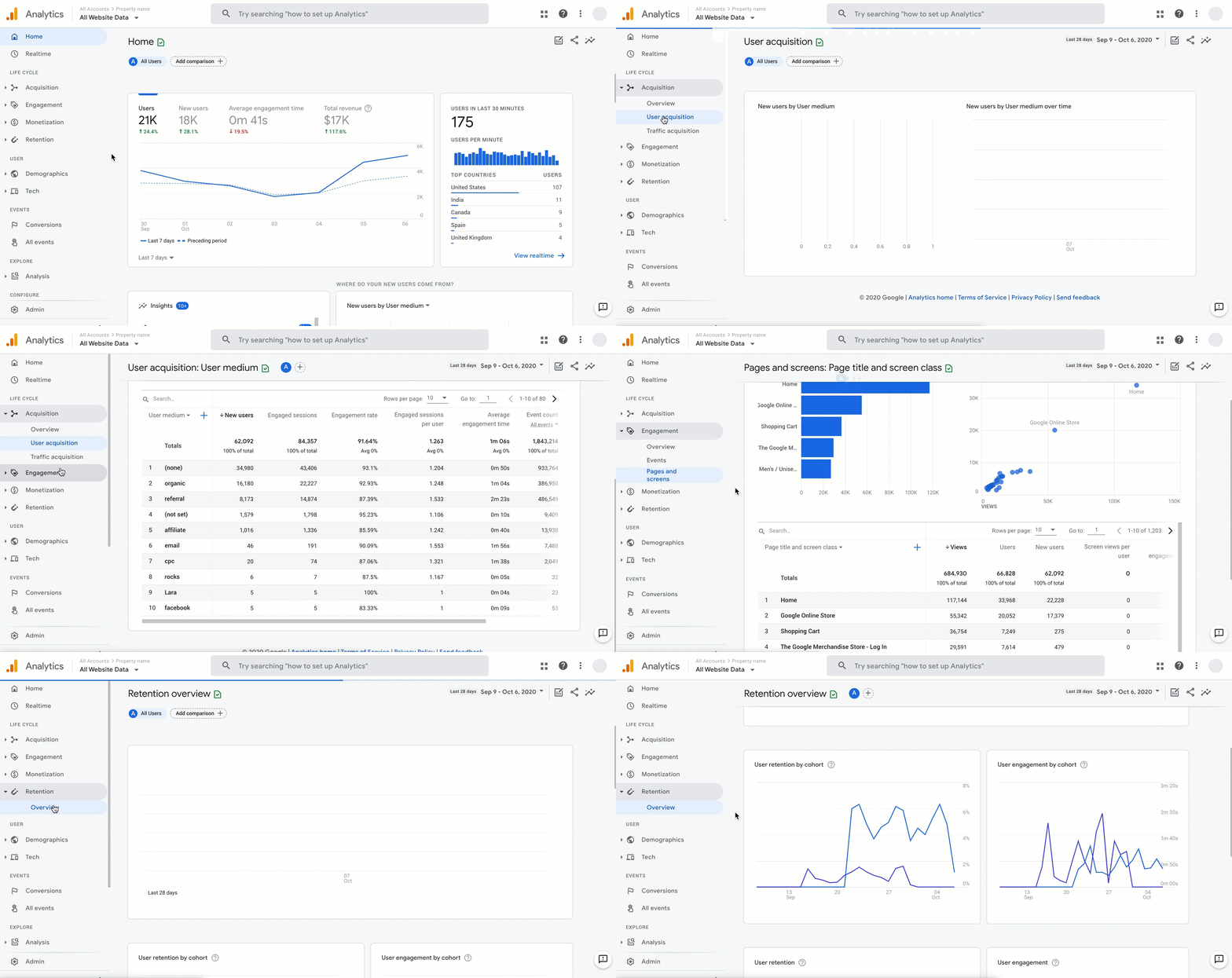
For businesses running TikTok ads or measuring TikTok-driven website traffic, connecting TikTok data to Google Analytics 4 gives a fuller picture of the customer journey.
Google Analytics 4 cost data import for TikTok: GA4 supports cost data import, which lets you pull TikTok Ads spend data into GA4 for unified ROAS and channel performance analysis. The native integration is available through GA4’s Data Import feature under Admin > Data Streams.
Setup for TikTok cost data import in GA4:
- In TikTok Ads Manager, export cost data as a CSV or connect via the TikTok pixel integration
- In GA4, go to Admin > Data Import > Create data source
- Select “Cost data” as the import type
- Map TikTok’s campaign, ad group, and cost fields to GA4 dimensions
- Import runs on a schedule or manually depending on your setup
TikTok pixel for GA4: For tracking TikTok-driven website conversions in GA4, install the TikTok Pixel on your site. This tracks events (page views, add to cart, purchase) and sends them to both TikTok Ads Manager and, through UTM parameters, to GA4 as organic or paid traffic.
TikTok Analytics for Multiple Accounts: Why Clean Separation Matters
TikTok analytics become genuinely problematic the moment you start running multiple TikTok accounts from the same environment.
Here is the practical issue: TikTok’s For You page algorithm and account analytics are built around a single user identity. When you run account A and account B from the same device, TikTok links them through shared device fingerprints, IP addresses, and behavioral patterns. This linkage affects both accounts in ways that distort your analytics.
The analytics distortion problem:
When two linked accounts operate from the same environment, their For You page distributions start to overlap. Content that performs on account A influences what TikTok serves to account B’s audience and vice versa. Follower demographics blend. Traffic source data reflects a shared discovery history rather than each account’s genuine, independent audience.
If you are a social media manager running TikTok for multiple clients and your accounts are linked at the device level, the analytics you report to each client are contaminated by cross-account data. You cannot tell whether account B’s follower growth came from its own content strategy or from bleedover from account A’s viral moment.
For agencies doing performance reporting, this is a real liability. Clients pay for results driven by their account’s content and strategy. Analytics that blend multiple accounts tell you very little about what is actually working for each individual account.
The action block complication:
Linked TikTok accounts also face disproportionate action blocks. TikTok treats coordinated behavior from linked accounts as potential spam or inauthentic network activity. Action blocks on one account can cascade to linked accounts. This makes it impossible to know whether an account’s declining analytics reflect a content strategy problem or an enforcement action affecting the whole cluster.
How Multilogin Cloud Phones Keep Your TikTok Analytics Clean
Multilogin Cloud Phones give each TikTok account its own real Android device running in the cloud, with its own IMEI, Android ID, MAC address, and dedicated mobile IP address.
When TikTok sees traffic from a cloud phone, it sees a genuine, separate Android device. There is no shared signal connecting it to your other accounts. Each account has its own device history, its own session data, its own location, and its own independent relationship with TikTok’s algorithm.
What This Does for Your Analytics
Clean audience data. Each account’s follower demographics, geographic distribution, and activity patterns reflect that account’s genuine audience, not a blended picture contaminated by other accounts in your operation.
Accurate traffic source attribution. When account A gets views primarily from the For You page and account B gets views primarily from search, those traffic source breakdowns stay separate and accurate. You can make content decisions for each account based on how that account’s audience actually discovers content.
Independent algorithm treatment. Each cloud phone account builds its own TikTok algorithm relationship from scratch. Content performance on account A does not influence the distribution of content on account B. If one account hits a viral moment, the others are not affected in either direction.
No cascade action blocks. Since nothing is shared between cloud phone environments, an action block or enforcement action on one account stays isolated to that account. It does not propagate to your other accounts through shared device signals.
Persistent Sessions Build Genuine Account History
Each Multilogin Cloud Phone saves the TikTok app’s session data, cache, and login state between uses. Accounts on cloud phones accumulate real usage history over time. TikTok’s algorithm treats established accounts differently from new ones, and the engagement metrics and analytics for established accounts are more stable and reliable.
One Dashboard, Fully Isolated Accounts
All cloud phones are managed from Multilogin’s single dashboard. You see every phone, every account, every session status from one place. Opening cloud phone 1 for client A never touches the environment for cloud phone 2 running client B. Team members with access to cloud phone 1 cannot accidentally affect cloud phone 2.
For agencies reporting TikTok analytics to multiple clients, this means each client’s data is genuinely their own, each account’s performance reflects that account’s actual content strategy, and your reporting is built on clean, isolated data rather than blended cross-account noise.
How Multilogin Cloud Phones Support Multi-Account TikTok Creators
Multilogin Cloud Phones give each TikTok account its own real Android device running in the cloud, with its own IMEI, Android ID, MAC address, and dedicated mobile IP address.
Each Account Creates and Posts Independently
When you post a slideshow from account A’s cloud phone, TikTok sees a single account posting content from its regular device. When you post from account B’s cloud phone five minutes later, TikTok sees a completely different device at a different IP address. There is no shared signal connecting the two posts to the same operator.
This means you can run a consistent slideshow schedule across five, ten, or twenty TikTok accounts simultaneously without any of them triggering the coordinated behavior detection that comes from managing them on a single shared device.
Persistent Sessions Mean Stable Accounts
Each cloud phone saves the TikTok app’s session data between uses. Accounts do not log out between sessions. The next time you open the cloud phone, the account is right where you left it, no re-authentication, no new device flag, no verification request from TikTok.
This stability matters for algorithm performance too. TikTok accounts with consistent, stable device histories receive better distribution than accounts that frequently appear from new environments. The slideshows you post from a cloud phone account benefit from a cleaner algorithmic baseline.
Content Creation on Cloud Phones
The TikTok app on a Multilogin Cloud Phone is a fully functional Android installation. You can create slideshows directly within the app, access the full library of TikTok effects including green screen slideshow, add music from TikTok’s library, add interactive stickers, and use every feature covered in this guide. The creation experience is identical to any Android phone because the cloud phone is an Android phone.
For creators who build slideshows externally in CapCut or another editor, you can upload the finished files to TikTok directly from the cloud phone’s file system through the standard upload flow.
Manage Everything From One Dashboard
All cloud phones are managed from Multilogin’s dashboard. You see all your accounts and their session status in one place. Open cloud phone 3 for account 3, post your slideshow, close it. Nothing crosses into the other accounts’ environments.
For agencies producing TikTok slideshows for multiple clients, this means each client’s account has its own isolated posting environment, its own performance history, and its own algorithm relationship. The slideshows you post for client A do not affect the distribution or standing of client B’s account.
How to Get Started With Multilogin Cloud Phones
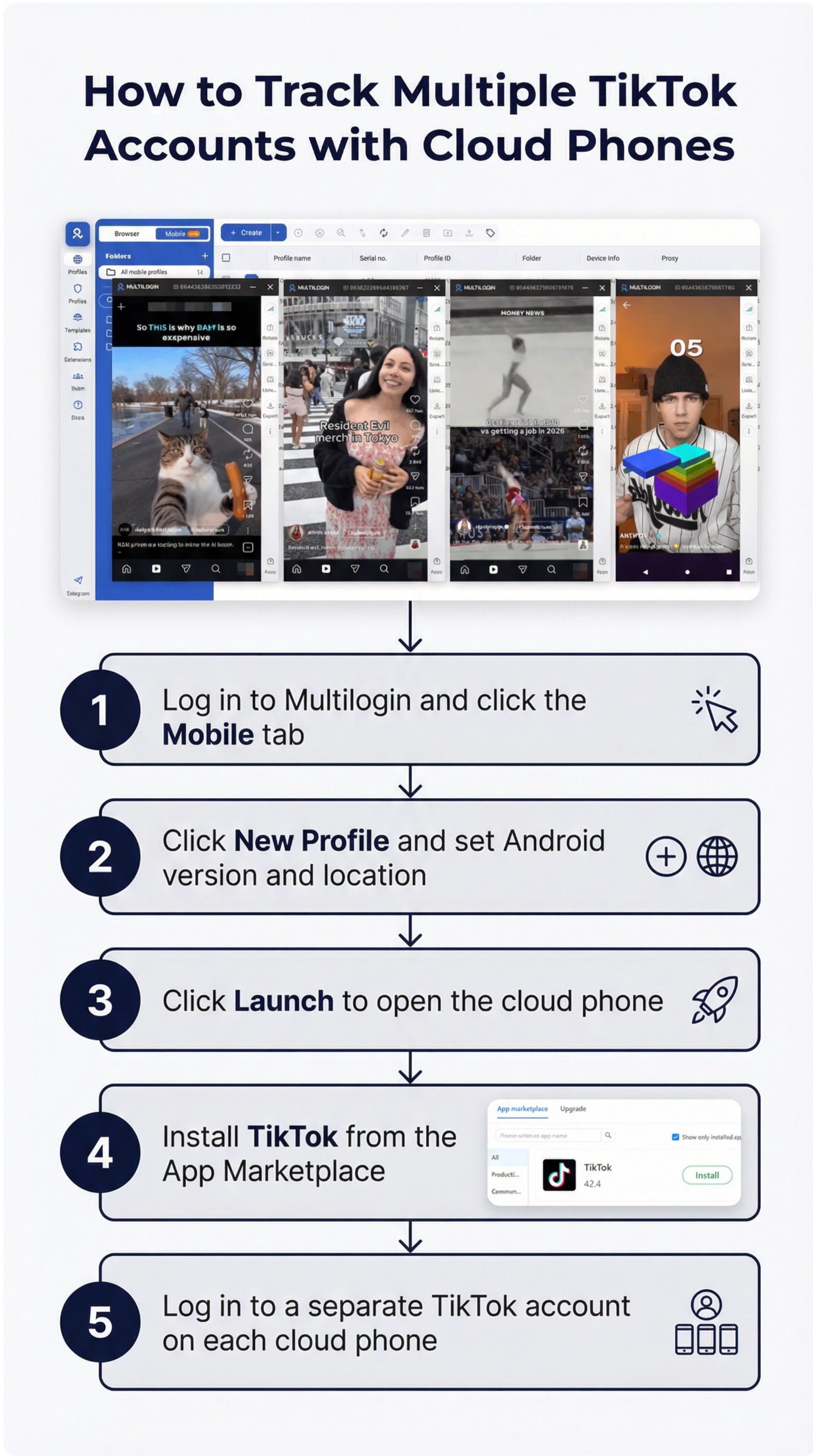
Step 1: Sign up at multilogin.com Choose a plan based on how many TikTok accounts you manage.
Step 2: Create a Cloud Phone for each account From the dashboard, click “Create Cloud Phone.” Set the location to match each account’s target audience, choose the Android version, and label each phone with the TikTok account it runs.
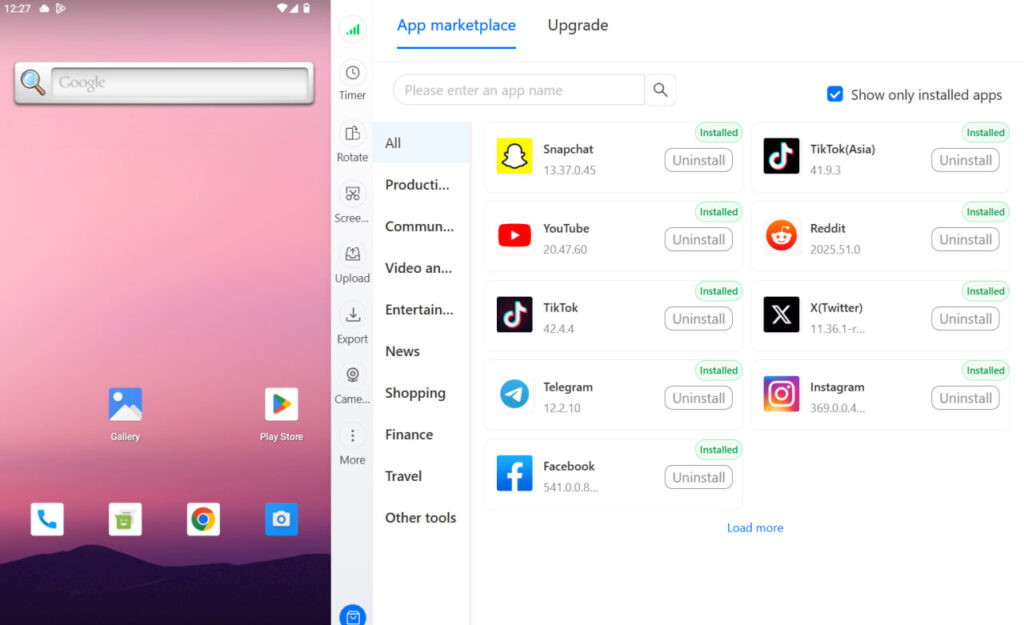
Step 3: Install TikTok and set up each account Launch each cloud phone from the dashboard. Install TikTok from the Play Store, log in to your account (or create a new one), and complete the account setup. Switch to Creator account to enable analytics and all content features.
Step 4: Create and post slideshows normally Use TikTok’s native editor on the cloud phone to create slideshows, add music, add text, and post. Everything works exactly as it would on a regular Android phone.
Step 5: Scale to more accounts as needed Each new account gets its own cloud phone with its own IP and its own isolated environment. The dashboard keeps everything organized.
Need to manage multiple Tiktok accounts? Try Multilogin Cloud Phones.
Key takeaways
TikTok analytics are genuinely powerful once you know where to find them and what each metric is actually telling you. Average watch time and the For You page percentage are the two metrics that matter most for organic growth, because they are the two signals TikTok’s algorithm weights most heavily when deciding how widely to distribute a video. Everything else, followers, likes, comments, is downstream from those two.
For creators and businesses running a single account, TikTok Studio gives you everything you need for free. For more advanced competitive analysis, trend monitoring, or cross-channel reporting, tools like Pentos, Exolyt, and Sprout Social fill the gaps.
For anyone managing multiple TikTok accounts, the analytics question has an extra layer: are the numbers you are seeing actually accurate for each individual account, or are they contaminated by linked-account bleedover? Running multiple accounts from the same device does not just risk enforcement actions. It actively distorts the analytics data you use to make content decisions.
Multilogin Cloud Phones solve this at the foundation. Each account runs on its own isolated Android device with its own IP, its own session history, and its own independent relationship with TikTok’s algorithm. The analytics for each account are clean, accurate, and genuinely useful for strategy. That is the operational standard that serious multi-account TikTok work requires.
Explore Multilogin Cloud Phones
TikTok slideshows are one of the most versatile and time-efficient content formats on the platform in 2026. A well-made swipe slideshow with strong images and a well-chosen sound can outperform far more expensive video content, and the creation process is accessible to anyone with a phone and a folder of photos.
For basic slideshows, TikTok’s native editor handles everything: photo selection, music, text, timing, and posting. For more precise control, especially over timing and transitions, creating the slideshow as a video in CapCut and uploading it gives you frame-level precision. For green screen, interactive, and mixed format slideshows, the mobile app has everything built in.
The production side is genuinely easy. The harder challenge for creators working at scale, managing multiple accounts across different niches or for different clients, is keeping those accounts isolated so that a consistent posting schedule does not trigger the coordinated behavior detection that gets accounts banned in clusters. Each account needs its own device environment, its own IP, and its own independent history with TikTok’s algorithm. Multilogin Cloud Phones provide that at the hardware level, which means your slideshow strategy runs on a foundation that does not collapse when you add a fourth or fifth account to the operation.
Frequently asked questions About TikTok Analytics
Switch to a Creator or Business account, then go to Profile > three-line menu > Creator Tools > Analytics. On desktop, go to studio.tiktok.com and click Analytics in the sidebar.
Switch from a Personal account to a Creator or Business account in Settings > Account. Analytics activate automatically once you switch.
In traffic sources, “Other” covers views from external shares (links clicked on other platforms), embedded views, and sources not tracked in TikTok’s standard categories. In location data, “Other” groups countries with small viewer counts that are not listed individually.
Views attributed to Direct Messages came from someone sharing your video to another user via TikTok’s DM system, and that recipient watching it. High DM shares indicate content people want to send specifically to friends.
Views attributed to Personal Profile came from users visiting your profile page directly rather than seeing the video on their For You page or through discovery features.
Approximately every 24 hours. New videos may update more frequently in the first few hours. Follower activity data updates on a rolling basis every few days.


