



Agencies producing short-form content hit the same wall eventually. Editing videos on one device, transferring files to another, then uploading from a different account wastes hours. Managing multiple social accounts across physical phones means constant logins. Some teams even mail devices between offices just to keep production moving. It slows everything down.
Multilogin cloud phones remove most of that friction. Upload, edit, and publish from the same environment without switching devices. Edit in CapCut on a cloud phone, upload straight to TikTok or Instagram. No transfers, no repeated logins.
In this article, we’ll show you how to use Multilogin cloud phones to streamline your mobile content workflow and avoid the device juggling that slows most agencies down.
How cloud phones are helping with Instagram, TikTok and other special media management
Creating content on your PC and then transferring files to physical phones just to upload slows everything down. It’s faster to handle everything from your dashboard and access it from any computer.
- No physical phones needed: Upload, edit, and post videos from one platform across multiple cloud devices
- Team collaboration: Everyone works from the same dashboard without sharing devices or credentials
- No constant logins: Each account stays logged in between sessions
This keeps accounts separate, speeds up content creation, and lets editors work from anywhere without device shuffling.
Step by step guide to installing CapCut
Setting up your mobile editing environment in Multilogin is a simple process. Follow these detailed steps to get started.
1. Sign up for Multilogin
Begin by creating an account on the Multilogin website. Choose a subscription plan that fits your needs. Multilogin provides a 2-in-1 package: cloud phones for mobile-based social media management and browser profiles with fingerprint technology.
2. Download Multiloginand log in
Download the Multilogin application for your operating system. Install it, launch the app, and log in with your credentials.
3. Open Dashboard and switch to Cloud phones
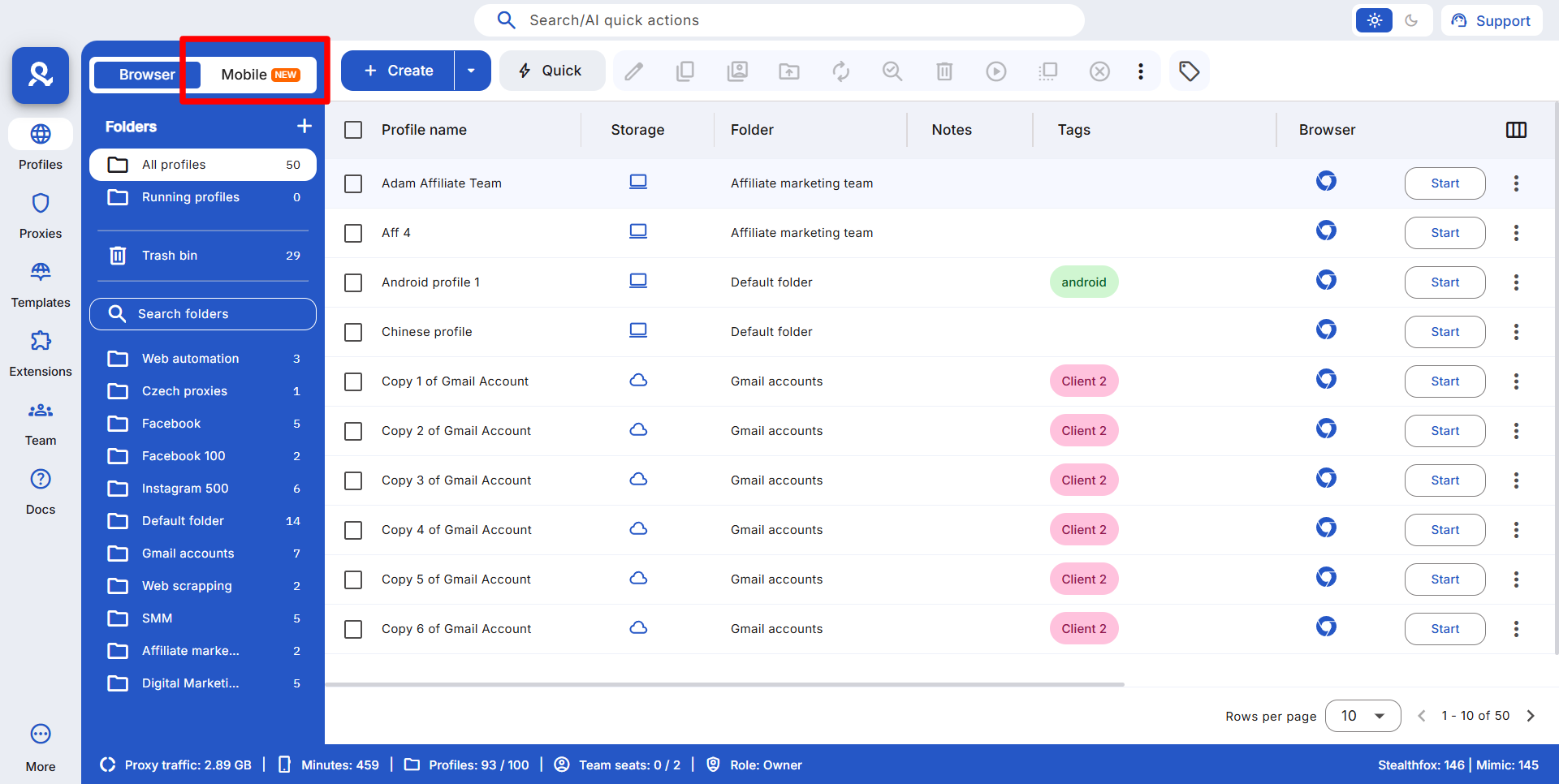
Navigate to the main dashboard within the Multilogin application. Locate and click on the Cloud phones section to manage your mobile profiles.
4. Create a new profile
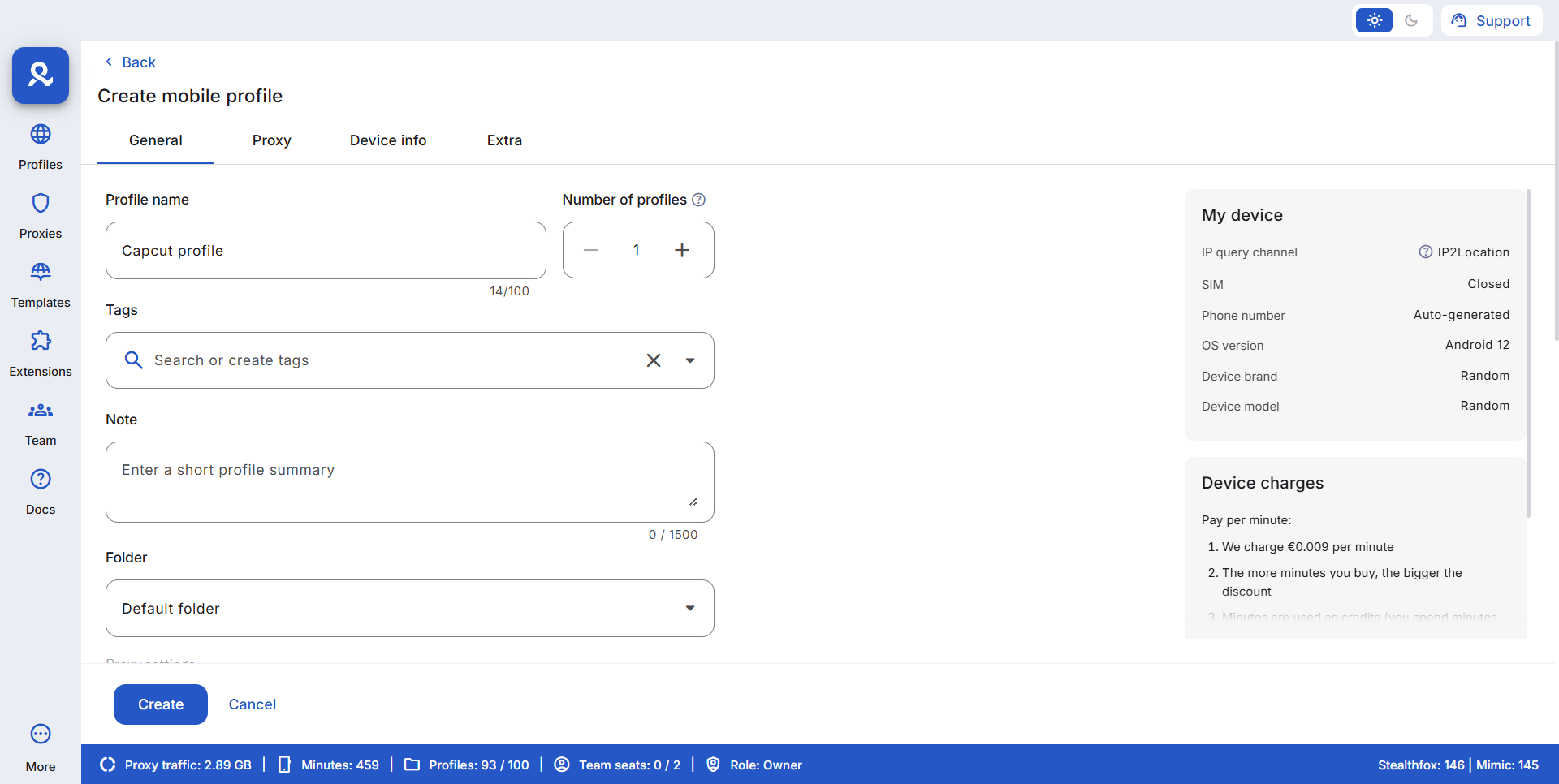
Click Create to start setting up a new cloud phone profile. This will be your dedicated mobile environment for a specific account or project.
5. Enter profile details
Give your new profile a descriptive name. You can also add tags and notes to organize your accounts and projects.
6. Configure proxy settings
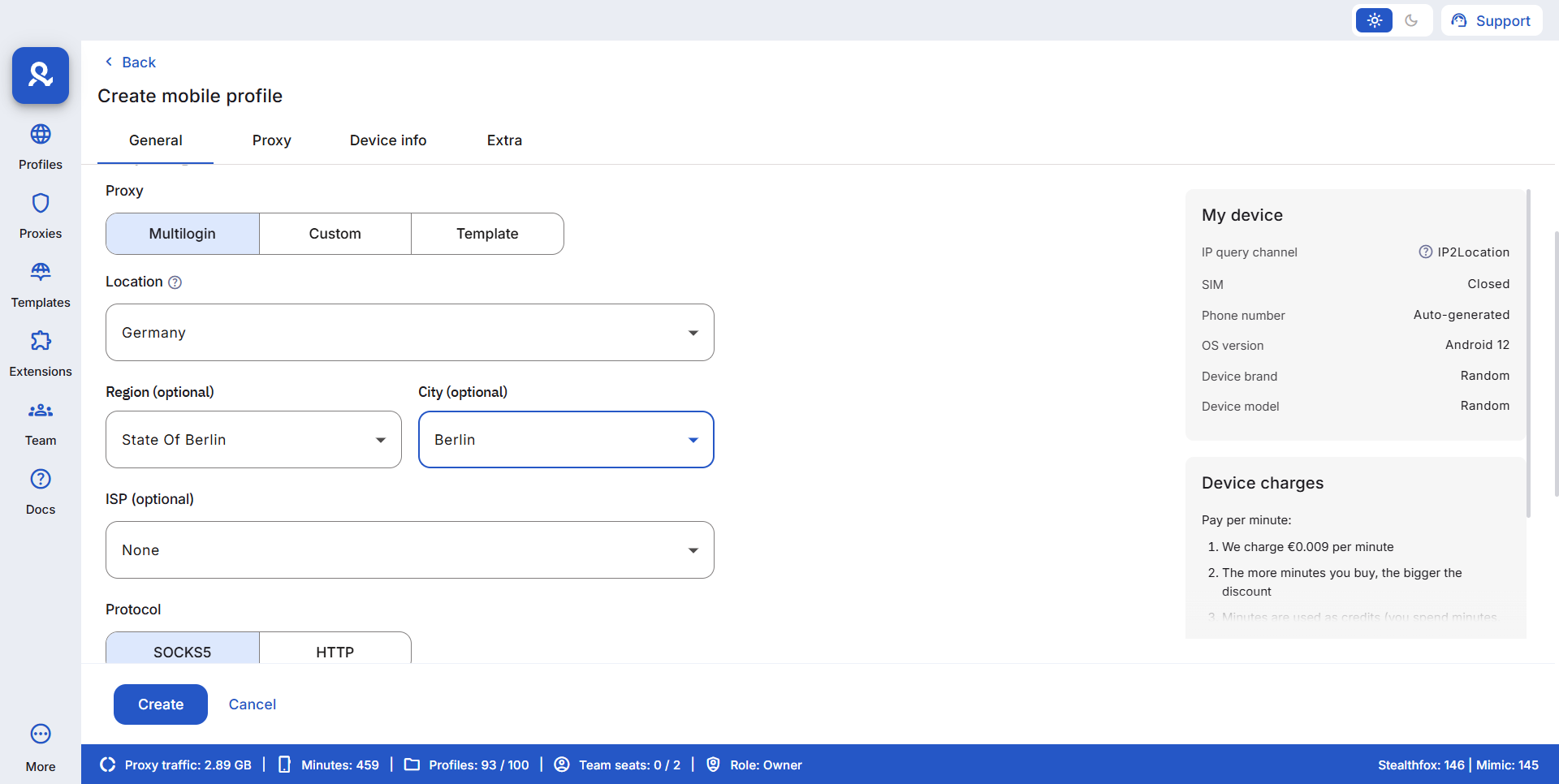
Select Multilogin as your proxy provider and pick a country and city from over 150 locations. This makes your cloud phone appear to be operating from that specific location consistently using Multilogin’s built-in proxies.
7. Select device model and Android version
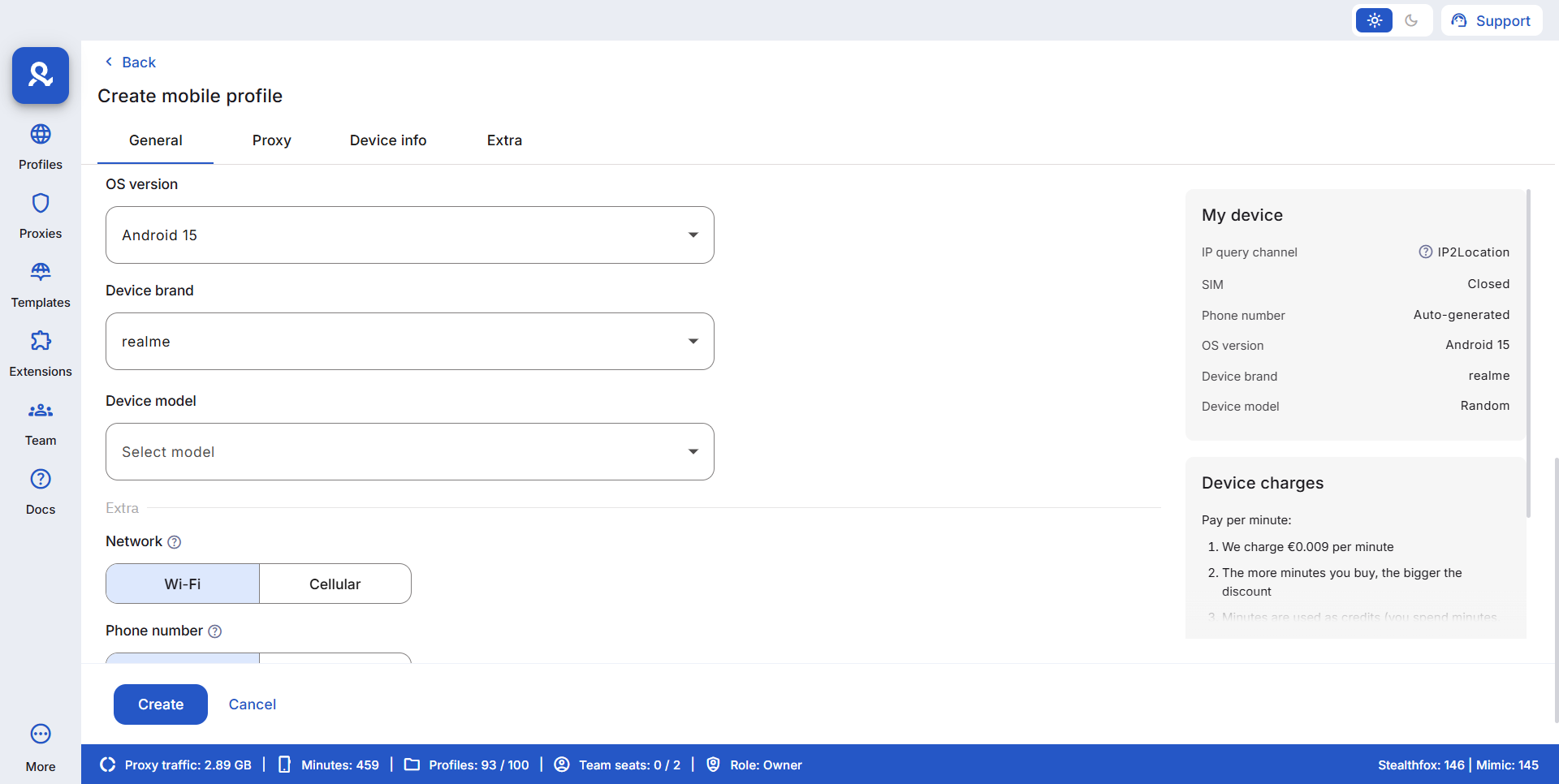
Next, choose the brand and device model for your cloud phone. Multilogin offers several popular brands and models to pick from. This customization makes each cloud phone look like a real physical device to mobile platforms.
8. Launch the cloud phone
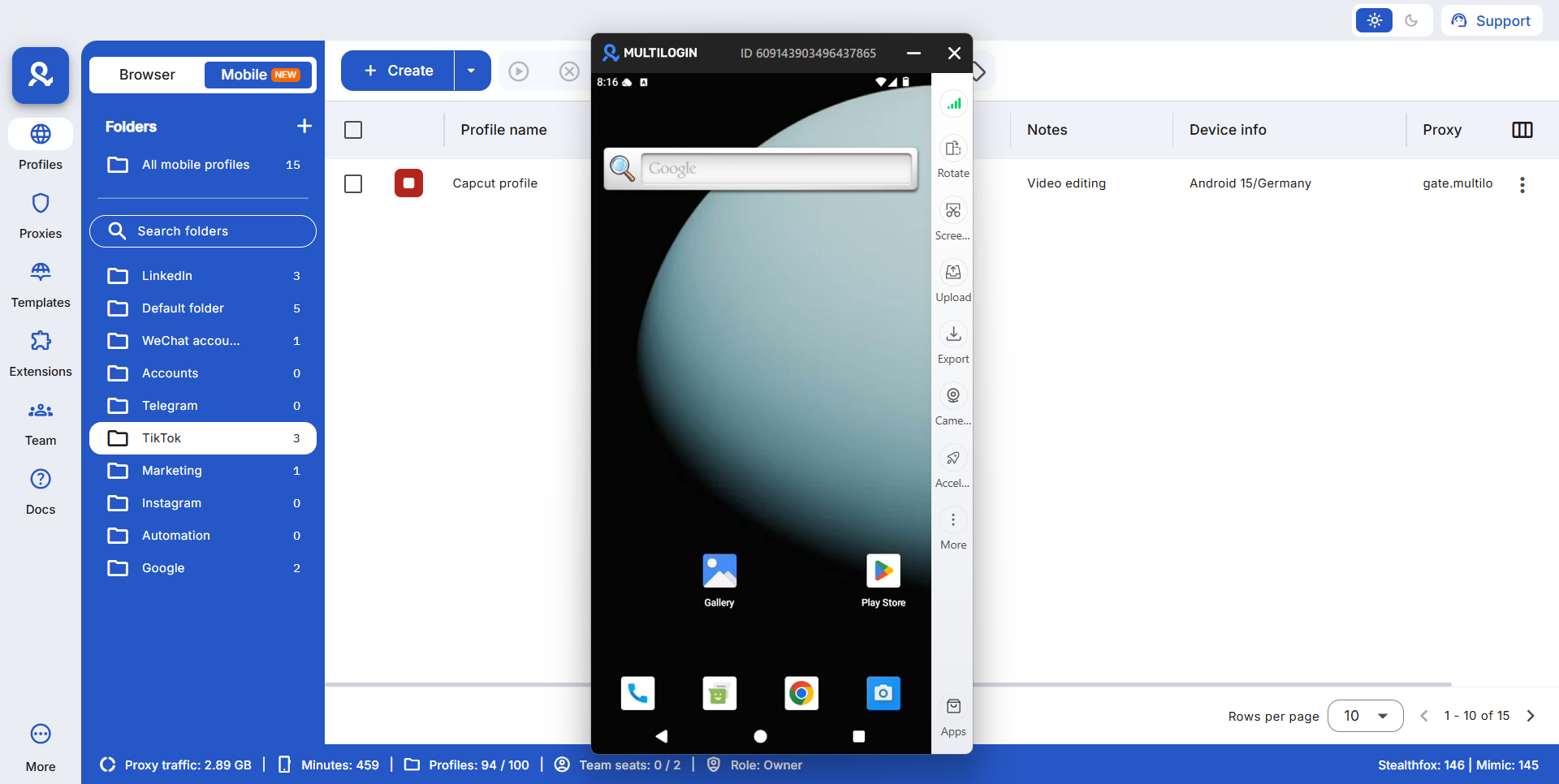
Click Create to finalize your profile. Then click Launch to start your cloud phone. The environment will open in a new window. It is ready for use by you or an assigned team member.
9. Install CapCut from the marketplace
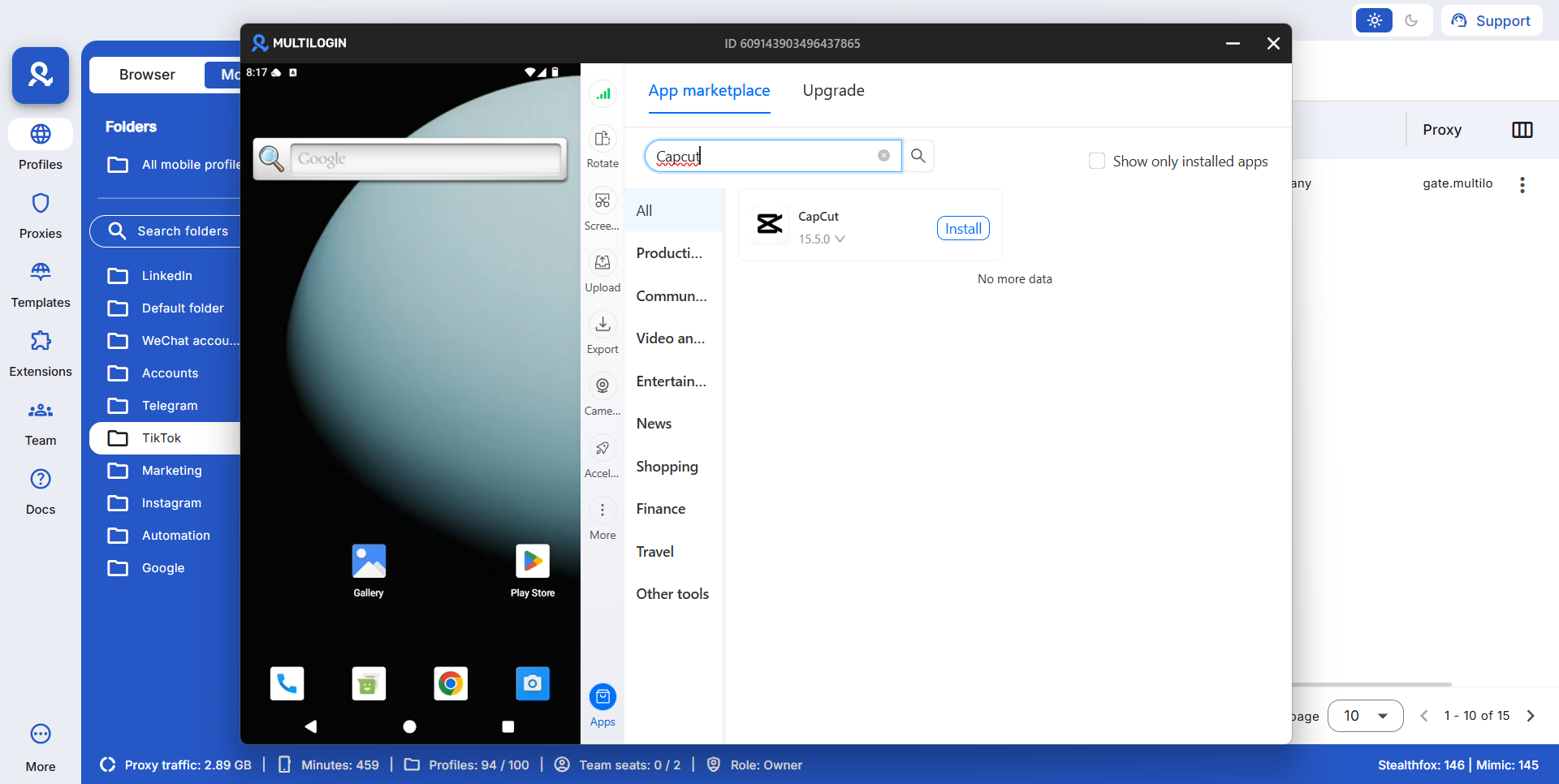
Open the built-in marketplace on your cloud phone, search for CapCut, and click Install. The app downloads and installs directly onto your cloud phone.
10. Launch CapCut
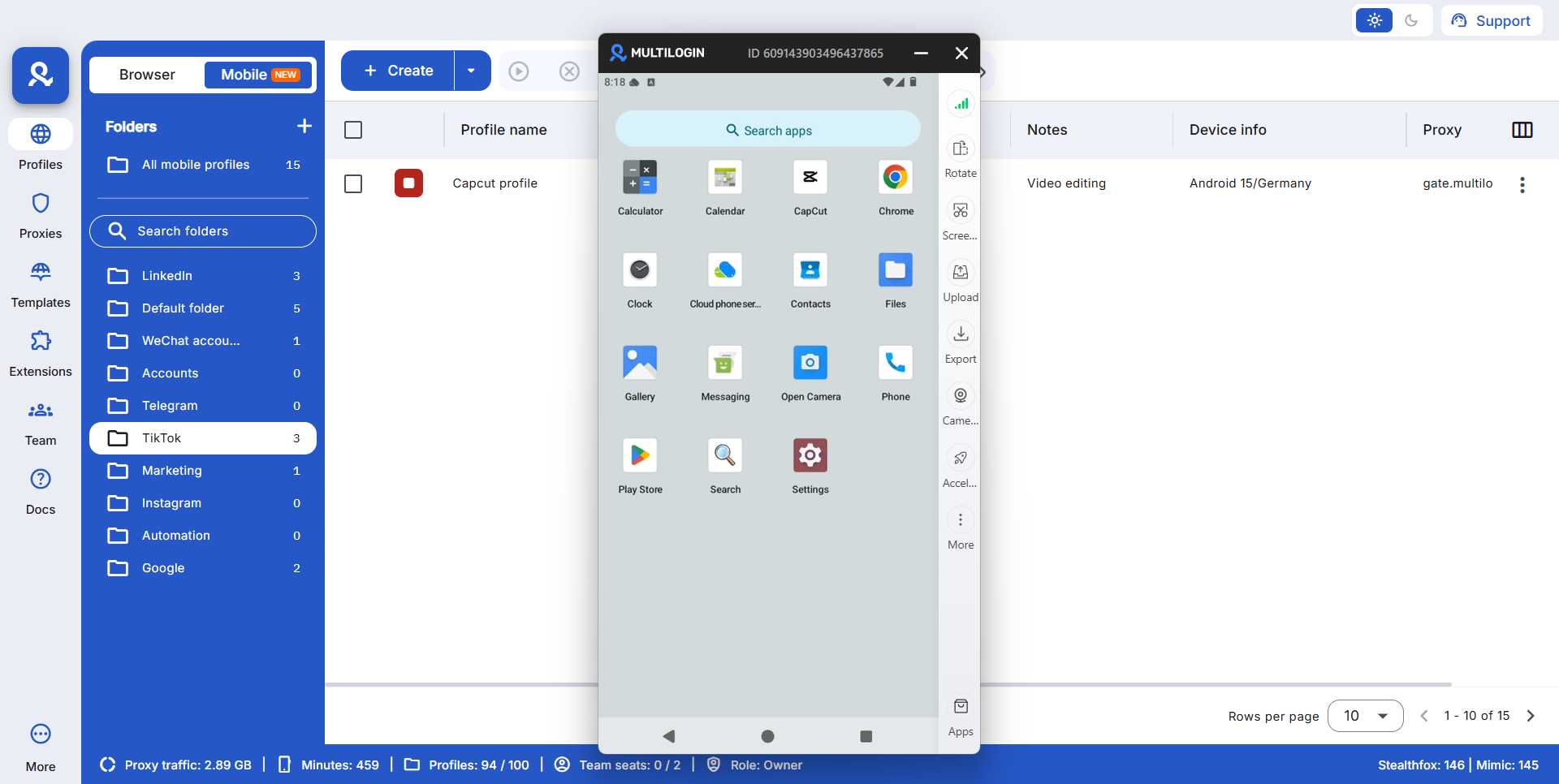
Once the installation is complete, locate the CapCut icon on your cloud phone home screen. Click to launch it.
11. Upload your video files
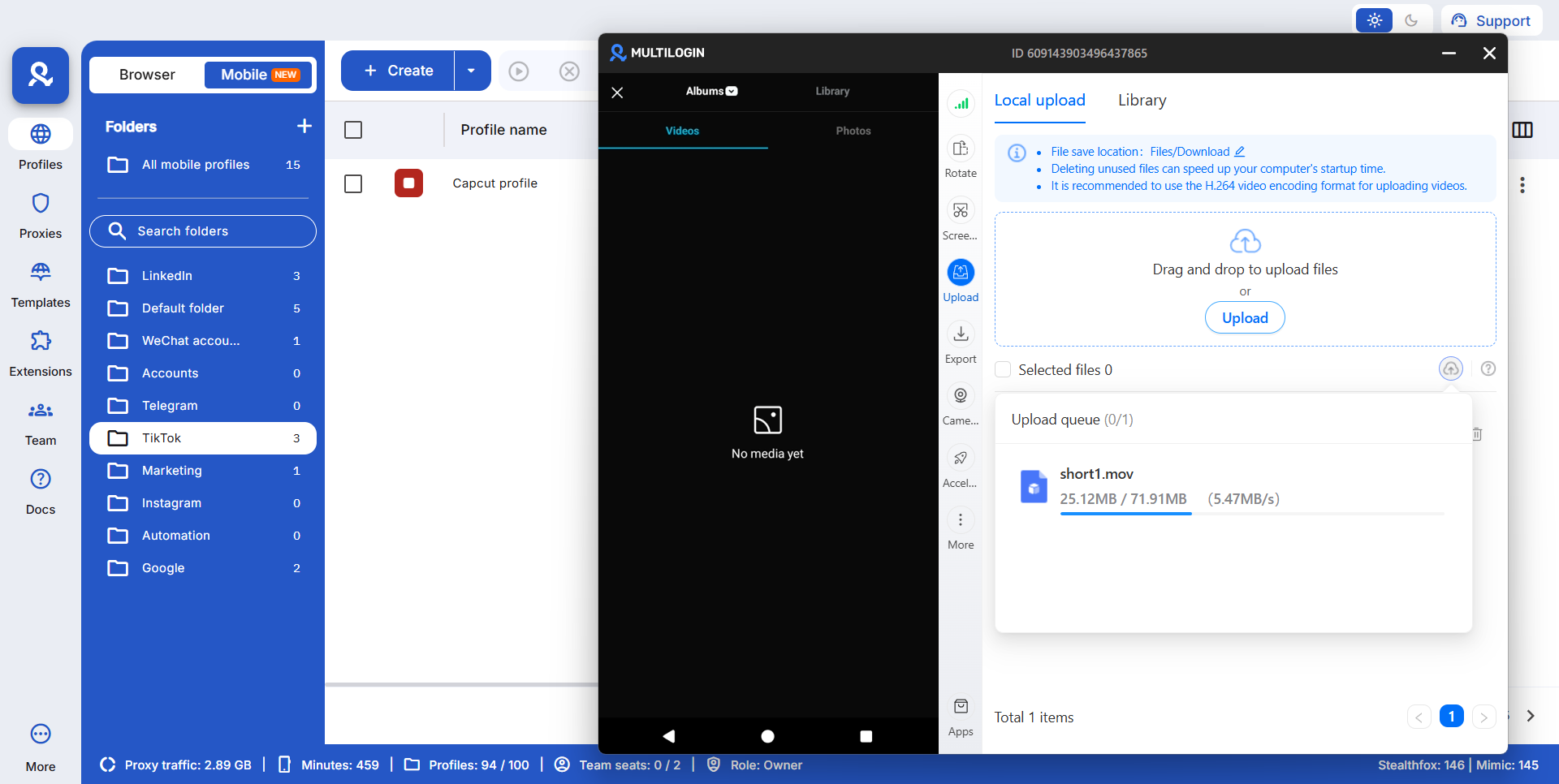
Use the Upload shortcut to transfer video files from your computer to the cloud phone. This lets you move media directly into your editing environment without dealing with physical device transfers.
12. Edit your video in CapCut
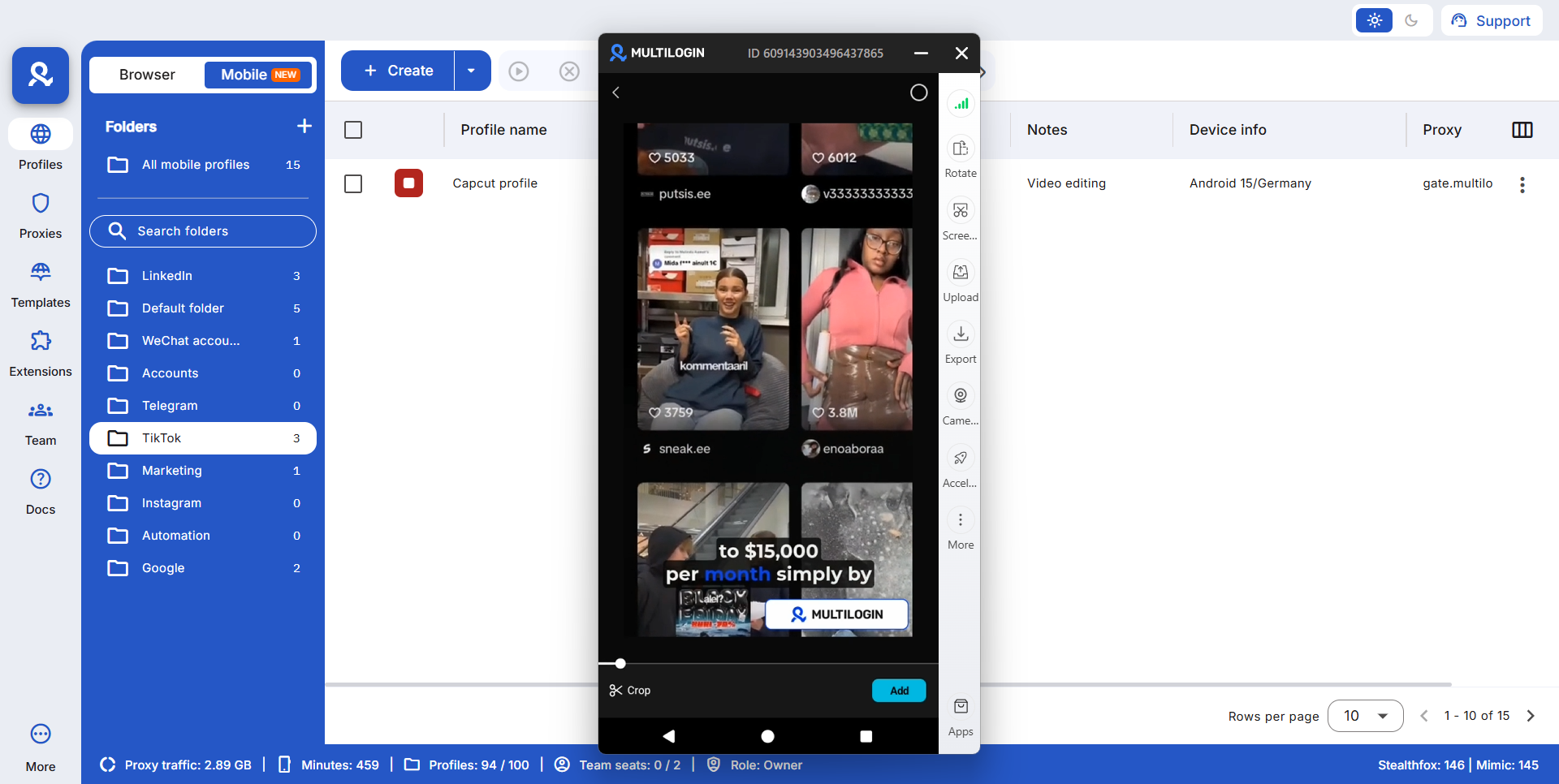
Select your uploaded file within CapCut and begin editing. For the best performance on platforms like TikTok and Instagram, consider these tips.
- Duration: Aim for videos that are approximately 30 seconds long to maximize engagement.
- Subtitles: Use CapCut auto-captioning feature to add subtitles. This makes your content more accessible and engaging even when viewed without sound.
- Titles: Create a catchy and relevant title to grab viewers attention immediately.
13. Publish to social media
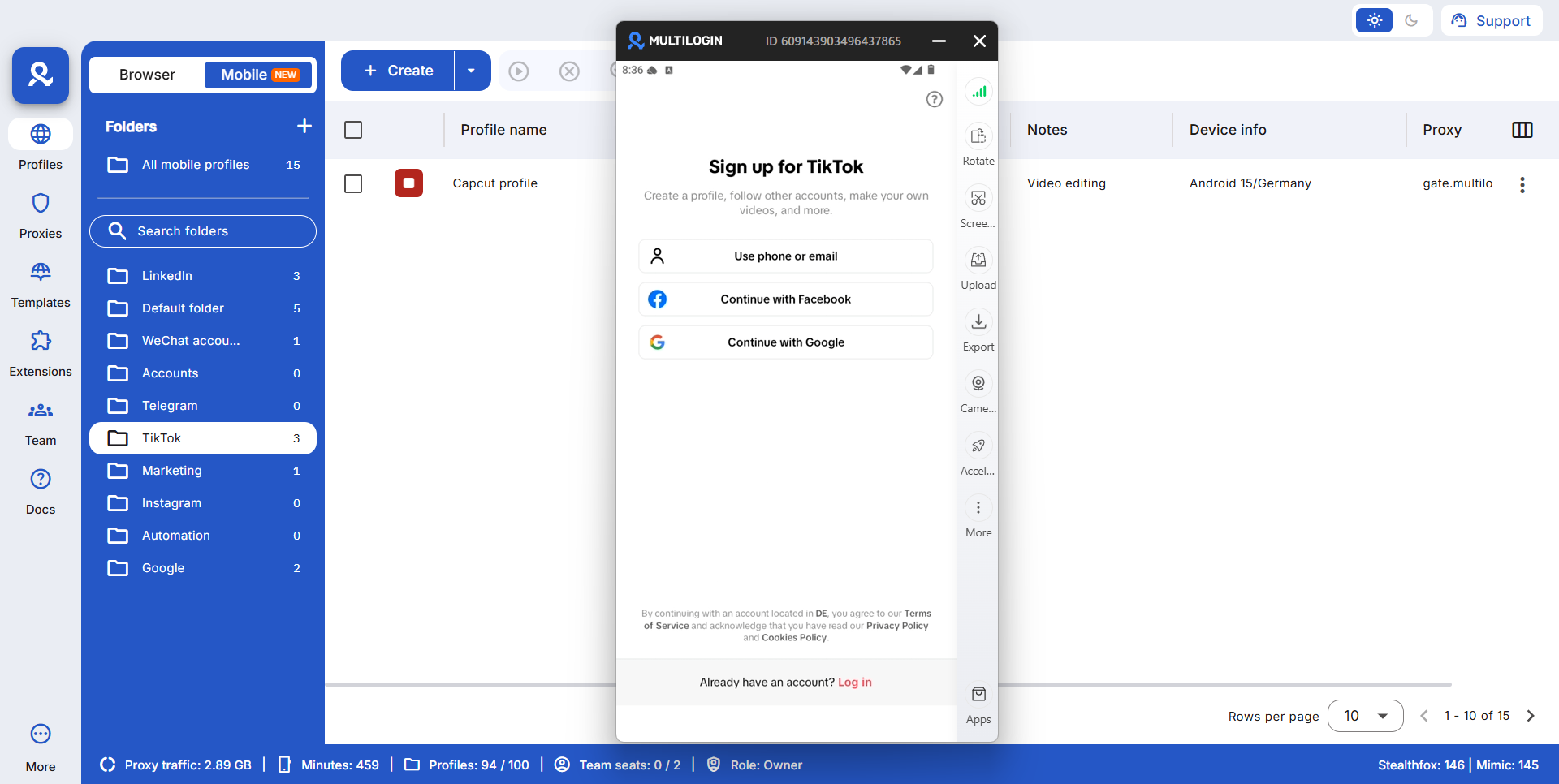
Install your target social media apps like TikTok or Instagram from the built-in marketplace. Launch the app and upload your edited video directly.
The app stays logged in between sessions, and the location-based connection stays consistent. No repeated logins or transferring files to physical devices.
Key features of Multilogin cloud phones for agencies
Multilogin offers a complete suite of features designed for professional content agencies.
- Real Android environments: Run native mobile apps on genuine Android versions 10 to 15.
- Dedicated devices: One cloud phone per account ensures consistent device setup and no overlap. This is ideal for team assignments.
- Persistent data: App sessions and cache are saved. Logins are saved too. This supports natural account behavior and reduces setup time for editors.
- Full compatibility: Install any app from the built-in store or upload your own APK files. It works just like on a physical phone.
- Integrated proxies: Choose from over 150 locations with built-in proxies that handle connections automatically. This ensures geo-specific targeting.
- Unified dashboard: Manage both mobile and web accounts from a single platform. This simplifies oversight for agency managers.
- Flexible pricing: Usage-based pricing starts from 0.009 Euro per minute. Unused minutes roll over. This offers cost-effective scaling.
- All-in-one solution: Access a leading antidetect browser alongside your cloud phone purchase. This provides a complete toolkit for digital operations.
