
If you’re managing multiple mobile accounts, whether for social media marketing, e-commerce operations, or app testing, you’ve probably asked yourself: should I use a mobile emulator or a cloud phone?
On the surface, they seem similar. Both let you run mobile apps from your desktop. Both avoid the hassle of juggling physical phones. But there’s a critical difference that determines whether your accounts survive or get banned: real device identity vs. emulated device identity.
Platforms like Instagram, TikTok, Facebook, and banking apps have gotten ruthless about detecting emulators. Their systems analyze dozens of device signals to distinguish real hardware from virtualized environments. Most emulators fail these checks within days.
This guide breaks down everything: what cloud phones and mobile emulators actually are, how they differ technically, why platforms detect emulators but trust cloud phones, and which solution works for your specific use case.
Managing multiple mobile accounts for clients or business? Multilogin Cloud Phones provide real Android devices in the cloud with genuine hardware identities — keeping your accounts safe from platform detection systems.
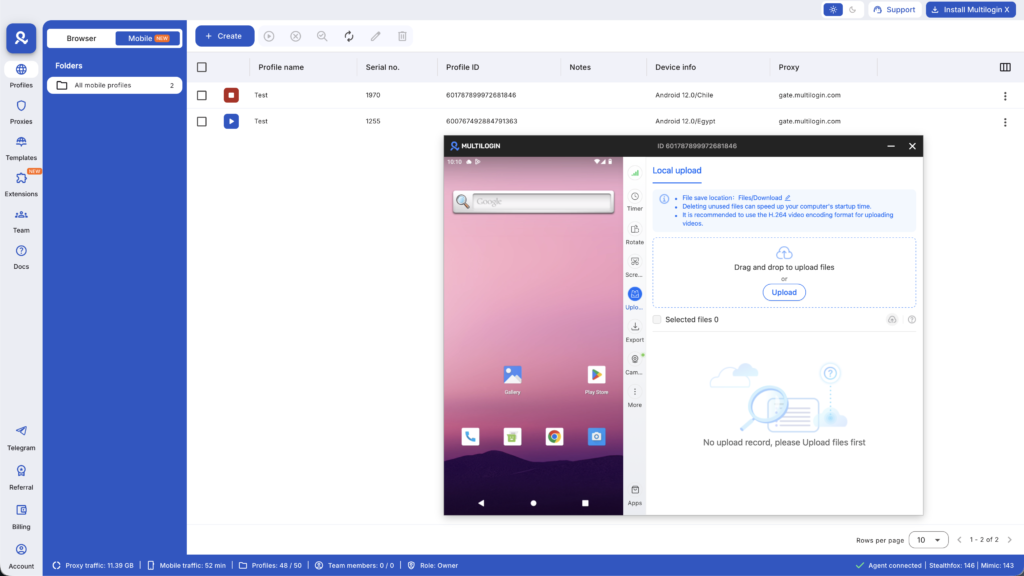
What is a cloud phone? (real devices hosted remotely)
A cloud phone is a real Android smartphone hosted in the cloud that you control from your desktop or web browser.
Think of it like remote desktop access — but instead of accessing another computer, you’re accessing an actual Android phone running in a data center.
How cloud phones work:
Real Android hardware
Cloud phones run on physical Android devices (Samsung, Google Pixel, OPPO, OnePlus, etc.) in server racks. They’re not simulations or virtual machines. They’re actual phones with:
- Real chipsets (Qualcomm Snapdragon, MediaTek, etc.)
- Genuine hardware identifiers (IMEI, Android ID, MAC address)
- Physical sensors (accelerometer, gyroscope, GPS)
- Real memory and storage configurations
Remote access interface
You control the cloud phone through:
- Desktop application (Windows, Mac, Linux)
- Web browser interface
- Mobile app (control one cloud phone from another device)
When you interact with the screen, your inputs get sent to the cloud phone, which executes them. You see a live video stream of the phone’s display.
Persistent storage and state: Everything you do on a cloud phone persists between sessions:
- App installations remain
- Login states stay active
- App data, cache, and storage accumulate over time
- System settings and configurations persist
When you close the session and reopen it later, the cloud phone is exactly where you left it — just like picking up your physical phone after putting it down.
Network connectivity: Cloud phones connect to the internet through:
- Built-in residential proxies (mobile-grade IPs)
- Custom proxy configurations
- Direct data center connections
The IP address, location, and network type can be matched to your use case (e.g., Miami residential IP for a Miami-based business account).
Key point: Cloud phones are real Android devices. Platforms can’t detect “emulation” because there is no emulation. The hardware is genuine.
What is a mobile emulator? (software that simulates Android)
A mobile emulator (or mobile phone emulator) is software that simulates Android hardware on your PC or Mac.
Instead of running on real phone hardware, the Android operating system runs in a virtualized environment on your computer.
How mobile emulators work:
Software virtualization: Emulators use virtualization technology to create a fake Android environment:
- CPU instructions get translated from ARM (mobile) to x86 (desktop)
- GPU rendering gets simulated
- Hardware sensors get spoofed
- Device identifiers get generated artificially
Popular examples: BlueStacks, NoxPlayer, LDPlayer, MEmu, Android Studio Emulator.
Simulated hardware signals: When an app checks device hardware, the emulator returns:
- Generated IMEI numbers
- Fake MAC addresses
- Simulated Android IDs
- Virtual hardware configurations
These identifiers look real but have characteristics that reveal they’re spoofed.
Desktop performance optimization: Emulators are designed to run on desktop hardware:
- Use your PC’s powerful CPU/GPU
- Access to keyboard and mouse controls
- Multi-instance support (run 10+ emulators simultaneously)
- Fast app installation and switching
Common use cases:
- Mobile game players (PUBG Mobile, Call of Duty Mobile on PC)
- App developers testing apps without physical devices
- Mobile automation and testing
- Screen recording and streaming
The fundamental problem: Emulators create simulated device identities. Advanced platforms detect these simulations through dozens of signals that expose virtualization.
Learn more about what Android emulators are and how they work in technical depth.
Key differences: cloud phones vs mobile emulators
Here’s the technical breakdown of how these technologies differ:
Feature | Cloud Phone | Mobile Emulator |
Hardware | Real Android device in data center | Software simulation on your PC |
Device Identity | Genuine IMEI, Android ID, MAC address | Generated/spoofed identifiers |
Detection Risk | Low (platforms see real device) | High (platforms detect virtualization) |
Performance | Limited by cloud phone specs | Limited by your PC specs |
App Compatibility | 100% (real Android) | ~95% (some apps block emulators) |
Persistence | Full (everything saves between sessions) | Variable (depends on configuration) |
Multi-Instance | Multiple cloud phones = separate devices | Multiple instances = same PC fingerprint |
Cost Model | Usage-based or subscription | One-time or monthly subscription |
Internet Access | From data center | From your location |
Device Fingerprint | Unique per cloud phone | PC fingerprint leaks through |
Sensor Data | Real sensor hardware | Simulated/spoofed sensors |
Banking Apps | Supported (real device) | Often blocked (detects emulation) |
Social Media Safety | High (authentic device signals) | Low (detection triggers bans) |
The critical difference for multi-accounting:
When you run 10 emulator instances on your PC, platforms can detect that all 10 “devices” share the same underlying PC fingerprint. Even with different spoofed device IDs, the virtualization layer leaks common signals.
When you run 10 cloud phones, platforms see 10 completely separate Android devices with distinct hardware identities. There’s no shared fingerprint because they’re literally different phones.
How platforms detect mobile emulators (and why it matters)
Instagram, TikTok, Facebook, banking apps, and other security-conscious platforms have sophisticated detection systems that identify emulated environments.
Hardware consistency checks
Real devices have consistent hardware profiles. For example:
- Samsung Galaxy S23 always has specific CPU, GPU, screen resolution, sensor suite
- Emulators often mix components incorrectly (flagship CPU with budget GPU, impossible screen ratios)
Platforms maintain databases of real device configurations. Inconsistent profiles get flagged.
Virtualization artifacts
Emulators leave fingerprints that expose virtualization:
Build properties
Android’s build.prop file contains device info. Emulators often have telltale values:
- ro.product.manufacturer=Genymobile (Genymotion emulator)
- ro.kernel.qemu=1 (running in QEMU environment)
- ro.hardware=ranchu (Android Studio emulator)
Real devices have manufacturer-specific values that can’t be perfectly spoofed.
CPU and hardware flags
Apps can query CPU features and instruction sets. Emulators running on x86 CPUs show different flags than real ARM-based phones — even when trying to translate instructions.
Sensor data patterns
Real phones have imperfect sensors that produce natural noise and variations:
- Accelerometer readings fluctuate slightly even when stationary
- GPS coordinates have natural drift
- Battery temperature changes realistically
Emulators produce perfect or obviously fake sensor data.
Graphics rendering
Emulators use PC graphics cards to render Android’s OpenGL/Vulkan graphics. The rendering signatures differ from real mobile GPUs:
- WebGL fingerprints are distinct
- Canvas rendering has detectable differences
- GPU model strings reveal desktop hardware
Timing and performance
Emulators have different performance characteristics:
- App startup times are faster (powerful PC hardware)
- Network latency patterns differ
- Memory access patterns are inconsistent with real devices
Platforms analyze these timing signatures to detect emulation.
File system and process inspection
Security-conscious apps check running processes and file paths:
- Emulators have specific processes (vbox, qemu, nox, bluestacks services)
- File paths reveal emulation directories
- Superuser/root detection is easier on emulators
SafetyNet and Play Integrity
Google’s platform integrity checks fail on most emulators:
- SafetyNet reports device as uncertified
- Play Integrity API detects virtualization
- Banking apps and secure apps refuse to run
Learn more about device emulation and detection mechanisms platforms use.
Multi-account management: why device identity matters more than virtualization
Here’s the issue most people miss: the biggest risk isn’t using an emulator. It’s running multiple accounts that get linked together through shared device signals.
The account linking problem:
When you run 10 emulator instances on your PC to manage 10 Instagram accounts:
- All 10 emulators share your PC’s base fingerprint
- Network traffic routes through the same network interface
- Timing patterns correlate across instances
- Even with different spoofed Android IDs, Instagram detects the common PC fingerprint
Result: Instagram links all 10 accounts together. One account gets banned for suspicious activity, and the other 9 get flagged by association.
Why cloud phones solve this:
When you use 10 cloud phones to manage 10 Instagram accounts:
- Each cloud phone is literally a different physical device
- Hardware identities are genuinely unique (different IMEI, MAC, Android ID)
- Devices run in different geographic locations (if using different data centers)
- No shared fingerprint exists — platforms see 10 independent devices
Result: Accounts remain isolated. One account getting flagged doesn’t affect the others.
The mobile app requirement:
Instagram, TikTok, and most social platforms are mobile-first. Critical features only work in native mobile apps:
- Instagram Stories and Reels (limited web functionality)
- TikTok video uploads and effects
- WhatsApp Business features
- Native engagement patterns that build account trust
Desktop browser automation can’t replicate authentic mobile app behavior. Emulators try but leak detection signals. Cloud phones provide real mobile environments.
This is why agencies managing multiple Instagram accounts or warming up mobile accounts properly need cloud phones, not emulators.
Real-world scenarios: cloud phone vs emulator decision matrix
Let’s look at specific scenarios to see which solution makes sense:
Scenario 1: Social media agency managing 50 client Instagram accounts
Emulator approach: Install BlueStacks, create 50 instances, configure proxies for each, attempt to manage client accounts.
Problems:
- Instagram detects emulators within days
- Client accounts get action-blocked or shadow-banned
- All 50 accounts share PC fingerprint (linking risk)
- Need expensive gaming PC to run 50 instances
- Accounts constantly getting banned and need replacement
Cloud phone approach: Launch 50 cloud phones, one per client. Install Instagram, configure mobile proxies, manage accounts from desktop dashboard.
Result:
- Genuine device identities pass Instagram’s detection
- Each account has unique hardware fingerprint (no linking)
- Works on any laptop (no expensive PC needed)
- Accounts remain stable long-term
- Team can collaborate with permission controls
Verdict: Cloud phones essential
Scenario 2: E-commerce seller managing 5 Amazon seller accounts
Emulator approach: Run 5 emulator instances with different proxies, manage storefronts.
Problems:
- Amazon detects shared device fingerprint
- Accounts get linked together
- One suspension triggers others
- Amazon’s detection systems flag emulator artifacts
Cloud phone approach: Use 5 cloud phones with dedicated residential proxies matched to business locations.
Result:
- Each storefront has genuinely unique device identity
- Amazon can’t link accounts
- More expensive than emulators but worth it for account safety
Verdict: Cloud phones necessary for account isolation
Scenario 3: Mobile game player wanting to play PUBG Mobile on PC
Emulator approach: Install GameLoop (official PUBG emulator) or BlueStacks.
Problems:
None — gaming is a legitimate emulator use case.
Cloud phone approach: Use cloud phone to play mobile games.
Result:
Works, but unnecessary. Emulators are fine for gaming unless you’re managing multiple game accounts for farming.
Verdict: Emulator is appropriate choice
Scenario 4: App developer testing Android app during development
Emulator approach: Use Android Studio Emulator or Genymotion.
Problems:
None for development testing. However, production testing should use real devices.
Cloud phone approach: Use cloud phones for production-like testing on real hardware.
Result:
Both have value. Emulators for quick dev testing, cloud phones for final QA.
Verdict: Both — emulators for development, cloud phones for production testing
Scenario 5: Crypto airdrop farmer managing 20 wallets
Emulator approach: Run 20 emulator instances with different wallet apps.
Problems:
- Many crypto apps detect emulators
- Platforms tracking airdrop abuse look for device clustering
- Emulator artifacts expose farming operation
- Risk losing access to wallets if apps detect emulation
Cloud phone approach: Use 20 cloud phones, one wallet per device.
Result:
- Real device identities make farming operation undetectable
- Each wallet appears to come from separate device
- No risk of platform detection
- Can maintain long-term wallet access safely
Verdict: Cloud phones for serious operations
Setting up cloud phones vs emulators: complexity comparison
Mobile emulator setup:
Step 1: Download emulator software (BlueStacks, NoxPlayer, etc.)
Step 2: Install on your PC (requires administrator access)
Step 3: Configure each emulator instance (device model, resolution, Android version)
Step 4: Set up proxy/VPN for each instance
Step 5: Attempt to bypass emulator detection (modify build.prop, hide root, etc.)
Step 6: Install apps and create accounts
Step 7: Monitor for bans and repeat setup when accounts get flagged
Time investment: 30–60 minutes per emulator instance, plus constant maintenance when detection improves.
Technical skill required: Medium to high (need to understand virtualization, proxies, Android system files)
Cloud phone setup:
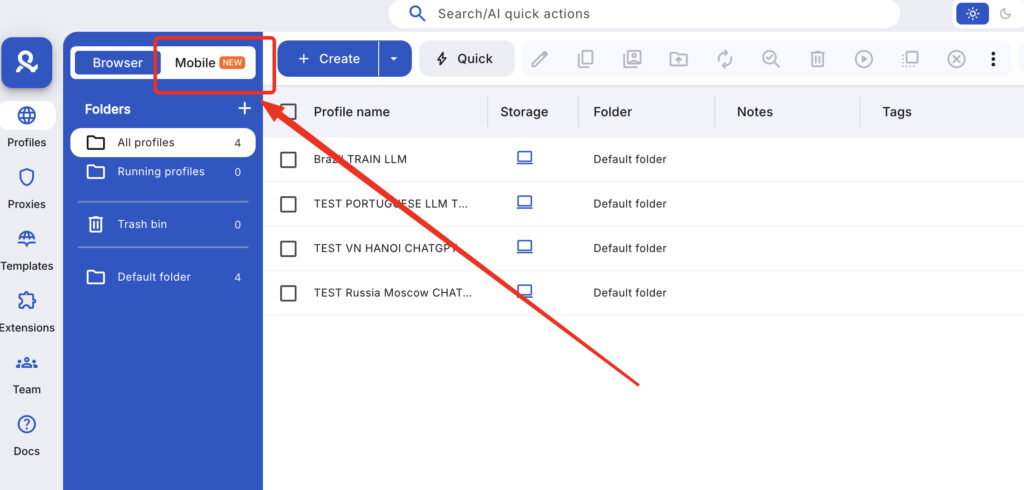
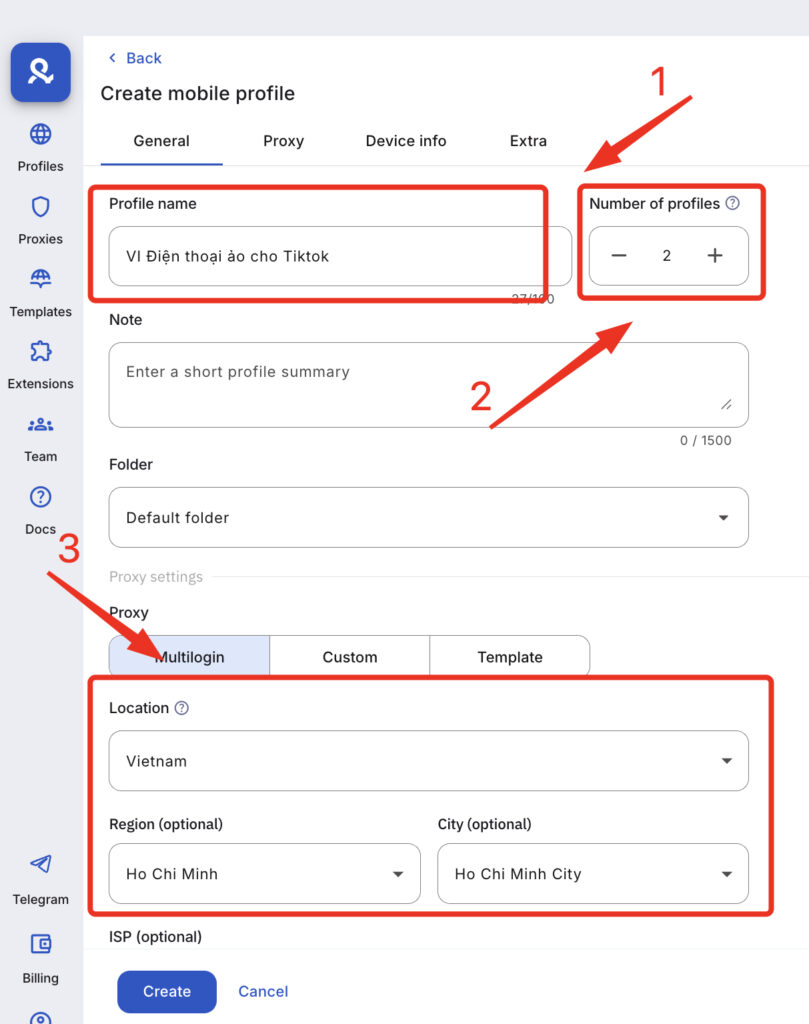
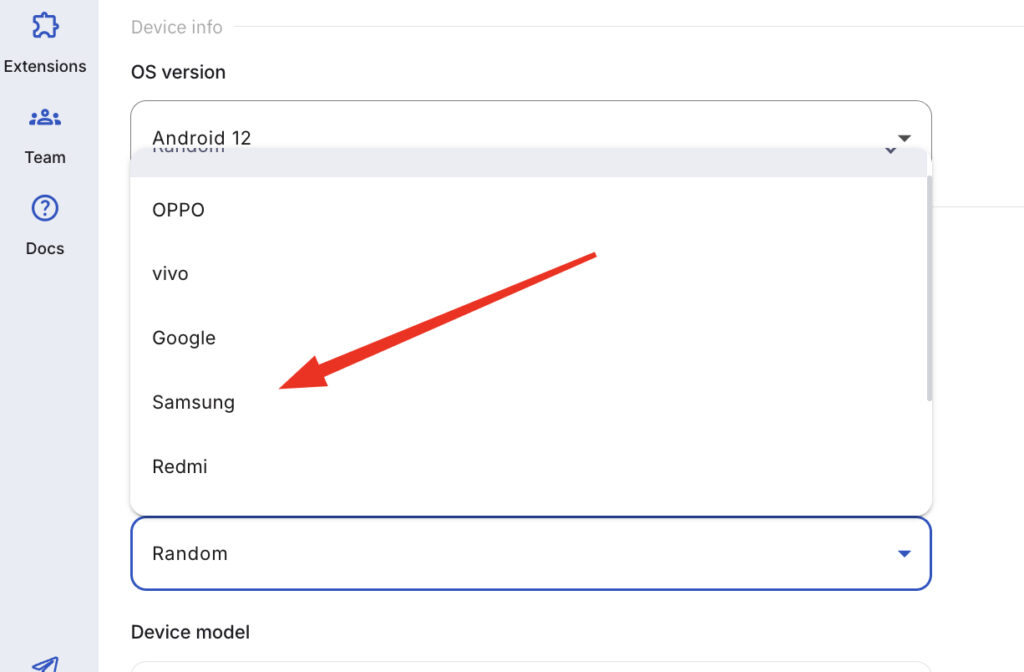
Step 1: Sign up for Multilogin
Step 2: Select mobile profile to launch a cloud phone (select device model, Android version, location)
Step 3: Install apps from built-in Play Store or upload APKs
Step 4: Use account (proxies already integrated, no configuration needed)
Time investment: 2–5 minutes per cloud phone, zero maintenance.
Technical skill required: None (beginner-friendly interface)
No more juggling physical devices or risking account links. Try Multilogin's cloud phones now.
Frequently Asked Questions About Cloud phones vs mobile emulators
Cloud phones are real Android smartphones hosted in data centers that you control remotely, with genuine hardware identifiers (IMEI, Android ID, MAC address). Mobile emulators are software programs that simulate Android environments on your PC with spoofed device identities. The critical difference: platforms like Instagram and TikTok can detect emulators through virtualization artifacts and behavioral signatures, but can’t detect cloud phones because they’re actual devices.
Yes. Instagram, TikTok, Facebook, banking apps, and other security-conscious platforms detect emulators through device fingerprinting, SafetyNet/Play Integrity checks, hardware consistency analysis, virtualization artifacts (build.prop values, CPU flags), sensor data patterns, graphics rendering signatures, and timing analysis. Most emulator-based accounts get flagged within 30–90 days regardless of configuration attempts to hide emulation.
Yes, for multi-account management, cloud phones are essential. Each cloud phone provides a genuinely unique device identity, preventing platforms from linking accounts together. Emulators running on the same PC share fingerprint characteristics that expose account relationships. Additionally, cloud phones have zero detection risk while emulators face constant ban threats from platform updates.
Emulators are free or $2–$50/month but require expensive gaming PCs ($2,000+) to run multiple instances effectively. Cloud phones use usage-based pricing (Multilogin: €0.009/minute, plans from €5.85/month) with no hardware requirements.
Not safely. Instagram and TikTok have aggressive emulator detection systems that identify virtualization through dozens of signals. Accounts managed via emulators typically get action-blocked, shadow-banned, or permanently disabled within days to weeks. For social media marketing requiring account stability, cloud phones with real Android environments are necessary.
Yes, 100% app compatibility. Cloud phones are real Android devices running genuine Android OS, so every app that works on a physical phone works on a cloud phone. This includes banking apps, crypto wallets, authenticator apps, and security-conscious apps that block emulators. Emulators have approximately 95% compatibility with some apps refusing to run on detected emulation.
Switch to cloud phones for reliable multi-account management
If you’re managing multiple mobile accounts for business, clients, or marketing operations, emulators create unsustainable risk.
Platform detection systems improve constantly. Emulator-based accounts face regular bans, forcing endless account recreation and warmup cycles. The time and money spent fighting detection exceeds the cost of proper cloud phone infrastructure.
Multilogin Cloud Phones provide the complete solution:
🔹 Real Android devices with genuine hardware identities (IMEI, Android ID, MAC address)
🔹 Approximately 30 device models — Samsung, Google, OPPO, OnePlus, Redmi, Vivo
🔹 Zero detection risk — platforms can’t detect “emulation” because there is none
🔹 Built-in mobile-grade residential proxies — 30M+ IPs, 195+ countries, city-level targeting
🔹 Persistent app data — login states and activity history maintained between sessions
🔹 Desktop management — control all cloud phones from one secure interface
🔹 Team collaboration — share accounts, set permissions, track usage
🔹 Usage-based pricing — pay only for minutes used, starting at €5.85/month
Whether you’re managing Instagram accounts, running e-commerce operations, conducting mobile app testing, or farming crypto airdrops, cloud phones deliver the account stability and isolation that emulators can’t match.
Get started with Multilogin Cloud Phones — plans start at €5.85/month with built-in proxies and full antidetect browser access included.


