
Facebook login problems come in a few distinct flavors and each one has a different fix. The problem is that Facebook’s error messages are vague, the help center loops you in circles, and contacting support directly is nearly impossible without being logged in first.
This guide breaks down every common Facebook logging in problem by what is actually causing it, with specific fixes for each scenario. There is also a section for people managing multiple Facebook accounts, because the login problem takes on a completely different shape when you are running accounts for clients or brands and a single session issue can lock you out of everything at once.
Is Facebook Having Login Problems Today?
Before spending time troubleshooting your own setup, check whether Facebook itself is having a platform-wide outage. This happens a few times a year and affects millions of users simultaneously.
How to check if Facebook is down right now:
- Go to downdetector.com/status/facebook and check the current outage report
- Search “Facebook down” on Twitter/X for real-time user reports
- Check meta.com/status for Meta’s official platform status page
- Check the Facebook Help Community at facebook.com/help/community for threads about widespread issues
If Downdetector shows a spike in reports or Twitter is full of “Facebook not working” posts, the problem is on Facebook’s end and there is nothing to fix on your side. Wait it out. Facebook outages typically resolve within 30 minutes to a few hours.
If no widespread outage is showing, your problem is account-specific or device-specific, and the sections below cover the likely causes.
Facebook Says “There Was a Problem Logging You In”
The generic “there was a problem logging you in” message is Facebook’s catch-all error for several different issues. Here is how to narrow down which one is causing it.
Cause 1: Incorrect Email or Password
The most common cause. Double-check that you are using the right email address (not an old one linked to a different account) and that Caps Lock is not on. If you are copying and pasting your password, paste it into a text field first to check for extra spaces.
Fix: Try Facebook’s password reset at facebook.com/login/identify.
Cause 2: Your Account Has Been Temporarily Locked
Facebook locks accounts automatically when it detects unusual activity: logging in from a new location, a new device, multiple failed login attempts, or flagged behavior. The lock is a security measure and is usually temporary.
Fix: Follow Facebook’s identity verification steps when prompted. You may be asked to verify with a phone number, email, or photo ID.
Cause 3: Your Account Has Been Disabled
If Facebook disabled your account for policy violations, the login page will typically say the account has been disabled rather than showing a generic error. See the Account Locked or Disabled section below.
Cause 4: Browser Cache or Cookie Issue
Corrupted browser data can cause persistent login failures even with correct credentials.
Fix:
- Clear your browser cache and cookies (Settings > Privacy > Clear browsing data in Chrome)
- Try logging in through an incognito or private browsing window
- Try a different browser entirely (Chrome, Firefox, Edge)
- Try the Facebook mobile app instead of the browser
Cause 5: VPN or Proxy Interference
Facebook may block login attempts from IP addresses associated with VPN services, data centers, or proxies flagged as suspicious.
Fix: Disconnect your VPN and try logging in directly from your regular internet connection.
Cause 6: Facebook Server-Side Error
Occasionally the error is genuinely on Facebook’s side even without a full platform outage. A specific data center or service can have issues that affect subsets of users without triggering widespread outage reports.
Fix: Wait 15–30 minutes and try again. If the problem persists beyond an hour, escalate through the help center.
Facebook Asking You to Log In on Another Device to Continue
This specific message, “log in on another device to continue,” is a security verification step. Facebook is asking you to confirm the login attempt from a device that is already associated with your account.
Why this happens: Facebook detected a login attempt from a new browser, device, or location it does not recognize. Rather than sending a code, it is asking you to approve the login from a trusted device.
How to fix it:
- Find another device where you are currently logged into Facebook (a phone, tablet, or another computer)
- On that device, you should receive a notification asking if you want to approve the login
- Tap or click “Approve” or “This was me”
- Return to the original device and the login should proceed
If you do not have access to another logged-in device:
- Look for an alternative option on the login screen such as “Get a code via email or SMS”
- Use that code to verify instead
- If neither option works, click “Need another way to authenticate” and follow the prompts to the account recovery flow
This verification step exists because Facebook treats logins from unrecognized environments as potential account takeover attempts. If you travel frequently or use multiple devices, you will see this prompt more often. The permanent fix is to keep a trusted device logged in and approve verifications from there.
Facebook Login Problems: SMS Code Not Working
Several different issues cause Facebook’s SMS verification codes to fail.
Code not arriving:
- Your phone may be in an area with poor signal. Move to a location with better coverage and request a new code.
- Short code SMS may be blocked on your carrier. Contact your carrier and ask them to enable short code SMS messages.
- The code may take up to 5 minutes. Wait before requesting another.
- If you recently changed your phone number, Facebook may be sending the code to your old number. Use the recovery email option instead.
Code arriving but not working:
- Codes expire quickly (usually within 10 minutes). If you waited too long, request a new one.
- Do not reuse a code. Each code works exactly once.
- Make sure you are entering the code on the same device and browser where you requested it.
Is Facebook going to fix its SMS login problem? Facebook’s SMS delivery has been inconsistent for years, particularly for certain carriers and international numbers. The most reliable workaround is to use the Facebook authenticator app (or any TOTP app) as your two-factor method instead of SMS. This generates codes directly on your device without any SMS dependency.
Facebook Login Problems on Laptop Only
If Facebook works on your phone but not on your laptop (or vice versa), the problem is device or browser-specific rather than account-level.
Fixes for laptop-only Facebook login problems:
- Clear browser cache and cookies. This resolves the majority of browser-specific login failures.
- Try a different browser. If Chrome is failing, try Firefox or Edge.
- Disable browser extensions. Ad blockers, privacy extensions, and VPN browser extensions can all interfere with Facebook’s login system. Try logging in with all extensions disabled.
- Check your system date and time. If your laptop’s clock is significantly wrong, it can cause authentication failures. Make sure your system time is set to update automatically.
- Update your browser. An outdated browser may fail to handle Facebook’s current authentication methods.
- Try incognito/private mode. This disables extensions and uses a clean cookie state, which bypasses most browser-side issues.
- Check if a firewall or security software is blocking Facebook. Corporate networks and some security software products filter certain connections. Try on a personal network to test.
Facebook Login Problems on iPhone
iPhone-specific Facebook login issues are usually one of three things: app cache, iOS update issues, or Apple’s privacy features interfering.
Fix Facebook login problems on iPhone:
- Delete and reinstall the Facebook app. This clears all cached data and gets a fresh app install. Your account is not affected.
- Restart your iPhone. A full restart (not just sleep) clears temporary states that can cause login failures.
- Check Facebook app permissions. Go to iPhone Settings > Facebook and make sure the permissions the app needs are enabled.
- Update the Facebook app. An outdated app version can have login bugs that are fixed in newer versions. Update through the App Store.
- Check your internet connection. Switch between WiFi and mobile data to see if one is blocking the connection.
- Try logging in through Safari instead of the app. This isolates whether the issue is app-specific.
If “Sign in with Facebook” on other apps (Tinder, Spotify, etc.) is also failing on your iPhone, the problem is likely with your Facebook session token rather than the individual apps. Delete and reinstall Facebook, log back in, then try the third-party apps again.
Facebook Login Problems on Chromebook
Chromebook login issues with Facebook are almost always browser-related since Chromebooks run Chrome as their primary browser.
Fixes for Facebook login on Chromebook:
- Clear Chrome’s cache and cookies. Settings > Privacy and Security > Clear browsing data. Select All time for the time range.
- Check your Chromebook’s date and time. Go to Settings > Advanced > Date and time. Make sure the timezone and time are correct.
- Disable Chrome extensions. Go to chrome://extensions and disable everything temporarily. If Facebook loads, re-enable extensions one by one to find the culprit.
- Try in a Guest session. Chrome OS has a guest browsing mode that is completely clean. If Facebook works in guest mode, the issue is in your profile’s data or extensions.
- Check if your school or workplace policy is restricting Facebook. Chromebooks in school or enterprise environments often have content policies applied at the admin level that block or restrict certain sites.
Third-Party App Login Problems (Tinder, Spotify, Instagram)
Many apps offer “Login with Facebook” as an option, and when the underlying Facebook session has an issue, all of these break simultaneously.
Tinder Problem Logging In with Facebook
Tinder’s Facebook login depends on your Facebook session being active and authorized. If Tinder shows “having problem logging in with Facebook,” the fix is usually:
- Log out of Facebook on your device completely
- Log back into Facebook fresh
- Return to Tinder and try “Login with Facebook” again
- If it still fails, go to Facebook Settings > Security and Login > Apps and Websites and remove Tinder’s authorization, then reauthorize from Tinder
Spotify “There Is a Problem Logging You In” Facebook
Same underlying cause. Spotify’s Facebook login uses an OAuth token from your Facebook session. If that token has expired or been revoked, Spotify throws a login error.
Fix: Remove Spotify from your Facebook connected apps (Facebook Settings > Apps and Websites > Logged in with Facebook) and then reconnect from Spotify. This forces a fresh authorization.
Instagram Log In with Facebook Problem
Since Instagram and Facebook are both Meta products, Instagram’s Facebook login typically just opens your existing Facebook session. If it fails, the issue is usually a mismatch between your Instagram account’s linked Facebook identity and your current Facebook login.
Fix: Log out of both apps, clear both apps’ caches, and log back into Facebook first, then Instagram.
How to Report a Problem to Facebook Without Logging In
This is genuinely difficult because Facebook’s entire support system assumes you are logged in. But there are a few options.
Option 1: The Facebook Help Center (no login required for reading) Go to facebook.com/help in your browser. You can browse help articles without logging in. This will not let you submit a ticket, but it may help you identify and self-solve your issue.
Option 2: Facebook’s login-specific help page Go to facebook.com/login/identify for account recovery or facebook.com/help/contact/login for login-specific support. Some of these flows work without a current active session.
Option 3: Report a problem from the login screen On the Facebook login page, look for a small “Find your account” or “Get more help” link below the login form. This is Facebook’s pathway for people who cannot log in to access support.
Option 4: Submit through Facebook’s Help Community Facebook has a community help forum at facebook.com/help/community where some posts are accessible without login. You can sometimes find others with the same issue and solutions there.
Option 5: Meta’s support contact form For account-specific issues, Meta has a contact form at facebook.com/help/contact that may be accessible with limited session access. The form availability varies depending on the type of problem.
How to contact Facebook about a login problem: Be direct about what you are contacting them for. Describe the error message exactly, include the email or phone associated with the account, and note when the problem started. Facebook’s support response time for login issues varies widely.
Facebook Account Locked or Disabled
If your account has been locked or disabled (not just a login failure), the path forward is different.
Temporarily locked due to suspicious activity: Follow the on-screen verification steps. Facebook typically asks you to verify your identity through a code sent to your phone or email, or through a government-issued photo ID. Once verified, the lock lifts.
Disabled for policy violations: If Facebook disabled your account for Terms of Service violations, you will see a message stating this. You can appeal through facebook.com/help/contact/260749603972907 for personal account disabled issues.
Appeals can take days to weeks and are not guaranteed to succeed. If the violation was genuine (spam, fake identity, coordinated inauthentic behavior), the account is unlikely to be restored.
How to solve the log out problem in Facebook: If Facebook keeps logging you out automatically, this is typically caused by: session expiration settings, a security flag on the account that is forcing re-authentication, or a third-party app that has revoked your session. Check Settings > Security and Login > Where You’re Logged In to see all active sessions and remove any unfamiliar ones.
Why Serious Facebook Users Need More Than a Password Fix
If you hit Facebook login problems once, it is usually a browser issue or a temporary account flag. If you are running into them repeatedly, or if you manage multiple Facebook accounts and login problems keep cascading across all of them at once, the issue is something deeper.
Facebook’s detection systems are looking for specific patterns when deciding whether to lock or flag an account. One of the most reliable triggers is inconsistent login behavior: the same account being accessed from different devices, different IP addresses, different locations, and different browsers in quick succession. This looks like account sharing or a compromised account to Facebook’s automated systems, so it triggers verification requirements, additional authentication steps, and eventually account restrictions.
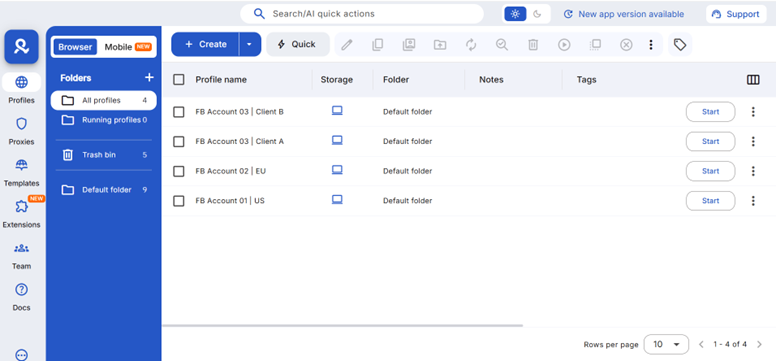
For social media managers, agencies, and anyone running more than one Facebook account for legitimate business purposes, this creates a real operational problem. Every time you switch between client accounts from the same device, every time a team member logs in from a different location, every time you clear your cookies and re-authenticate, you are generating exactly the kind of inconsistent behavior that Facebook flags.
The root cause is that multiple accounts are sharing an environment they should not be sharing.
How Multilogin Cloud Phones Prevent Facebook Login Problems
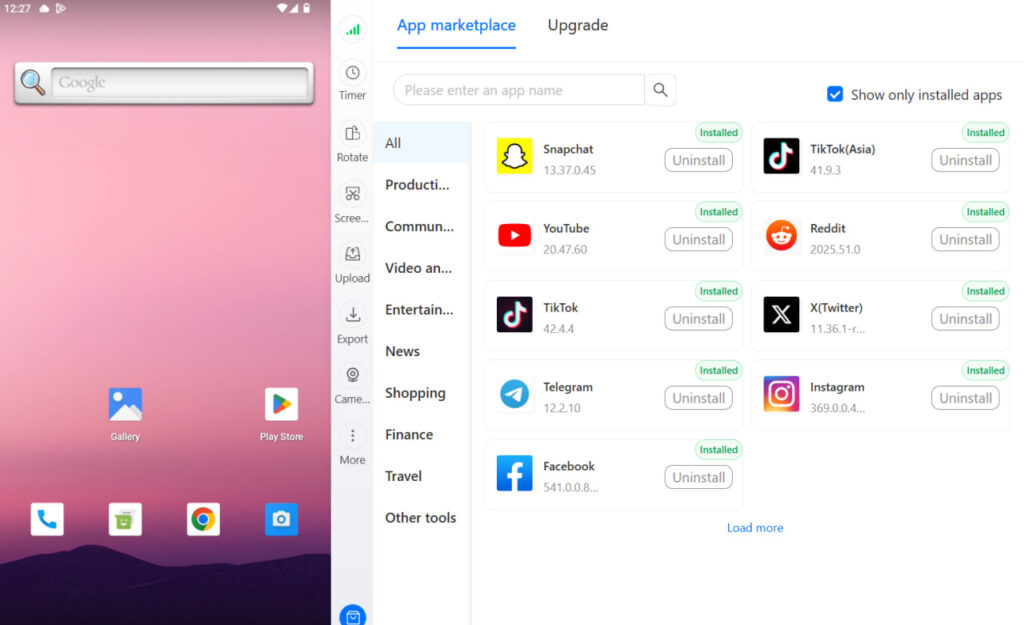
Multilogin Cloud Phones solve this at the infrastructure level by giving each Facebook account its own dedicated Android device running in the cloud.
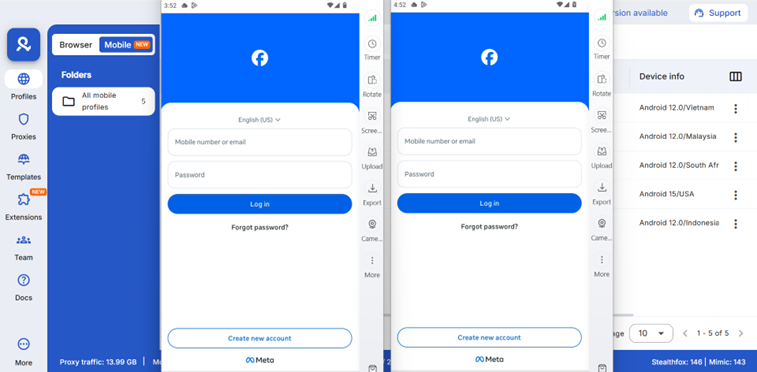
Each cloud phone has its own IMEI, Android ID, MAC address, and dedicated mobile IP address. When Facebook’s systems see activity from a cloud phone, they see a genuine, separate Android device with a consistent, stable history. There is no shared session, no shared device fingerprint, no shared IP connecting it to your other accounts.
Consistent login behavior, automatically. Because each account lives on its own cloud phone, it always logs in from the same device, the same IP address, and the same location. Facebook sees a normal, consistent user rather than an account that keeps appearing from new environments. Verification prompts become rare rather than routine.
Persistent sessions mean no forced re-authentication. Multilogin Cloud Phones save app data, cache, and login state between sessions, exactly like a real phone someone picks up and uses every day. You are not clearing sessions, not re-logging in repeatedly, and not generating the re-authentication patterns that trigger Facebook’s security systems.
One dashboard, fully isolated accounts. All your cloud phones are managed from Multilogin’s single dashboard. Each account has its own isolated environment. Opening one account never affects another. Team members can be assigned to specific cloud phones with granular permissions without sharing actual Facebook credentials.
For agencies managing Facebook accounts for multiple clients, this means each client’s account has a stable, consistent device history from day one. Login problems become the exception rather than a regular operational headache.
Explore Multilogin Cloud Phones | How to Manage Multiple Facebook Accounts | Facebook Account Suspended
Need to manage multiple Facebook accounts? Try Multilogin Cloud Phones.
Frequently asked questions About Facebook Logging In Problems
Check downdetector.com/status/facebook or search “Facebook down” on Twitter/X for real-time reports. If there is a platform-wide outage, wait for Facebook to resolve it on their end.
Facebook requires you to confirm logins from trusted devices when it detects activity from an unfamiliar device, browser, or location. Approve the login from a device where you are already signed in, or use an SMS or email code as an alternative.
Go to facebook.com/help for general help articles or facebook.com/login/identify for account recovery. The login screen itself also has a “Get more help” option for people who cannot log in.
This is a browser or device-specific issue. Clear your browser cache and cookies, try a different browser, disable extensions, and check that your laptop’s date and time are correct.
The code may have expired, your carrier may be blocking short code SMS, or the number on file may be out of date. Try requesting the code again, wait up to 5 minutes, or switch to email verification as an alternative.
You can, but running multiple Facebook accounts from the same device causes exactly the kind of inconsistent behavior that triggers Facebook’s security checks. Each account needs its own isolated device environment with its own IP address to avoid repeated login flags and verification requirements.

