
Getting locked out of a Google account is one of those things that feels fine until it happens to you. Then suddenly you realize how much lives there: Gmail, Google Drive, Google Photos, YouTube, and any app you signed into using “Continue with Google.”
The good news is Google has a recovery process that works in most situations. The not-so-good news is it requires you to have set things up in advance, and if you did not, the options get harder quickly.
This guide walks through every recovery scenario in plain terms. Whether your account was deleted, you lost access to your phone, your recovery email is gone, or the account recovery form keeps failing, there is a path forward for each situation.
Where Is the Google Account Recovery Page?
The official Google account recovery page is at accounts.google.com/signin/recovery. You can also reach it by going to google.com, clicking “Sign in,” entering your email, clicking “Forgot password?” on the password screen, and following the prompts from there.
Other URLs you may see written in guides like accounts.google.com/sighin/recovery, google/accounts/recovery, google.account/recovery, or https://accounts.google.com/sign in/recovery all point to the same place when typed correctly. If a link is not working, go directly to accounts.google.com/signin/recovery in your browser.
On a Chromebook, go to www.google.com/accounts/recovery or use the recovery flow directly from the sign-in screen by clicking “More options” and then “Forgot password?”
How the Google Account Recovery Process Works
When you start the recovery process at accounts.google.com/signin/recovery, Google runs through a series of verification steps. The order and options you see depend on what recovery information was linked to the account when it was set up.
Google will typically try these in order:
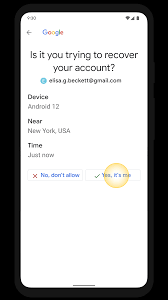
Step 1: Send a code to your recovery phone number. If you added a phone number to the account, Google texts or calls it with a verification code.
Step 2: Send a code to your recovery email. If you set up a backup email address, Google sends a code there instead.
Step 3: Ask you to confirm a previous password. Google may ask you to enter a password you used for this account before, even if it was not the most recent one. An old password you remember still works here.
Step 4: Ask for the date of birth on the account. Google uses your date of birth as a secondary identity check. This is one of the most commonly asked questions in the recovery flow.
Step 5: Ask when you created the account. If you cannot remember the exact date, approximate it as closely as you can.
Step 6: The account recovery form. If none of the above work, Google offers an account recovery form where you provide information to help verify your identity manually.
Important: Google is more likely to restore access if you are completing the recovery from a device and location you have used with the account before. If you are on a new device or a VPN, try switching to your usual home network and a familiar device first.
Recover Google Account with a Recovery Email
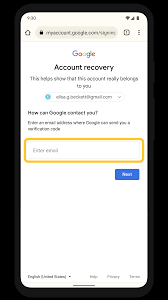
This is the fastest path if you set one up. When prompted, click “Try another way” until Google offers to send a code to your recovery email. Enter that code and you are back in.
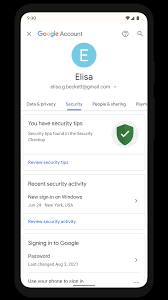
Once you are back in the account, go to your Google account settings and update the recovery email if the old one is no longer reliable. You want this to be an email address you check regularly and can access independently of the account you are recovering.
If you no longer have access to the recovery email either, skip to the section on the account recovery form.
Google Account Recovery Without a Phone Number
This is where most people run into trouble. If you did not add a recovery phone number, or you lost access to the number you used, you still have options.
- Try a previous password. On the recovery screen, click “Try another way” after the phone number step. Google will ask if you remember a previous password. Even a password from a year ago can work here.
- Use your recovery email instead. If you added a backup email but not a phone, Google will offer this as an alternative verification path.
- Answer identity questions. Google may ask for your date of birth, the month and year you created the account, or other account details. Answer as accurately as you can.
- Use the account recovery form. If none of the above options appear or work, Google offers a manual review form. You fill in as much identifying information as possible and Google’s team reviews it. This can take a few days.
- Check if you are still signed in somewhere. If you are still signed into the account on another device (an old phone, a tablet, a work computer), you can set up new recovery options from there without going through the full recovery flow.
Note on Chromebooks: On a Chromebook, go to www.google.com/accounts/recovery chromebook or use the dedicated Chromebook recovery option from the sign-in screen. The process is the same but the interface is slightly different.
Google Account Recovery Not Working?
This is probably the most common frustration people hit. You go through the recovery steps, Google says it cannot verify your identity, and you are stuck. Here is what is usually going wrong and what to try.
You Are on an Unfamiliar Device or Network
Google’s recovery system gives more weight to requests coming from devices and networks the account has been used on before. If you are on a new laptop or using a VPN, your request looks less trustworthy to Google’s system.
Fix: Try the recovery on the same device and network you normally used the account on. Turn off any VPN. If possible, use the same browser.
The Recovery Information Is Outdated
If you changed your phone number and never updated it in your Google account, or your recovery email address no longer exists, Google has no way to verify you through those channels.
Fix: Go through the account recovery form and provide as much other identifying information as you can. Previous passwords, approximate account creation date, and your date of birth all help.
You Are Entering the Wrong Previous Password
Google asks for a “previous password,” which trips people up. It does not have to be your current or most recent password. Any password you used on the account at any point in its history can work.
Fix: Think back to passwords you have used over the years. Try a few different ones if the first does not work.
Google Is Not Sending a Code to Your Phone
If you are not receiving the verification code, check that your phone number is correct in the account settings (if you can still access them from another device), check that your phone has signal, and check that texts from short codes are not blocked by your carrier.
If you still are not getting the code after a few minutes, click “Resend” once, then try the “Try another way” option to use your recovery email instead.
Deleted Google Account Recovery
If your Google account was deleted, the recovery window is limited. Google holds deleted account data for a period of time before permanently removing it, and recovery is only possible within that window.
- If you deleted the account yourself: Go to accounts.google.com/signin/recovery and follow the prompts. Google will detect the account was recently deleted and offer a restoration option if you are within the recovery window.
- If Google deleted the account for a terms of service violation: The account recovery form is your path. Google reviews these on a case-by-case basis. There is no guarantee of restoration, but submitting the form is the right step. Go to accounts.google.com/signin/recovery and follow the prompts through to the form.
- If the account has been deleted for a long time: Unfortunately, once Google’s retention period has passed, the account and its data are permanently gone. Google does not publicize exactly how long this period is, but the general guidance is to act within weeks rather than months of deletion.
For recovering Google Photos, Drive files, or contacts from a deleted account, the same recovery form process applies. If the account is restored, your data is restored with it. If the account cannot be recovered, data recovery from a deleted Google account is not possible through official channels.
Google Account Recovery Not Sending Code to Phone
A few things can cause this:
- The number on the account is different from your current number. If you got a new phone number and never updated it in your account settings, Google is trying to reach a number you no longer have.
- Short code SMS is blocked. Some carriers block SMS from short codes (the 5 or 6 digit numbers that services like Google use to send verification codes). Contact your carrier and ask them to enable short code SMS on your line.
- International number issues. If you are traveling and your number is roaming, or if you have a foreign number registered on the account, delivery can be slow or fail. Try the “call me instead” option if it appears.
- The code expired. Google’s verification codes expire quickly. If you waited more than a few minutes before entering it, request a new one.
What to do: After the phone code step fails, click “Try another way” to switch to your recovery email. If that is not available either, keep clicking “Try another way” until you reach the account recovery form.
Google Workspace Account Recovery
Google Workspace (formerly G Suite) account recovery works differently depending on whether you are recovering a personal user account or the admin account for a Workspace organization.
- For personal Workspace users: Follow the standard recovery flow at accounts.google.com/signin/recovery. Your Workspace admin may also be able to reset your password directly from the Google Admin console, which is faster than the self-service recovery process.
- For Workspace admins recovering their own account: This is a more involved process. If you are the only admin and you are locked out, you need to verify domain ownership to prove you control the organization. Google walks through this at support.google.com/a/answer/33561.
- For recovering a Workspace user account as an admin: Sign into the Google Admin console at admin.google.com, go to Users, find the account, and reset the password from there. You do not need to go through the accounts.google.com/signin/recovery flow.
- Workspace account recovery settings are managed in the Admin console under Security. Admins can configure recovery options for the entire organization, including whether users can add personal recovery phones and emails.
Google My Business Account Recovery
Google My Business (now called Google Business Profile) account recovery usually falls into one of two situations.
You lost access to the Google account that owns the Business Profile. Recover the underlying Google account first using the standard process at accounts.google.com/signin/recovery. Once you have the account back, your Business Profile will be there.
You need access to a Business Profile but the owner is unavailable. If you are a manager or employee who needs access to a profile owned by someone else, you need to request ownership transfer through Google Business Profile support. This requires verifying your connection to the business.
The Business Profile was suspended. This is a separate issue from account recovery. If your profile was suspended, you need to appeal through the Google Business Profile support channels, not through the standard account recovery form.
Google Photos and Contacts Recovery
Google Photos Recovery
If you still have access to your Google account, all your Google Photos are at photos.google.com. They are not deleted when you delete the app. If you deleted photos, check the Trash folder in Google Photos first. Deleted photos stay in Trash for 60 days before being permanently removed.
If your Google account itself was deleted, recovering the account through accounts.google.com/signin/recovery will restore your photos if they are within Google’s deletion window.
Google Account Contacts Recovery
Contacts sync to your Google account automatically if you have sync enabled on your Android device. If you deleted contacts accidentally, go to contacts.google.com and click “Undo changes” from the settings menu. Google keeps contact history for up to 30 days, so you can roll back to an earlier state.
If you lost contacts because you lost account access, recovering the account recovers the contacts with it.
How to Set Up Recovery Options Before You Need Them
The time to set up recovery is now, not when you are locked out. Here is what to do.
Go to myaccount.google.com, click “Security” in the left sidebar, and scroll to “Ways we can verify it’s you.” Set up all three:
Recovery phone number. Add a phone number you own and will continue to own. Update this whenever you change numbers.
Recovery email address. Add an email address that is not connected to this Google account. A different email provider works well here.
2-Step Verification. Enable two-factor authentication. This actually makes recovery easier because Google trusts accounts with 2FA set up and is more confident in restoring them.
Date of birth. Make sure the date of birth on your account is accurate. Google uses this as a verification signal during recovery.
If you manage multiple Google accounts, keeping track of recovery options for each one gets complicated fast. The next section covers how to handle that more efficiently.
Managing Multiple Google Accounts Without the Recovery Headache
If you run multiple Google accounts for work, clients, or social media management, you already know that account linking and session management is a constant concern. Google actively looks for signals that multiple accounts are operated by the same person, and if accounts get linked, they can all get restricted at once.
Recovery becomes even more painful in this situation. Losing access to one account is stressful. Losing access to five client accounts at once because they were all running on the same device is a much bigger problem.
Multilogin solves both problems: it keeps accounts isolated so they do not get linked in the first place, and it makes recovery far less likely by giving each account a clean, stable environment from day one.
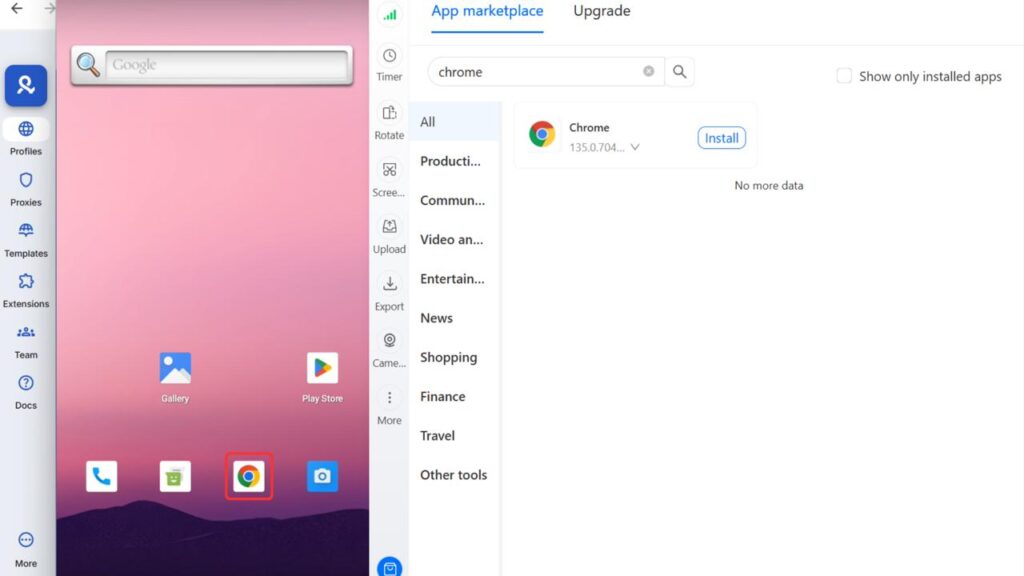
How Multilogin Cloud Phones Help With Google Account Recovery
Most people end up in the account recovery flow for one of two reasons: they got locked out because something changed (new device, new location, lost phone), or Google flagged the account for suspicious activity because it detected multiple accounts running from the same environment.
Multilogin Cloud Phones address both.
Each Account Gets Its Own Real Android Device
A Multilogin Cloud Phone is not an emulator or a spoofed environment. It is a real Android device running in the cloud, with genuine hardware identifiers: its own IMEI, Android ID, MAC address, and system settings. When you run a Google account on a cloud phone, Google sees it as a distinct physical device that has never been associated with your other accounts.
This matters for recovery because Google’s trust system is device-based. Accounts that have a consistent history on a single, stable device are far easier to recover than accounts that have been jumping between devices and IP addresses. When each of your accounts lives on its own dedicated cloud phone, that consistency is built in automatically.
Persistent App Sessions Mean Genuine Account History
One of the key signals Google uses to assess whether a recovery request is legitimate is account history. How long has the account been active? Has it been used regularly from the same device? Does the activity pattern look like a real person?
Multilogin Cloud Phones support persistent app sessions. App data, cache, and login states are saved between sessions, exactly like a real phone that someone picks up and uses every day. This means your Google accounts build up genuine usage history over time, which makes both detection avoidance and recovery significantly easier.
If you ever do need to recover an account, the fact that it has months of consistent activity from a stable, real-looking Android device works strongly in your favor when Google reviews the request.
Matched IP and Location Remove a Major Recovery Obstacle
One of the biggest reasons Google account recovery fails is that the request comes from an unfamiliar location or IP address. Google’s system flags this as a sign that someone other than the account owner is trying to gain access.
Each Multilogin Cloud Phone runs with a dedicated mobile-grade proxy matched to a specific country or region. The IP address, GPS location, and SIM data all align with each other. When you access the account for recovery from the same cloud phone environment you have always used, Google sees a request coming from the same device, the same location, and the same IP history. That is exactly the pattern that gets recovery approved.
No More Recovery Chaos From Shared Environments
The most common multi-account mistake is running all your Google accounts from the same browser, the same device, or the same IP. Google connects them, flags the activity, and restricts accounts in bulk. When that happens, you are not dealing with one recovery, you are dealing with several at the same time, with no clear path to resolve any of them because the underlying problem (shared environment) has not been fixed.
With Multilogin, each account runs in its own isolated environment. Each cloud phone has its own fingerprint, its own IP, its own session data. Accounts cannot see each other, and Google cannot connect them. You go from managing the chaos of linked accounts to running a clean, organized operation where each account behaves like it genuinely belongs to a different person.
Set Up Recovery Options Properly From the Start
The best time to configure Google account recovery settings is when you first create the account, before you ever need them. With Multilogin, you can set up each cloud phone with its own dedicated recovery phone number and recovery email from day one.
Because each cloud phone has its own persistent environment, your recovery settings stay in place between sessions. There is no risk of accidentally signing into the wrong account and changing the recovery details for an account you did not mean to touch.
Multilogin’s guide to managing multiple Google accounts covers the full setup process, including how to configure recovery information correctly for each account so you are never locked out.
Team Access Without Shared Credentials
For agencies and teams managing Google accounts for multiple clients, the security risk is not just account linking. It is also the fact that multiple team members need access to the same accounts. Sharing login credentials directly is a recovery risk: if two people sign in from different locations at the same time, Google may flag the activity and trigger a security lock.
Multilogin handles this through its team collaboration features. You can share access to specific cloud phones with team members using granular permission controls, without sharing the actual Google account credentials. Each team member works through Multilogin, the account stays stable, and the recovery situation never arises because Google never sees unusual access patterns.
For teams managing Google Ads accounts specifically, Multilogin’s multi-account setup for Google Ads keeps each account isolated while allowing team access from a single dashboard.
What This Looks Like in Practice
Say you manage 20 Google accounts for different clients. Without Multilogin, they are all running on your laptop, sharing the same browser, the same IP, and the same cookies. Google has already connected them. One ban or one lock triggers a cascade.
With Multilogin Cloud Phones, each of those 20 accounts runs on its own Android device in the cloud. Each has a different IP, a different device identity, a different GPS location, and its own recovery options configured. You manage all 20 from a single dashboard, but to Google, they look like 20 completely unrelated accounts used by 20 different people on 20 different phones.
If one account ever does need recovery, you handle it from the same cloud phone it has always run on. Google sees a familiar device, a familiar IP, and a consistent history. The recovery succeeds.
That is the difference between scrambling through the recovery form at 2am and having a system that makes recovery something you rarely think about.
Explore Multilogin Cloud Phones | Read the multi-account Google workflow guide
Manage your google account recovery process better. Try Multilogin Cloud Phones.
Key takeaways
Getting locked out of a Google account is stressful, and the recovery process rewards people who prepared in advance and punishes those who did not. The best time to set up recovery options is before you need them. For anyone managing multiple Google accounts, the recovery problem is compounded because a shared device environment means one problem can cascade across all accounts at once. Multilogin Cloud Phones eliminate that risk by keeping each account on its own isolated Android device with its own recovery setup, its own IP, and its own consistent device history, so recovery, when it does happen, is a single isolated event rather than a crisis.
Frequently asked questions About Google Account Recovery
The official URL is accounts.google.com/signin/recovery. On a Chromebook, go to www.google.com/accounts/recovery. Both take you to the same recovery flow.
Go to accounts.google.com/signin/recovery and sign in with the deleted account’s email. Google will detect the deletion and offer a restoration option if you are within the recovery window. Act quickly as this window is limited.
Yes. Use your recovery email instead, or try entering a previous password when prompted. If neither works, continue clicking “Try another way” until you reach the account recovery form, which lets you submit identifying information for manual review.
The most common reasons are: you are on an unfamiliar device or network, your recovery information is outdated, or you are entering a previous password incorrectly. Try the recovery from the device and network you normally used the account on, with any VPN turned off.
Google does not publish an exact timeframe, but deleted accounts and their data are recoverable for a limited period after deletion. The general advice is to attempt recovery within a few weeks of deletion. After that, restoration becomes less likely.

