
Setting up a business Instagram account takes about five minutes if you already have a personal one — and around ten if you’re starting fresh. The process is straightforward, but there are a few decisions worth thinking through before you tap “create.”
This guide covers every step: creating the account, switching to a business profile, connecting a Facebook Page (if you want one), and setting up your profile correctly from the start. If you’re managing multiple business accounts — for clients, brands, or separate product lines — there’s a section at the end on how to do that without getting them linked or flagged.
Try Multilogin now if you’re already at the “how do I run more than one account safely” stage.
What’s the difference between a personal, creator, and business account?
Before you create anything, it’s worth knowing what you’re actually signing up for.
- Personal account — standard Instagram. No analytics, no contact buttons, no ad access.
- Creator account — designed for influencers and public figures. Gives you detailed follower insights and DM filtering, but limits some third-party scheduling tools.
- Business account — designed for brands, agencies, and shops. You get contact buttons (email, phone, directions), Instagram Insights, access to Meta Ads Manager, shopping features, and full compatibility with third-party scheduling tools.
For most operators — whether you’re running a brand, managing client pages, or building theme pages — business is the right choice.
Step 1: Create a new Instagram account (or use an existing one)
If you already have a personal Instagram account you want to convert, skip to Step 2.
To create a fresh account:
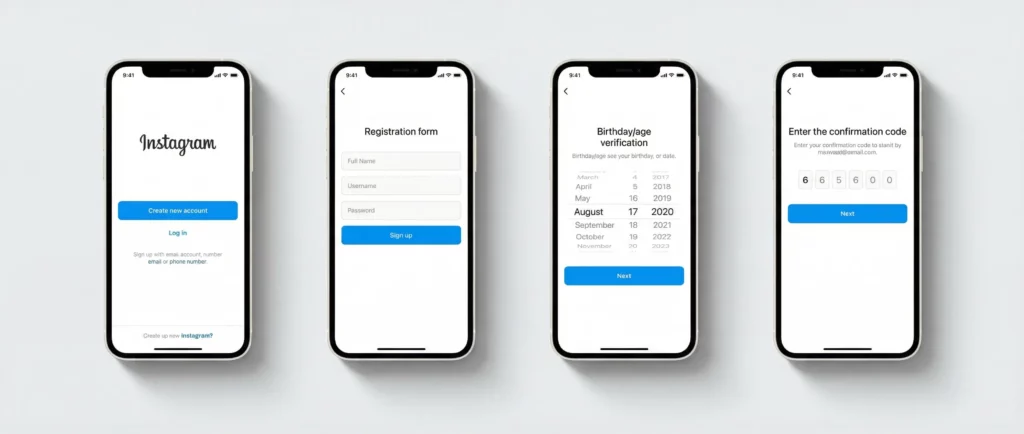
- Open the Instagram app (iOS or Android) or go to instagram.com on desktop.
- Tap Sign up (app) or Create new account (web).
- Enter your email address or phone number. Using email is generally easier when managing multiple accounts.
- Create a username and password.
- Add your birthday (required for age verification — Instagram doesn’t display this publicly).
- Verify your email or phone number when prompted.
- Complete any onboarding steps Instagram shows you (following suggestions, profile photo, etc.).
Quick reality check: Instagram’s signup flow triggers identity checks based on several signals — your IP address, device fingerprint, how quickly you complete steps, and whether the email or phone number has been used before. If you’re creating accounts at volume, moving too fast or reusing the same device/IP across multiple sign-ups is one of the most common reasons accounts get flagged during registration.
Step 2: Switch to a business profile
Once you’re logged in:
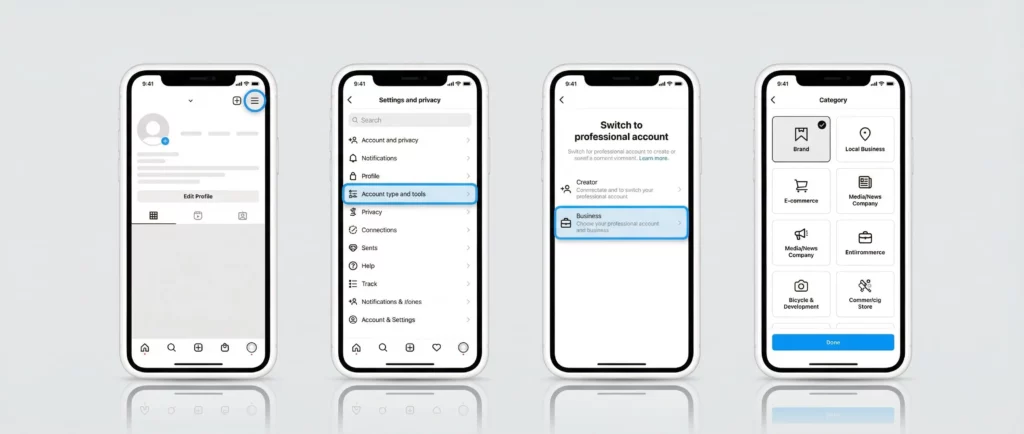
- Go to your profile and tap the three lines (hamburger menu) in the top right.
- Tap Settings and privacy.
- Tap Account type and tools (on some versions: Account → Switch to professional account).
- Tap Switch to professional account.
- Choose Business (not Creator).
- Select a category that matches your business (e.g., Brand, Local Business, E-commerce, Media/News Company).
- Confirm or update your contact information (email, phone, address). These appear publicly on your profile unless you turn them off.
- Decide whether to connect a Facebook Page (covered below).
Done. Your account is now a business profile.
Step 3: Connect a Facebook Page (optional but worth it for ads)
Instagram business accounts work independently from Facebook, but connecting a Facebook Page unlocks a few things:
- Running ads through Meta Ads Manager
- Cross-posting content between platforms
- Access to Meta Business Suite for unified scheduling and analytics
To connect:
- In the same Settings flow after switching to a business profile, tap Connect a Facebook Page.
- Log into your Facebook account when prompted.
- Select an existing Page or create a new one.
If you don’t have a Facebook Page and don’t plan to run ads, you can skip this step entirely. Instagram business accounts function fine without a connected Facebook Page.
Step 4: Set up your business profile properly
A lot of accounts get this wrong. The profile itself sends trust signals to both Instagram’s algorithm and anyone who lands on it.
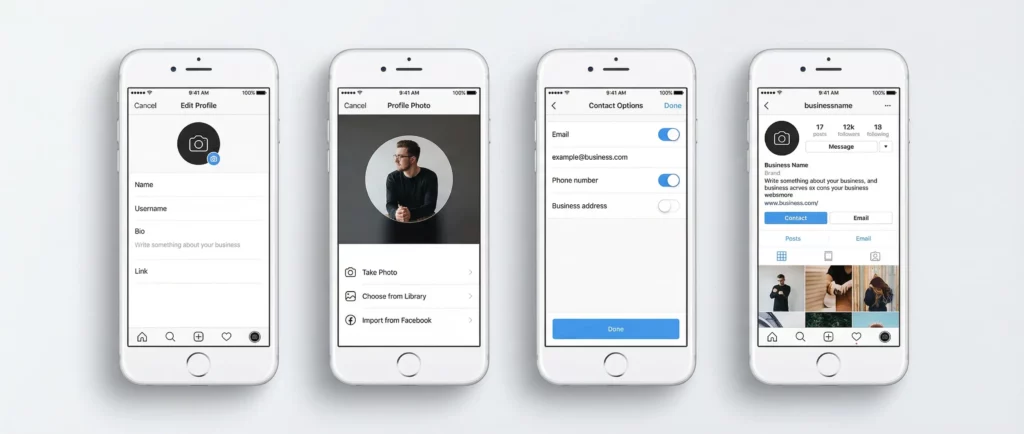
Username — keep it consistent with your brand name. Avoid numbers at the end if you can (it’s a minor but real flag for accounts that look auto-generated).
Profile photo — use a logo or clear brand image. 320x320px minimum, centered, with enough contrast to read at small sizes.
Bio — 150 characters max. Lead with what you do, not generic words like “official page” or “welcome.” Include a keyword if it fits naturally.
Link in bio — add your website, a landing page, or a link tool. Instagram gives business accounts a clickable link slot that personal accounts don’t always display as prominently.
Contact button — decide what you want visible: email, phone, or physical address. If you don’t want these public, you can toggle them off under Edit profile → Contact options.
Category label — this appears under your name on your profile. You can hide it if it doesn’t add value, or keep it if it helps people understand what you do.
Step 5: Warm up the account before pushing activity
This is the step most guides skip. Instagram doesn’t trust brand-new accounts that immediately start posting heavily, running ads, or following hundreds of people.
A basic warm-up looks like this:
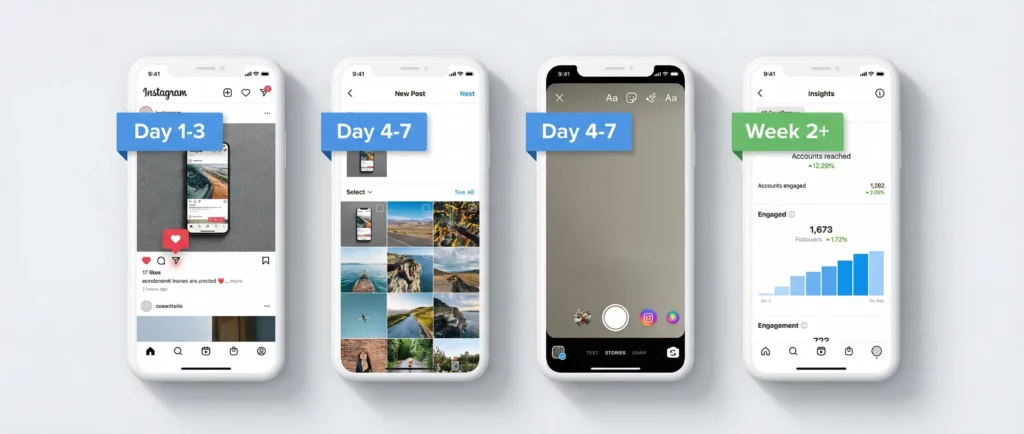
- Day 1–3: Post 1–2 pieces of content. Browse normally. Like a few posts.
- Day 4–7: Post daily. Follow a small number of relevant accounts (10–20 max per day). Add stories.
- Week 2+: Gradually increase activity. Start DMs, engage with comments, run a small ad if you plan to.
Rushing this is one of the most common reasons new business accounts get restricted or shadowbanned early. If you’re managing accounts for clients, building this warm-up window into your onboarding timeline matters. See how to warm up an Instagram account for a more detailed breakdown.
How to create a business Instagram account on desktop
Instagram doesn’t officially support full account creation on desktop anymore, but you can still do it:
- Go to instagram.com
- Click Create new account
- Enter email, username, password, and birthday
- Verify your email
- To switch to a business profile on desktop, go to Settings → Account type and tools → Switch to professional account
Some steps (like connecting a Facebook Page) work slightly differently on desktop — you may be redirected through Meta’s Business Suite flow. It still works; it’s just a different interface.
Creating a second business Instagram account
Instagram allows multiple accounts on a single device. You can add up to five accounts to the same app and switch between them.
To add a second account:
- Go to your profile
- Tap your username at the top
- Tap Add account
- Either log into an existing account or tap Create new account
Each additional account should go through the same setup and warm-up process.
The real issue: Instagram links accounts that share the same device or IP. If two business accounts — yours and a client’s, or two separate brands — are both logged into the same phone on the same network, Instagram can detect that linkage. That’s not always a problem for casual use, but it becomes one when an account gets restricted. Restrictions can spread to linked accounts.
For agencies and operators managing multiple social media accounts at scale, that risk is worth managing properly.
Managing Multiple Instagram Accounts for Growth at Scale
For agencies, social media managers, and creators building parallel brand presences, the follower growth question operates at a different scale. You are not growing one account. You are growing five, ten, or twenty accounts simultaneously, each with its own niche, its own content strategy, and its own growth metrics.
The challenge is that Instagram’s detection systems are designed to identify and penalize exactly this kind of operation if it is run carelessly.
When multiple Instagram accounts share the same device, the same IP address, or the same session environment, Instagram connects them. Once connected, suspicious activity on one account, an aggressive follower growth push, a content policy issue, or even just unusual login patterns, can cascade to all linked accounts simultaneously. All your growth work across all accounts becomes vulnerable to a single enforcement action.
The typical multi-account growth operation that runs into this problem is not doing anything obviously wrong. They are creating real content, engaging authentically, posting consistently. The problem is entirely at the infrastructure level: shared environments that signal coordinated operation to Instagram’s systems.
How Multilogin Cloud Phones Support Sustainable Instagram Growth
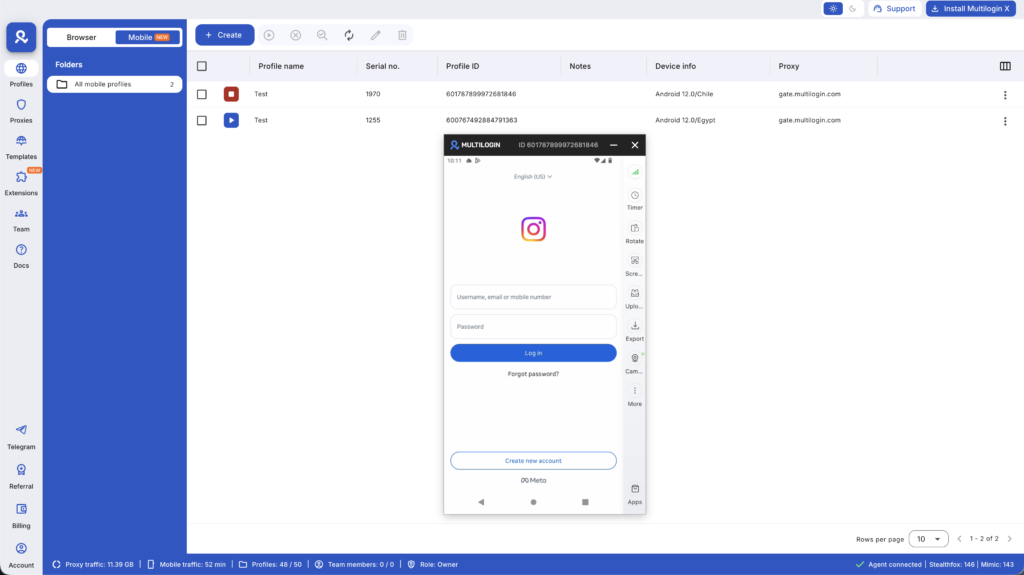
Multilogin Cloud Phones give each Instagram account its own real Android device in the cloud, with its own IMEI, Android ID, MAC address, and dedicated mobile IP address. See the dedicated Cloud Phone for Instagram page for how this applies specifically to Instagram operations.
Each Account Grows Independently
When Instagram sees activity from account A’s cloud phone, it sees a single account on a standalone Android device with its own history. When it sees activity from account B’s cloud phone, it sees a completely different device with no shared signal. The accounts are not connected at any level Instagram can detect, because at the hardware level, nothing is shared.
This means each account can pursue an aggressive, consistent growth strategy without triggering the coordinated behavior detection that flags multi-account operations on shared devices. Account A can follow 100 accounts in a niche today. Account B can do the same. To Instagram, these are two separate people on two separate phones doing completely normal things.
Persistent Sessions Mean Stable Algorithm Relationships
Each cloud phone saves the Instagram app’s session data between uses. Accounts on cloud phones have consistent device histories, consistent usage patterns, and consistent IP addresses. This stability is what Instagram’s algorithm rewards.
New accounts on cloud phones build trust faster than new accounts that keep getting flagged for unusual login patterns. Established accounts on cloud phones maintain their algorithmic standing without constant disruption from verification requests and security locks.
Analytics Stay Clean and Accurate
When accounts are isolated on separate cloud phones, each account’s analytics reflect its genuine audience and performance. Follower demographics, engagement rates, and reach data are clean and account-specific. For agencies reporting growth metrics to clients, this matters: you are reporting real data for each account, not blended numbers from a linked cluster.
Scale Without Compromising Any Single Account
Adding a tenth or fifteenth account to a cloud phone operation is the same process as adding the second one. Each new cloud phone is completely independent. Scaling the operation does not increase risk to existing accounts because nothing is shared between them.
How to Get Started With Multilogin Cloud Phones
Step 1: Sign up at multilogin.com Choose a plan based on the number of Instagram accounts you manage. Plans scale with the number of cloud phones.
Step 2: Create a Cloud Phone for each account From the dashboard, click “Create Cloud Phone.” Set the location to match each account’s target audience (a US-focused account should have a US IP), choose the Android version, and label it clearly.
Step 3: Set up Instagram on each cloud phone Launch each cloud phone. Install Instagram from the Play Store, log in or create a new account, and switch to Creator or Business account for analytics access. Complete the profile fully before starting any growth activity.
Step 4: Build each account’s growth strategy independently Each account has its own niche, its own content calendar, and its own engagement strategy. Run them independently from their individual cloud phones. The isolation is automatic.
Step 5: Manage from the dashboard All cloud phones are visible and accessible from Multilogin’s single dashboard. Open the phone you need, do your work, close it. Nothing crosses between accounts.
Need to manage multiple Instagram accounts? Try Multilogin Cloud Phones.
Frequently asked questions About How to create a business Instagram account
Yes. Since 2021, Instagram business accounts no longer require a connected Facebook account or Page. You can set one up entirely within the Instagram app using just an email address. Connecting a Facebook Page is only necessary if you want to run ads through Meta Ads Manager or use cross-posting features.
Yes. Instagram lets you add up to five accounts to a single device and switch between them. There’s no formal limit on how many business accounts you can create, but each needs a separate email address or phone number. The platform will flag accounts it determines are linked and operated as a network if they violate its terms.
No. Instagram doesn’t verify business registration. You can set any account to “business” profile type regardless of whether you have a legal entity. That said, if you’re running ads, Meta may ask for additional verification depending on your ad spend and region.
Pick the category closest to what your account actually does. For brand pages, “Brand” or “Product/Service” works well. For local businesses, use your specific industry. For agencies running client pages, match it to each client’s actual business. The category affects how your profile appears and can influence how Instagram’s algorithm categorizes your content.
Yes, at any time. Go to Settings → Account type and tools → Switch account type → Switch to personal account. You’ll lose access to Insights, the contact button, and ad tools. Your content and followers stay intact.
Usually one of three things: you moved too fast during signup (triggered an automated check), you used an IP or device that was previously associated with a banned account, or you reused a phone number or email linked to a problematic account. See how to avoid an Instagram IP ban for recovery steps.
Use a separate browser profile or cloud phone for each client account. Don’t log into client accounts from the same browser or IP you use for your own accounts. Each client account should have its own email, phone number, and isolated session environment. Multilogin’s browser profiles handle this for web-based management; cloud phones handle it for native app use.
Yes, but each account needs its own isolated device environment. Accounts managed from the same device and IP get linked by Instagram’s systems, which creates cascade risk across all of them. Multilogin Cloud Phones give each account its own real Android device with its own IP, enabling independent growth for each account.
Managing multiple business Instagram accounts without linking them
If you’re a social media manager handling client accounts, an agency running brand pages, or an operator building multiple Instagram properties, you need account isolation.
The typical approach — logging in and out of accounts on the same browser or phone — shares cookies, session data, device fingerprints, and IP. Instagram’s detection systems read all of this. Even if you’re careful, the signals still overlap.
What actually separates accounts:
- A unique device identity per account (different browser fingerprint or separate Android device environment)
- A separate IP address per account, ideally a residential proxy matched to the account’s target location
- Independent session storage (cookies, localStorage, login data) with no crossover
Browser profiles handle this for web-based Instagram management. Each profile in Multilogin runs in an isolated environment with its own browser fingerprint, cookies, and proxy. You can have 20 profiles open simultaneously and they don’t share anything.
Cloud phones handle this for native app management — the Instagram app, not the web version. Multilogin’s cloud phones are real Android devices hosted in the cloud, each with genuine hardware identifiers (IMEI, Android ID, MAC address). Every cloud phone runs a separate Android environment with persistent app data and session state. You manage all of them from the Multilogin desktop app.
This matters because the Instagram app and the Instagram website behave differently. The app reads hardware-level signals that a browser never sees. If you need true isolation for native app use, cloud phones are the right layer — not just browser profiles. The academy guide on cloud phones covers the full setup.
For agencies scaling this across clients, Multilogin’s social media management setup lets you assign profiles and cloud phones to team members with permission controls, so clients never accidentally touch each other’s accounts.
Start your Multilogin plan to see how many profiles and cloud phones fit your workflow.

