
CapCut has become the default video editor for short-form content creators, and it is easy to see why. It is free, surprisingly powerful, and designed specifically for the kind of editing that works on TikTok, Instagram Reels, and YouTube Shorts. The learning curve is gentle for beginners but there is a lot of depth once you know where to look.
This guide covers everything from the basics of getting started to more advanced features like keyframes, green screen, motion tracking, AI tools, and LUTs. There is also a section on accessing CapCut if it has been banned in your region, and a section for agencies and brands managing CapCut editing across multiple TikTok accounts.
What is CapCut and Who Is It For?
CapCut is a free video editing app developed by ByteDance, the same company behind TikTok. It is available on iOS, Android, PC (Windows and Mac), and as a web-based editor. It started as a mobile-first tool for TikTok creators and has grown into a full-featured editing platform used by everyone from casual creators to small production teams.
The free tier covers the vast majority of what most creators need. The Pro subscription unlocks additional AI features, premium effects, and some template elements, but you can produce polished, professional-looking videos without paying anything.
CapCut integrates directly with TikTok. Videos edited in CapCut can be exported directly to TikTok, and TikTok’s template feature pulls CapCut templates. If you are primarily creating for TikTok, CapCut is the most frictionless editing option available.
How Old Do You Have to Be to Use CapCut?
CapCut’s Terms of Service require users to be at least 13 years old, in line with COPPA regulations in the US. In some regions the minimum age is higher. Users under 18 typically need parental or guardian consent depending on local laws.
CapCut’s content library includes some adult-oriented sounds and effects. Parents should be aware that while the app has an age minimum, content moderation for younger users is limited. The app does not have a dedicated children’s mode.
How to Use CapCut for Beginners: The Basics
If you have never opened CapCut before, here is where to start.
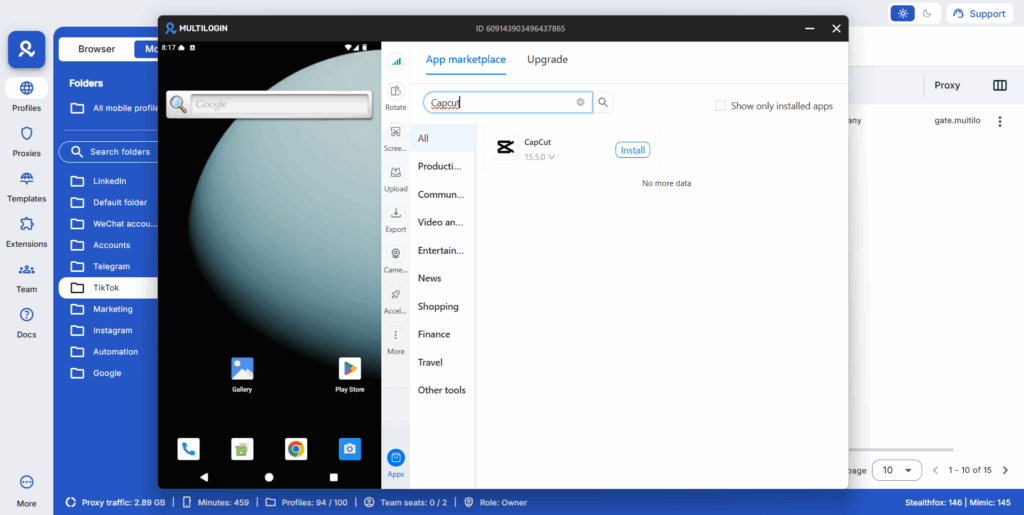
Download CapCut from the App Store (iOS), Google Play Store (Android), or from capcut.com for the PC and web version. Open the app and tap the plus button or “New project” to create your first project. Select the video clips or photos from your camera roll that you want to use and tap Add.
Your clips will appear in a timeline at the bottom of the screen. Tap any clip to select it and reveal the editing tools. The main toolbar at the bottom gives you access to the core editing functions: you can split a clip by tapping Split, trim the start and end by dragging the clip edges, and reorder clips by holding and dragging them in the timeline.
At the top of the screen you can preview your video in real time. Scrub through the timeline by dragging the playhead. When you are happy with your edit, tap the export button in the top right and choose your resolution and frame rate. 1080p at 30fps is the standard for most social media.
The basic flow for most short-form videos is this: import your clips, trim them down to remove the dead space at the start and end of each shot, add text or captions if needed, add a sound or music track from CapCut’s audio library, adjust the color if you want a specific look, and export. Once you are comfortable with that loop, everything else in CapCut builds on it.
How to Use CapCut on PC
CapCut’s PC version gives you a more traditional video editor layout with a timeline at the bottom, a preview window in the center, and a tools panel on the side. The core functionality is the same as mobile but the larger workspace makes it easier to work with multiple clips, precise keyframe animations, and complex text layouts.
To download CapCut for PC, go to capcut.com and select the desktop download for your operating system. Install it like any other application. Sign in with your CapCut account so your projects sync across devices.
You can also use CapCut directly in your browser at capcut.com without installing anything. The web version has slightly fewer features than the desktop app but is useful if you are on a machine where you cannot install software.
The PC version is particularly useful for editing longer videos, working with multiple audio tracks, using keyframes precisely, and accessing features like motion tracking and LUTs that are technically available on mobile but much easier to control with a mouse.
How to use CapCut templates on PC: Open CapCut PC, click Templates in the left sidebar, search for the template you want, click Use Template, and replace the placeholder media with your own clips. Templates on PC work identically to templates on mobile, just easier to manage because you can see the full timeline.
How to Use CapCut on iPhone
CapCut on iPhone works the same as Android with some minor UI differences. Download from the App Store, create a new project, and import your clips from your Photos library.
One thing worth knowing on iPhone specifically: CapCut exports in MP4 format at the resolution you choose, not in Apple’s HEVC format that iPhones sometimes default to. This makes CapCut exports more universally compatible when you upload to TikTok, Instagram, or YouTube without needing to convert anything.
How to add music to a video using CapCut on iPhone: Tap the Audio button in the bottom toolbar, then select Sounds to browse CapCut’s licensed music library, or tap Extracted to pull audio from another video on your camera roll. You can also tap Local music to import a file directly from your phone, though copyright restrictions apply if you are posting to social media.
How to Use CapCut Templates
Templates are one of CapCut’s most popular features. They are pre-built video edits, often with specific music, text animations, and transitions, where you just swap in your own photos or clips and the template does the creative work.
To use a template in the CapCut mobile app, tap Templates on the home screen. Browse or search for a template you like. Tap Use Template, then select the photos or videos from your camera roll to fill the placeholder slots. The template automatically cuts, animates, and syncs your media to the edit and music. Tap Export when it looks right.
How to use a CapCut template from TikTok: Many TikTok videos include a CapCut template link in the caption. Tap Use this template in TikTok, which opens CapCut directly. From there, fill in your photos or clips and the template is ready to export. If CapCut is not installed, TikTok prompts you to download it first.
How to use CapCut templates on Android: Exactly the same process as iOS. Tap Templates, find the template, tap Use Template, select your media, export.
How to use a CapCut template on PC or desktop: Open CapCut on PC, click Templates in the left sidebar, find and select your template, and click Use Template. Replace the media placeholders and export. Some mobile-exclusive templates are not available on PC, but most popular ones are cross-platform.
How to Use Green Screen on CapCut (Chroma Key)
Green screen lets you replace a solid-color background with any image or video. CapCut supports this on both mobile and PC.
How to use green screen on CapCut mobile: Start by adding your green screen video to the timeline. Tap the clip, then scroll the bottom toolbar to find Chroma Key. Tap it. Use the color picker tool to tap on the green area in your preview window.
CapCut identifies and removes that color. Use the Intensity and Shadow sliders to clean up the edges. Then add your background by tapping the plus button to add another layer, placing your background image or video, and dragging it below your green screen layer in the timeline.
How to use green screen on CapCut PC: Add your green screen clip to the main timeline. Select it, then in the right-side panel look for Chroma Key under the Color section. Enable it, use the picker to click the green in the preview, and adjust the intensity and shadow sliders to refine the key. Add your background clip as a separate track in the timeline and position it below the main clip.
How to use a green screen video on CapCut when you do not have a physical green screen: If you have a green screen video file (a clip with a solid green background meant to be keyed out), the process is identical. Import it and apply Chroma Key to remove the green and replace it with your background.
For cleaner keys, make sure your green screen footage has even lighting. Wrinkles or shadows on the green surface create uneven color that is harder for CapCut to remove cleanly.
How to Use Keyframes in CapCut
Keyframes let you animate properties over time. You can make text fly across the screen, zoom in on a specific subject during a clip, animate an overlay, or change the color grade partway through a video. Any parameter with a keyframe option can be animated.
How to use keyframes in CapCut mobile: Select the clip or element you want to animate. Position the playhead at the point where you want the animation to start. Tap the diamond icon (the keyframe button) that appears near the timeline or in the editing panel.
This sets your first keyframe. Now move the playhead to where you want the animation to end and change the parameter you want to animate (scale, position, opacity, and similar). CapCut automatically creates a second keyframe at the new position. When you play back the clip, CapCut smoothly interpolates between the two keyframe states.
How to use keyframes in CapCut PC: Select your clip or element. In the right-side panel, look for the keyframe diamond icon next to the property you want to animate. Click it to set your first keyframe. Move the playhead forward in the timeline, then change the value of the property. CapCut records the second keyframe automatically.
You can add as many keyframes as you like along a timeline. To remove a keyframe, position the playhead on it and click the diamond icon again to delete it. Keyframes on PC are easier to manage than on mobile because you can see the whole timeline and drag keyframe points with precision.
How to Use CapCut AI Features
CapCut’s AI tools have expanded significantly and now include features that used to require professional software.
- AI Video Generator: In the CapCut app or web editor, look for the AI Video option on the home screen. Type a text prompt describing the video you want and CapCut generates a short AI video based on it. The quality varies but works well for b-roll, abstract backgrounds, and simple conceptual clips.
- AI Script to Video: Type or paste a script, and CapCut generates a video with relevant footage, captions, and narration. Useful for educational and informational content where you have a script but no footage.
- Auto Captions: In the timeline, tap Text then Auto Captions. CapCut transcribes your video’s speech and adds captions automatically. You can edit individual captions, change the font and style, and toggle them on or off. The accuracy is good for clear speech in English and several other supported languages.
- AI Background Removal: Select a clip or image, tap Remove Background, and CapCut’s AI isolates the subject from the background automatically. No green screen required. This works well for people and clearly defined objects and is less reliable on complex or busy backgrounds.
- AI Retouch: For video clips with people, the Retouch feature applies facial smoothing, brightness adjustments, and other enhancements using AI. Found in the Retouch menu after selecting a clip.
How to use the CapCut AI video generator specifically: On the CapCut homepage (mobile or web), look for “AI Video” or “Dream”. Enter your prompt, select aspect ratio (9:16 for vertical, 16:9 for horizontal), and tap Generate. Wait for rendering, then tap Use in Project to bring the generated clip into your timeline.
How to Use Text to Speech on CapCut
CapCut’s text to speech feature converts written text into voiceover narration, which is widely used for faceless content, explainer videos, and reaction videos.
To use it on mobile, add a text element to your video by tapping Text in the bottom toolbar, then typing your text. With the text selected, look for the Text to Speech option in the editing panel and tap it. Select a voice from the available options (CapCut offers multiple voices and accents, some free and some Pro-only). CapCut generates the audio and syncs it to the text duration automatically.
On PC, select your text element in the timeline, go to the Text panel on the right, and look for Text to Speech. Choose your voice, click Generate, and the audio track is added to the timeline.
The result is a voiceover track that can be adjusted for speed and volume like any other audio element. You can use this alongside music by lowering the music volume under the Audio panel while the voiceover track plays.
How to Use Motion Tracking in CapCut
Motion tracking lets you attach a text label, sticker, or overlay to a moving subject in your video so the attached element follows the subject automatically as they move across the frame.
How to use motion tracking in CapCut PC: This feature is most practical on PC where you have the precision to set it up correctly. Add your video clip to the timeline. Add the text or sticker you want to track to the clip as an overlay.
Select the overlay element, then look for Auto Tracking or Motion Tracking in the right panel. Click it. CapCut analyzes the clip and shows a tracker point. Drag the tracker point onto the subject you want to follow (a face, a hand, a product). Click Apply and CapCut processes the motion track. The overlay will now follow the selected subject throughout the clip.
On mobile: The process is similar but you set the tracking point by tapping on the subject in the preview window after activating the tracking feature from the sticker or text edit menu.
Motion tracking works best on a subject that moves smoothly and does not go off screen or get blocked by other objects. Fast, erratic movement or significant lighting changes can cause the tracker to drift.
How to Use LUTs in CapCut Mobile
LUTs (Look Up Tables) are color grading presets that apply a specific color profile to your footage. Filmmakers use them to get cinematic looks, consistent color grades across different scenes, or to match the look of a specific visual style.
- How to use LUTs in CapCut mobile: Select your clip in the timeline. Tap Adjust, then look for Filter or LUT at the bottom of the adjustment panel. If you have a LUT file (these come in .cube format), tap Import and select the file from your phone’s storage. CapCut applies the LUT to your clip.
- How to use LUTs on CapCut mobile without a custom file: CapCut’s built-in filters effectively function as pre-loaded LUTs. The Film, Cinematic, and VSCO-style filters in the Filters panel apply pre-made color grades. Tap Filter, scroll through the categories, and tap any filter to preview it on your clip. Adjust the intensity slider to dial it in.
- How to use LUTs in CapCut PC: Select your clip, go to the Color panel in the right sidebar, and look for the LUT option. Click Import to load a .cube file, or use the built-in LUT presets already available in CapCut.
How to Use the Mask Tool in CapCut
Masks let you show or hide specific parts of a clip or overlay using a shape boundary. This is useful for creative transitions, picture-in-picture effects, and revealing elements through custom shapes.
In CapCut mobile, select the clip or overlay you want to mask. Tap Mask in the editing toolbar. Choose a mask shape: linear, circle, rectangle, heart, star, or a custom path. Position and resize the mask in the preview window. Use the Feather slider to soften the mask edges for a more natural blend.
Masks can be animated using keyframes. For example, you can set a keyframe with the mask off-screen, then move the playhead and set another keyframe with the mask covering the frame, creating a wipe transition.
On PC, select your clip and look for Mask in the right panel. The same shape options and feathering controls are available, just easier to position precisely with a mouse.
How to Use Custom Fonts in CapCut PC
CapCut PC lets you import any font installed on your computer or downloaded from a font source.
When you add a text element, click the font name in the text editing panel to open the font browser. At the bottom of the font list, look for an import or upload option. You can also go to the Manage Fonts section in settings to add fonts in bulk.
The font must be in a standard format (.ttf or .otf). Download your font file, install it to your computer’s font library in the normal way (right-click and Install on Windows, or double-click and Install on Mac), then restart CapCut. The font should appear in CapCut’s font browser once the system recognizes it.
How to use custom fonts in CapCut PC for branded content: If you are creating content for a brand with specific typography guidelines, installing the brand’s fonts to your computer and importing them into CapCut is the correct workflow. This ensures your text elements use the exact typeface as other branded materials.
How to Use Music in CapCut Without Copyright Issues
CapCut has a built-in audio library of licensed music and sound effects cleared for use on TikTok and other social platforms when exported from CapCut. These are the safest option for social media posting.
Tap Audio, then Sounds, and browse or search CapCut’s library. Tracks marked with a check or listed as “Commercial” are licensed for commercial and social media use. Tracks marked with a TikTok icon are specifically cleared for TikTok posting.
How to use music in CapCut without copyright issues when using your own music: If you want to use a track not in CapCut’s library, the safest approach is royalty-free music from sources like Pixabay, Free Music Archive, or music you have specifically licensed for social media use. Import it via Local Music in the Audio panel.
Using popular commercial songs from your phone’s music library will result in copyright claims on TikTok, Instagram, and YouTube. The platform either mutes the audio, removes the video, or redirects monetization to the rights holder. CapCut cannot override platform-level copyright detection.
How to Use TikTok Sounds on CapCut
TikTok sounds can be imported into CapCut with a small workaround. TikTok does not directly export audio files, but you can screen-record a TikTok video with the sound playing, then use CapCut’s Extract Audio feature to pull the audio from that recording.
To extract audio from a video in CapCut: tap Audio, then Extracted, select the video file that contains the sound, and CapCut pulls the audio track. You can then apply it to your project.
There is a copyright consideration here. If the TikTok sound is a licensed commercial track, using it outside TikTok’s native platform may trigger copyright claims when you post elsewhere. TikTok’s own licensing covers in-app use but not cross-platform use. For TikTok-only posts, trending sounds used within TikTok are generally fine to use natively from TikTok’s own sound library.
How to Use CapCut Pro Features for Free
CapCut Pro costs a monthly or annual subscription and unlocks additional AI features, premium effects, and some exclusive templates. However, a significant portion of what people call “pro” features are actually free.
Several ways to access more features without paying: CapCut regularly offers free trials of Pro. When you first install the app, you are often offered a 3-day or 7-day free trial giving full Pro access temporarily. Some AI features are available a limited number of times per day for free users before hitting a usage cap. If you only need an AI feature occasionally, free tier usage may be sufficient.
The web version of CapCut at capcut.com sometimes has different feature gating than the mobile app. Some features that are Pro on mobile are available free in the web editor, at least periodically.
Being on the free tier does not mean your videos are watermarked. CapCut removed its mandatory watermark from exports some time ago. You can export clean videos without a CapCut watermark on the free plan. If a watermark is appearing, check your export settings and look for a toggle to disable it.
How to Remove Backgrounds and Watermarks in CapCut
How to remove background in a video using CapCut: Select your clip, tap Remove Background, and CapCut’s AI removes the background automatically. For static images, this is fast and reliable. For video clips, the background removal is applied frame by frame, which takes longer to process but works well for clearly defined subjects against simple backgrounds.
If the AI removal is imprecise, you can refine it manually. After the initial removal, look for a Refine Edge or manual eraser option to fix areas where the subject and background are not cleanly separated.
How to remove the TikTok watermark using CapCut: If you have downloaded a TikTok video that has the TikTok username watermark burned in, CapCut can help. Select the clip, tap Retouch or look for the Smart Eraser feature.
Brush over the watermark area and CapCut fills it using surrounding pixels. The quality depends on how complex the background behind the watermark is. For watermarks over simple, uniform backgrounds, results are usually good. For complex scenes, the fill is imperfect.
Note that removing watermarks from content you do not own may violate copyright and platform terms of service. This feature is most legitimately used on your own content that you exported with a watermark you want to clean up.
How to remove a watermark from a video using CapCut generally: Same approach as above. Smart Eraser or the Mosaic/Blur tool can cover watermarks. Covering with a blur obscures it without attempting a fill, which works when the watermark is in a corner and can be covered by a colored overlay or sticker.
How to Use CapCut After a Ban or Restriction
CapCut has faced regulatory scrutiny in several countries due to its ownership by ByteDance. In some regions the app has been temporarily removed from app stores or restricted at the network level.
If CapCut is banned or unavailable in your region, there are a few options.
The web version at capcut.com may remain accessible even when the app store listing is unavailable, as it operates through a web browser rather than a native app download.
APK sideloading on Android allows you to install apps directly from the APK file rather than through the Play Store, if the Google Play listing has been removed. This requires enabling installation from unknown sources in your Android settings. Only download APK files from reliable sources to avoid malware.
Using a VPN is the most common approach, which we cover in the next section.
How to Use CapCut with a VPN
A VPN routes your internet traffic through a server in another country, making it appear to websites and apps that you are accessing from that location rather than your actual location. If CapCut is blocked or restricted at the network level in your country, a VPN can bypass that restriction.
- How to use a VPN for CapCut: Install a VPN app on your device. Free VPNs exist but paid VPNs are significantly more reliable for consistent access. Connect to a server in a country where CapCut is fully available (the US, UK, and most of Europe are reliable options). With the VPN active, open the App Store or Play Store and search for CapCut. If the listing now appears, download the app. Keep the VPN active while using CapCut if the restriction is at the network level rather than just the app store level.
- How to download CapCut using a VPN: Connect your VPN to an unrestricted region. Open the App Store (iOS) or Play Store (Android) and search for CapCut. Download normally. On some iOS devices, you may need an App Store account associated with a country where CapCut is available. US App Store accounts have the broadest access.
How to still use CapCut after a ban at the app store level: Once the app is installed on your device, it typically continues to function even after a ban, since the ban usually prevents new downloads rather than disabling existing installations. If the restriction is at the network level (ISP blocking), you will need an active VPN each time you use CapCut.
How to Make Money Using CapCut
CapCut itself does not pay creators directly, but it is a tool for producing content that earns money on other platforms.
Creating content for TikTok using CapCut is the most direct route. High-quality, well-edited TikToks drive followers, TikTok Shop affiliate commissions, brand deals, and Creator Rewards Program earnings. CapCut’s templates, AI captions, and smooth editing tools make it faster to produce more content at consistent quality. The TikTok Analytics guide covers how to measure what is working.
Offering video editing services is another approach. CapCut is free and capable enough that you can run a freelance editing business using it for short-form content clients. Many small businesses and creators need their footage edited but do not want to learn to do it themselves.
Creating and selling CapCut template packs has become a genuine income stream for designers. Popular templates on platforms like Etsy or Gumroad sell as digital products. You create the template in CapCut, share the CapCut link or file, and buyers apply your template to their own content.
Making educational content about CapCut performs well on TikTok and YouTube because the search demand is high, as this keyword list demonstrates. A YouTube channel or TikTok account focused on CapCut tutorials can monetize through AdSense, affiliate links, and brand deals from related tools. Looking at how to get more followers on Instagram and the best time to post on TikTok will help you grow that audience faster.
For Agencies and Brands: Managing CapCut Editing Across Multiple TikTok Accounts
Individual creators using CapCut have a straightforward workflow: edit on the app, export, post. For agencies and brands running multiple TikTok accounts, the workflow gets more complex quickly.
Consider what managing content for five client TikTok accounts actually involves. Each account has its own content calendar, its own audience, its own posting schedule, and ideally its own visual style. CapCut handles the editing side well, but the problem is what happens at posting time.
When you take a CapCut-edited video and post it directly to TikTok from a device that is already running other clients’ TikTok accounts, TikTok’s detection systems register the shared device signals across those accounts.
Same IMEI, same Android ID, same MAC address. TikTok logs that multiple accounts are being operated from the same phone and links them together in its systems. Once accounts are linked, policy issues or unusual patterns on one account create enforcement risk for all of them.
For agencies managing multiple TikTok accounts, this is a real operational risk. A video flagged on one client’s account can trigger scrutiny across all linked accounts, including accounts that were performing well and had nothing to do with the issue.
Multilogin Cloud Phones solve this at the hardware level. Each Cloud Phone is a real Android device in the cloud with its own completely unique IMEI, Android ID, MAC address, and dedicated mobile IP.
When Client A’s TikTok account lives on Cloud Phone 1 and Client B’s account lives on Cloud Phone 2, TikTok sees two completely separate devices with no shared signals between them. The accounts are not linked because there is nothing linking them at the hardware level.
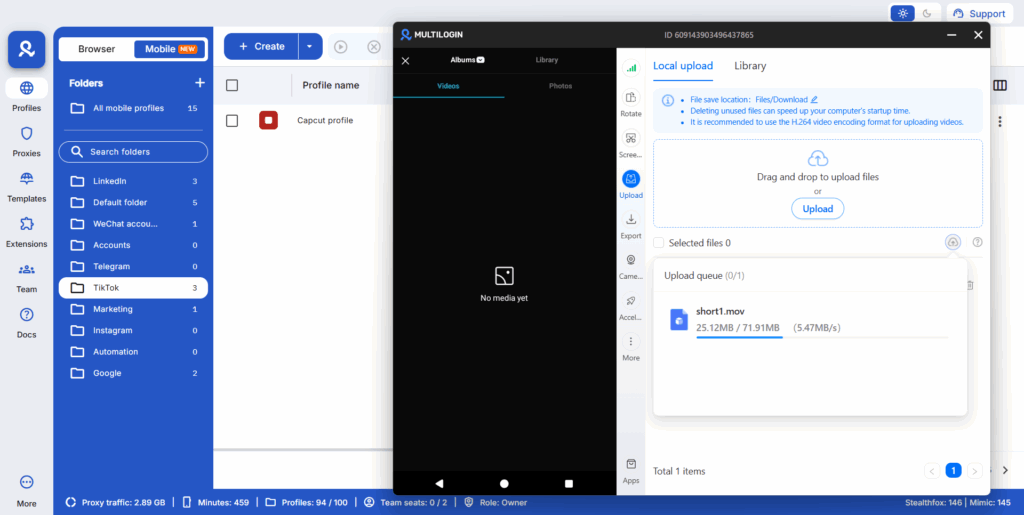
For a CapCut-to-TikTok workflow for agencies, the setup looks like this. The editor creates the video in CapCut, working on their own editing machine. When the video is ready, they transfer it to the appropriate Cloud Phone for that client account, post it from there, and handle any engagement or scheduling for that account from that Cloud Phone only. Nothing crosses between accounts.
This keeps each client account’s algorithmic relationship with TikTok completely independent. The posting history, engagement patterns, Analytics data, and monetization status for each account reflect that account alone, not a blended signal from a shared device. And if something goes wrong with one client’s account, it stays contained to that account and that Cloud Phone. The other clients are not affected.
For agencies scaling to ten or more client accounts, the Multilogin dashboard lets you see and access all Cloud Phones from one place, assign phones to specific team members, and manage everything without needing a separate physical device for each account.
Need to manage multiple Tiktok accounts? Try Multilogin Cloud Phones.
Frequently asked questions About How to Use CapCut
For most US-based creators, 7:00 PM to 9:00 PM ET is the most reliably strong window regardless of the day of the week. If you want something more specific to your account, check the Follower activity section in your TikTok Analytics.
Download CapCut from the App Store, Google Play, or capcut.com. Open the app, tap the plus button to start a new project, select your clips or photos, and tap Add. Trim, add text and audio, and tap Export when done.
8:00 AM to 10:00 AM ET and 7:00 PM to 9:00 PM ET. Tuesday is one of the stronger engagement days of the week overall.
7:00 AM to 9:00 AM ET and 7:00 PM to 11:00 PM ET. Wednesday evening is consistently one of the best posting windows of the entire week.
9:00 AM to 11:00 AM ET and 7:00 PM to 11:00 PM ET. Thursday evening is on par with Wednesday as the strongest window of the week.
5:00 AM to 8:00 AM ET, 1:00 PM to 3:00 PM ET, and 7:00 PM to 9:00 PM ET. Friday afternoon is stronger than any other weekday afternoon because people start mentally winding down from work earlier in the day.

