
“Instagram unblocked” means two completely different things depending on who is searching it. The first is personal: how to unblock a specific person on Instagram, or how to figure out whether someone has blocked or unblocked you. The second is access-related: how to reach Instagram when a network or device has blocked the site, usually at school, work, or in a country with restrictions.
Both are covered in full here, along with the less-discussed third scenario: what happens when Instagram itself restricts your account’s actions, and why that keeps happening to people who manage multiple accounts.
How to Unblock Someone on Instagram
Unblocking a person on Instagram removes the block you placed on them. This is something you control entirely, regardless of whether the other person knows you blocked them in the first place.
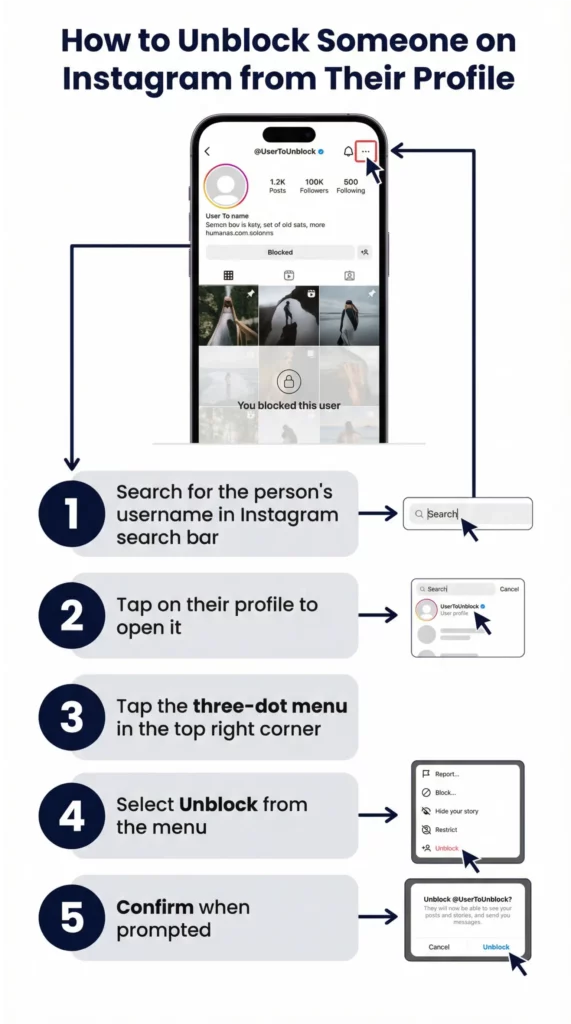
Method 1: Unblock from the blocked user’s profile
- Open Instagram and use the search function to find the person’s profile
- Go to their profile page (blocked accounts are still findable by username)
- Tap the three-dot menu (⋯) in the top right corner of their profile
- Select “Unblock”
- Confirm when prompted
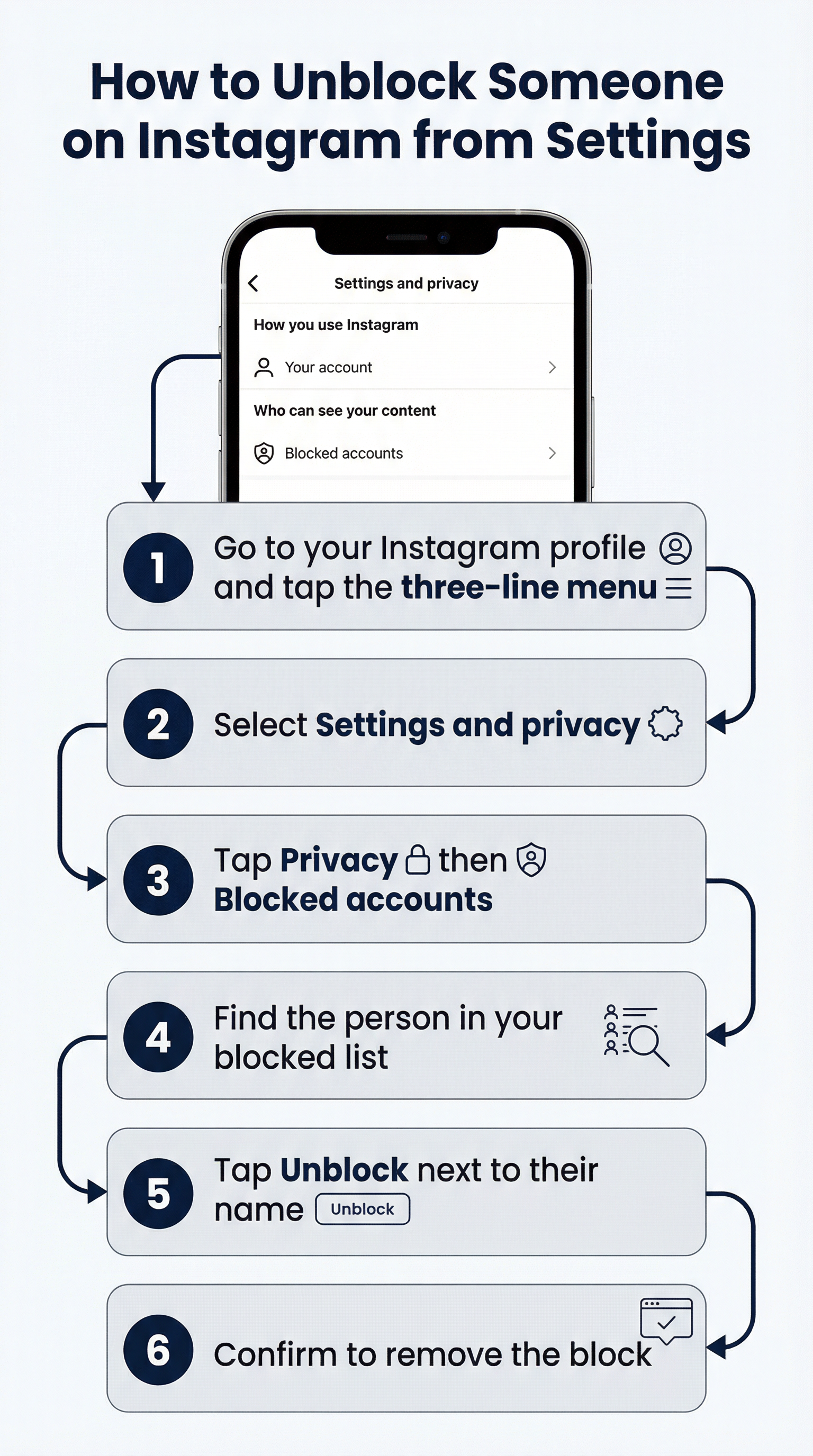
Method 2: Unblock from your settings (full blocked list)
- Go to your Instagram profile
- Tap the three-line menu (☰) in the top right
- Select “Settings and privacy”
- Go to “Blocked accounts” (under Privacy, or search “blocked” in settings)
- Find the person in your blocked list
- Tap “Unblock” next to their name
Method 3: Unblock from a previous conversation
If you have a direct message thread with the person, you may be able to unblock them from within that conversation. Tap the (i) info icon in the top right of the DM thread and look for the unblock option.
On PC or browser: Log into instagram.com, go to the blocked user’s profile, click the three-dot menu, and select “Unblock.”
What Happens When You Unblock Someone on Instagram
Unblocking someone on Instagram restores the normal relationship between your account and theirs, with a few specific behaviors worth knowing.
What is restored when you unblock:
- They can see your profile and public posts again
- They can follow you again (if your account is public, they can follow immediately; if it is private, they need to send a follow request)
- They can message you again through DMs
- They can tag you in posts and stories
- You can follow them again
- Their old comments on your posts reappear
What is not automatically restored:
- The follow relationship. Unblocking does not restore a previous follow. If they were following you before you blocked them, unblocking does not re-add them as a follower. They would need to follow you again.
- Previous DMs. Direct message history from before the block may or may not be visible depending on your settings and when the block occurred.
The re-block cooldown: Instagram has a cooldown period after unblocking. If you unblock someone and then want to block them again, you may need to wait approximately 48 hours before the re-block option becomes available. This is an Instagram design decision to prevent harassment through rapid block-unblock cycles.
Does Instagram Notify When You Unblock Someone?
No. Instagram does not send any notification when you unblock someone. The person you unblocked will not receive a push notification, a message, or any alert saying they have been unblocked.
The only way they would know is if they proactively check your profile and notice they can now see your content or send you a follow request, which was not possible while they were blocked.
Similarly, Instagram does not notify people when you block them. Blocking and unblocking are both silent actions on Instagram.
If you unblock someone on Instagram, will they know? Only if they go looking. If they previously noticed they could not find your profile, could not follow you, or could not see your posts, they might notice the change by visiting your profile again. Instagram does not tell them.
How to Know If Someone Unblocked You on Instagram
There is no direct notification system for being unblocked. You can only figure it out by checking.
Signs someone has unblocked you:
- You can now find and view their profile when searching their username (previously it would not appear or would show a blank profile)
- You can see their posts, stories, and reels
- The “Follow” button appears on their profile
- You can send them a DM
Signs you are still blocked:
- Searching their username shows no results or an account that appears empty
- A previous DM thread still exists but shows “Instagram User” instead of their username
- Mutual friends can see their posts but you cannot
How to check if someone unblocked you step by step:
- Search for their username in Instagram’s search bar
- If their profile appears with a “Follow” button (or their posts are visible for public accounts), the block has been removed
- If the search returns nothing or an empty profile, you are likely still blocked
How to Get Unblocked by Someone on Instagram
This is the one area where you have the least control. If another person has blocked you, you cannot unblock yourself. Only the person who placed the block can remove it.
What you can do:
- Contact them through another channel. If you know the person outside Instagram, reach out via text, email, or another platform to address whatever caused the block.
- Ask a mutual contact. A mutual friend might be able to facilitate a conversation or ask on your behalf, though this should be approached carefully.
- Create a new account to send a message. Some people do this, but it is worth noting that if someone has blocked you and you create a new account specifically to contact them, Instagram may view this as harassment-adjacent behavior. It is also not guaranteed to work since they may block the new account immediately.
How to get someone to unblock you on Instagram: There is no direct Instagram feature for requesting to be unblocked. The only paths are contacting the person through other means or waiting to see if they unblock you on their own.
How to Get Unblocked From Commenting on Instagram
This refers to a different kind of block: being restricted from commenting on a specific person’s posts, or having Instagram itself limit your commenting ability across the platform.
If a specific person has blocked your comments:
Instagram has a “Restrict” feature that is less severe than a full block. When someone restricts you, your comments on their posts are only visible to you, not to others. You do not know you have been restricted.
If someone has fully hidden your comments using the “Filter comments” or “Manually approved comments” settings, your comments will not appear publicly. There is no way to override this as the commenter.
If Instagram has restricted your commenting platform-wide:
This is an action block from Instagram itself, usually triggered by commenting too frequently, using automated tools, or engaging in behavior Instagram considers spam. These blocks are usually temporary (24 hours to 7 days) but can be extended or permanent for repeated violations.
To get unblocked from commenting on Instagram:
- Stop all commenting activity immediately
- Wait for the temporary block to lift (check the notification Instagram showed you for a time estimate)
- Resume commenting gradually and manually rather than in bulk
- Avoid third-party apps that automate comments, likes, or follows
Instagram Unblocked at School: How to Access Instagram
Many schools and educational institutions block social media platforms on their networks, including Instagram. The block is applied at the network level through DNS filtering or firewall rules, which means it affects any device connected to the school WiFi.
Why schools block Instagram: Network administrators block Instagram to reduce distraction during class hours, manage bandwidth, and comply with policies that restrict social media use on school property or networks.
Methods to access Instagram unblocked at school:
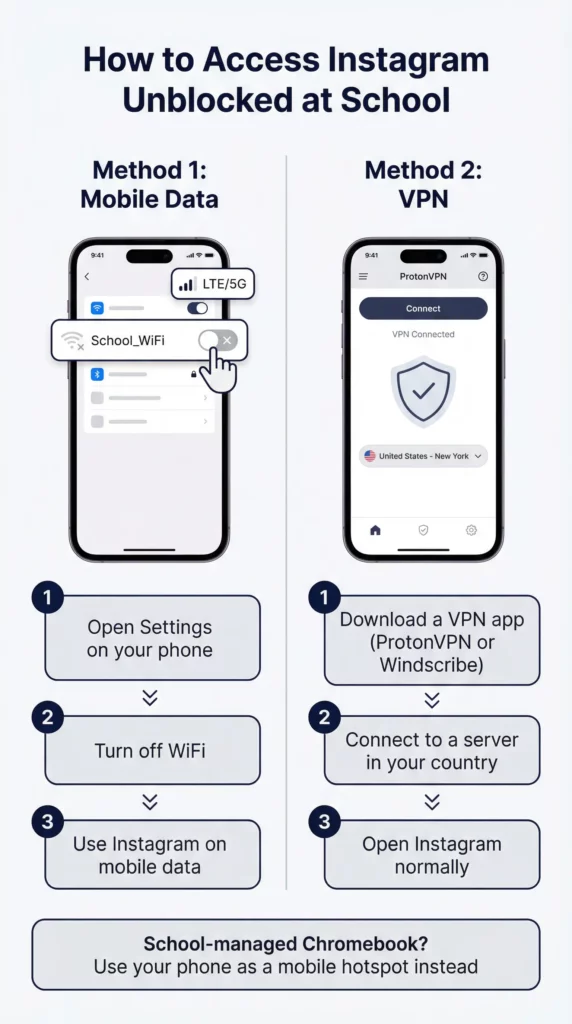
Using Mobile Data Instead of School WiFi
The simplest method. Switch your phone or laptop from the school WiFi to your mobile data (4G/5G). The school’s network filter only applies to devices using the school’s internet connection. Mobile data uses your carrier’s network, which is not subject to the school’s restrictions.
On iPhone: Settings > WiFi > toggle off, or tap your carrier name instead of the WiFi network. On Android: Settings > Connections > WiFi > toggle off.
Using a VPN
A VPN routes your internet traffic through an encrypted tunnel to a server outside the school’s network, bypassing DNS-level blocking.
- Install a VPN app (ProtonVPN, Mullvad, Windscribe all have free tiers)
- Connect to a server in your country
- Open Instagram normally
Most school networks do not block VPN traffic itself, though some more advanced setups do block known VPN IP ranges. If one VPN does not work, try a different server or a different VPN provider.
How to unblock Instagram on school computer without VPN: If VPNs are also blocked or you cannot install software on a school computer, switching to mobile data or using the Instagram mobile app on your own phone (not connected to school WiFi) is the most reliable workaround.
Using an Unblocked Instagram Site or Proxy
Some people search for “Instagram unblocked site,” “Instagram unblocked 66,” “Instagram unblocked wtf,” or “Instagram unblocked Google sites” looking for mirror sites or proxy pages that load Instagram through an unblocked URL.
The honest reality: these sites are unreliable, often insecure, and Instagram’s functionality does not translate well through basic web proxies. You will typically be able to view public posts at best, not log into your account or use any interactive features. For actual Instagram use, mobile data or a VPN is a better approach.
Instagram unblocked proxy: Web proxy services like Proxysite.com or similar tools can sometimes access Instagram, but you are sending your login credentials through a third-party service, which is a security risk. Do not use these for logging into your Instagram account.
Instagram Unblocked on Chromebook
Chromebooks used in schools are often managed by the school district through Google Admin, which applies network policies and site restrictions directly to the device, even when it is not on school WiFi.
If the Chromebook is school-managed: School-issued Chromebooks with admin policies applied are significantly harder to work around. The restrictions are enforced at the device level through Chrome OS management policies, not just at the network level. A VPN extension in Chrome may still work if the school has not blocked VPN extensions specifically.
Options on a managed school Chromebook:
- Enable mobile hotspot on your phone and connect the Chromebook to it instead of school WiFi (bypasses network-level blocks)
- Use a VPN extension in Chrome (if the school has not blocked this category of extension)
- Log into a different Chrome profile on the Chromebook if you have a personal Google account (some admin policies apply only to school accounts)
If the Chromebook is personally owned: A personal Chromebook connected to school WiFi is subject to the network filter but not to device-level admin policies. A VPN or mobile hotspot will work.
Instagram unblocked login on Chromebook: If you can reach instagram.com through any of the above methods, logging in works normally through the browser.
Instagram Unblocked Without a VPN
For people who cannot or do not want to use a VPN, the practical options are:
- Mobile data: Switch off WiFi and use your cellular connection. Works on phones immediately. For laptops, use your phone as a hotspot.
- Different DNS: Changing your device’s DNS to a public resolver (Google DNS 8.8.8.8 or Cloudflare 1.1.1.1) sometimes bypasses DNS-based blocking, though many school networks block at the firewall level rather than just DNS.
- Instagram mobile app on personal device: If Instagram is only blocked on your laptop or school computer but your personal phone is on mobile data, use the app on your phone.
- Browser-based access from home: If you need content from Instagram for school work, access it at home and save or screenshot what you need.
Why Instagram Keeps Blocking Your Account Actions
There is a third type of Instagram “block” that affects a lot of people but gets lumped in with the others: Instagram blocking specific actions on your account. You can log in fine, but Instagram will not let you follow new accounts, like posts, leave comments, send DMs, or post content.
These are called action blocks and they are one of Instagram’s most frustrating enforcement mechanisms because they often hit accounts that are not doing anything obviously wrong.
Action blocks happen when Instagram detects behavior patterns it considers suspicious. The most common triggers are:
- Following or unfollowing many accounts quickly
- Liking a large number of posts in a short period
- Sending the same comment or message repeatedly
- Using third-party apps that automate Instagram interactions
- Logging into the same account from multiple devices or IP addresses in quick succession
- Running multiple accounts from the same device
That last two points are where the problem compounds. If you manage multiple Instagram accounts, even manually, every time you log in and out of different accounts from the same device and IP address, Instagram registers the pattern. Multiple accounts sharing an environment look like a bot network or a coordinated inauthentic operation, even when they are being managed by a real person with legitimate purposes.
The result: action blocks on multiple accounts at once, verification requirements on every login, and eventually account disables.
How Multilogin Cloud Phones Prevent Instagram Action Blocks
The root cause of action blocks and repeated verification for multi-account operators is shared environment. Multiple accounts on the same device, the same IP, the same browser fingerprint. Instagram connects them and flags them as a single operation.
Multilogin Cloud Phones solve this at the hardware level. Each cloud phone is a real Android device running in the cloud, with its own IMEI, Android ID, MAC address, and dedicated mobile IP address. When Instagram sees traffic from a cloud phone, it sees a separate, genuine Android device with its own history. Nothing connects it to your other accounts because at the device level, nothing is shared.
Each Account Behaves Like a Real, Independent User
On a cloud phone, your Instagram account runs inside the official Instagram app on a real Android device. The behavior looks identical to any normal Instagram user because it is identical. Same app, same device type, same session persistence, same usage patterns over time.
Instagram’s detection systems are looking for anomalies: accounts that appear from nowhere, accounts that share hardware fingerprints, accounts that have no history and immediately start aggressive following or commenting. A cloud phone account has none of these anomalies. It has a consistent device, a consistent IP, and (if used regularly) a growing history of genuine activity.
Persistent Sessions Mean No Repeated Re-Authentication
One of the most common action block triggers is logging in and out of accounts repeatedly from the same device. Every login from a new session or a new location looks like a potential account takeover to Instagram’s systems, which triggers additional verification requirements.
Multilogin Cloud Phones save app state between sessions. You do not log out at the end of each session. You close the cloud phone interface, and the app stays logged in on that phone exactly as you left it. Next time you open the cloud phone, you pick up exactly where you stopped. No re-authentication, no new device flag, no verification request.
Separate IP and Location Per Account
Each cloud phone runs with a dedicated mobile-grade proxy matched to a specific location. Account A has its own IP in one city. Account B has its own IP in another. From Instagram’s perspective, these are two separate people using Instagram from two separate locations, which is exactly what they look like.
The alternative, running both accounts through a VPN that rotates through a shared IP pool, actually makes things worse. Instagram flags shared VPN IP ranges, and multiple accounts appearing from the same VPN exit node is a clear signal of coordinated behavior.
One Dashboard for Everything
All cloud phones live in the Multilogin dashboard. Launch the phone you need, do your Instagram work, close it. Nothing bleeds between accounts. Team members can be assigned to specific cloud phones with permission controls. The whole operation runs cleanly without anyone touching the wrong account.
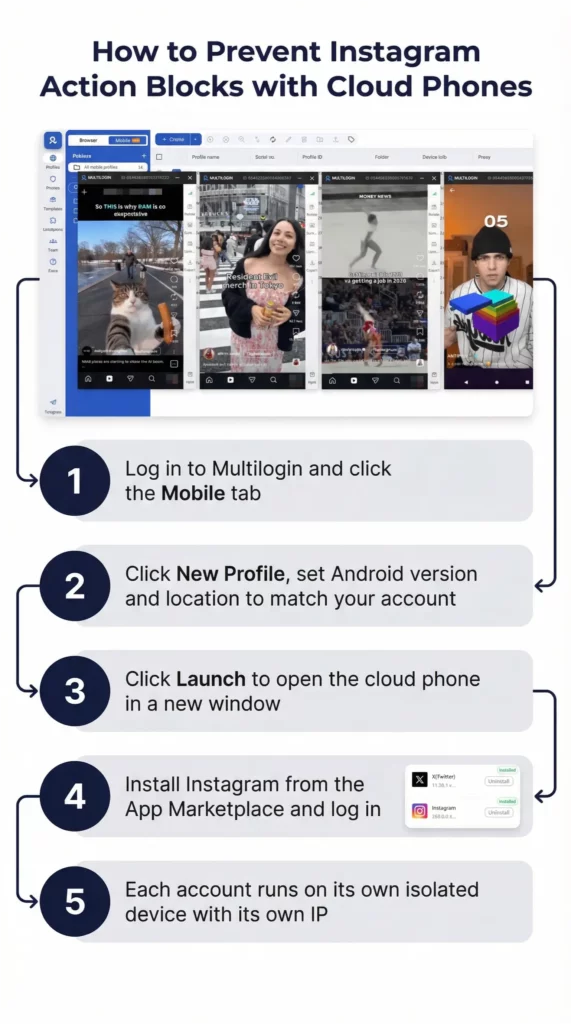
How to Get Started With Multilogin Cloud Phones
Getting your first cloud phone running takes under 30 minutes.
Step 1: Sign up at multilogin.com Choose a plan based on how many cloud phones you need. Plans scale with the number of phones.
Step 2: Create a Cloud Phone from the dashboard Click “Create Cloud Phone” and set the location (match it to your account’s target audience), Android version, and give it a label corresponding to the Instagram account it will run.
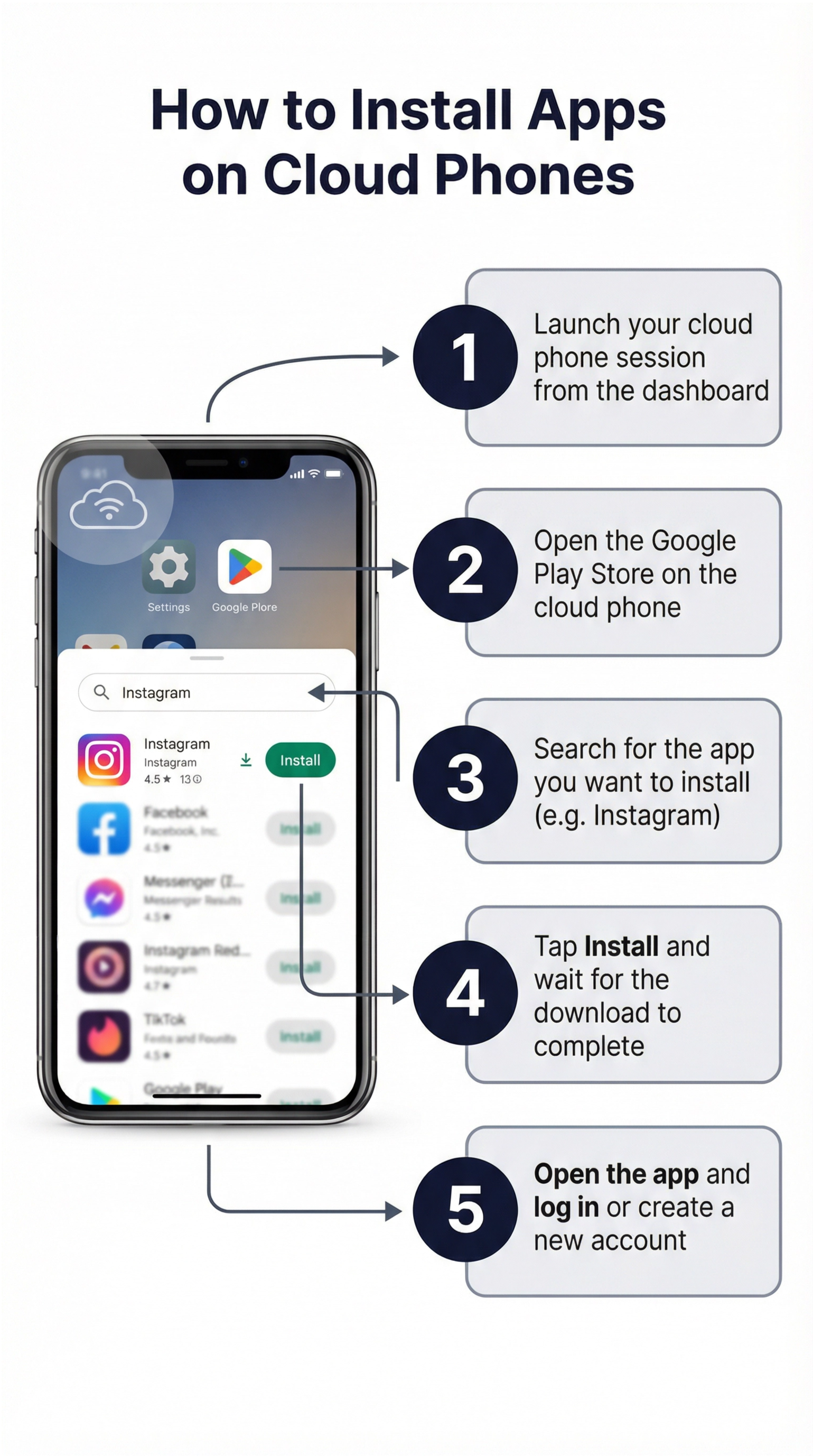
Step 3: Launch the cloud phone and install Instagram The cloud phone opens as a real Android interface. Open the Play Store, install Instagram, and log in to your account. If you are creating a new account, use the email signup method with a dedicated email address.
Step 4: Use Instagram normally Browse the feed, post, follow, comment. Do everything the way a real user would. The cloud phone behaves like a real phone because it is one. Let the account build activity history over the first few weeks before ramping up any promotional activity.
Step 5: Add more cloud phones for additional accounts Each new account gets its own cloud phone with its own location and its own session. Manage everything from the dashboard. Each phone is independent.
Need to manage multiple Instagram accounts? Try Multilogin Cloud Phones.
Frequently asked questions About Instagram Unblocked
Go to their profile, tap the three-dot menu, and select “Unblock.” Or go to Settings > Privacy > Blocked Accounts and remove them from your blocked list.
No. Instagram sends no notification when you unblock someone. The other person will not know unless they proactively check your profile and notice the change.
They can see your profile and posts again, follow you again, and message you again. The previous follow relationship is not restored automatically. They would need to follow you again.
Search for their username. If their profile appears and you can see their posts or follow them, the block has been removed. There is no notification system for this.
Switch from school WiFi to your phone’s mobile data (4G/5G). The school’s network block only applies to devices on their WiFi. A VPN also works if you can install one. On a school-managed Chromebook, connecting to a personal mobile hotspot is the most reliable method.
No. If someone else has blocked you, only they can remove the block. You cannot unblock yourself from another person’s block list.
The Verdict
Instagram unblocked covers a lot of ground. Unblocking a person on Instagram is simple and silent, Instagram does not notify them, and the follow relationship does not automatically restore. Accessing Instagram when your school or workplace has blocked it usually comes down to mobile data or a VPN. And if Instagram is repeatedly blocking your own account’s actions, the cause is almost certainly a shared device environment being flagged as coordinated activity.
The first two problems have straightforward technical fixes that most people can implement in a few minutes. The third problem, action blocks on multi-account operations, requires a different approach entirely. Surface-level workarounds like different browsers or VPNs change the visible signals while leaving deeper device fingerprints intact. Instagram’s systems are built to catch exactly that pattern.
The sustainable answer for anyone running multiple Instagram accounts, whether for clients, for different brands, or for growth across niches, is giving each account its own genuine device environment. That is what Multilogin Cloud Phones do, and that is why operators who need their accounts to actually stay live use them instead of hoping the next workaround lasts longer than the last one.

