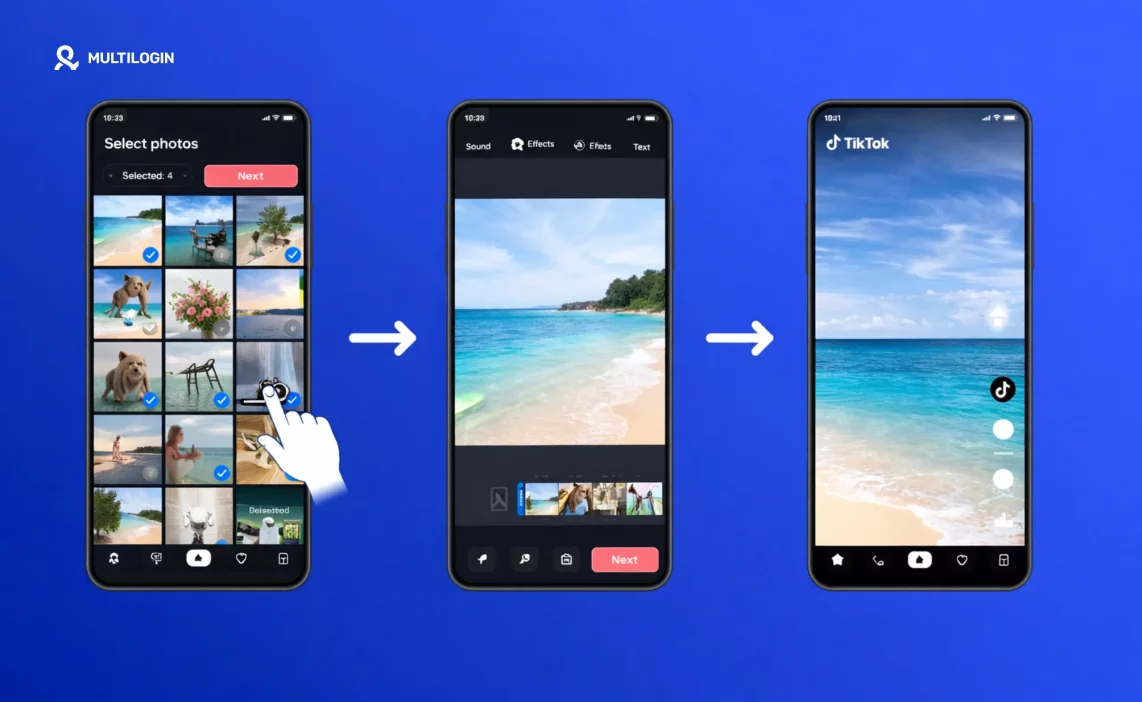

TikTok slideshows have become one of the platform’s best-performing content formats. They hold attention differently from video, they are faster to create, and the swipe mechanic drives higher comment rates as viewers react slide by slide. The format keeps evolving too: you can now add music, text, voiceover, green screen backgrounds, and custom timing to slideshows directly inside TikTok without any external editor.
This guide covers every slideshow format available on TikTok in 2026 and how to make each one, on iPhone, Android, and PC. There is also a section for creators and agencies managing multiple TikTok accounts, because the slideshow workflow looks different when you are producing content at scale.
What Is a TikTok Slideshow?
A TikTok slideshow is a post that contains multiple images (and optionally videos) displayed sequentially. There are two distinct slideshow formats on TikTok:
Auto-play slideshow: The images transition automatically at a set speed while music plays in the background. Viewers watch it like a video. This is what most people mean when they talk about a TikTok slideshow.
Swipe slideshow (Photo Mode / Cards): Viewers manually swipe through the images at their own pace, like a carousel on Instagram. This format drives higher engagement because each swipe is an active interaction, and TikTok’s algorithm counts swipes as engagement signals.
Both formats are available inside TikTok’s native creation tools. The swipe format was rolled out more broadly in 2023 and has been consistently refined through 2026.
How to Make a Basic Photo Slideshow on TikTok
This is the standard photo slideshow, where images play automatically with music.
Step-by-step on mobile (iOS and Android):
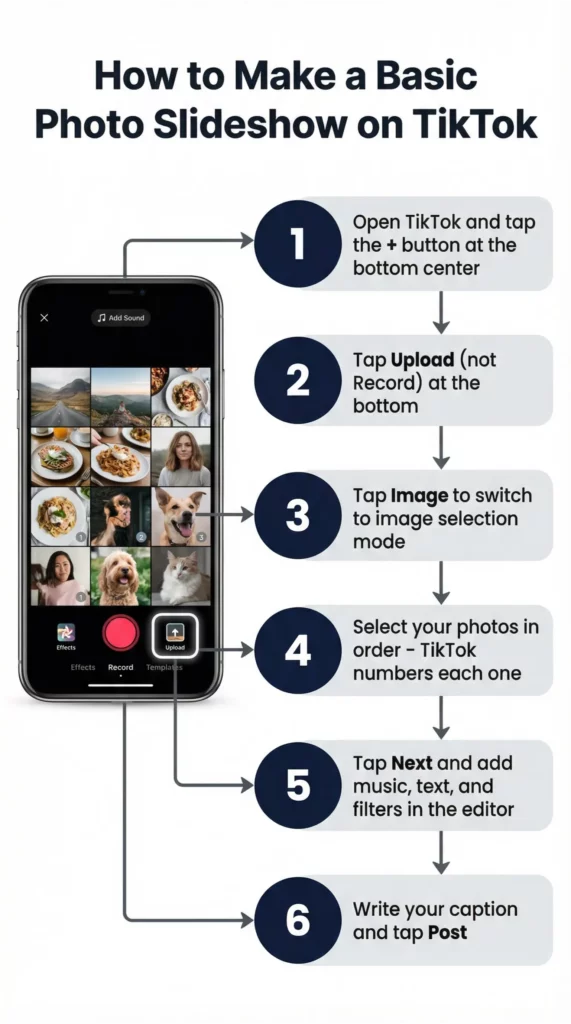
- Open TikTok and tap the + button at the bottom center to open the creation screen
- At the bottom of the screen, tap “Upload” (not Record)
- Tap “Image” or select the photo grid icon to switch to image mode
- Select the photos you want in your slideshow. Tap them in the order you want them to appear. TikTok numbers each selected photo.
- Tap “Next” when you have selected all your photos (TikTok allows up to 35 images per slideshow)
- On the editing screen, you can rearrange photos by long-pressing and dragging, add music, add text, add stickers, and apply filters
- Tap “Next” again to go to the posting screen
- Write your caption, add hashtags, set privacy, and tap “Post”
Photo requirements:
- Supports JPG, PNG, HEIC, WebP
- Recommended aspect ratio: 9:16 (vertical) for full-screen display
- Minimum resolution: 720 x 1280 px for best quality
How to Make a Swipe Slideshow on TikTok
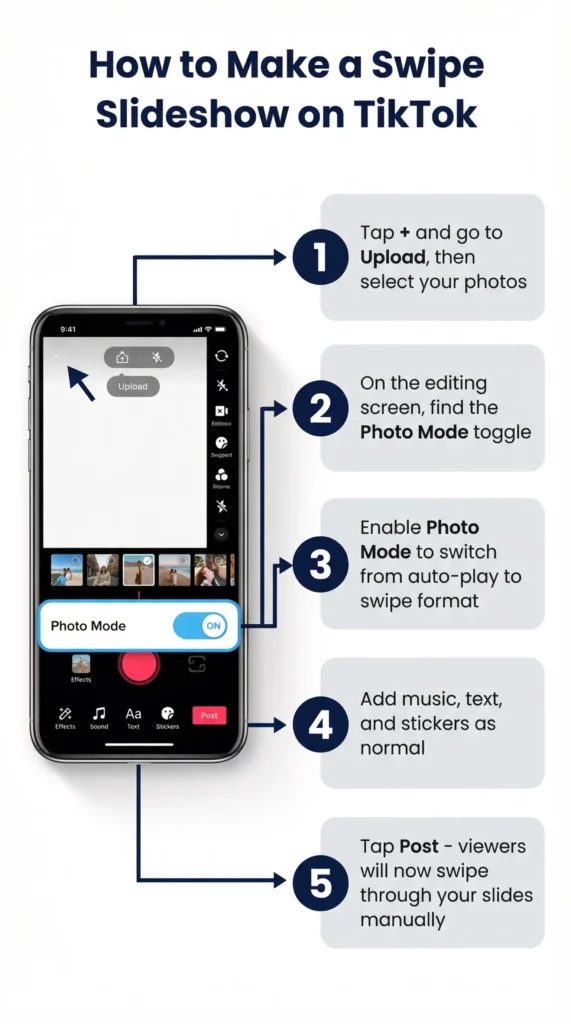
The swipe slideshow (also called Photo Mode or Cards) lets viewers tap through photos manually instead of watching them auto-play.
How to access Photo Mode / swipe slideshow:
- Tap the + button to open the creator
- Tap “Upload” and switch to image selection
- Select your photos
- On the editing screen, look for a “Photo Mode” toggle or a cards/swipe format option (the location varies slightly between app versions and regions)
- When Photo Mode is enabled, the slideshow switches from auto-play to swipe format
- Add music, text, and other elements as normal
- Post
How to make a swipeable slideshow on TikTok Android: The process is the same on Android. The Photo Mode toggle appears on the editing screen after you upload your images. If you do not see it, update the TikTok app to the latest version, as swipe slideshows have been gradually rolled out across regions and app versions.
Why use swipe format: Swipe slideshows tend to generate more comments because viewers naturally react as they go through each slide. They also keep viewers engaged for longer since each manual swipe is an active choice to continue. TikTok’s algorithm counts these interactions positively.
How to Make a Fast Slideshow on TikTok
By default, TikTok shows each photo in an auto-play slideshow for about 2-3 seconds. Making a fast slideshow means reducing the time each image displays.
Method 1: Adjust duration in TikTok’s editor
After uploading your photos and reaching the editing screen:
- Look for a “Duration” or “Adjust clips” option (varies by app version)
- Tap on an individual photo to adjust how long it displays
- Drag the duration slider down to 0.5-1 second per image for a fast-moving effect
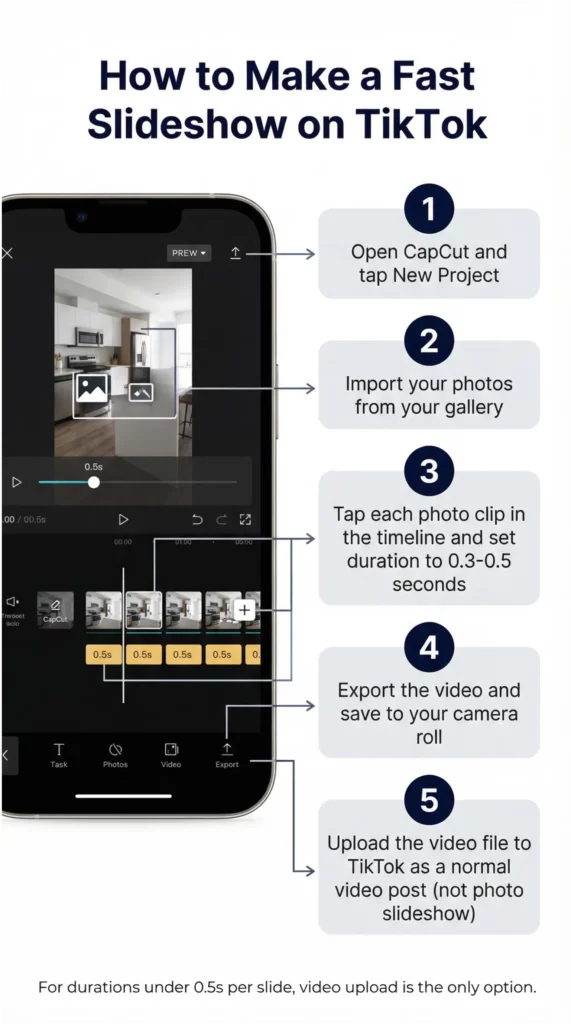
Method 2: Create a fast video slideshow externally
For maximum control over slide speed, create the slideshow as a video file before uploading to TikTok:
- Use CapCut (free, integrates directly with TikTok), InShot, or any video editor
- Import your photos and set each clip duration to 0.3-0.5 seconds
- Export as a video file
- Upload the video to TikTok as a normal video post (not a photo slideshow)
CapCut is the most popular option because it has a direct “Post to TikTok” button and the TikTok app itself prompts you to use CapCut for certain editing features.
How to make a super fast slideshow on TikTok: Durations below 0.5 seconds per image are achievable in external editors like CapCut. Inside TikTok’s native editor, the minimum duration per slide is around 0.5-1 second. For sub-half-second transitions, export from an external editor as a video.
How to Make a Slideshow on TikTok with Music
Adding music to a TikTok slideshow works the same way as adding music to any TikTok post.
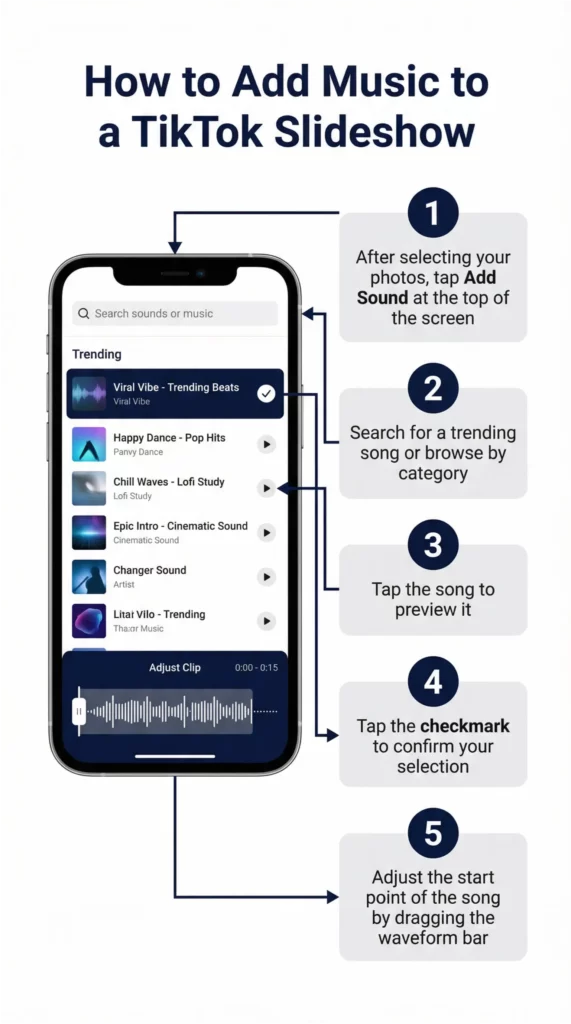
How to add music to a TikTok slideshow:
- Create your slideshow following the steps above
- On the editing screen, tap the music note icon or “Add sound” at the top of the screen
- Browse TikTok’s music library, search for a specific song, or use a trending sound
- Select a song and choose which part of the track you want to use by adjusting the trim bar
- Tap “Done” or the checkmark to confirm
- Adjust the volume balance between the music and any original audio if needed
Tips for slideshow music:
- Music with a clear beat that matches your slide transitions creates a more satisfying rhythm
- Trending sounds give your slideshow an algorithmic boost because TikTok promotes content using popular sounds
- For fast slideshows, choose a track with a faster BPM and try to align slide changes with the beat
How to make a slideshow with music on TikTok using your own audio: Tap “Sounds” then scroll to “My Sounds” or use the voiceover feature to record narration over your slideshow. Original audio can be any sound you record directly within TikTok.
How to Make a Slideshow on TikTok with Text and Words
Adding text to individual slides in a TikTok slideshow requires working in the editor.
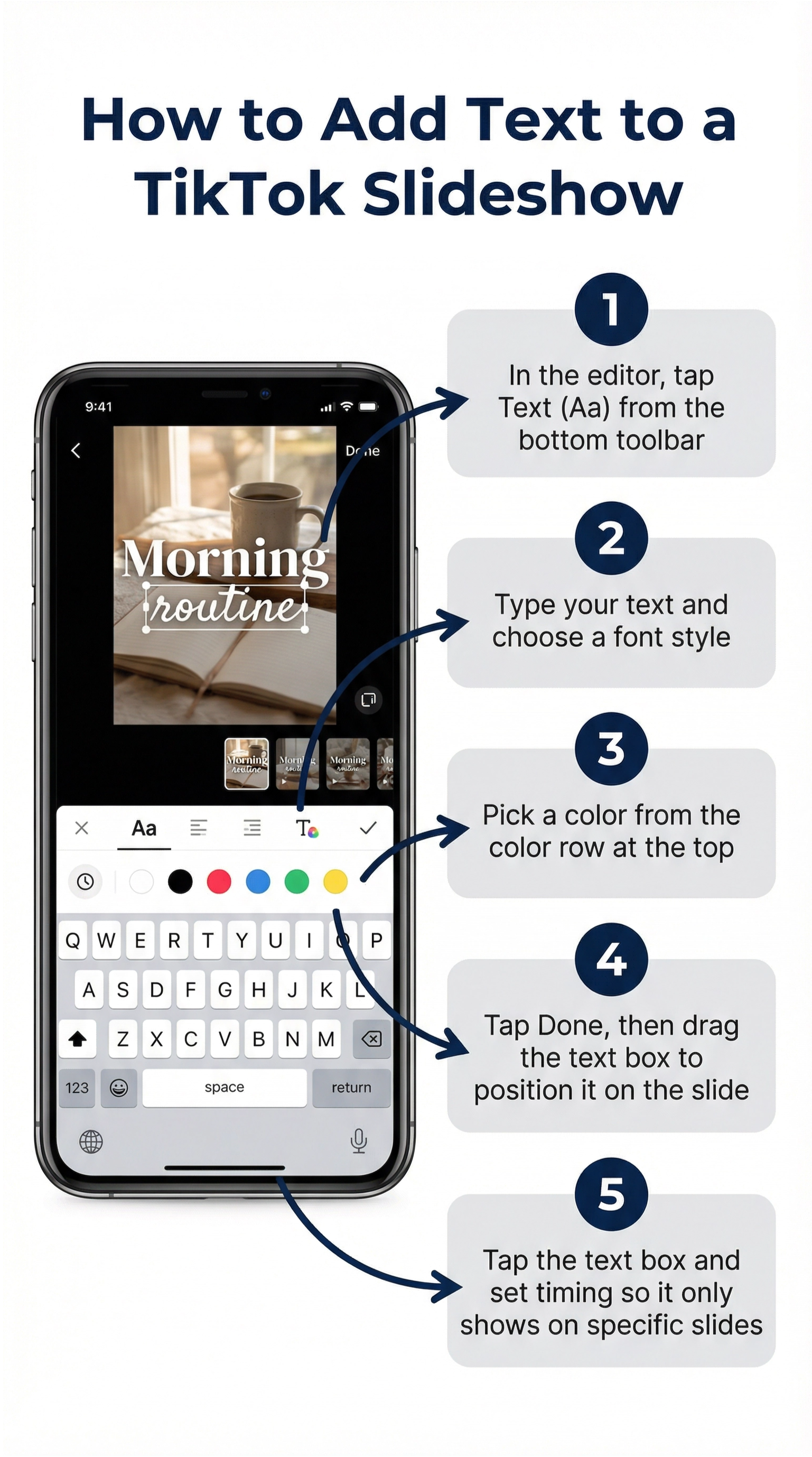
How to add text to a TikTok slideshow:
- After uploading your photos, tap the “Text” button (Aa) on the editing screen
- Type your text
- Choose font, size, color, and style
- Tap and drag to position the text on the slide
- Tap the text element after placing it, then look for a “Set duration” option to control which slides the text appears on
- Repeat for each text element on each slide
Making each slide display different text: Set the text duration to match the length of each individual slide. For swipe slideshows, text appears on all slides by default unless you specify individual slide assignments.
How to make a text slideshow on TikTok (text-only): Some creators make slideshows that are primarily text on solid color backgrounds rather than photos. To do this:
- Create solid color images in Notes, Canva, or any basic image editor
- Upload them as your slideshow photos
- Add text overlays in TikTok’s editor on top of the solid backgrounds
Or use TikTok’s template feature which includes text-heavy slide templates.
How to Make a Video and Photo Slideshow on TikTok
TikTok allows mixing video clips and photos in the same slideshow post.
How to create a mixed photo and video slideshow:
- Tap + and go to Upload
- Tap “Mixed” or select both photos and video clips from your gallery (the option to select mixed content appears when you tap the video/photo toggle)
- Select your photos and video clips in the order you want them
- TikTok processes both types of content in the same slideshow frame
- Edit, add music, add text, and post as normal
Things to know about mixed slideshows:
- Video clips in a mixed slideshow play at their original speed within the slideshow
- The overall length of your slideshow includes the duration of any video clips
- Audio from video clips can be kept or muted in favor of background music
How to Make a Green Screen Slideshow on TikTok
A green screen slideshow uses TikTok’s Green Screen effect to place images as the background behind you, so you appear in front of each slide as you talk through it.
How to make a green screen slideshow:
- Tap + to open the creator
- Tap “Effects” on the left side of the recording screen
- Search for “Green Screen” and tap the “Green Screen Photo” effect (not the regular green screen)
- Tap the image icon that appears to select photos from your gallery
- Record yourself talking in front of each image
- Switch images by tapping the image selector while recording
- Add any additional editing and post
This format works exceptionally well for reaction content, educational breakdowns, product reviews, and before-and-after comparisons where your commentary adds context to each image.
How to Make an Interactive Slideshow on TikTok
An interactive slideshow prompts viewers to take action, usually through TikTok’s question sticker, poll sticker, or by using text that asks viewers to comment their answer.
Interactive elements available in TikTok slideshows:
- Poll sticker: Add a two-option poll to your slideshow. Viewers tap to vote.
- Question sticker: Prompts viewers to answer a question in the comments
- Link sticker: Adds a clickable link (available to accounts with access to external links)
- Comment-baiting text: Text on individual slides that asks viewers to swipe to the next slide to see the answer, creating a natural engagement loop
How to add a poll or question to a TikTok slideshow:
- In the editor, tap “Stickers”
- Select “Poll” or “Q&A” from the sticker menu
- Set up your poll options or question text
- Position the sticker on the slide where you want it to appear
Interactive slideshows work especially well as multi-part series where the first slideshow asks a question or presents a problem, and subsequent slideshows reveal the answer or continuation.
How to Make a TikTok Slideshow on PC
TikTok’s PC creation experience runs through TikTok Studio at studio.tiktok.com. It is more limited than mobile for certain creative features, but it supports photo slideshow uploads.
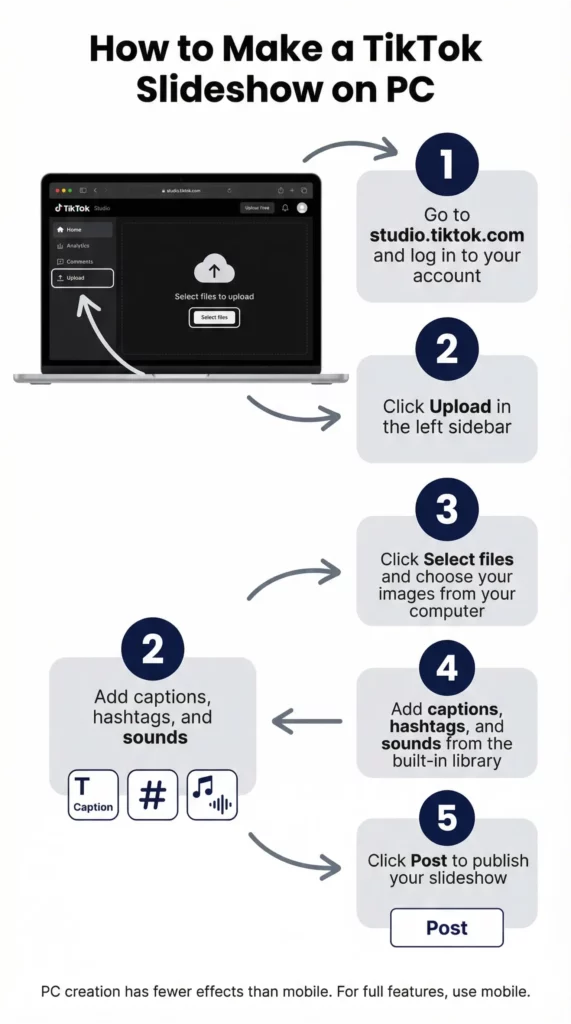
How to create a slideshow on TikTok on PC:
- Go to studio.tiktok.com and log in
- Click “Upload” in the left sidebar or the top navigation
- Click “Upload” on the creation page and select your images
- TikTok Studio processes the images as a slideshow
- Add captions, hashtags, sounds (from the built-in library), and settings
- Click “Post”
Limitations on PC: TikTok Studio on PC does not currently support all the same creative effects available on mobile (green screen photo, certain text animations, some sticker types). For full-featured slideshow creation, mobile is still the primary platform. PC is best for straightforward uploads where you have done the creative work in an external editor beforehand.
How to make a TikTok slideshow on PC using CapCut: CapCut has a web version at capcut.com that runs in the browser. Create your slideshow there, export as a video, and upload it to TikTok Studio or the TikTok mobile app.
How to Make a TikTok Slideshow on Android
The Android TikTok app supports all slideshow formats: auto-play, swipe/Photo Mode, mixed photo-video, green screen, and interactive.
If swipe slideshow (Photo Mode) is not showing on your Android TikTok:
- Update to the latest version of TikTok from the Play Store
- Check that your region has access to Photo Mode (it was rolled out gradually)
- Log out and back in after updating
The step-by-step instructions in each section above apply to Android. The interface is essentially the same as iOS with minor layout differences.
How to Make a TikTok Slideshow on iPhone
The iPhone TikTok app has the full feature set for slideshows including Photo Mode, green screen slideshow, mixed content, and all interactive stickers.
For iPhone-specific notes:
- HEIC photos (iPhone’s default format) are supported directly in TikTok without conversion
- If you use Live Photos, TikTok will use the still frame rather than the motion version
- iCloud photos work if they are downloaded to your device, not just available in iCloud
The creation steps are the same as the general mobile instructions in each section above.
How to Make a Slideshow Go Faster on TikTok
If your slideshow is playing too slowly and you want to speed it up:
Within TikTok’s native editor:
- After uploading, tap a photo on the editing timeline
- Look for a “Duration” control (shown as a scissors or clip icon)
- Reduce the display time for each slide
- Repeat for all slides
For maximum speed control: Use CapCut or another external editor to create the slideshow as a video with precise timing, then upload it to TikTok as a video rather than as a photo slideshow. This gives you frame-level control over transition speed.
Why your slideshow might be forced slower: TikTok has minimum display times for photo slideshows to ensure content is viewable. If you need durations shorter than TikTok’s minimum (roughly 0.5 seconds), the video upload method is the only option.
How to NOT Make a Slideshow on TikTok
This question comes up because TikTok sometimes automatically formats multi-image uploads as slideshows when you might want a different result.
TikTok automatically creates a slideshow when you:
- Upload multiple images at once in photo upload mode
To upload a single image as a static post instead of a slideshow:
- Select only one image in the upload flow
- TikTok will post it as a single image post without slideshow formatting
To upload video without slideshow formatting:
- Use the Record mode (not Upload) to capture or upload a single video file
- Or upload your content as a video file (MP4) rather than as individual images
If TikTok is forcing a slideshow format you do not want: In the editing screen before posting, look for a format toggle that lets you switch between slideshow and video display modes. This option is not always present but appears for certain content types.
TikTok Slideshow Tips for Creators Managing Multiple Accounts
Creating slideshows is one of TikTok’s most accessible content formats, which makes it attractive for creators managing multiple niche accounts. A lifestyle account, a travel account, a food account, and a fitness account can each maintain a consistent slideshow posting schedule without the production demands of video.
The challenge is not creating the content. It is keeping the accounts separate.
When you post the same slideshow (or very similar slideshows) across multiple TikTok accounts from the same device, TikTok’s systems register the shared origin. Cross-posted content from linked accounts is one of the signals TikTok uses to identify coordinated inauthentic behavior. The result is reduced distribution, action blocks, and eventually account suspensions that can hit all linked accounts simultaneously.
The same problem affects account management more broadly: logging in and out of multiple TikTok accounts from the same device, the same IP, and the same browser or app session creates a device fingerprint that connects the accounts. Once connected, anything suspicious on one account (including aggressive posting schedules) can trigger flags across the whole cluster.
For creators running multiple TikTok accounts professionally, proper account isolation is not optional. It is the foundation that makes everything else, including a consistent slideshow posting schedule, sustainable.
How Multilogin Cloud Phones Support Multi-Account TikTok Creators
Multilogin Cloud Phones give each TikTok account its own real Android device running in the cloud, with its own IMEI, Android ID, MAC address, and dedicated mobile IP address.
Each Account Creates and Posts Independently
When you post a slideshow from account A’s cloud phone, TikTok sees a single account posting content from its regular device. When you post from account B’s cloud phone five minutes later, TikTok sees a completely different device at a different IP address. There is no shared signal connecting the two posts to the same operator.
This means you can run a consistent slideshow schedule across five, ten, or twenty TikTok accounts simultaneously without any of them triggering the coordinated behavior detection that comes from managing them on a single shared device.
Persistent Sessions Mean Stable Accounts
Each cloud phone saves the TikTok app’s session data between uses. Accounts do not log out between sessions. The next time you open the cloud phone, the account is right where you left it, no re-authentication, no new device flag, no verification request from TikTok.
This stability matters for algorithm performance too. TikTok accounts with consistent, stable device histories receive better distribution than accounts that frequently appear from new environments. The slideshows you post from a cloud phone account benefit from a cleaner algorithmic baseline.
Content Creation on Cloud Phones
The TikTok app on a Multilogin Cloud Phone is a fully functional Android installation. You can create slideshows directly within the app, access the full library of TikTok effects including green screen slideshow, add music from TikTok’s library, add interactive stickers, and use every feature covered in this guide. The creation experience is identical to any Android phone because the cloud phone is an Android phone.
For creators who build slideshows externally in CapCut or another editor, you can upload the finished files to TikTok directly from the cloud phone’s file system through the standard upload flow.
Manage Everything From One Dashboard
All cloud phones are managed from Multilogin’s dashboard. You see all your accounts and their session status in one place. Open cloud phone 3 for account 3, post your slideshow, close it. Nothing crosses into the other accounts’ environments.
For agencies producing TikTok slideshows for multiple clients, this means each client’s account has its own isolated posting environment, its own performance history, and its own algorithm relationship. The slideshows you post for client A do not affect the distribution or standing of client B’s account.
How to Get Started With Multilogin Cloud Phones
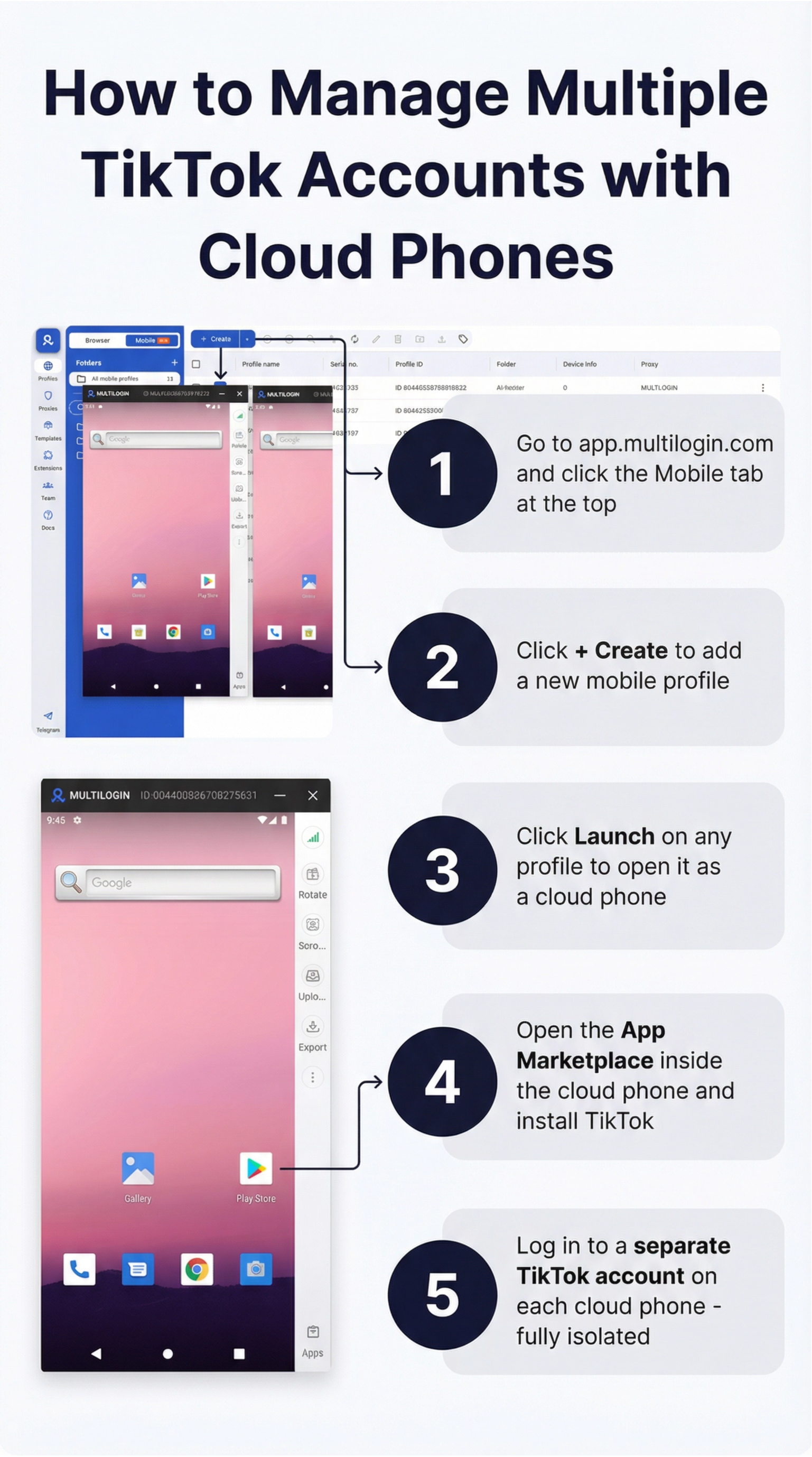
Step 1: Sign up at multilogin.com Choose a plan based on how many TikTok accounts you manage.
Step 2: Create a Cloud Phone for each account From the dashboard, click “Create Cloud Phone.” Set the location to match each account’s target audience, choose the Android version, and label each phone with the TikTok account it runs.
Step 3: Install TikTok and set up each account Launch each cloud phone from the dashboard. Install TikTok from the Play Store, log in to your account (or create a new one), and complete the account setup. Switch to Creator account to enable analytics and all content features.
Step 4: Create and post slideshows normally Use TikTok’s native editor on the cloud phone to create slideshows, add music, add text, and post. Everything works exactly as it would on a regular Android phone.
Step 5: Scale to more accounts as needed Each new account gets its own cloud phone with its own IP and its own isolated environment. The dashboard keeps everything organized.
Need to manage multiple Tiktok accounts? Try Multilogin Cloud Phones.
Key takeaways
TikTok slideshows are one of the most versatile and time-efficient content formats on the platform in 2026. A well-made swipe slideshow with strong images and a well-chosen sound can outperform far more expensive video content, and the creation process is accessible to anyone with a phone and a folder of photos.
For basic slideshows, TikTok’s native editor handles everything: photo selection, music, text, timing, and posting. For more precise control, especially over timing and transitions, creating the slideshow as a video in CapCut and uploading it gives you frame-level precision. For green screen, interactive, and mixed format slideshows, the mobile app has everything built in.
The production side is genuinely easy. The harder challenge for creators working at scale, managing multiple accounts across different niches or for different clients, is keeping those accounts isolated so that a consistent posting schedule does not trigger the coordinated behavior detection that gets accounts banned in clusters. Each account needs its own device environment, its own IP, and its own independent history with TikTok’s algorithm. Multilogin Cloud Phones provide that at the hardware level, which means your slideshow strategy runs on a foundation that does not collapse when you add a fourth or fifth account to the operation.
Frequently asked questions About How to Make a Slideshow on TikTok
Tap the + button, select Upload, switch to image mode, select your photos in order, tap Next, add music and text in the editor, and post. TikTok allows up to 35 images per slideshow.
After uploading your photos, look for the Photo Mode toggle on the editing screen. Enabling it switches from auto-play to swipe format where viewers tap through manually.
In the editor, tap each photo and reduce its display duration. For ultra-fast slideshows (under 0.5 seconds per image), create the slideshow as a video in CapCut and upload it as a video rather than as a photo slideshow.
Tap the music note icon or “Add sound” on the editing screen. Browse TikTok’s library or search for a specific track. Adjust which part of the song plays and set the volume balance.
Tap the Aa text button in the editor, type your text, style it, and position it on the slide. Tap the text element and use “Set duration” to control which slides the text appears on.
Go to studio.tiktok.com, click Upload, select your images, add captions and sound, and post. PC creation has fewer effects than mobile. For full features, create in CapCut’s web version and upload the result.

