
Twitch drops are one of the best free rewards systems in gaming right now. Watch a stream, earn in-game loot, claim it in your inventory. Simple in theory, but in practice there are enough quirks, bugs, and limitations that a lot of people end up watching hours of content and walking away with nothing.
This guide covers everything: how Twitch drops actually work, how to claim them, how to fix common issues like drops not progressing or not working, where to find your drops inventory, and which games have active drops right now in 2026.
And if you want to watch multiple Twitch streams at the same time to farm drops faster, there is a proper way to do that too. More on that below.
How Do Twitch Drops Work?
Twitch drops are in-game rewards tied to watching specific streams. A game developer partners with Twitch, sets up a drop campaign, and viewers who watch participating streams for a set amount of time earn rewards automatically.
Here is the basic flow:
- The game developer runs a drop campaign. They decide which streams qualify, what rewards are available, and how long you need to watch to earn each one. This is all managed on Twitch’s backend. You can check active campaigns at twitch.tv/drops.
- You watch a qualifying stream. The stream needs to have drops enabled. You will usually see a small “Drops Enabled” tag on the stream. Your viewing time counts toward the drop only while you are actively watching a stream with this tag.
- Your progress accumulates. You can track this in real time under the Drops section in your Twitch notifications, or by visiting twitch.tv/drops/inventory. Progress is shown as a percentage or a timer.
- You claim the drop. Once you hit the time threshold, Twitch sends you a notification. You have to actively click “Claim” within the time window or the drop expires. Unclaimed drops do not stay there forever.
- The reward appears in your game. After claiming, the item shows up in your connected game account, usually within a few minutes though sometimes it takes longer depending on the game’s servers.
The key thing most people miss: your Twitch account has to be linked to your game account before the drop counts. If you watch the full time and then try to link your accounts after, the drop may not register.
How to Enable Drops on Twitch
Drops are not something you turn on in your Twitch settings in a general sense. What you actually need to do is connect your Twitch account to the specific game account for each game whose drops you want to earn.
Here is how to do it:
Step 1: Go to your Twitch account settings and click “Connections” in the left menu, or go directly to twitch.tv/settings/connections.
Step 2: Scroll down to find the game you want. You will see options for games like Rust (via Steam), Warframe, Path of Exile 2, Fortnite, Marvel Rivals, and many others.
Step 3: Click “Connect” next to the game and follow the authorization steps. This links your Twitch account to your game account so drops can be delivered.
Step 4: Make sure you are watching a stream that has the “Drops Enabled” label. Not every stream qualifies even during an active campaign. Check the stream directory for the game and filter by “Drops Enabled” to find qualifying streams quickly.
Once your account is connected and you are watching the right stream, drops accumulate automatically. You do not need to interact with the stream or keep the tab in focus on most browsers, though some campaigns have changed this requirement, so it is worth checking the specific campaign rules.
How to Claim Twitch Drops
Earning a drop and claiming it are two separate steps. A lot of people miss the claim step and lose the reward.
When a drop is ready to claim, Twitch sends a notification (the bell icon in the top right of the Twitch interface). You will also see a claim button appear in the drop progress bar at the bottom of the screen while you are watching.
To claim a drop:
- Click the notification or the claim button when it appears
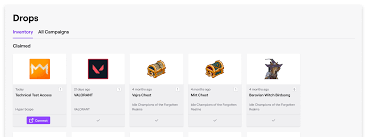
- Go to twitch.tv/drops/inventory to see all your pending and claimed drops
- Click “Claim” on any drop that shows as ready
- The item will be delivered to your linked game account
You typically have around 24 hours to claim a drop before it expires, though this varies by campaign. Unclaimed drops disappear. Check your inventory regularly during active campaigns.
If you have multiple drops available at once (for example, a campaign with several reward tiers), you need to claim each one individually before the next one starts counting. Missing a claim pauses your progress on the next tier.
Where Is the Twitch Drops Inventory?
Your Twitch drops inventory is at twitch.tv/drops/inventory (sometimes written as twitch.tv/drops/inventory in guides, or referenced as the drops inventory page).
You can also reach it by:
- Clicking your profile picture in the top right corner of Twitch
- Selecting “Drops & Rewards” from the dropdown menu
- Or going directly to the URL: https://www.twitch.tv/drops/inventory
On this page you can see active drop campaigns you are participating in, drops ready to claim, your claim history, and which game accounts are currently connected.
If a drop shows as “Claimed” in your inventory but has not appeared in your game, the issue is usually on the game’s side rather than Twitch. Give it 10 to 30 minutes, then check the game’s support channels if it still has not shown up.
Active Twitch Drops in 2026
Drop campaigns run for limited periods, so availability changes constantly. Here is a quick overview of the games with the most active and popular drop programs as of 2026.
Rust Twitch Drops
Rust runs some of the most popular Twitch drop campaigns, typically organized in numbered rounds. The community tracks these closely, and Facepunch Studios (Rust’s developer) announces each round on their social channels. Rust drops connect through Steam. Look for facepunch.com/rust or the official Rust Twitch drop announcements for current round details.
For Rust, the drop campaigns typically require watching a specific number of hours (often 4 to 6 hours) spread across qualifying streams. You do not need to watch the same stream continuously. Time accumulates across any qualifying stream during the campaign window.
Marvel Rivals Twitch Drops
Marvel Rivals has run several drop campaigns tied to game updates and seasonal content. Drops connect to your Marvel Rivals account. The game frequently offers hero-specific cosmetics and profile items through Twitch campaigns.
Warframe Twitch Drops (TennoCon 2025)
Warframe’s biggest drop event is TennoCon, which typically includes exclusive cosmetics and in-game items available only through watching the official TennoCon stream. Digital Extremes also runs smaller drop campaigns throughout the year. Connect your Warframe account through the Warframe website before watching.
Path of Exile 2 Twitch Drops
POE 2 drop campaigns usually run during league launches and major updates. Grinding Gear Games connects drops through your POE 2 account. Items typically include exclusive cosmetic points, supporter packs, or specific microtransaction items.
Fortnite Twitch Drops
Fortnite drops connect through your Epic Games account. Epic runs occasional campaigns tied to Fortnite tournaments and special events. Check the Epic Games website for current campaign details.
Other Active Drop Games in 2026
- Battlefield 6 – BF6 Twitch drops tied to beta and launch events
- Dune: Awakening – drop campaigns for cosmetics and early access content
- Hunt: Showdown – regular seasonal drop campaigns
- World of Warcraft – WoW drops tied to Blizzard events and expansions
- Rocket League – drops connected to Psyonix events and competitive tournaments
- Escape from Tarkov – drops tied to Tarkov milestone events
- Sea of Thieves – cosmetics available through drop campaigns
- Space Marine 2 – drop campaigns tied to major content updates
- Delta Force – drop campaigns for skins and in-game currency
- Dark and Darker – drops tied to playtest events
- Mecha BREAK – active drop campaigns running through 2026
- Once Human – regular drop campaigns for limited cosmetics
- Palia – drops tied to seasonal events
- Dead by Daylight – drops for charms and cosmetics
- R6 Siege – Ubisoft Connect required, drops for skins and charms
- War Thunder – drops tied to update streams
- No Man’s Sky – drops for ship decals and base decorations
- GW2 (Guild Wars 2) – drops tied to major content releases
- Borderlands 4 – drop campaigns around launch and DLC
- The Finals – drops tied to competitive seasons
- Star Citizen – drops during CitizenCon and community events
- Enshrouded – drops tied to major updates
- College Football 26 – EA campaign drops for Ultimate Team content
- Pokemon GO – drops requiring linked Niantic account
- Where Winds Meet – drops during major patch windows
Twitch Drops Not Working or Not Progressing
This is the most frustrating part of the Twitch drops experience. You are watching the right stream, you are logged in, and the progress bar just sits there. Here is what is actually going on and how to fix it.
Your Game Account Is Not Connected
The most common reason drops do not progress is that your Twitch account is not linked to the game account. Go to twitch.tv/settings/connections and verify the connection is there. If you see a “Reconnect” button instead of “Connected,” click it and re-authorize.
You Are Not Watching a Qualifying Stream
Just watching any stream of the game does not count. The stream must have drops enabled for the specific campaign. Go to the game’s Twitch directory and look for streams tagged “Drops Enabled.” If none are available, the campaign may not be running or all qualifying streams are offline.
Ad Blockers or Browser Extensions Interfering
Some ad blockers and privacy extensions interfere with Twitch’s drop tracking. Try disabling your ad blocker for Twitch, or switch to a different browser temporarily to see if progress starts.
The Campaign Has Ended or Not Yet Started
Drop campaigns have hard start and end times. If you are watching outside the campaign window, nothing accumulates. Check the official game channels for accurate campaign dates and times.
Twitch Is Having Server Issues
Sometimes the answer is genuinely that Twitch’s backend is having a bad day. Check Twitch’s status page or the game’s community Discord for reports of widespread drop issues. If “Twitch drops not progressing” or “Twitch drops not working” is trending on the game’s subreddit, it is likely a platform issue rather than something on your end.
The Drop Expired Before You Claimed It
If your progress hit 100% but you did not claim it in time, the drop is gone. Going forward, check your drops inventory more frequently during active campaigns, especially when you are close to a threshold.
Doom Dark Ages / Terminull Brigade / Other Game-Specific Issues
Some games have had persistent issues with their specific drop integrations. For “Doom Dark Ages twitch skin drop not working” or “Terminull Brigade twitch drops not working” type issues, the fix is almost always either reconnecting your game account or waiting for the developer to patch the integration on their end. Check the game’s official channels for updates.
Can You Watch Multiple Twitch Streams for Drops?
Technically, no. Twitch’s drop system only counts progress on one stream at a time per account. If you open two streams in different tabs, only one of them counts toward your drops. Twitch detects when you are “watching” based on which stream is active and tracking your session.
However, if you have multiple Twitch accounts, each linked to a different game account, you can farm drops across multiple accounts simultaneously. Each account watches its own stream, earns its own drops, and claims them to its own linked game account.
This is where the question “can I watch multiple Twitch streams for drops” gets interesting. The limitation is per account, not per device. Multiple accounts running on properly isolated devices can each accumulate drop progress independently and at the same time.
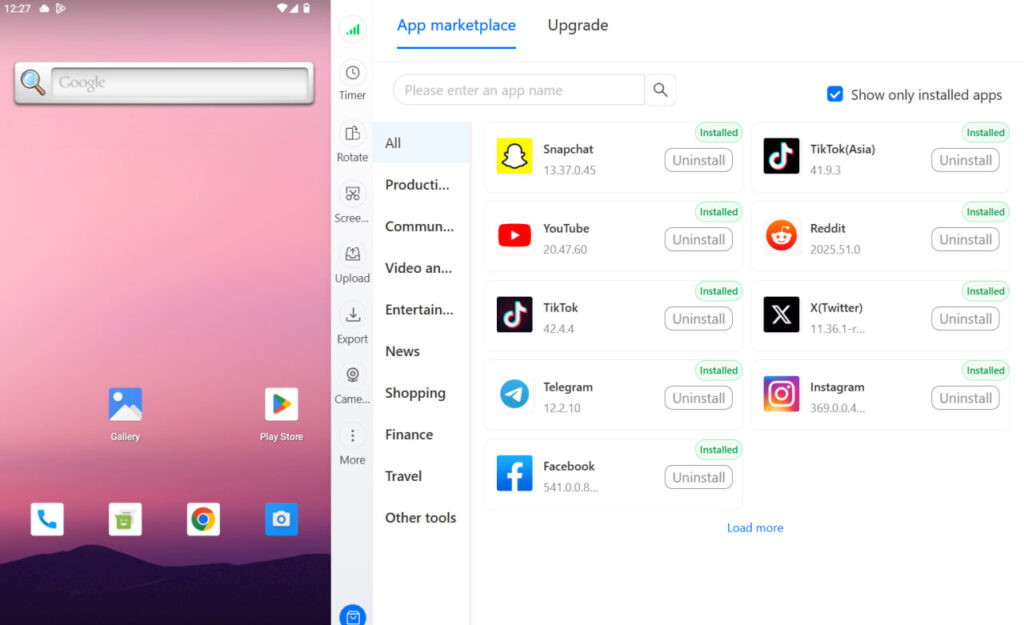
How Multilogin Cloud Phones Help You Farm Twitch Drops
This is where Multilogin Cloud Phones become genuinely useful for Twitch drop farming.
The Core Problem With Multi-Account Drop Farming
If you try to run multiple Twitch accounts on the same device or the same browser, Twitch connects them. Same IP address, same device fingerprint, same cookies. Twitch’s system flags this as a single user trying to game the drop system with multiple accounts, and the accounts get linked, restricted, or banned.
The only way to legitimately run multiple Twitch accounts for drops is to give each one a completely separate environment, with its own device identity, its own IP address, and its own session. That is exactly what Multilogin Cloud Phones are built to do.
Each Cloud Phone Is a Real Android Device
A Multilogin Cloud Phone is not an emulator. It is a real Android device running in the cloud, with genuine hardware identifiers: its own IMEI, Android ID, MAC address, and mobile data connection. When Twitch sees traffic from a cloud phone, it sees a legitimate Android device with its own unique identity, not a browser tab on a shared computer.
Each cloud phone runs its own instance of the Twitch mobile app, logged into its own Twitch account, watching its own qualifying stream. From Twitch’s perspective, these are completely separate viewers. No shared fingerprints. No linked accounts.
Persistent Sessions Mean Consistent Account History
Twitch accounts, like all platform accounts, build trust over time. An account with months of watch history, consistent device usage, and normal viewing patterns is far less likely to be flagged than a freshly created account that only ever appears during drop campaigns.
Multilogin Cloud Phones support persistent app sessions. App data, cache, and login states are saved between sessions, exactly like a real phone that someone uses every day. Your Twitch accounts on cloud phones accumulate genuine watch history, making them look like real, active viewers rather than drop farming accounts.
Matched IP and Location Per Account
Each Multilogin Cloud Phone runs with a dedicated mobile-grade proxy matched to a specific country or region. The IP address, GPS location, and SIM data all align consistently for each phone. This means each of your Twitch accounts has a stable, consistent location history, which is exactly what a normal viewer profile looks like.
Running multiple accounts from the same IP address is one of the fastest ways to get them linked. With cloud phones, each account has its own IP, so there is nothing to connect them.
Watch Multiple Streams Simultaneously, Hands-Free
Once your cloud phones are set up, each one runs independently in the cloud. You do not need to keep a browser tab open on your computer. You do not need to be at your desk. The cloud phones keep watching, keep accumulating drop progress, and keep earning rewards while you do other things.
You manage all of them from a single Multilogin dashboard. You can see which phones are active, which accounts have pending drops to claim, and launch or pause sessions in bulk. When drops are ready to claim, you log in and claim them. It is a much more organized workflow than trying to juggle multiple browser windows and VPN toggles on one machine.
Scale From a Few Accounts to Many
Starting with two or three accounts and scaling up is straightforward with Multilogin. Each new cloud phone you add gets its own isolated environment automatically. There is no complex configuration per account. You set the location, install the Twitch app, log in, and it is ready.
For gamers who take drop farming seriously, especially for games like Rust (where drops can be sold or traded) or Warframe (where TennoCon drops have real community value), the ability to run a clean, scalable operation makes a significant difference in how much you can earn from drop campaigns.
Cloud Phones vs. Browser Tabs: The Key Differences
Feature | Browser Tabs (Same Device) | Multilogin Cloud Phones |
Separate device identity | No | Yes (real Android hardware IDs) |
Separate IP per account | No | Yes (dedicated mobile proxy) |
Twitch account linking risk | High | Low |
Runs Twitch mobile app | No | Yes (native app) |
Persistent session history | No | Yes |
Hands-free operation | No | Yes |
Scalable to many accounts | No | Yes |
Manage from one dashboard | No | Yes |
Explore Multilogin Cloud Phones | See how cloud phones compare to phone farms
Need to manage multiple twitch accounts? Try Multilogin Cloud Phones.
Key takeaways
Twitch drops are a genuinely good reward system for engaged viewers, and the mechanics are simple once you understand them. The friction comes from bugs, outdated account connections, and the inherent limitation that one account can only earn drops from one stream at a time.
For anyone who wants to farm drops across multiple accounts simultaneously, the only clean way to do it is to give each account its own real device environment. Multilogin Cloud Phones make that practical: each account runs on its own real Android device, with its own IP and its own Twitch app, earning drops hands-free while you do other things.
Frequently asked questions About Twitch Drops
You watch a participating stream for a set amount of time, your progress accumulates automatically, you claim the drop when it hits 100%, and the reward is delivered to your linked game account. Your Twitch account must be connected to the game account before you start watching.
Go to twitch.tv/drops/inventory or click your profile picture on Twitch and select “Drops & Rewards.” This shows your active campaigns, drops ready to claim, and your claim history.
The drop system relies on communication between Twitch’s servers and each game developer’s servers. When either side has issues, drops fail to track or deliver. Ad blockers, browser extensions, and unlinked accounts are the most common causes of individual issues. Widespread issues are usually Twitch server-side problems.
One account can only earn drops from one stream at a time. However, multiple separate Twitch accounts, each on its own isolated device, can each watch different streams and earn drops simultaneously. Multilogin Cloud Phones make this practical by giving each account its own real Android device with a unique identity.
Check that your game account is connected at twitch.tv/settings/connections, that you are watching a stream tagged “Drops Enabled” for the specific campaign, and that your ad blocker is not interfering. If everything looks correct, the issue may be on Twitch’s or the game developer’s servers.
Connect your Steam account to Twitch at twitch.tv/settings/connections. Watch any Rust stream tagged “Drops Enabled” during an active campaign (announced by Facepunch on their official channels). Claim the drop in your Twitch inventory. Items appear in your Rust Steam inventory.

