


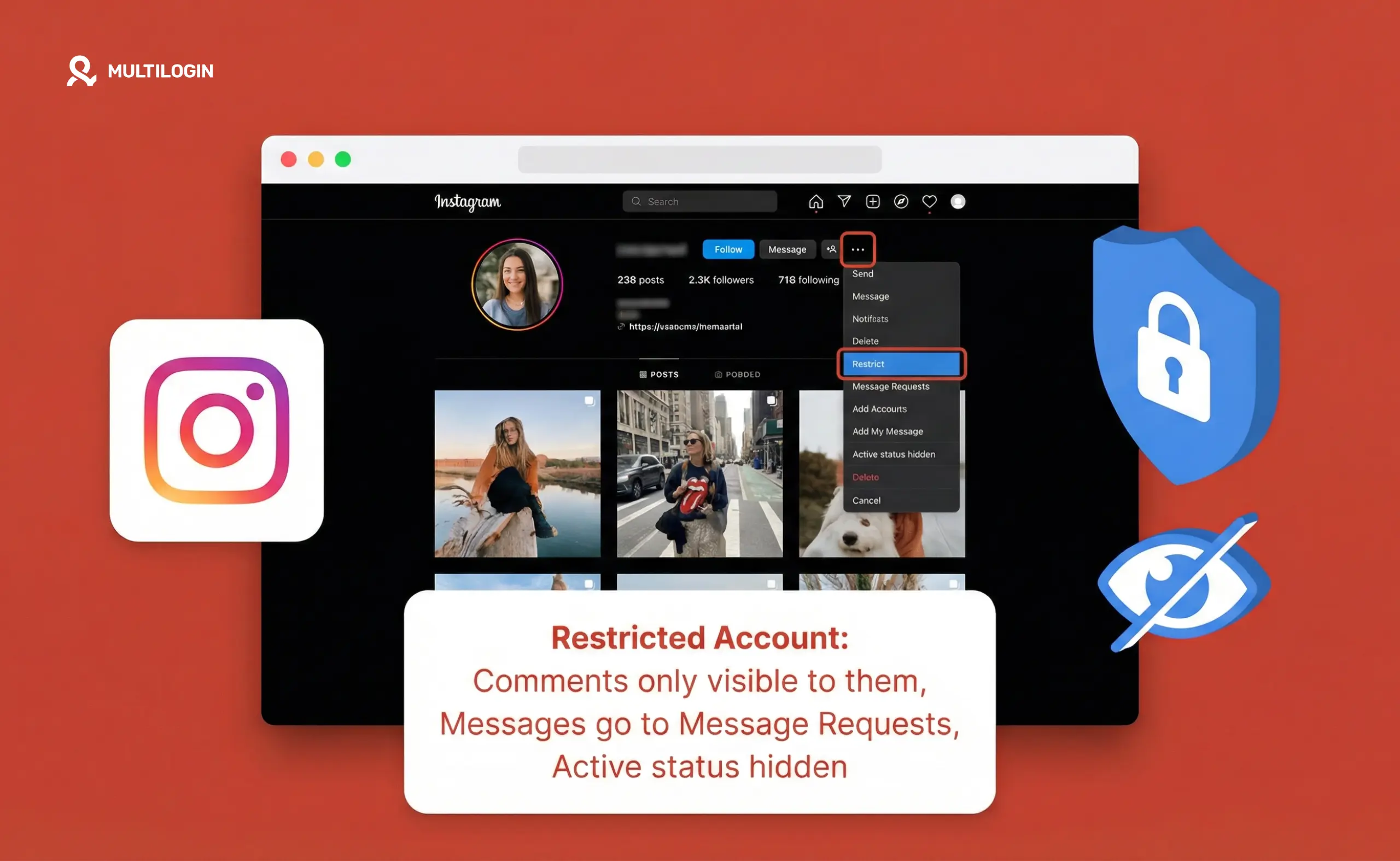



Restrict is one of Instagram’s quietest features — and one of the most useful. Unlike blocking, which is obvious to the person on the receiving end, restricting someone is completely invisible to them. They have no idea it happened.
Understanding exactly what restricting does — and what it doesn’t do — helps you choose the right tool for the situation.
What does restricting someone on Instagram do?
When you restrict an account on Instagram, four things change:
- Their comments go into a pending queue. Comments from a restricted account on your posts appear normally to them — they can see their own comment and nothing looks different from their side. But you, and everyone else, can’t see that comment unless you choose to approve it. The comment sits invisibly in a pending state until you review it.
- Their DMs move to Message Requests. Any direct messages from a restricted account go to your Message Requests folder rather than your main inbox. You won’t get a notification when they message you. From their side, messages appear to have been sent normally — they’ll see the “sent” confirmation but won’t be able to tell whether you’ve read them.
- They can’t see when you’re active. Restricted accounts can’t see your activity status (the green dot or “Active now” indicator). If they go to DM you, they won’t see when you were last online.
- They can’t see when you’ve read their messages. Read receipts are hidden from restricted accounts. They can send you messages and genuinely won’t know whether you’ve seen them.
What restricted accounts CAN still do
Restricting isn’t the same as blocking. A restricted account can still:
- View your public posts, Stories, and Reels
- Like your posts (likes remain visible)
- Tag you in their own content
- Search for your profile and find it
- Follow you (if they already do, the follow stays active)
Restricting specifically targets the comment and messaging experience — it doesn’t remove someone’s ability to see your content or profile.
Can a restricted account see your Stories?
Yes. Restricting someone does not prevent them from seeing your Stories. If you want to hide Stories from a specific person without restricting or blocking them, Instagram has a separate “Hide story from” setting under Story privacy settings.
Will someone know if you restrict them on Instagram?
No. Instagram does not notify someone when you restrict them. There’s no “you’ve been restricted” message.
The experience from their side looks completely normal. Their comment appears to have posted. Their messages appear to have been sent. They can still see your profile. Nothing signals that anything has changed.
The only indirect signs they might notice over time: you never reply to their comments or messages, and they can’t see your active status. But neither of these definitively indicates a restrict — there are other explanations for both.
How to tell if someone restricted you on Instagram
Since Instagram doesn’t notify you, the signs are subtle:
- Your comments on their posts are only visible to you. If you comment on someone’s post and no one else responds to or engages with your comment — even on posts with lots of activity — it may be in their pending queue.
- You can’t see their activity status. If you previously could see when they were online and now you can’t, a restrict is one possible explanation (they may also have turned off activity status for everyone).
- Your messages show “sent” but never “seen”. No read receipts, no response, over an extended period — combined with the above — suggests restriction.
None of these are conclusive on their own. The comment visibility is the most reliable indicator — you’d need someone else to look at the same post and confirm your comment doesn’t appear to them.
How to restrict someone on Instagram
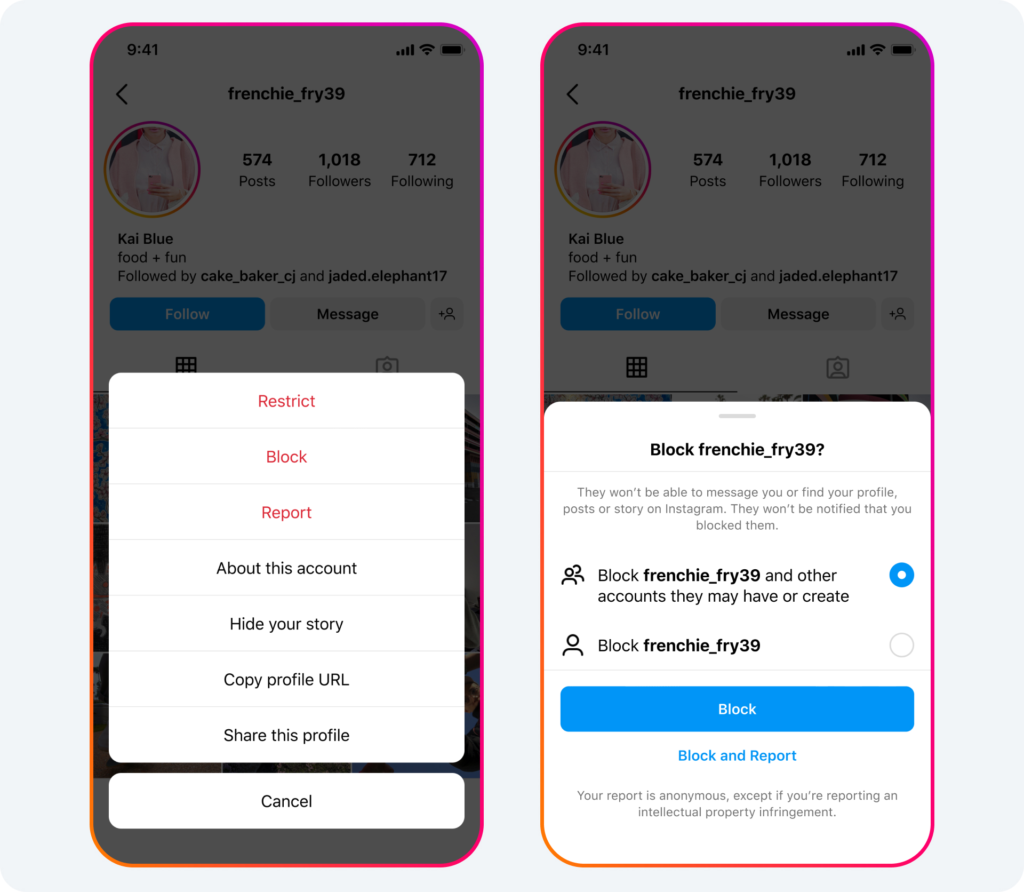
From their profile:
- Go to the account’s profile
- Tap the three-dot menu (⋯) in the top right
- Select Restrict
From a comment:
- Swipe left on their comment on your post
- Tap the exclamation mark icon (!)
- Select Restrict [username]
From your settings:
- Go to Settings → Privacy → Restricted accounts
- Search for the account and add them
How to unrestrict someone on Instagram
Go to Settings → Privacy → Restricted accounts. Find the account and tap Unrestrict. Or visit their profile, tap the three-dot menu, and select Unrestrict.
Restrict vs block: which should you use?
This is the core decision most people are trying to make. Here’s when each one makes sense:
Use Restrict when:
- You want to reduce someone’s impact on your content without creating confrontation
- The person is leaving unwanted comments but you don’t want the friction of a block
- You’re managing a public account and want to filter specific commenter behavior
- You’re dealing with someone in your real life (colleague, family member) and a block would cause fallout
- You want the option to quietly review their content without them knowing
Use Block when:
- You need to completely cut off access to your profile and content
- Someone is sending abusive or harassing messages
- You want to prevent any contact entirely
- The situation is serious enough that you don’t want any ambiguity
The key difference: Restricting is reversible and invisible. Blocking is more visible — the person will notice they can’t find your profile or content when logged in.
A practical approach many people use: restrict first. If the behavior continues or escalates, block.
What happens to comments when you restrict someone?
Comments from restricted accounts sit in a pending state. You can:
- Approve the comment — it becomes visible to everyone
- Delete the comment — it’s removed
- Ignore it — it stays pending and invisible to others indefinitely
The restricted person sees their comment as posted normally throughout. They have no visibility into this review process.
Managing multiple Instagram accounts and restrictions
If you manage multiple Instagram accounts — separate client profiles, different niche pages, or personal and professional accounts — restrictions and blocks operate at the account level, not the device level. An account you restrict on one profile isn’t automatically restricted on your other profiles.
For social media managers running multiple client accounts, this matters when one client’s problem audience needs to be handled consistently across all their touchpoints. It also means that if you’re managing accounts from a shared device, platform signals about account relationships can be more complex than they appear.
Managing accounts in properly isolated environments — separate browser profiles or cloud phones per account — keeps each account’s activity and settings genuinely independent. That’s how agencies and multi-account operators keep client data and platform behavior cleanly separated.
Try Multilogin now for managing multiple Instagram accounts without device-level linking.
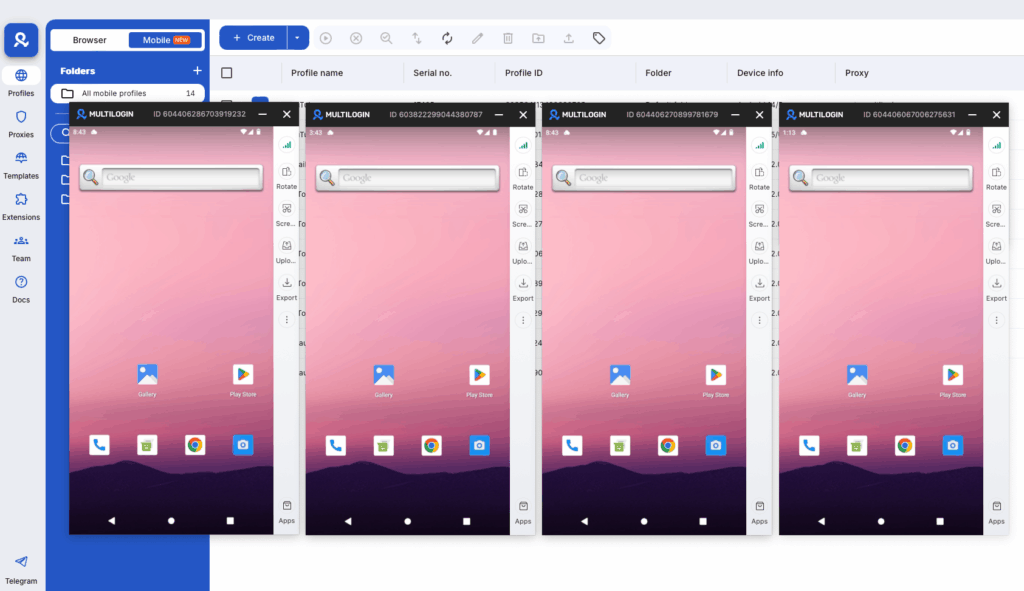
Need to manage multiple Instagram accounts? Try Multilogin Cloud Phones.
Frequently asked questions About What does restricting someone on Instagram do
Their comments on your posts go into a pending queue that only they can see. From their perspective, the comment posted normally. You and other users can’t see it unless you choose to approve it.
Yes. Restricting doesn’t affect Story visibility. To hide Stories from someone specifically, use the “Hide story from” setting in Instagram’s Story privacy options.
No. There’s no notification of any kind. The person has no direct way of knowing they’ve been restricted.
You can recover it within the 30-day window by logging back in — this cancels the deletion automatically. After 30 days, recovery is not possible. The account and all its data are permanently gone.
There’s no certain way to tell. Indirect signs include: your comments appearing only to yourself on their posts, no read receipts on your messages, and not being able to see their active status. The comment visibility test is the most reliable indicator.
Yes, but each account needs its own isolated device environment. Accounts managed from the same device and IP get linked by Instagram’s systems, which creates cascade risk across all of them. Multilogin Cloud Phones give each account its own real Android device with its own IP, enabling independent growth for each account.


