How to sync your computer’s date and time for Multilogin
 ~1 minWritten by Yelena V
If your computer’s date or time is wrong, Multilogin can have trouble validating sign-ins, sessions, or secure connections because they rely on timestamps.
➡️ Sign out of Multilogin → close the desktop app or disconnect the agent → turn on automatic date, time, and timezone in your system settings → sync the clock → reopen Multilogin.
Windows
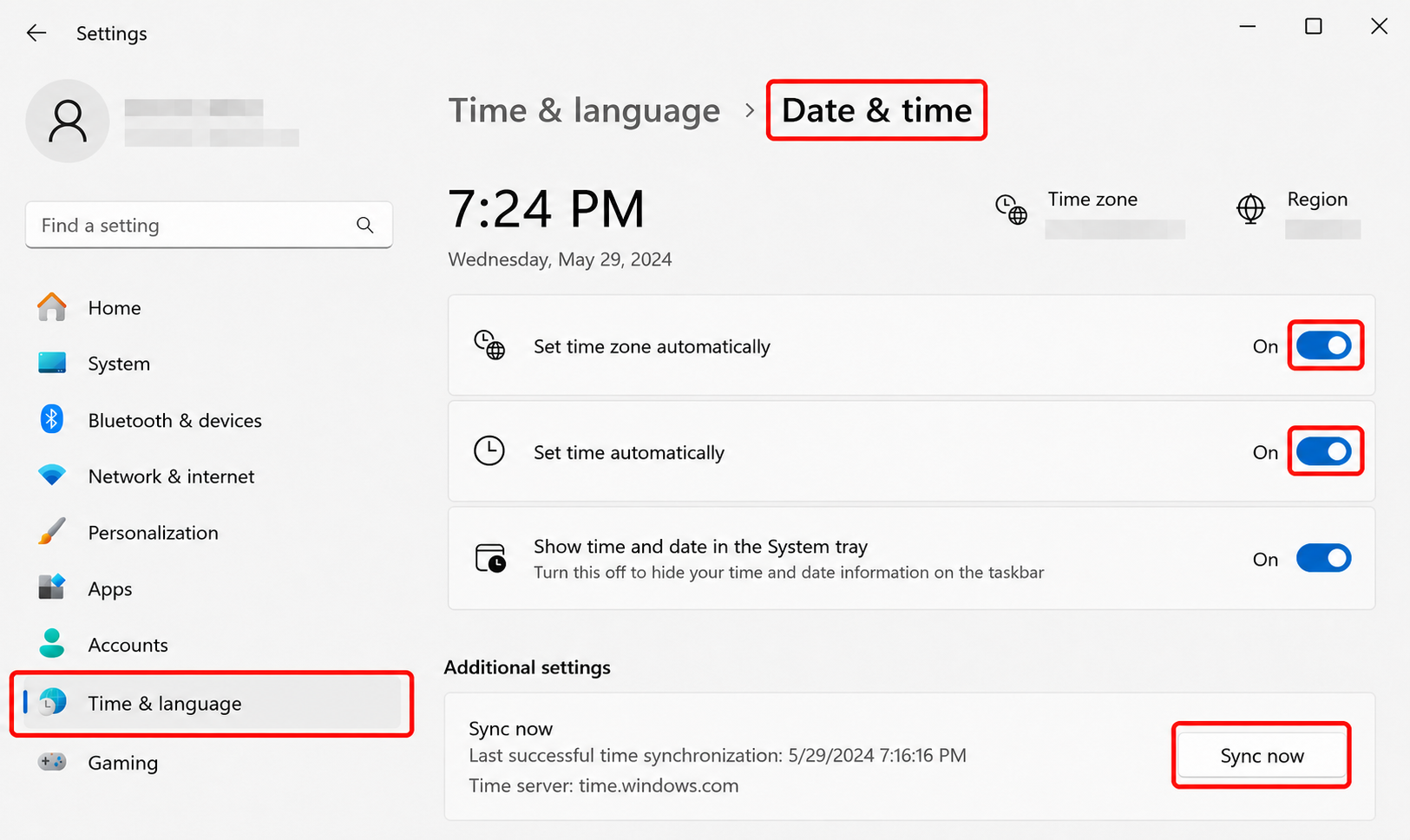
- Click “Start” → “Settings”
- Go to “Time & language” → “Date & time”
- Enable “Set time zone automatically” and “Set time automatically”
- Click “Sync now”
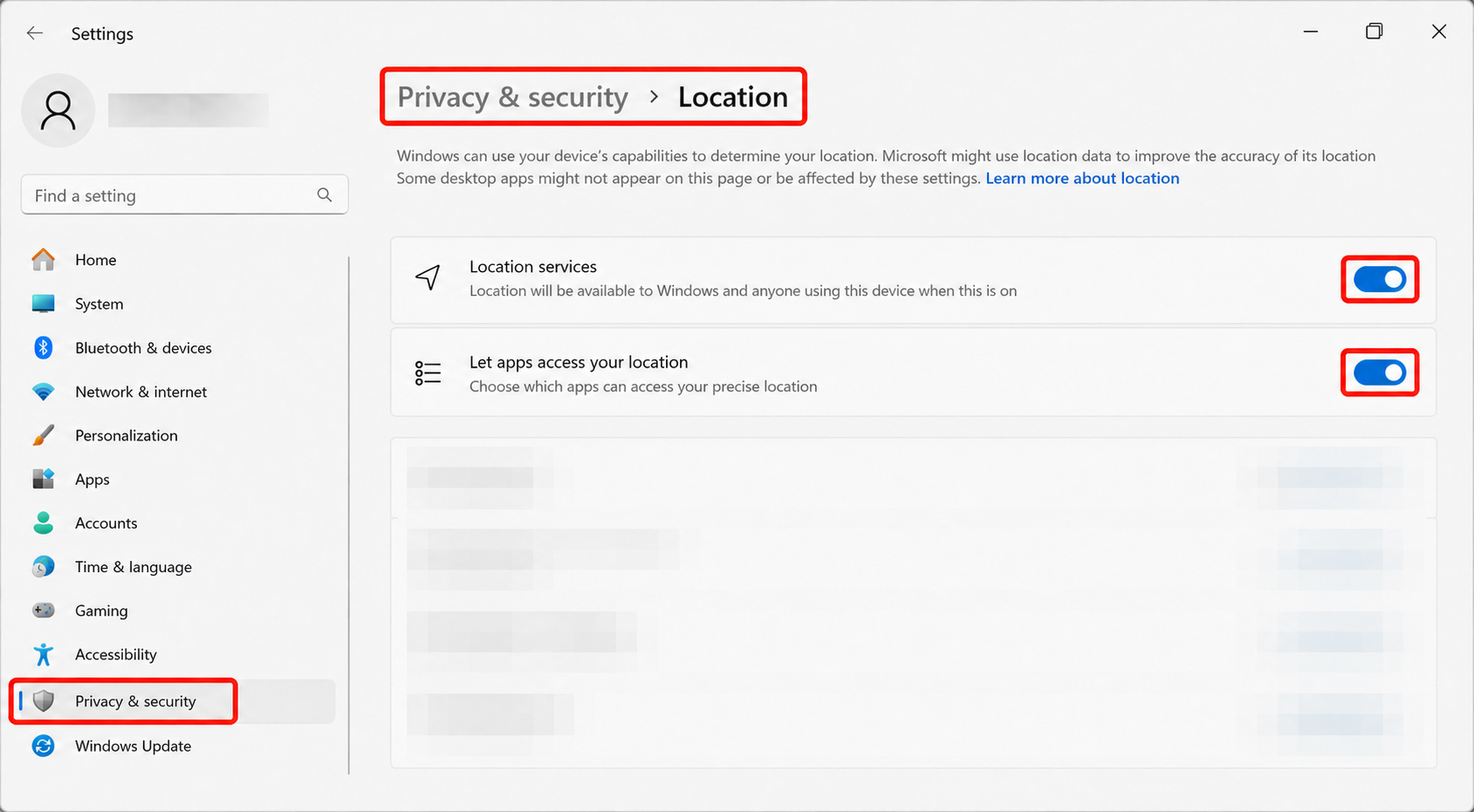
Can’t enable “Set time zone automatically”? Turn on location services:
- Go to “Settings” → “Privacy & security” → “Location”
- Enable “Location services”
- Enable “Let apps access your location”
macOS
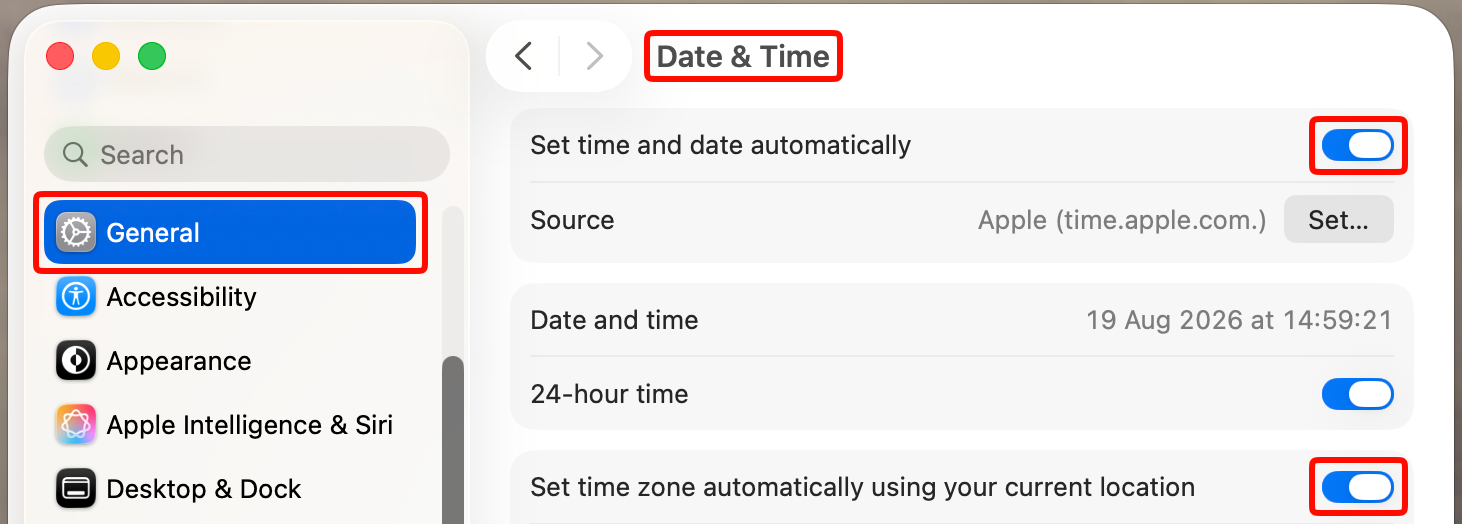
- Go to “System Settings” → “General”
- Choose the “Date & Time” section
- Enable the “Set time and date automatically” and “Set time zone automatically using your current location” settings
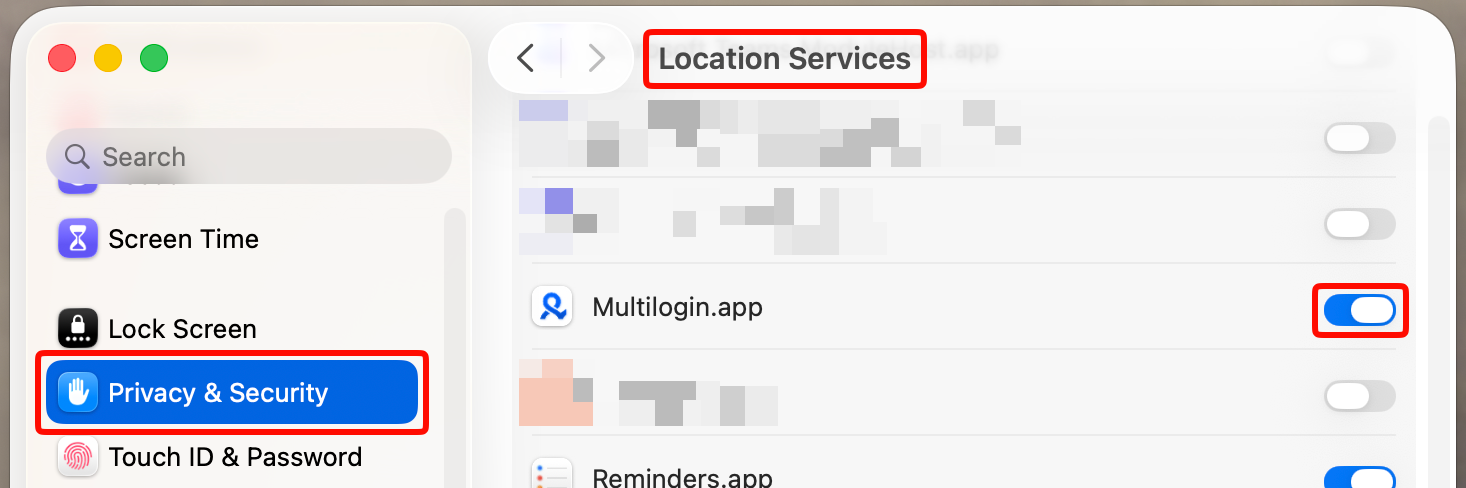
Can’t enable automatic timezone detection? Turn on location services:
- Go to “System settings” → “Privacy & Security”
- Pick “Location services”
- Turn on this feature for Multilogin