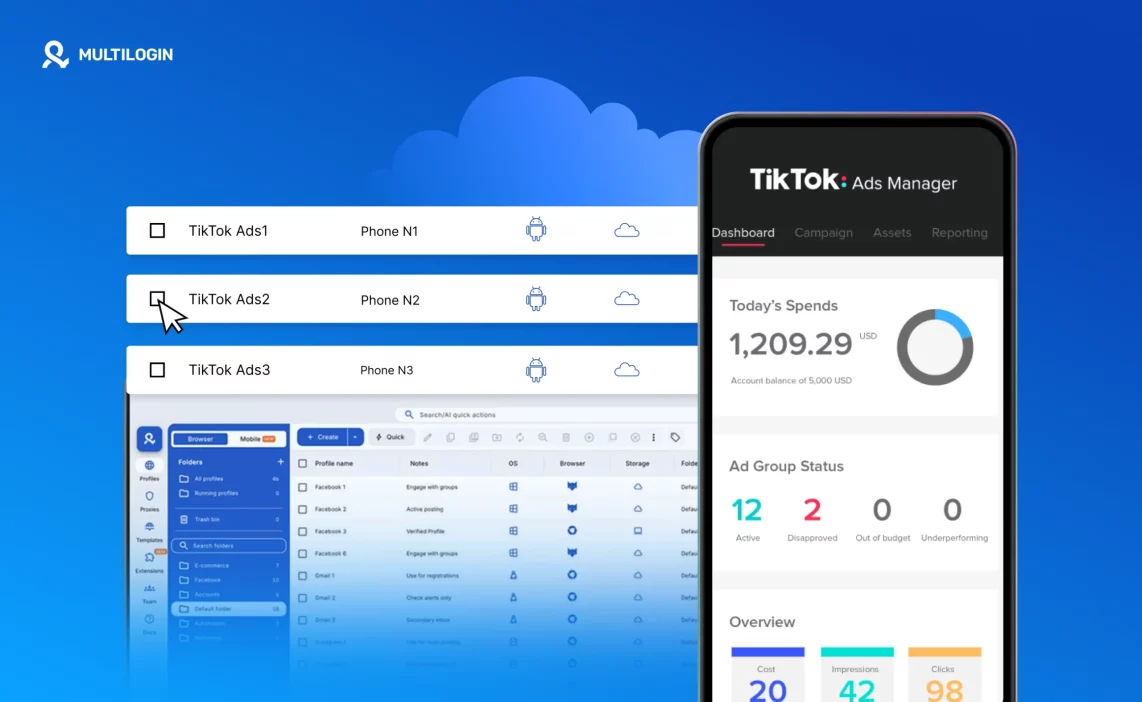

Running more than one TikTok ad account from the same device is asking for trouble. TikTok’s systems are built to detect exactly that — shared device signals, overlapping sessions, and hardware identifiers that tie multiple accounts back to the same operator. Once that link is made, the accounts don’t just get flagged. They go down together.
Swapping browsers or rotating proxies doesn’t change the core issue. TikTok looks beyond your IP address. It reads device fingerprints: the hardware model, OS version, screen resolution, and a cluster of identifiers that stay the same no matter what proxy you sit behind. Two accounts sharing those parameters are linked in TikTok’s eyes, even if they appear to come from different countries.
Multilogin cloud phones cut through that problem at the root. Each cloud phone is a real Android environment running in the cloud, with its own unique device fingerprint, its own session, and its own IP. TikTok sees each one as a completely separate phone. That separation is what makes it possible to manage multiple TikTok accounts without one mistake bringing everything down.
This guide covers exactly how to use TikTok — from profile creation to logging into your TikTok Ads Manager account — safely and at scale. Start your Multilogin plan and follow along.
Before you start
You’ll need an active Multilogin account on a plan that includes cloud phone minutes. Cloud phones run at €0.0075 per minute, billed from credits you purchase in advance. Have your TikTok login credentials ready before you begin.
One thing to keep in mind: TikTok doesn’t allow new account registrations from fresh device environments without verification. If you’re logging into an existing account, you’re fine. If you need to create a new TikTok account, do that from a regular device first, let it build some activity history, then bring it into a cloud phone. Platforms pay attention to account age and behaviour patterns, not just where the login comes from.
If you’re also handling browser-based ad work alongside your mobile campaigns, Multilogin’s multi-account management setup lets you run both from the same dashboard.
Step 1: Switch to a mobile enviroment
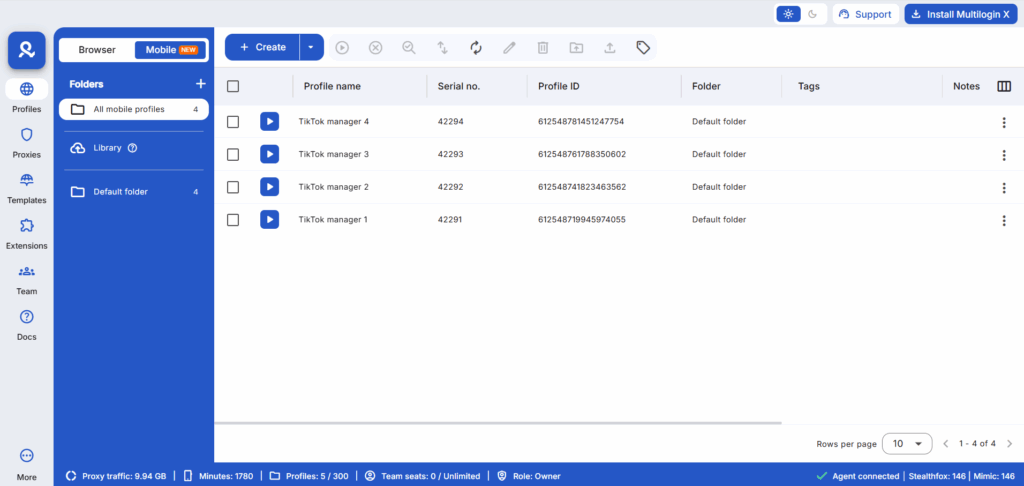
Open the Multilogin desktop app. In the left sidebar, click Profiles. At the top of the profile list, there’s a toggle to switch between browser profiles and mobile profiles. Switch to Mobile.
This is your home base for cloud phone profiles. Everything is managed from your desktop — no physical phones, no SIM cards, no hardware costs.
Step 2: Create a new cloud phone profile
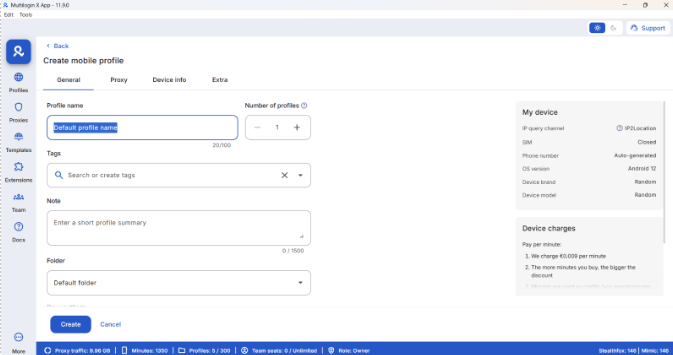
Click Create. The profile setup screen will open.
Fill in the following:
Profile name: Something clear and specific, like “TikTok Ads – Account 1” or “ClientName – TikTok – US.”
Number of profiles: If you’re setting up multiple accounts in one go, increase this number. You can create up to 100 profiles at once.
Folder: Use folders to separate profiles by client, campaign, or region. It makes everything easier to manage as you scale.
Proxy: This is one of the most important steps. Each cloud phone needs its own proxy to ensure complete account separation — without it, TikTok and other platforms can link accounts back to the same IP.
You have three options here:
- Multilogin proxy gives you instant access to residential and mobile IPs with built-in features like ISP selection, sticky session control, and a mobile/residential proxy switch — no extra setup needed.
- Custom proxy lets you connect any HTTP, HTTPS, or SOCKS5 proxy from your preferred provider. You’ll need the proxy type, IP, port, and credentials (if applicable). Note that local proxies (e.g., 127.0.0.1) won’t work since cloud phones run on remote servers.
- Proxy template lets you save and reuse proxy configurations across multiple profiles — a real time-saver if you’re managing accounts at scale.
On the right side of the screen, you’ll see the Device info panel. Multilogin automatically assigns unique Android device parameters to each cloud phone profile — device model, OS version, IMEI, Android ID, MAC address. You can select a brand from +30 options and also determine network settings.
This is where the device comes into play. Platforms like TikTok use hardware-level identifiers to detect when multiple accounts share the same device. Each cloud phone gets a full, distinct set of real parameters — not spoofed values, not recycled ones.
Click Create when you’re ready.
Step 3: Launch your cloud phone
Your new profile will appear in the profile list. Click Launch to start it.
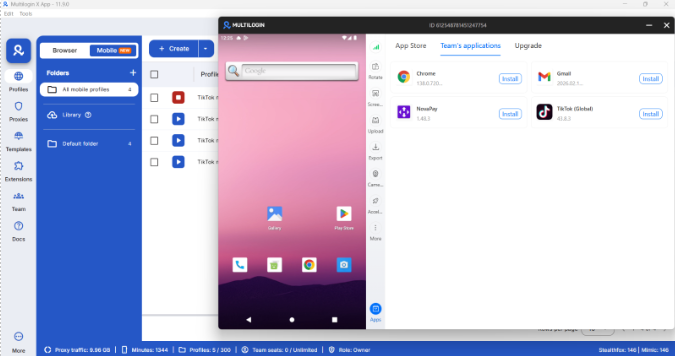
After a few seconds, the cloud phone opens in a new window. You’ll see a real Android home screen running in the cloud. The toolbar on the right gives you screen rotation, screenshot controls, and access to the App Marketplace. The environment is completely isolated — nothing crosses over to other profiles unless you configure it to.
Step 4: Open the App Marketplace
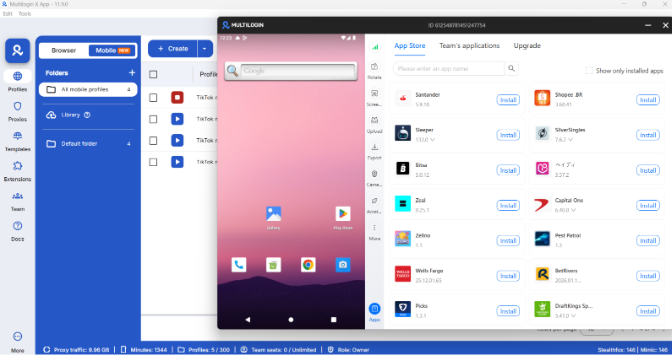
Multilogin has its own App Marketplace built directly into the cloud phone interface.
Click the Apps icon at the bottom of the right toolbar. The App Marketplace will open as a panel next to your cloud phone. If you prefeer, the app can also be installed through Play Store, only then making use of proxy traffic.
Step 5: Install TikTok
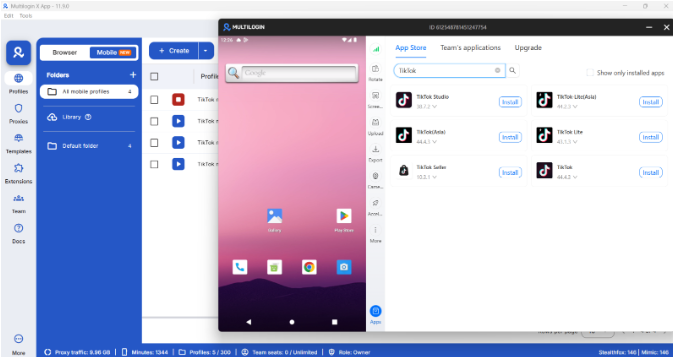
In the search bar at the top of the App Marketplace, type “tiktok” and press Enter. Select TikTok from the results and click Install.
Installation takes a few seconds. Once it’s done, you’ll see the Uninstall button and a green Installed badge. The TikTok app is now on your cloud phone, ready to use.
Step 6: Find TikTok on your cloud phone
Go back to the cloud phone home screen. Swipe up or open the app drawer to see all installed apps. Tap TikTok to open it.
Step 7: Log in to your TikTok account
The TikTok login screen will appear. Enter the credentials for your TikTok account — email, phone number, or username — and tap Log in.
If two-factor authentication is enabled, complete the verification step. You’ll land on your TikTok home feed once you’re through.
Once logged in, you can navigate to your TikTok Ads Manager account directly through the app or via the in-app browser at ads.tiktok.com. Both routes work cleanly inside the cloud phone environment.
Remember: TikTok requires existing accounts for cloud phone logins. If you need to register a new account, do it from a regular device first. Spend a few days warming it up — scroll the feed, interact naturally, let TikTok register it as a real user — before logging in from a cloud phone. Account warmup matters more than most people realise. You can read more about how to avoid getting banned on social platforms if you want to understand the broader picture.
Step 8: Access your TikTok Ads Manager accounts
With TikTok open on your cloud phone, you have two clean routes to reach TikTok Ads Manager:
Through the TikTok app: tap your profile, go to Creator tools or Settings, and access the Ads entry point if it’s enabled for your account type.
Through the mobile browser: open the browser inside the cloud phone and go to ads.tiktok.com. Log in with the same account credentials. You’ll have full access to campaigns, ad sets, budgets, and performance data from your TikTok Ads Manager account.
Either way, the session runs entirely within this cloud phone profile. TikTok sees it as a single device, one user, one location. Nothing links it to any other profile you’ve created.
Running multiple TikTok Ads Manager accounts at the same time
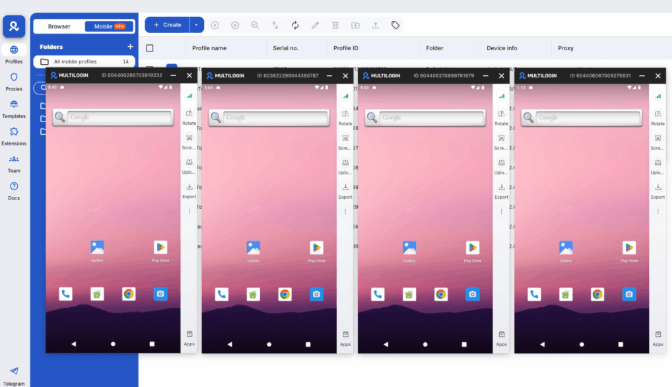
One of the most practical advantages of Multilogin cloud phones is simultaneous multi-account operation. Instead of launching profiles one at a time, you can select several from your list and click Launch all.
Each cloud phone opens in its own window. You can have five, ten, or more TikTok Ads Manager accounts running in parallel, each with its own isolated environment, unique device fingerprint, and dedicated residential proxy. Account linking risk drops to near zero when every profile has a completely independent identity from the hardware level up.
For teams building larger operations, phone farming with Multilogin covers how cloud phones stack up against running physical device farms — the cost comparison alone is worth a look.
Tips for keeping your TikTok ad accounts safe
Assign a dedicated proxy to each cloud phone profile. When setting up your cloud phone, go to the proxy tab and add a residential or mobile proxy that matches the account’s target region. A US-based TikTok Ads Manager account should run through a US-based proxy. Geolocation mismatches are one of the most consistent triggers for account reviews. Check Multilogin’s proxy management guide if you’re new to this.
Stick to one account per cloud phone. Each profile is mapped to one TikTok account. Logging into different accounts from the same profile defeats the isolation you’ve built. Keep it one-to-one.
Don’t skip the warmup on new accounts. Fresh TikTok accounts moved into cloud phones too quickly attract scrutiny. Let the account build a natural activity history — a few days of regular use — before you start running ads.
Name profiles in a way that scales. A convention like “ClientName – TikTok Ads – US – Account 2” makes it fast to identify which cloud phone belongs to which TikTok Ads Manager account, especially across multiple clients. And don’t worry about the name giving anything away — profile names are only visible to you and your team. Websites and apps never see them, so you can be as descriptive as you like without any detection risk.
Close profiles when you’re not actively using them. Cloud phones are billed per minute. Sessions save automatically, so you’ll still be logged into your TikTok account when you relaunch. No need to keep them running idle.
If TikTok is one part of a broader social media operation, Multilogin’s social media marketing setup explains how to run browser profiles and cloud phones together from a single workflow.