


How to download LinkedIn contacts is easier than it looks: request your data archive in LinkedIn Settings, wait for the download email, then open the exported CSV file- no browser extensions or third-party scrapers required.
In this guide, you’ll learn exactly where to find the export option, how to download LinkedIn connections, what information the CSV may contain, how long processing can take, and how to organize the file for networking, lead tracking, or CRM workflows. You’ll also see common export issues and practical ways to handle your contact data responsibly.
For professionals managing multiple LinkedIn accounts or separate outreach workflows, Multilogin’s cloud phone provides isolated mobile environments that can help keep account access, contact exports, and daily operations better organized.
Follow the steps below to export your LinkedIn connections to CSV, then explore Multilogin to manage multi-account workflows more efficiently.
What Does “Downloading LinkedIn Contacts” Actually Mean
It means requesting a copy of your connection list from LinkedIn’s own data export tool, not scraping it, not screenshotting it, and definitely not copying names out of your feed one by one.
People use the phrase loosely. Some mean “get my connections into a spreadsheet.” Others mean “back up everyone I’ve ever messaged.” LinkedIn’s export can technically do both, since the full data archive includes messages, but for most folks, downloading LinkedIn contacts specifically means the Connections.csv file: names, current employer, position, and email address (when LinkedIn has one on file, which isn’t always). It’s a modest file. No profile photos, no post history, no endorsements. Just the bones of your network.
How to Download LinkedIn Contacts and Connections
Open Settings & Privacy, click “Get a copy of your data,” select connections, and wait for LinkedIn to email you a download link.
Here’s the full walkthrough, step by step:

1. Log into LinkedIn on desktop (the mobile app doesn’t offer the full export flow, which is mildly annoying but that’s how it is)
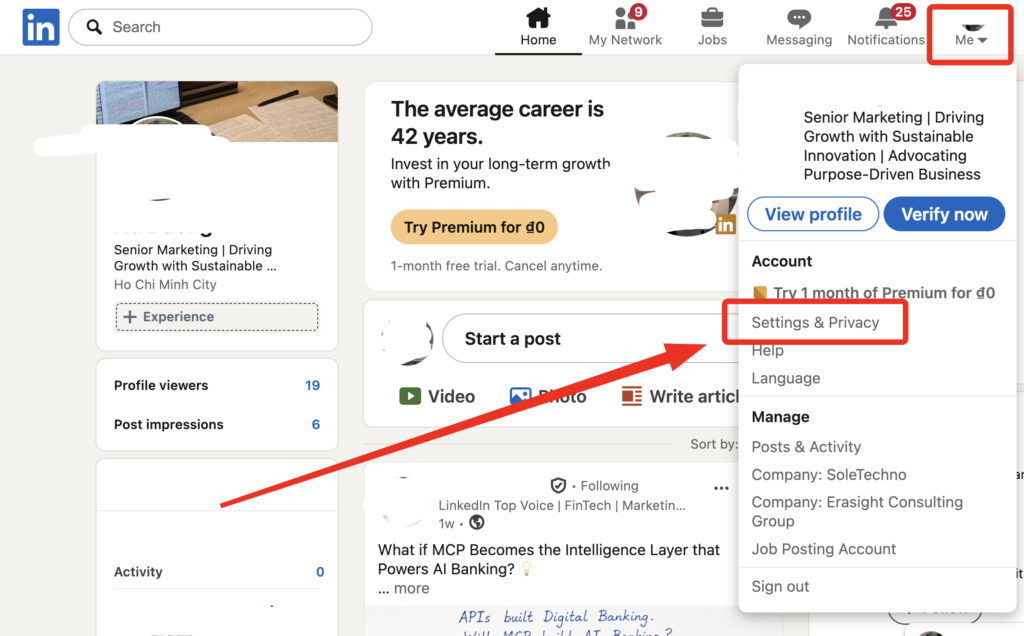
2. Click your profile photo in the top right, then go to Settings & Privacy
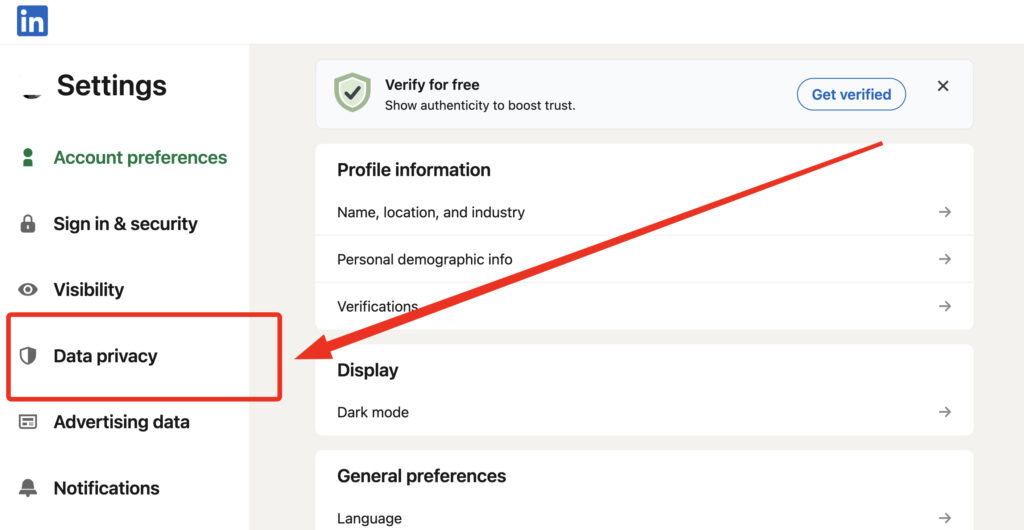
3. Under the Data privacy tab, find Down load your data
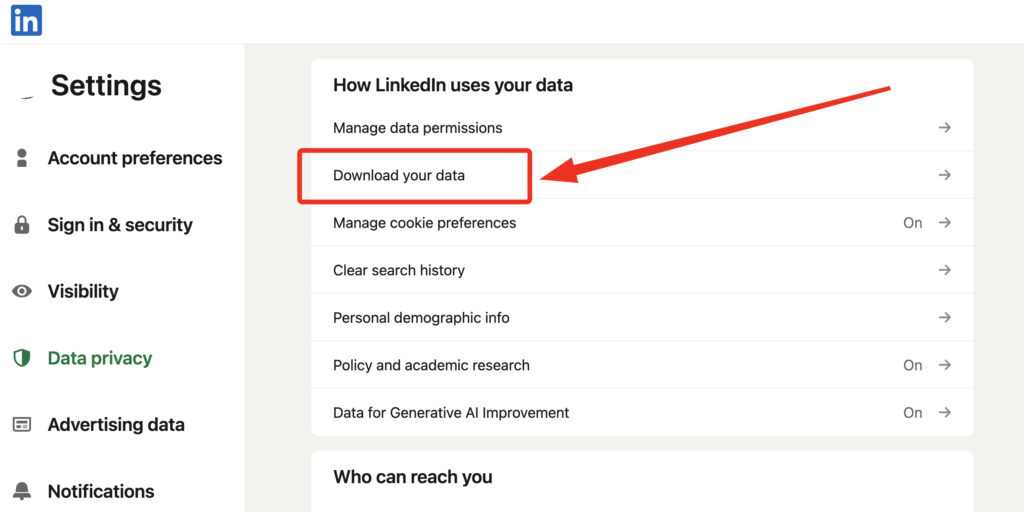
4. Choose “Download larger data archive, including connections, verifications, contacts, account history, and information we infer about you based on your profile and activity” or “Want something in particular? Select the data files youre most interested in“
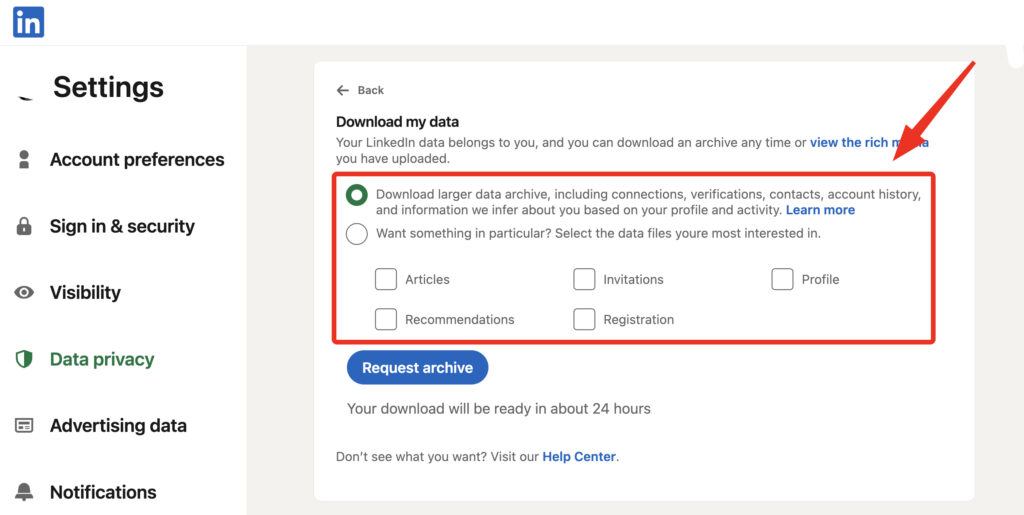
5. Click Request archive
LinkedIn will send a confirmation email almost immediately, and a second email with your actual download link once the file is ready. Sometimes that’s ten minutes. Sometimes it’s closer to 24 hours, particularly if you requested the full archive instead of just connections. Patience helps here.
How to Export LinkedIn Connections to CSV
Your export arrives as a CSV file automatically, there’s no separate “convert to CSV” step you need to run.
Once you click the download link from LinkedIn’s email, you’ll get a ZIP folder. Inside it, look for a file named Connections.csv. Open it in Excel, Google Sheets, Numbers, whatever spreadsheet tool you already have lying around. That’s your export, done. No formatting required on your end, though the raw file does put a few disclaimer lines at the very top before the actual column headers start, which trips up some import tools if you’re feeding it into a CRM later.
What’s Inside Your LinkedIn Connections CSV File
The file includes each connection’s first name, last name, current company, current position, and connected-on date, plus an email column that’s frequently blank.
That last part surprises people. LinkedIn only includes an email address if the connection has chosen to share it in their own privacy settings, and a lot of users simply haven’t. So don’t be shocked if half your rows have empty email fields. It’s not a bug on your end, it’s a privacy choice on theirs.
A LinkedIn connections export is a snapshot, not a live sync. The moment you download it, it starts going stale. People change jobs, companies rebrand, contacts leave the platform entirely.
Why Some Contact Details Might Be Missing After Export
Missing emails and outdated job titles happen because the export only reflects what a connection has made visible, and only at the moment you requested the file.
Think of it less as pulling data from LinkedIn and more as asking each of your connections, individually, “hey, can I have your email?” Some say yes by default, some have that setting locked down, and LinkedIn respects whatever they’ve chosen. There’s no workaround for this that doesn’t involve manually reaching out to people, which, let’s be honest, nobody has time for.
How Long Does the LinkedIn Export Actually Take
Most connection-only exports arrive within an hour, though LinkedIn’s own guidance says to allow up to 24 hours before assuming something went wrong.
Why the range? A few reasons. Server load plays a part, LinkedIn processes a genuinely enormous number of these requests daily. The size of your network matters too, someone with 200 connections gets processed faster than someone with 10,000. And if you requested the full data archive rather than just the connections file, expect it to sit at the slower end, since LinkedIn is compiling messages, posts, and activity logs alongside everything else.
If it’s been more than a day and you still haven’t received anything, check your spam folder first (LinkedIn’s export emails do occasionally land there), then simply submit the request again. There’s no penalty for asking twice, though LinkedIn will limit how frequently you can request archives in a short window, so spamming the button every ten minutes won’t speed things up.
What to Do With Your Exported LinkedIn Contacts
Most people import the CSV straight into a CRM, an email tool, or a plain backup spreadsheet, and that covers about 90 percent of use cases.
A few practical paths once you’ve got the file:
- Import into a CRM (HubSpot, Pipedrive, and most others accept CSV uploads directly)
- Load it into Google Contacts or Outlook if you want the names and emails syncing to your phone
- Keep it as a plain backup, useful before switching jobs or if you’re worried about losing account access
- Cross reference it against an existing contact list to spot who you’re missing
👉 Before importing into any CRM, open the CSV and delete the blank-email rows if your CRM requires an email field to create a contact. Otherwise you’ll end up with a pile of broken, half filled entries cluttering the system.
What to Know About Privacy Before Exporting LinkedIn Data
Exporting your own LinkedIn connections is generally straightforward, but the file may contain sensitive professional information such as names, job titles, companies, profile URLs, and email addresses shared by your contacts. Once downloaded, that data is no longer protected by LinkedIn’s platform controls, so you are responsible for storing, sharing, and using it securely.
Keep the CSV in a protected folder, limit access to authorized team members, and avoid uploading it to unverified tools. If you use the data for outreach, follow applicable privacy laws, respect user consent, and avoid collecting or contacting people in ways that violate LinkedIn’s rules.
How Multilogin Supports LinkedIn Data and Multi-Account Workflows
Multilogin is positioned as an all-in-one platform for managing multiple LinkedIn accounts across both mobile and desktop environments. For LinkedIn teams, it combines Android cloud phones, isolated browser profiles, residential proxies, automation, and team collaboration in one workspace.
With Multilogin, you can:
- Run each LinkedIn account in a separate Android cloud phone with its own device identity, storage, apps, and session history.
- Manage mobile and browser-based LinkedIn workflows from one dashboard instead of switching between physical phones and separate tools.
- Assign profiles to team members, control access, and keep client or regional accounts organized.
- Maintain consistent device and location signals across repeated sessions.
- Support LinkedIn research, lead collection, and scraping workflows using isolated environments and automation tools.
For data scraping, collect only public or authorized information and comply with LinkedIn’s terms, applicable privacy laws, and reasonable request limits. Multilogin provides the infrastructure for scalable account and data operations, while responsible data use remains with the operator.