


A customer asks about an order. You type a reply, tap send, and Messenger tells you that messaging is restricted. Before trying another device or reinstalling the app, read the notice carefully: a temporary sending limit is not the same as a disabled account, and a failed message is not always a ban.
The next step depends on which problem you have. This guide explains how to identify it, follow the appropriate Meta recovery process, and organize business messaging with Multilogin cloud phones once access is available.
Quick answer: If Messenger explicitly restricts sending, pause the affected activity and follow the notice. Request a review if Meta offers that option. If there is no restriction notice, troubleshoot the app and connection first. A cloud phone can provide a dedicated Android workspace, but it cannot remove a restriction attached to your account.
Is your Messenger account actually banned?
“Facebook Messenger banned” is a search term, not a precise diagnosis. Start by separating these situations:
| What you see | What to check | Appropriate next step |
|---|---|---|
| A notice temporarily blocking outgoing messages | The affected feature and any expiry time | Pause sending and follow the notice |
| A Messenger account-disabled screen | Whether the app offers a review | Use the Messenger account-review instructions |
| A Facebook account-suspension screen | The account decision and appeal deadline | Follow Facebook’s account appeal process |
| A problem replying to one person | Conversation availability or a block | Respect the person’s settings; do not try another identity |
| Page messages unavailable to one team member | Their Page permissions and selected business asset | Ask the administrator to check access |
| Messages fail without a restriction notice | Connectivity, app version, and service problems | Troubleshoot before assuming enforcement |
Meta’s messaging troubleshooting guidance distinguishes sending restrictions from conversation-specific problems. One unavailable chat does not establish that your entire account has been banned.

Why does Messenger restrict messaging?
Sending activity triggers a limit
Meta identifies an unusually high number of recent messages as one possible reason for messaging restrictions. It also identifies messages that violate its Community Standards. See its guidance on being unable to send messages.
For a business, review how the activity happened. Did an outreach campaign send repeated messages? Did a scheduled tool continue sending after a warning? Did two operators contact the same customers without checking the conversation history?
Do not treat a suggested daily quota from a third-party blog as permission to message people. Slowing down an unwanted campaign does not make it welcome.
Messages are unwanted or violate platform rules
Meta says suspicious or abusive activity, including messages marked unwelcome, can lead to feature blocks. Its explanation of why Facebook features may be blocked is a better starting point than guessing that the problem must be your IP address.
Review the actual messages and links involved. For customer service, check that replies concern the customer’s request, identify the correct business, and do not keep arriving after the person asks you to stop.
Someone else has accessed the account
Messages you do not recognize warrant a security check. A compromised account needs a recovery and security response, not simply a new place to log in.
A verification challenge is also different from a messaging ban. If Meta asks you to confirm your identity or login, follow that process. The presence of a challenge alone does not establish why messaging stopped.
What to do if Facebook Messenger is banned or restricted
1. Record the notice and check the account status
Save the exact wording, when it appeared, and whether the problem affects one conversation, all outgoing messages, or a particular Page. Note whether you can still access Facebook.
For a connected Facebook account, check Account Status and your Support Inbox. The latter contains account alerts and communications from Facebook. Menu labels can differ by device and app version.
For Page messaging, also check the affected business asset. A missing permission and a policy restriction require different responses.
2. Pause the affected messaging activity
If the notice says sending is restricted, stop retrying the same action. Pause any outbound tool or scheduled workflow using the affected account so it does not continue unattended.
Keep a short internal incident note: affected account or Page, notice, start time, responsible person, and any pending review. This helps colleagues avoid repeating the same failed attempts.
Do not move the campaign to another account or cloud phone to get around the restriction.
3. Use the review route that matches the decision
There is no single appeal form for every Messenger problem.
- Messenger account disabled: Follow Meta’s Messenger account-review instructions. Where available, the review begins by opening the app, signing in, and following the prompts.
- Facebook account suspended or disabled: Follow the Facebook account appeal process, using the deadline shown for your account.
- Business messaging restricted: Consult Meta’s business messaging restriction guidance. Review options apply to certain restrictions, not every messaging failure.
- Temporary feature limit with no review option: Follow the notice and any stated waiting period. Do not assume a technical bug report will shorten it.
If a review form accepts an explanation, keep it specific. For example:
On [date and time], [account or Page] displayed “[exact notice].” The issue affects [scope]. Before it appeared, [brief factual description of relevant activity]. I believe the decision may be mistaken because [specific evidence]. I have attached a redacted screenshot and would appreciate a review.
Only include claims you can support. Upload identity documents only through the official process when requested.

4. Secure the account if activity looks unfamiliar
Use Meta’s hacked-account recovery guidance if you see unauthorized messages or account changes. Review active sessions, remove access you do not recognize, and update your password from a trusted device.
Enable two-factor authentication and check that you can access your recovery methods. For business assets, have an administrator review who currently has access.
Do not give passwords, verification codes, or recovery codes to someone promising a paid Messenger unban.
5. Troubleshoot technical failures separately
If there is no enforcement notice, Meta recommends checking your connection, restarting the app or device, and updating Messenger. Follow its send-and-display troubleshooting steps.
Before reinstalling Messenger, clearing its app data, or moving to a new device, check your encrypted-chat recovery setup. Meta explains how to restore end-to-end encrypted chats with a PIN. Successful login alone does not guarantee that your previous chat history will be available.
If the technical problem persists, use Report a problem in Messenger. Include the app version, device, error wording, and steps that reproduce the fault. Reporting a bug is different from appealing an enforcement decision.
6. Follow the notice instead of a promised recovery time
Use any expiry time or appeal deadline Meta provides. If none appears, do not assume that access will return in 24 hours or that a review will be completed within a fixed number of days.
For businesses, make an already-established support channel, such as your help desk or support email, easy for customers to find while messaging is unavailable. Respect existing consent and contact preferences; do not use another channel to continue unwanted outreach.
After access returns, review the messaging workflow
Restored access does not explain what went wrong. Before resuming normal work, review the messages, tools, and access arrangements involved.
For a support team, that means:
- Assigning a conversation owner so two people do not send conflicting replies.
- Checking the Page identity before sending a customer-facing message.
- Using approved response templates while adapting them to the actual question.
- Stopping follow-ups when the recipient declines contact.
- Keeping sensitive cases and unclear policy decisions with a human reviewer.
- Removing former staff and contractors from both business assets and work tools.
If you use automatic replies, start with the options available in Meta Business Suite. An official feature is still subject to the rules and permissions governing its use.
These practices address messaging behavior and accountability. Cloud phones address a separate part of the problem: where the team does the mobile work.
Where Multilogin cloud phones fit into Messenger management
Multilogin is a cloud phone platform for social media management. It brings dedicated Android cloud phones and isolated browser profiles into one dashboard, allowing teams to organize mobile and web work without maintaining a collection of physical handsets.
For Messenger-related operations, the useful question is whether your team needs persistent mobile workspaces alongside its business inbox tools.
Separate mobile work from personal devices
An agency may need to check mobile conversations, review customer-facing links, and handle Page activity for several brands. Doing this on employees’ personal phones complicates onboarding, device access, and the separation of personal and business data.
A Multilogin cloud phone for Facebook provides a remotely accessible Android environment for that work. Separate environments can keep the relevant apps, settings, and files organized around an authorized operator or business workflow.
Do not copy a client’s personal Facebook login onto a team device. Grant people the appropriate business access instead.
Keep the mobile environment available between work sessions
Cloud phones retain their app environment between sessions, subject to the service’s retention rules. Operators can return to their configured workspace instead of rebuilding it on another handset.
This is useful for mobile inbox checks, attachment previews, and reproducing a customer-reported app problem. It does not guarantee permanent login, uninterrupted notifications, or recovery of encrypted messages. Meta can still require verification.
Use Business Suite for business conversations
For Page customer service, Meta Business Suite is often the appropriate inbox. Meta documents conversation assignment for people with Facebook access to the Page or the relevant task access to Messages.
Use the Android app when the task calls for a mobile interface. Use a browser profile for longer reply sessions or desktop administration. Our Meta Business Suite guide covers that broader workflow.
Multilogin organizes the working environments; Meta’s tools govern access to Pages and conversations. You do not need a separate personal Facebook account, or necessarily a separate cloud phone, for every Page.
Set up a Messenger workflow with Multilogin cloud phones
1. Choose an authorized operator and a defined task
Start with one working account and a narrow use case, such as checking a Page’s mobile inbox. Resolve any current restriction through Meta before treating the cloud phone as a production workspace.
For business messaging, confirm the operator’s Page permissions first. Keep personal Messenger conversations out of shared customer-support environments.
2. Create and name the cloud phone
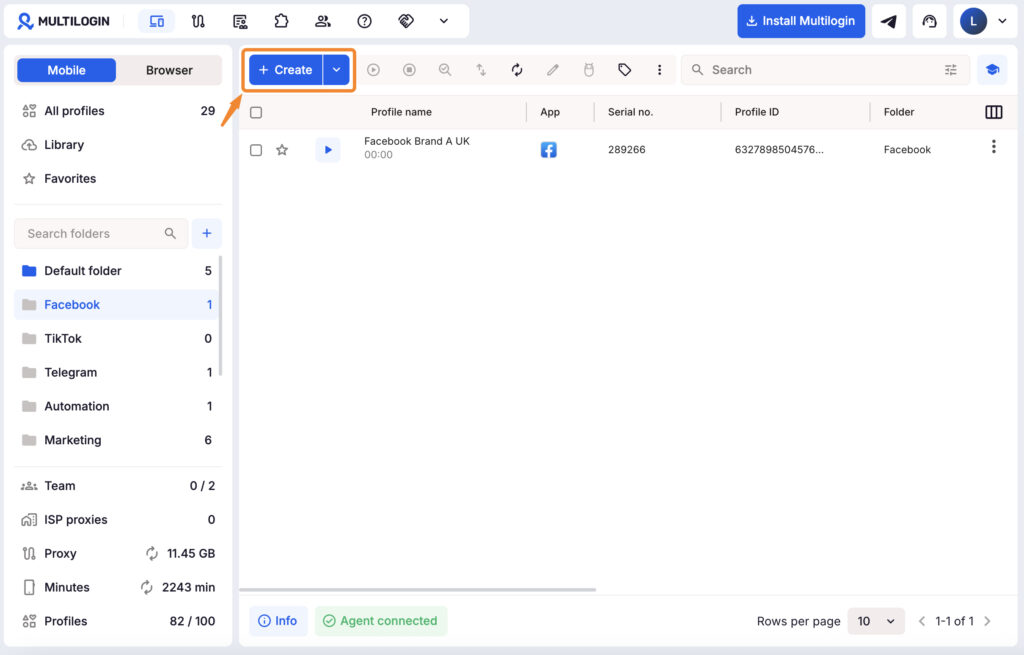
In Multilogin, go to Profiles → Mobile → Create. Give the phone a recognizable name, choose its device settings, and configure the required proxy connection. Use an approved network setup appropriate to the operator’s legitimate work.
Multilogin offers built-in proxy connectivity. Check the connection before starting the device, and avoid changing network settings as an attempted remedy for a messaging restriction. Follow the cloud phone creation guide for the current interface.
3. Install the Meta app
Start the cloud phone and use its Apps panel or Google Play to install the required app. Multilogin’s app installation guide explains both methods.
Use the official Messenger app for the account owner’s Messenger tasks, or Meta Business Suite for authorized Page inbox work. Verify the publisher rather than installing a modified “unban” APK.
Complete the first login manually. Keep recovery methods accessible and follow any verification prompts. If Messenger asks you to restore encrypted history, use your configured recovery method rather than resetting storage without understanding the consequences.
4. Set access at both levels
Assign the relevant cloud phone folders to the people who need them, using suitable Multilogin workspace roles.
Workspace permissions control access to the cloud phone; they do not provide message-by-message permissions inside an already signed-in app. Someone who can operate that phone may be able to use its active sessions. Limit access accordingly, and maintain each person’s proper Meta business permissions.
For a handoff, use active session lock to see whether the environment is already running elsewhere. Coordinate before taking over so you do not interrupt work. Do not use a shared session to impersonate another employee’s personal account.
Give your messaging team a dedicated mobile workspace
When Messenger stops working, identify the restriction before changing your setup. Use the matching Meta recovery route, secure the account if needed, and review the messages and tools involved before resuming activity.
Once access is available, Multilogin helps you organize the ongoing work. Keep authorized mobile tasks in dedicated Android cloud phones, assign workspace access, and use isolated browser profiles for desktop business tools all from one dashboard.
Start with one operator and one support workflow. Test the inbox, app access, and handoff before expanding to the rest of the team.
Explore Multilogin cloud phones for Facebook and build a mobile messaging setup that does not depend on passing physical phones between colleagues.
Need a better way to manage Facebook Messenger? Try Multilogin Cloud Phones.
Conclusion
A Facebook Messenger restriction does not always mean that your entire account has been banned. It may be a temporary sending limit, a conversation-specific issue, a technical error, or part of a broader Facebook account suspension. Check the exact notice, pause the affected activity, and follow the review or troubleshooting process provided by Meta.
Once access is restored, review how your team handles messages, permissions, and account handovers. Clear responsibilities and dedicated working environments can reduce accidental overlap and make customer conversations easier to manage.
Multilogin gives social media teams access to persistent Android cloud phones, isolated browser profiles, built-in residential proxies, and role-based workspace controls from one dashboard. Teams can use cloud phones for authorized mobile Messenger and Meta Business Suite workflows without passing physical devices or sharing passwords between colleagues.
A cloud phone cannot remove an existing restriction or override Meta’s policies, but it can provide a more organized foundation for ongoing account management.
FAQ
What is a cloud phone?
A cloud phone is a real Android device hosted in the cloud. You access it from your desktop, but it runs like a physical smartphone with its own operating system, hardware identifiers, and storage.
How are cloud phones different from emulators?
Cloud phones run on genuine Android hardware with real device identifiers (IMEI, Android ID, MAC address). Emulators use simulated environments that platforms can easily detect and flag.
How long does a Messenger ban last?
Follow the duration shown in the restriction notice. A temporary sending limit, an account suspension, and a disabled-account review are different processes. Do not assume that a timeline quoted for one applies to the others.
Can I use Facebook while Messenger is restricted?
Possibly. A restriction may affect messaging without disabling the whole Facebook account. Check which features the notice covers. If Facebook itself is suspended, follow that account’s recovery process.
Why can I message everyone except one person?
A conversation-specific problem can result from a block or the other account becoming unavailable. It is not proof of an account-wide ban. Respect the person’s contact settings rather than testing another account to reach them.
Can reinstalling Messenger remove a ban?
Reinstalling can help with some app faults, but it does not reverse an account-level restriction. Check encrypted-chat recovery before removing app data or changing devices.
Can a cloud phone or proxy get me unbanned from Messenger?
No. Neither can reverse Meta’s decision or grant permission to message. Multilogin cloud phones provide a dedicated Android environment for authorized work, not an alternative appeal route.
Do I need a cloud phone just to answer Page messages?
Not necessarily. Meta Business Suite may already cover your needs. Consider a cloud phone when remote mobile access, separate app environments, or reducing dependence on physical work phones solves a specific operational problem.