


Captions AI is worth considering if you regularly turn spoken ideas into short social videos. The decision depends on your workflow: adding subtitles to existing footage, asking AI to edit a talking-head recording, generating a presenter, or finding clips in a longer video.
We tested the free Captions AI web workflow for this review. For teams producing videos for several social profiles, the key question is how those production tools fit into publishing.
Our main finding was a practical limit: a visible credit balance did not unlock AI actor generation. Below, we separate that hands-on result from documented paid features, explain pricing, and show how to budget for videos you can actually approve.
What is Captions AI?
Captions AI is a video creation and editing product from Mirage, with tools for subtitles, automated edits, generated presenters, and short clips from longer recordings. The name covers more than adding words to a video.
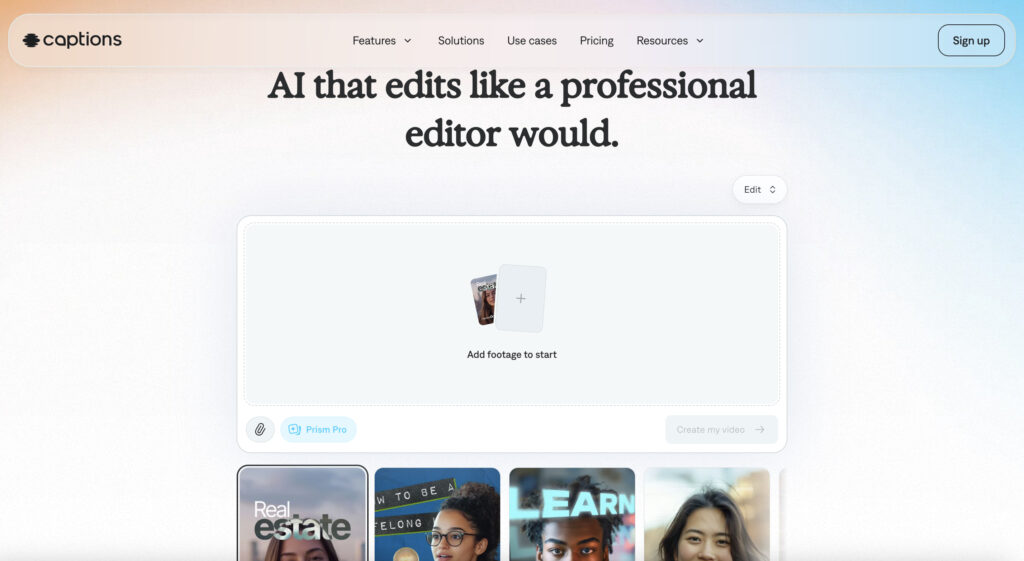
For social media teams, the table below compares the four Captions workflows by input, output, plan access, and credit cost.
| Workflow | Starts from | Produces | Plan on pricing page | Credit cost |
|---|---|---|---|---|
| Captions | Recorded footage | Subtitled video | Basic, Max, and Frontier | Included only in the Basic, Max, and Frontier plans and no extra credits cost |
| AI Edit | Recording plus prompt | Edited video with captions, B-roll, music | Max | 10 to 40 credits per project |
| AI actors | Script or prompt | Generated talking video | Max | 16 credits per 6 seconds |
| Clips | Recording or public link, up to 3 hours or 10GB | Short clip candidates | Max | 1-40 credits depending on usage |
Choose the workflow before choosing a subscription. A creator who needs readable subtitles has different requirements from an agency generating several presenter-led ad variations.
Captions app review: what did our free web test reveal?
Our Captions app review confirmed that the tested Free web account could select an actor and accept a prompt, but could not begin generating the requested video. The account showed 50 credits before and after the attempt.
We used Chrome on October 1, 2026. The task was a 12-second, vertical 9:16 educational video, using the stock presenter Mark and this original script:
> Before you post a video, check three things: readable captions, clear audio, and the right account. Review the final file, then publish.
Here is the path we followed:
1. Open the account menu and record the Free plan and 50-credit balance.
2. Choose Avatar on the home page and select Mark.
3. Enter the script, requested duration, and vertical format.
4. Click Create my video.
5. Check the resulting screen and remaining balance.
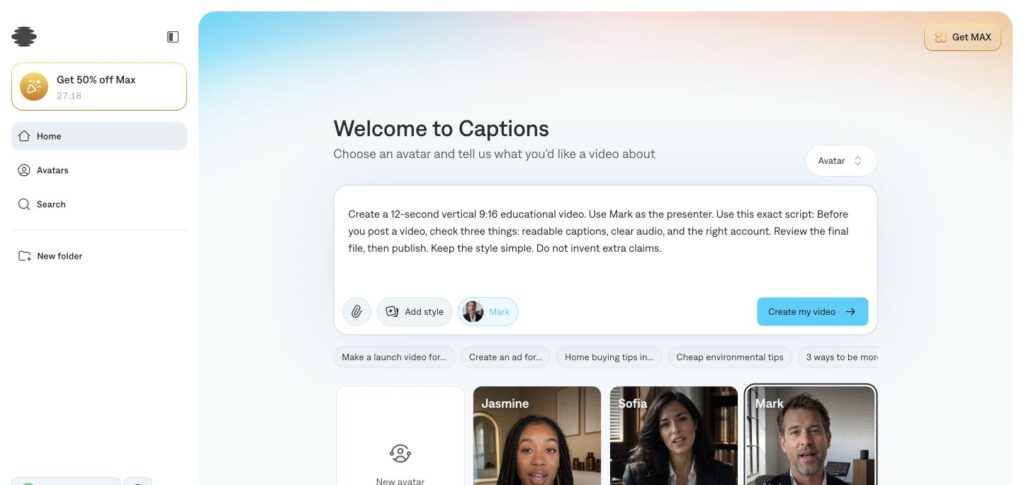
Our test input: Mark, an original script, and a requested 12-second vertical video.
Captions displayed “Unlock Mirage video” and offered subscriptions. Generation did not start, no credits were deducted, and no video was exported.
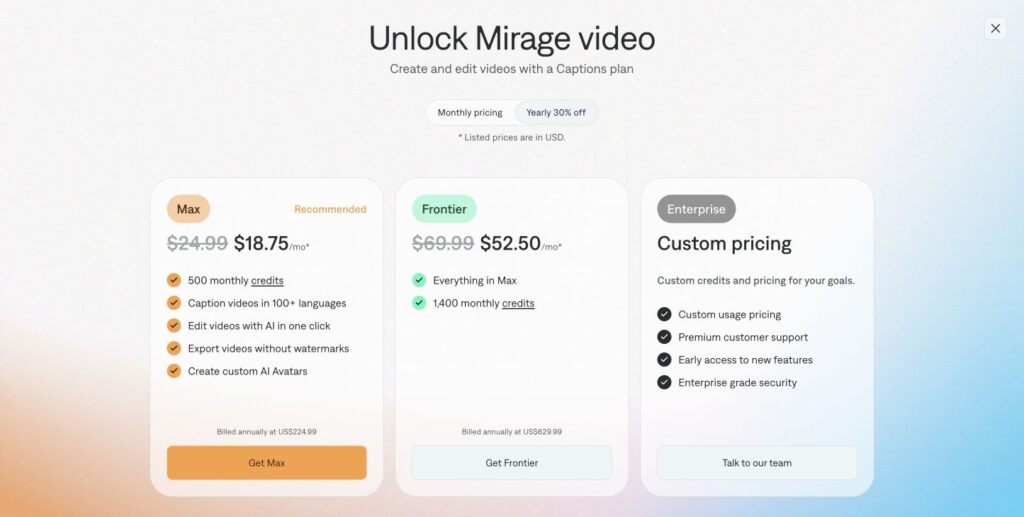
The subscription screen from our test. Yearly billing was selected, so the displayed monthly equivalents differ from monthly subscription prices.
Is Captions AI worth it for social media creators?
Captions AI is a plausible fit for creators whose recurring job is turning speech into short videos, provided the relevant paid tools reduce their total production work. The strongest buying case is a repeatable talking-head format, rather than occasional subtitle cleanup.
Educators can start with their own recordings and agencies should include client approval in the evaluation, since rewritten subtitles or replacement visuals can remove an apparent time saving.
Once a talking-head video is approved, agencies posting it to several client or creator accounts face a separate problem: keeping those accounts apart on the publishing side. Multilogin for AI-generated content on multiple social media accounts gives each social profile a dedicated real Android cloud phone with its own app data and built-in proxy, so a Reel or TikTok goes out from the account it belongs to. Multilogin offers a free plan with no time limit and no credit card required, and paid plans start from $7.08/month.
For a useful trial, record active editing time, generation waiting time, and credits separately. Compare the total effort per approved export with your current process. Our free test cannot establish those paid-workflow results.
Can Captions AI create short-form videos for TikTok and Reels?
Captions AI supports short-form production through AI Edit, generated talking videos, and Clips. These are separate routes, with different inputs and subscription requirements.
A vertical file still needs a publishing check. Preview subtitle placement against the destination app’s interface, listen for clipped words, and confirm that the opening makes sense without the original recording. A generated draft should earn approval on its own.
How much control does AI Edit give you?
Captions AI Edit lets you influence the editing style and review proposed cuts, with further changes to added elements. Expect to review every generated choice against your brand guidelines.
The documented web workflow starts with Edit, an uploaded recording, and a prompt. For a first evaluation, use a clean 30-second talking-head sample and approved supporting assets.
1. Choose Edit, upload the recording, and describe the intended result.
2. Select a style and add approved images or reference material.
3. Click Create my video and review the proposed settings.
4. Restore cuts that remove necessary meaning; adjust intensity and colors.
5. Click Create project, then review the resulting captions and added media before export.
Start with a restrained prompt: “Keep the speaker’s meaning. Use readable captions and our supplied product image. Avoid unrelated footage.” Check names, numbers, and terminology manually. Attractive subtitles can still contain the wrong words.
Can AI actors replace a talking-head recording?
Captions AI actors can provide a generated presenter for a scripted video, but their suitability depends on the script, delivery, and intended use. Our account could select Mark; the subscription screen prevented us from evaluating the output.
A reasonable first project is a short explainer with a factual script. Review pronunciation, facial motion, pacing, and any supporting visuals before approving the result.
Do not present a generated character as a customer who actually used a product. Keep permission records for any custom likeness or voice, and check the destination platform’s disclosure requirements.
A presenter clip is also only one part of an AI influencer project. A continuing character needs consistent identity, editorial direction, and audience management.
How do SMMs use Captions AI to turn long videos into social clips?
SMMs can use Captions Clips to find shorter segments in podcasts, interviews, and webinars, then review each candidate as a separate social post. The useful output is the number of clips approved for a campaign, rather than the number generated.
According to the official Clips instructions, inputs can include a public video link or a file within the three-hour and 10GB limits. The workflow lets you guide selection with a prompt and review the video plan before generation.
For a 20-minute webinar, a practical brief would be: “Find three independent tips for first-time creators. Each clip should explain one tip without referring to an earlier slide.” This is an example brief, not a measured result from our test.
Follow this documented route:
1. Select Clips and add the source recording or public link.
2. Describe the topic or speaker you want to extract.
3. Review the proposed aspect ratio and introduction titles.
4. Generate candidates, then preview and edit before downloading.
Reject clips that begin with an unexplained “this,” cut off a condition, or turn a qualified statement into an absolute claim. Check speaker framing and whether slides remain readable.
Treat a clip’s ranking as a suggestion for review. Audience response still needs to be measured after publishing. For broader campaign planning, see how AI can support influencer marketing.
What does Captions AI pricing include?
Captions AI pricing depends on the plan and platform, with separate options for basic editing and more extensive AI production. The following USD monthly figures combine the public pricing page with current subscription documentation.
| Plan | Price | Credits | Features |
|---|---|---|---|
| Free | $0 | None listed on the pricing page; our account showed 50 | Trimming, transitions, one caption template |
| Basic, formerly Pro | $9.99 | 200 per month | Captioning and selected enhancement tools (listed in subscription docs, not on the public pricing page) |
| Frontier | $69.99 | 1,400 per month | Larger allowance plus access to the most advanced generative models |
| Enterprise | Custom | Custom | Bulk credit discounts, custom seats, training data exclusion |
Last verified: October 1, 2026. The official pricing page explicitly says its prices and features reflect iOS plans. Check your own platform’s checkout for the applicable offer, currency, and billing period. A discounted monthly equivalent under annual billing is not a month-to-month price.
The subscription documentation also lists Android-only Lite at $4.99 per month. Lite does not transfer paid access to web or iPhone. Those platforms require a separate eligible subscription.
How do Captions AI credits affect the cost of an approved video?
Captions AI credits measure AI usage, so revisions and discarded attempts matter when budgeting for finished videos. The official credits guide lists AI Edit at 10–40 credits, varying by project, and Prompt to Video at 16 credits per six seconds.
At the published Prompt to Video rate, a 12-second request would calculate to 32 credits before additional work.
For an AI Edit budget, suppose each attempt uses 25 credits and each approved video needs two attempts. Ten approved videos would use 500 credits before extra generated assets or other charged changes. Those assumptions illustrate the calculation; they are not measured averages.
Your working formula is: monthly approved videos × attempts per approval × credits per attempt, plus charged revisions and assets. A plan’s allowance does not translate into a fixed number of finished posts.
Eligible paid plans allow rollover, capped at three times the monthly allowance. Check upgrade, downgrade, cancellation, and top-up rules before relying on saved credits.
Which Captions AI plan suits frequent video creation?
Captions Max is the first plan to evaluate for regular AI Edit, Clips, or actor production, while Basic suits a narrower editing brief. Frontier becomes relevant when a measured workload exceeds the lower allowance.
Do not choose a tier solely because you publish daily. Daily posts made from recorded footage can have a different credit budget from daily generated presenters with several revisions.
Before committing annually, complete a small paid pilot using your usual scripts and approval process. Count approved exports, total credits consumed, and remaining manual work. Increase the allowance when those results justify the cost.
Is Captions AI free, and what can the Captions app free plan do?
Captions AI has a free plan for limited editing, but free access does not mean every AI workflow is available. Current subscription documentation lists basic captioning and editing exports without watermarks, while projects using other features can require an upgrade.
The free-credit information is inconsistent across official surfaces. The public comparison lists no AI usage credits, while help documentation describes a one-time allowance. Our account displayed a balance of 50, yet actor generation still required a subscription.
Check both the balance and the feature you intend to use. For a free evaluation, try the basic captioning route first and confirm export permissions before investing time in a project.
Captions AI vs CapCut: which workflow fits your content?
Captions AI is worth evaluating for automated talking-head production. CapCut is worth evaluating when direct timeline control is central to the edit. Both products offer AI tools, including captioning and avatar-related features, so “AI versus manual” is an incomplete comparison.
| Captions AI | CapCut | |
|---|---|---|
| Main job | Automated talking-head production and clips | Timeline-driven editing |
| Starts from | Recording, script, or long video | Footage arranged on a timeline |
| AI features | AI Edit, AI actors, Clips, captions | Captioning and avatar-related tools |
| Best for | Repeatable spoken formats | Detailed visual and audio control |
CapCut’s timeline workflow is relevant for creators who routinely rearrange footage, tune overlays, and make detailed visual or audio choices. Read our CapCut review for a closer look at that editing approach.
What are Captions AI’s main strengths and limits?
Captions AI’s main strength is its range of workflows for spoken video; its main buying limits are feature access, platform differences, and variable production costs.
Reasons to consider Captions:
- Separate routes for recorded speech, scripted presenters, and long-form source material.
- Documented options to review proposed edits and guide clip selection.
- Multiple paid credit allowances for different production volumes.
Limits to evaluate:
- A free balance may not unlock the feature you need.
- Android subscriptions and features differ from web and iOS.
- Generated candidates still need editorial review and client approval.
- Credits spent on iterations increase the cost per approved post.
If scheduling or reporting is your bottleneck, compare the wider set of AI tools for social media marketing before adding an editing subscription.
How can teams publish Captions videos across multiple social profiles?
Teams can keep Captions production separate from destination-account publishing by assigning each social profile its own real Android cloud phone. Multilogin for multiple social media accounts supports that arrangement, with browser profiles included for web work. Scheduling tools such as Buffer or Later can still organize the posting calendar. Multilogin adds technical separation between the accounts themselves.
Use Captions on its supported production platform, then move an approved export to the relevant publishing phone.
For a client explainer, this documented handoff provides a concrete workflow:
1. Approve the export. Name the file for the client, campaign, and version. Record whether the video uses an AI presenter.
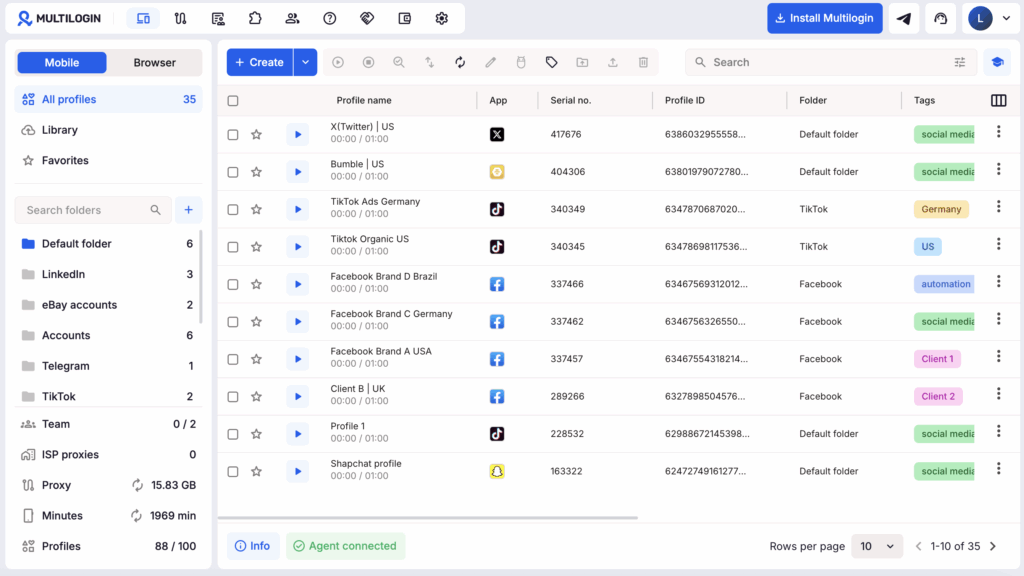
2. Prepare the destination. In Multilogin, pen Profiles, choose Mobile, and select Create. Name the profile for the client account, select the built-in Multilogin proxy or add your own, and run the proxy check.
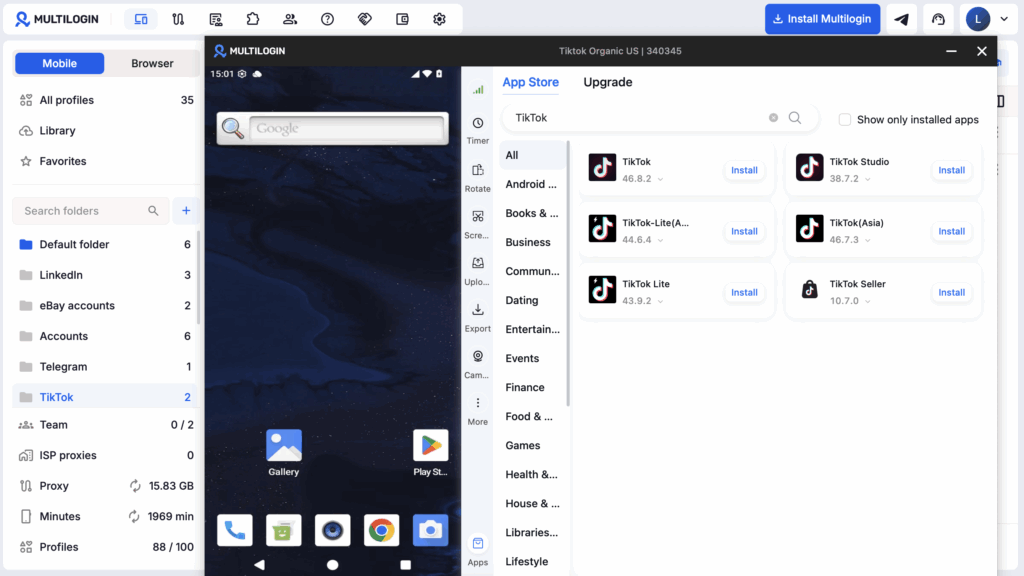
3. Open the cloud phone. Start the profile, then use Upload → Local upload to transfer the approved video.
4. Prepare the post. Open the destination social app and sign in to your account. Check the handle before selecting the transferred file.
5. Review and publish. Preview the video, cover, post text, subtitle placement, and any required AI disclosure. Publish after the team’s approval checks.


Manage multiple accounts with Android cloud phones
Build account trust, reach new locations, and grow faster from one dashboard
Final Verdict: Should I use Captions AI?
Captions AI deserves a shortlist place for creators and SMMs who repeatedly produce spoken short-form content. The feature set matches that job, but a purchase should follow a completed pilot on the platform and plan you intend to use.
Our free web test showed that selecting an actor and seeing credits did not enable generation. Evaluate paid workflows by cost and effort per approved video, with enough editing control for your brand’s final review.
FAQ
What is Captions AI?
Captions AI is Mirage’s video creation and editing product for subtitles, automated edits, generated presenters, and clips from longer recordings. Creators can begin with footage or a script, depending on the workflow. Features and subscriptions differ by platform, so check the specific task you want to complete before choosing a plan.
Is Captions AI free?
Captions AI offers a free plan with limited editing features. Current help documentation lists basic captioning and editing exports without watermarks, but other features can require payment. In our Free web test, the account displayed 50 credits and still required a subscription before AI actor generation could begin.
Is Captions good for TikTok and Reels?
Captions supports workflows relevant to TikTok and Reels, including talking-head editing, subtitles, generated presenters, and short clips from longer videos. Suitability depends on the approved output. Check vertical framing, subtitle placement, the opening hook, and platform requirements before publishing. Our free test did not measure paid generation quality or audience performance.
What does Captions AI cost?
Captions lists Basic at $9.99, Max at $24.99, and Frontier at $69.99 per month in USD, with larger Frontier tiers available. Its public pricing page specifies iOS pricing. Android-only Lite is $4.99 monthly. Verify your platform’s checkout because annual billing, local currency, and offers can change the amount paid.
Captions vs CapCut: which should I choose?
Consider Captions when your recurring task is automated talking-head production, generated presenters, or turning long recordings into clip candidates. Consider CapCut when detailed timeline choices drive your edit. Both offer AI features. Compare an identical brief, including revision time and export access, rather than assuming either product is always faster or cheaper.
How do I post Captions videos to multiple TikTok or Instagram accounts?
Approve one version per destination account, name each file for its account, and upload it from inside that account’s own environment. Multilogin runs every social profile on a dedicated real Android cloud phone, keeping the app, login, and upload history of one account apart from the rest. Adjust the hook and caption for each audience, since near-identical posts across accounts can be flagged no matter how the accounts are set up.