


LinkedIn account management for agencies means running each client’s Pages, ad accounts, and executive profiles through the access LinkedIn gives that asset. Pages and ad accounts come with built-in roles. Personal profiles have none, so each one needs a named owner, a fixed working environment, and a written handover process.
Most agency problems on LinkedIn start in that gap. A content admin role on a Page is clean and auditable. A founder’s personal profile, opened by three account managers from three laptops in two countries, is not.
This guide covers what LinkedIn allows, how to map client assets to the right access method, a step-by-step onboarding checklist, and a daily operating routine your team can repeat for every new client.
What does LinkedIn allow an agency to manage?
LinkedIn lets agencies manage client Company Pages and ad accounts through assigned roles, but it ties every personal profile to one real person. Those two rules shape every decision in this guide.
The LinkedIn User Agreement says each member keeps one account in their real name and does not share it. There is no “agency access” setting for a personal profile. Treat any work inside a client’s personal profile as a decision the profile owner makes, and confirm the arrangement with your legal counsel before you start.
Company Pages work differently. LinkedIn’s Page admin roles give delegated access without sharing a login:
- Super admin: manages other admins, edits the Page, and can deactivate it. Keep this with the client.
- Content admin: creates, schedules, and manages posts, comments, and events as the Page. This is the usual agency role.
- Analyst: views Page analytics. Useful for reporting staff and client stakeholders.
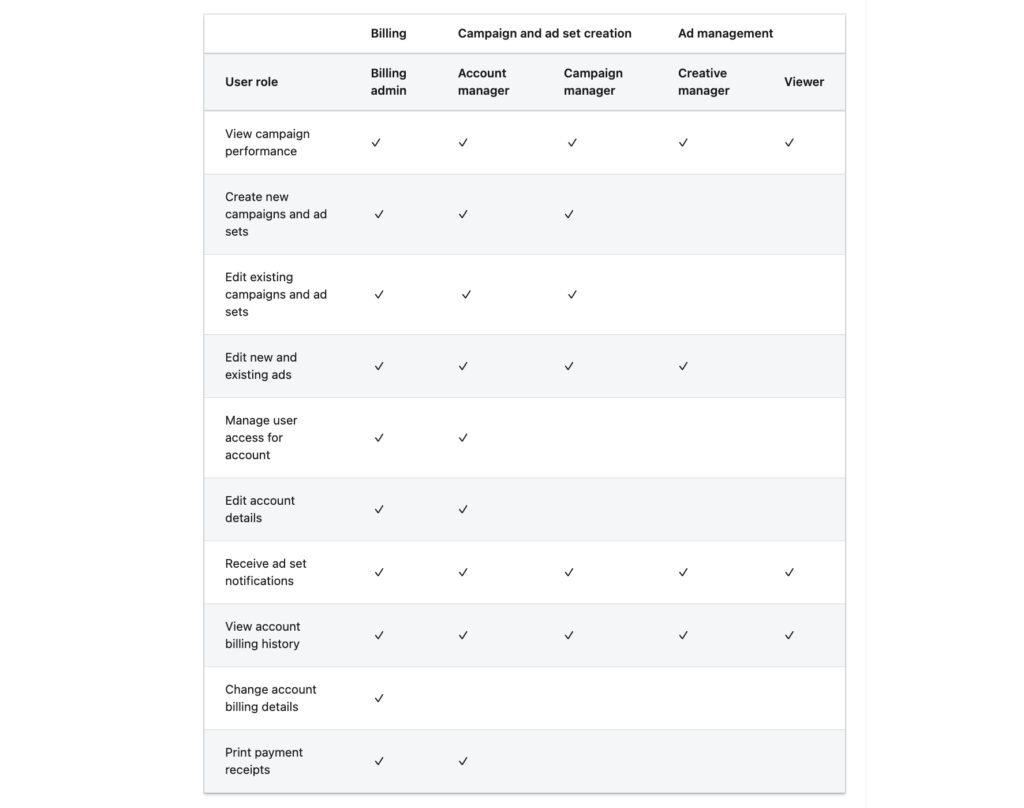
Ad accounts have their own set of roles in Campaign Manager. LinkedIn lists five: billing admin, account manager, campaign manager, creative manager, and viewer. Each ad account must have one billing admin, and the person who creates the account gets that role by default.
Two more rules matter for planning. An ad account can be associated with only one Company Page, according to LinkedIn’s Marketing API documentation. LinkedIn also treats third-party extensions that automate member activity as a breach of its terms, so agency growth on LinkedIn should rely on people, not bots.
How to map client LinkedIn accounts to the right access method
Every client LinkedIn asset belongs in one of four access types, and the type decides who logs in and where the work happens. Build this map before anyone on your team touches a client account.
LinkedIn asset | Who owns it | How the agency gets access | Where the agency works |
|---|---|---|---|
Company Page and Showcase Pages | The client company | Content admin or analyst role, granted by the client’s super admin | The agency member’s own LinkedIn account, in a browser |
Ad account (Campaign Manager) | The client, as billing admin | Account manager, campaign manager, or creative manager role, often through Business Manager | Campaign Manager in a browser |
Executive or founder personal profile | The executive personally | No delegated role exists. The owner decides who works in the account, ideally in writing | One fixed environment per profile, such as a dedicated cloud phone running the LinkedIn app |
Sales Navigator seat | The seat holder | Seat assigned to a named person by the client’s admin | That person’s own account and environment |
The executive profile row is where agencies take on the most operational risk. Pages and ad accounts have audit trails and revocable roles. A personal profile only has a password and the devices it was opened on, so the environment you choose for it matters more than anywhere else.
How to onboard a new client’s LinkedIn accounts: step by step
Onboarding a client on LinkedIn takes eight steps, and the order matters because roles must exist before anyone starts posting.
- List every LinkedIn asset. Record each Company Page, Showcase Page, ad account, Sales Navigator seat, and executive profile the client wants managed.
- Request Page roles from the client’s super admin. Ask for content admin for the people who post and analyst for the people who report. Leave super admin with the client.
- Connect ad accounts without taking billing. Get account manager or campaign manager access, ideally through Business Manager. The client stays billing admin, so the payment method never sits with the agency.
- Agree on executive profile rules in writing. Cover who works in the profile, who approves posts and replies, and which phone receives LinkedIn verification codes.
- Give each executive profile one environment and one account manager. The profile should open from the same device and the same location every session, with a named backup for holidays.
- Match the location to the profile owner. A London founder’s profile should open from a UK location, not from wherever the account manager happens to sit.
- Write the handover sheet. For each asset, record the owner, backup, approval flow, and how access is removed when someone leaves.
- Review access every month. Remove former staff from Page roles, ad accounts, and any profile environments on the same day they leave the account.
Run each client LinkedIn profile on its own Multilogin cloud phone
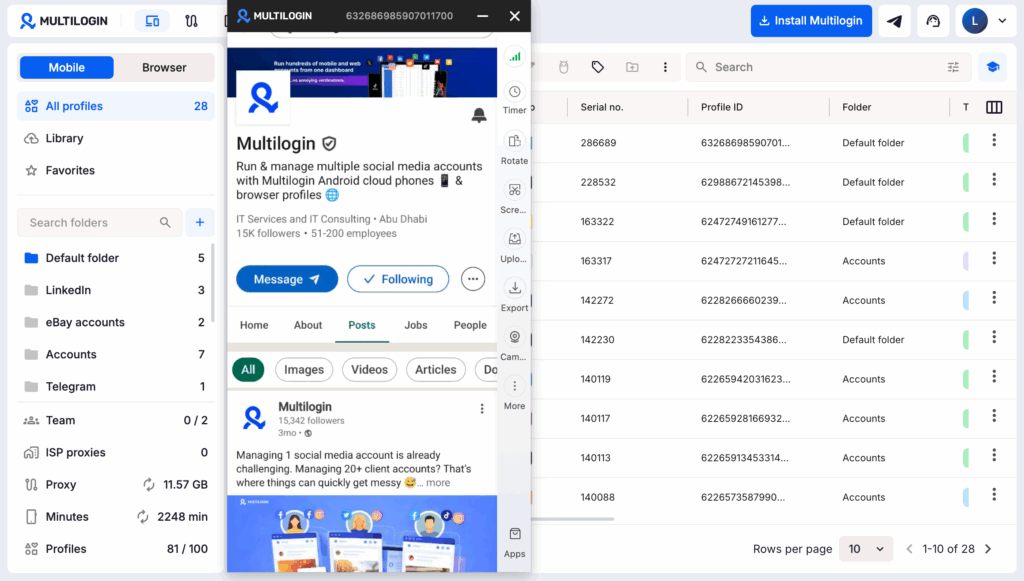
A Multilogin cloud phone gives each client LinkedIn profile its own real Android device in the cloud, with the LinkedIn app installed and its own app data, location, and IP. Use one cloud phone per profile, and the executive’s account opens from the same device every session, whichever account manager is on shift.
This fixes the weakest row in the asset map. Without it, an executive profile gets opened from the account manager’s laptop on Monday, a colleague’s phone on Wednesday, and a freelancer’s browser in another country on Friday. With a Multilogin cloud phone, the profile keeps one device history, the way it would if the executive carried a single phone.
What agencies get from the setup:
- One device per profile. Each Multilogin cloud phone runs native Android apps on real hardware, chosen from 30+ device types across 12 brands, including Samsung, Google, Xiaomi, and Motorola. App data and login history stay on that phone between sessions.
- A location that matches the client. Built-in residential proxies are included in every plan. Pick the executive’s country and the cloud phone uses a matching IP and geolocation, with no separate proxy bill.
- Handover without passing passwords around. Team seats and permissions let you assign a cloud phone to one account manager and a backup. When someone leaves the account, remove their access to that cloud phone the same day.
- Web tasks in the same dashboard. Campaign Manager, Business Manager, and Sales Navigator on desktop run in Multilogin browser profiles. A browser profile’s location can be synced with a cloud phone for accounts used on both.
Know the limits before you plan around it:
- No SMS or calls. Multilogin cloud phones cannot receive verification codes. LinkedIn codes should go to the executive’s own phone number, which is why step 4 of onboarding names that phone.
- Connection quality matters. A slow internet connection makes the cloud phone feel slow.
- A separate device does not fix content. Five executives posting near-identical copy on the same day still looks coordinated, whatever device each one uses.
- LinkedIn’s rules still apply. A cloud phone gives an existing profile a stable home. It does not change the one-person, one-account rule, and no setup can promise an account will never be restricted.
Multilogin offers a free plan with no time limit and no credit card needed. Paid plans start from $7.08 per month, with cloud phones, built-in proxies, mobile minutes, and browser profiles included in one subscription.
A daily routine for managing client LinkedIn accounts
A repeatable daily routine keeps quality even when one account manager covers ten clients. Split the day by task type, not by client, so context-switching happens at planned moments.
Time block | Task | Where it happens |
|---|---|---|
Morning | Reply to comments and messages from the previous 24 hours | Page admin view for Pages, the profile’s own environment for executives |
Late morning | Publish approved posts in each client’s local posting window | Page scheduler, or the executive profile’s environment |
Afternoon | Personal engagement: comments on industry posts, accepting relevant invitations | Executive profile environment only |
End of day | Log what was posted, flag anything that needs client approval tomorrow | Handover sheet |
Weekly | Pull Page analytics and Campaign Manager reports for the client | Analyst role and Campaign Manager |
Pace outreach like a person, because the account belongs to one. LinkedIn does not publish an exact weekly invitation limit, and sending many invitations that go unanswered can restrict an account. Fewer, personal connection requests sent by hand from the executive’s own profile are the better habit.
Keep the voice the executive’s own. Agree on two or three topics per executive, keep a short glossary of phrases they use and avoid, and send replies to sensitive messages back to the owner rather than answering them yourself.
Common mistakes agencies make with client LinkedIn accounts
Most LinkedIn account problems at agencies come from process gaps, not from the content itself.
Mistake | What goes wrong | Fix |
|---|---|---|
Opening several executive profiles from one laptop in one afternoon | Different people’s accounts share a device and network | Give each profile its own environment |
Sharing client passwords in chat or email | Credentials spread with no record of who used them | Store them once, assign access per person, remove it on exit |
Agency set as billing admin on the client’s ad account | Billing and ownership disputes when the contract ends | Client stays billing admin; agency takes account manager |
Asking the client for super admin on their Page | The agency can remove the client’s own admins | Request content admin or analyst instead |
Using browser extensions to automate invitations or messages | LinkedIn treats automation of member activity as a breach of its terms | Keep outreach manual and personal |
Posting the same copy across several executive profiles | The posts read as coordinated and lose credibility | Write per executive, from their own topics |
Verification codes going to a former employee’s phone | The account locks out when a code is needed | Route codes to the profile owner’s own number |