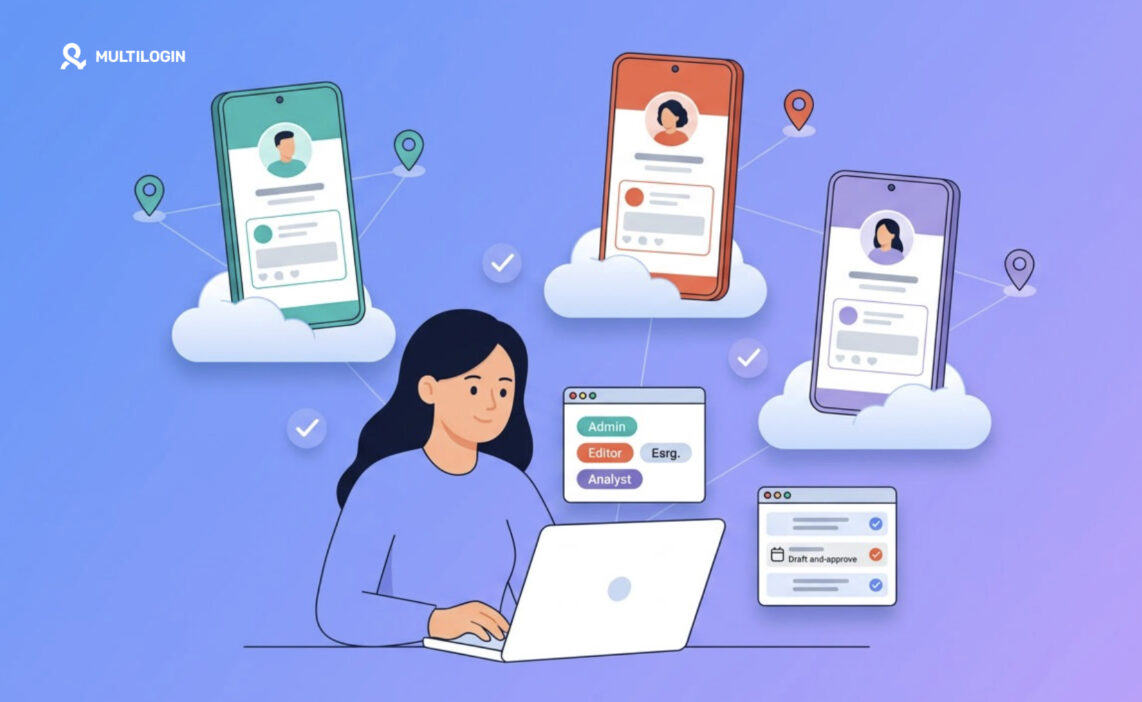



Agencies manage multiple LinkedIn client accounts by matching each account type to the right access method. Company Pages and ad accounts use LinkedIn’s built-in admin roles, so nobody shares a password. Client personal profiles have no delegate role, so they need a clear agreement with the account holder and, when the agency works inside the profile, one dedicated environment per profile.
This guide gives you a role map for your team, an eight-step workflow you can apply to every new client, and a clear view of where Multilogin cloud phones help and where LinkedIn’s own tools already do the job.
The three types of LinkedIn client accounts an agency handles
A LinkedIn client usually brings three kinds of accounts, and each one is owned and shared differently. Treating them the same way is where most agency access problems start.
| Account type | Who owns it | Team access built in? | Typical agency work |
|---|---|---|---|
| Company Page | The client’s organization | Yes, through Page admin roles | Posts, events, comments as the Page, analytics |
| Ad account (Campaign Manager) | The client, as billing admin | Yes, through ad account roles | Sponsored Content, lead gen campaigns, reporting |
| Personal profile | The individual member | No delegate role | Ghostwritten posts, comments, replies to messages |
Company Pages and ad accounts were designed for teams. Personal profiles were designed for one person. That difference shapes every decision in the workflow below.
Start with LinkedIn’s built-in access roles
For Company Pages and ad accounts, give every agency team member their own role on the client’s assets. Each person signs in with their own LinkedIn account, and the client can see and remove access at any time.
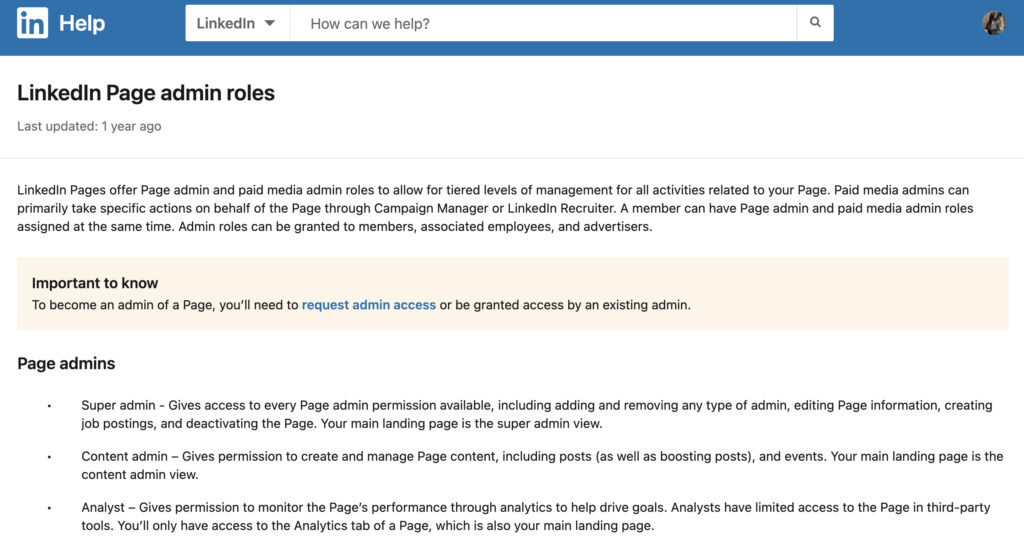
LinkedIn splits Page access into three Page admin roles: super admin, content admin, and analyst. Only a super admin can add or remove other admins. A content admin can create and manage posts, boost posts, and run events. An analyst can only view performance.
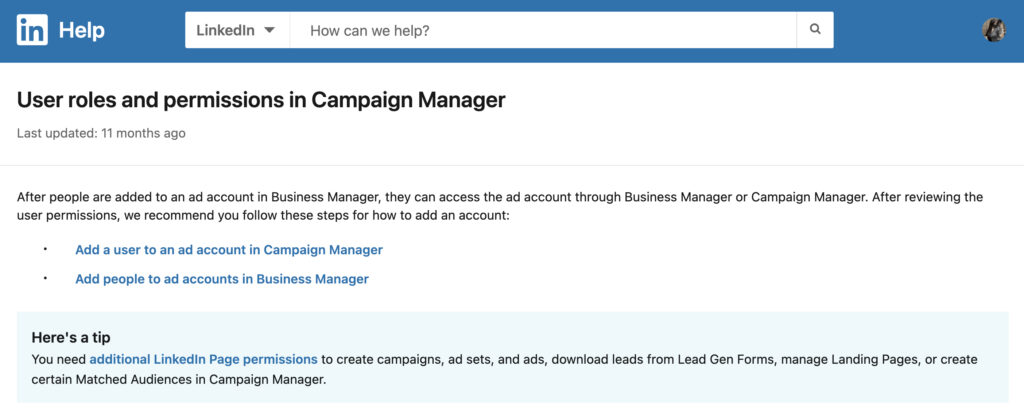
Campaign Manager has its own roles: billing admin, account manager, campaign manager, creative manager, and viewer. Each ad account must have one billing admin, and LinkedIn assigns that role to whoever creates the account.
A role map for agency teams
Use this map as the default for every new client, then adjust it to the contract.
| Person | LinkedIn Page role | Campaign Manager role |
|---|---|---|
| Client’s internal owner | Super admin | Billing admin |
| Agency account lead | Content admin (super admin only if the client asks) | Account manager |
| Copywriter or community manager | Content admin | None |
| Media buyer | Content admin or Sponsored Content poster | Campaign manager |
| Designer | None | Creative manager |
| Reporting analyst and client stakeholders | Analyst | Viewer |
Two details save agencies time later. First, ad account roles alone are not enough to launch ads: LinkedIn also requires Page permissions to create campaigns and ads. Second, an ad account links to a single Company Page, and that link cannot be changed once it is set, so confirm the right Page before the first campaign.
If you handle many clients, LinkedIn Business Manager lets you request access to Pages and ad accounts and manage your people in one place. LinkedIn recommends at least two Business Manager admins so access never depends on one person.
Where built-in roles stop: client personal profiles
LinkedIn has no admin or delegate role for personal profiles. The LinkedIn User Agreement says each member has one account in their real name and does not share it with anyone else. The member stays responsible for everything that happens through the account.
That matters for agencies that run founder or executive thought-leadership programs. Pick one of these three models for each profile and write it into the client agreement.
| Model | How it works | Trade-off |
|---|---|---|
| Draft and approve | The agency writes posts and comment replies; the client publishes them | Lowest risk, slowest turnaround |
| Client-authorized publishing tool | The client connects their own profile to a scheduling tool; the agency schedules approved posts | Covers posting only, not comments or messages |
| Agency works inside the profile | The client asks the agency to handle posting, comments, and messages directly | Fastest, but it is account access under the client’s own agreement with LinkedIn |
The third model is common in practice, and it is the client’s decision as the account holder. Review it against LinkedIn’s terms with the client before you start, keep the client as the person who controls the password and sign-in verification, and log who works in the profile and when. This guide is not legal advice.
How to manage multiple LinkedIn client accounts: an eight-step workflow
Run every new LinkedIn client through the same eight steps. Agencies that onboard each client differently end up with lost access, orphaned ad accounts, and nobody sure who posted what.
1. Build an access map for each client
Create one sheet per client listing every LinkedIn asset: Company Page, Showcase Pages, ad accounts, and personal profiles. For each asset, record the owner, every person with access, their role, and the date you last reviewed it.
2. Request roles, not passwords
For Pages and ad accounts, ask the client’s super admin to add each team member with the role from your role map. Agencies with many clients can send requests from Business Manager instead of collecting invites one by one.
3. Keep ownership with the client
The client keeps super admin on the Page and billing admin on the ad account. When the agency owns these, every exit turns into a negotiation over who controls the brand’s LinkedIn presence.
4. Choose a model for every personal profile
Decide between draft and approve, a client-authorized publishing tool, or direct work inside the profile. Write the choice, the tasks covered, and the reply times into the contract.
5. Give each profile one consistent working setup
When the agency works inside client profiles, each profile needs its own device, session, and location. Switching one laptop or handset between five executives mixes logins and makes it hard to see who did what. The next section shows how Multilogin cloud phones handle this.
6. Set an approval calendar
Agree on a weekly rhythm: drafts sent on one day, approvals back by another, publishing slots after that. Add a reply target for comments and messages, because engagement on LinkedIn loses value when it waits days.
7. Report per client
Give client stakeholders analyst access on the Page and viewer access on the ad account. They see live numbers without asking for exports, and your monthly report focuses on what changed and why.
8. Offboard cleanly
When a contract ends, remove every agency role from Pages and ad accounts, hand back any working setups for personal profiles, and ask the client to change passwords and review active sessions. Update the access map with the end date.
How Multilogin cloud phones support LinkedIn account management
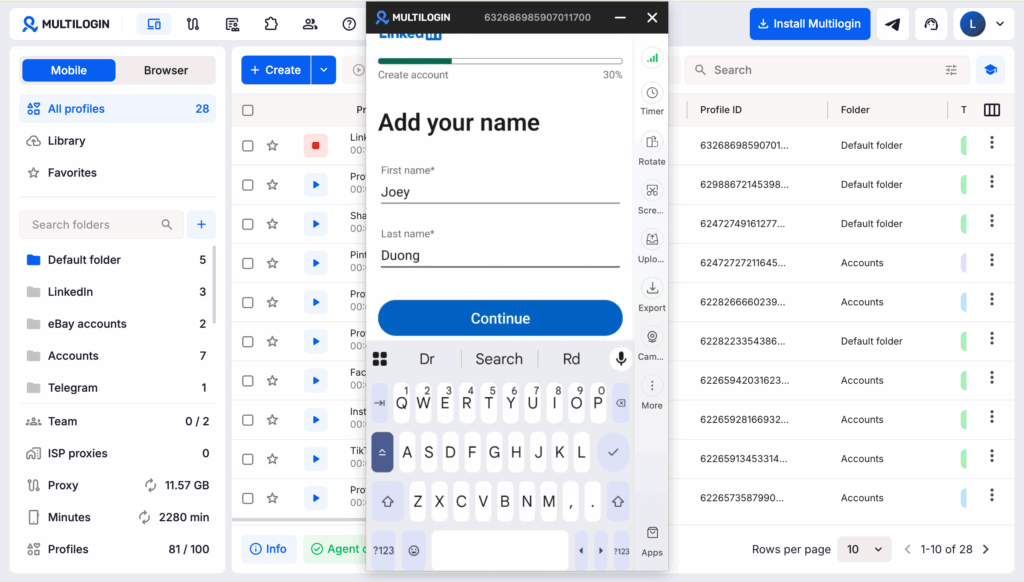
Multilogin is a cloud Android phone platform for multi-account management. For agencies that work inside client LinkedIn profiles, Multilogin gives each profile its own cloud Android phone, with separate app data, location, and IP, all managed from one dashboard.
Company Pages and ad accounts do not need this: LinkedIn’s roles already handle them. Multilogin cloud phones are for step 5 of the workflow, the personal profiles your team works in directly.
What one Multilogin cloud phone per profile changes
- Each profile keeps its own session. Install the LinkedIn app from the built-in store once. The Multilogin cloud phone keeps the app data and login state between sessions, so your team stops signing in and out of a shared handset.
- Activity comes from the account holder’s region. Built-in residential proxies are included in every plan. Pick the country where the executive works, and the cloud phone gets its own IP with matched geolocation.
- Handover happens inside the dashboard. Share and assign cloud phones to team members with permissions, so the copywriter and the community manager open the same profile setup without passing devices around.
- Mobile-only work stays possible. Camera and screen mirroring let your team use the camera inside the LinkedIn app, for example to record a short video post the client approved.
- Desktop tasks have a matching browser profile. Multilogin includes browser profiles for web-based work such as Campaign Manager. Location can be synced with a cloud phone when the same account is used on both.
A simple rule from the Multilogin Learning Center applies here: one cloud phone per account. Name each cloud phone after the client and the profile owner, and the dashboard becomes your live version of the access map.
Limits to plan for
- Multilogin cloud phones cannot receive SMS or calls. LinkedIn sign-in codes go to the client’s own phone or authenticator app, which also keeps the client in control of the account.
- A slow connection affects cloud phone use, so remote team members need a reliable internet connection.
- First-time users may need the Learning Center videos to get comfortable with cloud phones.
- Separate cloud phones do not fix content problems. If five executives post near-identical text, that is a content issue, not a device issue.
Multilogin offers a free plan with no time limit and no credit card needed. Paid plans start from $7.08 per month, with cloud phones, built-in proxies, mobile minutes, and browser profiles in one platform.
Common mistakes agencies make with LinkedIn client accounts
Most LinkedIn access problems come from shortcuts taken during onboarding. These are the ones that cost agencies the most time later.
| Mistake | What goes wrong | Fix |
|---|---|---|
| Logging in to a Company Page with the client’s personal account | Every action is tied to one person’s profile | Request a content admin role for each team member |
| Creating the ad account under the agency | The agency becomes billing admin, and the Page link cannot be changed later | Have the client create the ad account, then add the agency |
| Giving super admin to every agency member | Anyone can remove the client’s own admins | Use content admin for daily work |
| Sharing one handset or laptop across client profiles | Sessions mix, and nobody can tell who posted what | Use one consistent setup per profile |
| Routing sign-in codes to an agency phone number | The client loses control of their own account | Keep verification on the client’s phone or authenticator |
| No offboarding checklist | Former staff keep access for months | Review the access map monthly and at every exit |