





To use a proxy for YouTube, configure the proxy in your browser, device network settings, proxy extension, browser profile, or Android cloud phone. YouTube does not have a separate proxy field inside its website or mobile app.
A proxy routes your connection through another server before it reaches YouTube. This changes the IP address used for the connection, but it does not change every location signal associated with your device or Google Account.
This guide explains how to set up a YouTube proxy on desktop and mobile, which proxy type fits each workflow, and what to check when YouTube does not work through the selected server.
What is a YouTube proxy and how does it work?
A YouTube proxy is an intermediary server that forwards traffic between your device and YouTube. YouTube sees the proxy server’s IP address instead of the IP address of your direct internet connection.
The process is simple:
Your browser, phone, or cloud phone sends a YouTube request to the proxy server.
The proxy forwards that request to YouTube.
YouTube sends the requested page or video data back to the proxy.
The proxy passes the response to your device.
A proxy changes the connection IP, but YouTube may also estimate location using device location and saved home or work addresses in a Google Account. For this reason, changing the proxy location does not automatically change every location-dependent YouTube feature.
Why use a proxy for YouTube?
A proxy for YouTube can support location testing, project-specific connections, separate channel environments, and access to public content where local law and network policies permit it.
Common reasons include:
Checking how public videos, search results, ads, or recommendations appear from another available location
Assigning a separate connection to a client, channel, region, or research project
Keeping a YouTube browser session and its proxy configuration together
Testing YouTube web and mobile experiences from different environments
Connecting to YouTube when a direct network route has a technical problem
Accessing public YouTube pages on a network where proxy use is authorized
A proxy does not guarantee access to every video. A video owner may limit availability to specific countries due to licensing rights, and YouTube may restrict content to comply with local law.
A proxy also does not automatically improve speed. The connection can become slower because the traffic travels through an additional server. Performance depends on the proxy server, its distance, available bandwidth, and current load.
How to proxy YouTube
To proxy YouTube, choose a trusted server, enter its connection details in the selected environment, test the connection, and then open YouTube.
1. Choose a reliable proxy service
Choose a proxy based on the YouTube task rather than selecting the first free server you find.
Check the following before connecting:
Proxy ownership: Use a provider with clear company and privacy information.
Available locations: Confirm that the country or city you need is currently available.
Connection speed: Video playback requires more bandwidth than basic web browsing.
Session duration: Longer YouTube Studio sessions may need an IP that remains stable.
Supported protocol: Check whether the environment accepts HTTP, HTTPS, or SOCKS5.
Authentication: Confirm whether the proxy uses a username and password or IP-based authorization.
Usage limits: Video traffic can consume a proxy allowance quickly.
Public proxy servers are often shared by many people. They may be overloaded, disappear without notice, or have unclear data-handling practices. Avoid entering Google Account credentials through an unknown online proxy.
For provider comparisons, see our guide to the best online proxy sites for YouTube.
2. Configure the proxy settings in your browser
Browser proxy settings may be controlled by the browser itself or by the operating system. Chrome and Safari normally use the computer’s network settings, while Firefox provides its own proxy configuration menu.
Google Chrome
Google Chrome normally uses the proxy settings configured in Windows, macOS, or ChromeOS.
On Windows:
Open Chrome.
Go to Settings.
Select System.
Click Open your computer’s proxy settings.
Under the manual proxy section, enter the proxy address and port.
Save the configuration.
Return to Chrome and open YouTube.
On macOS:
Open System Settings.
Select Network.
Choose the active Wi-Fi or Ethernet connection.
Open Details and select Proxies.
Choose the required proxy protocol.
Enter the server address, port, and authentication details when required.
Save the changes and open YouTube in Chrome.
Remember that an operating-system proxy may affect other applications, not only Chrome.
Mozilla Firefox
Firefox allows you to configure a proxy directly inside the browser.
Open the Firefox menu.
Select Settings.
Scroll to Network Settings in the General panel.
Click Settings.
Select Manual proxy configuration.
Enter the proxy hostname and port.
Add SOCKS or HTTPS details when required.
Save the settings and open YouTube.
This setup applies to Firefox without automatically changing the connection used by every other application on the device.
Safari
Safari uses the proxy configuration of macOS.
Open System Settings.
Go to Network.
Select the active connection.
Open Details.
Select Proxies.
Choose the required protocol and enter the proxy details.
Save the settings and reopen Safari.
The older path through Safari Preferences may not appear on current macOS versions.
3. Use a proxy extension
A proxy extension can route browser traffic without requiring you to edit the entire device configuration.
Install an extension only from the official browser store, then review its publisher, requested permissions, privacy policy, and recent reviews. After installation, enter the proxy details or select a server location and test the exit IP before opening YouTube.
Extensions normally affect the browser where they are installed. They do not automatically route traffic from the YouTube Android or iOS app.
Avoid using unknown extensions for a valuable Google Account. An extension with broad access may be able to read or change data on websites you visit.
How to open YouTube with a proxy
You can open YouTube through an online proxy page, a configured browser, or a saved browser environment with its own proxy connection.
1. Use an online proxy website
An online proxy website lets you enter a destination URL without changing your browser or device settings.
The usual process is:
Open the proxy website.
Select an available server location.
Enter
youtube.comin the URL field.Wait for the proxy to load the page.
Browse the public content that the proxy can process.
This method can work for occasional public browsing, but YouTube relies heavily on scripts, video delivery systems, cookies, and account services. Some online proxies load the homepage but fail when playing a video or signing in.
Do not enter a Google password through a public proxy website unless you trust its operator and understand how it handles traffic.
2. VPN and proxy combination
A VPN and proxy can be used together, but combining them does not automatically make the connection safer or faster.
The VPN may route traffic to one location before the proxy routes it to another. This adds more distance, makes troubleshooting harder, and can reduce video speed. It may also create conflicting location signals.
Use both only when the workflow has a clear technical reason. For ordinary YouTube browsing, one correctly configured connection is usually easier to manage.
YouTube may also ask users to disable a VPN or proxy when it cannot verify the country associated with a YouTube Premium purchase.
How to use a proxy for YouTube on mobile
To use a proxy for YouTube on mobile, configure the connected Wi-Fi network, use a trusted proxy application, or run the YouTube Android app inside a cloud phone with its own connection settings.
Configure a YouTube proxy on Android
Android allows manual proxy configuration for individual Wi-Fi networks.
The exact menu names vary by Android version and phone manufacturer, but the common process is:
Open Settings.
Go to Network and internet or Connections.
Open the Wi-Fi settings.
Select the connected Wi-Fi network.
Tap Edit, Modify network, or the settings icon.
Open Advanced options.
Change Proxy from None to Manual.
Enter the proxy hostname and port.
Save the network configuration.
Open the YouTube app or YouTube in a browser.
This setting normally applies only while the phone uses that Wi-Fi network. It does not automatically configure the same proxy for mobile data.
Some Android system menus do not provide fields for proxy usernames and passwords. In that case, use a compatible proxy application, IP authorization, or a cloud-phone environment that supports authenticated proxies.
Configure a YouTube proxy on iPhone or iPad
iOS and iPadOS allow an HTTP proxy to be configured for a selected Wi-Fi network.
Open Settings.
Select Wi-Fi.
Tap the information icon beside the connected network.
Scroll to Configure Proxy.
Select Manual.
Enter the proxy server and port.
Enable authentication and add the username and password when required.
Save the configuration.
Open YouTube.
The configuration belongs to that Wi-Fi network. When you move to mobile data or another Wi-Fi connection, the same proxy may no longer be active.
Use a mobile proxy app
A proxy application can create a device-level or app-specific connection, depending on the operating system and the app’s design.
Review the application’s permissions and privacy policy before using it. A free app that routes all phone traffic can see valuable connection information, so avoid unknown providers.
A proxy app may also consume battery, add latency, or interfere with other network tools running on the phone.
Use an Android cloud phone for YouTube
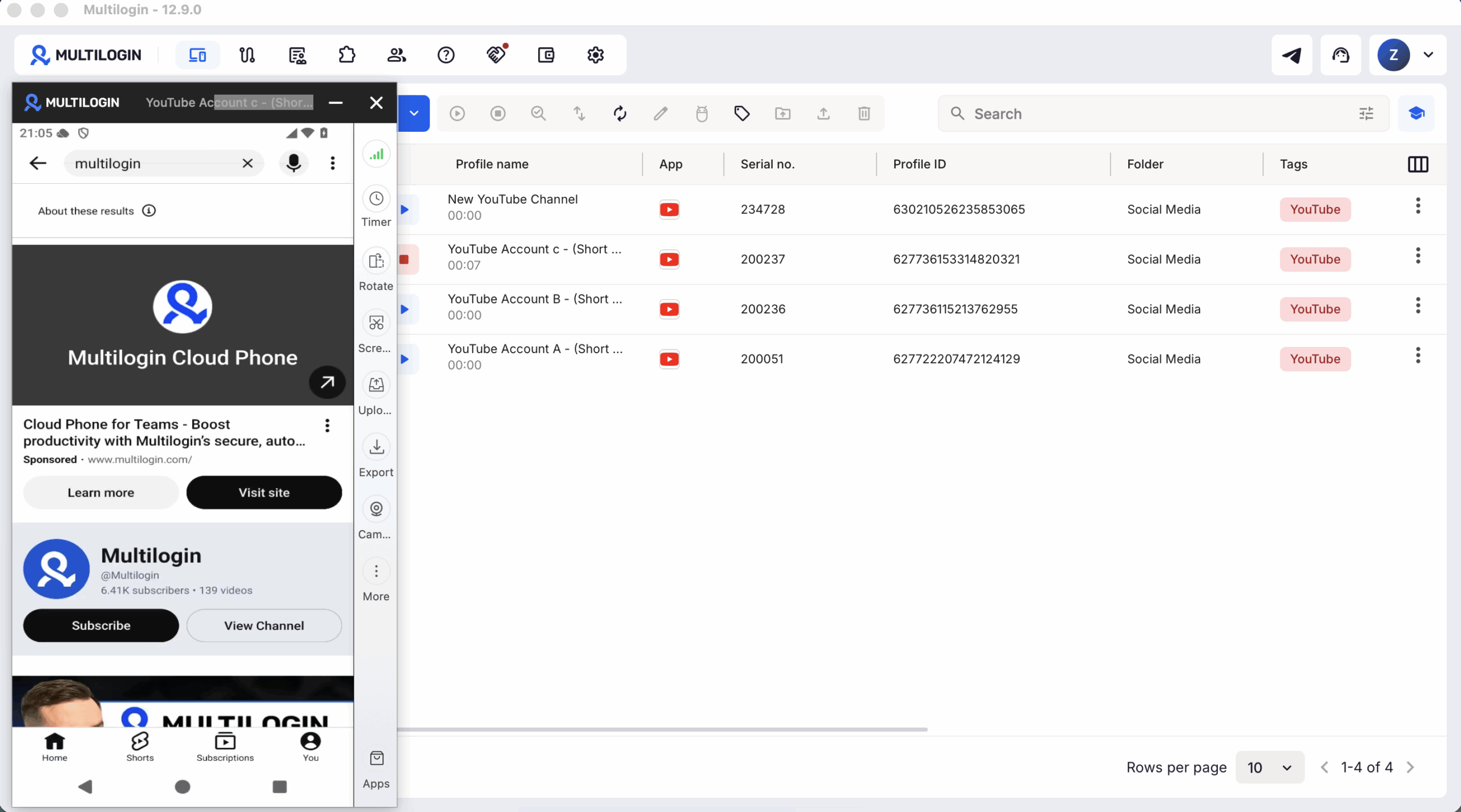
An Android cloud phone runs the native YouTube app in a persistent mobile environment hosted in the cloud.
This can be useful when a creator, agency, or content team needs to keep the app, login state, project data, and connection settings together without maintaining another physical phone.
With an Android cloud phone for YouTube, the mobile environment can be opened and controlled from a computer. The YouTube app remains installed between sessions, and each cloud phone keeps its own app data and login state.
Use a browser profile for YouTube web and Studio. Use a cloud phone when the workflow depends on the Android app, Shorts tools, mobile notifications, or other app-only features.
Server proxy YouTube: why it matters
A server proxy for YouTube gives a selected browser, device, or profile a defined connection IP. Its value depends on the workflow, not simply on hiding an address.
A suitable proxy server can help with:
Location-specific checks: View public pages from an available country or city connection.
Session consistency: Keep the same IP during a channel administration session.
Project separation: Assign a different connection to each client, channel, or research project.
Repeatable testing: Record the proxy type, location, and environment used for each quality check.
Team workflows: Keep proxy settings attached to a shared browser profile rather than rebuilding the setup for every session.
A proxy is not a complete security product. It does not necessarily encrypt every part of the device’s internet traffic, and the proxy operator may be able to observe connection metadata.
Use a trusted provider, confirm the protocol, and keep the browser or device software updated.
Which proxy type is best for YouTube?
There is no single best proxy server for every YouTube workflow. The right option depends on whether you are watching public content, managing a channel, testing a region, using the Android app, or collecting authorized public data.
| Proxy type | Suitable YouTube use | Main consideration |
|---|---|---|
| Residential proxy | Browser sessions, YouTube Studio, regional research, and location checks | Uses an ISP-assigned residential connection and may support rotating or sticky sessions |
| ISP proxy | Longer browser sessions that need the same IP | Usually provides greater IP continuity than a rotating residential connection |
| Mobile proxy | YouTube Android app and mobile-environment testing | Fits mobile workflows but can cost more and may rotate |
| Datacenter proxy | Basic public browsing and high-bandwidth tasks | Often faster and cheaper, but the IP comes from hosting infrastructure |
| Free web proxy | Occasional access to public pages without signing in | Shared servers, variable speed, unclear ownership, and limited video compatibility |
For a logged-in YouTube Studio workflow, a stable residential or ISP connection is usually more practical than changing the IP repeatedly during the same session.
For the YouTube app, the device environment matters as much as the proxy label. A mobile proxy used in an ordinary desktop browser does not turn that browser into an Android phone.
Sticky proxy or rotating proxy for YouTube?
Use a sticky proxy when the same YouTube session needs to retain one IP for a defined period. Use rotation for authorized research or testing that genuinely requires different connection addresses.
Changing IP addresses repeatedly while logged into the same Google Account can make the session harder to track and troubleshoot. It may also create inconsistent location signals.
A sticky residential proxy is not necessarily a permanent static IP. The address may change after the session expires, the connection is interrupted, or the provider replaces the endpoint.
Record the selected proxy location and rotation mode so the setup can be repeated later.
How to use a proxy for YouTube with Multilogin
Multilogin combines browser profiles, Android cloud phones, proxy settings, and saved sessions in one dashboard. Choose the environment based on whether the YouTube task happens on the web or inside the Android app.
1. Choose a browser profile or cloud phone
Use a browser profile for:
YouTube Studio
Channel analytics
Long-form video uploads
Web comments and channel administration
Public content and advertising checks
Use an Android cloud phone for:
The YouTube Android app
Mobile Shorts workflows
Mobile notifications
App-based comments
Android-specific quality checks
Teams that use both can keep the browser portion and mobile portion in separate, clearly named environments.
2. Create the YouTube social profile
Create a new browser profile or Android cloud phone and assign it to one defined project.
A profile may represent one:
Creator
Client
Brand
Google Account
YouTube channel
Regional project
Campaign
Approved AI-assisted workflow
Use names, folders, tags, and notes so team members understand who owns the environment and what it is used for.
For broader account organization, read our guide to creating and managing multiple YouTube accounts.
3. Configure the proxy
Open the proxy settings for the selected environment.
You can choose built-in residential proxy traffic or add an authorized third-party HTTP, HTTPS, or SOCKS5 proxy. Enter the hostname, port, username, and password when required.
Select the required location and session behavior, then test the connection before saving it.
Avoid changing the location without a project reason. A stable, documented setup is easier for a team to use and troubleshoot.
4. Save and launch the environment
Save the profile after the proxy test succeeds.
The browser profile keeps its own cookies, session information, and proxy configuration. The Android cloud phone keeps its installed apps, app data, and login state between sessions.
This means the operator can return to the same working environment instead of configuring a new browser or phone every time.
5. Keep the activity platform-compliant
Multilogin provides the environment and connection tools. It does not change YouTube’s Terms of Service or prevent platform enforcement.
Use each YouTube profile for legitimate work, publish original content, keep account information accurate, and avoid artificial engagement. Teams working toward monetization can also review our YouTube monetization workflow guide.
The Multilogin free plan includes five mobile and web profiles, 200 MB of one-time built-in proxy traffic, and 30 one-time cloud-phone minutes. No credit card is required.
For the complete product setup, see the YouTube proxy and cloud phone bundle.
Proxy for YouTube vs VPN for YouTube
A proxy and a VPN both route traffic through another server, but they are configured and used differently.
| Feature | Proxy | VPN |
|---|---|---|
| Routing scope | Can be assigned to one browser, profile, application, or device | Commonly routes most device traffic |
| IP address | Replaces the IP seen by the destination for routed traffic | Replaces the IP seen by destinations using the VPN tunnel |
| Encryption | Depends on the proxy protocol and application | Usually encrypts traffic between the device and VPN server |
| Project separation | Can be attached to individual browser profiles or cloud phones | Usually applies more broadly to the device |
| Typical YouTube use | Profile-specific sessions, regional testing, and managed account environments | General device-level network routing |
Neither option grants permission to ignore content rights, local law, YouTube rules, or an organization’s network policy.
A DNS change, browser cache reset, or administrator request may be more appropriate when the problem is not caused by the connection IP. See our guide to unblocking YouTube without a VPN or proxy for other troubleshooting methods.
Why is YouTube not working with a proxy?
YouTube may not work with a proxy because the server is unavailable, the settings are wrong, the selected IP cannot reach the requested content, or the restriction is unrelated to the IP address.
The proxy connection fails
Check the following:
Proxy hostname or IP address
Port number
HTTP, HTTPS, or SOCKS5 selection
Username and password
IP authorization
Proxy traffic balance
Current server availability
Firewall or antivirus settings
Test the proxy connection outside YouTube before changing the account or browser settings.
YouTube loads but videos do not play
An online proxy may be able to load the YouTube page but fail to process the video player, media requests, cookies, or JavaScript.
Try a different server, reduce the selected video quality, or use a browser-level proxy instead of a web proxy page. Also confirm that the proxy allowance has enough traffic for video streaming.
A video is unavailable in the selected country
The video owner may have limited the countries where the content can be shown, usually because of licensing rights. YouTube may also restrict content to comply with local law.
Changing an IP does not guarantee that the video will become available.
Google asks for another sign-in check
A new IP, device, browser environment, or location may lead Google to request additional account verification.
Use accurate recovery information and authorized devices. Do not treat a proxy as a method for avoiding Google Account security checks.
For related connection and enforcement questions, see our YouTube IP ban guide.
YouTube Premium cannot verify the country
YouTube may ask you to turn off a VPN or proxy when it cannot verify the country associated with a Premium membership.
Do not use a proxy to claim regional Premium pricing for a country where you do not reside. Follow YouTube’s country and payment requirements.
The YouTube app ignores the Android proxy
The proxy may be configured only for one Wi-Fi network, or the app may not support the selected authentication method.
Confirm that the device is connected to the edited Wi-Fi network. Check whether the proxy requires a username and password that the Android network menu cannot provide.
A compatible proxy application or Android cloud phone can provide a more controlled setup.
The proxy is stuck on “Proxy is launching YouTube”
“Proxy is launching YouTube” is usually a loading message shown by an online proxy website. It means the proxy is trying to fetch and reconstruct the YouTube page.
When the message remains on screen, the server may be overloaded, offline, blocked, or unable to process the current YouTube player. Refresh the page once, then try another server or a browser-level proxy.
Can you increase YouTube views using a proxy?
A proxy should not be used to generate artificial YouTube views. Changing IP addresses does not make automated, purchased, or coordinated views legitimate.
YouTube prohibits systems that artificially increase views, likes, comments, subscribers, or other metrics. Artificial activity can be removed and may affect channel monetization or account status.
Use proxies for authorized regional research, project separation, public-data testing, and defined account environments, not for manipulating engagement.
For sustainable channel growth, focus on relevant topics, useful videos, clear titles and thumbnails, audience retention, and legitimate distribution. Our guide to promoting a YouTube channel covers practical promotion methods.
You can also use the YouTube money calculator to estimate possible revenue ranges based on real view and RPM assumptions. It does not predict or guarantee earnings.
Conclusion
Using a proxy for YouTube starts with choosing the right environment. Configure a browser proxy for YouTube web and Studio, or use an Android setup when the workflow depends on the mobile app.
Choose a trusted provider, match the proxy type to the required session, test the connection, and keep the project location consistent. Avoid public proxies for Google Account sign-ins and do not use changing IP addresses to create artificial views.
For teams managing YouTube channels across both web and mobile, Multilogin keeps browser profiles, Android cloud phones, saved sessions, and proxy settings in one dashboard.

