


YouTube works on your phone but not on Wi-Fi. Videos load through mobile data, yet the home feed refuses to open on every device connected to your router. Maybe a downloader returns HTTP 429, or FreeTube says YouTube has blocked your IP address from watching videos.
It certainly looks like a YouTube IP ban.
YouTube can restrict requests coming from an IP address, particularly when its systems detect excessive, automated, or unusual traffic. But “YouTube IP ban” is an informal label. The same symptoms can also come from a browser problem, a third-party client, an exhausted API quota, an ISP restriction, a VPN address used by too many people, or an account-level enforcement action.
YouTube does not publish a separate IP ban policy or a standard YouTube IP ban duration. That is why the first step is figuring out what has been restricted before trying to fix it. YouTube’s own help documentation also notes that connection problems, network administrators, and internet service providers can prevent access to the platform.
This guide explains:
Whether YouTube bans IP addresses
How to complete a YouTube IP ban check
How long a temporary restriction may last
Why yt-dlp, YouTube downloaders, view bots, or broken clients can trigger blocks
What to do when YouTube works on another network
How YouTube teams can organize legitimate channel workflows without mixing every login and session
What Does a YouTube IP Ban Mean?
A YouTube IP ban usually means that requests from a particular public IP address are being limited, challenged, or rejected.
Your public IP address is assigned by your internet service provider and is shared by the devices using the same internet connection. YouTube can also use an IP address as one of several signals for estimating a user’s approximate location.
That does not mean every error is a permanent blacklist.
In practice, people use “IP ban YouTube” to describe several different situations.
| Situation | What is affected | Common signs |
|---|---|---|
| Temporary network restriction | One public IP or network | YouTube works on mobile data but not Wi-Fi |
| Request rate limit | A tool, client, script, or IP | HTTP 429, CAPTCHA, or “confirm you’re not a bot” |
| Third-party client problem | FreeTube, yt-dlp, an extension, or another app | Official YouTube works but the third-party client fails |
| API quota exhaustion | A Google Cloud project | API requests fail while normal viewing still works |
| Account restriction | One Google or YouTube account | Email from YouTube, Studio warning, strike, suspension, or termination |
| ISP or administrator block | A workplace, school, household, or regional network | YouTube fails for several users on the same managed network |
| Service or browser problem | One device or browser | Another browser or device works on the same Wi-Fi |
A proper YouTube IP ban check needs to separate these possibilities.
Does YouTube Ban IP Addresses?
YouTube can limit or block traffic associated with an IP address, but its public policies focus more clearly on account enforcement, automated access, fake engagement, spam, and misuse of the service.
YouTube’s Terms of Service prohibit accessing the platform through unauthorized automated means such as bots and scrapers. The terms also prohibit interfering with service restrictions and manipulating views, likes, dislikes, or subscriber counts.
This means that two different types of enforcement may happen:
Temporary IP or network restriction
A temporary YouTube IP block generally affects requests coming from a network. You may still be able to use YouTube through mobile data or another legitimate connection.
This type of restriction is often associated with high request volumes, repeated automated requests, bot challenges, or traffic from a heavily used shared address.
YouTube account or channel enforcement
An account restriction follows the Google or YouTube account rather than one internet connection. Changing networks will not remove a strike, suspension, or channel termination.
YouTube may terminate channels for repeated Community Guidelines or Terms of Service violations, a severe violation, or a channel dedicated to prohibited activity. A terminated user may also be prohibited from creating or using other channels to get around that termination.
An IP restriction and a channel termination are not the same thing.
Does YouTube Have an Official IP Ban Policy?
YouTube does not currently publish a standalone policy called the “YouTube IP ban policy.”
The relevant public rules are spread across several resources:
YouTube Terms of Service
Community Guidelines
Spam and deceptive practices policies
Fake engagement policy
Channel termination guidance
YouTube Data API quota documentation
Connection troubleshooting documentation
These resources explain prohibited behavior and possible enforcement, but they do not provide a public table saying that a specific number of requests produces a specific IP ban duration.
Anyone promising an exact threshold is making an estimate, not quoting an official YouTube limit.
How Long Does a YouTube IP Ban Last?
There is no official answer to how long a YouTube IP ban lasts.
A temporary restriction may clear after excessive requests stop and YouTube’s automated controls reset. The time can vary according to the traffic pattern, the type of request, the IP address, the client being used, and whether the same activity continues.
Some restrictions are resolved after a CAPTCHA or a pause. Others remain while a particular shared IP, VPN endpoint, data-center range, or third-party client continues to produce traffic that YouTube does not accept.
The yt-dlp project describes HTTP 429 and similar overuse responses as soft blocks in many cases. Its documentation notes that access may return after completing a CAPTCHA, although the result depends on the service and the request context.
The practical answer is:
Do not promise readers that every temporary IP ban clears in 24 or 48 hours.
Stop the activity that caused the restriction.
Avoid constant retries while waiting.
Test again through the official YouTube website or app.
Investigate other causes if the problem continues.
A channel suspension or termination follows a different process and will not disappear because an IP timer expired.
Why YouTube Might Block or Limit an IP Address
1. Automated scraping and high request volumes
Scripts that repeatedly collect video pages, comments, subtitles, search results, or channel data can send far more requests than a normal viewer.
YouTube’s Terms restrict automated access unless it is authorized, such as access provided through approved services or with permission.
For structured data access, the official YouTube Data API is the appropriate starting point. It has defined quotas, request costs, and a process for requesting more quota when a project needs it.
2. YouTube-dl or yt-dlp request activity
A YouTube-dl IP ban or yt-dlp IP block can happen when a downloader sends enough requests to trigger an overuse response or bot challenge.
Common symptoms include:
HTTP 429: Too Many Requests
HTTP 403: Forbidden
“Sign in to confirm you’re not a bot”
Videos working in a browser but not through yt-dlp
Downloads failing only from one server or network
The yt-dlp FAQ says HTTP 429 can indicate that a service is blocking an IP because of overuse.
There is another issue to consider. YouTube’s Terms limit downloading unless the service provides a download feature or YouTube and the relevant rights holder have given permission. They also restrict unauthorized scraping and automated access.
For your own content, use YouTube Studio, Google Takeout, or another authorized export option where available. For platform data, use the official API and follow its quota requirements.
3. View botting and fake engagement
A YouTube IP ban for view botting is only one possible consequence. The channel itself may face more serious action.
YouTube does not allow systems or services that artificially increase views, likes, comments, subscribers, or other engagement metrics. Artificial traffic may be removed from reported metrics and can result in warnings, strikes, content removal, or channel termination.
This includes activity such as:
Automated video refreshing
Purchased views
Subscriber exchange systems
Bot-generated likes or comments
Repetitive comments posted across many videos
Traffic services that imitate viewers without real interest in the content
Changing an IP address does not turn artificial engagement into legitimate engagement.
4. Repetitive comments or promotional activity
High volumes of repeated, untargeted, or deceptive comments can fall under YouTube’s spam policies.
The platform specifically prohibits comment spam and repetitive activity intended to manipulate engagement or flood community areas with inorganic promotion. It only allows users to promote their channels in ways that comply with its policies and support healthy community interactions.
For teams handling several channels, this is a content and behavior issue, not just a network issue. Separate sessions will not make copied comments or coordinated fake engagement compliant.
5. Shared VPN, proxy, hosting, or carrier IP addresses
One public IP can represent many people.
This is common with:
Public VPN servers
Free proxies
Corporate networks
Universities
Mobile carrier networks
Hosting providers
Carrier-grade NAT used by internet providers
A shared address may already have a large volume of YouTube traffic behind it. That can lead to extra verification or reduced anonymous access even when one individual user did nothing unusual.
It is also why an IP address should not be treated as proof that several accounts belong to the same person. IP overlap can happen naturally.
6. Rapid location changes and account security checks
YouTube uses an IP address as one location signal, alongside device location and saved home or work information.
A sudden location change may trigger a login challenge or Google Account security check. That is not automatically a YouTube IP ban.
Check the account’s security notifications before assuming that the network has been blocked.
7. API quota limits
An exhausted YouTube Data API quota is not the same as an IP ban.
YouTube assigns quota costs to API requests. Projects receive defined default allocations, and quota usage can be reviewed through Google Cloud.
When an API application stops working:
Check the exact API response.
Review the project’s quota usage.
Confirm that the correct credentials and project are being used.
Request additional quota through Google’s official process if the use case qualifies.
Changing an IP address will not replenish an exhausted project quota.
Does YouTube IP Ban People for Normal Watching?
Normal viewing is unlikely to create the request pattern usually associated with a temporary network restriction.
Simply watching videos, subscribing to creators, and using YouTube through its normal interfaces is different from producing thousands of automated requests.
Problems can still appear during ordinary use when:
A browser extension repeatedly reloads content
A third-party app has stopped working correctly
Several users share a busy public IP
A VPN endpoint is receiving unusually high traffic
A router, DNS setting, ISP, or network administrator is interfering
YouTube is having a service problem
The account requires additional verification
So the answer to “does YouTube IP ban people?” is yes, network-level restrictions are possible. But a playback error alone does not prove that YouTube intentionally banned your home IP.
How to Check If YouTube Has IP Banned You
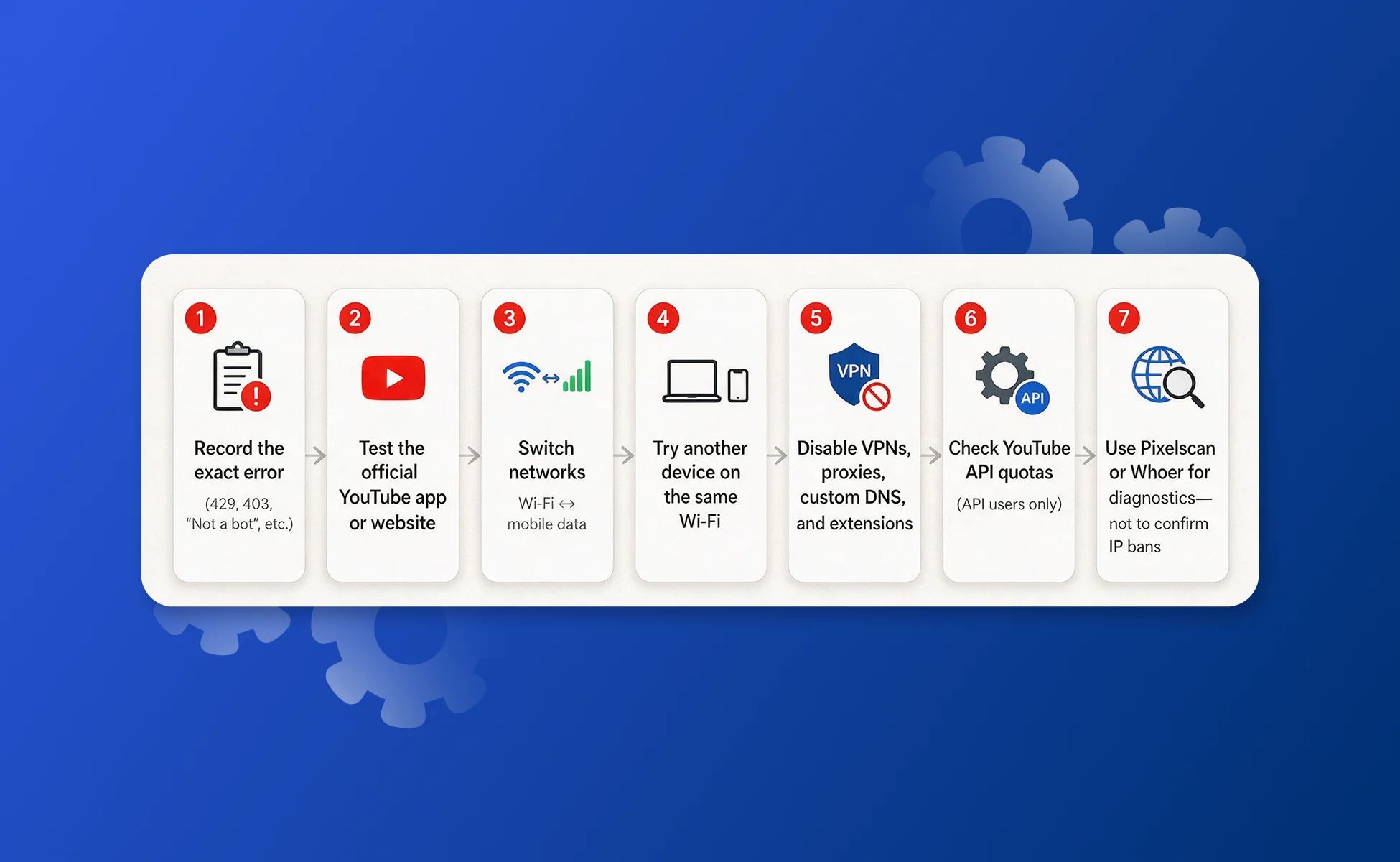
There is no official tool where you can enter an IP address and receive a “banned” or “not banned” result.
A reliable YouTube IP ban check is based on controlled testing.
Step 1: Record the exact error
Do not reduce every problem to “YouTube is broken.”
Look for messages such as:
Too Many Requests
HTTP 429
HTTP 403
Sign in to confirm you’re not a bot
YouTube has blocked your IP address from watching videos
Video unavailable
You appear to be offline
Access restricted by your administrator
Channel suspended or terminated
The wording helps separate a network problem from a browser, account, API, or third-party client problem.
Step 2: Test the official YouTube website or app
Open YouTube through the official website or mobile app.
If YouTube works there but fails in FreeTube, yt-dlp, a browser extension, or another client, the problem is probably limited to that tool or the way it sends requests.
Step 3: Try a different internet connection
Turn off Wi-Fi on your phone and use mobile data.
If YouTube works on mobile data but fails on Wi-Fi, the home or office network becomes a likely cause.
If it fails on both networks while signed into the same account, investigate the account, device, client, or YouTube service.
If it works after signing out, look for an account-specific restriction or verification request.
This is a diagnostic test. It is not a method for avoiding an account suspension.
Step 4: Test another device on the same Wi-Fi
Open YouTube on another phone or computer using the same network.
If every device fails, the issue may involve:
The public IP address
Router or DNS settings
ISP restrictions
A workplace or school policy
A wider YouTube service problem
If only one device fails, focus on that device’s app, browser, extensions, cookies, or security software.
Step 5: Temporarily disable third-party network tools
Turn off any VPN, proxy, filtering extension, custom DNS service, or third-party YouTube client and test the official site again.
A shared VPN or proxy address may produce additional verification. A browser extension may also interfere with playback.
Step 6: Check API quota separately
Developers should check the Google Cloud quota page and the complete API response before blaming the IP address.
An API quota error, authentication error, and network restriction require different fixes.
Step 7: Treat public IP checkers as limited diagnostics
The existing links to Pixelscan and WhoerIP can help readers see their current public IP, location, and browser details.
However, these services cannot check YouTube’s private enforcement systems. A normal score on an external checker does not prove that YouTube accepts the IP, and a poor score does not prove that YouTube has banned it.
FreeTube Says YouTube Has Blocked Your IP Address
The message “YouTube has blocked your IP address from watching videos” may appear inside FreeTube or another third-party YouTube client.
Start by opening the same video through the official YouTube website or app on the same network.
If the official service works, you probably do not have a complete YouTube IP ban. The client, selected backend, VPN, proxy, or request method may be the problem.
If the official service also fails on every device using that network, test mobile data and review the broader network checks above.
If YouTube asks you to sign in or complete a bot check, follow the on-screen instructions rather than repeatedly refreshing.
Third-party clients can interpret and display YouTube responses differently. Use the official client as the control test.
How to Recover from a Temporary YouTube IP Block
1. Stop the triggering activity
Pause downloaders, scripts, bots, bulk requests, auto-refresh tools, and repetitive comment activity.
Continuing to send the same rejected requests is unlikely to help.
2. Wait without running a retry loop
Give the temporary control time to reset.
Close tools that automatically retry in the background. A “wait” period is not very useful when a script is still sending a new request every few seconds.
3. Return to an official client
Test through the normal YouTube website or official mobile app.
This removes several variables at once, including unsupported clients, custom request headers, old integrations, and failed third-party backends.
4. Clear browser data when the problem is device-specific
If YouTube works on other devices using the same Wi-Fi, clear the affected browser’s YouTube cookies and cached site data.
You can also test a new browser profile before deleting everything. Nobody enjoys signing back into fifty websites because one tab misbehaved.
5. Restart the router as a connection test
Restarting the router can resolve DNS, routing, or temporary connection problems. Some internet providers may also assign a different public IP after a reconnect, while others will not.
Do not treat a new IP as permission to restart prohibited activity.
6. Contact the network administrator or ISP
YouTube’s help documentation recommends contacting the network administrator or ISP when they may be blocking access.
This is particularly relevant on:
School networks
Company networks
Hotels
Public Wi-Fi
Managed home connections
ISP ranges experiencing routing problems
7. Use the official appeal process for account enforcement
If YouTube has suspended or terminated the channel, follow the instructions in the notification and submit an appeal when you believe the decision is wrong.
Do not create another channel to avoid the restriction. YouTube’s Terms state that users must not use another channel to circumvent strike-related restrictions, and terminated users may be prohibited from creating or using other channels.
What Not to Do After a YouTube IP Block
A little patience is usually more useful than a frantic tour of every free VPN on the internet.
Avoid:
Repeating the same request hundreds of times
Moving a bot to a new IP and continuing the same behavior
Buying views, comments, likes, or subscribers
Creating new channels to avoid a termination
Assuming an external blacklist checker represents YouTube
Logging important accounts into unknown proxy or VPN services
Giving account cookies to untrusted tools
Treating every 403 response as proof of an IP ban
Fix the cause first. Otherwise, the network address changes but the problem travels with you.
YouTube IP Ban Discussions on Reddit: What Can You Trust?
Searches for “YouTube IP ban Reddit” return many reports involving yt-dlp, FreeTube, VPNs, HTTP 429 errors, bot checks, and videos that work only on mobile data.
These discussions are useful for identifying common symptoms. They are not an official YouTube policy reference.
Reddit users report very different durations, ranging from short interruptions to much longer problems. The variation supports a simple conclusion: there is no dependable community-sourced timer that applies to every YouTube temporary IP ban.
Use Reddit to compare symptoms. Use YouTube’s terms, help pages, API documentation, and the exact error message to decide what action to take.
Can You IP Ban Someone on YouTube?
No. A normal YouTube user or channel owner cannot enter another person’s IP address and ban it from YouTube.
Creators and moderators can:
Hide a user from a channel
Block unwanted interactions
Moderate live chat
Report comments, videos, channels, or other content
YouTube controls platform-level enforcement. Its creator tools operate on channels and visible user activity, not on public IP addresses supplied by channel owners.
What Is YouTube’s IP Address?
YouTube does not have one permanent IP address that every user should enter manually.
YouTube runs on Google’s globally distributed infrastructure, and Google service IP ranges can change. Google’s own administrator documentation notes that service IP ranges are dynamically allocated and may change frequently.
Use the youtube.com domain instead of hard-coding a single IP.
If a firewall, school, or business needs to manage YouTube access, its administrator should follow Google’s current domain and network guidance rather than copying an IP from a random lookup page.
How to Prevent Future YouTube Network Restrictions
Use official YouTube tools where possible
Use YouTube Studio for channel management and the YouTube Data API for approved data workflows.
The API gives applications defined authentication, quota reporting, and documented request methods.
Keep request volume controlled
Do not create uncontrolled loops that request the same page, video, subtitle, or endpoint repeatedly.
Track errors, stop after repeated failures, and investigate the cause before restarting the workflow.
Do not manipulate engagement
Views, likes, comments, watch time, and subscribers should come from people who intended to interact with the content.
YouTube may remove artificial engagement and take action against content or channels connected to it.
Keep channel activity organized
Agencies and creator teams should know:
Who owns each channel
Who is allowed to access it
Which device or profile is used
Which location is expected
Which tools have account access
Which API project belongs to each workflow
Which actions are performed by people and which are automated
Good organization reduces accidental login conflicts, lost sessions, duplicate work, and unexplained activity.
Keep account sessions consistent
Constantly changing devices, browsers, locations, and shared network services can create additional login challenges.
Use persistent, dedicated environments for legitimate channel work instead of treating every session as disposable.
Multilogin for YouTube Social Profile Workflows
Multilogin is a cloud phone platform for YouTube and other social media marketers. It lets individuals, agencies, teams, and AI agents manage multiple YouTube accounts and any other social profiles from one dashboard.
For YouTube, teams can use two types of environments:
Android cloud phones for YouTube mobile workflows
An Android cloud phone is a real Android device hosted in the cloud.
It can be used when a workflow needs the native YouTube, YouTube Studio, or other Android apps. Each social profile keeps its own app data, login state, location settings, and persistent session.
Browser profiles for YouTube web workflows
Browser profiles are suited to YouTube Studio, channel settings, comments, analytics, advertising dashboards, and other web-based tasks.
Each browser profile maintains its own:
Cookies
Login session
Browser settings
Proxy configuration
Profile data
One dashboard for people, teams, and AI agents
Profiles can be organized by channel, client, region, campaign, or operator. Teams can share approved profiles without repeatedly passing passwords or creating a fresh session on every computer.
Multilogin also supports API access, ADB, Selenium, Puppeteer, Playwright, and Postman for authorized workflows. The platform currently positions Android cloud phones first for mobile social media work, with browser profiles available for web operations.
Multilogin is not a way to bypass a YouTube termination, fake engagement policy, copyright enforcement, or another platform rule. It provides organized mobile and browser environments for legitimate multi-profile operations. The activity inside those environments must still follow YouTube’s policies.
Multilogin pricing
Multilogin offers a Free plan with no time limit and no credit card requirement.
The Free plan includes:
Five cloud mobile and browser profiles
200 MB of premium proxy traffic as a one-time bonus
One mobile profile with 30 minutes of use as a one-time bonus
Paid plans start from $7.08 per month and combine cloud mobile phones, browser profiles, built-in proxies, mobile minutes, and platform features in one workspace.
Readers can review the current Multilogin pricing or learn more about using a cloud phone for YouTube.