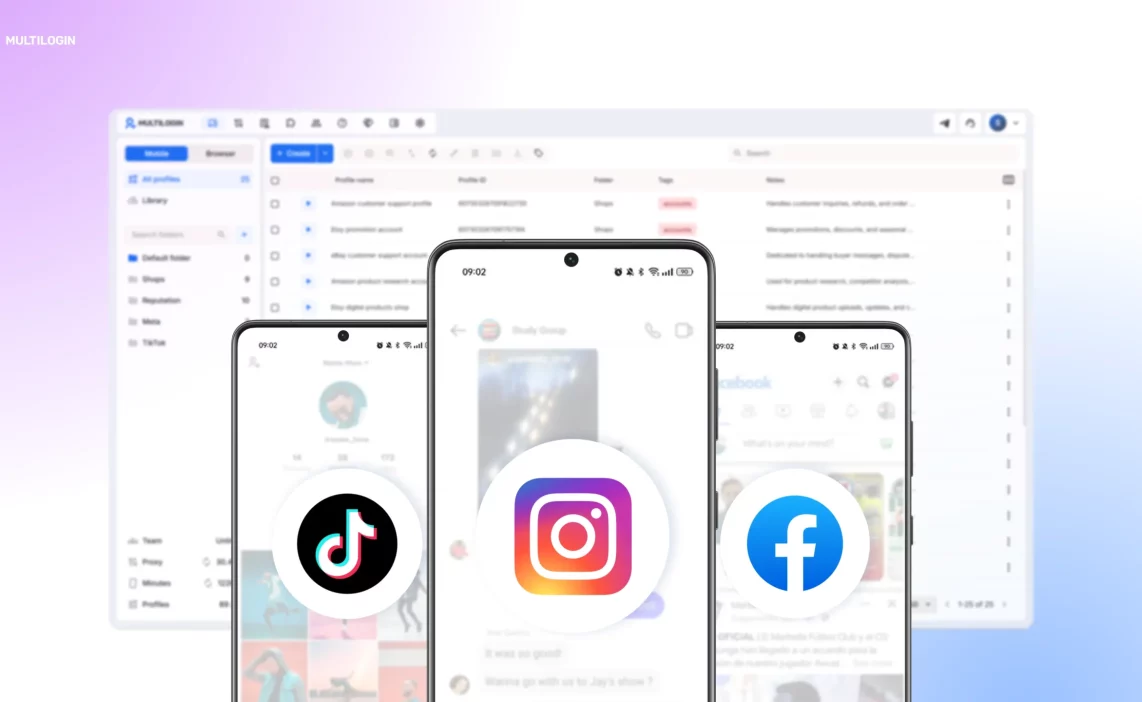

The growing need to manage multiple social media accounts has only increased as the market becomes more dynamic. But it’s not just important to find a good tool for this — a clear and accessible UI plays a major role in how you interact with and manage your accounts. That’s why we’re constantly listening to your feedback and improving the product to make it more convenient for your day-to-day workflows.
Multilogin has always focused on keeping the interface clear and accessible. With the new UI update, we’ve taken another step in that direction, making it easier to navigate, faster to use, and more intuitive overall.
This walkthrough covers every section of the new interface so you can get set up fast and make the most of what Multilogin offers.
What you’ll find in the new dashboard
The first thing you’ll notice is the toggle at the top of the dashboard. Multilogin provides both cloud phones and browser profiles, and a single switch lets you move between the two views. Mobile workflows and desktop workflows live in the same place — no separate tools or logins required.
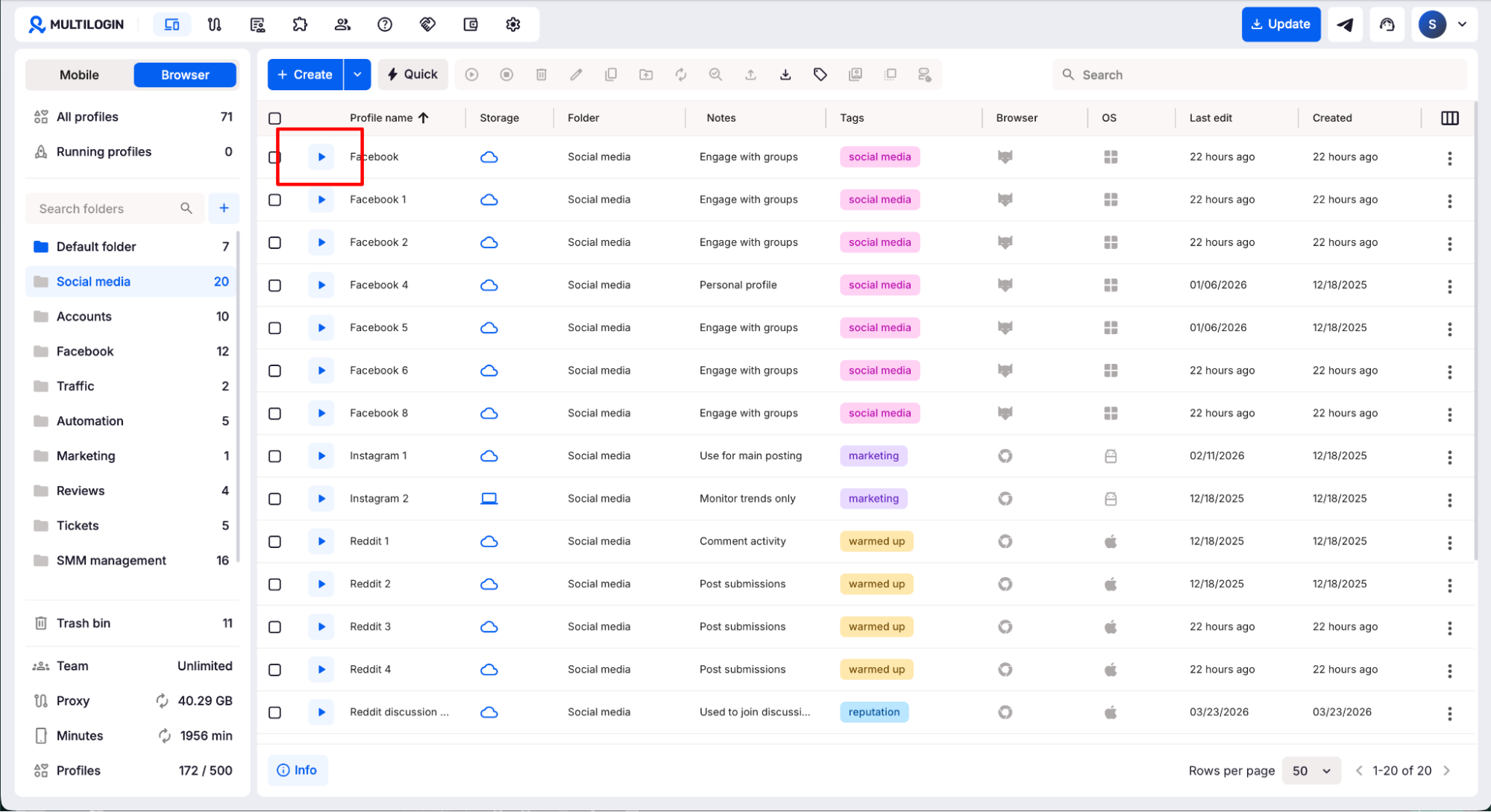
Above the slider, a top bar gives you quick shortcuts to the features you use most. Everything is built for speed. 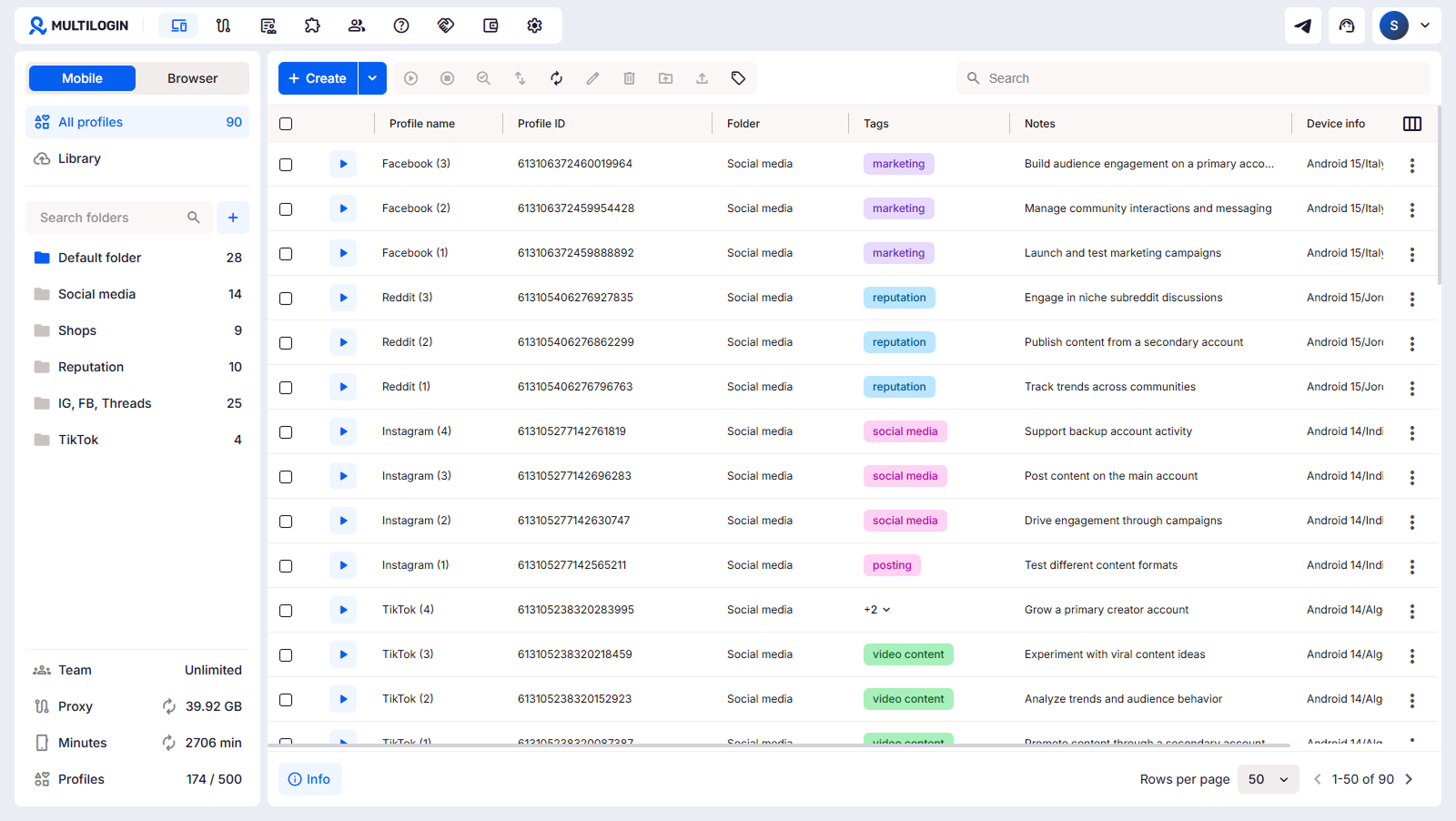
Key features in the new UI at a glance
- Cloud phones and browser profiles in one dashboard: Switch between mobile and desktop workflows without leaving the platform
- 150+ proxy locations: Built-in proxies with consistent geo-targeting across sessions
- Android environments: Android versions 10 to 15, running native apps just like physical devices
- Folder and tag organisation: Keep profiles structured by client, region, or project
- Team roles and folder-based access: Assign permissions without sharing credentials
- Usage tracking: Monitor minutes and proxy traffic, and top up instantly
- Referral rewards: Earn €10 per referral, applied directly to invoices
- Flexible billing: Scale up or down based on actual usage
Multilogin is leading solution for any platform
With the new UI, Multilogin is more powerful than ever for any platform where you need to run multiple accounts. Here are some of the most used platforms among our users:
- TikTok, Instagram, and Facebook — social media platforms where agencies and creators manage content, grow audiences, and publish for multiple clients. Cloud phones give each account its own real Android environment with a persistent login and consistent location.
- Reddit, Quora, and Discord — community-driven platforms where users build presence, manage communities, and drive engagement. Each profile behaves like a genuine independent user, keeping accounts natural and healthy over time.
- Google Ads, TikTok Ads, Facebook Ads Manager, and Amazon — advertising and e-commerce platforms where agencies and sellers run multiple accounts or storefronts. Browser profiles keep each one isolated with its own fingerprint and connection, so there is no risk of accounts being linked.
Get started with Multilogin today and try out the new UI.
How to create your first cloud phone profile
Let us walk you through the basics of the Multilogin workflow for creating mobile and browser profiles. It hasn’t changed dramatically; it has simply become faster and more accessible. If you are already familiar with the flow, you will have no problems.
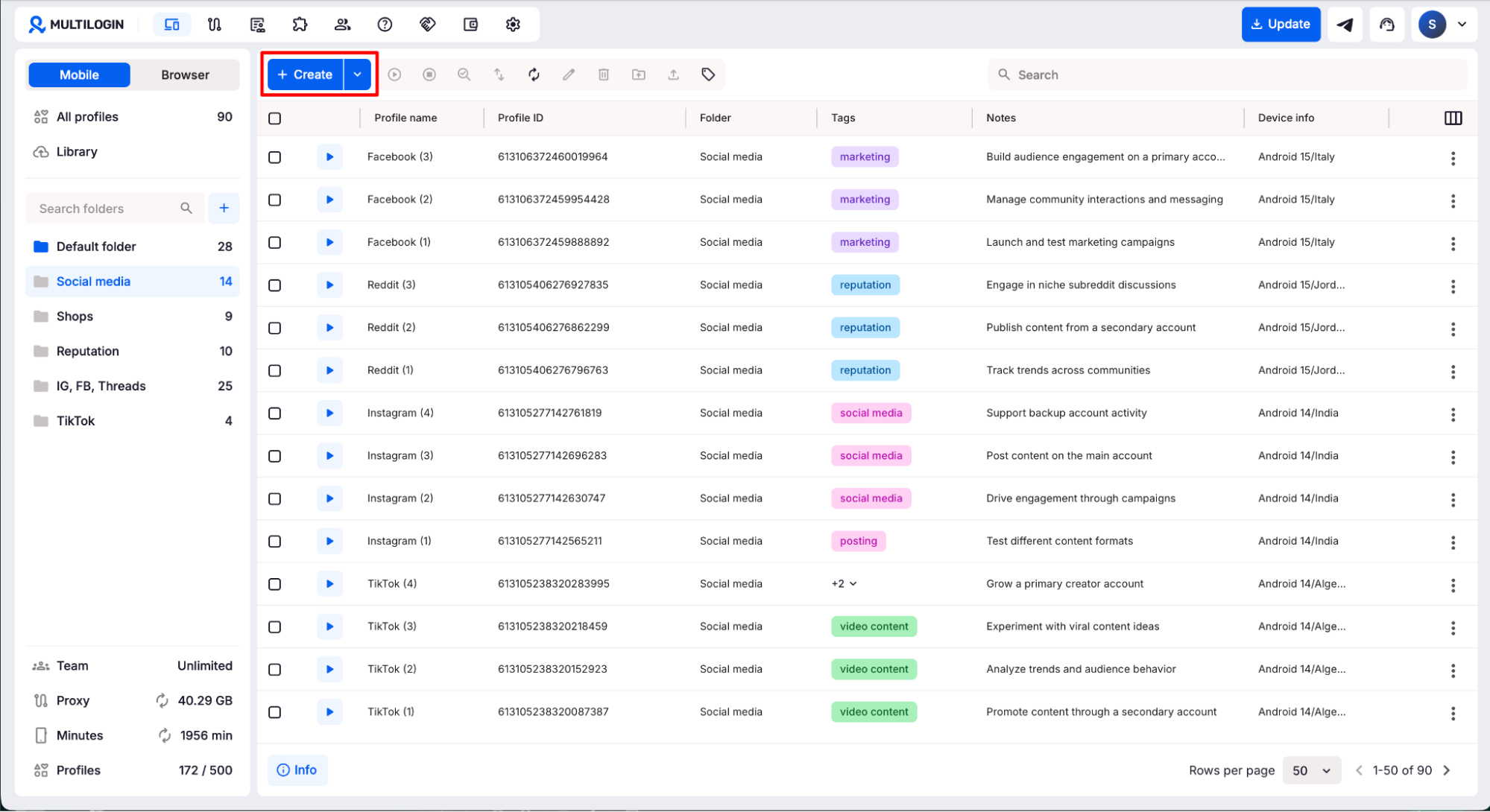
1. Open the cloud phone dashboard and click Create
From the main dashboard, make sure you’re in the cloud phone view. Click the Create button to start setting up a new profile.
2. Name your profile
Give your profile a clear, descriptive name. This keeps things easy to identify as your list of profiles grows.
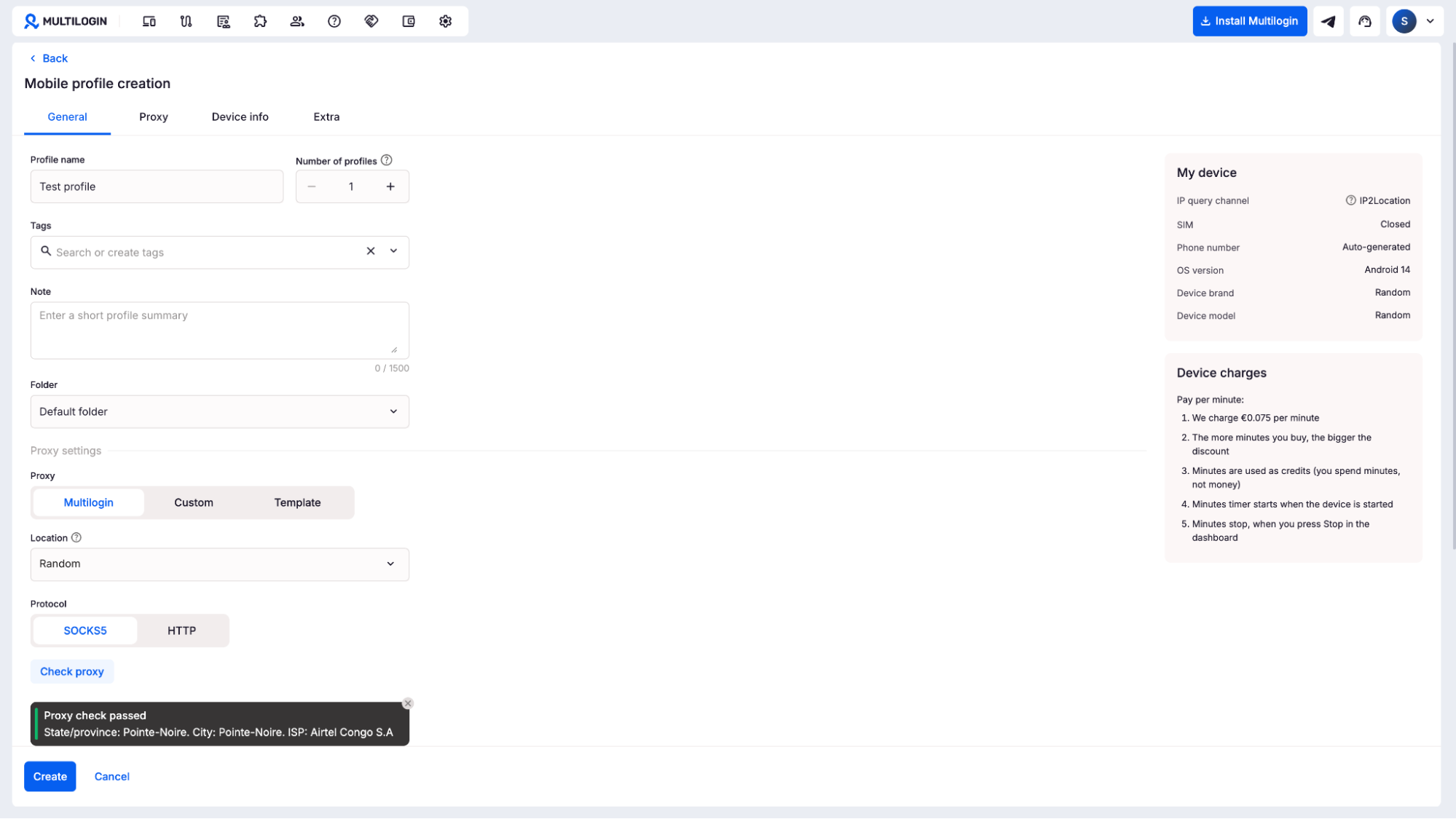
3. Organisewith tags, notes, and folders
Add tags and notes to keep your profiles structured. You can also assign the profile to a specific folder — useful when managing accounts by client, region, or content type.
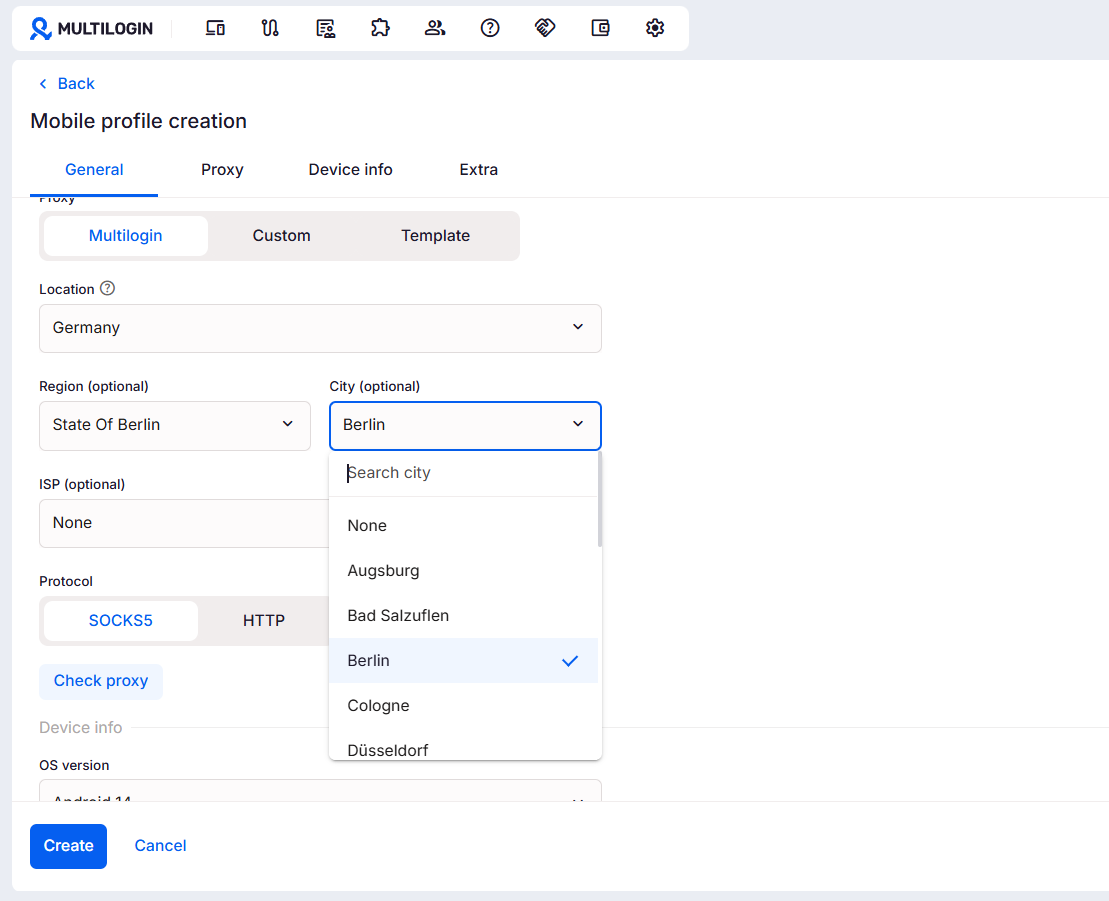
Navigate to the proxy settings and select Multilogin as your provider. This gives you access to built-in residential proxies across more than 150 locations, so your cloud phone connects from wherever you need it to.
4. Choose your connection location
Pick the country and city for your connection. This setting stays consistent across sessions, which keeps account behaviour natural and reduces the risk of flags from platforms.
5. Select your device brand and model
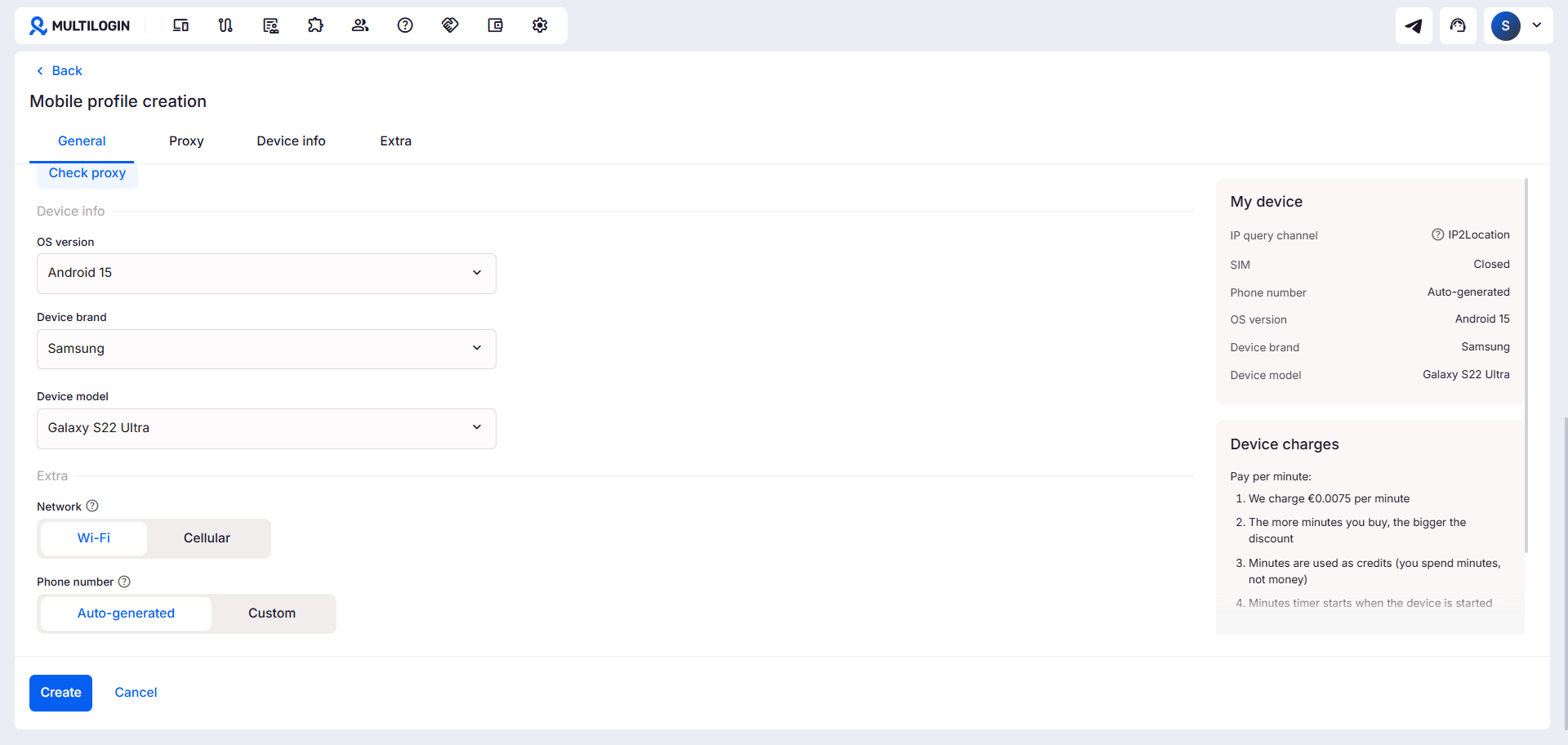
Choose the brand and model you want your cloud phone to emulate. This makes each profile appear as a genuine physical device to mobile platforms like TikTok, Instagram, or Reddit.
6. Customisenetwork and phone settings
Fine-tune your network type and phone number settings to match the profile’s intended use case.
7. Click Create to save
Hit Create to finalise the profile. It’s now saved and ready to launch.
8. Use the real Android screen
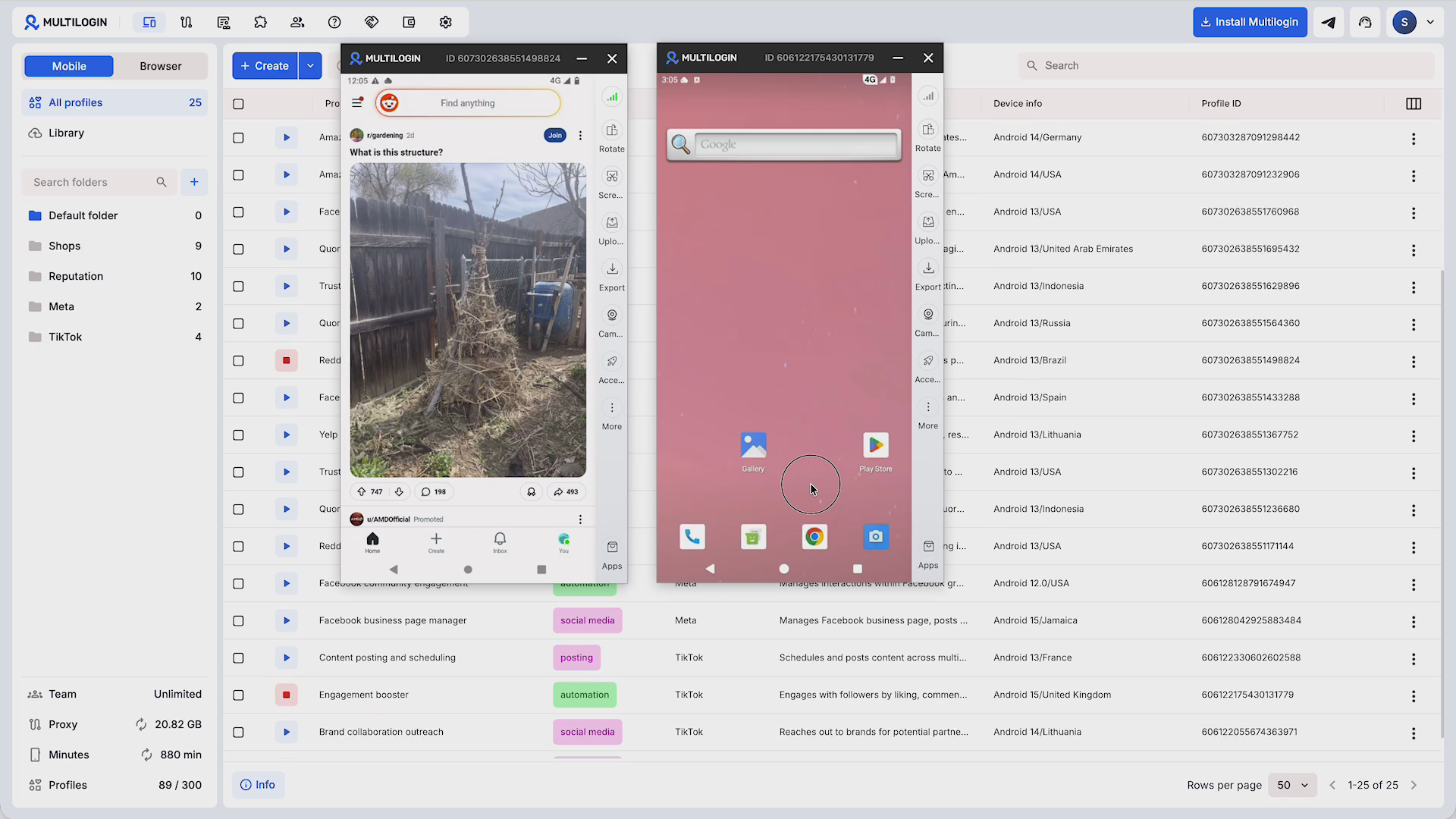
Once launched, you’ll see a real Android environment. Use your mouse to interact with it exactly as you would a physical phone. You can run multiple cloud phone instances at the same time — useful for teams working across several accounts simultaneously.
9. Install apps from the built-in marketplace
Open the built-in app marketplace on your cloud phone. Search for the apps you need — TikTok, Instagram, Reddit, or any other — and install them directly. No APK hunting or sideloading required (though that’s supported too).
Switching to browser profiles
Browser profiles follow the same creation flow as cloud phones, designed for desktop-based workflows.
1. Use the slider to switch views
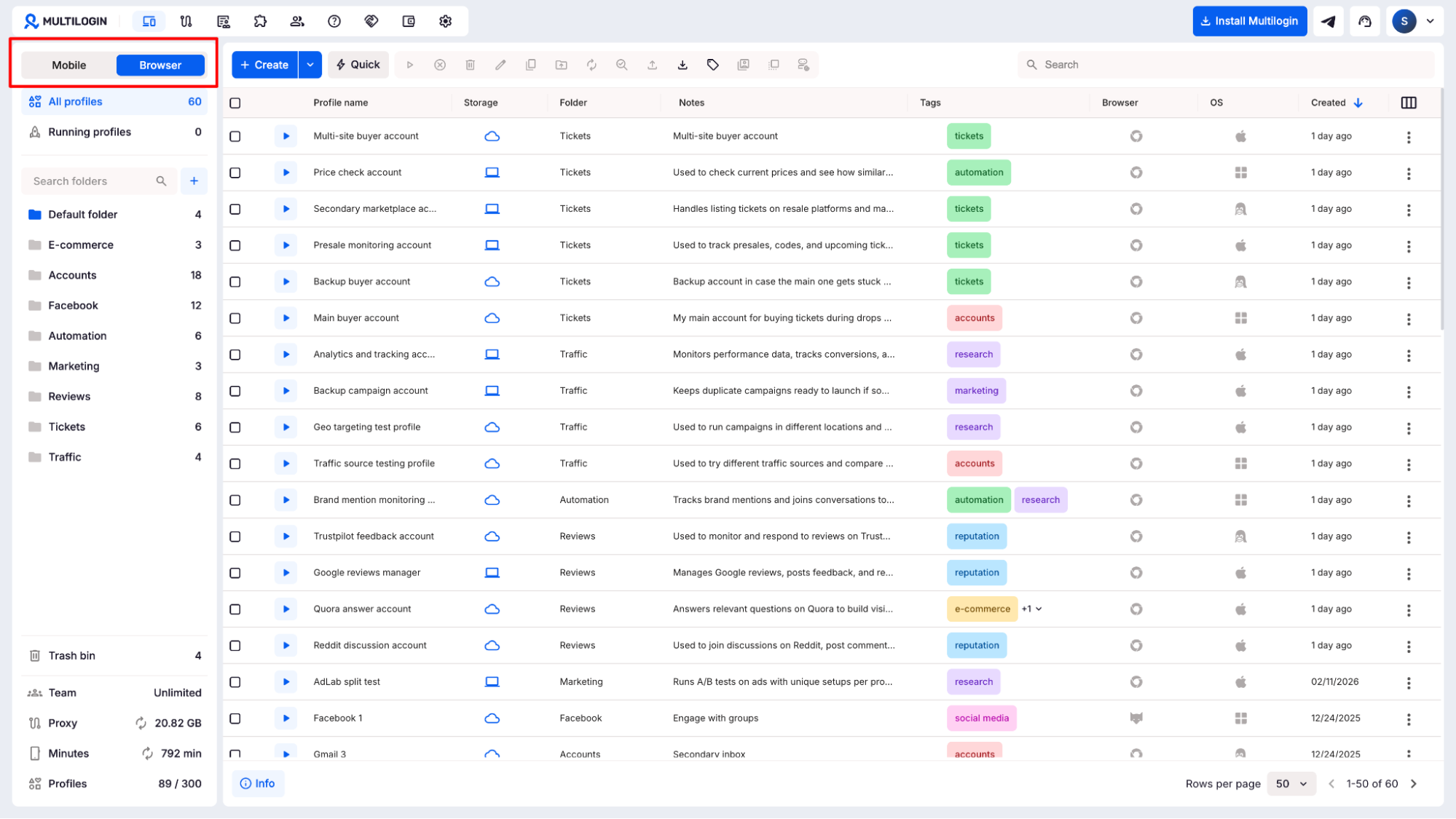
Toggle the slider on the dashboard to move to the browser profile view.
2. Click Create
Hit Create to begin setting up a new browser profile.
3. Set up your profile details
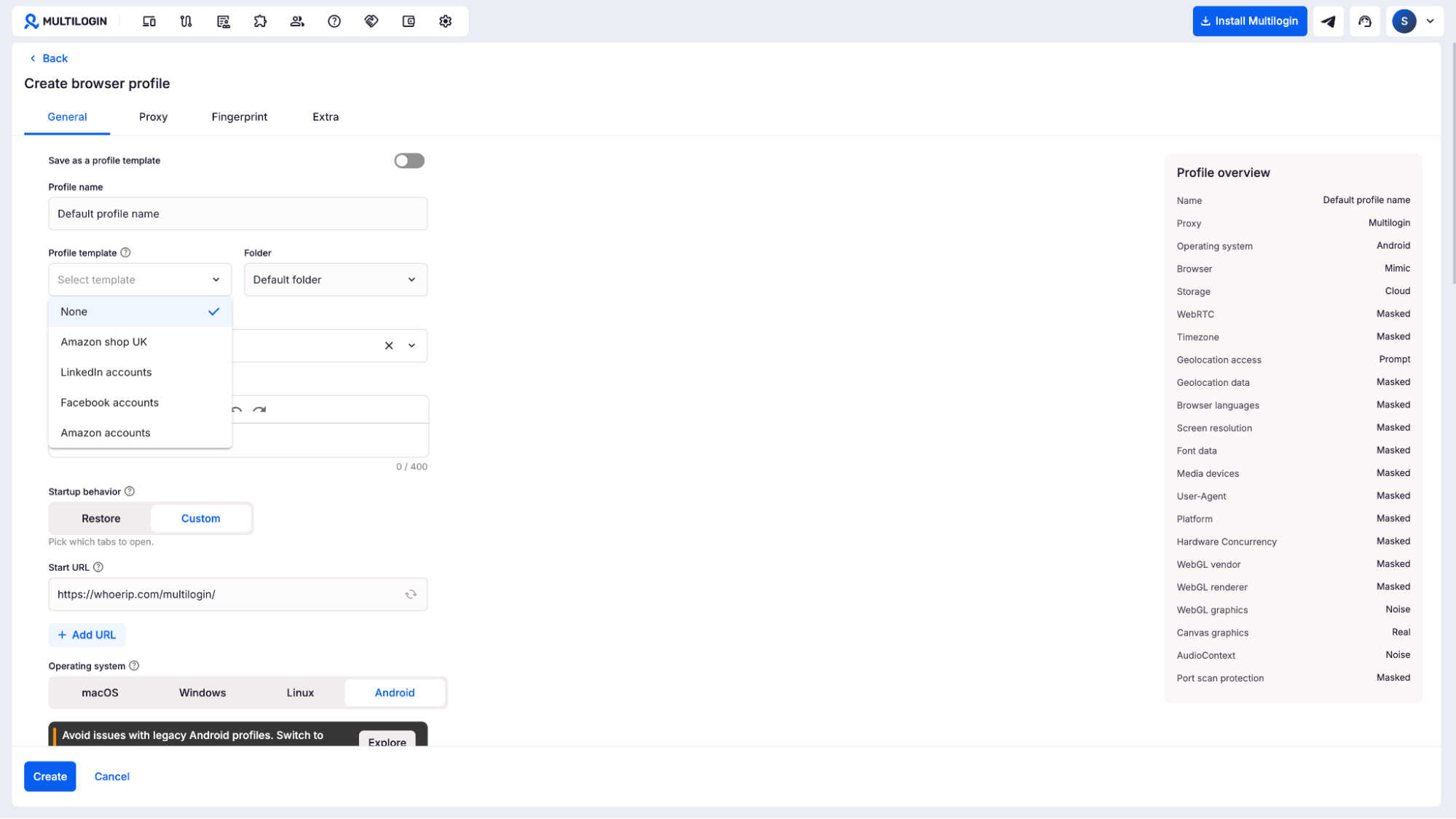
Enter the name, tags, notes, and folder — same as the mobile setup.
4. Configure fingerprint and proxy settings
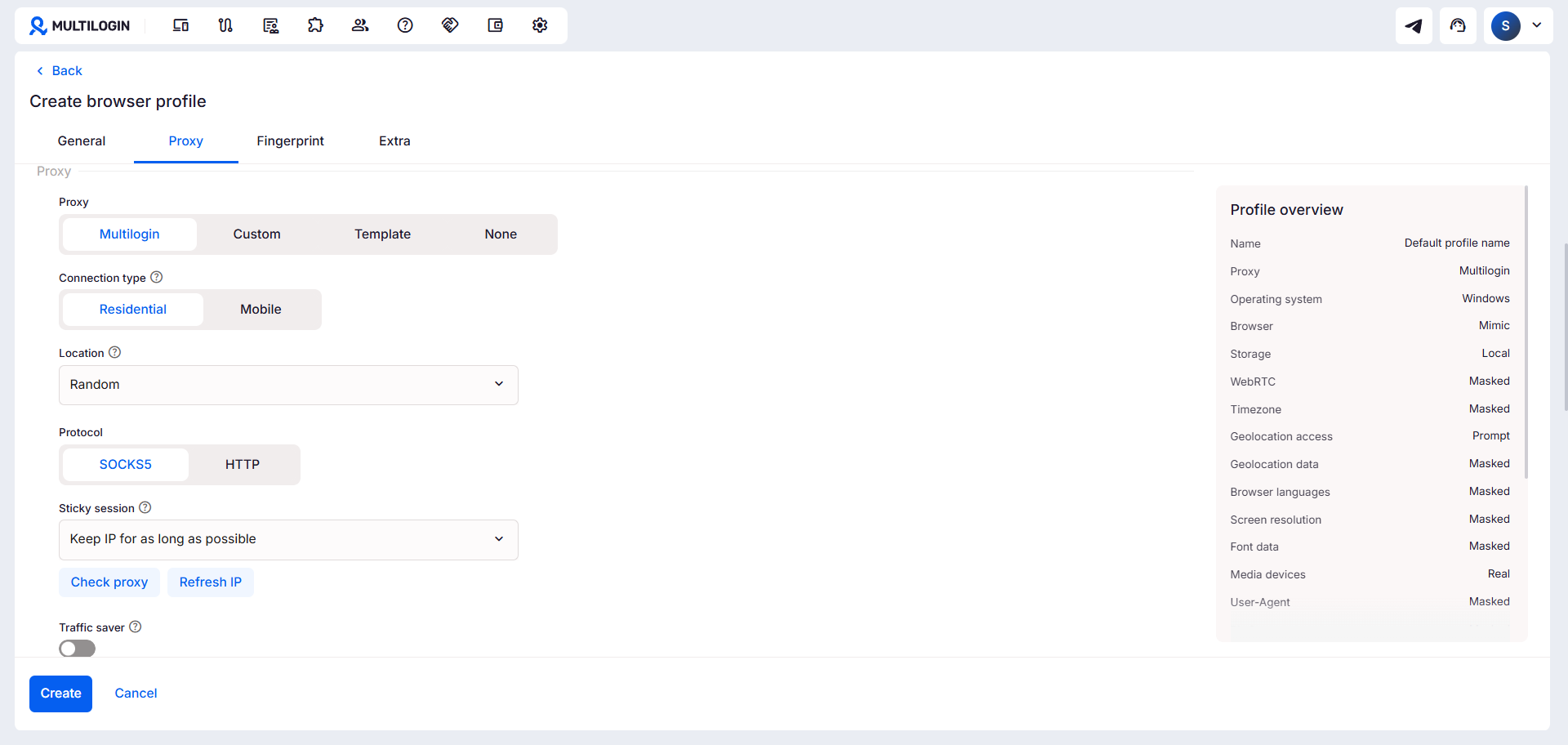
Set up your fingerprinting parameters and connect a proxy. Multilogin’s antidetect browser handles the fingerprint management automatically, so each profile looks like a unique, real user to websites.
5. Launch from the dashboard
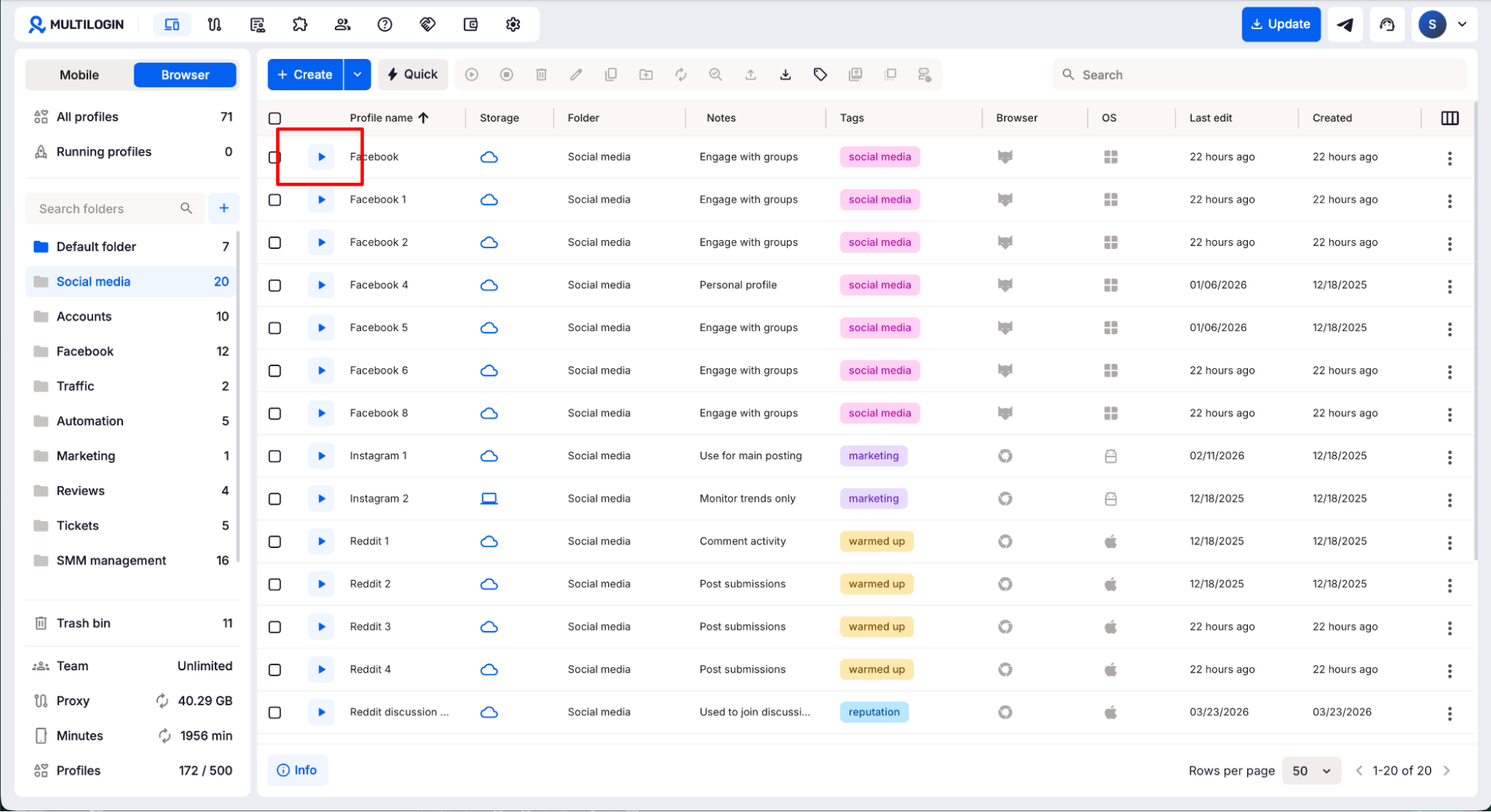
When your settings are ready, click Launch. Browser profiles open directly from the dashboard and are built for workflows that run in a desktop browser rather than on a mobile device.
Tracking usage and topping up resources
In the bottom left corner, you can monitor your mobile minutes and proxy traffic in real time. When you need more, top them up directly from the dashboard without interrupting your workflow.
Managing your team
Invite members and assign roles
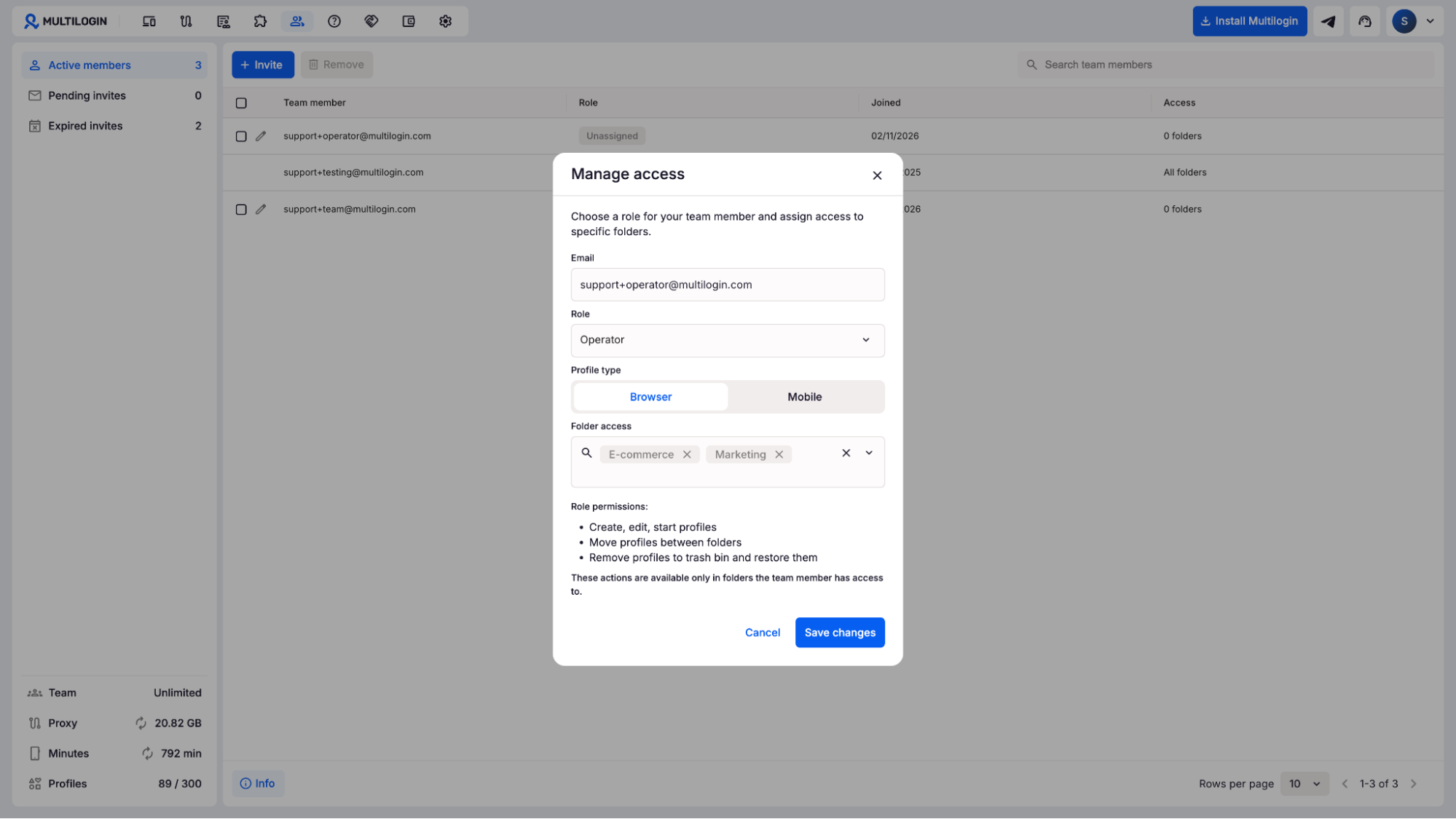
Click the team member settings to invite collaborators. Multilogin supports three roles, so you can control exactly what each person can access. Combine this with folder-based access management to make sure editors, managers, and clients only see what’s relevant to them.
Billing and account settings
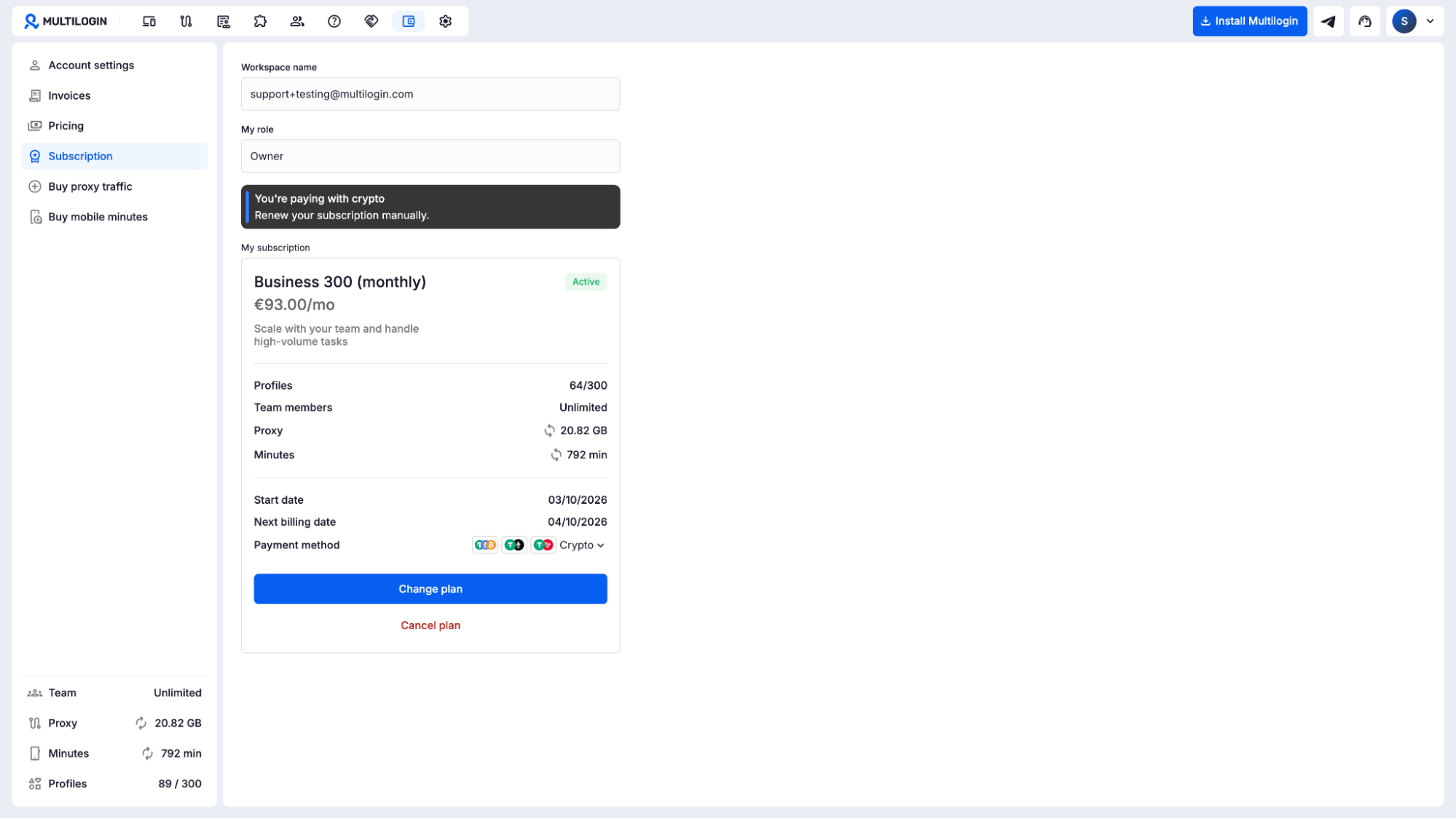
In the Billing section, you can manage your plan and purchase extra resources whenever you need them. Under Account Settings, you can configure location preferences and adjust your security settings to match your operational requirements.