
Going live on Facebook is built into the app — no third-party tools required for a basic stream. But the setup varies depending on where you’re streaming from: your personal profile, a business page, a group, a desktop browser, or an external streaming tool like OBS.
This guide covers every setup, plus what’s involved in managing live streams across multiple Facebook pages — which is where things get more complex if you’re managing multiple Facebook accounts for clients or running live content at scale.
Try Multilogin now to manage Facebook pages and accounts without session overlap — starting at €5.85/month.
How to go live on Facebook on mobile (Android and iPhone)
Step 1: Open the Facebook app and tap What’s on your mind? at the top of your feed.
Step 2: Scroll through the post creation options and tap Live video.
Step 3: Allow camera and microphone permissions if prompted.
Step 4: Add a description for your stream — this shows up in the feed when people see the live notification.
Step 5: Set your audience. You can go live to Public, Friends, or a more restricted group. For page live streams, the audience setting is separate (covered below).
Step 6: Tap Go Live.
Your stream starts immediately. Viewers can comment and react in real time. When you’re done, tap Finish and choose whether to save the video to your profile or page.
How to go live on Facebook on desktop (PC or laptop)
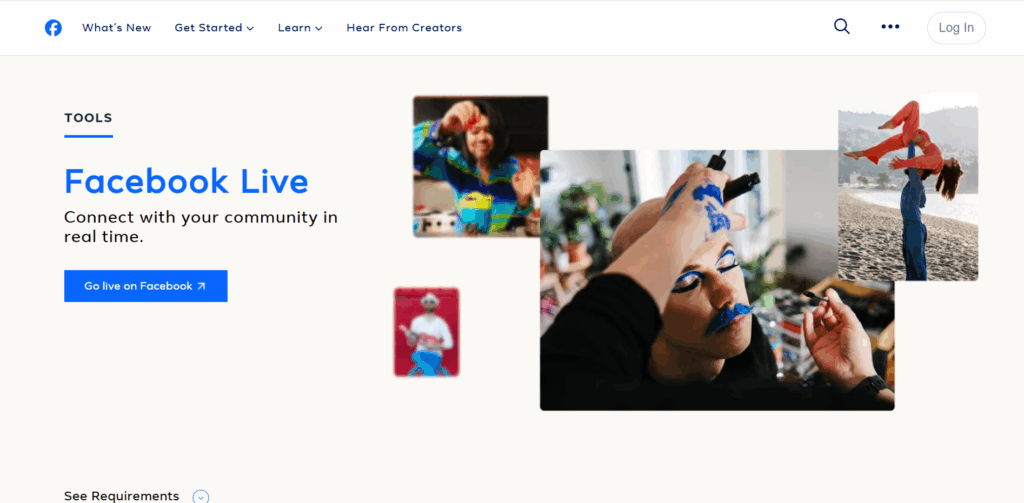
The desktop live experience uses Facebook Live Producer, which gives you more controls than mobile — including the ability to connect external cameras and streaming software.
Step 1: Go to facebook.com and click What’s on your mind? in the post composer.
Step 2: Click Live video from the options that appear.
Step 3: Facebook Live Producer opens. You’ll see options for your camera source, audio input, and audience settings.
Step 4: Add a title and description.
Step 5: Set your audience and any advanced options (scheduling, alt text for the stream, etc.).
Step 6: Click Go Live.
Live Producer also shows real-time viewer count, incoming comments, and stream health. You can add guests, share your screen, and switch between camera feeds from here.
How to go live on a Facebook business page
Going live from a page is different from your personal profile — the stream appears on the page’s timeline and reaches the page’s followers, not your personal network.
From mobile:
Step 1: Go to your Facebook page (tap the Pages shortcut or find it through your profile menu).
Step 2: Tap Write something or the post composer at the top of the page.
Step 3: Tap Live video.
Step 4: The live setup is the same as personal, but the audience defaults to followers of the page.
Step 5: Go Live.
From desktop:
Step 1: Go to your page on facebook.com.
Step 2: Click Live in the post creation area.
Step 3: Live Producer opens, now publishing to the page. Set your title, add descriptions, and go live.
One thing to watch: if you’re managing a page for a client, make sure you’re acting as the page, not as yourself. Check the “Posting as” setting before going live — it’s easy to accidentally publish to your personal profile.
How to go live in a Facebook group
Group lives are only visible to group members unless the group is public.
Step 1: Open the Facebook group.
Step 2: Tap or click Write something in the post composer.
Step 3: Select Live video.
Step 4: Group lives default to the group’s privacy level — public groups broadcast publicly, private groups stay private to members.
Step 5: Go Live.
Group admins can restrict who can go live in the group through the group settings under Admin tools > Group settings.
How to go live on Facebook in landscape mode
Facebook Live defaults to portrait orientation on mobile. Switching to landscape (horizontal) is a hardware-level move, not a settings toggle.
To go live in landscape mode:
Turn your phone sideways before tapping Go Live. Facebook detects the orientation and adjusts automatically on most devices.
The catch: some Android phones lock orientation in the Facebook app regardless of your rotation settings. If landscape isn’t sticking:
- Enable auto-rotate in your phone’s quick settings panel
- Open Facebook, start the live setup, then rotate the phone before tapping Go Live
- Some Samsung models require you to be in the live camera preview before the landscape lock triggers
iPhone users generally have fewer issues with this — the Facebook iOS app respects the rotation lock toggle in Control Center.
How many followers do you need to go live on Facebook?
No minimum follower count is required for most Facebook Live features. Personal profiles and pages can go live regardless of how many followers they have.
The exception is some newer features — like the ability to add paid event access to a live stream or access certain monetization tools — which do require a minimum page following (typically 1,000+ followers) and meeting Meta’s monetization eligibility criteria.
For standard live streaming: zero followers required. Go live on a brand new page if you want.
How to go live on Facebook from OBS
OBS (Open Broadcaster Software) connects to Facebook via RTMP — a streaming protocol that sends your OBS output directly into Facebook Live Producer.
Step 1: Open Facebook Live Producer on desktop (from your page or profile post composer > Live video).
Step 2: Instead of using the built-in webcam, select Streaming software as your video source.
Step 3: Facebook will display a Stream key and Server URL (RTMP URL).
Step 4: Open OBS. Go to Settings > Stream. Set:
- Service: Facebook Live (or Custom if Facebook isn’t listed)
- Server: paste the RTMP URL from Facebook
- Stream key: paste the stream key
Step 5: Click Start Streaming in OBS.
Step 6: Back in Facebook Live Producer, click Go Live once OBS is streaming.
OBS gives you full control over scenes, overlays, multiple camera inputs, screen sharing, and audio mixing — all sent directly to your Facebook Live stream.
How to go live on Facebook and Instagram simultaneously
Facebook and Instagram are both Meta platforms, which means you can simulcast — going live on both at the same time — through Meta’s tools or third-party software.
Via Meta Business Suite: If your Facebook page and Instagram business account are linked, Meta Business Suite allows simultaneous live publishing. Start the live from Business Suite and toggle both platforms on before going live.
Via streaming software (OBS, StreamYard, Restream): Tools like Restream allow multi-destination streaming — you set up separate RTMP streams to both Facebook and Instagram simultaneously. Each platform gets its own stream key. Restream’s free tier supports this.
Direct limitation: The native Facebook and Instagram apps don’t have a built-in one-tap simulcast option. You need either Business Suite or a third-party tool.
Going live across multiple Facebook pages: what changes
If you’re a social media manager or agency, you’re not running one live — you’re potentially managing live streams across multiple client pages, each with different audiences, branding, and schedules.
The operational reality: each page needs its own session. Logging in and out of Facebook to switch between client pages in the same browser means your session data carries over — Facebook reads cookies, login timing, and device fingerprints across those switches.
Teams that do this at scale end up using separate browser profiles for each client account — each with its own cookies, fingerprint, and proxy — so there’s no crossover between clients. That’s the core use case for managing social media for multiple clients properly.
If you’re running multiple Facebook accounts as part of that workflow, the infrastructure that keeps them from being flagged as coordinated is the same infrastructure that makes multi-page live management reliable.
Managing multiple Facebook accounts with Multilogin gives each client page its own isolated session — different fingerprint, different IP, different cookie store — so going live on five different pages doesn’t leave a trail back to a single operator.
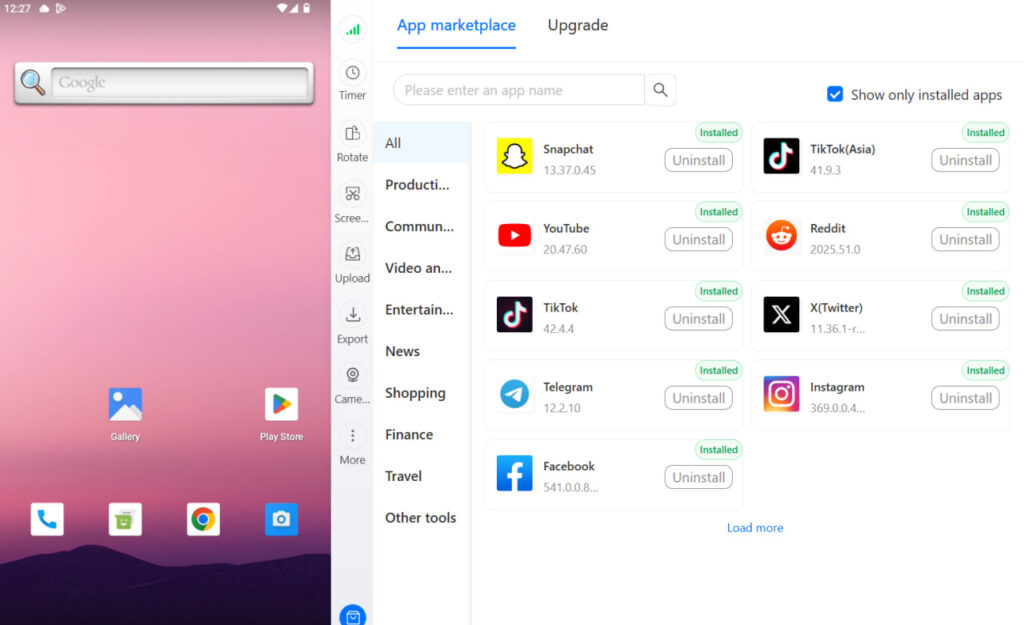
A cloud phone for Facebook extends this to the native app — each cloud device runs the Facebook app independently, with its own hardware identifiers, so mobile live streams from multiple accounts don’t share signals.
Try Multilogin now with the Facebook proxy and antidetect bundle to keep your client accounts properly separated.
Need to manage multiple Facebook accounts? Try Multilogin Cloud Phones.
Frequently asked questions About How to go live on Facebook
No minimum for basic Facebook Live. Advanced monetization features (like paid events) require meeting Meta’s Partner Monetization Policies, which include follower thresholds.
Open facebook.com, click “What’s on your mind?” in the post composer, then select Live video. Facebook Live Producer opens in your browser with webcam and audio controls.
Yes. Turn your phone sideways before tapping Go Live. Enable auto-rotate in your device settings if the app isn’t responding to the rotation.
In Facebook Live Producer, choose “Streaming software” as your source. Copy the RTMP URL and stream key, paste them into OBS under Settings > Stream, then start streaming in OBS and click Go Live in Facebook.
Yes, via Meta Business Suite (if accounts are linked) or third-party tools like Restream or StreamYard. The native apps don’t have a built-in simulcast button.
No. Marketplace requires a Facebook account. You also need to meet Facebook’s eligibility requirements for your region.
Yes. In Live Producer on desktop, click “Schedule a live video” instead of going live immediately. You can set a future date and time, which creates a post that followers can sign up for in advance.
Conclusion
Going live on Facebook covers a lot of ground — mobile, desktop, pages, groups, OBS, and simultaneous streaming across platforms. The setup for each is different, but none of it is complicated once you know which path you’re on.
The part that gets complicated is managing live streams across multiple client pages without those accounts getting flagged as coordinated. That’s an infrastructure problem, not a Facebook Live problem — and it’s where proper session isolation makes the difference.
For teams managing live content at scale, social media management across accounts needs a setup where each client’s session is genuinely isolated.

