


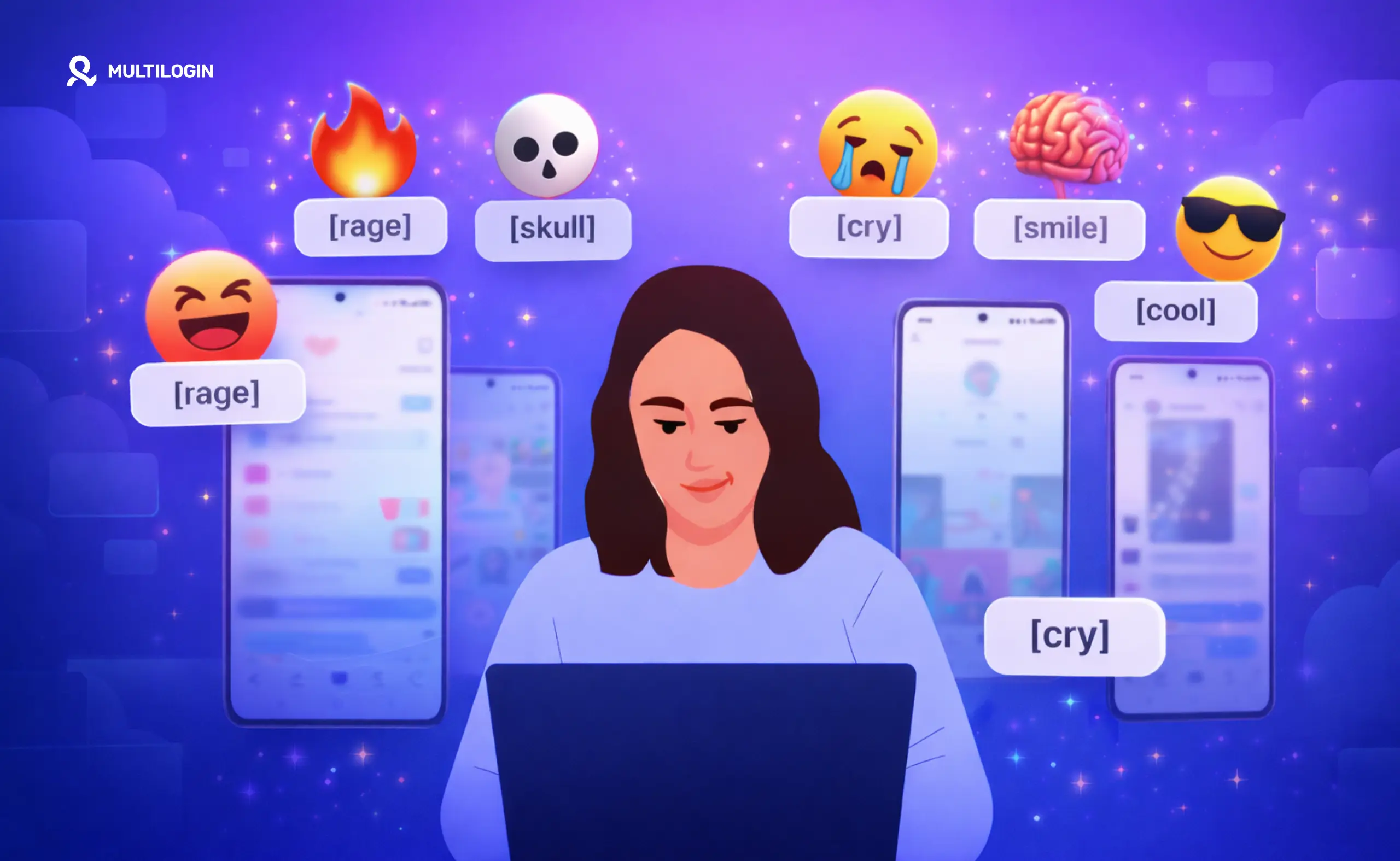



TikTok has its own set of custom emojis that you can only trigger through specific bracket codes — they don’t exist on any standard keyboard, and you won’t find them in your phone’s emoji picker. Type the right code in a comment, and TikTok renders a small illustrated emoji that looks completely different from a regular Unicode emoji.
This is the complete list of TikTok emoji codes, with the codes you can copy and paste directly into comments, captions, or replies. We’ll also cover why they sometimes fail to render — and what that has to do with account status.
Try Multilogin now if you’re managing multiple TikTok accounts. Multilogin gives each account its own isolated device identity so sessions don’t overlap. See what a cloud phone built for TikTok can do.
What are TikTok emoji codes?
TikTok emoji codes are short text strings — wrapped in square brackets — that TikTok’s app converts into custom illustrated emojis when posted. They’re different from the emojis you’d type anywhere else. These are TikTok-native graphics: small, cartoon-style faces and expressions that TikTok designed specifically for its own comment system.
The format looks like this: [smirk], [shy], [devil], [kiss] — and when posted in a comment, TikTok replaces the text with the matching emoji illustration.
They’ve been part of TikTok’s comment system for years, but TikTok has never officially documented the full list anywhere easy to find. The list circulates through community posts, which is why people search for it constantly.
One thing worth knowing: these codes only work inside TikTok’s native comment system. They won’t render if you paste them into a bio, a caption draft tool, or a third-party scheduler. You need to type them directly in the app’s comment box.
The complete TikTok emoji codes list
Below is the full list of confirmed TikTok emoji codes. Copy and paste any of these directly into a TikTok comment.
Faces and expressions
Emoji name | Code to type |
Smile | [smile] |
Happy | [happy] |
Angry | [angry] |
Cry | [cry] |
Embarrassed | [embarrassed] |
Surprised | [surprised] |
Wronged | [wronged] |
Shout | [shout] |
Flushed | [flushed] |
Yummy | [yummy] |
Complacent | [complacent] |
Drool | [drool] |
Scream | [scream] |
Weep | [weep] |
Speechless | [speechless] |
Funnyface | [funnyface] |
Laughwithtears | [laughwithtears] |
Wicked | [wicked] |
Facewithrollingeyes | [facewithrollingeyes] |
Sulk | [sulk] |
Thinking | [thinking] |
Lovely | [lovely] |
Greedy | [greedy] |
Wow | [wow] |
Joyful | [joyful] |
Hehe | [hehe] |
Slap | [slap] |
Loveface | [loveface] |
Awkward | [awkward] |
Smirk | [smirk] |
Shy | [shy] |
Sad | [sad] |
Cool | [cool] |
Devil | [devil] |
Naughty | [naughty] |
Kiss | [kiss] |
Wink | [wink] |
Horror | [horror] |
Sick | [sick] |
Sweat | [sweat] |
Yawn | [yawn] |
Blink | [blink] |
Gestures and reactions
Emoji name | Code to type |
Victory | [victory] |
Thinkingface | [thinkingface] |
Goodluck | [goodluck] |
Lol | [lol] |
Wow | [wow] |
Stun | [stun] |
Proud | [proud] |
Beg | [beg] |
Rockon | [rockon] |
Objects and symbols
Emoji name | Code to type |
Tv | [tv] |
Star | [star] |
Guitar | [guitar] |
Cake | [cake] |
Like | [like] |
Candle | [candle] |
Album | [album] |
How to use TikTok emoji codes in comments
The process is simple, but a few things trip people up.
Open any TikTok video and tap the comment box. Type the bracket code exactly as written — lowercase, no spaces inside the brackets. So [smirk] not [ Smirk ] and not (smirk). TikTok is case-sensitive here, and parentheses or curly braces won’t trigger the emoji.
After you post the comment, TikTok’s servers process the text string and replace it with the emoji graphic. You won’t see the rendered emoji as you type — it only appears after posting.
A few things that cause codes to fail:
- Autocorrect — your phone might capitalize the first letter or add a period inside the bracket. Turn off autocorrect or type carefully.
- Copy-paste encoding issues — some websites format their bracket characters as “smart quotes” or special Unicode brackets that look the same but aren’t. If a code you’ve copied isn’t working, delete and retype it manually.
- Account status — see the next section.
There’s no desktop keyboard shortcut for these. On web, you’d need to type them in manually the same way.
Why TikTok emoji codes sometimes don’t work
If you’re typing the code correctly and it’s still not rendering, the issue is usually one of three things.
- Autocorrect or formatting. Covered above. This is the most common cause.
- Account restrictions. If an account is experiencing a TikTok shadow ban or comment-level restrictions, certain interactions — including emoji rendering in comments — can behave inconsistently. A restricted account might post the literal text [smirk] instead of the emoji. This is one of the subtler signs that something is wrong with the account’s standing.
- App version mismatch. Older versions of TikTok occasionally have emoji rendering bugs. If codes stopped working after an app update — or never worked on an older version — updating the app is worth trying first.
- Regional availability. TikTok’s emoji set isn’t always consistent across all regional app versions. Some codes that work on TikTok US may not render on other regional variants of the app.
One thing TikTok IP bans can affect is your ability to interact at all — understanding whether TikTok IP bans are real and how they work helps you figure out if the issue is account-side or network-side. And for a deeper look at the mechanics, what a shadow ban actually does to comment visibility is worth understanding if you’re managing engagement seriously.
Managing multiple TikTok accounts and comment engagement
For most people, TikTok emoji codes are a fun comment trick. For social media managers and multi-account operators, they’re one small piece of a bigger workflow — maintaining active, human-looking engagement across multiple TikTok profiles without triggering account linking.
If you’re running several TikTok accounts, the challenge isn’t knowing which emoji codes to use. It’s keeping the accounts from being seen as the same person. TikTok ties accounts together through device fingerprints, IP address history, behavioral patterns, and session overlap. Engage from the same device on two accounts — even with different logins — and you’re leaving a trail.
A common mistake: teams manage multiple TikTok accounts from one phone or one browser session, swapping between profiles. How TikTok’s algorithm handles comment engagement means that linked accounts don’t just risk suspension — they can suppress reach across all connected profiles.
The right setup gives each account its own isolated identity. That means a unique device fingerprint, a separate IP, and no shared session data. This is what keeps accounts operating independently over the long term.
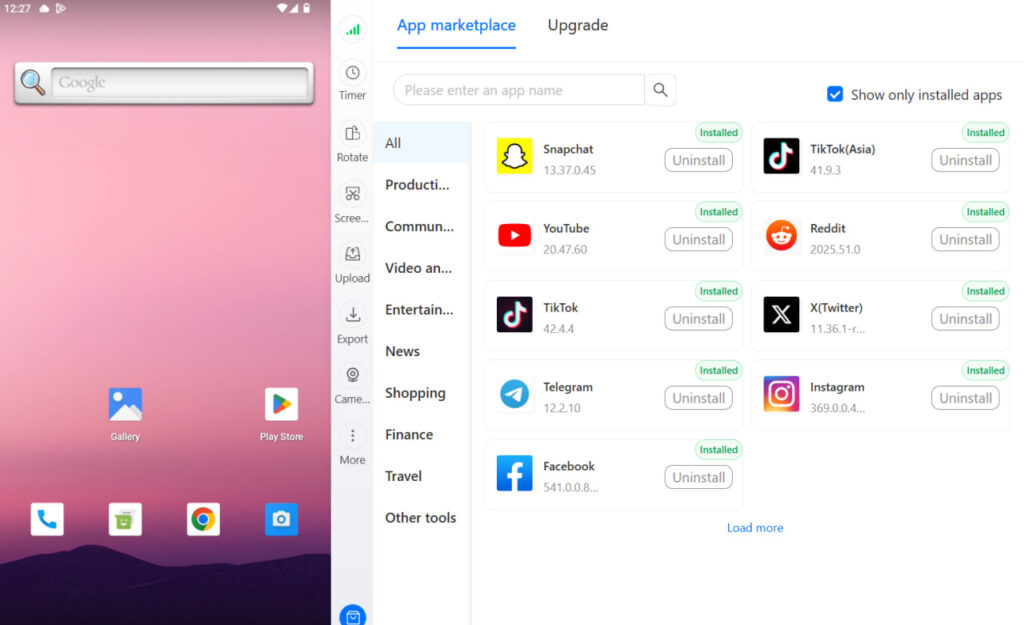
Multilogin handles this at the infrastructure level. Each cloud phone runs a real Android environment with genuine hardware identifiers — IMEI, Android ID, MAC address — that are unique to that device. There’s no shared fingerprint between accounts. You manage everything from one desktop dashboard, but each account sees a completely separate device.
For anyone running multiple TikTok accounts without bans, the isolation layer is what makes long-term operation possible. It’s also what separates a stable setup from one that flags within a few weeks.
TikTok also monitors warmup patterns — new accounts that jump straight into heavy engagement get flagged faster. Warming up a TikTok account the right way matters before you start running any kind of comment engagement from it. Cloud phones help here because app data and session history persist between sessions — the account builds a real-looking usage history rather than starting cold every time.
For web-based TikTok tasks — scheduling, analytics, ad management — an antidetect browser for TikTok handles the browser-side isolation. Multilogin’s 2-in-1 setup gives you both: cloud phones for native app operations and browser profiles for web-based work, all in one dashboard.
If you need to create multiple TikTok accounts as part of a larger operation, the setup guide walks through the full process. And for the mobile side specifically, how to manage multiple TikTok accounts with cloud phones covers the Multilogin workflow step by step.
The comment section is where engagement lives on TikTok. Emoji codes are part of how real-looking interaction happens. But getting the comment layer right only matters if the account infrastructure underneath it is solid.
Start your Multilogin plan and manage multiple TikTok accounts from one dashboard — each with its own device identity, proxy, and session history. Plans start from €5.85/month.
Need to manage multiple Tiktok accounts? Try Multilogin Cloud Phones.
Frequently asked questions About TikTok emoji codes
TikTok emoji codes are bracket-wrapped text strings like [smirk], [shy], [devil], or [kiss] that TikTok converts into custom illustrated emojis when posted in comments. The full list is above — all codes use lowercase text inside square brackets.
Open a TikTok comment box, type the code in lowercase inside square brackets (e.g., [wink]), and post the comment. TikTok renders the emoji automatically after posting. Autocorrect and formatting issues are the most common reasons codes don’t work.
The TikTok smirk emoji — triggered with [smirk] — renders as a small cartoon face with a one-sided smug expression. It looks distinct from the standard Unicode smirk emoji you’d find on any keyboard.
Three main causes: autocorrect changed the formatting, you copied a code with encoding issues from another site (retype it manually), or the account has comment-level restrictions from a shadow ban or platform flag.
Type [shy] in any TikTok comment. It renders as a blushing, embarrassed-looking cartoon face — one of the most popular TikTok secret emojis alongside [smirk] and [devil].
Yes — type the bracket code directly in the comment box on TikTok’s web version. Copy-paste works too, as long as the brackets are standard square brackets and there are no encoding issues.
The devil emoji code [devil] renders as a red cartoon face with horns — TikTok’s own illustrated version, different from the standard 😈 emoji. It’s commonly used in playful or mischievous comments.


