


TL;DR
- How to preview TikTok ads: two kinds of free preview. The Ad Preview Tool shows a mockup of raw creative on different phone models before the ad exists. Once an ad is approved, Ads Manager can push it into the TikTok app by QR code or User ID, or share it as a link.
- A preview is not QA. It shows one ad, on one screen, in one account, and you can’t tap the CTA, open the landing page or comment from it. It won’t tell you whether the landing page breaks in the target country, or who on the team signed off.
- Most launch problems are preventable: text under the TikTok interface, captions cut off, a silent first second, a landing page that redirects or loads in the wrong language.
- Run a fixed TikTok ad checklist before every launch: mockup, in-feed preview, screen sizes, sound, profile, landing page from the target country, sign-off.
- Give QA its own device and account. A shared Android test device per client or brand, not someone’s personal TikTok, keeps previews out of personal accounts and keeps QA working when people change.
A TikTok ad preview shows you the ad, not the problems
TikTok gives advertisers good tools for this. An in-feed TikTok ad preview puts your approved ad inside the TikTok app at no cost, and the Ad Preview Tool lets designers check creative before anything is set up in a campaign. So when a campaign launches with a headline hidden behind the like button, the tools usually aren’t the reason. The process around them is.
That is the angle of this guide. Instead of repeating the preview steps (we cover them briefly, with links to TikTok’s own docs), it looks at the ways TikTok ads go wrong after launch and builds a TikTok ad checklist that catches those problems first. If you need to test TikTok ads before launch for several clients or brands, the second half covers the part most guides skip: which device the team checks on, and whose account it uses.
Postmortem: how TikTok ads break after launch
When a TikTok campaign underperforms on day one, the instinct is to blame targeting or the algorithm. Look at what viewers saw, though, and some “bad ads” turn out to be broken ads. These are common failure patterns, along with where in the process each one should have been caught.
What went wrong | What viewers saw | Why a quick preview missed it | Where QA catches it |
Text under the interface | Offer or price hidden behind the caption, CTA button or side icons | Checked on one large phone where it just fit | Screen-size check (Step 3) |
Caption cut off | Key line ends in “…” and never gets read | Preview account used a short caption draft | Caption check (Step 3) |
Silent or slow open | First second with no sound or motion, viewers scroll past | Reviewer watched with sound on, from start, on purpose | Sound-off and sound-on pass (Step 4) |
Wrong identity | Spark Ad shows the creator’s handle when the brand expected its own, or a default avatar on a Non-Spark Ad | Nobody looked at the profile row | Profile check (Step 4) |
Landing page mismatch | Page loads in another language, redirects to a different store, or shows a price in the wrong currency | Tested from the office network, not the target country | Landing page check (Step 5) |
Broken link on mobile | Slow page, popup covering the form, or a desktop layout | Link tested on a laptop | Landing page check (Step 5) |
Preview ran on a personal account | Unreleased client creative opened on a staffer’s personal TikTok, then screenshotted and shared from there | QA ran on whoever’s phone was nearby | Dedicated QA device and account |
Nobody owned sign-off | Each person assumed someone else checked | No checklist, no record | Sign-off (Step 6) |
Notice that only one of these is about the preview itself. The rest are about which screen, which network, which account and which person. That’s why the checklist below treats TikTok ad preview as step one, not the whole job.
Step 1: How to preview TikTok ads (the fast part)
TikTok documents this step well, so here is the short version. There are two kinds of preview: a mockup built from raw creative, and an in-feed preview of an ad TikTok has already approved. Neither costs anything.
Method | Where you see it | Needs an approved ad? | Best for | Watch out for |
Ad Preview Tool | Browser mockup, with a choice of phone models | No. Upload video or image assets directly | Early creative checks before the campaign exists | A mockup of the TikTok interface, not the live app |
QR code | TikTok app, inside the For You feed | Yes | The closest single check to what viewers see | Code valid 7 days, preview shows for 24 hours. TikTok placement only; Catalog Sales and Collection ads can’t use it |
User ID | TikTok app, on the account whose ID you enter | Yes | Sending previews to a dedicated test account without scanning | Needs the account’s User ID from the app settings |
Shareable URL | Desktop browser | Yes | Client approvals | Valid 30 days and not password protected |
Bulk preview | Exported file of URLs or QR codes | Yes | Campaigns with many ads | Only account owners, admins or operators can turn on link sharing |
TikTok’s Ad Preview Tool runs from a standalone site or from the Tools tab in Ads Manager. You pick the format (in-feed, search feed or TopView), upload your assets, set music, identity, text, CTA and app language, then switch phone models to compare layouts.
For approved ads, the QR code method gets you closest to what viewers will see:
- In TikTok Ads Manager, open Campaign, then the Ad tab.
- Click the three dots next to the approved ad and choose Preview.
- Select TikTok as the placement and QR code as the method.
- In the TikTok app, tap the QR scanner, scan the code and tap Preview Ad.
- Scroll the For You feed until the ad appears, then tap Continue on the preview notice.
One limit shapes the rest of this guide. In a preview you can’t tap the CTA, follow it to the landing page or leave a comment, and TikTok notes that ads can display differently by device and format. A preview is one look at the ad itself, which is why the next steps exist.
Step 2: Decide which device and which account run QA
This is the step teams skip, and it sits behind several of the problems in the postmortem table. Before anyone scans a code, agree on two things:
- The device. An Android test device that stays with the client or brand, not whichever phone is closest. If your team works on Macs and iPhones, you still need at least one Android check, since Android phones vary far more in screen size and build than iPhones do.
- The account. A dedicated test TikTok account per client or brand, not a staffer’s personal profile. Previews by User ID go to that account, so client creative never sits in someone’s own app, and QA doesn’t vanish when that person leaves.
Write both down in the campaign brief. It takes two minutes and removes the “I thought you checked it” problem at the root.
Step 3: Check the frame on more than one screen
TikTok’s interface sits on top of your video: caption, profile row, CTA button, and the like, comment and share icons. What’s covered depends on the format. TikTok’s in-feed ad specifications say the safe zone changes with the video’s dimensions, the caption length and any extra formats such as anchors, and Spark Ads show at most four lines of caption.
That’s why one preview on one phone isn’t enough. A text line that clears the CTA on a tall screen can sit right under it on a shorter one.
How to test:
- Start early: run the raw creative through the Ad Preview Tool and switch between phone models to catch layout problems before the ad is built.
- Then preview the approved ad in the feed on at least two Android screens with different heights or aspect ratios.
- Pause on the frames that carry the offer, price or brand and check nothing important sits under the interface.
- Read the caption as shown in the feed. If the key line ends in “…”, rewrite the caption, not the video.
Step 4: Watch it the way a viewer will
A reviewer who knows the ad watches it differently from someone scrolling at 11 pm. Do two passes:
Pass | What to check |
Sound off, scrolling in | Does the first second show motion, a face or the product? Are on-screen captions readable without audio? |
Sound on, full watch | Is the audio level consistent with the organic videos around it? Does the voice-over match the captions? |
Profile row | Spark Ads show the creator’s or brand’s account. Non-Spark Ads show the name and avatar you set, or a default avatar if you left it blank. Is that what the client expects? |
CTA | Does the button label match the landing page? “Shop now” leading to a signup form loses people |
Step 5: Open the landing page from the target country
The ad is only half the experience, and the preview can’t take you the rest of the way. TikTok’s preview documentation makes clear that a preview doesn’t let you interact with CTA buttons or click through to the landing page. So check the destination separately: open the ad’s destination URL directly in the mobile browser on the same test device, through a proxy in the country the campaign targets. Many sites change content by location, so a check from the office network can look perfect while viewers abroad get something else.
Look for:
- Redirects to a different regional store or a cookie wall that covers the offer
- Language and currency that don’t match the ad
- Load time on a mobile connection, not office Wi-Fi
- Forms, popups and checkout buttons that work with a thumb
- Tracking parameters intact after redirects
Step 6: Sign off and keep a record
One person signs off per ad, with the date, device, account and any notes. A simple shared sheet works. The record turns into your next postmortem: if an issue slips through, you can see which step missed it and tighten the checklist.
The TikTok ad checklist, in one table
# | Check | Pass when |
1 | Ad Preview Tool mockup, then in-feed preview by QR or User ID | Layout is clean on the mockup phone models and in the For You feed |
2 | Device and account | Dedicated Android test device and test account, named in the brief |
3 | Safe zone on 2+ screens | Offer, price, logo and faces are clear of the interface on every screen |
4 | Caption | Key message visible before the “…” cut |
5 | First second, sound off | Clear motion or subject, readable on-screen text |
6 | Sound on | Audio level and voice-over match captions |
7 | Profile row | Correct handle and avatar for Spark or Non-Spark |
8 | CTA | Label matches what the landing page offers |
9 | Landing page from target country | Right language, currency, store, fast on mobile |
10 | Client preview link | Shared URL sent only to approvers, since it isn’t password protected |
11 | Sign-off | Name, date, device and notes recorded |
Which device, whose account: where cloud phones fit
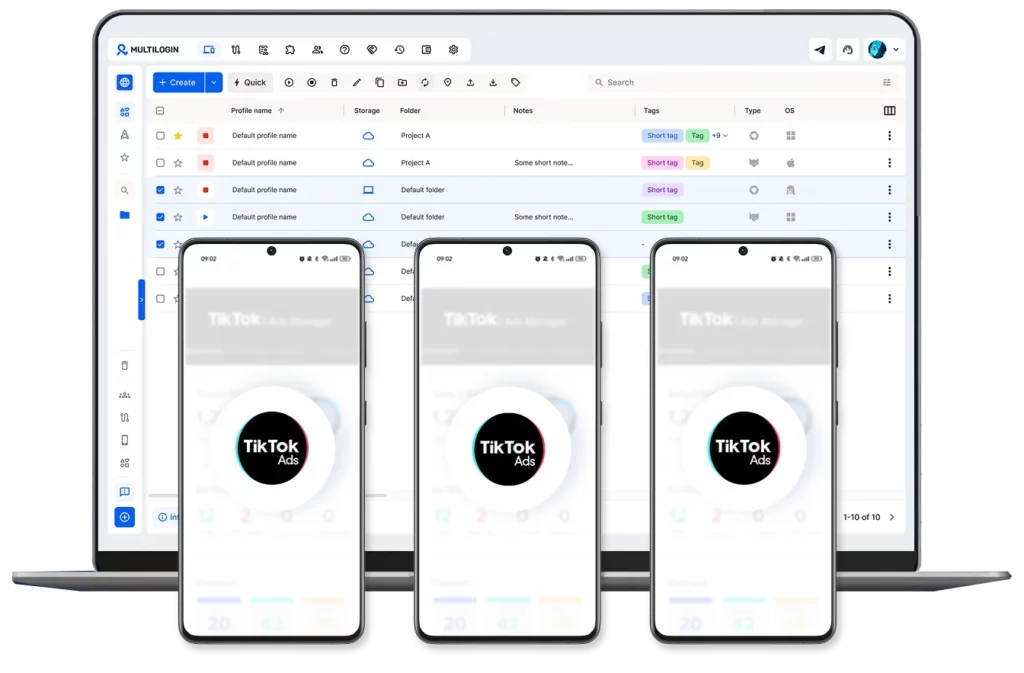
Steps 2, 3 and 5 come back to the same practical question. To test TikTok ads before launch properly, a team needs Android devices that belong to the client rather than to a person, come in more than one screen size, and can load pages from the campaign’s country. The Ad Preview Tool covers early layout checks, but it’s a mockup. The in-feed check still needs a device running the TikTok app. Here is how the usual setups handle that:
Staff personal phones. Previews land in personal accounts, and screen sizes are whatever people happen to own. Landing pages load from an office or home network, and only the phone’s owner can run the check.
One shared office test phone. It can stay dedicated to a client if someone switches accounts between checks. Still, it’s one screen size on the office network, available only to whoever is in the office.
A drawer of test phones. This gets you dedicated devices in several screen sizes. Each phone needs its own SIM or proxy to load pages from the target country, though, and the phones only work for people in the office, who also have to keep them charged and updated.
Android cloud phones. Each client or brand gets its own cloud phone, and you pick different device profiles to cover screen sizes. A built-in proxy per phone handles the target country, and anyone on the team can open them from a browser.
Multilogin is a cloud Android phone platform for multi-account management. Its Android cloud phones run in the cloud and open in your browser, each with its own Android environment, TikTok app and built-in proxy. For ad QA, they map onto the checklist like this:
- One QA phone per client or brand. Log the client’s test TikTok account into its own cloud phone and send every in-feed preview there by User ID. Client creative stays out of personal accounts, and the setup stays put when people change roles.
- The TikTok app feed, after the mockup. The Ad Preview Tool shows a layout mockup. A cloud phone shows the approved ad inside the TikTok app’s For You feed, the way a viewer meets it.
- Screen checks without buying hardware. Run the same preview on cloud phones with different device profiles to see how the safe zone shifts.
- Landing pages from the right country. Set the cloud phone’s built-in proxy to the campaign’s country, open the destination URL in its mobile browser, and Step 5 shows what a local viewer gets.
- Shared by the team, with roles. A designer in one city and an account manager in another open the same device from one dashboard, and access can be limited per client. Ads Manager itself runs on the web, and Multilogin browser profiles cover that side.
If your team already runs client ad accounts on cloud phones, our guide to using TikTok Ads Manager with Multilogin cloud phones walks through the setup step by step.
The same structure works when you grow TikTok ads with cloud phones across several clients: one cloud phone per ad account, roles per client, and a proxy matched to each market.
Start on the free plan, which includes one Android cloud phone and 30 mobile minutes, to try the checklist on your next launch.
Two limits. Cloud phones are Android, so for a large launch it’s still worth one final look on an iPhone. And a cloud phone changes nothing about how TikTok reviews ads: previews only work after approval, on any device. What it changes is who can check, on what, and from where.
Troubleshooting: why the TikTok ad preview isn’t working
Symptom | Likely cause | Fix |
Preview option missing or greyed out | The ad isn’t approved yet | Use the Ad Preview Tool on the raw creative, then preview in-feed after approval |
QR code scans but nothing happens | The code is older than 7 days | Generate a new code in Ads Manager |
Ad doesn’t appear in the feed | The 24-hour preview window ended, or you haven’t scrolled far enough | Rescan and scroll the For You feed slowly |
QR option not available | Catalog Sales or Collection ad, or a placement other than TikTok | Use the in-Ads Manager preview or a shareable URL |
Tapping the CTA does nothing | Previews don’t support interaction | Open the destination URL directly on the test device (Step 5) |
Can’t turn on link sharing | Your role isn’t owner, admin or operator | Ask an admin to change the role or share the link |
Ad looks different on another phone | Screen size and caption length change the safe zone | That’s what Step 3 is for. Adjust the creative or caption |
Final thoughts: make QA the boring part of launch
TikTok already did the hard part with free preview tools, from the Ad Preview Tool mockup to the in-feed preview. The gap is everything around them: the screen the ad runs on, the account it lands in, the network the landing page loads from, and the person who signs it off. Most post-launch fixes trace back to one of those, not to the creative idea.
A fixed TikTok ad checklist turns those into five-minute checks. Run it the same way for every launch, keep the record, and update it whenever something slips through. If your team runs ads for several clients or brands, give each one its own Android test device and account so QA doesn’t depend on whose phone is in the room.
If your organic videos are struggling rather than your ads, our guide on why your TikTok has 0 views walks through that side.