


A simple Mac guide with screenshots and a tested first task
Test screenshots from 7 and 8 October 2026 · Documentation checked 8 October 2026
You can control a Multilogin Android cloud phone with Claude Code inside the Claude desktop app. Open the Code tab, choose a local project folder, set up the official cloud phone agent, and let Claude run the phone tools through ADB. Start with one small task: take a screenshot, open Android Settings, check the result, and stop the phone.
This guide follows a documented Mac setup. The final test record shows the home screen, the Settings screen, and a reported final phone status of 2, which means stopped. Several local fixes were needed before that run worked. They are explained below so you can follow the path without treating those fixes as part of the original GitHub download.
Read more: Multilogin guide to connecting AI agents · Official cloud phone agent project
What this guide covers
This guide shows how to connect Claude Code to a Multilogin cloud phone and run your first task. You’ll learn how to:
- Prepare your Multilogin cloud phone and find its profile ID.
- Download the official project and set it up in Claude Code.
- Install ADB and configure your local .env file.
- Check your setup and prepare the phone’s cleanup process.
- Run the demo and capture your first screenshot.
- Ask Claude to open Android Settings, verify the result, and stop the phone.
- Fix common setup and connection errors.
Follow the steps in order for your first setup, or jump to the section you need.
What you are connecting
Multilogin provides Android cloud phones for mobile work, including social profile workflows. Claude Code is the assistant that reads your instructions and runs commands. The cloud phone agent is a small Python project between them. ADB, short for Android Debug Bridge, is the tool that sends commands to Android.
The connection works like this: Claude Code runs the Python tools on your Mac. The tools use the Multilogin API to manage the phone and ADB to work on its screen. Claude can then look at a screenshot, act, and check the result. This guide uses an Android cloud phone; a browser profile is a different environment.
Name | What it does in this guide |
Claude desktop app | The app you open on your Mac. |
Claude Code in the Code tab | Reads the project folder and runs its commands. |
Multilogin desktop app | Lets you create, view, start and stop your cloud phone. |
Cloud phone agent project | Handles the phone session and provides device commands. |
ADB | Connects your computer to Android for screenshots and actions. |
What you need before you start
This walkthrough uses macOS. The screenshots show Multilogin 12.14.1 on a Mac. The project requires Python 3.9 or later and recommends 3.11 or later. Use the current official download pages rather than trying to match every version in these screenshots.
You need | What to check |
Claude Code access | Anthropic currently lists Pro, Max, Team and Enterprise subscriptions for Claude Code in the desktop app. |
Multilogin account and app | Keep the desktop app installed and running. The repository requires the API-token plan feature, a cloud phone and remaining mobile minutes. |
ADB permission | Multilogin currently lists ADB for account owners and managers on paid plans. The cloud phone must use Android 11 or later. |
Python and project tools | Claude needs a working Python installation and the project setup script. If Python is missing, use the official Python downloads. |
One phone to test | Use your own mobile profile ID. The IDs in screenshots are examples from the recorded test. |
Read more: Claude Code desktop requirements · ADB access requirements · Python downloads for macOS
Minutes matter. A running cloud phone uses mobile minutes. A setup check does not start a phone, but it also does not stop a phone that is already running. Before a real test, make sure you can stop the selected phone in the Multilogin app. You can also set the app’s auto-stop option as another backup.
Read more: How to stop a cloud phone · How to set cloud phone auto-stop
Step 1: Prepare your Multilogin cloud phone
Open the Multilogin desktop app and sign in. Go to Profiles, then Mobile. If you do not have a phone yet, use Create and follow the official phone setup guide. You need an Android cloud phone that supports ADB.
Find the phone you want Claude to use. Copy its Profile ID from the mobile profile list. This is the value for MOBILE_PROFILE_ID later. It is different from the Workspace ID in the Information window. Do not copy an ID from this article. 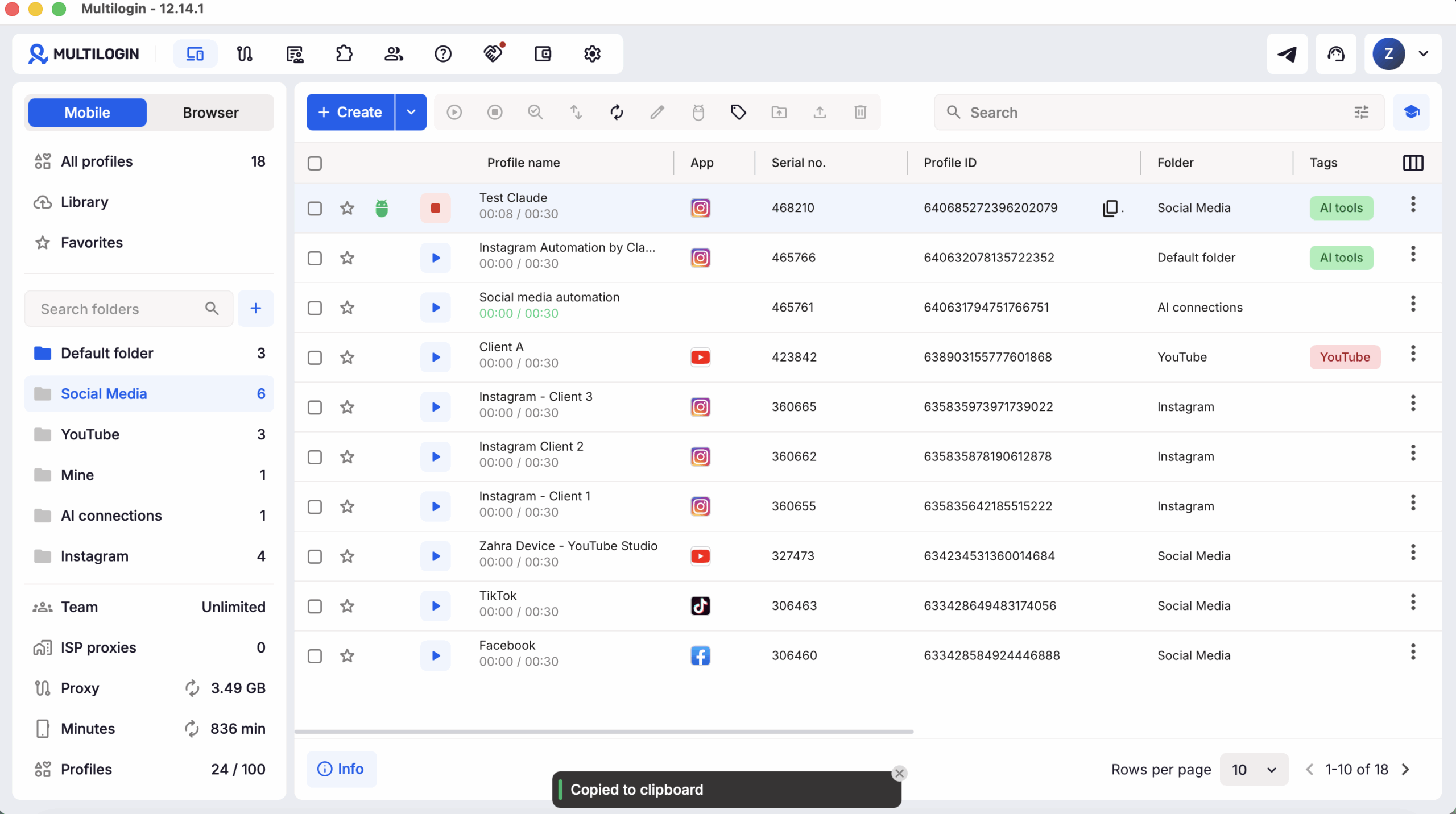
Read more: Create an Android cloud phone
Step 2: Get the official project with Claude Code
You can ask Claude Code to download and prepare the official project, or download it manually from GitHub. Choose one option.
Option A: Let Claude Code prepare the project
With this option, you do not need to find the download button or extract the project yourself.
- Create an empty folder named multilogin-cloud-phone-agent on your computer.
- Open the Claude desktop app and select the Code tab.
- Choose Local, click Select folder, and select your new folder.
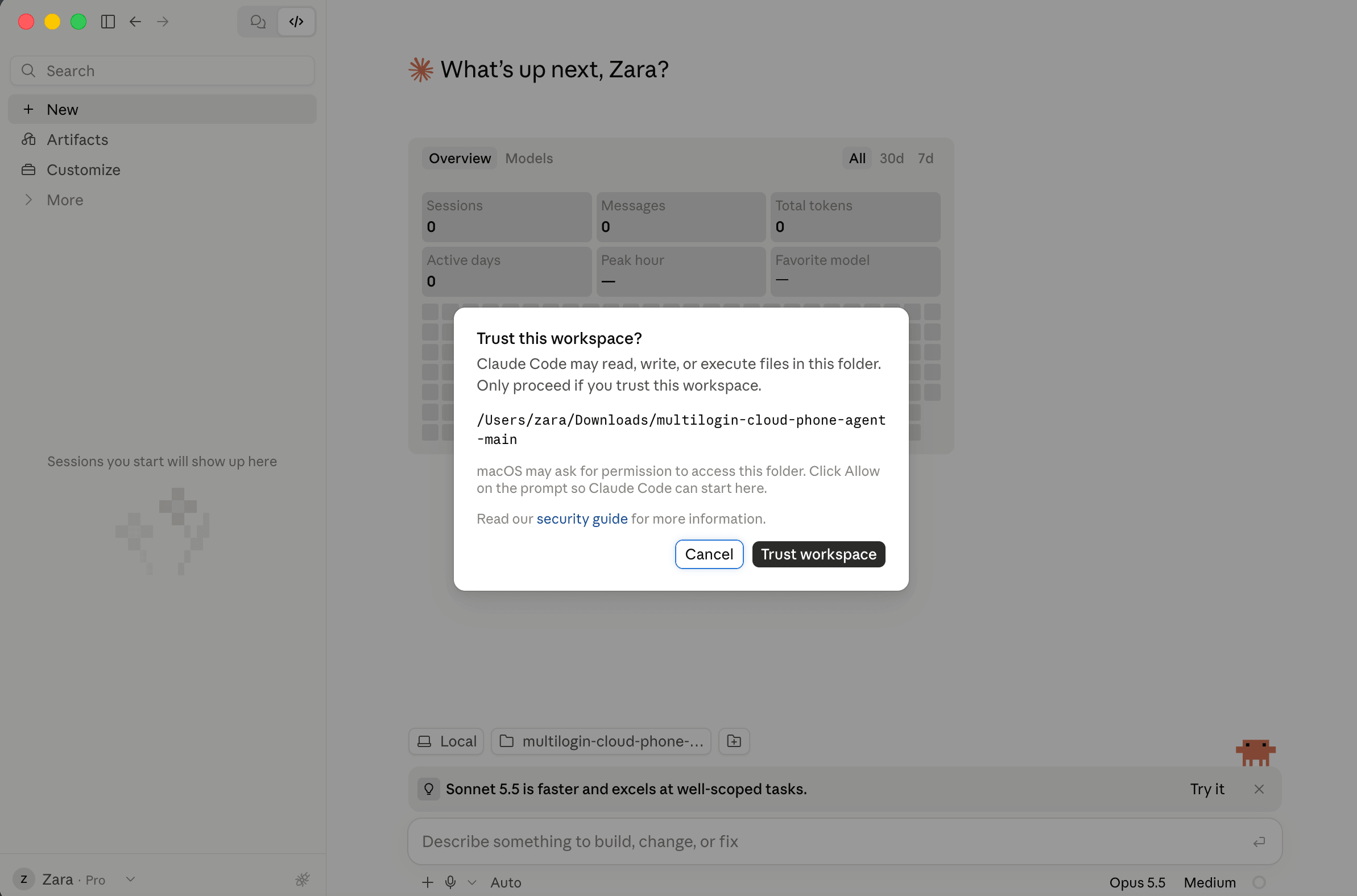
- If Claude asks you to trust the workspace, check the folder path before continuing.
- Paste the prompt below and review any permission requests.
Copy this prompt into Claude Code:
Help me download and prepare this official project:
https://github.com/multilogin/multilogin-cloud-phone-agent
Use the selected empty folder as the project folder.
Do not overwrite existing files.
Read README.md and AGENTS.md before running setup.
Check my operating system and the required tools.
Follow the documented setup instructions. Explain any missing
requirements or approvals needed before continuing.
Create the project’s Python environment and install its dependencies.
If .env does not exist, create it from .env.example.
If it already exists, preserve its values.
Run the project’s doctor check using its Python environment.
Explain failed checks in simple English and tell me what to do next.
Keep credentials hidden.
Do not start a cloud phone or run the demo.
Report the project folder path and what setup steps are complete.
Some checks may fail because ADB or your account settings are still missing. The next steps explain how to complete them. Enter private account details in your local .env file.
Option B: Download the project manually
If you prefer to download the files yourself:
- Click the green Code button, then Download ZIP.
- Extract the ZIP on your computer.
- Keep the extracted project folder. In the recorded setup, it was named multilogin-cloud-phone-agent-main.
The extracted folder is your working project folder. You will open it in Claude Code in Step 3.
After either option, check that the project folder contains README.md, AGENTS.md, and .env.example.
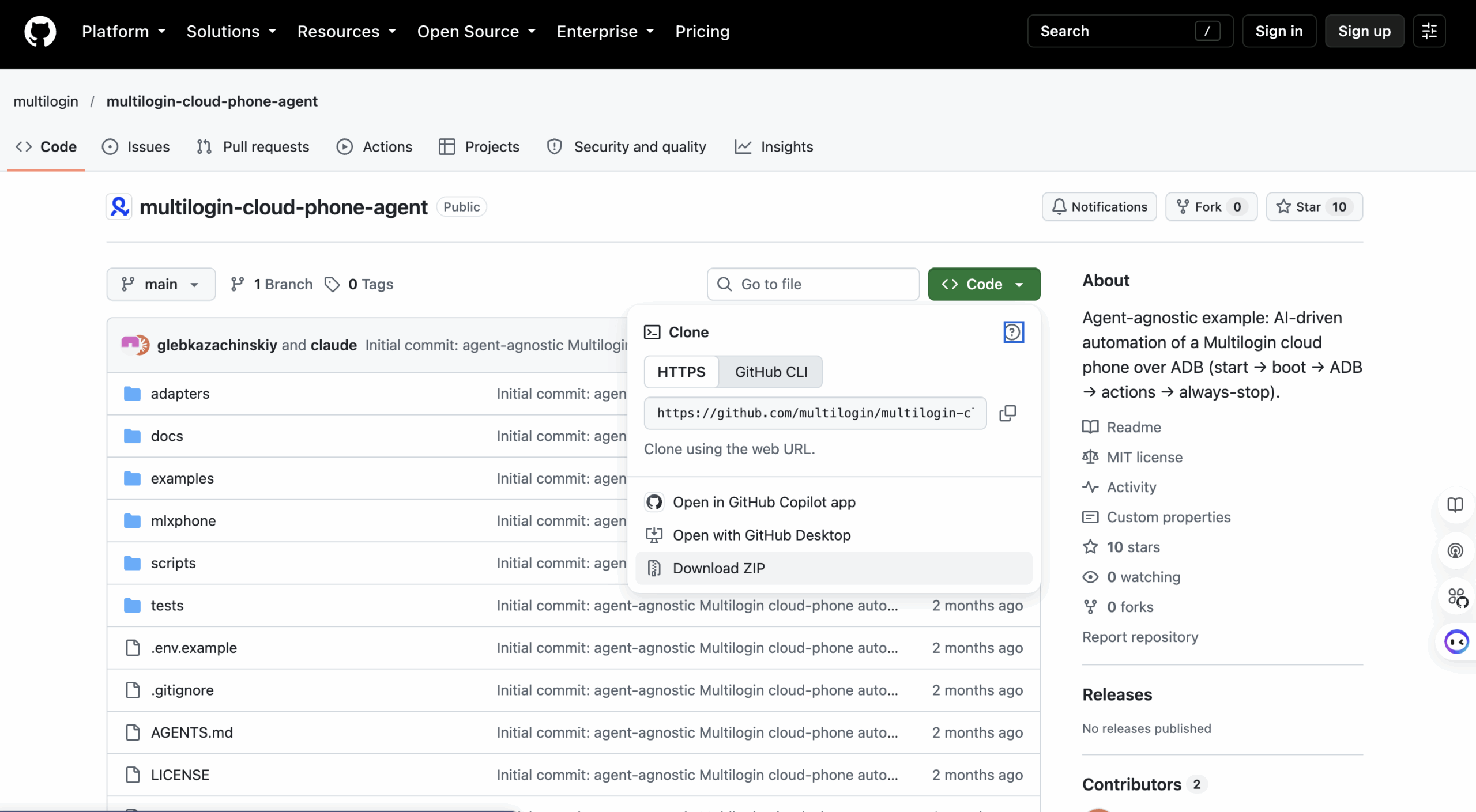
Open the official multilogin-cloud-phone-agent repository. A repository is simply the project’s files in one place. You do not need to understand all the code before you start.
Click the green Code button, then Download ZIP. Open the ZIP on your Mac to extract it. In this test, the folder was called multilogin-cloud-phone-agent-main and was saved in Downloads. The folder name can change with the branch or download method.
Read more: Download the official project
File or folder | How to use it |
README.md | Start here. It explains requirements and the setup order. |
AGENTS.md | Ask Claude to read it. It explains the phone workflow and checks. |
.env.example and .env | .env.example is a blank model. Your .env holds your private settings. |
.venv | The project’s Python environment, created by setup. |
examples/hello-phone/task.md | A small first task for testing the connection. |
results | The folder where screenshots are saved. |
Keep the extracted folder. The ZIP itself is not the working project folder. You will select the extracted folder in Claude next.
Step 3: Open the project in Claude Code
If you used Option A and the project is already open in Claude Code, continue to Step 4. If you downloaded the ZIP with Option B, follow the steps below.
Open the Claude desktop app and use its Code tab. Claude Code can run inside this app; you do not need a separate terminal version of Claude Code or Node.js for this route. If you see an upgrade message, check your Claude plan.
One way to find it is through Apps and extensions, then Claude Code, then Desktop app → Open, as shown in the recorded interface. You can also go directly to the Code tab. Button names can change between app versions.
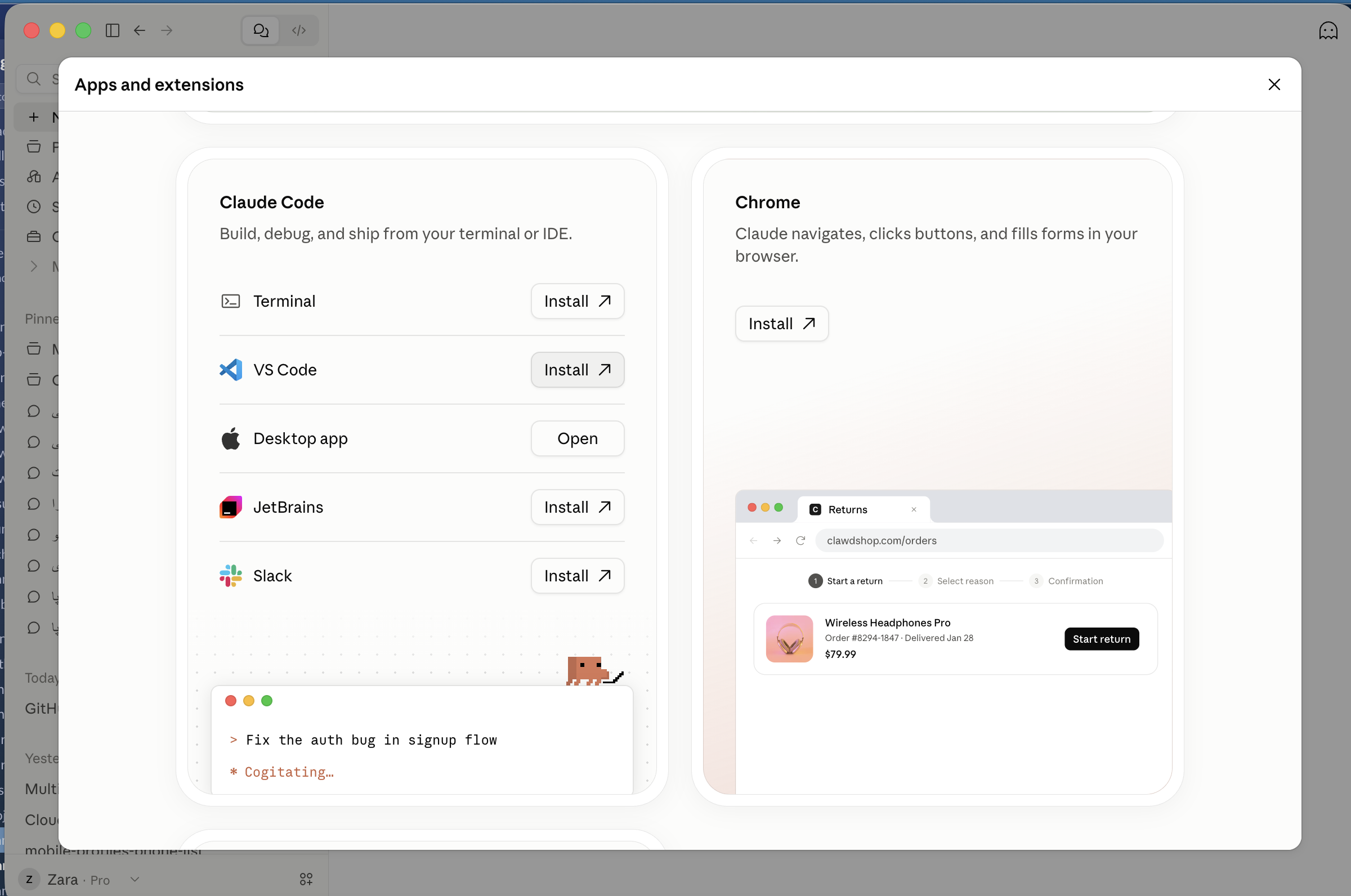
Choose Local. This lets Claude use the files and ADB tool on your Mac. Click No folder or Select folder, then choose the extracted project folder.
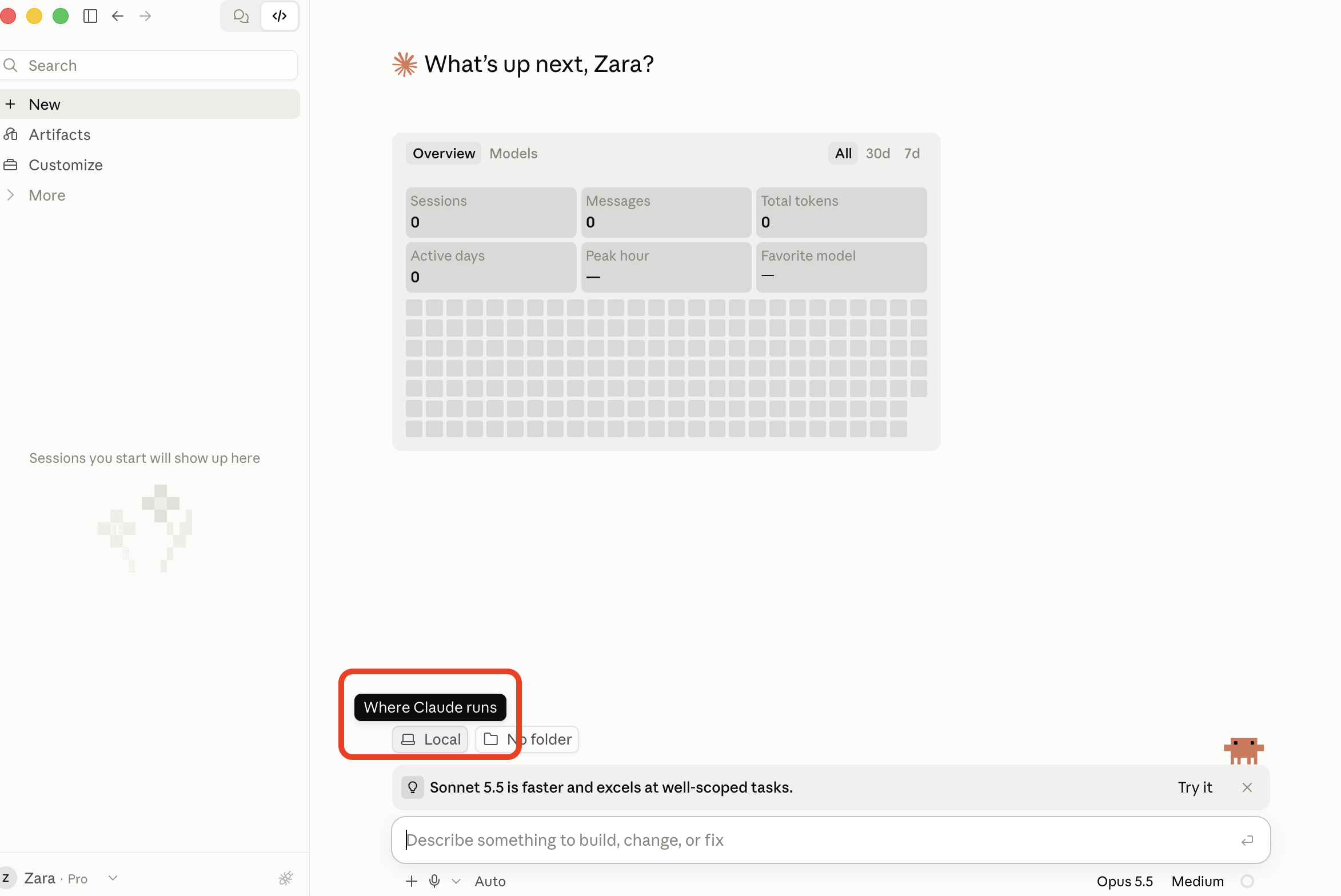
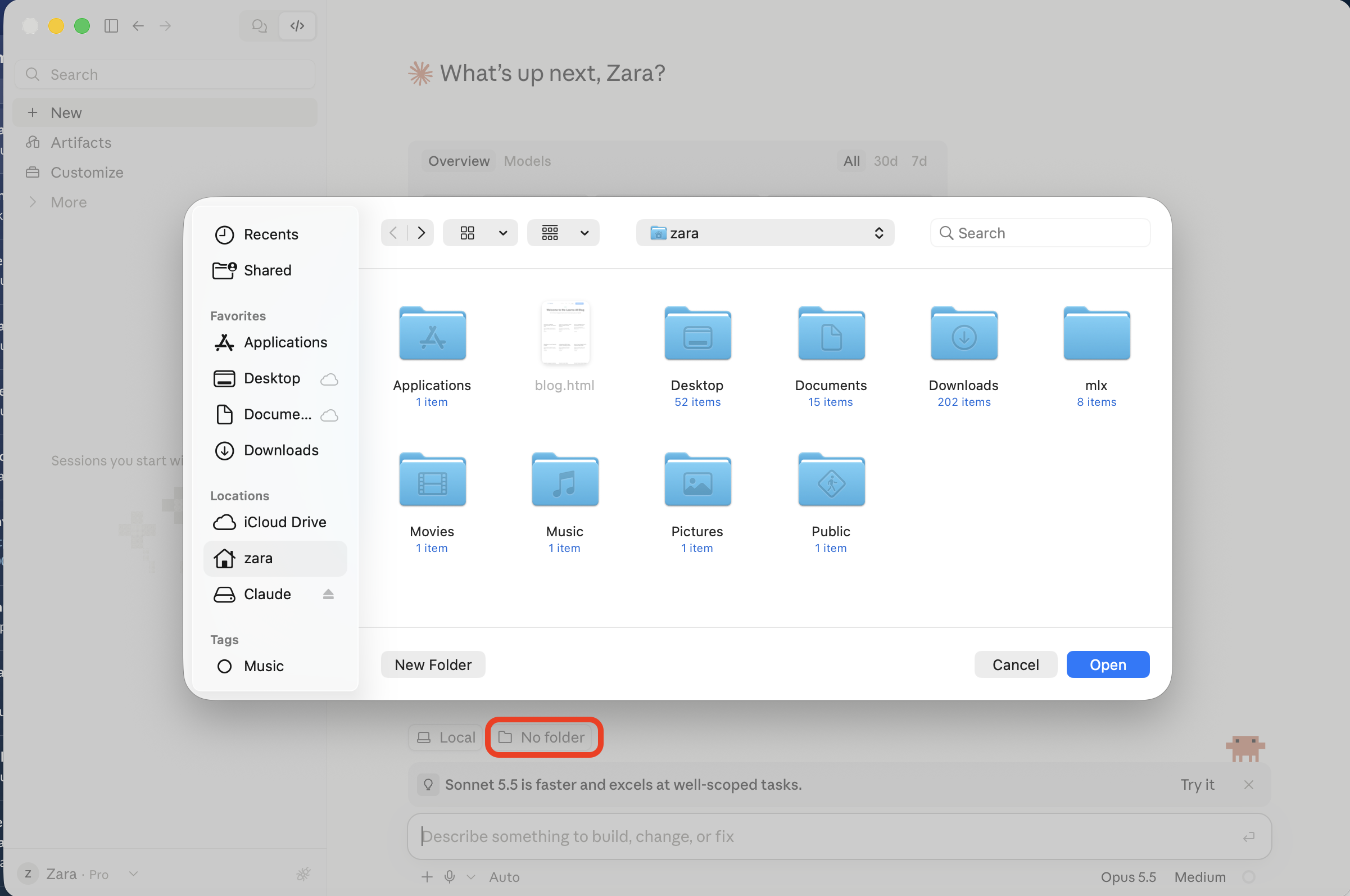
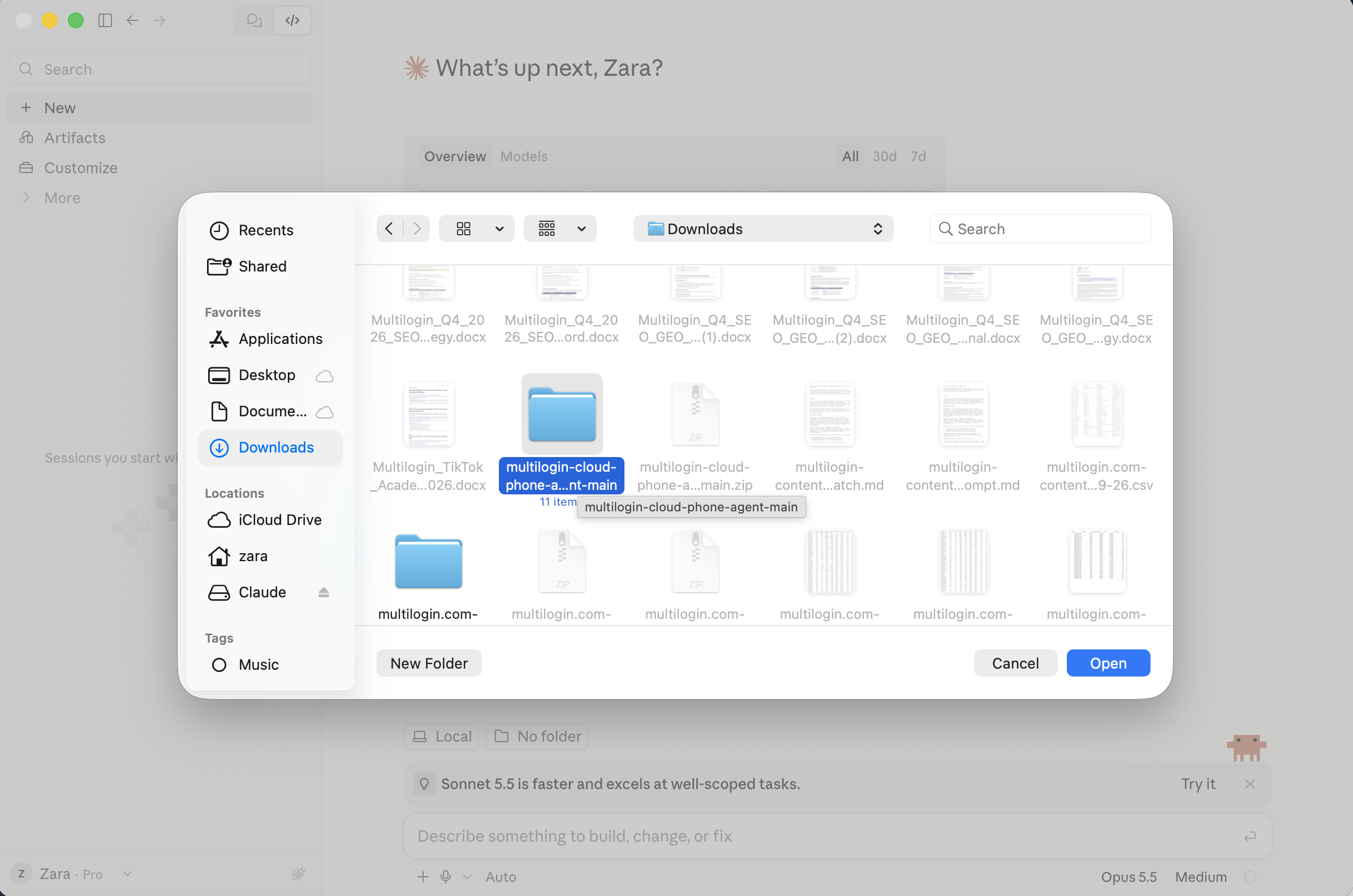
If Claude asks whether you trust the workspace, check that the path is the official project you just downloaded. Then choose Trust workspace. Claude needs access to read the project, create its Python environment and run its commands. Follow any macOS folder-access prompt if one appears.
Read more: Start a local session in Claude Code
Step 4: Ask Claude to set up the project
Start a Code conversation inside that folder. Ask Claude to read the instructions before running anything. The first setup should create the Python environment and a blank .env, then report what is missing. It should not start the phone.
Copy this prompt into Claude Code
Read README.md and AGENTS.md. Follow the Quickstart.
If setup is incomplete, run make setup. If the project environment is already ready, continue with the configuration checks.
If .env does not exist, create it from .env.example. If it already exists, preserve it.
Use the project’s .venv.
Run make doctor and explain any failed checks in simple English. Keep credentials hidden. Do not start the phone or run make demo yet.
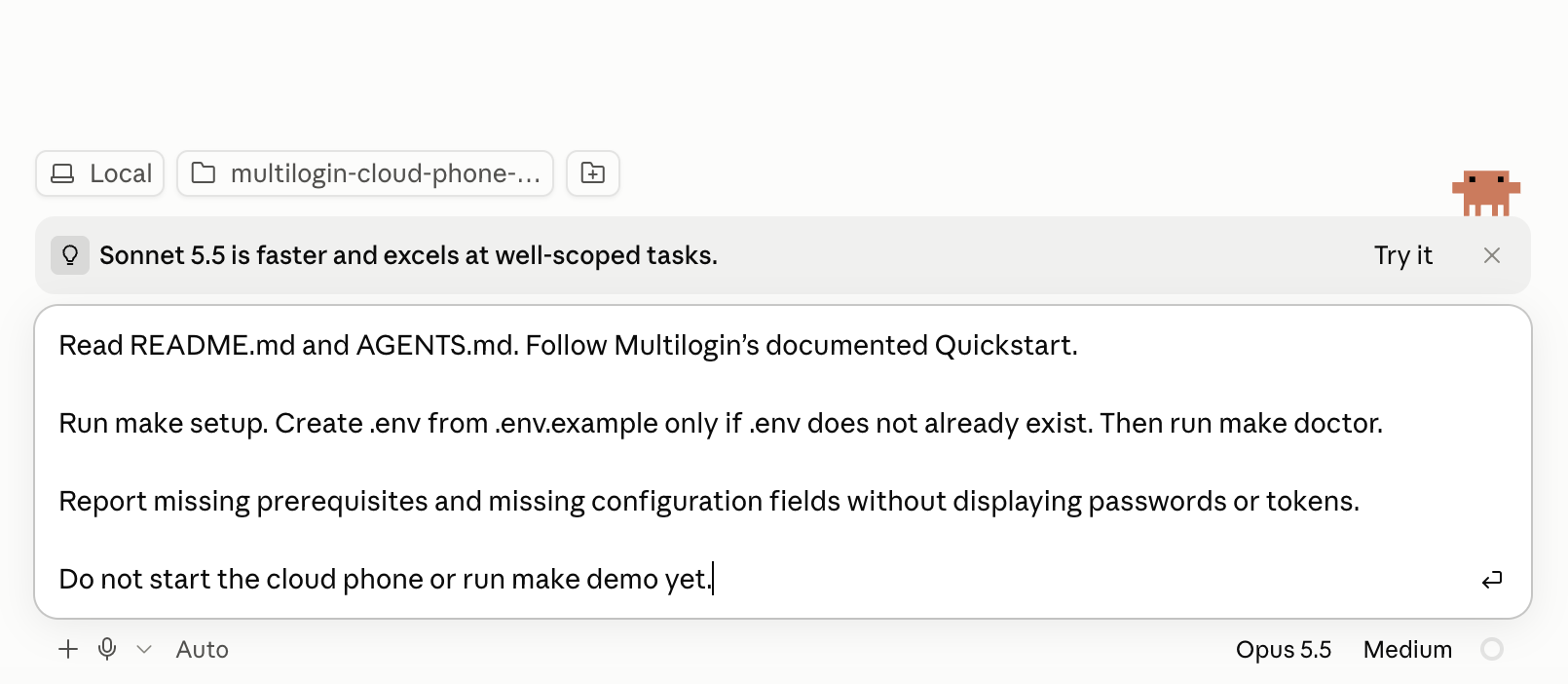
A failed first doctor check can be useful. In the recorded setup, Python dependencies passed, but ADB was missing and .env still had placeholder values. That meant setup had worked, but configuration was not finished.
Read more: Project setup commands · Instructions for the agent
Step 5: Install ADB on your Mac
If doctor says adb not found, install Android SDK Platform-Tools. This package includes ADB. Google offers it as a separate download, so Android Studio is not needed just for this tool.
Open Google’s Platform-Tools page. Choose Download SDK Platform-Tools for Mac, review the download terms, and extract the ZIP. In this test, the extracted platform-tools folder was placed inside the project at tools/platform-tools. The ADB file was therefore tools/platform-tools/adb.
Read more: Download Android SDK Platform-Tools from Google
Tell the project where ADB is by adding MLX_ADB_BIN to .env. Use the full path to the adb file, not just the folder. For example, if you put the project in Downloads:
MLX_ADB_BIN=”/Users/YOUR_USER/Downloads/PROJECT/tools/platform-tools/adb”
Replace YOUR_USER with your Mac username and PROJECT with the extracted project folder name. Claude can find the exact path for you. The recorded Mac did not have Homebrew, so using Google’s ZIP avoided an extra installation.
Copy this prompt into Claude Code
Check whether adb is available. I am using macOS. If it is missing, help me get Google’s official Mac Platform-Tools download and place platform-tools inside this project’s tools folder.
Set MLX_ADB_BIN in my existing .env to the full path of its adb file. Preserve the other values. Run the adb version check and make doctor. Do not start a phone and do not print credentials.
Step 6: Fill in your private env file
The file is named .env, with a dot at the beginning. It is inside the extracted project folder, beside README.md. It is not a page in GitHub and not a setting in the Claude chat window. On the test Mac, it was at:
/Users/zara/Downloads/multilogin-cloud-phone-agent-main/.env
Your username and location will be different. If the file is hard to find, ask Claude to open the existing .env in a local text editor without printing its contents. Enter private values there rather than posting them into the conversation.
Copy this prompt into Claude Code
Show me the full path to this project’s .env and open it in a local text editor so I can edit it myself. Do not print, copy into chat, or change any secret values.
Option A Use your Multilogin email and password
This is the method used for the later test. The toolkit signs in with your Multilogin account. If you previously used a token, put # at the start of the MLX_TOKEN line to disable it. Otherwise, the token takes priority over email and password.
# MLX_TOKEN=
MLX_EMAIL=”YOUR_MULTILOGIN_EMAIL”
MLX_PASSWORD=”YOUR_MULTILOGIN_PASSWORD”
MOBILE_PROFILE_ID=”YOUR_CLOUD_PHONE_PROFILE_ID”
MLX_ADB_BIN=”FULL_PATH_TO_PLATFORM_TOOLS_ADB”
These are placeholders, not working credentials. Replace them in your local file. Keep your existing MOBILE_PROFILE_ID and MLX_ADB_BIN if they are already correct. Save the file.
The project supports MLX_HASH_PASSWORD=1 to skip its first password format and send the MD5 form directly. Use it if the sign-in check confirms your account needs that form, as it did in this setup. It can reduce repeated sign-in requests; it does not guarantee that every API request will succeed.
MLX_HASH_PASSWORD=1
Read more: Official environment file example · How this project signs in
Option B Use a Multilogin token
For a short test, you can use MLX_TOKEN instead. In Multilogin, open Info, find API token in the Information window, and click Copy. Paste it directly into your local .env. Keep MOBILE_PROFILE_ID and MLX_ADB_BIN.
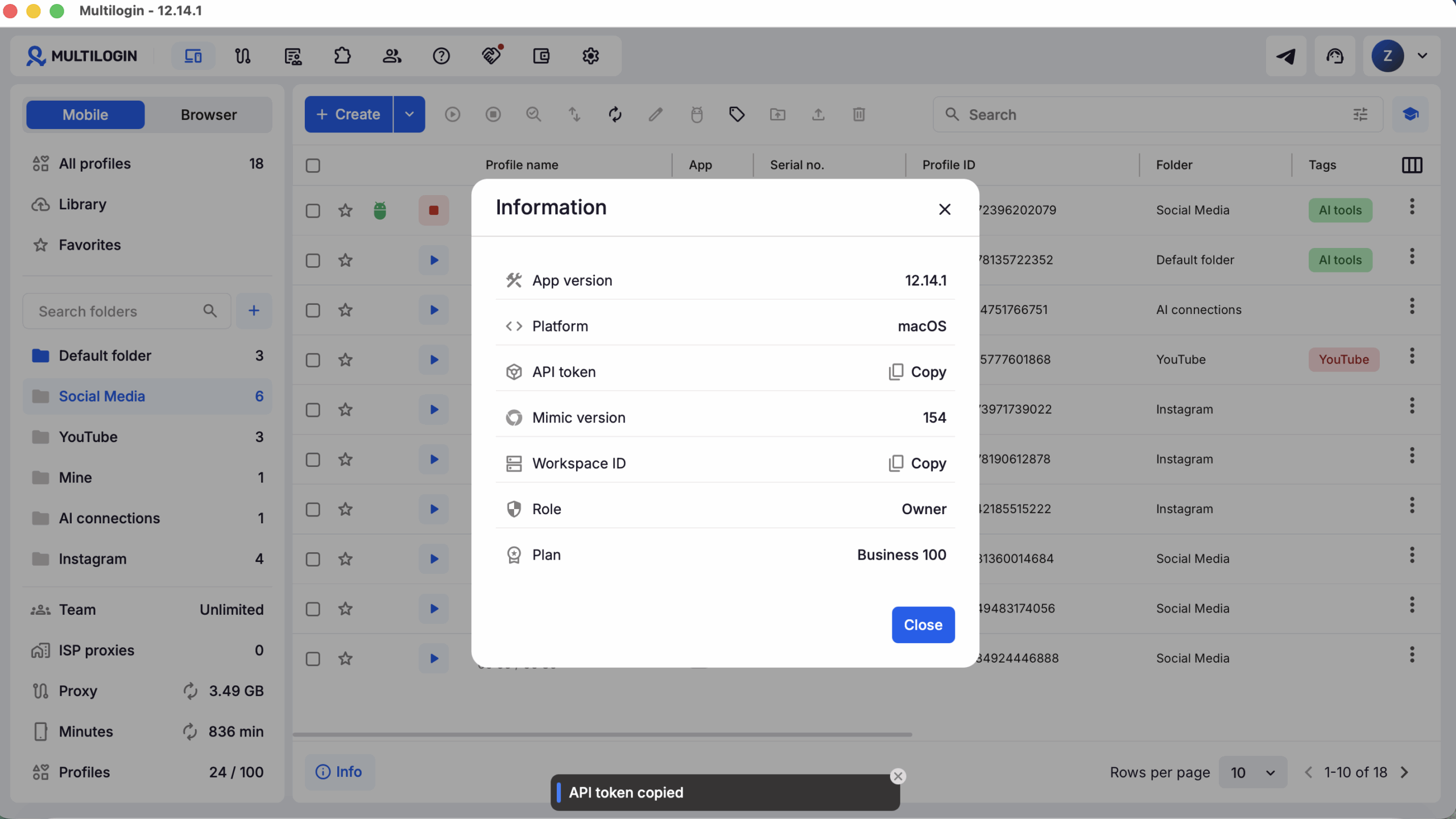
MLX_TOKEN=”YOUR_CURRENT_TOKEN”
MOBILE_PROFILE_ID=”YOUR_CLOUD_PHONE_PROFILE_ID”
MLX_ADB_BIN=”FULL_PATH_TO_PLATFORM_TOOLS_ADB”
Do not assume a copied token will last through a long debugging session. Current Multilogin documentation says a regular API token lasts 30 minutes. It also describes a separate automation token with a chosen expiration period. The recorded setup moved from a copied token to email and password after the token expired during a phone run.
Email and password let the toolkit request a token when it signs in. They do not make network failures or sign-in errors impossible. Before another test, run doctor again.
Read more: Multilogin token types and expiration
Step 7: Pass doctor and run the offline check
Ask Claude to run make doctor. It checks five things: dependencies, ADB, .env values, authentication and whether the configured phone is visible. Do not move to a real phone run until all five checks pass.
make doctor
make dry-run
Run make dry-run only after configuration is ready. It uses fake data to walk through the flow. It makes no network calls and uses no phone. A successful dry run is useful, but it does not prove that ADB can connect to your actual cloud phone.
Check | What a failure means |
Dependencies | The project environment is missing a required Python package. |
ADB | The binary is missing or MLX_ADB_BIN points to the wrong file. |
.env values | A required value is missing or still a placeholder. |
Authentication | The sign-in or token needs attention. |
Profile | The configured phone is not visible to this account or workspace. |
Doctor is a check, not a start command. It can still make authentication and profile API requests. If the phone was already running, running doctor will not stop its minute usage.
Read the actual phone status
Use the numeric API status when checking the phone. In the repository inspected for this guide, doctor printed “not started” beside any visible profile, even status 0. That label caused confusion in the recorded setup. The numeric status is what matters.
Status | Meaning | What to do |
0 | Running and ready | The phone is on. Stop it when work is done. |
1 | Starting | Wait for boot during an authorized run. |
2 | Shut down | This is the expected final state. |
3 | Expired | Investigate before another run. |
You can ask Claude for a fresh status check using the project client. This example reads the status without displaying your private values:
.venv/bin/python – <<‘PY’
import os
from mlxphone.mlx_client import MlxClient
phone_id = os.environ[‘MOBILE_PROFILE_ID’]
print(‘Phone status:’, MlxClient().status(phone_id))
PY
Read more: Phone status codes and response fields
Step 8: Check cleanup before a real run
The official repository is a reference example. In the recorded setup, its separate start and stop commands needed local changes to handle failures reliably. The ZIP download does not include those local changes. No downloadable copy of the modified toolkit is included with this guide.
Before a real run, ask Claude to inspect the version you have. If it still has the same gaps, it can make and test local fixes without starting a phone. This is a recommendation based on the test record, separate from Multilogin’s Quickstart.
A local fix changes the project on your Mac; it does not update the GitHub repository. A watchdog is a timer script that tries to stop the phone after a set time. You can copy the technical prompt below even if you do not write Python.
Copy this prompt into Claude Code
Read AGENTS.md and inspect this local toolkit without starting a phone. Check these failure paths and fix any that are still present:
Retry ADB connection with a bounded limit. Verify device state, glogin authentication and a working shell command. Accept both the observed “glogin success” and “you have already logged, enjoy yourself” success replies. Keep the glogin code hidden.
Arm the –max-minutes watchdog before the phone start request. If startup fails, try to stop the phone. Keep the watchdog armed if shutdown cannot be confirmed.
Make device commands return a non-zero exit code when they fail. Save a screenshot only if a valid PNG comes back. Preserve existing screenshots and UI files.
For stop, use bounded retries with a fresh sign-in when needed. Check actual phone status after stopping. Cancel the watchdog only after status 2 is confirmed.
Add offline tests for these cases, run make test and make dry-run, and report the results. Do not start a phone, delete previous results or print credentials.
The final supplied test record reports 35 passing offline tests after local changes. These tests used fake ADB and API responses. They checked failure handling, not every live phone or Android app. Review Claude’s local changes before relying on them.
A watchdog is a backup, not a promise that stopping cannot fail. It still needs working authentication and API access. Keep the Multilogin stop control available, and consider its separate auto-stop setting.
Read more: Original session implementation · Original device command implementation · Multilogin auto-stop guide
Step 9: Run the official demo once
After doctor passes and cleanup is ready, run make demo. This is the real connection test in the official Quickstart. It starts the configured phone, waits for Android, enables ADB, connects, takes a screenshot and attempts to stop the phone.
make demo
This uses mobile minutes. The demo is a separate session from the Settings task below. Its CLI does not take the start command’s –max-minutes option; do not add that option to make demo. Keep the app’s stop control available and verify shutdown afterwards.
Copy this prompt into Claude Code
Run make doctor first. If any check fails, stop and report it. If all checks pass, run make demo once with my existing .env and .venv.
Preserve previous files. Show the saved screenshot, report whether ADB connected, and check the actual final phone status. Confirm status 2. If the run fails, attempt cleanup and report the error without starting another phone session. Keep credentials hidden.
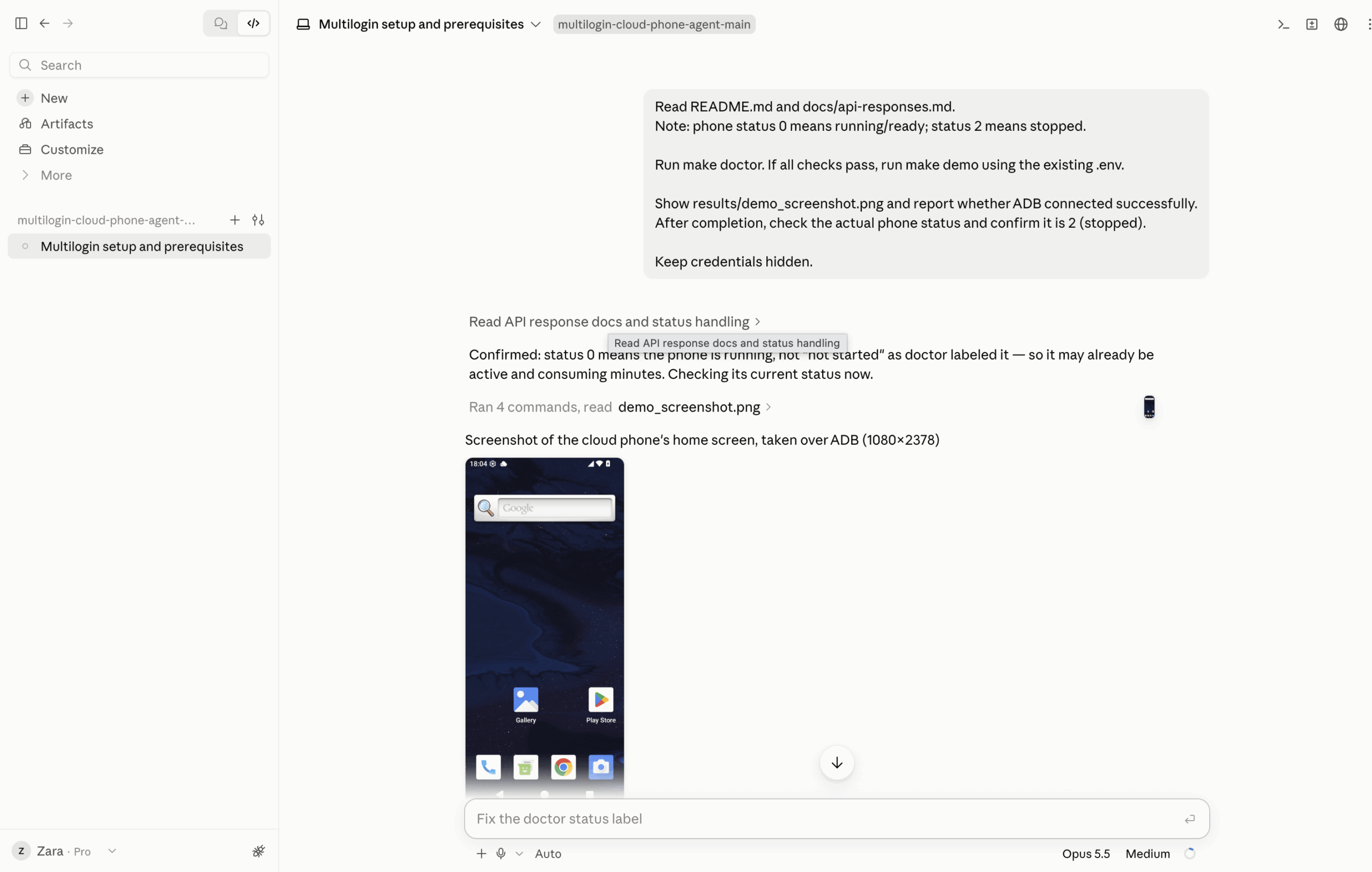
The recorded demo connected successfully and returned a home screenshot. If yours fails, use the troubleshooting section below. Do not keep starting new phone sessions to try random fixes.
What ADB looks like in Multilogin
The toolkit normally enables ADB for you. The following captures show the manual controls, so you can recognize the connection state. You do not need to repeat these manual steps during a successful toolkit run.
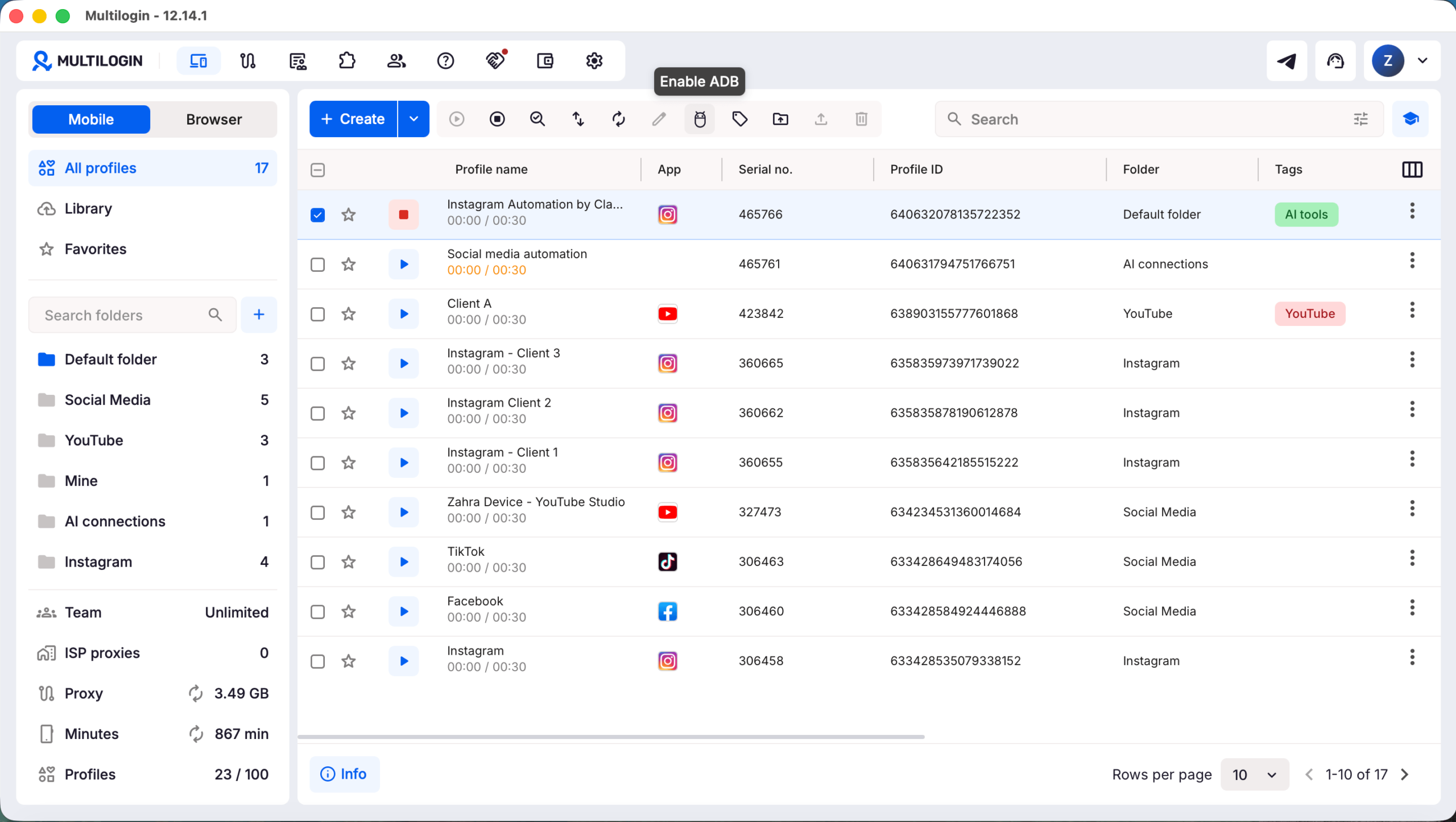
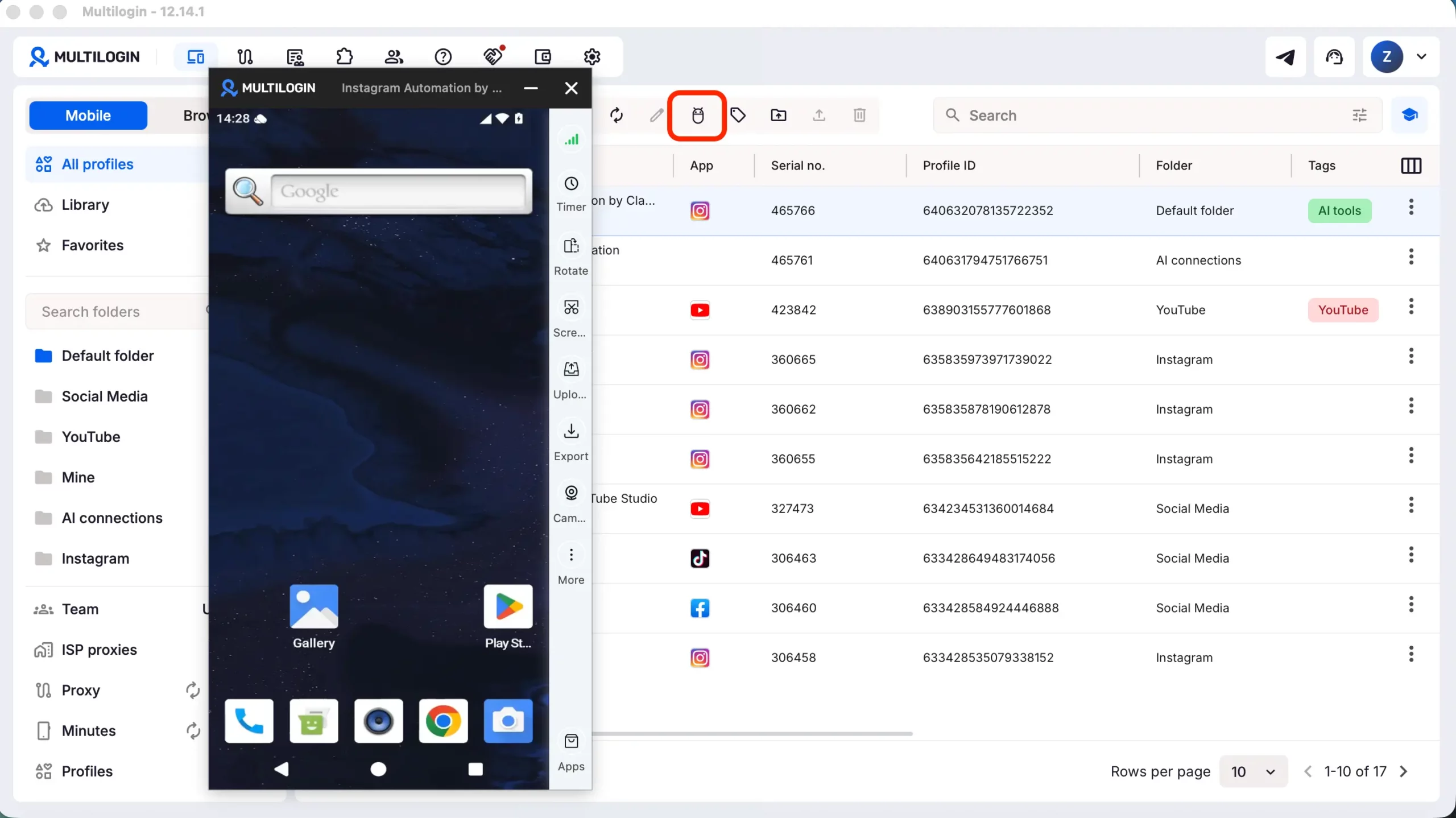
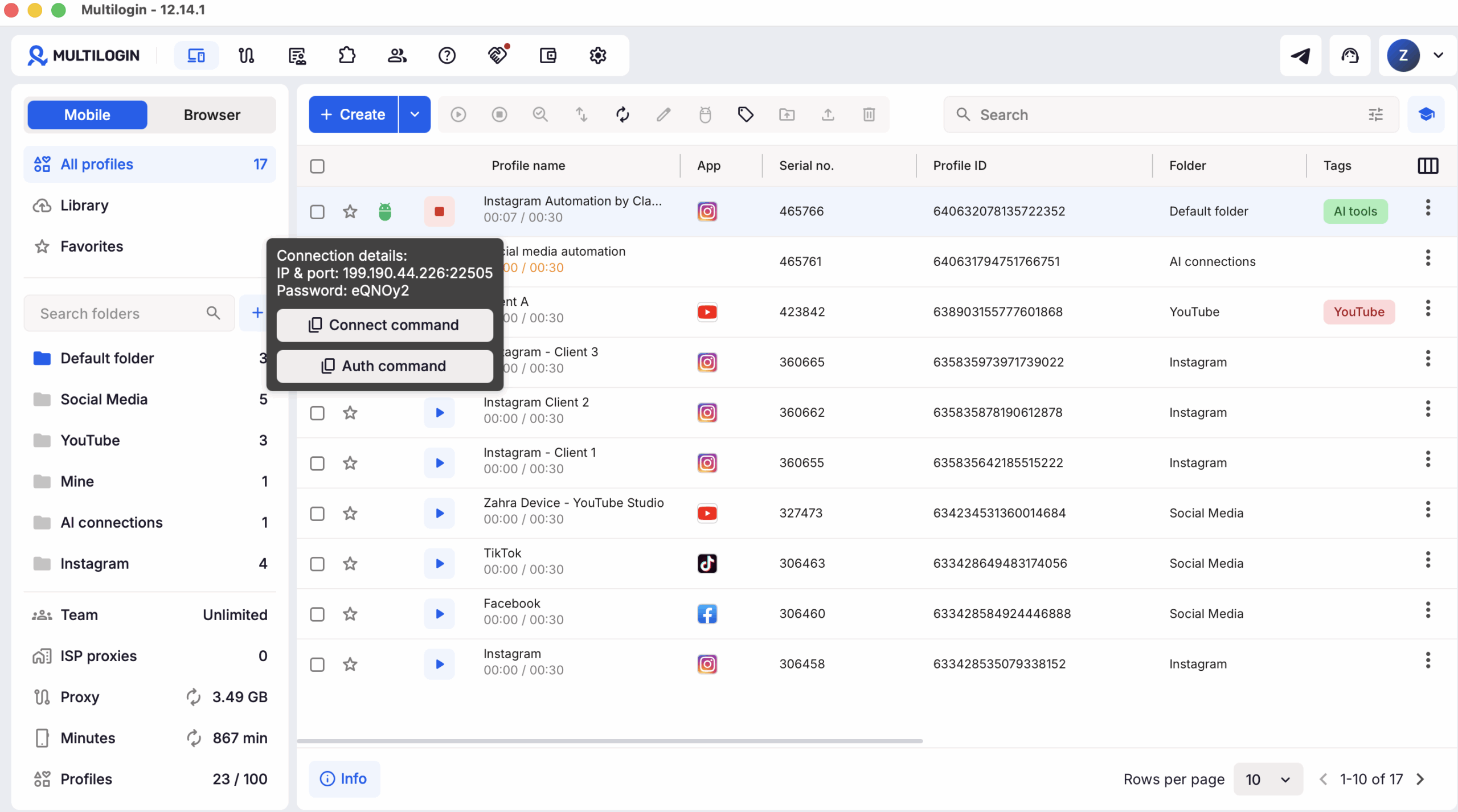
For a manual connection, Multilogin’s guide uses adb connect IP:PORT, then adb -s IP:PORT shell glogin PASSWORD. Use current details from your own phone. When the phone stops, ADB turns off and the old connection command stops working.
Read more: Official manual ADB connection steps
Step 10: Give Claude the first Settings task
Now test one action: opening Settings. Use the existing .env, .venv and reviewed toolkit. This run should take a home screenshot, open Settings, take a second screenshot, verify the screen and stop the phone. UI means the buttons and labels on the screen. The foreground activity is the Android screen currently in front.
The original hello-phone example inspected for this guide uses monkey to launch Settings. On the tested phone, that command echoed its arguments and left the launcher in front. The successful test used Android’s Settings intent instead:
.venv/bin/python -m mlxphone.tools shell am start -a android.settings.SETTINGS
Android documents am start as a way to start an activity, and android.settings.SETTINGS as the action for the system Settings screen. The command above is the launch method verified in this test.
Read more: Original hello-phone example · Android activity manager commands · Android Settings action
Copy this prompt into Claude Code
Read AGENTS.md and examples/hello-phone/task.md. Use my existing .env, .venv and locally reviewed toolkit.
Run make doctor. If any check fails, stop and report it. Check the actual phone status before the run. If the phone is already running unexpectedly, report that instead of starting another session.
Run the Settings task once. Start my configured phone with –max-minutes 10. Take a screenshot of the home screen. Open Android Settings using:
.venv/bin/python -m mlxphone.tools shell am start -a android.settings.SETTINGS
Take a second screenshot. Inspect both images, search or dump the UI, and check the foreground activity to verify Settings opened. Do not accept a command message alone as proof.
Always attempt to stop the phone on completion or failure, including failed startup. Use bounded stop retries if needed. Check its actual final API status and confirm it is 2. Keep the watchdog armed until shutdown is confirmed. If stopping fails, say the phone state is unknown and tell me to stop it in the Multilogin app.
Show both screenshots and report the result. Preserve previous files and use new output names. Keep credentials hidden. If anything fails, report the error without starting another phone session.
If you use a wrapper script, choose its shell explicitly. Read each command’s exit code directly without pipes around start. Do not use Bash PIPESTATUS in a zsh script.
How to tell whether the task worked
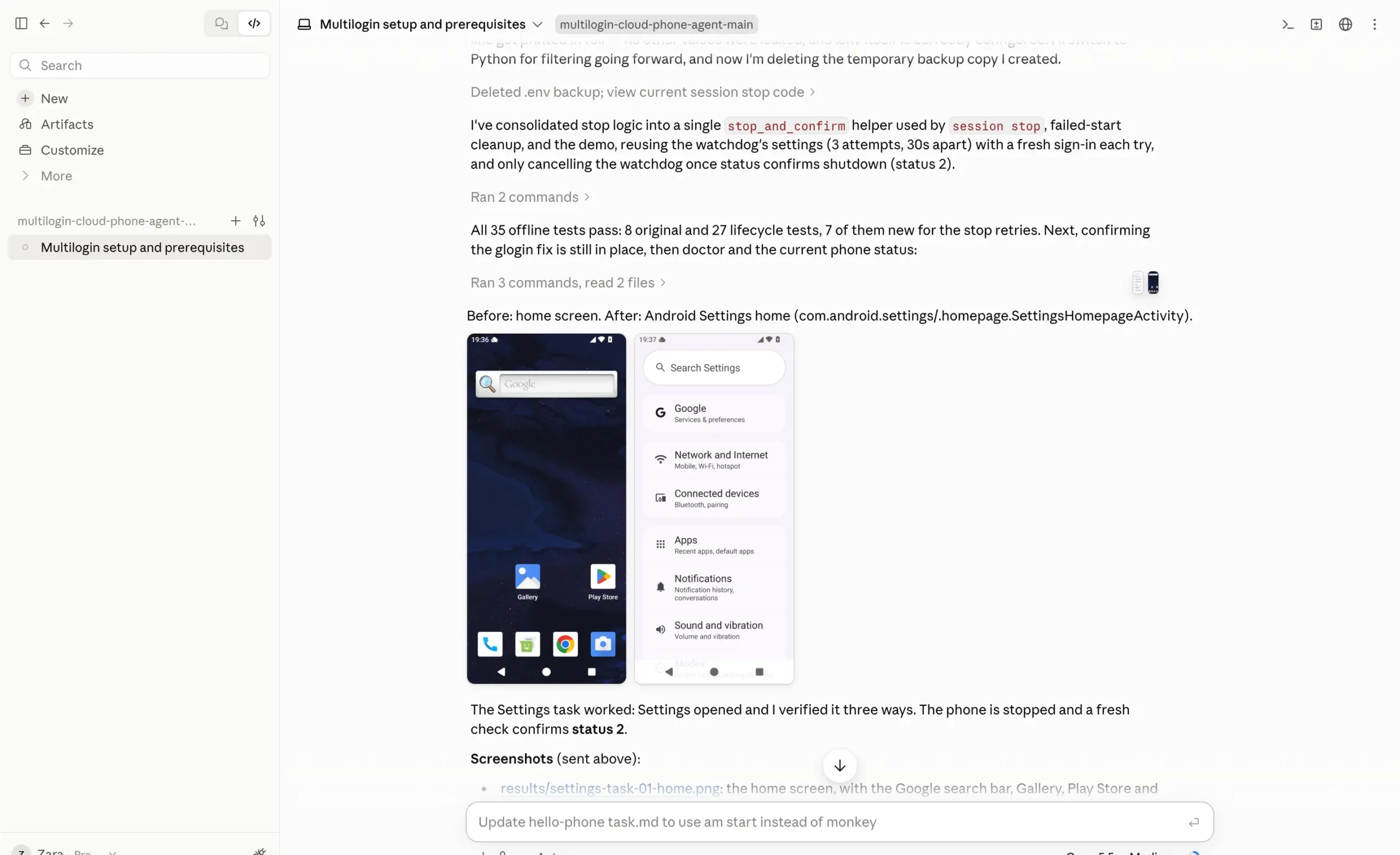
Look for three separate results. First, a valid home screenshot shows that Claude can see the phone. Second, the after screenshot shows Search Settings and Settings items such as Network and Internet. Third, a fresh status check after cleanup returns 2.
In the final recorded run, Claude also reported the foreground activity com.android.settings/.homepage.SettingsHomepageActivity. The visible Settings screen supports the success report. The activity and shutdown checks are reported in the conversation; the attachments are screenshots of that record, not raw API logs.
Test item | Result in the supplied record |
Environment | Mac setup using Claude Code inside the Claude desktop app; Multilogin app 12.14.1 is visible in setup captures. |
Connection | The demo and final task returned phone screenshots through ADB. |
Action | Android Settings opened with am start -a android.settings.SETTINGS. |
Verification | Before and after images, UI inspection and a reported Settings foreground activity. |
Cleanup | The final report says a fresh API check confirmed status 2. |
Limit | One documented phone setup and a Settings task. This does not test every Android app or social media workflow. |
Troubleshooting the errors seen in this setup
Fix the named problem, then run doctor or an offline test again. If a live task fails, stop that session first. Avoid repeated phone starts while changing code.
Error or symptom | What happened in the test | Next step |
adb not found | Platform-Tools was not installed, and Homebrew was also missing. | Use Google’s Mac ZIP and set the full MLX_ADB_BIN path. |
Placeholder values | The new .env still contained example values. | Fill in your own account details, phone ID and ADB path. |
Expired token | Requests failed after a copied token expired during a run. | Stop the phone in the app if API access fails. Refresh authentication and check status before another run. |
Connection refused | ADB was activated, but the first connection was refused. A timing delay was suspected. | Add limited connect retries and confirm a working device shell before device actions. |
Already logged reply rejected | A local strict glogin check rejected a valid existing login reply. | Accept the observed success reply as well as glogin success, and test the parser offline. |
Settings stays on the home screen | monkey printed arguments but did not launch Settings on this phone. | Use the Settings intent shown above, then verify screenshot, UI and activity. |
Empty start exit code | A wrapper used Bash PIPESTATUS while running in zsh. | Use an explicit shell and the command’s direct exit status; avoid a pipe around start. |
HTTP 501 at sign-in or stop | Doctor and start worked, but one stop sign-in failed; a later retry worked. | Use bounded stop retries and fresh authentication when needed. The record does not establish a server-side cause. |
Minutes remaining unknown | The minutes-limit endpoint was unavailable for the tested account. The toolkit continued with an unknown balance. | Check the balance in the app. Unknown does not mean free usage or unlimited minutes. |
Stop cannot be confirmed | A cleanup request or status check may fail. | Treat the state as unknown. Stop the phone in Multilogin, then confirm status 2 when API access returns. |
A stop request is not the same as a verified shutdown. If the final status is unavailable, do not report that billing has stopped. Use the app’s stop control and check again. Keep existing screenshots; do not delete useful evidence before another test.
Common questions
Can I use the Claude desktop app
Yes. Use Claude Code in the desktop app’s Code tab, with the project opened in Local mode. That is the path shown here. Simply uploading the ZIP into a regular conversation does not set up this workflow.
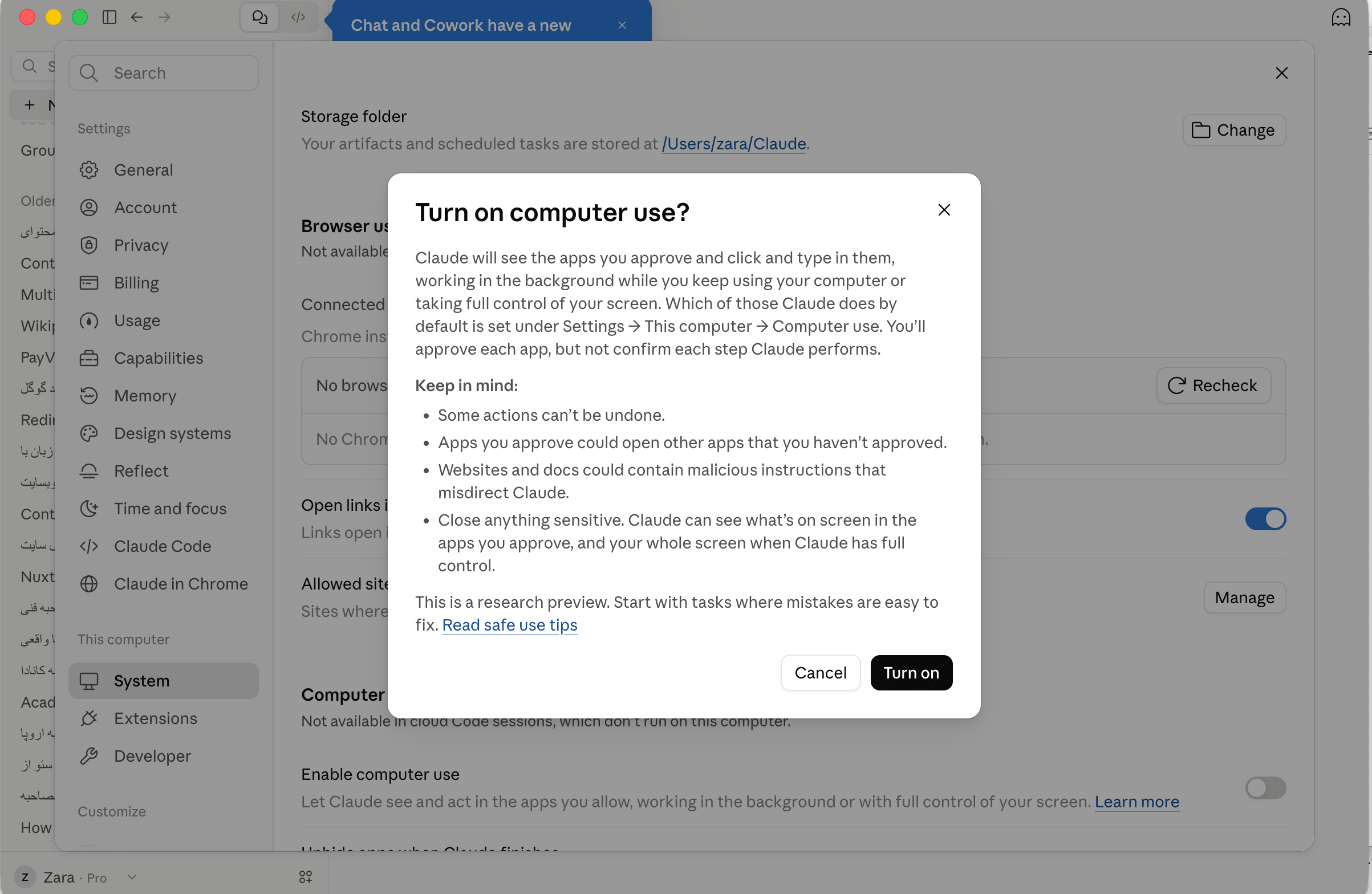
Do I need the computer use setting
It is not a setup step in the ADB workflow shown here. The early capture below shows a separate computer-use setting in Claude. For this guide, begin in the Code tab with the local project folder.
Do I need an MCP server or a Claude connector
This guide uses the project’s Python command tools, not an MCP server setup. The repository includes an optional Claude Code skill adapter, but the adapter is only a shortcut to the same instructions. It does not add phone-control logic.
Read more: Optional adapters in the repository
Will doctor or dry run use mobile minutes
Neither command starts a phone. Dry run does not contact the network or a device. Doctor checks the environment and account through API calls. If your phone was already running, those checks do not stop it. Demo and the Settings task are real phone sessions.
Can Claude do other cloud phone tasks after this
The toolkit provides screenshot, UI search, tap, text and shell commands. A compatible agent can use them for other tested tasks. Start with one clear action and an expected result, then inspect what happened. The Settings result does not prove that posting, account login or every Android app will work.
Read more: Available device commands · Multilogin AI agent workflow and limits
Can I follow these Mac commands on Windows
This article’s paths, .venv/bin/python commands and screenshots are for macOS. Google also provides Platform-Tools for Windows and Linux. Do not copy the Mac paths directly into Windows; follow the relevant platform documentation and check the project requirements first.
What should I ask Claude to do next
After the first test succeeds, give Claude one small task with a clear limit. For example: “Open the app I name, show its current screen, make no changes, then stop the phone and confirm status 2.” Add more actions only after the result is checked. State which actions need your approval.
To begin, open your own Multilogin mobile profile, download the official project, and complete the setup checks. Then use the one-session Settings prompt above. A useful first result is simple: Claude can see the phone, open Settings, prove it opened, and verify that the phone stopped.
Read more: Explore Multilogin Android cloud phones · Follow the official AI agent setup guide
Additional setup captures
These extra captures preserve the full supplied image set. The folder view repeats an earlier selection step, and the last image is an identical copy of the successful test capture. They do not show extra phone runs.
Sources and useful links
Use the official pages for current setup details. The screenshot captions describe the recorded October 2026 setup. Local code changes are described as test findings, not as an upstream release.
Official Multilogin cloud phone agent repository
Project instructions for AI agents
Google Platform-Tools download
Android ADB activity manager documentation
Android system Settings action
Create a Multilogin Android cloud phone
Start and stop a Multilogin cloud phone
Additional ADB reading: XDA installation guide for Windows macOS and Linux