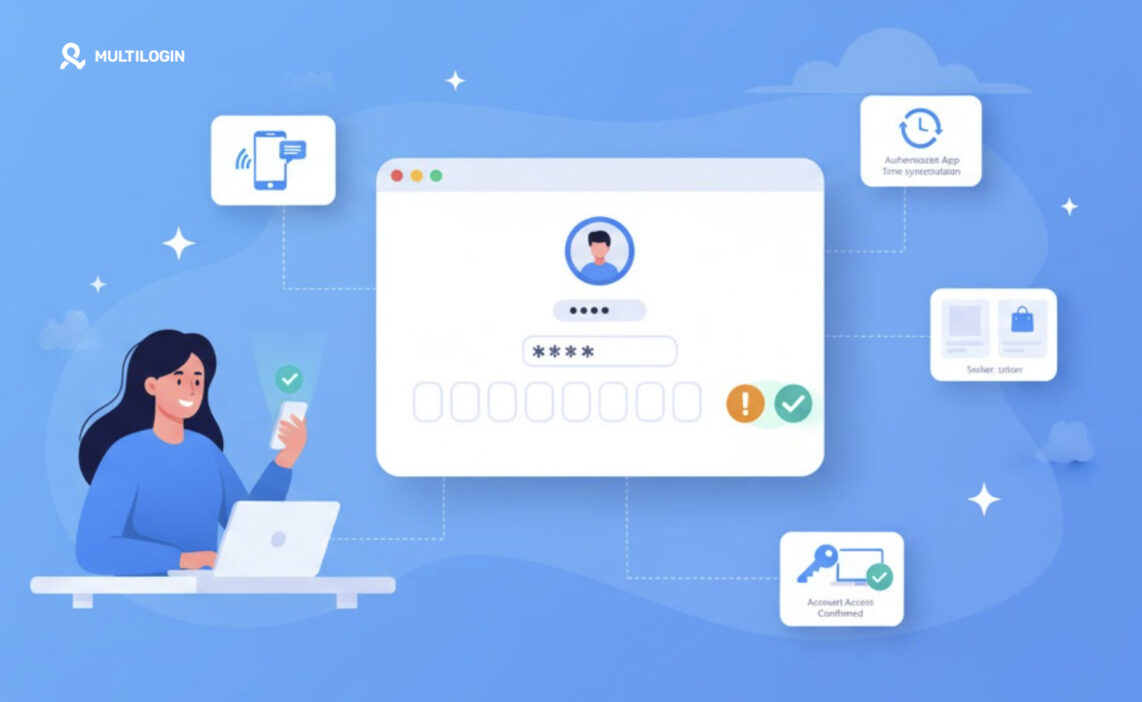



eBay two-step verification not working usually comes down to four situations: the code never arrives, eBay rejects the code as invalid, the eBay app prompt doesn’t show up, or the phone tied to the account is gone. This guide shows how each eBay verification method works, matches each symptom to its likely cause, and walks you through the fixes for SMS, authenticator app, app push and passkey problems. You’ll also see what to do if you’re locked out and how to stop the same problem from coming back.
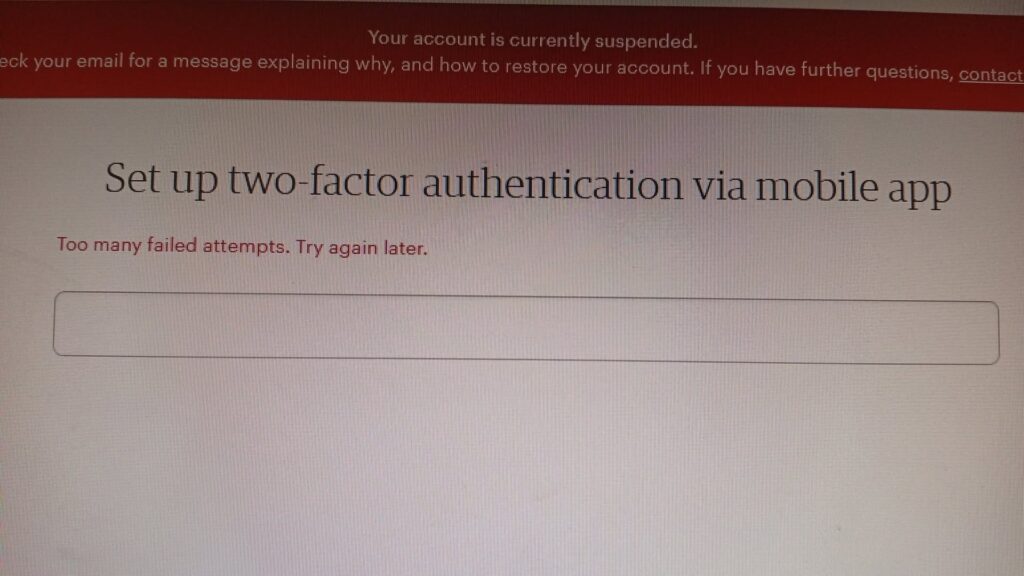
If you run several eBay seller accounts, verification takes more tracking. Each account has its own phone number, its own trusted devices and its own login history, and a single mix-up can leave you stuck at the sign-in page during a busy selling day.
Multilogin is a cloud Android phone platform for multi-account management. Each eBay account can run in the eBay app on its own cloud phone, a real Android device in the cloud with separate app data, location and IP. Seller Hub and other web tasks can stay in a separate browser profile from the same dashboard. Start free, no credit card.
How eBay two-step verification works
With two-step verification on, eBay asks for a second confirmation after your password each time you sign in. According to eBay’s account security help page, you can confirm with an eBay app push notification, a code sent by SMS, or a one-time code from an authenticator app. The methods on offer can vary by marketplace and account.
Method | How you confirm | What it depends on | Where it usually breaks |
|---|---|---|---|
eBay app push | Approve the sign-in in the eBay app | Latest app version, notifications on, signed in to the right account | Outdated app, notifications blocked, wrong account in the app |
SMS code | Enter the code eBay texts you | A mobile number that receives texts, good reception | No signal, wrong SIM slot, landline number, message filtering |
Authenticator app | Enter the 6-digit code from Google Authenticator, Microsoft Authenticator or Authy | The phone’s clock and the right eBay entry in the app | Clock out of sync, entry for a different account, app reinstalled without backup |
Passkey (sign-in) | Fingerprint, Face ID, PIN or pattern instead of a password | A supported device and a synced password manager | Signing in on a different eBay marketplace, passkey not synced |
Two details explain many “not working” reports. First, eBay lets you mark a device as trusted with “Remember this device”, so you may not be asked for a code on it next time. You can add up to 100 trusted devices, but changing your verification method or removing a device means adding trusted devices again.
Second, a passkey is a sign-in method, not a 2SV method. If it fails, eBay falls back to your username and password, and a passkey made on one marketplace (for example eBay.co.uk) doesn’t carry over to another (eBay.com).
Quick diagnosis: match the symptom to the fix
Find the line that matches what you see, then jump to the fix below.
What you see | Likely cause | First thing to try |
|---|---|---|
SMS code never arrives | Weak signal, wrong SIM, landline number, a messaging app filtering texts | Check reception and SIM settings, then request one new code |
“Invalid code” error | You left the sign-in page or requested a newer code, so the old one was revoked | Stay on the page and enter only the latest code |
Code expired | More than 15 minutes passed | Request a fresh code and enter it right away |
Authenticator code rejected | Phone clock out of sync, or you used another account’s entry | Turn on automatic time and check the entry name |
No prompt in the eBay app | App outdated, notifications off, or a different account signed in | Update the app and enable notifications |
Passkey fails | Different marketplace, or passkey not synced to this device | Sign in with your password, then set up a passkey for that site |
Asked to verify on every sign-in | Device not trusted, cookies cleared, or 2SV method changed | Select “Remember this device” on your next sign-in |
Phone lost or number changed | The verification method is no longer reachable | Use another method, or contact eBay to update the number |
Common fixes for eBay two-step verification problems
eBay verification code not received by SMS
Most missing SMS codes are a phone or network issue, not an eBay outage. Work through these checks before you request another code:
- Confirm the phone has good reception and can receive normal texts. eBay doesn’t support landline numbers.
- On a dual-SIM phone, make sure the SIM holding your eBay number is the active one for messages.
- Set the network type to Automatic in your phone’s mobile network settings.
- Check which app handles your texts. eBay notes that some users of apps like Signal don’t receive its SMS, so switch back to your default messaging app if needed.
- Check that the number on your eBay account is still current. An old number keeps receiving codes you never see.
If texts still don’t arrive, switch to the eBay app or an authenticator app the next time you can sign in. Neither depends on SMS delivery.
“Invalid code” error on eBay
This error usually means the code you entered is no longer the active one. Each new request cancels the previous code, and so does leaving the sign-in page.
- Keep the sign-in tab open while you wait. Don’t refresh, close it or press Back.
- Request one code, wait for it, and enter that code only.
- Enter it within 15 minutes, the window eBay gives in its troubleshooting tips.
- If eBay asks for your device PIN, Face ID or fingerprint, use the one set up on that device.
eBay authenticator app code not working
Authenticator codes are time-based, so a phone clock that is even slightly off produces codes eBay won’t accept.
- Turn on automatic date and time in your phone settings. In Google Authenticator on Android, you can also run the time correction option in the app settings.
- Check that you’re reading the right entry. Sellers with several eBay accounts often have several eBay entries, and the names can look alike.
- If you reinstalled the authenticator or moved to a new phone without a backup, the old entry is gone. Sign in with another method, then set up the authenticator again from Account settings > Sign in and security > 2 Step Verification.
eBay app push notification not showing
- Update the eBay app to the latest version.
- Allow notifications for the eBay app in your phone settings, and turn off any focus or battery-saving mode that holds them back.
- Open the app and confirm you’re signed in to the same account you’re trying to access on the web.
- If you still see nothing, choose another verification option on the sign-in page if eBay offers one.
eBay passkey not working
If your passkey fails, eBay shows an error and asks for your username and password instead. Common causes are signing in on a different eBay marketplace, a device below the supported OS version (iOS 16, Android 9 or Windows 10 and later), or a password manager that isn’t synced. On Android, check you’re signed in to the right Google account in Chrome. On iPhone, check that iCloud Keychain is on.
eBay asks for verification every time
If you’re asked for a code on every sign-in, the device probably isn’t trusted. Select “Remember this device” the next time you verify. Clearing cookies, using private browsing, changing your 2SV method or removing the device from your trusted list will all bring the prompt back.
Lost your phone or locked out of eBay?
If the device or number behind your two-step verification is gone, try these steps in order:
- Use a device that’s still signed in. A trusted laptop, tablet or eBay app session may still have access, so you can change your verification method from Account settings > Sign in and security.
- Pick another verification option. If the sign-in page offers a different method, such as the eBay app instead of SMS, use it.
- Restart your phone and try again. eBay suggests this when codes by text, call or email don’t arrive.
- Contact eBay to update your number. If you can’t sign in because your phone number is out of date, eBay’s help page says to contact them. They verify that you’re the account owner and then update the number.
- Treat unexpected changes as a security issue. If your password or number changed without you, change your eBay and email passwords (use different ones) and contact eBay. eBay may place a temporary hold on the account while it returns control to you.
Once you’re back in, set up a second method straight away so a lost phone doesn’t lock you out again.
Two-step verification vs multi-factor authentication
In the UK and EU, eBay also uses multi-factor authentication (MFA) to meet local rules. Two-step verification is optional and only appears at sign-in. MFA is mandatory and can appear later, for example when you issue a refund, change your payment method, or update your email address or phone number. If a prompt shows up mid-task rather than at sign-in, it’s probably MFA, and the same fixes for codes and push prompts apply.
How to stop eBay verification problems coming back
A few habits prevent most repeat lockouts:
- Prefer the eBay app or an authenticator app over SMS. eBay describes authenticator apps as more secure than SMS, voice and email codes, and neither depends on mobile reception.
- Back up your authenticator. Turn on the app’s own backup or cloud sync before you change phones. eBay also recommends keeping your email and phone number on file as backups, because a new or lost phone means verifying with one of them before you re-enroll the authenticator.
- Keep your phone number and email current. Update them on eBay as soon as they change, not after the next failed sign-in.
- Trust only devices you use. Review the trusted devices list in eBay’s Safety Centre and remove anything you no longer own.
- Give staff their own logins. eBay’s multi-user account access lets each team member sign in and verify with their own details, instead of everyone waiting on one owner’s phone.
- Never enter a code from a link. Go to eBay directly. A fake sign-in page can ask for your code and pass it on, and eBay asks you to forward suspicious emails to its spoof address.
Managing two-step verification across multiple eBay seller accounts
With one account, a verification problem costs you a few minutes. With five or ten seller accounts, the usual failures multiply: codes going to a number you can’t match to a store, authenticator entries that look alike, trusted devices you can’t tell apart, and team members waiting on the owner’s phone to sign in.
A simple record solves part of this. For each account, note the verification method, the number or authenticator entry it uses, the trusted devices, and who on the team can sign in. Then keep each account in its own working environment so sessions don’t overlap.
How Multilogin fits this workflow
Multilogin gives each eBay account its own cloud Android phone: a real Android device in the cloud running the native eBay app.
What you need | How Multilogin handles it |
|---|---|
A separate device per seller account | One cloud phone per account, each with its own app data, IP and location |
The app staying signed in between sessions | App data and login history persist on each cloud phone |
An IP that matches the account’s location | Built-in residential proxies in every plan, with a matched geolocation per profile |
Seller Hub and other web tasks | Browser profiles with their own cookies, session and IP, with location synced to the account’s cloud phone |
Knowing which number goes with which account | Custom columns, colour tags and notes on each profile |
Team access without passing passwords around | Team seats and permissions, plus profile sharing and assignment |
What to know before you set it up: Multilogin cloud phones cannot receive SMS or calls. If eBay sends a code by text, it needs to go to a separate number eBay accepts, such as your own phone or an external SMS provider. You then enter the code in the eBay app on the cloud phone. Cloud phones also need a reliable internet connection, and first-time setup can take a little time.
Multilogin offers a free plan with no time limit and no credit card needed. Paid plans start from $7.08 per month.