


Real Android cloud gaming
Play cloud games on real Android devices hosted in the cloud, with no high-end phone or PC required. Keep sessions stable, run multiple instances at once.
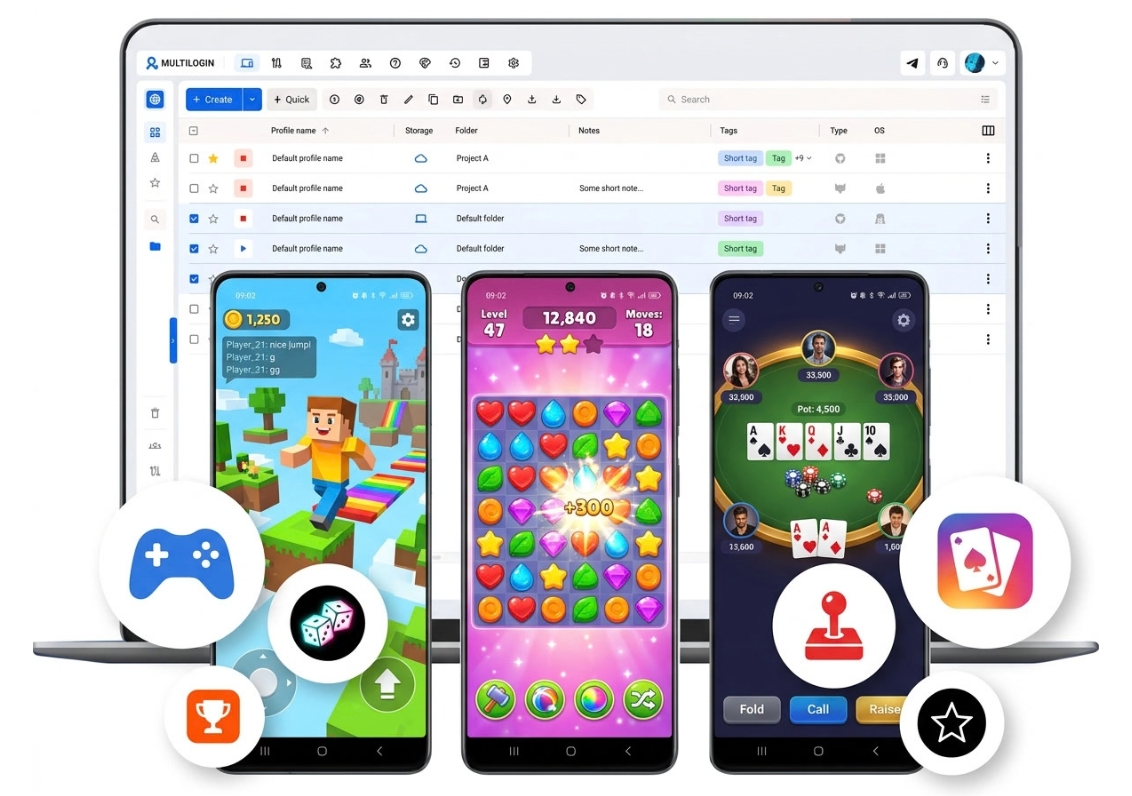
not an emulator

Perfect for multiple accounts
A separate cloud phone for each account

Play from any region
Game catalogs in 150+ locations

No emulator needed
Play on real Android devices
One platform, unlimited game accounts
Play on real Android, not another emulator
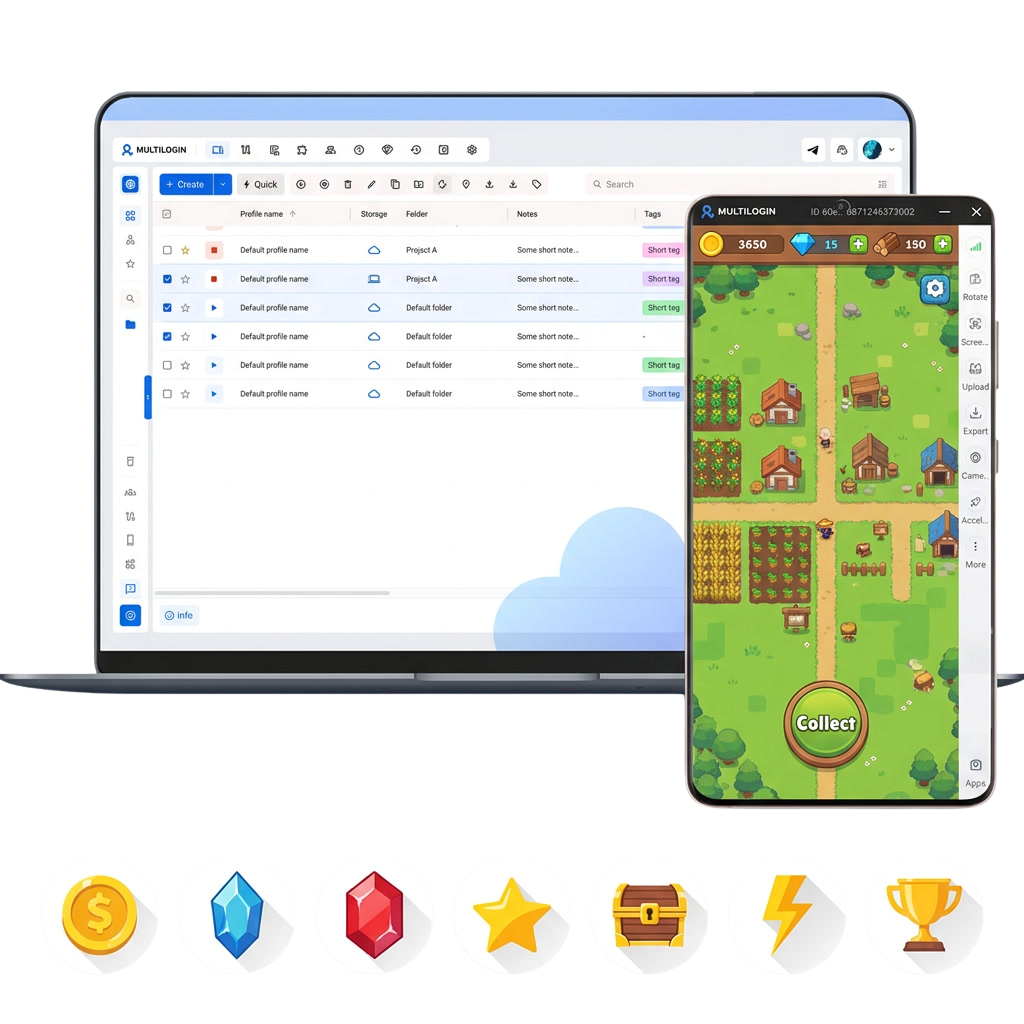
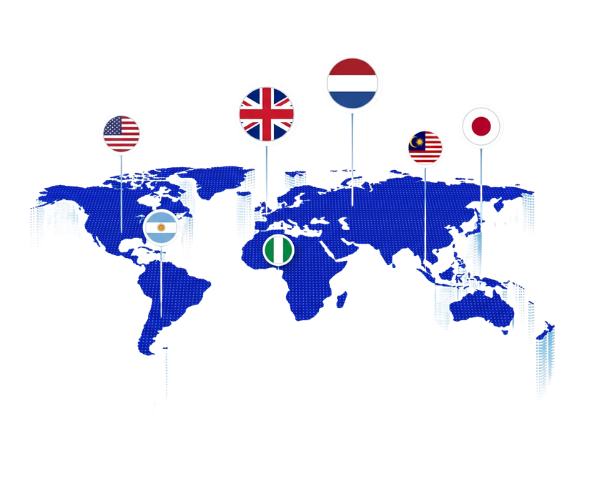
Global access to region-locked cloud games
Zero load on your own PC
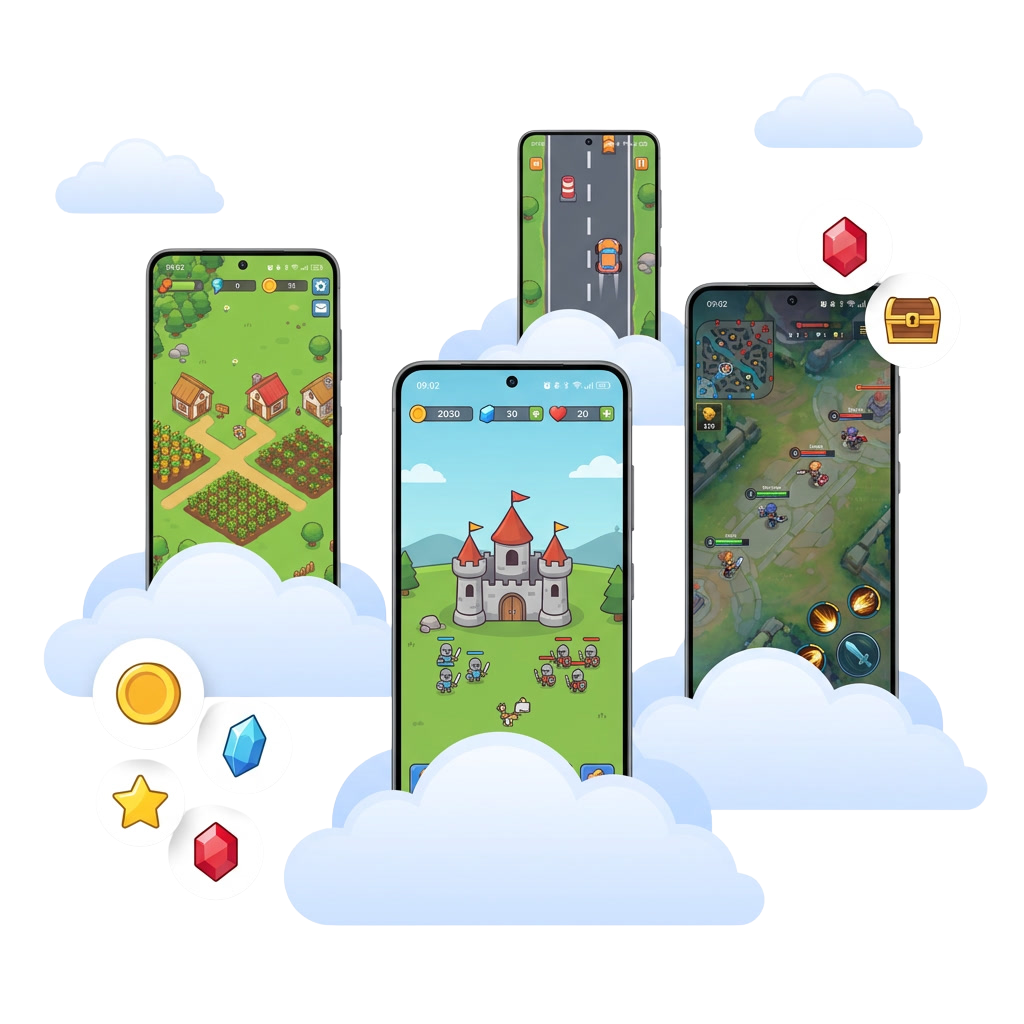
Skip the phone farm, use one dashboard
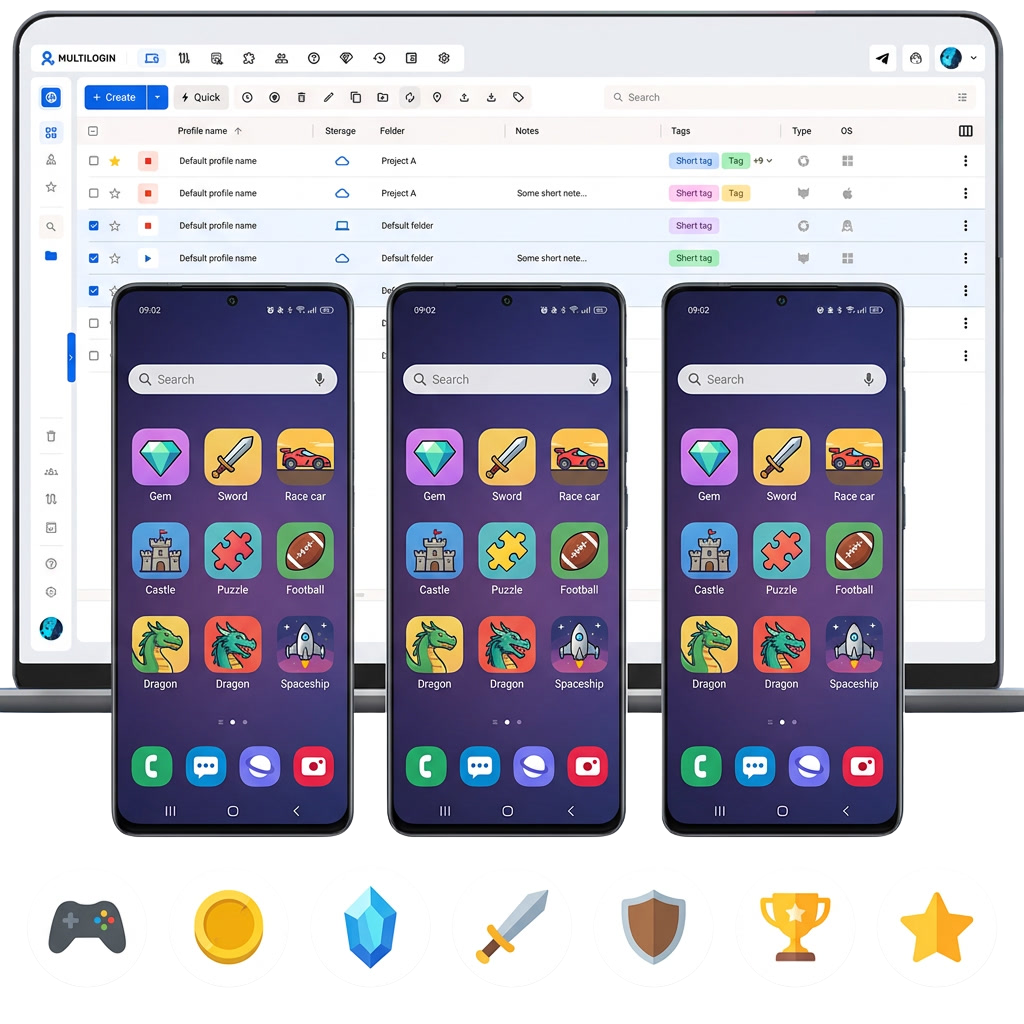
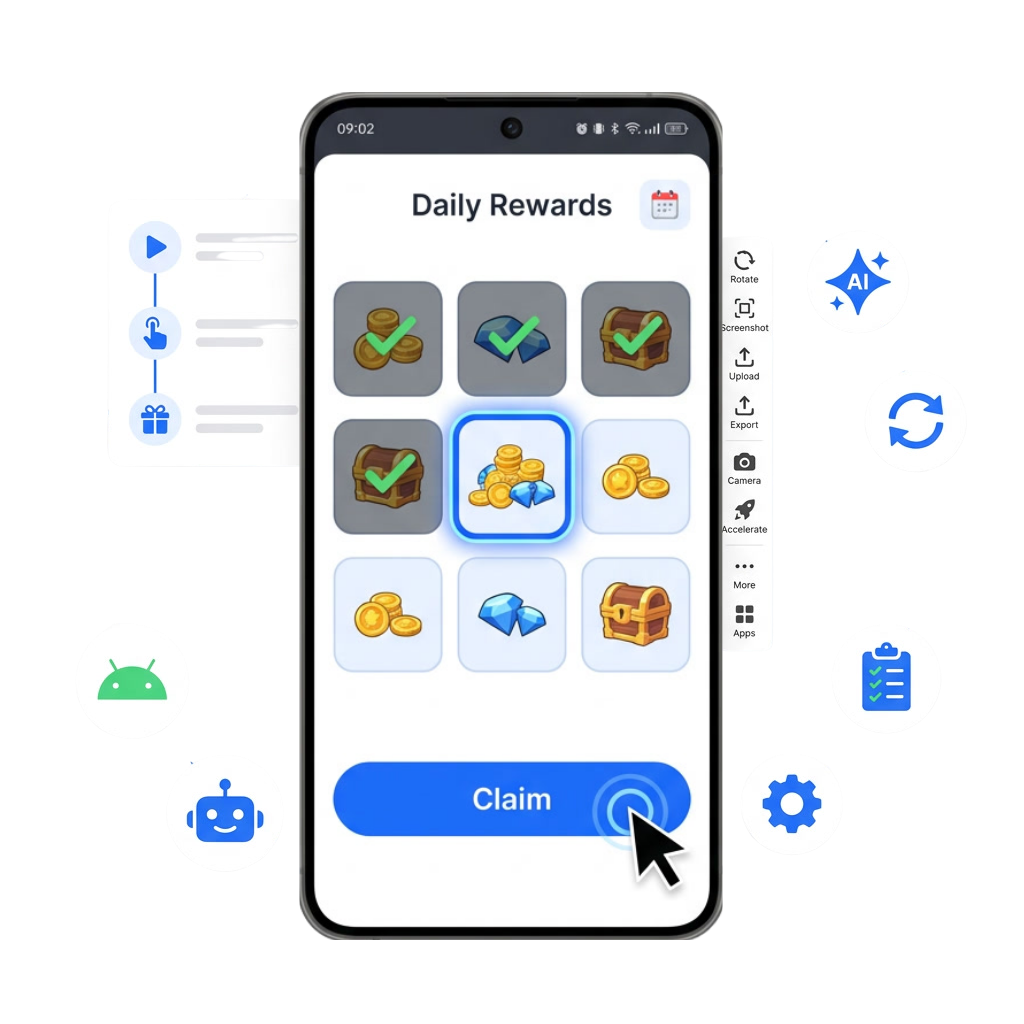
Automate daily quests and reward claims
How to get started with Android cloud gaming
Time is money. Start in minutes
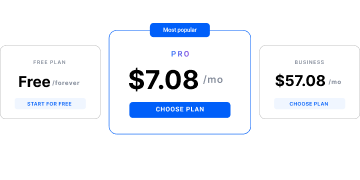
Sign up
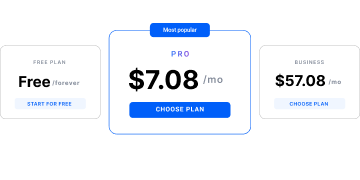
Choose a plan and download the app
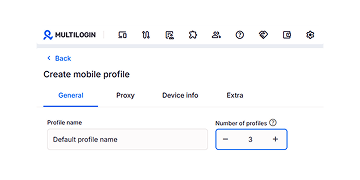
Create mobile profile
Customize the device model and choose location
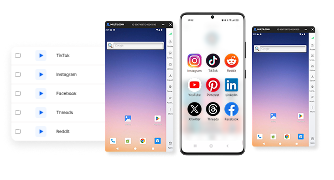
Run your accounts
Use separated browser profile to earn
Sign up
Choose a plan and download the app
Create mobile profile
Customize the device model and choose location
Run your accounts
Use separated browser profile to earn
Watch the Multilogin Demo
What is Multilogin?
Trusted by thousands of creators, sellers & online earners

Ha D.
Social Media Marketing Retail

Nino Latif

Stanislav K.
Marketing Manager

Elen S.
Marketing Manager

Hamza Arif
E-commerce Manager


Nick Horvath
Marketing agency
Start planning your project today
Upload content, automate posts and engagements: all in one unified dashboard
The most awarded multi accounting platform












Explore more solutions for any platform you need
FAQ
The game runs on a real Android device hosted in the cloud, and you control it from your computer. Your own hardware only shows the screen, so device requirements stay low.
Any Android game you can get from Google Play or as an APK file. Idle, strategy, farming, and RPG titles work best; fast shooters and other reaction-based games are more sensitive to latency.
Cloud phones let you install apps the same way as on a physical Android phone: from the built-in phone library or from Google Play. Google Play requires signing in to a Google account
Yes. Set the cloud phone to the region you need, sign in with a Google account from that region, and install the game from the local Google Play catalog.
Yes, some. The picture is streamed from a remote device, so there is a small delay between your input and the response. It is barely noticeable in turn-based and idle games and more visible in fast action games.
A stable broadband connection matters more than a powerful computer. On a weak or unstable connection the stream loses quality and input lag grows.
An emulator imitates Android on your PC and uses your CPU, RAM, and storage. A cloud phone is a real Android device in the cloud, so games see genuine hardware and your computer stays free.
It is usually a regional rules or a Google account from another country. Use a proxy and a Google account from the right region, or upload the APK file from your computer.
It can. Phones that share one IP also share its bandwidth, so large game downloads slow down as you add instances. A separate proxy per phone helps.
Yes. Each account runs in its own cloud phone with a separate device identity, and you manage all of them from one dashboard.
AFK means “away from keyboard”: the game keeps earning progress while you are not playing. A cloud phone keeps running in the cloud, so it does not depend on your computer staying on.
Android Cloud Gaming with Multilogin Cloud Phone: How It Works
Android cloud gaming moves the game off your device. With Multilogin Cloud Phone, every cloud game runs on a real Android phone hosted in the cloud, and you control it from the Multilogin desktop app. Your computer only displays the screen and sends your taps, so you can play cloud games without a strong processor, a graphics card, or free storage.
How a cloud game runs on a cloud phone
You create a cloud phone, pick an Android version and device model, and start it. A phone screen opens in a window on your computer. From there it behaves like a phone in your hand: you open Google Play, install a cloud game, sign in, and play.
Each cloud phone is a separate device with its own storage, settings, and accounts. To play cloud games on several accounts, you start several phones and switch between their windows.
Cloud games vs. emulator games online
An emulator imitates Android on your PC. It uses your CPU and RAM, slows down as you add instances, and some games limit or block emulator players.
Android cloud gaming does the work on remote hardware. Your computer stays free, and one more instance adds no load to it. If you have been playing emulator games online and your PC can no longer keep up, this is the main difference.
Latency in Android cloud gaming
There is a delay, and it is better to know about it before you start. The picture of a cloud game is streamed to you, and every tap travels to the cloud and back.
- Idle, farming, strategy, card, and turn-based games: the delay is barely noticeable.
- RPGs and casual titles: comfortable on a stable connection.
- Shooters, racing, and rhythm games: the delay is noticeable, and competitive play is not the best fit.
Internet requirements for cloud games
A stable connection matters more than a fast computer. Lag in cloud games almost always comes from the route between your device and the cloud phone.
- Use wired internet or strong Wi-Fi.
- If you add a proxy to a cloud phone, choose a fast one: a slow proxy slows downloads and in-game loading.
- When many phones share one IP, they also share its bandwidth, so large game downloads take longer.
How to install cloud games
There are three ways to install cloud games on a Multilogin cloud phone:
- Built-in Apps list. Start the phone, tap Apps, find the app, and tap Install. This is the quickest way and it does not use proxy traffic.
- Google Play. Sign in to a Google account, open Google Play, and download the game as you would on any Android phone. This uses proxy traffic.
- APK upload. Click Upload in the side menu, open Local upload, choose the .apk file from your computer, and confirm the installation.
Apps are installed per phone, so repeat the step on every cloud phone where you need the game.
Cloud games from another region
Google Play shows a catalog based on your region. If a cloud game is missing, the cause is usually a regional restriction or a Google account registered in another country.
Set the cloud phone to the region you need and sign in with a Google account from that region. The local catalog then becomes available. If the game is still not listed, install it from an APK file.
Android cloud gaming on multiple instances
- Link game progress to a game account. App data stays on the phone where it was created.
- Give each account its own cloud phone and keep its region consistent.
- Download large games on a few phones at a time.
Start with one cloud phone, install one cloud game, and check how it feels on your connection. If it suits you, move the rest of your emulator games online to cloud phones.
