


WhatsApp Proxies Built Into Your Cloud Android Phones
Run each WhatsApp and WhatsApp Business account on its own Multilogin cloud phone, with its own IP and matched location. Residential proxy traffic is included in every plan.
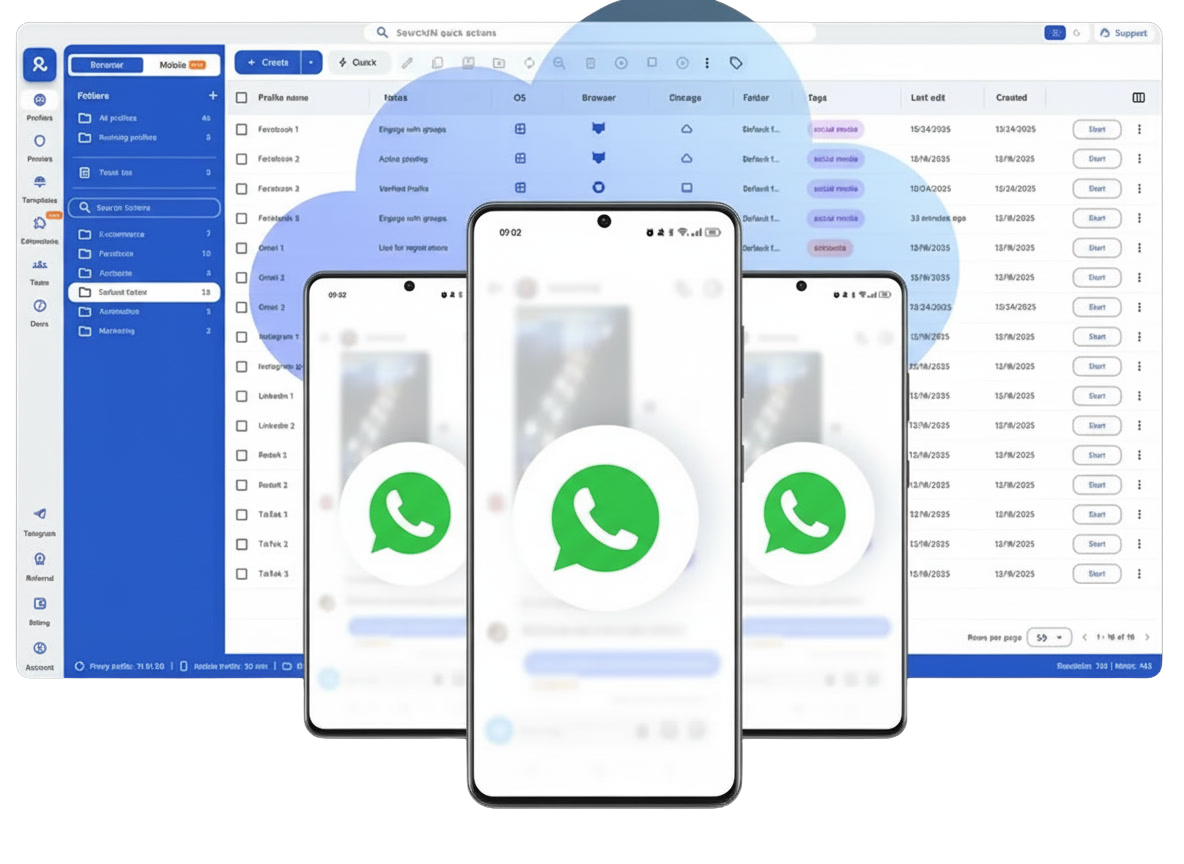
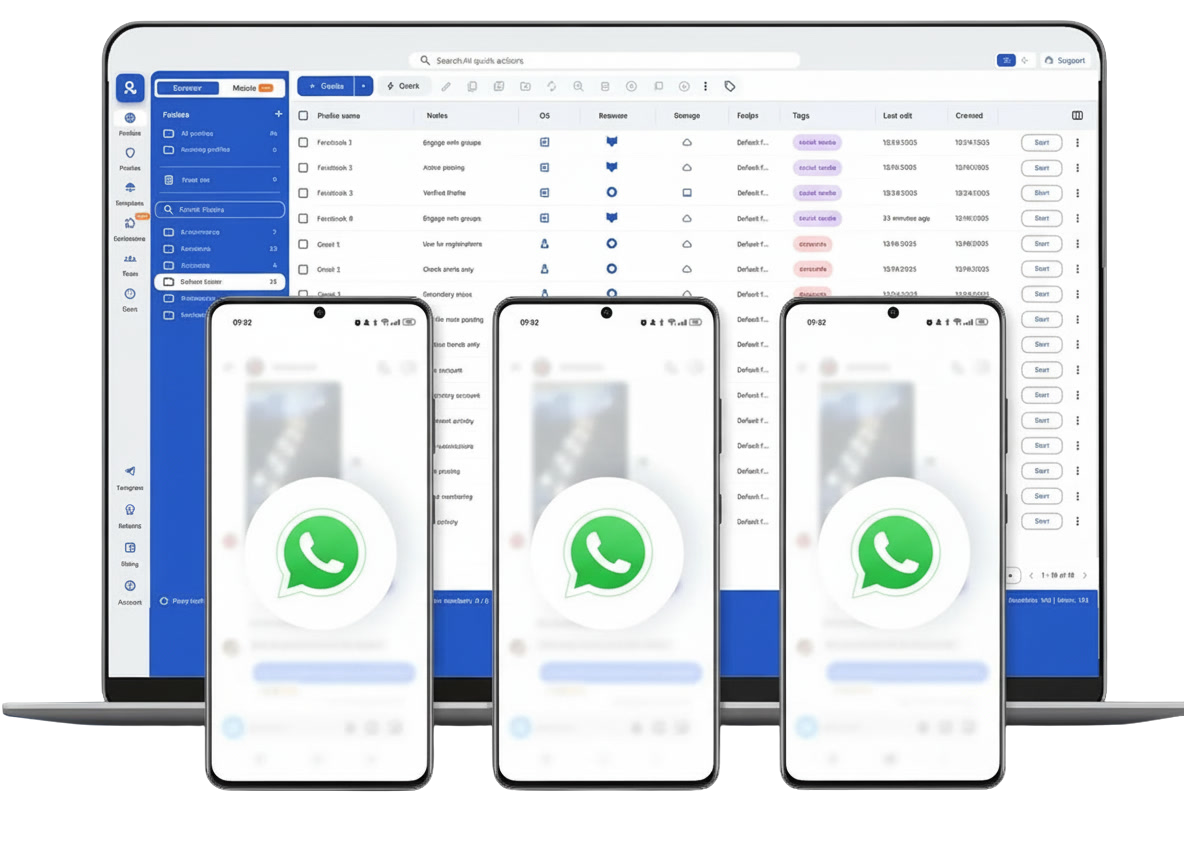
Launch Each WhatsApp Account on Its Own Cloud Phone
Every account runs on a real Android device in the cloud with its own app data and login history. Sessions are saved between launches, so you continue where you left off.
Manage Mobile and Web Accounts From One Dashboard
Run the WhatsApp app on cloud phones and WhatsApp Web in browser profiles, side by side. Team seats, permissions, and bulk actions keep every client number organized.
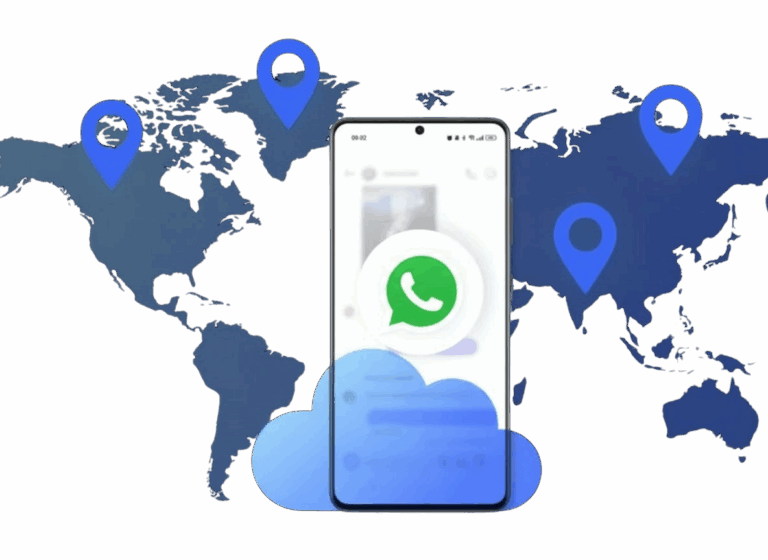
Give Every Account Its Own IP and Location
Each profile connects through its own IP with matched geolocation. Your WhatsApp accounts never share one connection, and residential proxy traffic is already part of your plan.
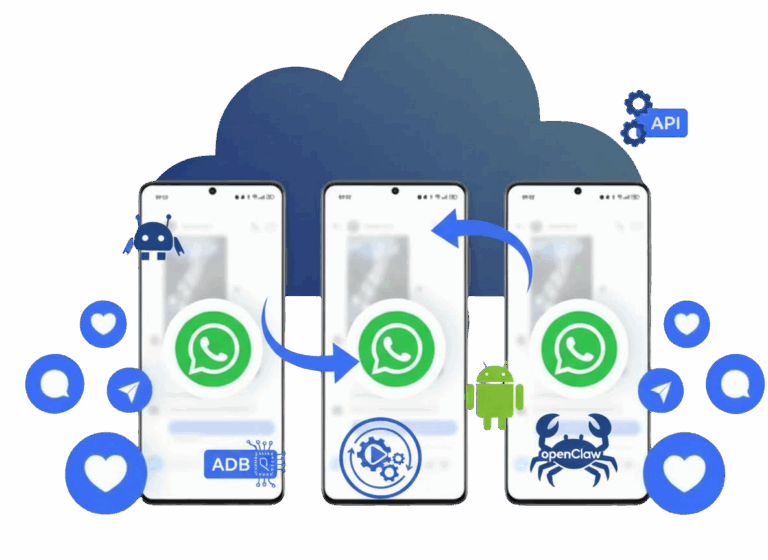
Automate WhatsApp Workflows Through API and ADB
Create profiles, install apps, and manage accounts through the Multilogin API. Full ADB access and support for Selenium, Puppeteer, Playwright, and Postman let your scripts and AI agents operate each cloud phone.
Grow your social media accounts with Multilogin cloud phones
-
Unlimited time
-
Mobile and browser profiles included
-
Free built-in proxies & mobile minutes
-
Unlimited time
-
Mobile and browser profiles included
-
Free built-in proxies & mobile minutes
What are cloud phones?
A cloud phone is a real Android device hosted in the cloud that you control from your computer. Each Multilogin cloud phone belongs to one account and keeps its own app data, login history, location, and IP between sessions.
Why Use a Cloud Phone for WhatsApp?
WhatsApp is built for phones, and each number needs its own device. Multilogin gives every WhatsApp account its own cloud phone with a built-in residential proxy, so you don’t need a shelf of handsets to keep charged and online.
Run WhatsApp Web in browser profiles from the same dashboard, assign numbers to teammates, and manage every account from one desktop app.
Related solutions you might like
The most awarded multi accounting platform















Watch the Multilogin Demo
How WhatsApp Proxies Work in Multilogin
A WhatsApp proxy routes a WhatsApp account’s connection through a separate IP address. In Multilogin, every profile gets its own IP and location. You can use built-in mobile, residential, or ISP proxies, or connect your own HTTP, HTTPS, or SOCKS5 proxies.
This guide explains each proxy type, what you can choose for a WhatsApp profile, and how to set it up step by step.
Why each WhatsApp account needs its own IP and location
When you run several WhatsApp accounts from one office or one laptop, they all share the same network. Every account connects from the same IP, in the same location.
That rarely matches how the accounts are used. A support number for Brazil, a sales number for Germany, and a client account for India each belong to a different market.
A proxy solves the network side. Each account connects through its own IP, located in the market where the number operates.
How proxies work in Multilogin
Multilogin is a cloud Android phone platform for multi-account management. Each WhatsApp account runs on its own Multilogin cloud phone for WhatsApp, a real Android device in the cloud with its own app data, location, and IP.
Every cloud phone goes online through a proxy, so you set one up when you create the profile. Proxy settings live inside the profile, and you don’t configure anything on the device by hand.
Built-in mobile proxies
Mobile proxies use IPs from mobile networks such as 4G, 5G, or LTE, the same networks real phones connect through. They are the closest match for cloud phones and the native WhatsApp app.
Choose the country, the city where available, and the mobile carrier behind the IP. Learn more about mobile proxies in Multilogin.
Built-in residential proxies
Residential proxies use IPs from home internet connections, the kind of IP a regular user has at home. They suit browser profiles and WhatsApp Web.
Like mobile proxies, they use the GB proxy traffic included in your plan. See how residential proxies work with cloud phones and browser profiles.
ISP proxies
ISP proxies are static IPs you buy right inside Multilogin and assign to a profile. The IP stays the same for 30 days and doesn’t use GB proxy traffic.
Pick an ISP proxy for long-running business numbers that need one stable IP over time, such as a support desk or a team-shared account.
Cellular or Wi-Fi on the cloud phone
You can also choose how the cloud phone goes online: through a cellular network or Wi-Fi. This lets each device’s connection match how a real phone in that market would connect.
Your own proxies
Already working with a proxy provider? Add your own proxies to any profile and keep your existing setup.
Which proxy type fits your WhatsApp setup
| Proxy type | IP source | How it’s billed | Best for WhatsApp |
|---|---|---|---|
| Mobile (built-in) | Mobile networks: 4G, 5G, LTE | GB traffic from your plan | WhatsApp app on cloud phones |
| Residential (built-in) | Home internet connections | GB traffic from your plan | WhatsApp Web in browser profiles |
| ISP (built-in) | Static IP from an internet provider | Bought separately, 30 days per IP | Long-running numbers that need one fixed IP |
| Your own | Your provider | Your provider’s pricing | Keeping an existing proxy setup |
Not sure which one to pick? Read how to choose the right proxy type for Multilogin.
Proxy protocols
| Protocol | What it is | When to use it |
|---|---|---|
| HTTP | Standard web proxy protocol | Most providers offer it by default |
| HTTPS | HTTP proxy with an encrypted connection to the proxy | When your provider recommends secure proxy connections |
| SOCKS5 | Lower-level protocol that passes any type of traffic | When an app needs more than regular web requests |
Built-in mobile and residential proxies can be generated as HTTP or SOCKS5. For your own proxies, choose HTTP, HTTPS, or SOCKS5.
What you can choose for each WhatsApp profile
- Proxy type: built-in mobile, residential, or ISP, or your own proxy
- Location: country, plus city where available
- Carrier: the mobile operator or internet provider behind the IP
- Network type: cellular or Wi-Fi on the cloud phone
- Location sync: the same location for a cloud phone and a browser profile used by one account
- Device: 30+ real Android device types across 12 brands, with the Android version picked per profile
Proxy traffic included in each plan
Proxy traffic covers built-in mobile and residential proxies. Extra traffic starts from $2.275 per GB, and unused traffic rolls over while your subscription is active. ISP proxies are bought separately.
Cloud phone or browser profile for WhatsApp?
Use a cloud phone with a mobile proxy for the WhatsApp and WhatsApp Business apps. The app runs natively on a real Android device and keeps its app data and login history between sessions.
Use a browser profile with a residential proxy for WhatsApp Web. Each browser profile has its own cookies, session, and IP, and it uses no mobile minutes.
If one account runs in both, sync the location between the cloud phone and the browser profile.
How to set up a WhatsApp proxy in Multilogin
- Create a cloud phone profile for the WhatsApp account. One profile per account keeps the accounts separate.
- Open the Proxy tab and select “Multilogin”. Pick “Mobile” for the WhatsApp app, then choose the country, city, and carrier.
- Use an ISP proxy instead if the number needs a fixed IP. Buy one in “Billing” – “Buy ISP proxies”, then pick “ISP proxy” in the profile.
- Click “Check proxy” to confirm the connection before you save the profile.
- Install WhatsApp from the built-in app store, Google Play or upload the APK.
- Register or sign in with your phone number. Cloud phones can’t receive SMS or calls, so the code goes to a number you control. Enter it in the app on the cloud phone.
Want the full walkthrough?
Follow the guide on how to create multiple WhatsApp accounts, or see how to set up a proxy in Multilogin for multiple accounts.
WhatsApp Proxies FAQ
A proxy gives each WhatsApp account its own IP and location. Without one, every account you run from the same network shares your IP. In Multilogin, each profile gets its own IP through built-in residential proxies.
No proxy can guarantee that. WhatsApp also looks at how an account behaves: message volume, unsolicited messages, and the number’s history. A proxy keeps accounts on separate connections. Gradual, consistent activity is still up to you.
Built-in residential proxies are part of every plan. Choose a country or region when you create or edit a profile. To use your own proxies, add them to the profile using HTTP, HTTPS, ISP, or SOCKS5.
Most users start with built-in residential proxies, since they’re included and match the profile’s location. Use your own ISP proxies when an account needs a fixed IP over a long period.
Residential proxy traffic is included in every plan: 200 MB one-time on Free, then from 1 GB a month on Pro 10. Extra traffic starts from $2.275 per GB, and unused traffic rolls over while your subscription is active.
Free public proxies are usually shared by many unknown users, and you don’t control who else sends traffic from that IP. For business accounts, a dedicated setup gives you more control over each account’s connection.
Yes. WhatsApp and WhatsApp Business need a phone number for sign-up. Multilogin cloud phones can’t receive SMS or calls, so use a number you control, such as your own phone or an external SMS provider.
Yes. Run WhatsApp Web in a browser profile with its own cookies, session, and IP. If the same account also runs on a cloud phone, sync the location between both.
Use one cloud phone per account. The Free plan includes 5 profiles, and paid plans scale up to 10,000 profiles.
