


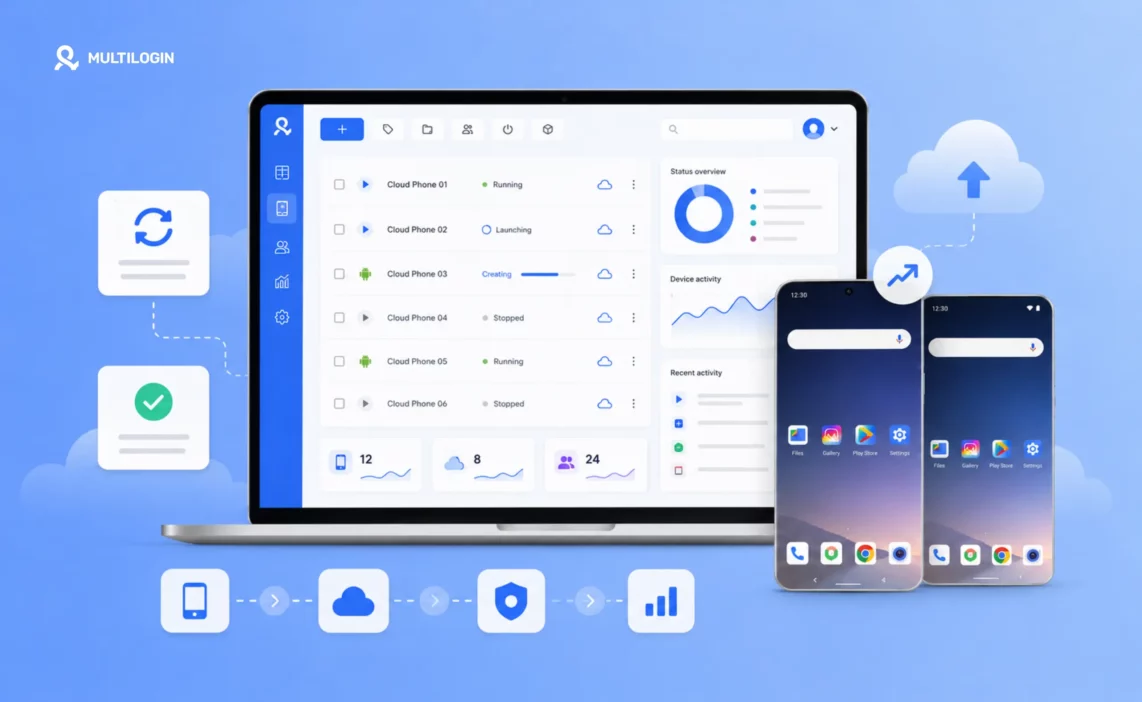



Multilogin cloud phones are Android devices hosted in the cloud. Each cloud phone runs Android 10 through 16 on ARM-based hardware and maintains its own device identity, app data, login state, and session history.
Think of one cloud phone as a dedicated mobile environment for one social profile. Social media marketers, agencies, teams, and AI-driven workflows can use these environments to run native Android apps without buying or maintaining physical phones.
You control each cloud phone from your computer through a live interactive stream. Mobile profiles for platforms such as Instagram, TikTok, and Facebook can run inside their own Android environments. Browser-based workflows for platforms such as Reddit, YouTube, and Facebook web can run in separate browser profiles from the same Multilogin dashboard.
This guide explains what Multilogin cloud phones are, how they work, how to create and configure your first cloud phone, and how to use the tools available in the interface.
What is a Multilogin cloud phone?
A Multilogin cloud phone is a cloud-hosted Android environment that runs remotely on ARM-based hardware. You do not need to hold or connect a physical phone. Open the cloud phone inside Multilogin and control its Android screen from your desktop through a live stream.
Each cloud phone can serve as the dedicated mobile environment for one social profile. It keeps that profile’s apps, login state, account history, device information, and connection settings separate from your other profiles.
With Multilogin cloud phones, you get:
- ARM-based Android environments accessible from your desktop
- Dedicated cloud phones for different social profiles, clients, regions, or campaigns
- Separate device identities and system properties for each phone
- Persistent app data, login state, and session history
- Dynamic sensor, battery, carrier, and network information
- No physical devices to buy, charge, update, or maintain
- Built-in residential proxy traffic with access to 30M+ IPs across 150+ countries
- One dashboard for cloud phones and browser profiles
- Support for workflows operated by people, teams, automation tools, or AI agents
How Multilogin cloud phones work
Multilogin gives every mobile social profile its own persistent Android environment. Instead of repeatedly switching accounts on the same physical phone, you can open separate cloud phones from one dashboard and return to the same apps, login state, device identity, and connection settings each time.
The environment combines Android device settings, app data, system identifiers, proxy configuration, sensor information, and session history. These elements work together to create a consistent setup for long-term mobile workflows.
Android environments, not desktop emulators
Multilogin cloud phones run Android remotely in the cloud. When you start one, a live Android screen opens on your computer, allowing you to install apps, upload content, log in to social profiles, and continue saved sessions.
The apps run inside a dedicated Android environment rather than inside a desktop browser configured to appear mobile. This matters for mobile-first platforms because native apps can evaluate a wider range of signals, including device identifiers, app data, sensor information, network settings, session history, and user behavior.
A cloud phone does not replace responsible account management. Content similarity, posting frequency, activity patterns, account history, and compliance with each platform’s rules still matter. The cloud phone provides the dedicated mobile environment. It does not guarantee a particular account outcome.
ARM-based hardware that matches real device standards
Each cloud phone uses an ARM-based Android environment with hardware specifications mapped to real Android device configurations. The selected Android version, model, and hardware properties are combined according to compatible device data.
These settings include:
- Device brand and model, including Samsung, Google, Xiaomi, OPPO, and others
- CPU and GPU properties associated with the selected device
- RAM values consistent with the device model
- Android system versions from Android 10 through 16
Multilogin maps the brand, model, Android version, and system properties together. This creates a consistent device configuration instead of combining unrelated hardware values.
How fingerprints and device identifiers work
Every cloud phone receives its own persistent device identity. Two phones may use the same brand and model, but their individual identifiers remain separate, just as two physical phones of the same model have different device information.
Multilogin generates device data according to the selected brand, model, and Android version, including:
- Android ID
- IMEI
- GAID, or Google Advertising ID
- Build properties
- Device brand and model
- Android system properties
These values remain consistent during the lifetime of the cloud phone. This helps the social profile return to the same Android environment, app data, login state, and device configuration across sessions.
Deleting or resetting the cloud phone creates a new environment with newly generated identifiers.
What you cannot manually change: IMEI, serial number, Android ID, Build ID, bootloader status, and related system identifiers are generated automatically. They cannot be edited manually.
Sensors, battery, and network data
A native Android environment includes more than a device model and Android version. Multilogin cloud phones also provide changing sensor, battery, carrier, and network information that supports a more complete mobile environment.
These signals include:
- Sensors: Accelerometer, gyroscope, and magnetometer values change dynamically rather than remaining fixed.
- Battery: The displayed battery level changes according to usage time and can represent normal charging or discharging states.
- Carrier and location: Carrier information, phone details, GPS location, and network settings can be configured around the selected proxy region.
- Persistent network setup: Each social profile can return to the same proxy and regional configuration across sessions.
For a consistent regional profile, match the proxy location, device location, timezone, carrier information, content region, and account activity as closely as your workflow allows.
No single device or network setting determines how an account is evaluated. Platforms may also consider content, engagement patterns, account history, posting frequency, and compliance with their policies.
What cloud phones can’t do
Cloud phones provide dedicated Android environments, but they do not reproduce every function available on a physical smartphone. Review these limitations before planning a workflow that depends on calls, verification messages, local network access, or system-level changes.
- SMS codes and phone calls: Cloud phones cannot directly send or receive SMS verification codes or make or receive calls. When verification is required, use a real or virtual number from an external provider. Read How to complete SMS verification using Multilogin cloud phones.
- eSIM: Cloud phones do not support eSIM.
- Manual device identifier editing: IMEI, Android ID, serial number, Build ID, and related identifiers are generated automatically and cannot be changed manually.
- Local proxies: Cloud phones run on remote servers, so they cannot connect to local addresses such as
127.0.0.1or192.168.x.x. Use a publicly accessible proxy. - Root access: Root access is disabled by default. Contact Multilogin support to check whether it is available for your specific use case.
Why use cloud phones instead of a physical phone farm?
Managing several Instagram, TikTok, or Facebook profiles with physical phones creates operational work. You need to buy devices, keep them charged, install updates, organize SIM cards, manage network connections, and replace damaged hardware.
The workload grows with every new profile. A small setup can quickly turn into shelves of devices, cables, chargers, and manual handovers between team members.
Multilogin cloud phones move these Android environments into one dashboard. Each social profile can have its own device identity, app data, session history, and proxy connection without requiring a physical device on your desk.
This gives social media marketers and agencies several practical advantages:
- Add new mobile profiles without buying more phones
- Access Android environments remotely
- Organize profiles by client, platform, region, or campaign
- Share access with team members
- Keep app data and login sessions available between uses
- Connect automation tools or AI agents to repetitive workflows
- Manage cloud phones and browser profiles from the same workspace
Cloud phones still require a stable internet connection, and new users may need a little time to learn the interface. They remove the physical hardware burden, not the need for thoughtful profile management.
See the full comparison between a cloud phone vs physical phone farm.
How to create a Multilogin cloud phone
Creating a cloud phone is fast. Most settings come pre-filled — you name the phone, check the proxy, and click Create.
- Go to the Profiles tab in the top menu
- Select Mobile from the left-side selector
- Click Create, or use the dropdown next to it to create phones in bulk
Profile name
Only you and your team can see profile names — apps and websites cannot. Name profiles in a way that makes them easy to find and manage. A few tips:
- Be specific: include the platform or purpose (e.g. “IG_Client_A” or “TikTok_Brand_UK”)
- Keep it short: 2–4 words max
- Use a naming convention if working in a team — so everyone can find what they need fast
Number of profiles
You can create one or multiple cloud phones in a single setup. When creating multiple at once, Multilogin generates clones of the same configuration — same device settings, proxy setup, network type, tags, and notes.
- You can create up to 100 phones in one batch
- Your plan limit applies — if your plan allows 10 profiles, you can only have 10 active at once
- After creation, you can edit each phone individually
Use case
Choose an app for the phone to make it easier to recognise in your profile list. With a large app library, you can quickly match each phone to its intended purpose at a glance.
Tags
Add up to 10 colour-coded tags per phone to group, filter, and find profiles fast. Tags are workspace-wide — a tag created in the mobile section also appears for browser profiles. Use them for clients, platforms, warm-up stages, or anything that fits your workflow.
Notes
Add short notes to individual phones or entire folders. Perfect for login details, account status, warm-up stage, client instructions, or handover context for team members. Maximum 1,500 characters per note.
Folder
Organize phones into custom folders by client, project, or status. Cloud phones and browser profiles use separate folder systems — they are not shared or synced between the two profile types.
Proxy settings for cloud phones
Every cloud phone needs a proxy to go online and keep its IP, location, and network signals consistent. Cloud phones cannot function without a proxy. There are three ways to assign one:
Multilogin built-in proxy
Every paid Multilogin plan includes built-in residential proxy traffic — access to 30M+ premium residential and mobile IPs across 150+ countries. This is the fastest setup: select Multilogin proxy, choose a location, and you’re done. See the full Multilogin proxy guide for details on included traffic and options.
Custom proxy
Connect any HTTP, HTTPS, or SOCKS5 proxy from your preferred provider. Password authentication and IP authentication are both supported. You’ll need the proxy type, IP, port, and login credentials if required. See how to use custom proxies in Multilogin.
Proxy template
Save your proxy settings as a reusable template and apply them to multiple profiles or phones in seconds. Useful for teams managing large numbers of accounts with consistent proxy configurations. See the proxy template manager guide.
Note on device info: The device information shown for a cloud phone is based on the proxy IP at the time of profile creation. If you change the proxy later, the device info display stays the same — this is display-only and does not affect actual proxy masking or performance. To match device info with a new proxy location, create a new cloud phone profile with the desired proxy.
Device settings
OS version
Choose the Android version your phone runs on (Android 10–16).
- Android 14–16: best for modern apps and ad accounts
- Older versions: only if a specific app requires it
Device brand and model
Choose the manufacturer and exact model for your cloud phone. The default is Random — Multilogin selects a popular, real-world brand and matching model automatically. You can also choose manually.
Available brands include Samsung, Google, Xiaomi, OPPO, Redmi, OnePlus, vivo, HONOR, Motorola, realme, Infinix, and TECNO. Models are drawn from real devices and sorted from strongest to weakest for each brand — pick a model closer to the top of the list for heavier tasks.
Extra settings
Network type
The network type defines how your cloud phone appears to connect to the internet.
| Wi-Fi | Cellular (Android 12+) | |
|---|---|---|
| When to use | When using residential, ISP, or static proxies | When using mobile or rotating proxies |
| How the phone behaves | Phone appears connected to Wi-Fi, no mobile signal shown | Phone shows SIM and mobile signal (LTE/5G), behaves like real mobile data |
| Best for | Account setup, warm-up, stable long sessions, app testing | Social media apps, mobile ads, apps that expect carrier signals |
Phone number
Cloud phones cannot send or receive SMS codes or calls. Choose what works for your setup:
- Auto-generated number: use this if you’re managing existing accounts or don’t need verification
- Custom number: enter a real or virtual number from a provider — you’ll receive verification codes on your actual device or in your provider dashboard. Apps can read this number as part of the phone environment.
Location
Set where the device appears to be from: use the proxy IP location, or choose a country manually. For example, your device can be configured as coming from Singapore while the proxy IP is in London. This gives you flexibility when setting up profiles for specific regions.
How to use cloud phone features
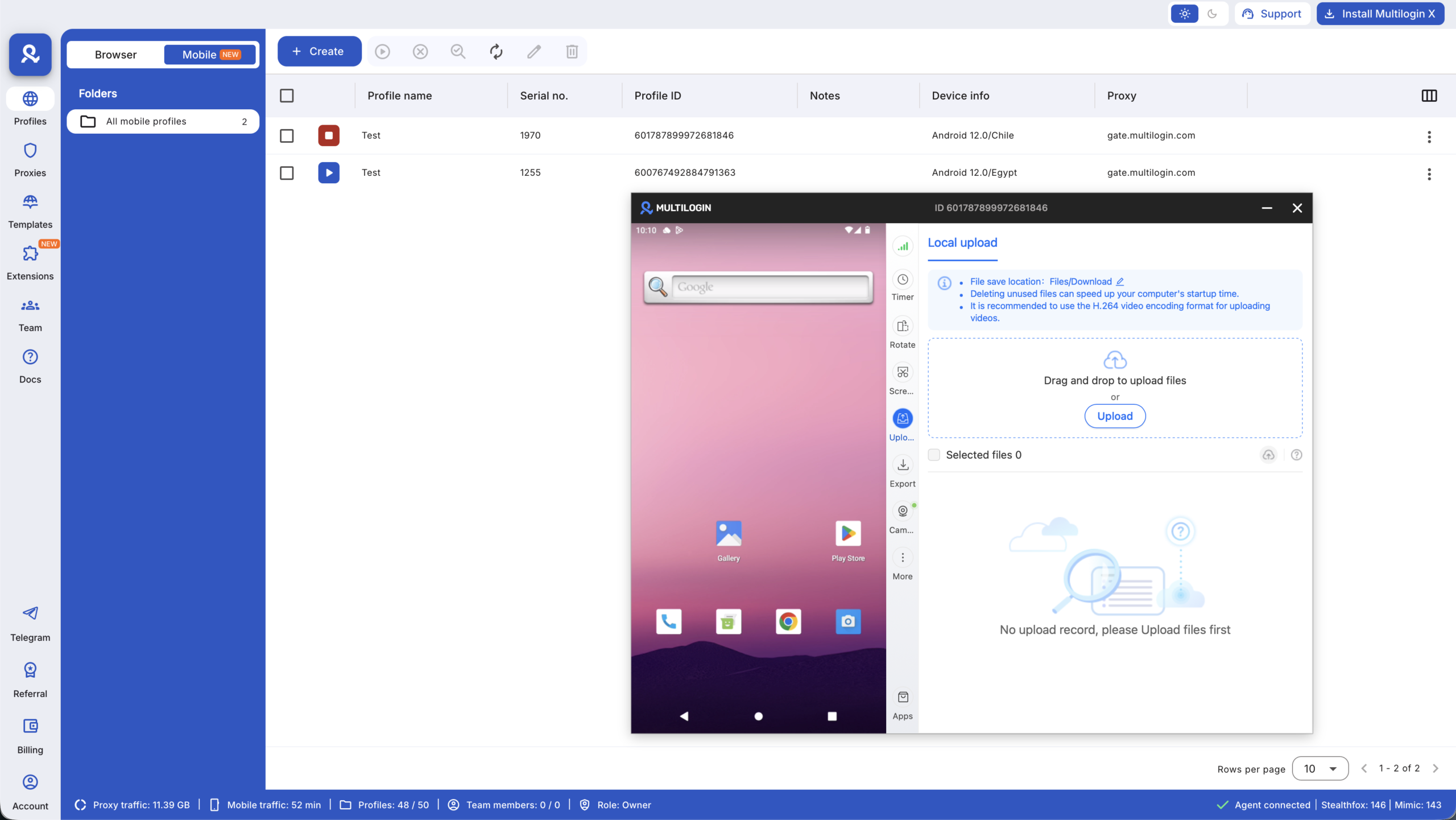
When you start a cloud phone in Multilogin, a live phone screen opens and a tool menu appears on the right side. Here is what each tool does:
- Connection: check your proxy connection status in real time
- Timer: tracks how long the cloud phone has been active — useful for monitoring usage, since cloud phones are billed per minute
- Rotate: switches the screen between portrait and landscape — helpful for apps or games that work better sideways
- Screenshot: captures the current screen and saves it to the phone’s memory. Find it in Files → Images → Pictures or Files → Downloads
- Upload: transfers files from your computer to the cloud phone — for uploading creative assets, content, or media files
- Export: downloads files (not folders) from the cloud phone back to your computer
- Camera: functions like a real phone camera — use it for scanning QR codes or verification tasks. You can also stream your PC camera to the cloud phone, or upload a pre-recorded .mp4 file as a camera stream
- Apps: install, update, and uninstall apps. See how to install apps on cloud phones
- Mirror (in More): shows a QR code and link so you can continue using the cloud phone from your mobile browser
To open the phone’s app menu, scroll up on the phone screen: click the screen, drag upward, then release.



